> ## Documentation Index
> Fetch the complete documentation index at: https://help.coachiq.io/llms.txt
> Use this file to discover all available pages before exploring further.
# Channels - Communication Hub for Athletes
> Master athlete communication with Channels. Learn how to send announcements, manage direct messages, and understand what athletes see in their portal.
**Where to find this**: Dashboard → Inbox (for sending messages) | Athletes access through their portal's Channels section
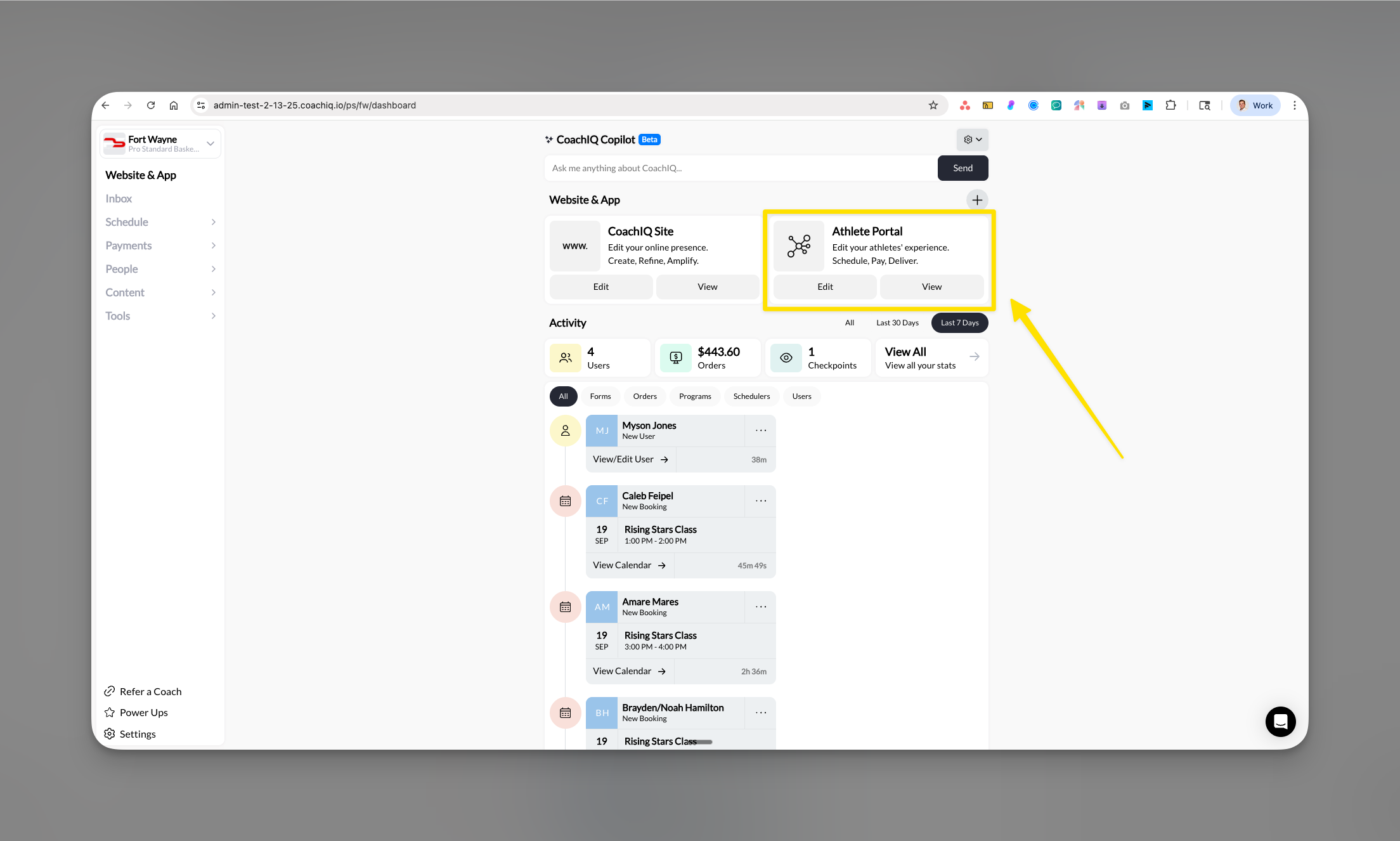 ## What you'll accomplish
Learn how to use Channels to communicate effectively with your athletes through announcements and direct messages, while understanding exactly what athletes see and experience on their end.
## Understanding Channels
Channels is the dedicated communication hub that connects you with your athletes. It's automatically active for all CoachIQ users and provides a seamless two-way communication system.
**Key components:**
* **Announcements**: Broadcast messages to all or selected athletes (one-way)
* **Direct Messages**: Private two-way conversations with individual athletes
* **Rich Media Support**: Athletes can send photos and videos
* **Instant Notifications**: Automatic push notifications to athlete devices
Channels is always active by default - no setup required! Athletes access it through their portal while you manage all messages through your Inbox.
## The athlete's view of Channels
Understanding what athletes see helps you communicate more effectively. Here's their experience:
## What you'll accomplish
Learn how to use Channels to communicate effectively with your athletes through announcements and direct messages, while understanding exactly what athletes see and experience on their end.
## Understanding Channels
Channels is the dedicated communication hub that connects you with your athletes. It's automatically active for all CoachIQ users and provides a seamless two-way communication system.
**Key components:**
* **Announcements**: Broadcast messages to all or selected athletes (one-way)
* **Direct Messages**: Private two-way conversations with individual athletes
* **Rich Media Support**: Athletes can send photos and videos
* **Instant Notifications**: Automatic push notifications to athlete devices
Channels is always active by default - no setup required! Athletes access it through their portal while you manage all messages through your Inbox.
## The athlete's view of Channels
Understanding what athletes see helps you communicate more effectively. Here's their experience:
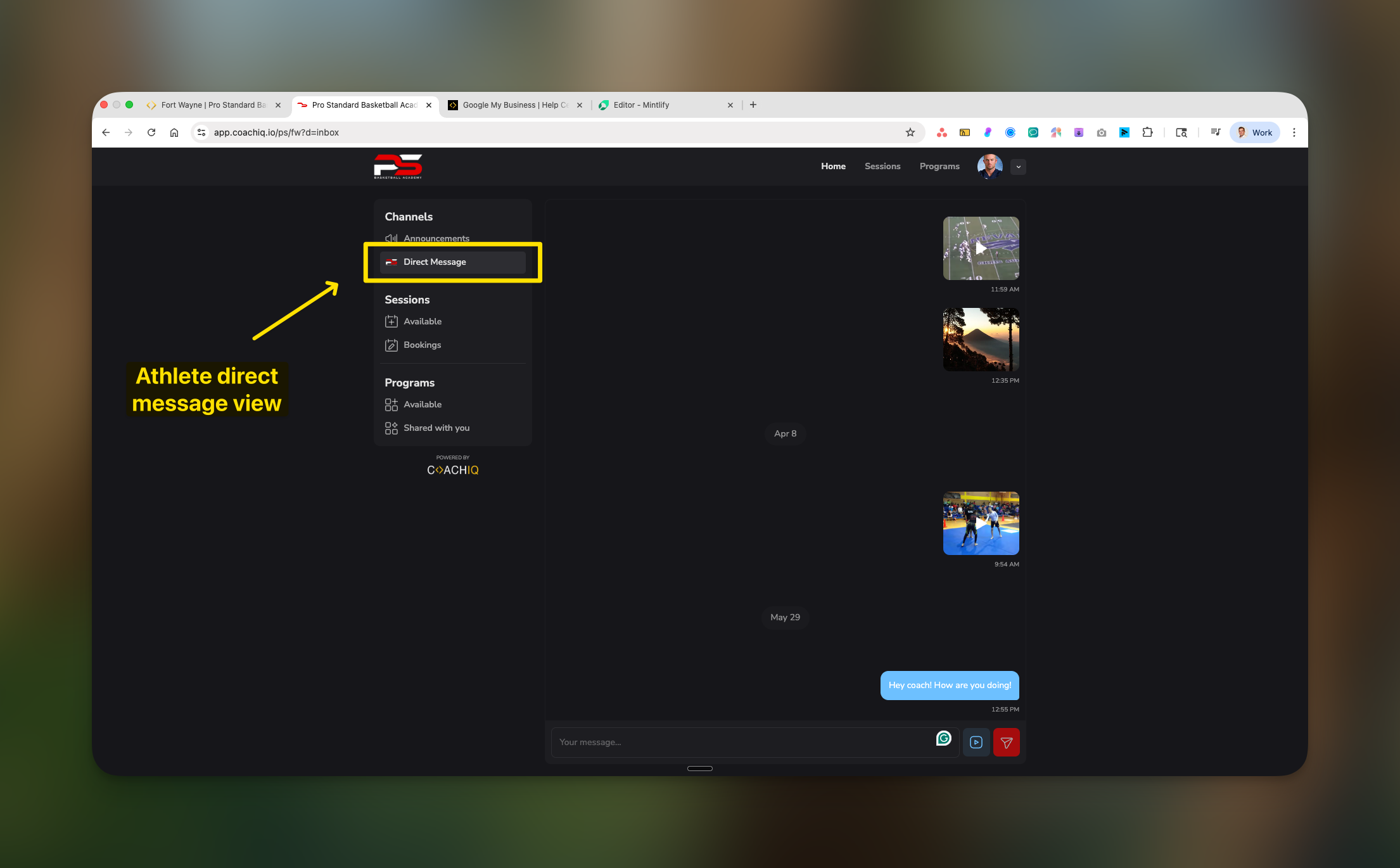 Athletes see:
* **Announcements tab**: All broadcast messages from coaches
* **Direct Messages tab**: Private conversations with their coach
* **Media sharing buttons**: Camera and attachment options for sending photos/videos
* **Clean message threads**: Organized conversation history
## Managing announcements (broadcast messages)
### How announcements work
Announcements are one-way broadcast messages perfect for team updates, schedule changes, and important notifications. Athletes can react with emojis but cannot reply with text.
Athletes see:
* **Announcements tab**: All broadcast messages from coaches
* **Direct Messages tab**: Private conversations with their coach
* **Media sharing buttons**: Camera and attachment options for sending photos/videos
* **Clean message threads**: Organized conversation history
## Managing announcements (broadcast messages)
### How announcements work
Announcements are one-way broadcast messages perfect for team updates, schedule changes, and important notifications. Athletes can react with emojis but cannot reply with text.
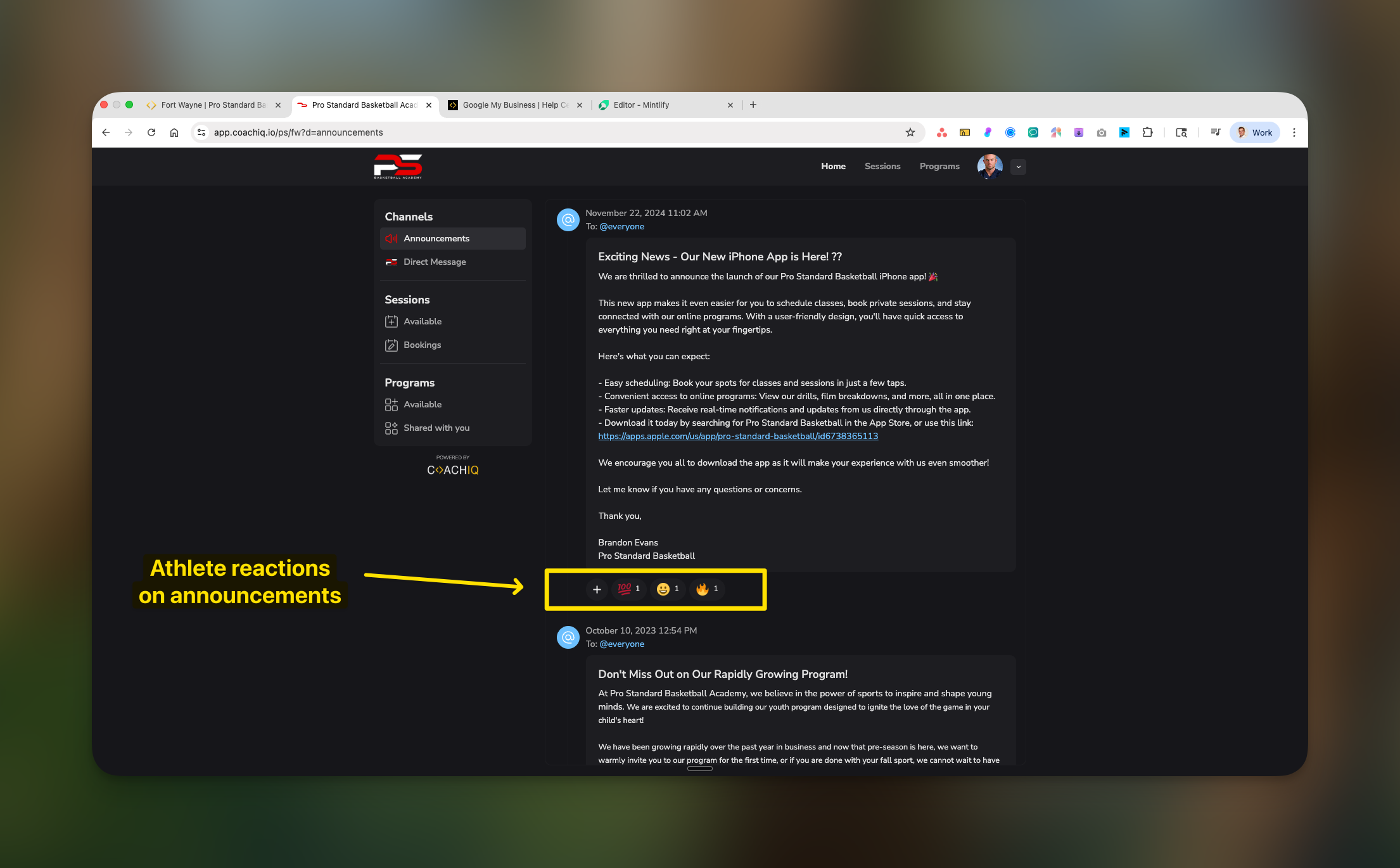 **Key features:**
* Athletes see sender name and timestamp
* Message remains visible until you delete it
* Emoji reactions show engagement (❤️, 😊, 👍, 🔥)
* No text replies means no inbox clutter
### Sending announcements from your Inbox
All announcements are created and managed through your main Inbox:
**Key features:**
* Athletes see sender name and timestamp
* Message remains visible until you delete it
* Emoji reactions show engagement (❤️, 😊, 👍, 🔥)
* No text replies means no inbox clutter
### Sending announcements from your Inbox
All announcements are created and managed through your main Inbox:
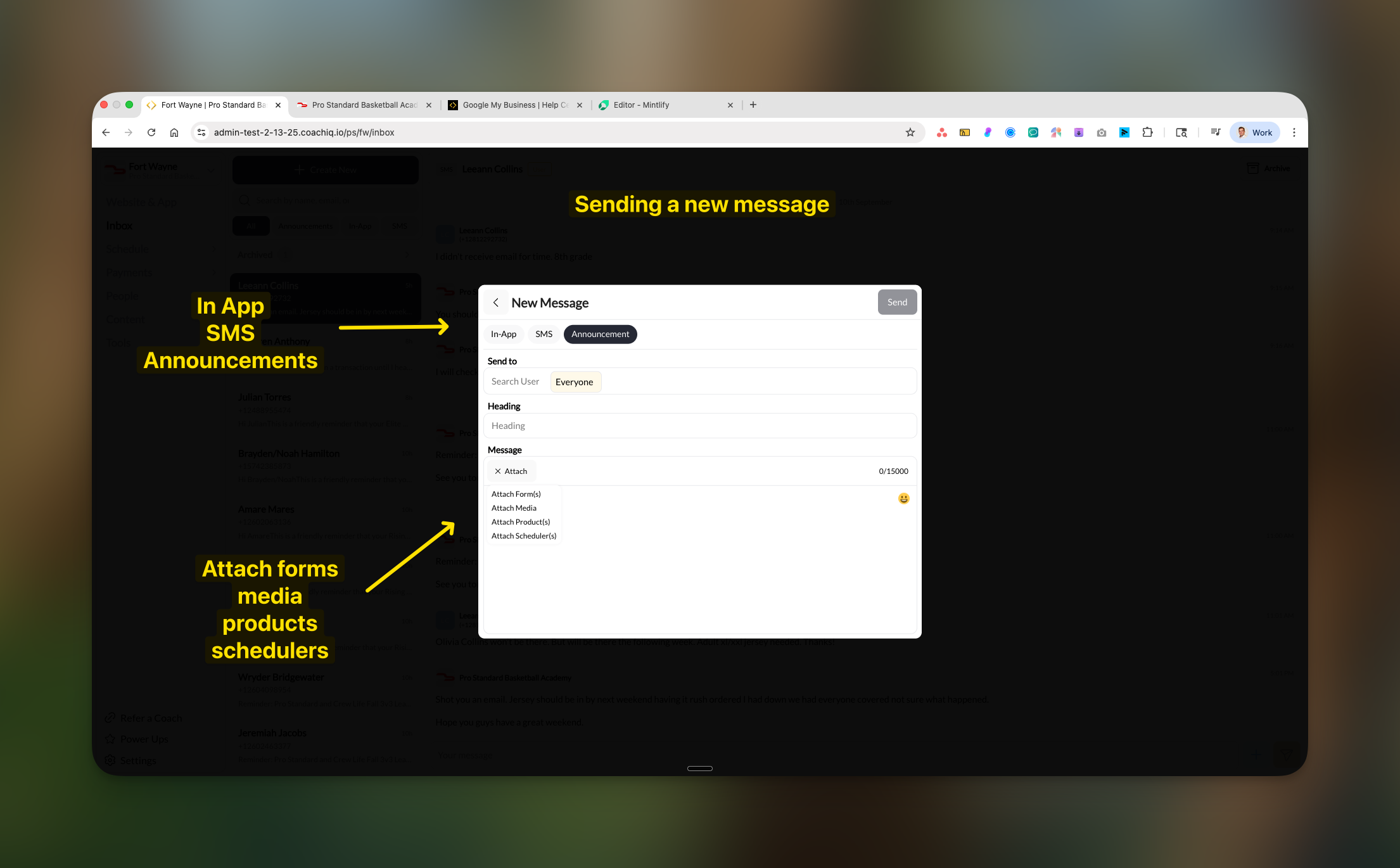 Navigate to **Inbox** from your dashboard's main navigation.
Click **Create New** to open the message composer.
Choose **Announcement** from the message type options (In-App, SMS, Announcement).
Select **Everyone** or use tags to target specific groups of athletes.
Write your announcement and optionally attach:
* **Forms**: Waivers, surveys, registration forms
* **Media**: Images, videos, documents
* **Products**: Membership links, packages
* **Schedulers**: Booking links for sessions
Click **Send** - athletes receive push notifications instantly on their devices.
### What athletes see in announcements
Navigate to **Inbox** from your dashboard's main navigation.
Click **Create New** to open the message composer.
Choose **Announcement** from the message type options (In-App, SMS, Announcement).
Select **Everyone** or use tags to target specific groups of athletes.
Write your announcement and optionally attach:
* **Forms**: Waivers, surveys, registration forms
* **Media**: Images, videos, documents
* **Products**: Membership links, packages
* **Schedulers**: Booking links for sessions
Click **Send** - athletes receive push notifications instantly on their devices.
### What athletes see in announcements
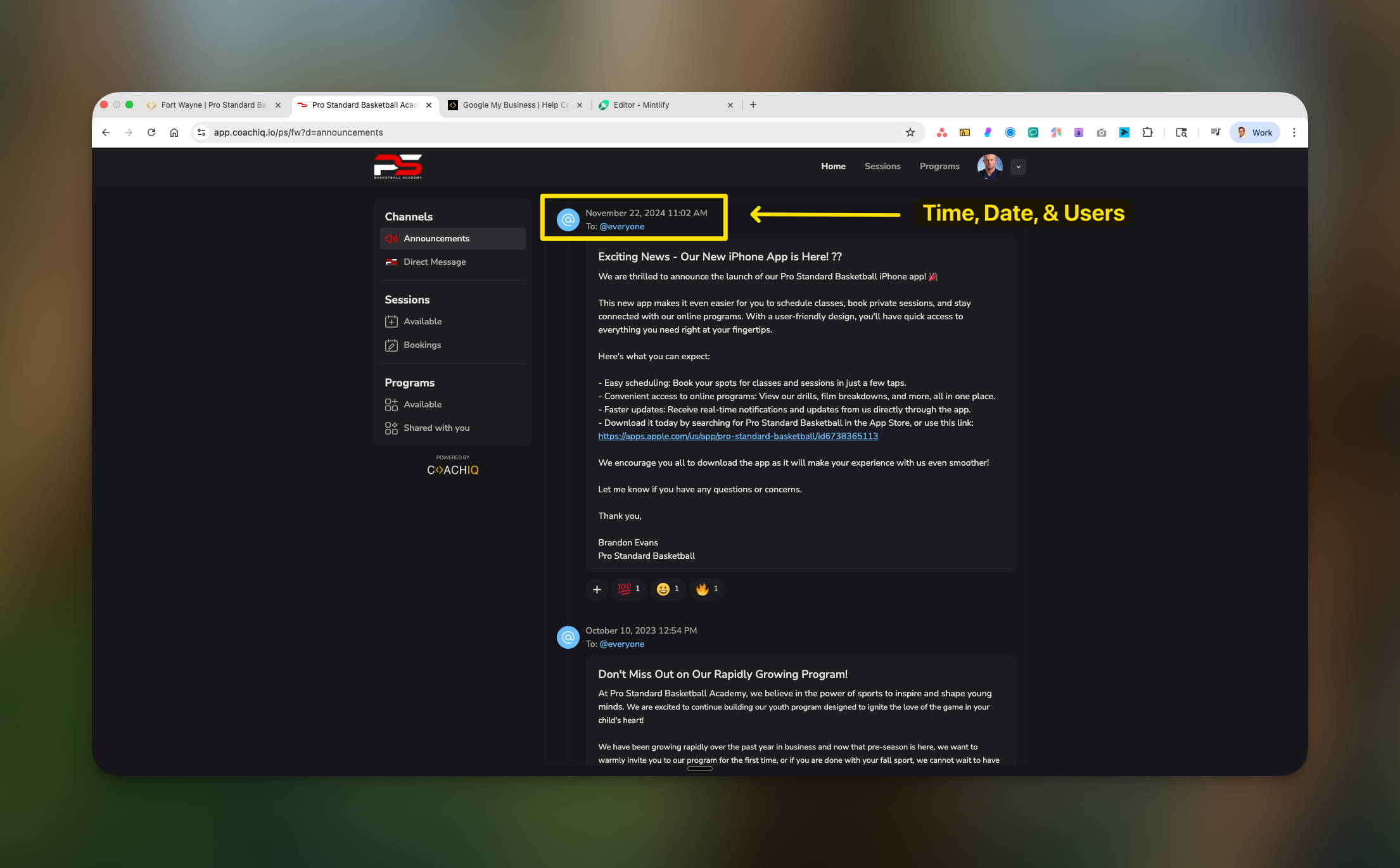 The announcement displays:
* **Timestamp**: When the message was sent
* **Sender indicator**: Shows "To: @everyone" or specific group
* **Full message content**: Including any links or attachments
* **Reaction bar**: Quick emoji reactions at the bottom
## Direct Messages - Two-way conversations
### How Direct Messages work
Direct Messages enable private, real-time conversations between you and individual athletes. This is where personalized coaching and feedback happens.
### Managing conversations in your Inbox
All athlete messages appear in your main Inbox for centralized management:
The announcement displays:
* **Timestamp**: When the message was sent
* **Sender indicator**: Shows "To: @everyone" or specific group
* **Full message content**: Including any links or attachments
* **Reaction bar**: Quick emoji reactions at the bottom
## Direct Messages - Two-way conversations
### How Direct Messages work
Direct Messages enable private, real-time conversations between you and individual athletes. This is where personalized coaching and feedback happens.
### Managing conversations in your Inbox
All athlete messages appear in your main Inbox for centralized management:
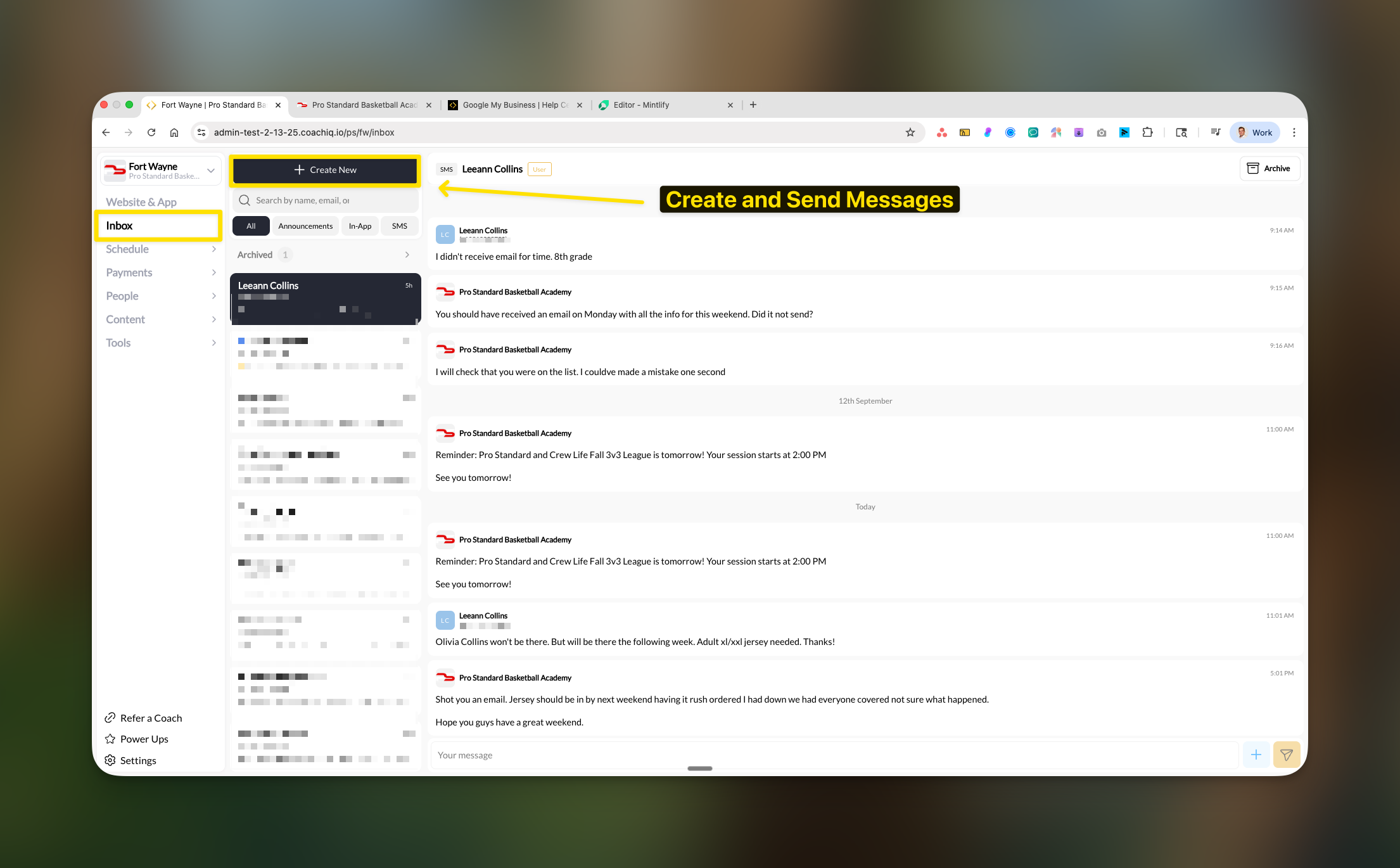 **What you see in your Inbox:**
* Athlete name (e.g., "Leeann Collins")
* Message preview and full conversation thread
* Timestamps for each message
* Quick reply box at the bottom
* Archived conversations section
Messages from athletes appear instantly in your Inbox. Athletes receive push notifications when you reply, creating real-time conversation flow.
### What athletes can do in Direct Messages
Athletes have robust messaging capabilities:
* **Start conversations**: Click message button to contact you
* **Send text messages**: Type and send instantly
* **Share media**: Upload photos and videos directly
* **View history**: See complete conversation thread
* **Receive notifications**: Get alerts for your replies
Athletes can send training videos or progress photos through Direct Messages, making it perfect for technique feedback and progress tracking.
## Understanding message privacy
**Important**: When you send a message to multiple athletes, each receives it as an individual, private message. Athletes cannot see other recipients or their replies.
### How mass messages work:
1. You select multiple recipients (tags or individuals)
2. System creates individual message threads
3. Each athlete sees only their personal copy
4. Replies come back as separate conversations
5. Complete privacy maintained between athletes
This design ensures:
* **Student privacy**: No athlete sees another's information
* **Personalized feel**: Each message appears individual
* **Clean organization**: Separate threads for each conversation
* **Easy management**: Track individual responses
## Push notifications
**Automatic activation**: Push notifications work instantly with no setup required. Athletes receive alerts for all messages and announcements.
### Notification behavior:
* **Instant delivery**: Messages trigger immediate push notifications
* **iOS & Android**: Full support on mobile apps
* **Web notifications**: Available if athlete enables browser notifications
* **Smart alerts**: Different sounds/badges for announcements vs direct messages
* **Offline delivery**: Notifications queue when athletes are offline
## Attachment capabilities
### What you can attach to messages:
**Available attachments:**
* **Forms**: Registration, waivers, surveys, feedback forms
* **Media**: Training videos, technique photos, documents
* **Products**: Membership packages, training programs, merchandise
* **Schedulers**: Direct booking links for sessions
### What athletes can send you:
* Photos (JPG, PNG) - perfect for form checks
* Videos (MP4, MOV) - ideal for technique review
* Text messages with questions or updates
## Best practices for effective communication
### Announcement strategies:
* **Timing matters**: Send during peak app usage (7-9 AM or 6-8 PM)
* **Keep it scannable**: Use bullet points and short paragraphs
* **Clear subject**: Start with the main point (e.g., "CANCELLED: Tonight's Session")
* **Use reactions strategically**: "React with 👍 if you're coming"
* **Include actionable attachments**: Add booking links or forms when relevant
### Direct Message tips:
* **Response time**: Reply within 24 hours to maintain trust
* **Professional tone**: Keep conversations appropriate and documented
* **Encourage media**: Ask for form videos or progress photos
* **Personal touch**: Use athlete names and reference their goals
* **Set boundaries**: Establish response hours in your bio
## Common questions
Channels is always active by default for all CoachIQ users. There's no toggle needed - it's automatically available to all athletes through their portal and to coaches through the Inbox.
No, and this is intentional. Athletes can only message coaches to ensure:
* Proper supervision and safety
* Privacy protection between athletes
* Prevention of bullying or inappropriate contact
* Maintained professional boundaries
While there are no read receipts, you can gauge engagement through:
* Emoji reactions on announcements
* Reply messages in direct conversations
* Athletes mentioning they saw your message
* **In-App**: Sends only to the athlete's portal (free, unlimited)
* **SMS**: Sends text message to athlete's phone (uses SMS credits)
* **Both**: You can select both for important messages
Currently, messages send immediately. For scheduled communications, consider using Automations to trigger messages based on events or dates.
All messages are permanently stored in both your Inbox and the athlete's Channels for complete communication history and accountability.
You cannot disable messaging for individual athletes, but you can:
* Document the messages (they're saved automatically)
* Address directly with the athlete and/or parent
* Remove the athlete from your program if necessary
* Report serious issues to appropriate authorities
## Pro tips
**Create message templates**: Save common announcements as drafts in your notes, then copy/paste and customize as needed.
**Use emoji reactions for quick polls**: "React with 🏀 for basketball, ⚽ for soccer" to gauge interest without creating forms.
**Media feedback workflow**: Ask athletes to send technique videos via Direct Message on Mondays, then provide feedback by Wednesday.
**Tag strategy**: Create tags like "Competition Team" or "Beginners" to send targeted announcements efficiently.
## Troubleshooting
### Messages not delivering:
1. Verify athlete has app installed (for push notifications)
2. Ensure you have their correct contact information
3. Test with a different message type (In-App vs SMS)
### Inbox is cluttered:
1. Archive old conversations regularly
2. Use tags to filter active athletes
3. Set up automations for common responses
4. Use announcements instead of individual messages when appropriate
**What you see in your Inbox:**
* Athlete name (e.g., "Leeann Collins")
* Message preview and full conversation thread
* Timestamps for each message
* Quick reply box at the bottom
* Archived conversations section
Messages from athletes appear instantly in your Inbox. Athletes receive push notifications when you reply, creating real-time conversation flow.
### What athletes can do in Direct Messages
Athletes have robust messaging capabilities:
* **Start conversations**: Click message button to contact you
* **Send text messages**: Type and send instantly
* **Share media**: Upload photos and videos directly
* **View history**: See complete conversation thread
* **Receive notifications**: Get alerts for your replies
Athletes can send training videos or progress photos through Direct Messages, making it perfect for technique feedback and progress tracking.
## Understanding message privacy
**Important**: When you send a message to multiple athletes, each receives it as an individual, private message. Athletes cannot see other recipients or their replies.
### How mass messages work:
1. You select multiple recipients (tags or individuals)
2. System creates individual message threads
3. Each athlete sees only their personal copy
4. Replies come back as separate conversations
5. Complete privacy maintained between athletes
This design ensures:
* **Student privacy**: No athlete sees another's information
* **Personalized feel**: Each message appears individual
* **Clean organization**: Separate threads for each conversation
* **Easy management**: Track individual responses
## Push notifications
**Automatic activation**: Push notifications work instantly with no setup required. Athletes receive alerts for all messages and announcements.
### Notification behavior:
* **Instant delivery**: Messages trigger immediate push notifications
* **iOS & Android**: Full support on mobile apps
* **Web notifications**: Available if athlete enables browser notifications
* **Smart alerts**: Different sounds/badges for announcements vs direct messages
* **Offline delivery**: Notifications queue when athletes are offline
## Attachment capabilities
### What you can attach to messages:
**Available attachments:**
* **Forms**: Registration, waivers, surveys, feedback forms
* **Media**: Training videos, technique photos, documents
* **Products**: Membership packages, training programs, merchandise
* **Schedulers**: Direct booking links for sessions
### What athletes can send you:
* Photos (JPG, PNG) - perfect for form checks
* Videos (MP4, MOV) - ideal for technique review
* Text messages with questions or updates
## Best practices for effective communication
### Announcement strategies:
* **Timing matters**: Send during peak app usage (7-9 AM or 6-8 PM)
* **Keep it scannable**: Use bullet points and short paragraphs
* **Clear subject**: Start with the main point (e.g., "CANCELLED: Tonight's Session")
* **Use reactions strategically**: "React with 👍 if you're coming"
* **Include actionable attachments**: Add booking links or forms when relevant
### Direct Message tips:
* **Response time**: Reply within 24 hours to maintain trust
* **Professional tone**: Keep conversations appropriate and documented
* **Encourage media**: Ask for form videos or progress photos
* **Personal touch**: Use athlete names and reference their goals
* **Set boundaries**: Establish response hours in your bio
## Common questions
Channels is always active by default for all CoachIQ users. There's no toggle needed - it's automatically available to all athletes through their portal and to coaches through the Inbox.
No, and this is intentional. Athletes can only message coaches to ensure:
* Proper supervision and safety
* Privacy protection between athletes
* Prevention of bullying or inappropriate contact
* Maintained professional boundaries
While there are no read receipts, you can gauge engagement through:
* Emoji reactions on announcements
* Reply messages in direct conversations
* Athletes mentioning they saw your message
* **In-App**: Sends only to the athlete's portal (free, unlimited)
* **SMS**: Sends text message to athlete's phone (uses SMS credits)
* **Both**: You can select both for important messages
Currently, messages send immediately. For scheduled communications, consider using Automations to trigger messages based on events or dates.
All messages are permanently stored in both your Inbox and the athlete's Channels for complete communication history and accountability.
You cannot disable messaging for individual athletes, but you can:
* Document the messages (they're saved automatically)
* Address directly with the athlete and/or parent
* Remove the athlete from your program if necessary
* Report serious issues to appropriate authorities
## Pro tips
**Create message templates**: Save common announcements as drafts in your notes, then copy/paste and customize as needed.
**Use emoji reactions for quick polls**: "React with 🏀 for basketball, ⚽ for soccer" to gauge interest without creating forms.
**Media feedback workflow**: Ask athletes to send technique videos via Direct Message on Mondays, then provide feedback by Wednesday.
**Tag strategy**: Create tags like "Competition Team" or "Beginners" to send targeted announcements efficiently.
## Troubleshooting
### Messages not delivering:
1. Verify athlete has app installed (for push notifications)
2. Ensure you have their correct contact information
3. Test with a different message type (In-App vs SMS)
### Inbox is cluttered:
1. Archive old conversations regularly
2. Use tags to filter active athletes
3. Set up automations for common responses
4. Use announcements instead of individual messages when appropriate