> ## Documentation Index
> Fetch the complete documentation index at: https://help.coachiq.io/llms.txt
> Use this file to discover all available pages before exploring further.
# Customize Your Athlete Portal Design
> Learn how to customize your Athlete Portal's appearance with themes, brand colors, and button styling for a professional look.
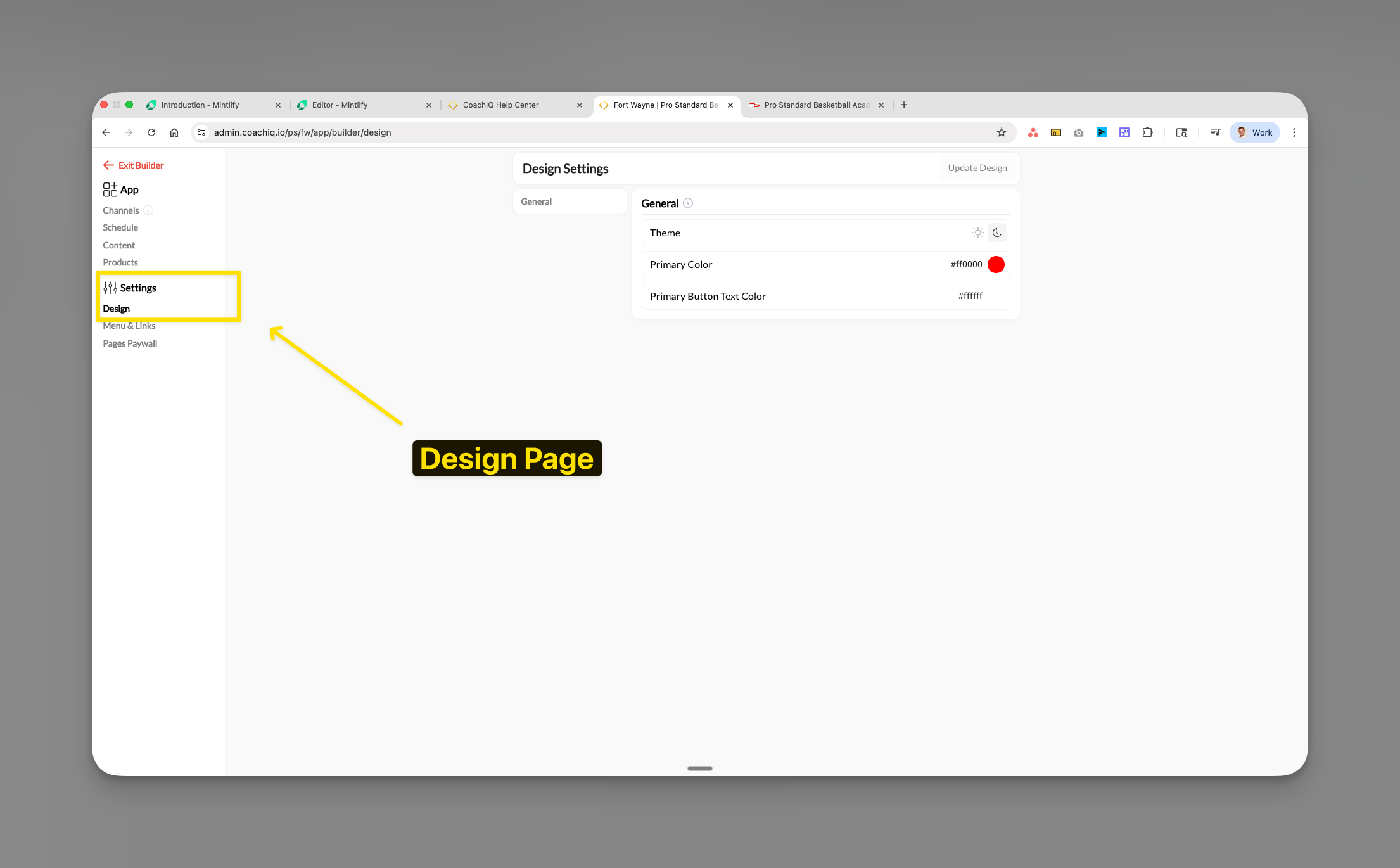
**Where to find this**: Dashboard → App Builder → Settings → Design
 ## What you'll accomplish
Customize your Athlete Portal's visual appearance to match your brand. You'll configure the theme (dark or light mode), set your primary brand color, and customize button text colors.
## Accessing design settings
From your dashboard, select **App** in the left sidebar.
Click on **Settings** in the navigation menu.
Choose **Design** to access your portal's visual customization options.
## Configuring your design
### Theme selection
In the Theme dropdown, select either:
* **Light mode** - Clean, bright interface ideal for daytime use
* **Dark mode** - Reduced eye strain, modern appearance
## What you'll accomplish
Customize your Athlete Portal's visual appearance to match your brand. You'll configure the theme (dark or light mode), set your primary brand color, and customize button text colors.
## Accessing design settings
From your dashboard, select **App** in the left sidebar.
Click on **Settings** in the navigation menu.
Choose **Design** to access your portal's visual customization options.
## Configuring your design
### Theme selection
In the Theme dropdown, select either:
* **Light mode** - Clean, bright interface ideal for daytime use
* **Dark mode** - Reduced eye strain, modern appearance
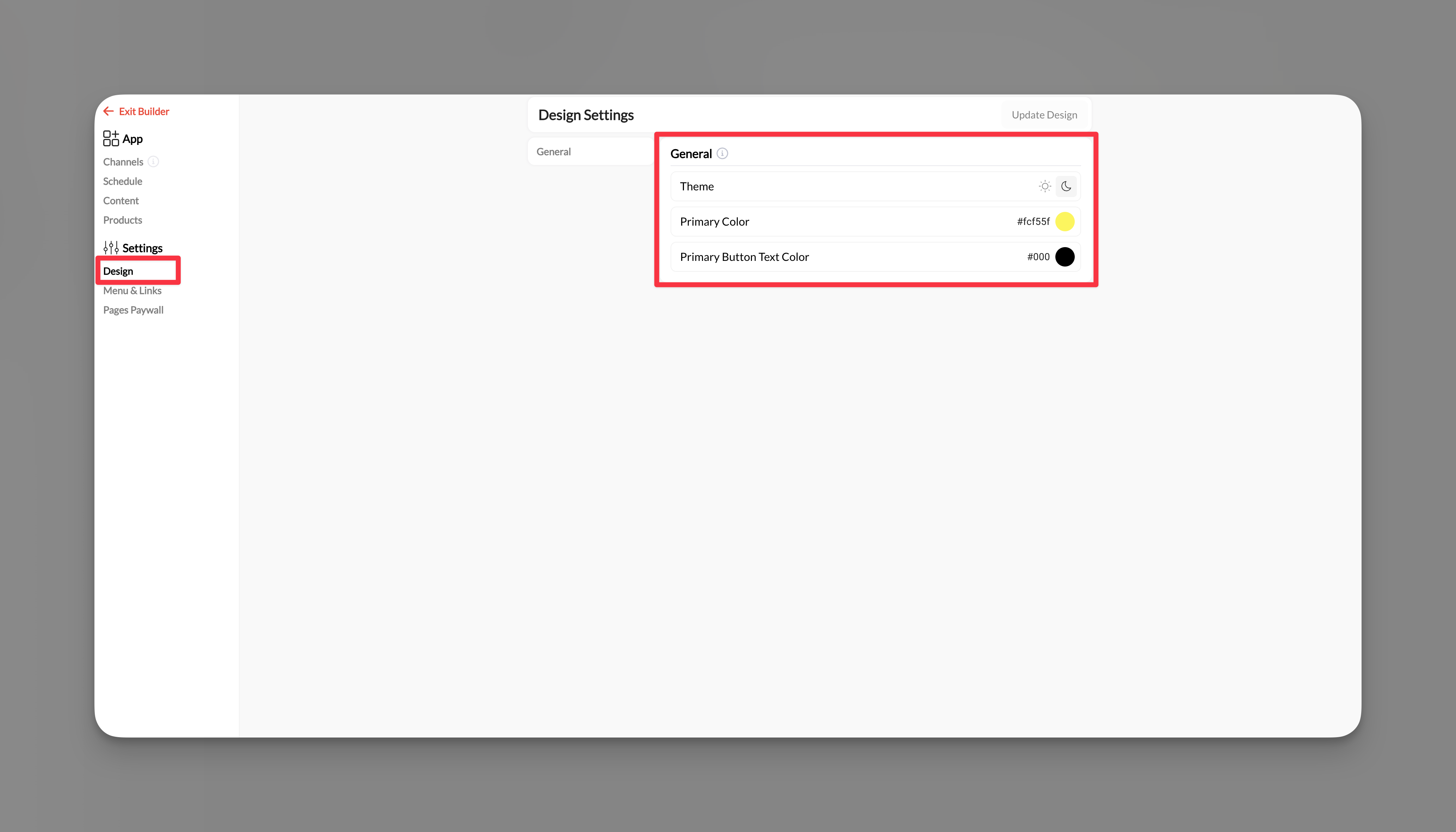 Your selection updates the preview immediately. Athletes will see this theme when they access your portal.
### Brand colors
Your selection updates the preview immediately. Athletes will see this theme when they access your portal.
### Brand colors
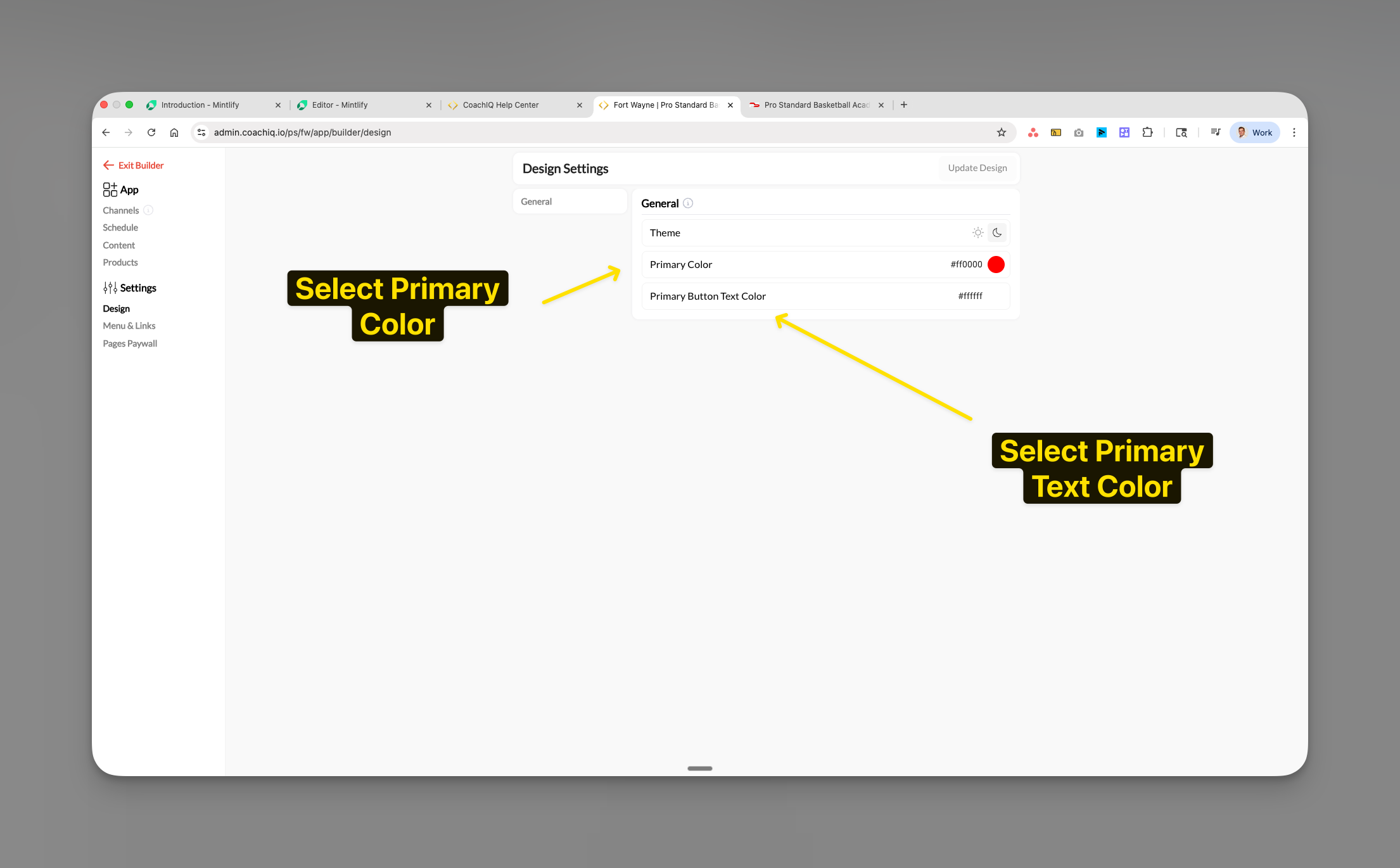 Click the **Primary Color** selector and choose your main brand color. This affects:
* Navigation highlights
* Active buttons
* Links and accents
* Selected items
Use your hex code (e.g., #ff0000) for exact brand matching.
Choose the **Primary Button Text Color** to ensure readable text on your buttons.
* Use white (#ffffff) for dark primary colors
* Use black (#000000) for light primary colors
## Saving your design
Check that your theme and colors work well together.
Click **Update Design** to save and apply your changes.
Changes apply immediately. Athletes see the new design on their next login or refresh.
## Design best practices
**Color contrast**: Ensure your primary color and button text color have sufficient contrast for readability. Test with both themes if you allow athletes to switch.
**Brand consistency**: Use the exact hex codes from your brand guidelines to maintain professional consistency across all touchpoints.
**Theme selection**: Consider your primary user base - dark mode works well for early morning/evening training apps, while light mode is ideal for daytime facilities.
## Common questions
No, the theme you select applies to all athletes. This ensures brand consistency across your portal.
You can:
* Ask your designer for brand hex codes
* Use online color pickers
* Extract colors from your logo using free tools
* Common format: #ff0000 (red) or #000000 (black)
No, these settings only apply to your Athlete Portal (App Builder). Website design is configured separately in Website Builder.
The primary color applies globally throughout the portal. Individual section customization is not currently available.
## Related articles
* [Understanding the Athlete Portal](/athlete-portal/understanding-your-athlete-portal)
* [Website Overview](/website/overview)
* [Paywall Settings](/athlete-portal/paywall-settings)
Click the **Primary Color** selector and choose your main brand color. This affects:
* Navigation highlights
* Active buttons
* Links and accents
* Selected items
Use your hex code (e.g., #ff0000) for exact brand matching.
Choose the **Primary Button Text Color** to ensure readable text on your buttons.
* Use white (#ffffff) for dark primary colors
* Use black (#000000) for light primary colors
## Saving your design
Check that your theme and colors work well together.
Click **Update Design** to save and apply your changes.
Changes apply immediately. Athletes see the new design on their next login or refresh.
## Design best practices
**Color contrast**: Ensure your primary color and button text color have sufficient contrast for readability. Test with both themes if you allow athletes to switch.
**Brand consistency**: Use the exact hex codes from your brand guidelines to maintain professional consistency across all touchpoints.
**Theme selection**: Consider your primary user base - dark mode works well for early morning/evening training apps, while light mode is ideal for daytime facilities.
## Common questions
No, the theme you select applies to all athletes. This ensures brand consistency across your portal.
You can:
* Ask your designer for brand hex codes
* Use online color pickers
* Extract colors from your logo using free tools
* Common format: #ff0000 (red) or #000000 (black)
No, these settings only apply to your Athlete Portal (App Builder). Website design is configured separately in Website Builder.
The primary color applies globally throughout the portal. Individual section customization is not currently available.
## Related articles
* [Understanding the Athlete Portal](/athlete-portal/understanding-your-athlete-portal)
* [Website Overview](/website/overview)
* [Paywall Settings](/athlete-portal/paywall-settings)