> ## Documentation Index
> Fetch the complete documentation index at: https://help.coachiq.io/llms.txt
> Use this file to discover all available pages before exploring further.
# Menu & Links settings
> Control which pages appear in your athletes' navigation and configure your active portal domains.
**Menu & Links** lets you decide which sections athletes can navigate to in their portal — and whether athletes with existing bookings can still view them even if self-scheduling is turned off.
**Where to find this:** Athlete Portal Builder → **Settings** → **Menu & Links**
## Main Menu toggles
The **Main Menu** section controls which pages appear in the athlete portal navigation. Each row shows the page label, its URL path, and a toggle.
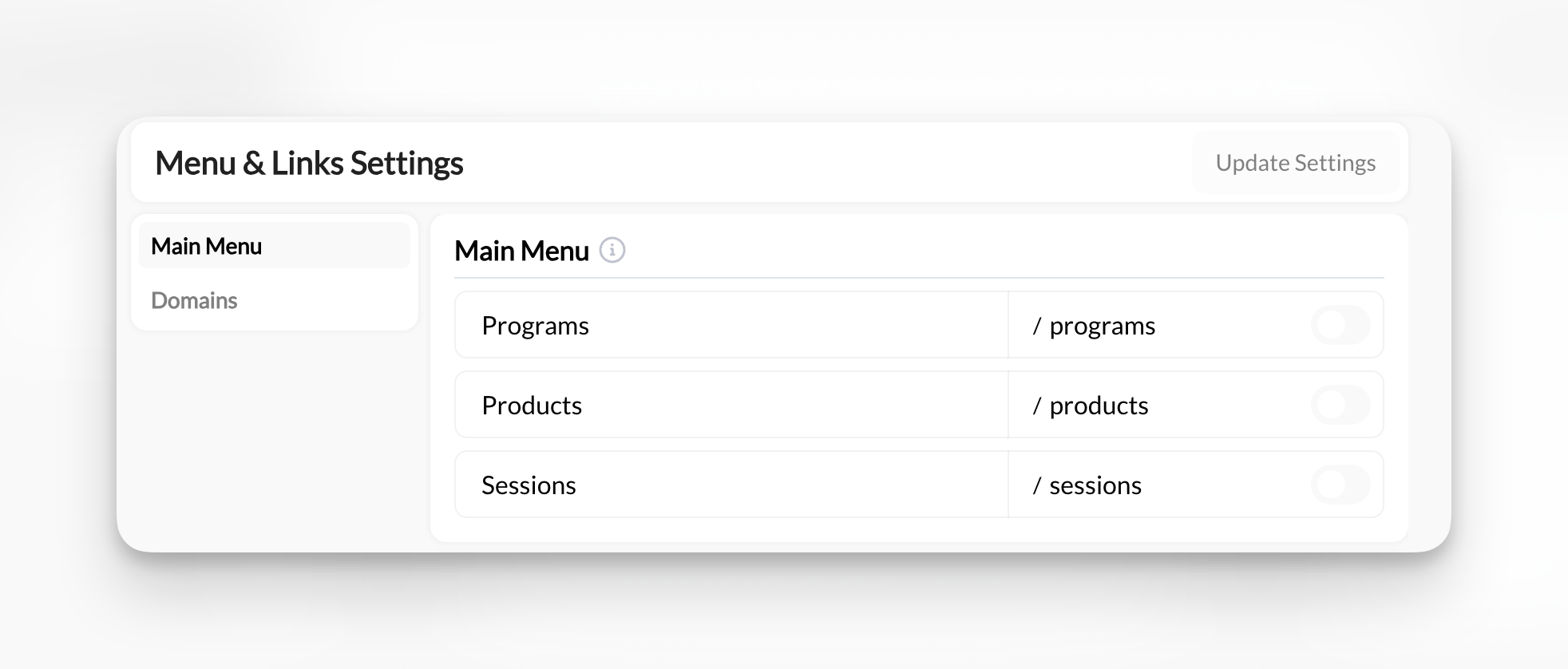 | Page | URL path | Effect when off |
| ------------ | --------- | ---------------------------------------- |
| **Programs** | /programs | Hides the programs page |
| **Products** | /products | Hides the products page |
| **Sessions** | /sessions | Removes the scheduling page from the nav |
Toggling a page off hides it for all athletes. The page's content isn't deleted — it becomes inaccessible from the nav. Toggle it back on to restore it.
Click **Update Settings** to save any changes.
Page labels like "Programs" and "Sessions" can be customized per org. Your portal may show different names, but the URL paths (/programs, /products, /sessions) stay the same.
## Still show Bookings to athletes
When **Sessions** is toggled off, a sub-option appears below it:
| Page | URL path | Effect when off |
| ------------ | --------- | ---------------------------------------- |
| **Programs** | /programs | Hides the programs page |
| **Products** | /products | Hides the products page |
| **Sessions** | /sessions | Removes the scheduling page from the nav |
Toggling a page off hides it for all athletes. The page's content isn't deleted — it becomes inaccessible from the nav. Toggle it back on to restore it.
Click **Update Settings** to save any changes.
Page labels like "Programs" and "Sessions" can be customized per org. Your portal may show different names, but the URL paths (/programs, /products, /sessions) stay the same.
## Still show Bookings to athletes
When **Sessions** is toggled off, a sub-option appears below it:
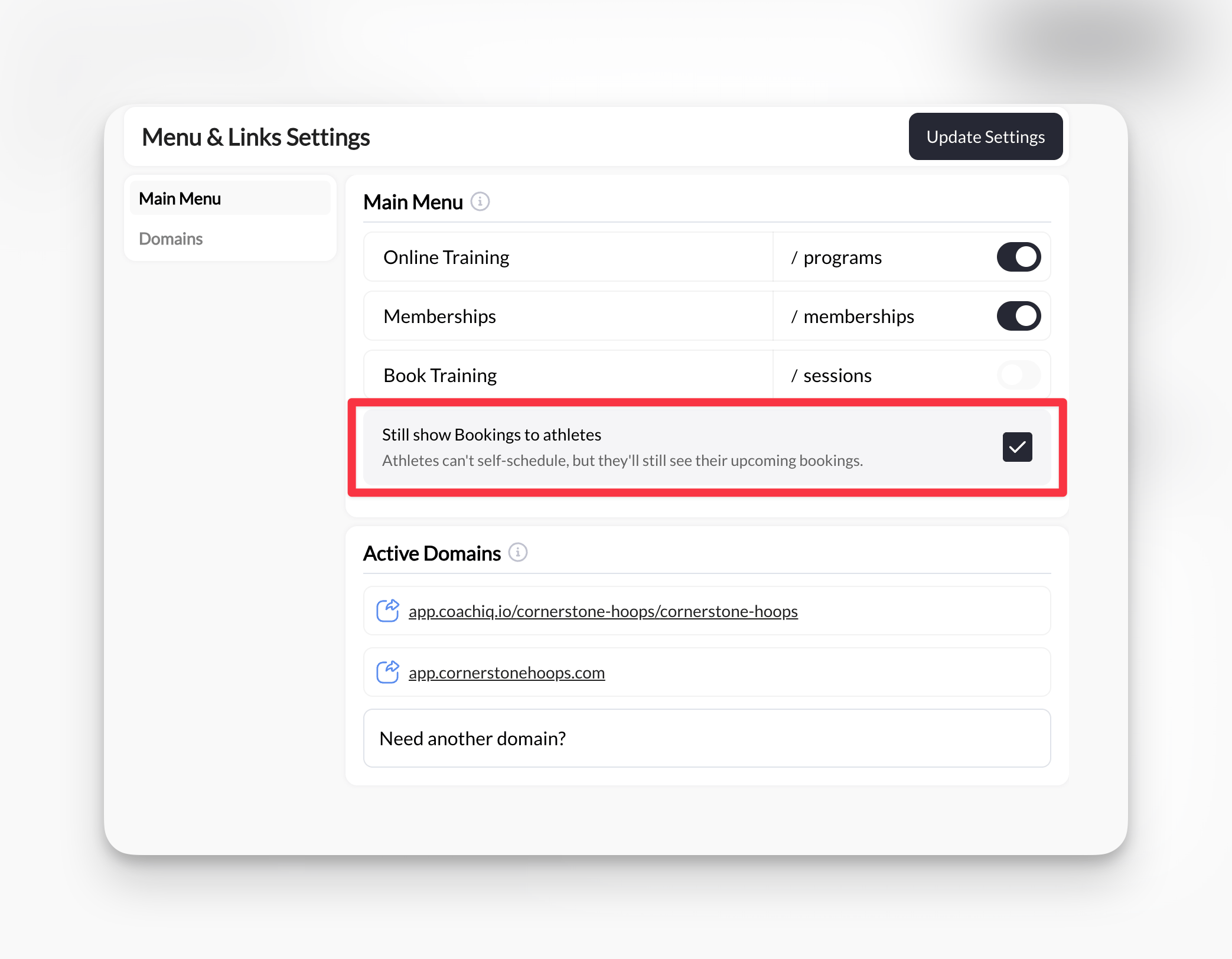 > **Still show Bookings to athletes** — Athletes can't self-schedule, but they'll still see their upcoming bookings.
When checked, athletes see a **Bookings** section in their portal sidebar where they can view upcoming, past, and canceled sessions — but cannot book new ones. This is the right choice when you manage all scheduling manually but still want athletes to have visibility into their calendar.
When unchecked, the Bookings view is hidden entirely.
This option only appears when **Sessions** is toggled off. If Sessions is on, the full scheduling page is available and this setting has no effect.
## Active Domains
The **Active Domains** section shows the URLs athletes can use to access your portal. These are read-only here — contact CoachIQ support to connect a custom domain.
## Common questions
No. Toggling off **Sessions** only removes the scheduling page from the nav. Existing bookings are unaffected. Athletes with booked sessions can still view them if **Still show Bookings to athletes** is checked.
Yes. When **Sessions** is off, uncheck **Still show Bookings to athletes** and click **Update Settings**. Athletes will no longer see the Bookings section in their portal.
This option only appears when **Sessions** is toggled off. Toggle **Sessions** off first and the option will appear below it.
## Related articles
Understand how the portal is structured and how athletes experience it
Navigate the App Builder interface and publish changes
Add schedulers to the athlete portal schedule page
Restrict portal pages to paying members
> **Still show Bookings to athletes** — Athletes can't self-schedule, but they'll still see their upcoming bookings.
When checked, athletes see a **Bookings** section in their portal sidebar where they can view upcoming, past, and canceled sessions — but cannot book new ones. This is the right choice when you manage all scheduling manually but still want athletes to have visibility into their calendar.
When unchecked, the Bookings view is hidden entirely.
This option only appears when **Sessions** is toggled off. If Sessions is on, the full scheduling page is available and this setting has no effect.
## Active Domains
The **Active Domains** section shows the URLs athletes can use to access your portal. These are read-only here — contact CoachIQ support to connect a custom domain.
## Common questions
No. Toggling off **Sessions** only removes the scheduling page from the nav. Existing bookings are unaffected. Athletes with booked sessions can still view them if **Still show Bookings to athletes** is checked.
Yes. When **Sessions** is off, uncheck **Still show Bookings to athletes** and click **Update Settings**. Athletes will no longer see the Bookings section in their portal.
This option only appears when **Sessions** is toggled off. Toggle **Sessions** off first and the option will appear below it.
## Related articles
Understand how the portal is structured and how athletes experience it
Navigate the App Builder interface and publish changes
Add schedulers to the athlete portal schedule page
Restrict portal pages to paying members