> ## Documentation Index
> Fetch the complete documentation index at: https://help.coachiq.io/llms.txt
> Use this file to discover all available pages before exploring further.
# Set Up Page Paywalls to Monetize Your Athlete Portal
> Learn how to restrict athlete access to Programs, Scheduling, and Products pages until payment. Complete paywall setup guide with troubleshooting.
**Quick Answer**: Page paywalls restrict athlete access to specific pages (Programs, Scheduling, or Products) in your athlete portal until they purchase a required product. Configure paywalls at App Builder → Settings → Pages Paywall.
 ## What is a page paywall in CoachIQ?
A page paywall is a monetization feature that restricts athlete access to entire sections of your athlete portal until they purchase a qualifying product. When athletes attempt to access a paywalled page without the required product, they see a purchase prompt instead of the content.
## What is a page paywall in CoachIQ?
A page paywall is a monetization feature that restricts athlete access to entire sections of your athlete portal until they purchase a qualifying product. When athletes attempt to access a paywalled page without the required product, they see a purchase prompt instead of the content.
 **Key capabilities:**
* Paywall three core pages: Programs, Scheduling, and Products
* Multiple products can unlock the same page
* Works with subscriptions, one-time purchases, and access codes
* Automatically relocks pages if subscriptions expire or payments fail
## Prerequisites for setting up paywalls
**Required before starting:**
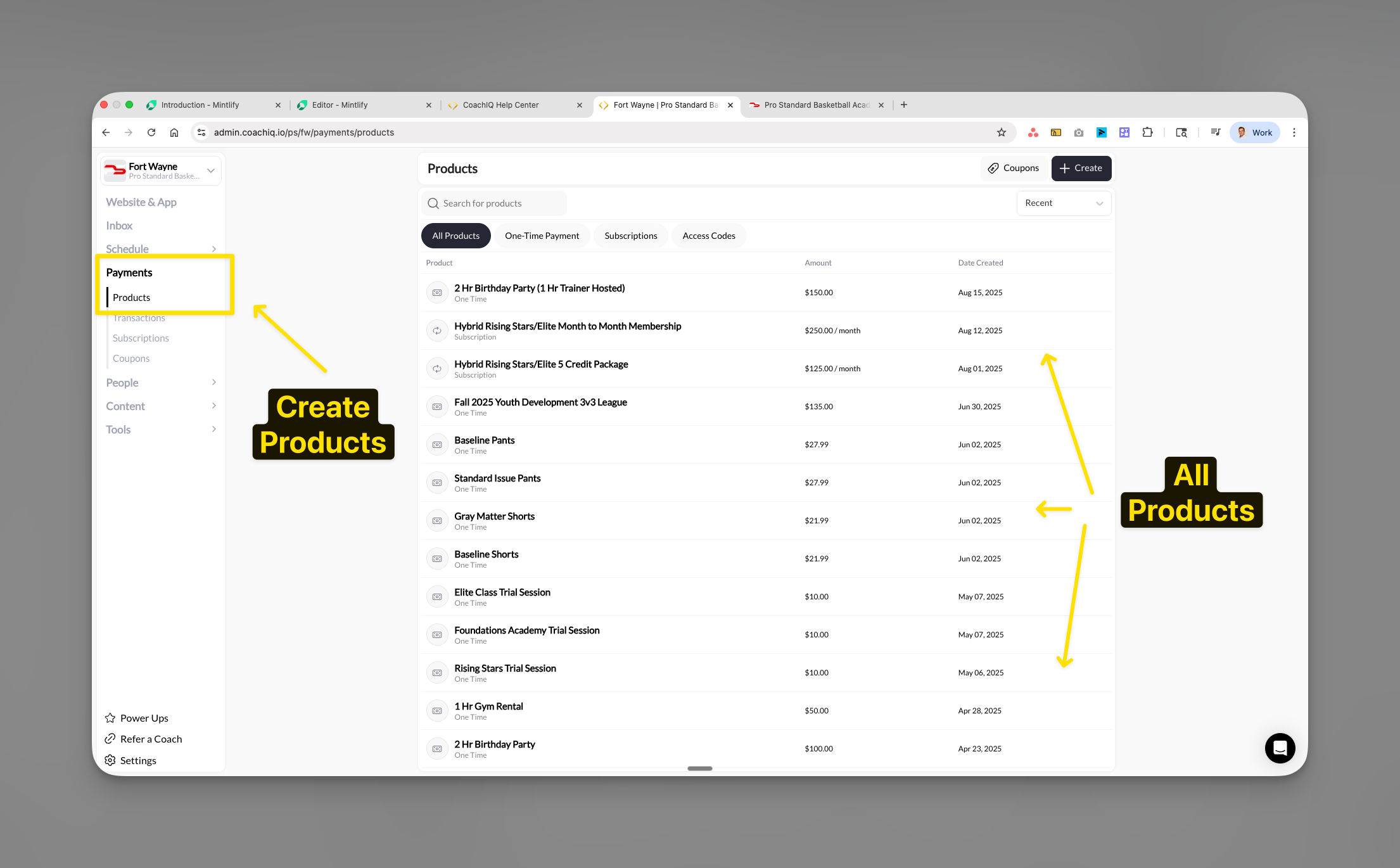
* At least one product created in [Payments → Products](/payments/product-overview)
* Admin or owner permissions in CoachIQ
* Active athlete portal (configured in App Builder)
* Pages activated in Menu & Links settings
**Key capabilities:**
* Paywall three core pages: Programs, Scheduling, and Products
* Multiple products can unlock the same page
* Works with subscriptions, one-time purchases, and access codes
* Automatically relocks pages if subscriptions expire or payments fail
## Prerequisites for setting up paywalls
**Required before starting:**
* At least one product created in [Payments → Products](/payments/product-overview)
* Admin or owner permissions in CoachIQ
* Active athlete portal (configured in App Builder)
* Pages activated in Menu & Links settings
 ## Setting up your first page paywall
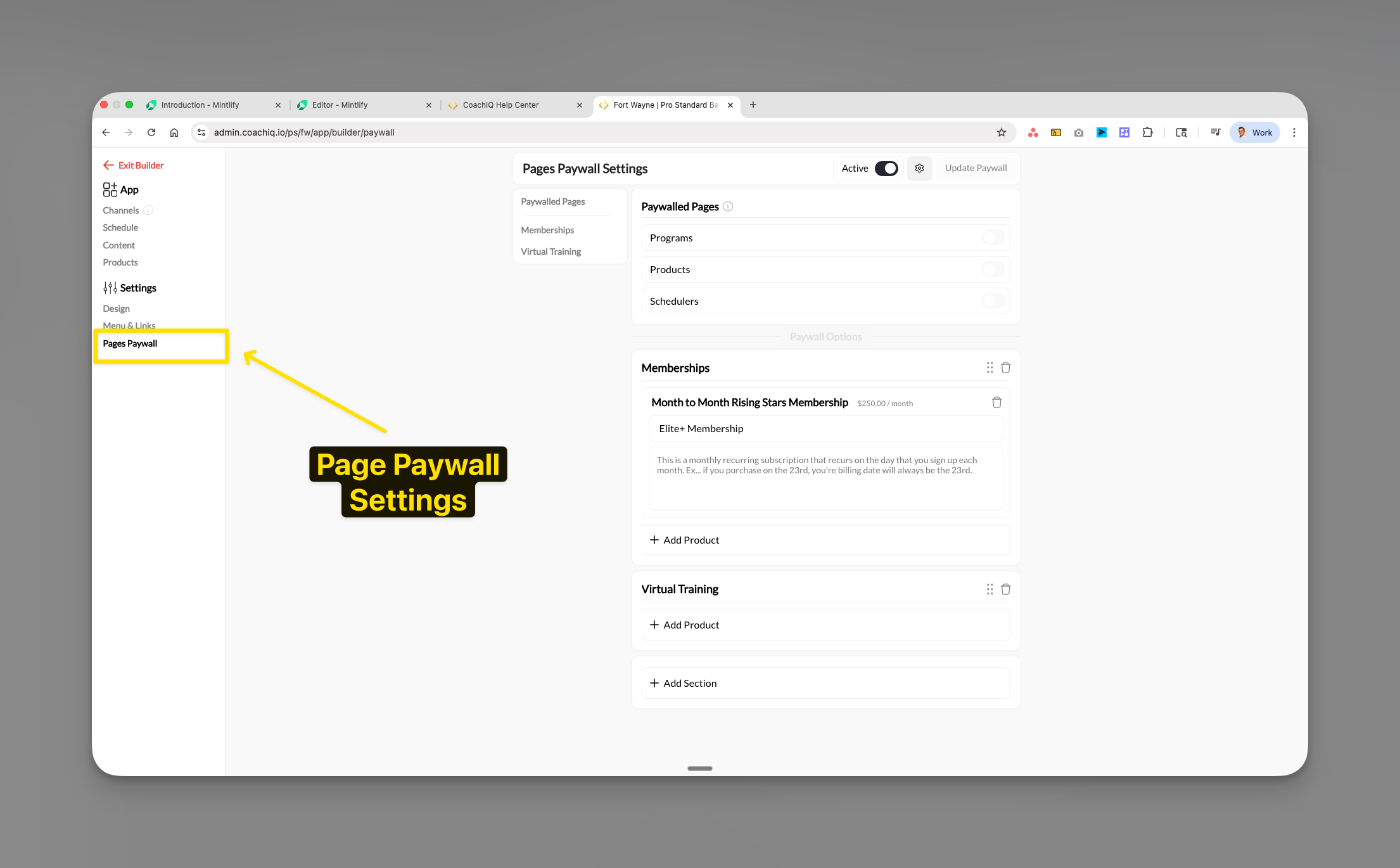
From your App Builder, click **Settings** in the left sidebar, then select **Pages Paywall**.
You can also access this by going to App Builder → Settings → Menu & Links, then selecting Pages Paywall from the sidebar.
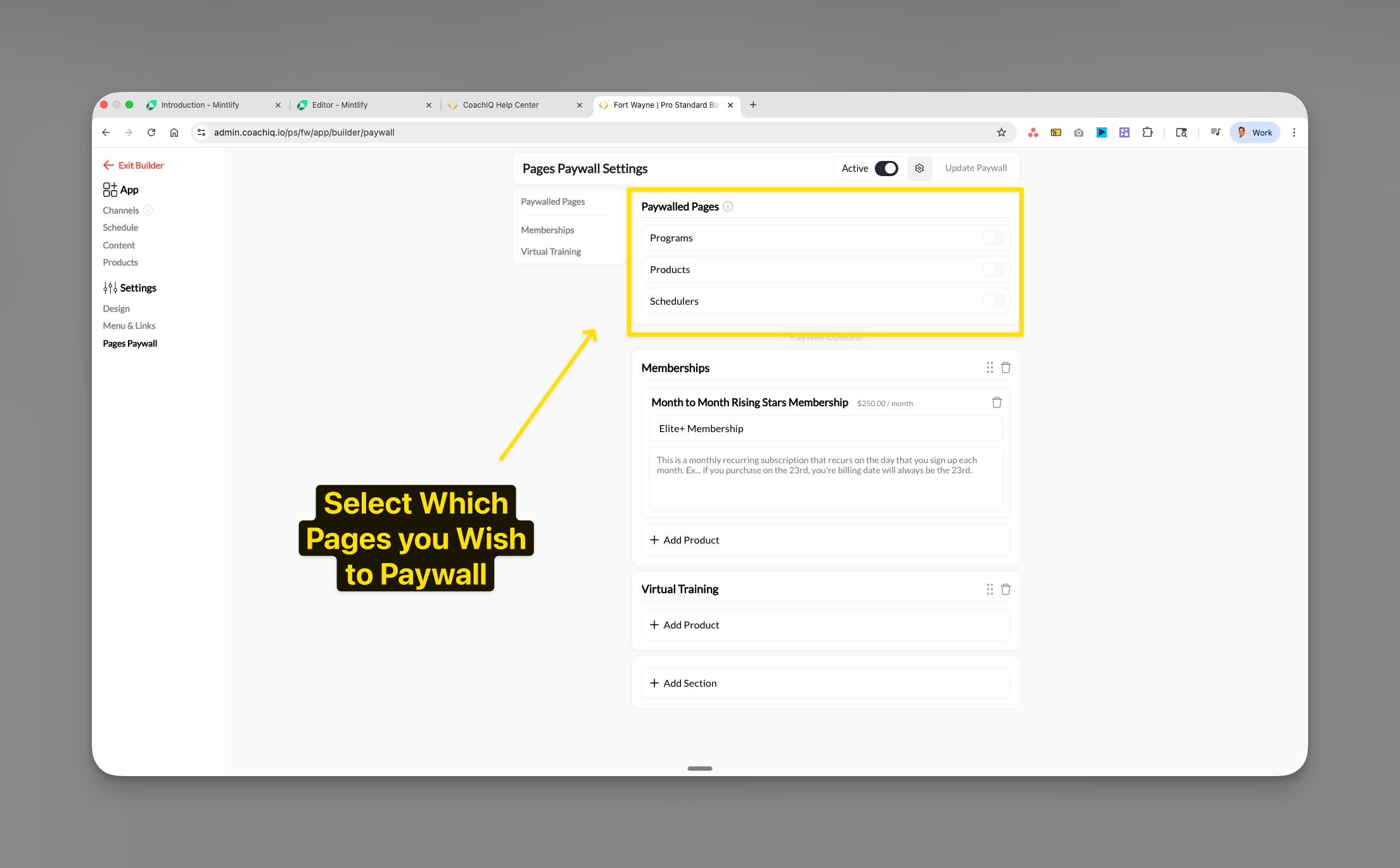
Choose which pages you want to restrict access to. You can paywall:
* **Programs** - Training content, certifications, and courses
* **Products** - Your product catalog and purchase options
* **Schedulers** - Session booking and calendar access
## Setting up your first page paywall
From your App Builder, click **Settings** in the left sidebar, then select **Pages Paywall**.
You can also access this by going to App Builder → Settings → Menu & Links, then selecting Pages Paywall from the sidebar.
Choose which pages you want to restrict access to. You can paywall:
* **Programs** - Training content, certifications, and courses
* **Products** - Your product catalog and purchase options
* **Schedulers** - Session booking and calendar access
 Click **+ Add Product** under the page section you want to paywall. This opens a product selection modal.
Select one or more products that will grant access to this page. Athletes must purchase at least one of these products to unlock the page.
Click **+ Add Product** under the page section you want to paywall. This opens a product selection modal.
Select one or more products that will grant access to this page. Athletes must purchase at least one of these products to unlock the page.
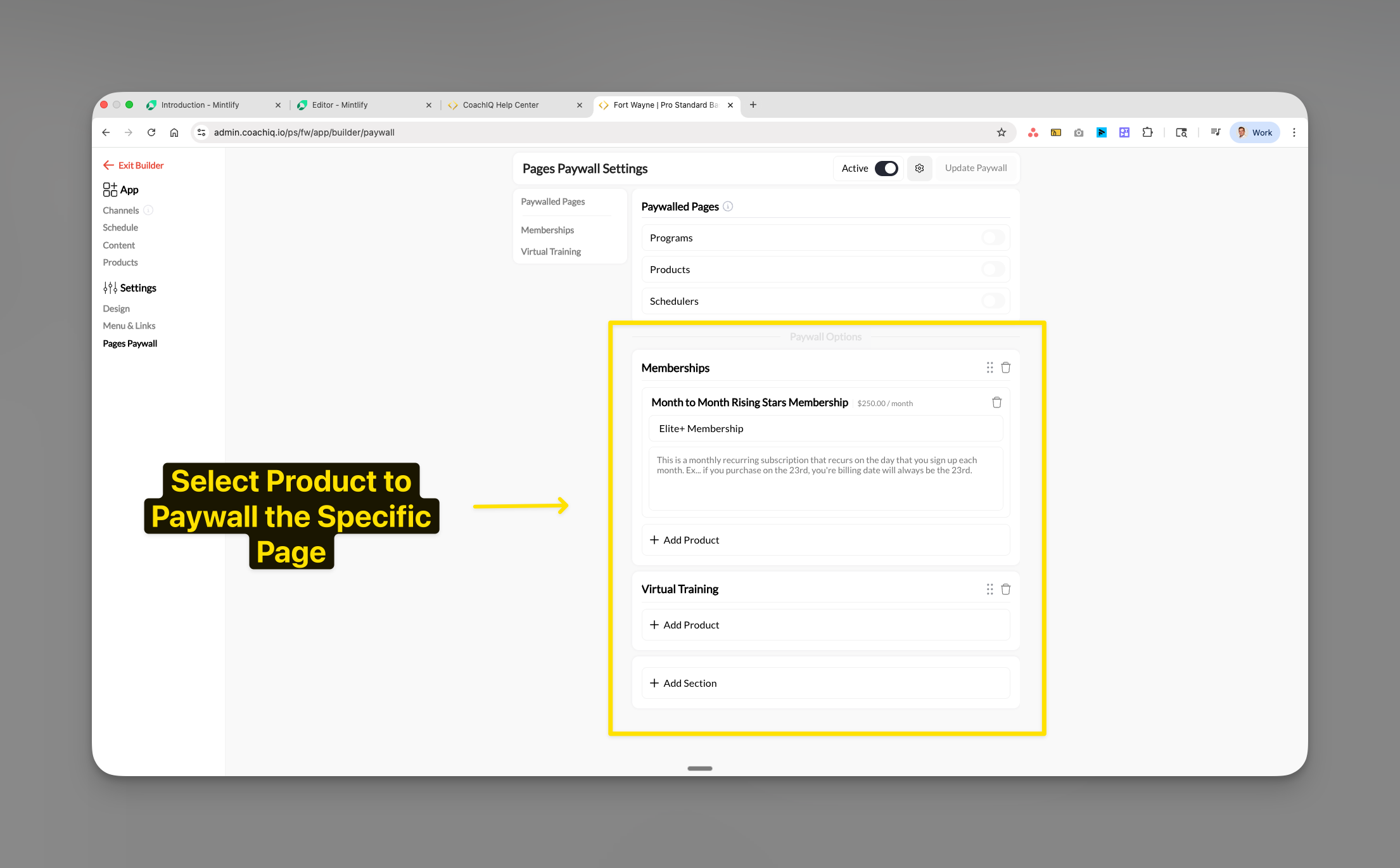 You can create multiple product groups (sections) for different membership tiers:
For example:
* **Memberships section**: Monthly subscriptions
* **Virtual Training section**: One-time course purchases
Products in the same section represent alternatives (athlete needs ANY one). Products in different sections can represent bundles or tiers.
Once configured, ensure:
1. The page is set to **Active** in Menu & Links settings
2. Click **Update Paywall** to save your changes
3. The paywall takes effect immediately for all athletes
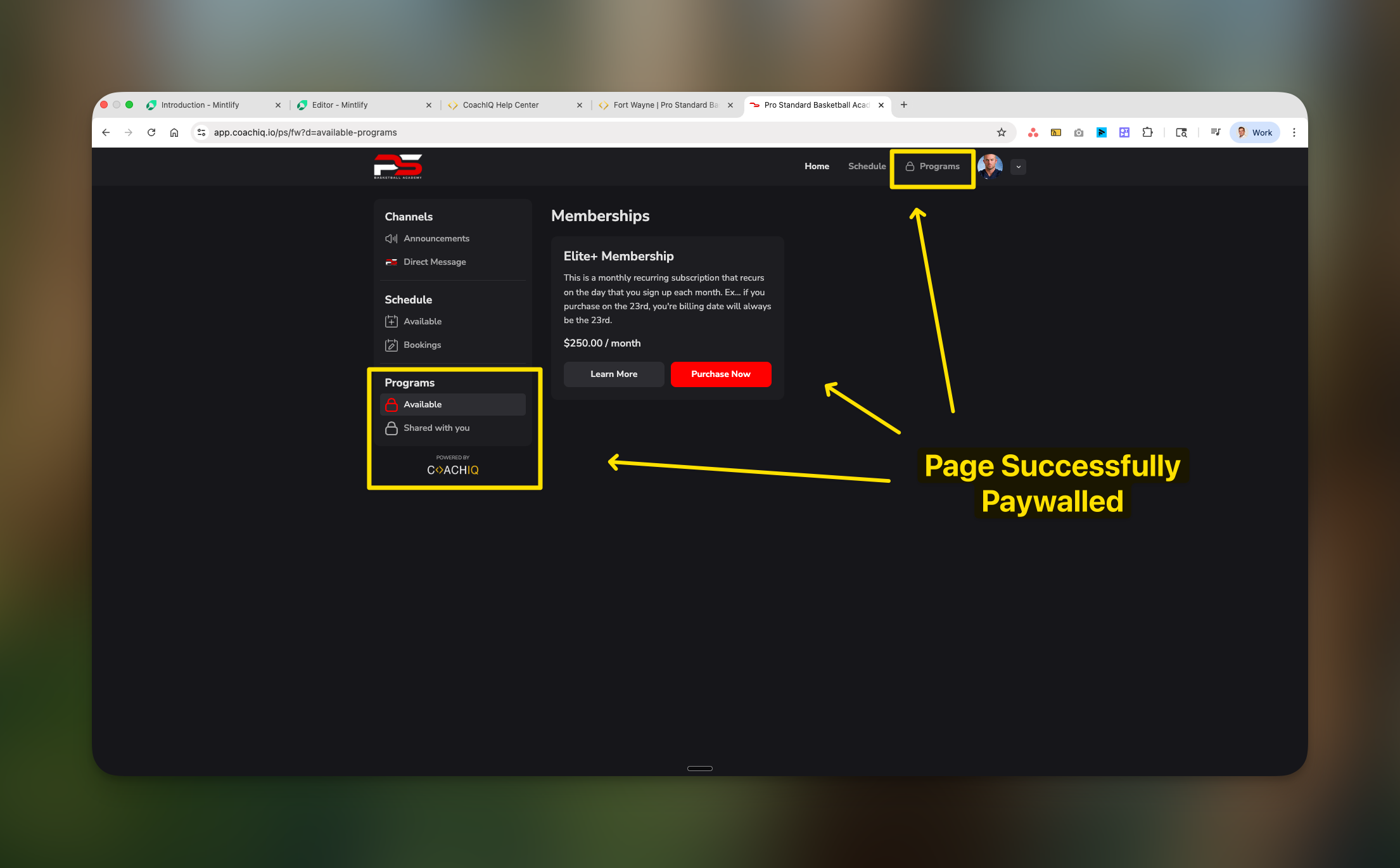
## What athletes see when accessing paywalled pages
When an athlete without the required product tries to access a paywalled page, they see:
**The paywall experience includes:**
* Clear indication the page is restricted
* Product name and price display
* Description of what's included
* "Purchase Now" or "Learn More" buttons
* Professional branded appearance matching your portal
## Managing multiple products on paywalls
### Adding products to existing paywalls
You can add multiple products that grant access to the same page:
1. Navigate to Pages Paywall settings
2. Find your paywalled page section
3. Click **+ Add Product**
4. Select additional products from your product list
5. Click **Add Selected**
**How multiple products work:**
* **ANY** product in the list grants full access
* Athletes only need to purchase ONE qualifying product
* Great for offering different price points or payment options
* Perfect for seasonal promotions or grandfathered pricing
### Creating membership tiers
Structure your paywalls for different access levels:
Basic Membership ($50/month)
→ Unlocks: Programs only
Pro Membership ($100/month)
→ Unlocks: Programs + Scheduling
Elite Membership (\$250/month)
→ Unlocks: Programs + Scheduling + Products
### Using sections for organization
Create logical groupings of products:
* **Add Section** to create categories like "Memberships" or "Virtual Training"
* Helps athletes understand their options
* Makes managing multiple products easier
* Each section can have its own description
## Customizing paywall pages
### SEO and URL settings
Configure how your paywalled pages appear in search results and browsers:
* **Page Title**: Optimize for search engines (e.g., "Premium Basketball Training Programs")
* **Meta Description**: Describe the value behind the paywall
* **URL Slug**: Customize the page URL (e.g., `/paywall` or `/premium-access`)
You can create multiple product groups (sections) for different membership tiers:
For example:
* **Memberships section**: Monthly subscriptions
* **Virtual Training section**: One-time course purchases
Products in the same section represent alternatives (athlete needs ANY one). Products in different sections can represent bundles or tiers.
Once configured, ensure:
1. The page is set to **Active** in Menu & Links settings
2. Click **Update Paywall** to save your changes
3. The paywall takes effect immediately for all athletes
## What athletes see when accessing paywalled pages
When an athlete without the required product tries to access a paywalled page, they see:
**The paywall experience includes:**
* Clear indication the page is restricted
* Product name and price display
* Description of what's included
* "Purchase Now" or "Learn More" buttons
* Professional branded appearance matching your portal
## Managing multiple products on paywalls
### Adding products to existing paywalls
You can add multiple products that grant access to the same page:
1. Navigate to Pages Paywall settings
2. Find your paywalled page section
3. Click **+ Add Product**
4. Select additional products from your product list
5. Click **Add Selected**
**How multiple products work:**
* **ANY** product in the list grants full access
* Athletes only need to purchase ONE qualifying product
* Great for offering different price points or payment options
* Perfect for seasonal promotions or grandfathered pricing
### Creating membership tiers
Structure your paywalls for different access levels:
Basic Membership ($50/month)
→ Unlocks: Programs only
Pro Membership ($100/month)
→ Unlocks: Programs + Scheduling
Elite Membership (\$250/month)
→ Unlocks: Programs + Scheduling + Products
### Using sections for organization
Create logical groupings of products:
* **Add Section** to create categories like "Memberships" or "Virtual Training"
* Helps athletes understand their options
* Makes managing multiple products easier
* Each section can have its own description
## Customizing paywall pages
### SEO and URL settings
Configure how your paywalled pages appear in search results and browsers:
* **Page Title**: Optimize for search engines (e.g., "Premium Basketball Training Programs")
* **Meta Description**: Describe the value behind the paywall
* **URL Slug**: Customize the page URL (e.g., `/paywall` or `/premium-access`)
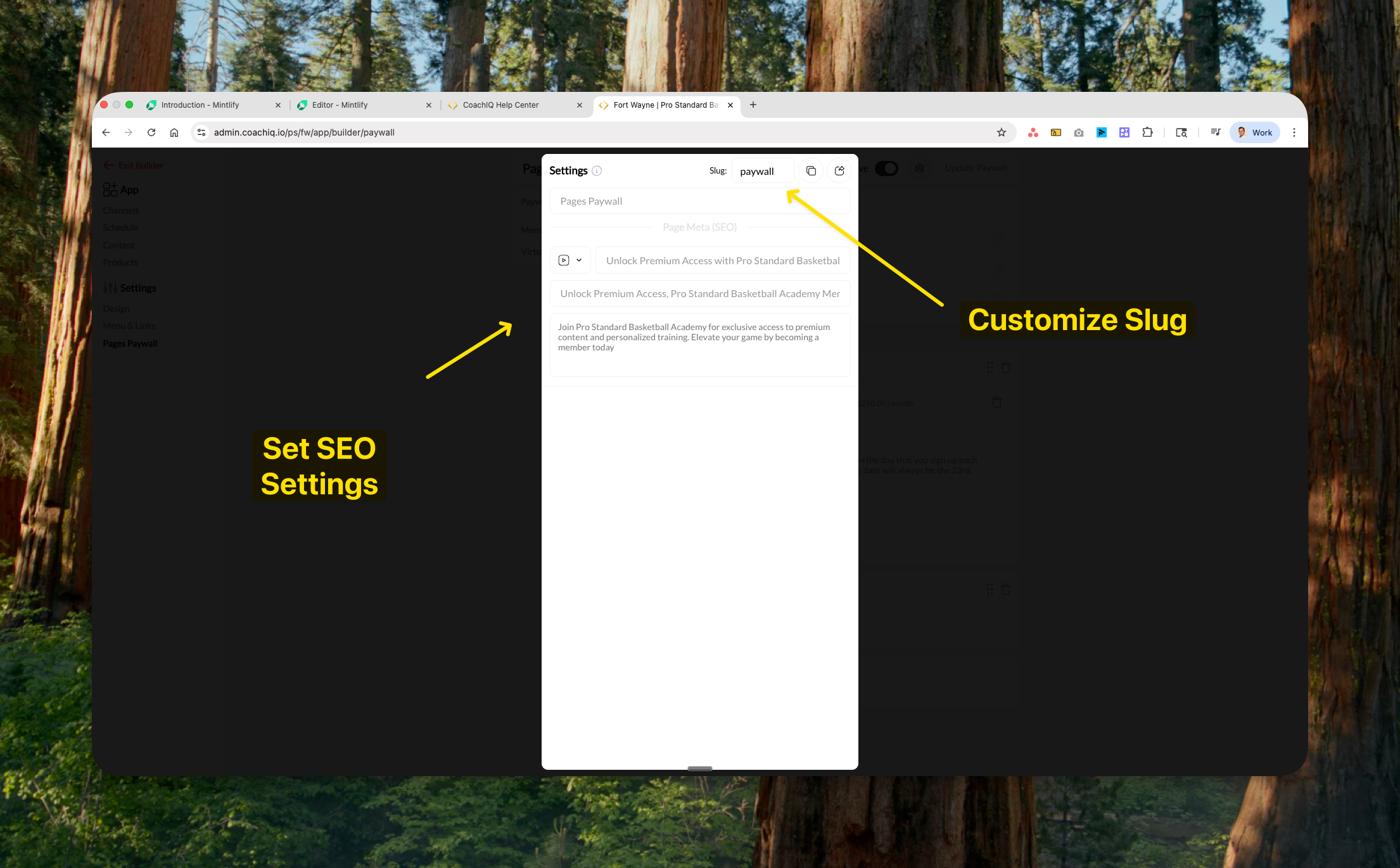 Use compelling descriptions that highlight the value athletes get after purchasing, not just that the content is locked.
### Paywall messaging
The paywall automatically displays:
* Subscription description from your product settings
* Price and billing frequency
* Clear call-to-action buttons
Ensure your product descriptions clearly communicate:
* What's included with purchase
* Billing terms (monthly, one-time, etc.)
* Value proposition for athletes
## Troubleshooting paywall access issues
### Why athletes can't access paywalled pages
**Diagnosis checklist:**
1. **No qualifying product purchased**
* Check: [People](/people/overview) → \[Athlete Name] → Products tab
* Solution: Direct athlete to purchase page on web portal
2. **Subscription expired**
* Check: [Payments → Subscriptions](/payments/subscriptions-dashboard) → Filter by athlete
* Solution: Update payment method or reactivate subscription
3. **Payment failed**
* Check: [Payments → Transactions](/payments/transactions) → Failed payments
* Solution: Have athlete update billing information
4. **Product removed from paywall**
* Check: Pages Paywall settings for product list
* Solution: Re-add product or communicate changes to athletes
5. **Page not active**
* Check: Menu & Links settings for page toggle
* Solution: Activate the page in settings
**iOS App Limitation**: Due to Apple's Reader App policy, athletes cannot purchase products directly through the iOS app. They must use the web portal to purchase access to paywalled content.
### Quick fixes for common issues
1. Verify purchase in People → \[Athlete] → Transactions
2. Check if subscription is active (not past due)
3. Have athlete log out and back in
4. Ensure the correct product is linked to the paywall
Failed payments can cause temporary locks. Check:
* Payment status in Stripe
* Transaction status in CoachIQ
* May take up to 5 minutes to sync after successful payment
Ensure the access code product is:
* Added to the paywall product list
* Not expired or at usage limit
* Properly redeemed by the athlete
To temporarily grant free access:
1. Remove all products from the paywall section
2. Save changes
3. Page becomes accessible to all athletes
4. Re-add products when ready to restore paywall
## Best practices for page paywalls
**Maximize conversion with these strategies:**
1. **Clear value proposition** - Make it obvious what athletes get behind the paywall
2. **Multiple price points** - Offer various products to match different budgets
3. **Trial periods** - Use trial subscriptions to let athletes experience value first
4. **Bundle strategically** - Create product combinations that make sense for athlete goals
5. **Communicate changes** - Always notify athletes before adding new paywalls
## Common questions about paywalls
No, paywalls work at the page level only. To restrict individual programs, use the program sharing settings in Content → Programs → \[Program] → Share Settings instead.
The page automatically relocks when a subscription payment fails. Athletes see the purchase prompt again until payment is successful. There's typically a grace period of 3-7 days for payment retry.
No, paywalled pages are completely restricted. Consider creating a separate "preview" or "demo" section outside the paywall to showcase value.
Create a subscription product with a trial period in [Payments → Products](/payments/product-overview). Set the trial length (e.g., 7 days free), then add this product to your paywall.
Yes, paywalls function on both platforms. However, purchases can only be made through the web portal due to iOS restrictions.
Currently, paywalls apply to all athletes universally. For group-specific access, consider using private program assignments or access codes.
You can:
1. Create a \$0 access code product
2. Add it to the paywall
3. Manually provide the code to specific athletes
Refunding a product purchase immediately removes paywall access. The athlete will need to repurchase to regain access.
## Monitoring paywall performance
Track your paywall effectiveness:
**Key metrics to monitor:**
* **Conversion rate**: People viewing vs purchasing
* **Revenue per page**: Which paywalled pages generate most revenue
* **Churn indicators**: Subscription cancellations after paywall access
* **Support tickets**: Common access issues to address
**Where to find data:**
* [Payments → Transactions](/payments/transactions) (purchase tracking)
* [Payments → Subscriptions](/payments/subscriptions-dashboard) (active membership monitoring)
* [People](/people/overview) → Activity logs (access patterns)
## Related articles
Understand how products work and where athletes can find them
Create memberships, packages, and one-time products
Require payment or credits when athletes book sessions
Display and organize products in your athlete-facing portal
Track purchases, refunds, and payment history
View athlete profiles, products, and activity
Use compelling descriptions that highlight the value athletes get after purchasing, not just that the content is locked.
### Paywall messaging
The paywall automatically displays:
* Subscription description from your product settings
* Price and billing frequency
* Clear call-to-action buttons
Ensure your product descriptions clearly communicate:
* What's included with purchase
* Billing terms (monthly, one-time, etc.)
* Value proposition for athletes
## Troubleshooting paywall access issues
### Why athletes can't access paywalled pages
**Diagnosis checklist:**
1. **No qualifying product purchased**
* Check: [People](/people/overview) → \[Athlete Name] → Products tab
* Solution: Direct athlete to purchase page on web portal
2. **Subscription expired**
* Check: [Payments → Subscriptions](/payments/subscriptions-dashboard) → Filter by athlete
* Solution: Update payment method or reactivate subscription
3. **Payment failed**
* Check: [Payments → Transactions](/payments/transactions) → Failed payments
* Solution: Have athlete update billing information
4. **Product removed from paywall**
* Check: Pages Paywall settings for product list
* Solution: Re-add product or communicate changes to athletes
5. **Page not active**
* Check: Menu & Links settings for page toggle
* Solution: Activate the page in settings
**iOS App Limitation**: Due to Apple's Reader App policy, athletes cannot purchase products directly through the iOS app. They must use the web portal to purchase access to paywalled content.
### Quick fixes for common issues
1. Verify purchase in People → \[Athlete] → Transactions
2. Check if subscription is active (not past due)
3. Have athlete log out and back in
4. Ensure the correct product is linked to the paywall
Failed payments can cause temporary locks. Check:
* Payment status in Stripe
* Transaction status in CoachIQ
* May take up to 5 minutes to sync after successful payment
Ensure the access code product is:
* Added to the paywall product list
* Not expired or at usage limit
* Properly redeemed by the athlete
To temporarily grant free access:
1. Remove all products from the paywall section
2. Save changes
3. Page becomes accessible to all athletes
4. Re-add products when ready to restore paywall
## Best practices for page paywalls
**Maximize conversion with these strategies:**
1. **Clear value proposition** - Make it obvious what athletes get behind the paywall
2. **Multiple price points** - Offer various products to match different budgets
3. **Trial periods** - Use trial subscriptions to let athletes experience value first
4. **Bundle strategically** - Create product combinations that make sense for athlete goals
5. **Communicate changes** - Always notify athletes before adding new paywalls
## Common questions about paywalls
No, paywalls work at the page level only. To restrict individual programs, use the program sharing settings in Content → Programs → \[Program] → Share Settings instead.
The page automatically relocks when a subscription payment fails. Athletes see the purchase prompt again until payment is successful. There's typically a grace period of 3-7 days for payment retry.
No, paywalled pages are completely restricted. Consider creating a separate "preview" or "demo" section outside the paywall to showcase value.
Create a subscription product with a trial period in [Payments → Products](/payments/product-overview). Set the trial length (e.g., 7 days free), then add this product to your paywall.
Yes, paywalls function on both platforms. However, purchases can only be made through the web portal due to iOS restrictions.
Currently, paywalls apply to all athletes universally. For group-specific access, consider using private program assignments or access codes.
You can:
1. Create a \$0 access code product
2. Add it to the paywall
3. Manually provide the code to specific athletes
Refunding a product purchase immediately removes paywall access. The athlete will need to repurchase to regain access.
## Monitoring paywall performance
Track your paywall effectiveness:
**Key metrics to monitor:**
* **Conversion rate**: People viewing vs purchasing
* **Revenue per page**: Which paywalled pages generate most revenue
* **Churn indicators**: Subscription cancellations after paywall access
* **Support tickets**: Common access issues to address
**Where to find data:**
* [Payments → Transactions](/payments/transactions) (purchase tracking)
* [Payments → Subscriptions](/payments/subscriptions-dashboard) (active membership monitoring)
* [People](/people/overview) → Activity logs (access patterns)
## Related articles
Understand how products work and where athletes can find them
Create memberships, packages, and one-time products
Require payment or credits when athletes book sessions
Display and organize products in your athlete-facing portal
Track purchases, refunds, and payment history
View athlete profiles, products, and activity