> ## Documentation Index
> Fetch the complete documentation index at: https://help.coachiq.io/llms.txt
> Use this file to discover all available pages before exploring further.
# Add Analytics and Tracking to Your Athlete Portal
> Learn how to add Google Analytics, Facebook Pixel, and custom scripts to track athlete engagement on your portal's web edition.
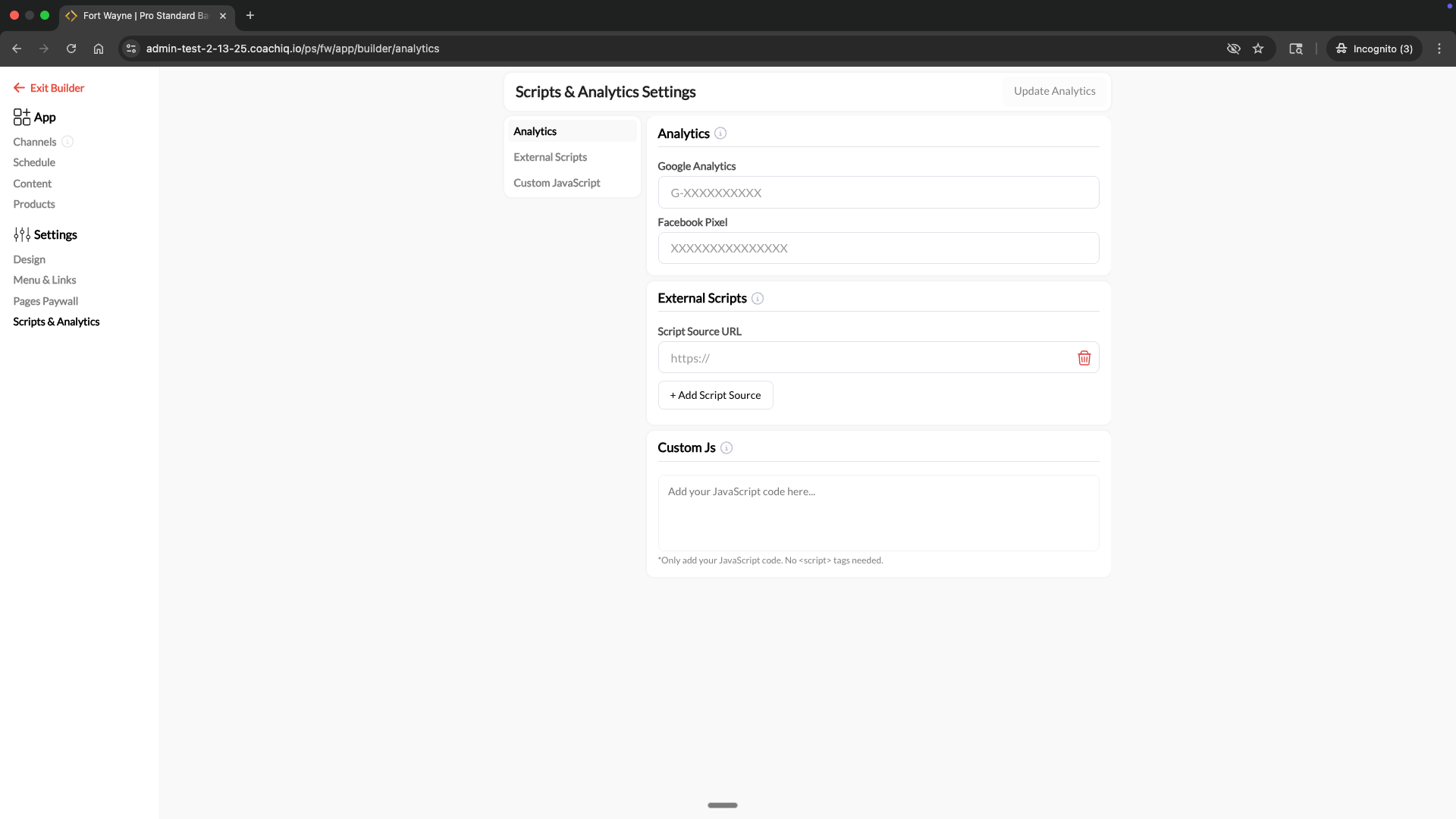
**Where to find this**: Dashboard → App Builder → Settings → Scripts & Analytics
 **Web edition only**: Scripts and analytics only apply to the web version of your athlete portal (accessed via browser). Native iOS and Android apps cannot run custom scripts due to platform restrictions.
## What you'll accomplish
Add tracking and analytics to your athlete portal's web edition. This lets you:
* Track athlete engagement with Google Analytics
* Run Facebook Pixel for retargeting and conversion tracking
* Load third-party tools (Hotjar, Intercom, etc.)
* Add custom JavaScript for advanced integrations
## Accessing Scripts & Analytics settings
From your dashboard, select **App** in the left sidebar.
Click **Settings** in the navigation menu.
Choose **Scripts & Analytics** to access your tracking options.
## Adding Google Analytics
Track athlete behavior, page views, and engagement metrics with Google Analytics.
### Get your Measurement ID
Go to [analytics.google.com](https://analytics.google.com) and sign in.
Click the **Admin** gear icon in the bottom left corner.
Under **Property Settings**, click **Data Streams**.
Select your existing web stream, or click **Add stream** → **Web** to create one.
Enter your athlete portal URL (e.g., `app.coachiq.io/your-org/your-portal`).
Copy the **Measurement ID** - it starts with `G-` followed by letters and numbers (e.g., `G-ABC123XYZ`).
You only need the Measurement ID, not the full script code. CoachIQ handles the script injection automatically.
### Add to CoachIQ
In the **Analytics** section, paste your Measurement ID into the **Google Analytics** field.
Click **Update Analytics** in the top right corner.
Your Google Analytics tracking is now active on your athlete portal web edition.
### Verify it's working
In Google Analytics, go to **Reports** → **Realtime**.
In another browser tab, visit your athlete portal web edition.
You should appear as an active user in the Realtime report within a few seconds.
## Adding Facebook Pixel
Track conversions and build retargeting audiences with Facebook Pixel.
In Meta Business Suite, go to **Events Manager** → **Data Sources** → your Pixel.
Copy the **Pixel ID** (a string of numbers, e.g., `1234567890123456`).
In the **Analytics** section, paste your Pixel ID into the **Facebook Pixel** field.
Click **Update Analytics** to activate tracking.
## Adding External Scripts
Load third-party JavaScript libraries by URL. Use this for tools like Hotjar, Intercom, Drift, or any service that provides a script URL.
From your third-party tool, copy the script source URL (starts with `https://`).
In the **External Scripts** section, paste the URL into the **Script Source URL** field.
Click **+ Add Script Source** to add additional script URLs.
Click **Update Analytics** to load the scripts.
**Only add scripts you trust.** External scripts have full access to your athlete portal page. Only use scripts from reputable services.
## Adding Custom JavaScript
Run your own JavaScript code for advanced integrations, custom tracking events, or specialized functionality.
In the **Custom Js** section, enter your JavaScript code.
Don't include `
**Web edition only**: Scripts and analytics only apply to the web version of your athlete portal (accessed via browser). Native iOS and Android apps cannot run custom scripts due to platform restrictions.
## What you'll accomplish
Add tracking and analytics to your athlete portal's web edition. This lets you:
* Track athlete engagement with Google Analytics
* Run Facebook Pixel for retargeting and conversion tracking
* Load third-party tools (Hotjar, Intercom, etc.)
* Add custom JavaScript for advanced integrations
## Accessing Scripts & Analytics settings
From your dashboard, select **App** in the left sidebar.
Click **Settings** in the navigation menu.
Choose **Scripts & Analytics** to access your tracking options.
## Adding Google Analytics
Track athlete behavior, page views, and engagement metrics with Google Analytics.
### Get your Measurement ID
Go to [analytics.google.com](https://analytics.google.com) and sign in.
Click the **Admin** gear icon in the bottom left corner.
Under **Property Settings**, click **Data Streams**.
Select your existing web stream, or click **Add stream** → **Web** to create one.
Enter your athlete portal URL (e.g., `app.coachiq.io/your-org/your-portal`).
Copy the **Measurement ID** - it starts with `G-` followed by letters and numbers (e.g., `G-ABC123XYZ`).
You only need the Measurement ID, not the full script code. CoachIQ handles the script injection automatically.
### Add to CoachIQ
In the **Analytics** section, paste your Measurement ID into the **Google Analytics** field.
Click **Update Analytics** in the top right corner.
Your Google Analytics tracking is now active on your athlete portal web edition.
### Verify it's working
In Google Analytics, go to **Reports** → **Realtime**.
In another browser tab, visit your athlete portal web edition.
You should appear as an active user in the Realtime report within a few seconds.
## Adding Facebook Pixel
Track conversions and build retargeting audiences with Facebook Pixel.
In Meta Business Suite, go to **Events Manager** → **Data Sources** → your Pixel.
Copy the **Pixel ID** (a string of numbers, e.g., `1234567890123456`).
In the **Analytics** section, paste your Pixel ID into the **Facebook Pixel** field.
Click **Update Analytics** to activate tracking.
## Adding External Scripts
Load third-party JavaScript libraries by URL. Use this for tools like Hotjar, Intercom, Drift, or any service that provides a script URL.
From your third-party tool, copy the script source URL (starts with `https://`).
In the **External Scripts** section, paste the URL into the **Script Source URL** field.
Click **+ Add Script Source** to add additional script URLs.
Click **Update Analytics** to load the scripts.
**Only add scripts you trust.** External scripts have full access to your athlete portal page. Only use scripts from reputable services.
## Adding Custom JavaScript
Run your own JavaScript code for advanced integrations, custom tracking events, or specialized functionality.
In the **Custom Js** section, enter your JavaScript code.
Don't include `