> ## Documentation Index
> Fetch the complete documentation index at: https://help.coachiq.io/llms.txt
> Use this file to discover all available pages before exploring further.
# Create Online Training Programs & Digital Coaching Content
> Build and sell online training programs for athletes. Learn how to upload videos, create interactive lessons, and deliver digital coaching content through CoachIQ.
The Content section of CoachIQ is where you create, organize, and deliver online training programs to your athletes. Whether you're building follow-along workout videos, digital coaching courses, or skill development content—this is your hub for creating and selling training content that athletes access through the CoachIQ app.
**Where to find Content**: Dashboard → Content (in main navigation)
## How online coaching content works in CoachIQ
Think of CoachIQ's content system like building an online course: you gather your training videos and images ([Media Hub](/content/media-overview)), create engaging interactive lessons ([Lesson Builder](/content/lesson-overview)), and package everything into a training program your athletes can access ([Programs](/content/programs-overview)).
Here's the key insight: **Athletes only see Programs**. They never access your Media Hub or see your raw lessons—they experience the polished, packaged program you've created for them in the [Athlete Portal](/athlete-portal/understanding-your-athlete-portal).
**Your storage**
Upload and organize all your images and videos. This is your content library.
**Your building blocks**
Create interactive, swipeable experiences using your media. Think Instagram Stories for coaching.
**Your delivery**
Package lessons and media into structured courses that athletes access in the app.
## How to create training content for athletes
Add videos, images, and training content to your Media Hub. Organize with tags for easy access later.
*Example: Upload 10 shooting drill videos and tag them "Shooting Drills"*
Build interactive lessons using your media. Add text overlays, quizzes, buttons, and even let athletes upload their own videos for review.
*Example: Create a "Shooting Form Basics" lesson with 5 slides—video demo, key points, quiz, and upload prompt*
Combine lessons and standalone media into a structured program. Set the order, choose how content unlocks, and decide on pricing.
*Example: Create "30-Day Shooting Program" with 10 lessons and 5 bonus drill videos*
Publish your program as free, paid, or private. Athletes access it through their [Athlete Portal](/athlete-portal/content) and work through the content.
*Example: Sell access for \$49, or assign it free to your current training clients*
## How athletes access your training programs
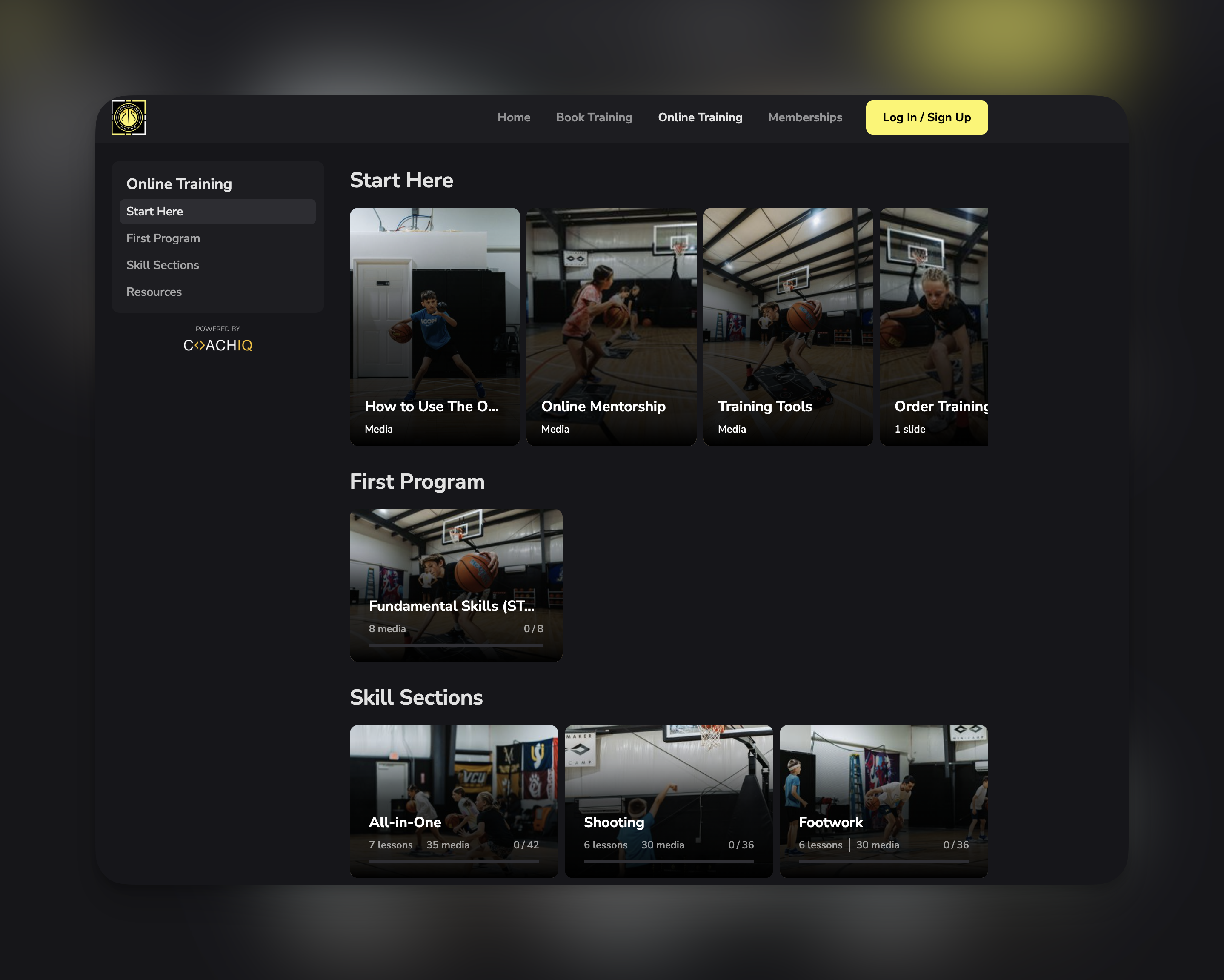
When an athlete opens your program in their app, they see:
* **Program overview**: Your thumbnail, title, and chapter list
* **Progress tracking**: Which chapters they've completed (e.g., "3 of 10 complete")
* **Lesson experience**: Swipeable, Instagram Stories-style content they tap through
* **Interactive elements**: Quizzes to answer, forms to fill out, videos to watch
Athletes navigate between lessons by completing each one. If you set your program to "Complete & Progress" mode, they must finish each chapter before the next one unlocks—perfect for structured courses.
 ## Understanding Media Hub, Lessons, and Programs
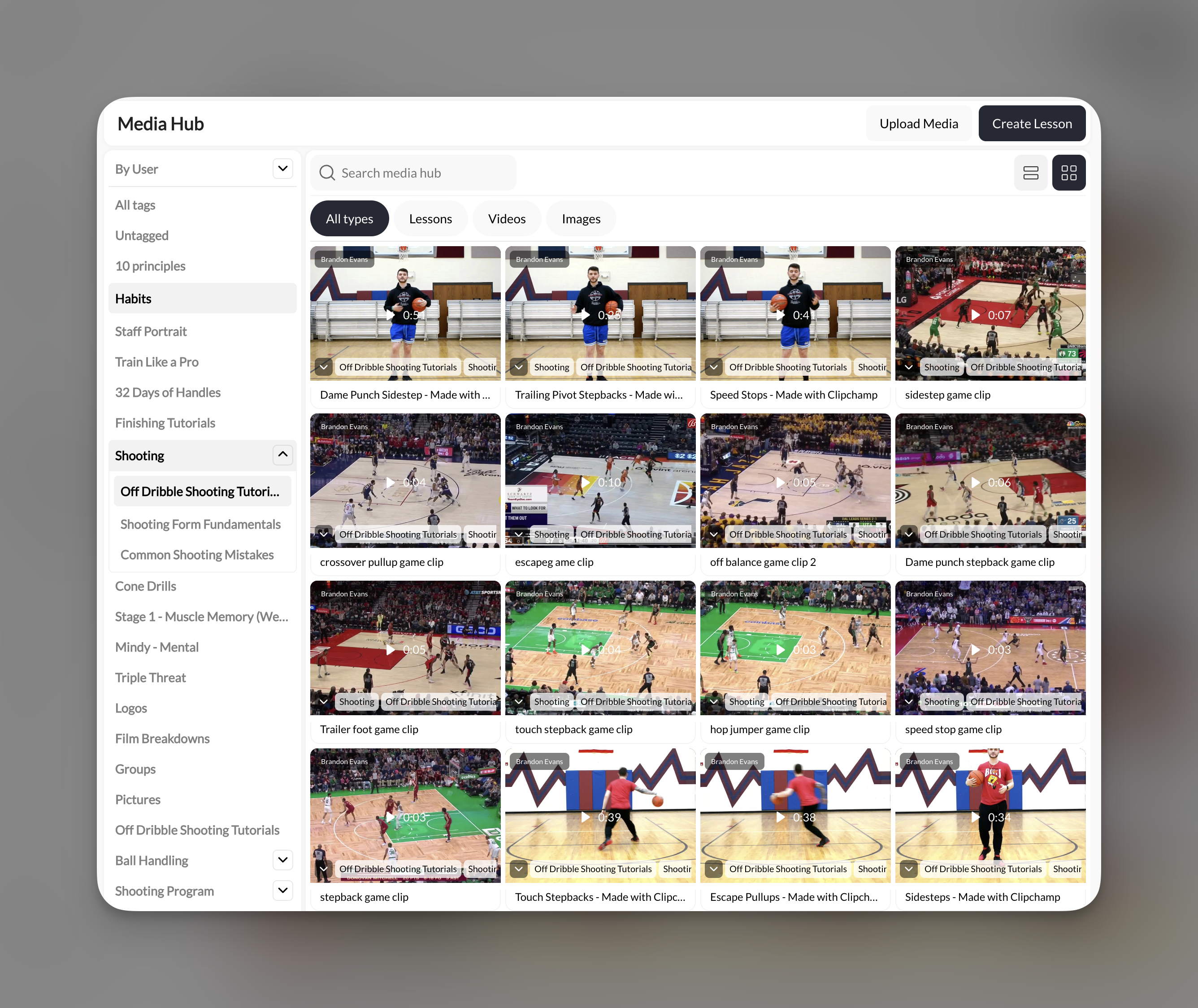
### Media Hub
Your central storage for all images and videos. Key things to know:
* **Supports all file types** except PDFs
* **Unlimited storage**—no caps on how much you can upload
* **Tag-based organization**—create nested tags like "Drills → Shooting → Layups"
* **Direct integration**—pull media into lessons and programs with a click
## Understanding Media Hub, Lessons, and Programs
### Media Hub
Your central storage for all images and videos. Key things to know:
* **Supports all file types** except PDFs
* **Unlimited storage**—no caps on how much you can upload
* **Tag-based organization**—create nested tags like "Drills → Shooting → Layups"
* **Direct integration**—pull media into lessons and programs with a click
 ### Lessons
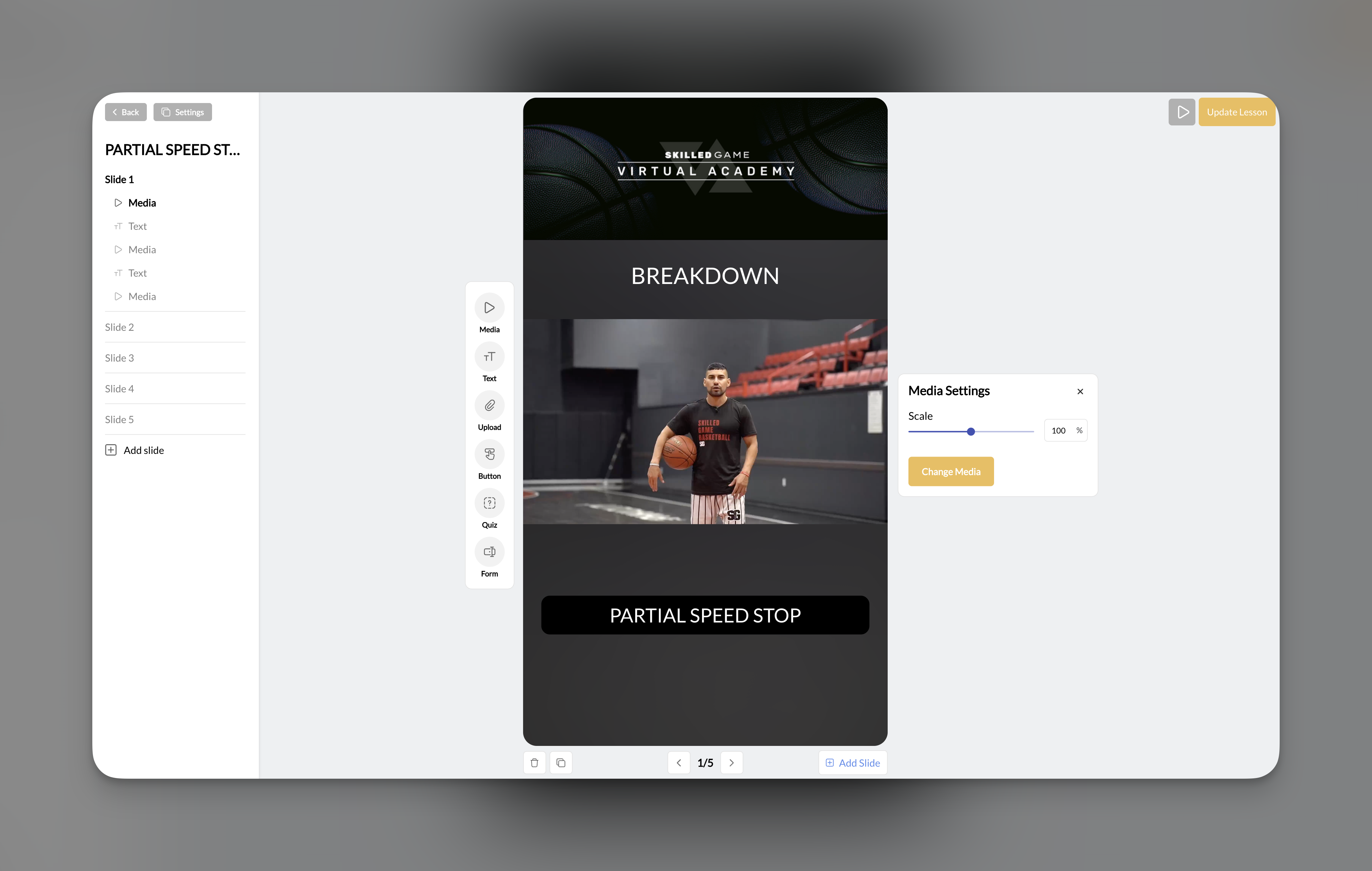
Interactive, slide-based content your athletes swipe through. Each lesson can include:
| Element | What it does |
| ---------- | ------------------------------------------------------- |
| **Media** | Video or image from your Media Hub |
| **Text** | Customizable text overlays with colors and backgrounds |
| **Button** | Navigate to next slide, open a link, or download a file |
| **Quiz** | Multiple choice questions for engagement |
| **Form** | Free-text input for athlete responses |
| **Upload** | Let athletes upload their own videos or images |
The **Upload** element is powerful for remote coaching. Athletes can submit videos of themselves performing drills, and you can review their form and provide feedback.
### Lessons
Interactive, slide-based content your athletes swipe through. Each lesson can include:
| Element | What it does |
| ---------- | ------------------------------------------------------- |
| **Media** | Video or image from your Media Hub |
| **Text** | Customizable text overlays with colors and backgrounds |
| **Button** | Navigate to next slide, open a link, or download a file |
| **Quiz** | Multiple choice questions for engagement |
| **Form** | Free-text input for athlete responses |
| **Upload** | Let athletes upload their own videos or images |
The **Upload** element is powerful for remote coaching. Athletes can submit videos of themselves performing drills, and you can review their form and provide feedback.
 ### Programs
The container that holds everything together. Programs can include:
* **Lessons** (interactive, multi-slide content)
* **Standalone media** (individual videos or images)
* **Any mix of both**
You control how athletes progress through programs:
| Mode | How it works | Best for |
| ----------------------- | ------------------------------------------------------ | ---------------------------------------- |
| **Immediate Access** | All content available at once | Reference libraries, on-demand content |
| **Complete & Progress** | Must finish each chapter to unlock next | Structured courses, certifications |
| **Drip** | Content releases on a schedule (daily, weekly, custom) | Email-course style, subscription content |
### Programs
The container that holds everything together. Programs can include:
* **Lessons** (interactive, multi-slide content)
* **Standalone media** (individual videos or images)
* **Any mix of both**
You control how athletes progress through programs:
| Mode | How it works | Best for |
| ----------------------- | ------------------------------------------------------ | ---------------------------------------- |
| **Immediate Access** | All content available at once | Reference libraries, on-demand content |
| **Complete & Progress** | Must finish each chapter to unlock next | Structured courses, certifications |
| **Drip** | Content releases on a schedule (daily, weekly, custom) | Email-course style, subscription content |
 ## How to sell or share your coaching programs
Every program can be configured with different access levels:
| Option | Description |
| ------------- | ---------------------------------------------------------------------------------------------- |
| **Free** | Anyone can access without payment |
| **Paywalled** | Requires purchase of a linked [product](/payments/product-overview) (one-time or subscription) |
| **Private** | Only assigned users can see and access it |
You can combine these—for example, a paywalled program that's also privately assigned to specific athletes.
**Connecting to payments**: When you paywall a program, you link it to one or more [Products](/payments/product-overview) you've created in CoachIQ. Any athlete who purchases that product automatically gets access to the program. Learn more about [attaching products](/payments/attach-products).
## Ways coaches use digital training content
Create a program with structured lessons covering your training methodology. Set it to "Complete & Progress" so athletes work through content in order. Paywall it with a one-time purchase price or monthly subscription.
Upload workout videos and create programs your current athletes can access for free. Set programs to private and assign them to specific clients. They get at-home workouts that complement their in-person sessions.
Create lessons with an Upload element where athletes submit videos of themselves. Review their submissions and provide feedback through the platform. Great for remote coaching or form checks.
Structure lessons with quizzes and forms to assess understanding. Use "Complete & Progress" mode so athletes must pass each section. Track completion through program stats.
## Tips for creating online coaching content
**No auto-save in builders**: Both the Lesson Builder and Program Builder require you to manually save your work. Click "Update Lesson" or "Update Program" frequently to avoid losing changes.
**Quick tips for success:**
* **Start with media**: Upload your videos and images first. Everything else builds on your media library.
* **Keep lessons focused**: Each lesson should cover one concept or drill. It's better to have more short lessons than fewer long ones.
* **Test as an athlete**: Use the preview feature to see exactly what athletes will experience before publishing.
* **Organize with tags**: Good tagging in Media Hub makes building lessons and programs much faster.
## Next steps
Start by getting your videos and images into CoachIQ's Media Hub.
Learn how to build engaging, swipeable lessons your athletes will love.
Package your content into structured programs athletes can access.
Configure pricing, access, and delivery options for your programs.
## Frequently asked questions about CoachIQ content
You can do either! Programs support both interactive lessons AND standalone media files. If you just want to share a collection of videos, add them directly as media. If you want a more engaging experience with text, quizzes, and athlete uploads, create lessons.
By default, athletes stream content—they don't download it. If you want to provide downloadable files, use a Button element in a lesson with the "downloadable link" option.
All responses from quizzes and forms within lessons are collected at the program level. You can view them in the Stats section of your Program Builder.
Yes! Once you create a lesson, it appears in your Media Hub and can be added to any program. This is great for reusing foundational content across different courses.
Media Hub is your replacement for Google Drive within CoachIQ. It's built specifically for coaching content—easier to organize, directly integrates with lessons and programs, and your athletes access content through a professional app experience rather than shared links.
## Related articles
Create the payment products you link to paywalled programs.
Learn how to connect products to programs for paywalled access.
Configure the branded app where athletes access your programs and content.
Manage which programs and content appear in your athlete app.
## How to sell or share your coaching programs
Every program can be configured with different access levels:
| Option | Description |
| ------------- | ---------------------------------------------------------------------------------------------- |
| **Free** | Anyone can access without payment |
| **Paywalled** | Requires purchase of a linked [product](/payments/product-overview) (one-time or subscription) |
| **Private** | Only assigned users can see and access it |
You can combine these—for example, a paywalled program that's also privately assigned to specific athletes.
**Connecting to payments**: When you paywall a program, you link it to one or more [Products](/payments/product-overview) you've created in CoachIQ. Any athlete who purchases that product automatically gets access to the program. Learn more about [attaching products](/payments/attach-products).
## Ways coaches use digital training content
Create a program with structured lessons covering your training methodology. Set it to "Complete & Progress" so athletes work through content in order. Paywall it with a one-time purchase price or monthly subscription.
Upload workout videos and create programs your current athletes can access for free. Set programs to private and assign them to specific clients. They get at-home workouts that complement their in-person sessions.
Create lessons with an Upload element where athletes submit videos of themselves. Review their submissions and provide feedback through the platform. Great for remote coaching or form checks.
Structure lessons with quizzes and forms to assess understanding. Use "Complete & Progress" mode so athletes must pass each section. Track completion through program stats.
## Tips for creating online coaching content
**No auto-save in builders**: Both the Lesson Builder and Program Builder require you to manually save your work. Click "Update Lesson" or "Update Program" frequently to avoid losing changes.
**Quick tips for success:**
* **Start with media**: Upload your videos and images first. Everything else builds on your media library.
* **Keep lessons focused**: Each lesson should cover one concept or drill. It's better to have more short lessons than fewer long ones.
* **Test as an athlete**: Use the preview feature to see exactly what athletes will experience before publishing.
* **Organize with tags**: Good tagging in Media Hub makes building lessons and programs much faster.
## Next steps
Start by getting your videos and images into CoachIQ's Media Hub.
Learn how to build engaging, swipeable lessons your athletes will love.
Package your content into structured programs athletes can access.
Configure pricing, access, and delivery options for your programs.
## Frequently asked questions about CoachIQ content
You can do either! Programs support both interactive lessons AND standalone media files. If you just want to share a collection of videos, add them directly as media. If you want a more engaging experience with text, quizzes, and athlete uploads, create lessons.
By default, athletes stream content—they don't download it. If you want to provide downloadable files, use a Button element in a lesson with the "downloadable link" option.
All responses from quizzes and forms within lessons are collected at the program level. You can view them in the Stats section of your Program Builder.
Yes! Once you create a lesson, it appears in your Media Hub and can be added to any program. This is great for reusing foundational content across different courses.
Media Hub is your replacement for Google Drive within CoachIQ. It's built specifically for coaching content—easier to organize, directly integrates with lessons and programs, and your athletes access content through a professional app experience rather than shared links.
## Related articles
Create the payment products you link to paywalled programs.
Learn how to connect products to programs for paywalled access.
Configure the branded app where athletes access your programs and content.
Manage which programs and content appear in your athlete app.