> ## Documentation Index
> Fetch the complete documentation index at: https://help.coachiq.io/llms.txt
> Use this file to discover all available pages before exploring further.
# Upload & Organize Your Coaching Media
> Learn how to upload videos and images to CoachIQ's Media Hub, organize content with tags, and manage your media library.
Media Hub is your central storage for all videos and images in CoachIQ. Upload your training content here, organize it with tags, then pull it into [lessons](/content/lesson-overview) and [programs](/content/programs-overview).
**Where to find Media Hub**: Dashboard → Content → Media Hub tab
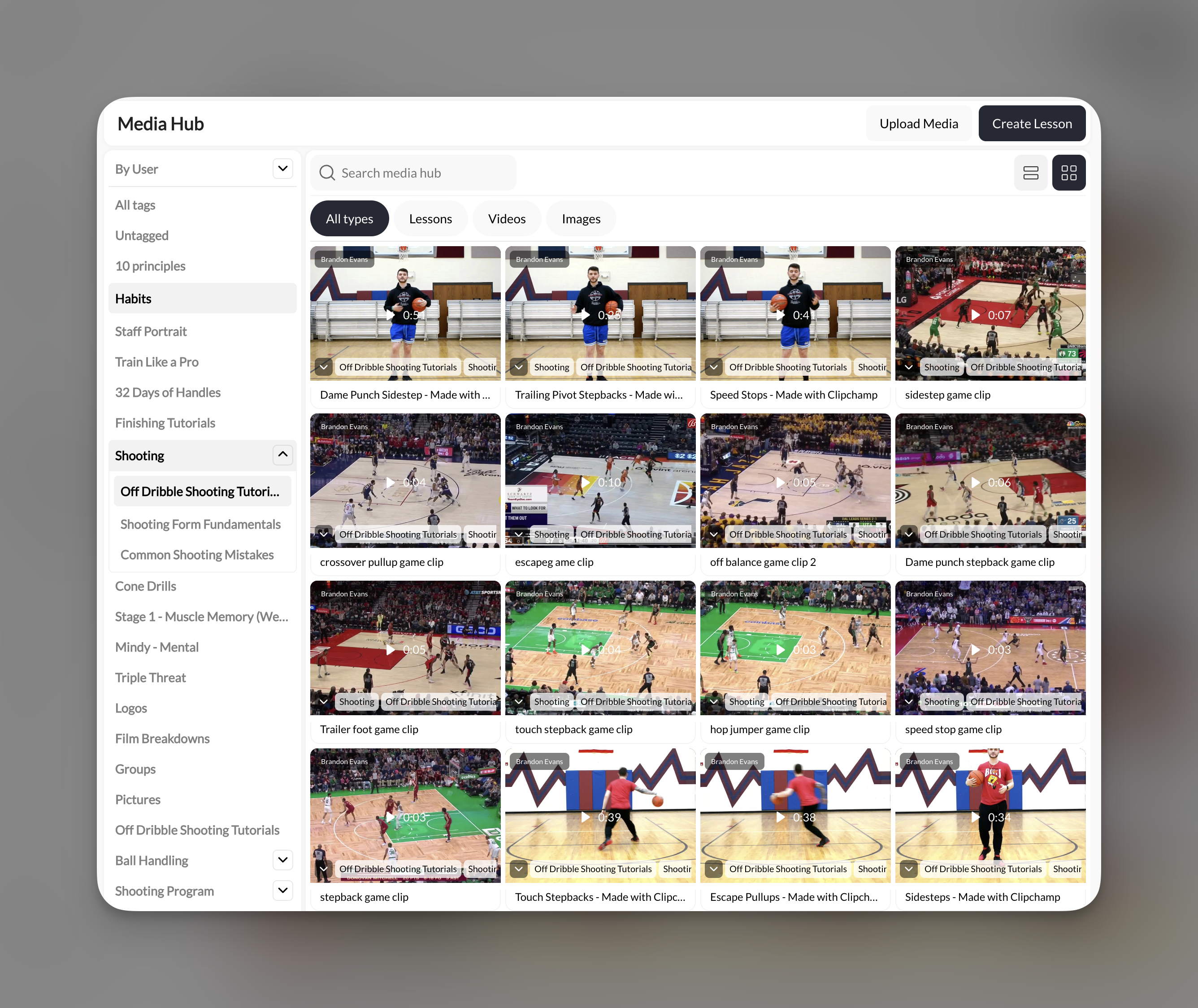 ## Uploading media
Navigate to **Content** from the main navigation, then select the **Media Hub** tab.
Click the **Upload Media** button in the top right corner. Select one or more files from your computer.
Files upload and process automatically. Videos may take a moment depending on size. Once complete, they appear in your media grid.
Media Hub supports all file types except PDFs. There are no storage limits—upload as much content as you need.
## Organizing with tags
Tags are how you keep your media library manageable as it grows. You can create nested tags to build a structured hierarchy.
**Example tag structure for a basketball coach:**
* Drills → Shooting → Layups
* Drills → Shooting → Free Throws
* Drills → Ball Handling
* Game Film → 2025 Season
Click on a media item to open it, or select multiple items using the checkboxes.
Use the tag selector to apply existing tags or type a new tag name to create one. Nest tags using the arrow syntax (e.g., "Drills → Shooting").
Set up your tag structure before uploading a large batch of content. It's much easier to tag as you upload than to go back and organize later.
## Filtering and finding media
Use the controls at the top of Media Hub to find what you need:
| Filter | What it does |
| ------------- | ------------------------------------------------------------------------ |
| **By User** | Filter media by who uploaded it (useful for teams with multiple coaches) |
| **All tags** | Filter by any tag or nested tag in the sidebar |
| **All types** | Show everything |
| **Lessons** | Show only lessons you've created |
| **Videos** | Show only video files |
| **Images** | Show only image files |
You can also use the search bar to find media by name.
## Using media in lessons and programs
Media you upload here is available throughout CoachIQ:
* **In the [Lesson Builder](/content/lesson-overview)** — Add media as slides in your interactive lessons
* **In the [Program Builder](/content/programs-overview)** — Add standalone videos or images directly to program chapters
* **On your Website** — Pull images and videos into website sections
When you add media to a lesson or program, it references the original file in Media Hub. Updating or replacing the file in Media Hub updates it everywhere it's used.
## Managing your media library
**Bulk actions** — Select multiple items to tag, delete, or download in bulk.
**Replacing media** — Click on any media item to open its details, where you can replace the file while keeping the same tags and references.
**Downloading** — Select media items and use the download option to save copies to your computer.
Deleting media from Media Hub removes it from any lessons or programs where it's used. Check where a file is referenced before deleting.
## Next steps
Turn your media into engaging, swipeable lessons athletes tap through.
Package lessons and media into structured programs athletes can access.
Record and annotate video feedback for your athletes.
Learn how Media Hub, Lessons, and Programs work together.
## Related articles
Learn how each lesson element uses your media to create interactive experiences.
Configure pricing and access for programs that use your media.
Manage how athletes discover and access your content in the app.
Create payment products to monetize programs built from your media.
## Uploading media
Navigate to **Content** from the main navigation, then select the **Media Hub** tab.
Click the **Upload Media** button in the top right corner. Select one or more files from your computer.
Files upload and process automatically. Videos may take a moment depending on size. Once complete, they appear in your media grid.
Media Hub supports all file types except PDFs. There are no storage limits—upload as much content as you need.
## Organizing with tags
Tags are how you keep your media library manageable as it grows. You can create nested tags to build a structured hierarchy.
**Example tag structure for a basketball coach:**
* Drills → Shooting → Layups
* Drills → Shooting → Free Throws
* Drills → Ball Handling
* Game Film → 2025 Season
Click on a media item to open it, or select multiple items using the checkboxes.
Use the tag selector to apply existing tags or type a new tag name to create one. Nest tags using the arrow syntax (e.g., "Drills → Shooting").
Set up your tag structure before uploading a large batch of content. It's much easier to tag as you upload than to go back and organize later.
## Filtering and finding media
Use the controls at the top of Media Hub to find what you need:
| Filter | What it does |
| ------------- | ------------------------------------------------------------------------ |
| **By User** | Filter media by who uploaded it (useful for teams with multiple coaches) |
| **All tags** | Filter by any tag or nested tag in the sidebar |
| **All types** | Show everything |
| **Lessons** | Show only lessons you've created |
| **Videos** | Show only video files |
| **Images** | Show only image files |
You can also use the search bar to find media by name.
## Using media in lessons and programs
Media you upload here is available throughout CoachIQ:
* **In the [Lesson Builder](/content/lesson-overview)** — Add media as slides in your interactive lessons
* **In the [Program Builder](/content/programs-overview)** — Add standalone videos or images directly to program chapters
* **On your Website** — Pull images and videos into website sections
When you add media to a lesson or program, it references the original file in Media Hub. Updating or replacing the file in Media Hub updates it everywhere it's used.
## Managing your media library
**Bulk actions** — Select multiple items to tag, delete, or download in bulk.
**Replacing media** — Click on any media item to open its details, where you can replace the file while keeping the same tags and references.
**Downloading** — Select media items and use the download option to save copies to your computer.
Deleting media from Media Hub removes it from any lessons or programs where it's used. Check where a file is referenced before deleting.
## Next steps
Turn your media into engaging, swipeable lessons athletes tap through.
Package lessons and media into structured programs athletes can access.
Record and annotate video feedback for your athletes.
Learn how Media Hub, Lessons, and Programs work together.
## Related articles
Learn how each lesson element uses your media to create interactive experiences.
Configure pricing and access for programs that use your media.
Manage how athletes discover and access your content in the app.
Create payment products to monetize programs built from your media.