> ## Documentation Index
> Fetch the complete documentation index at: https://help.coachiq.io/llms.txt
> Use this file to discover all available pages before exploring further.
# Build Training Programs Athletes Access in the App
> Learn how to create and structure training programs in CoachIQ. Combine lessons and videos, set progression rules, and deliver professional coaching content through the athlete app.
Programs are the top-level container for everything you deliver to athletes. They're how you package your lessons, videos, and training content into structured courses that athletes access through the CoachIQ app. Think of programs as the "product" athletes actually see and work through in the [Athlete Portal](/athlete-portal/understanding-your-athlete-portal).
**Where to find Programs**: Dashboard → Content → Programs
## Why programs matter
While Media Hub stores your content and Lesson Builder creates interactive experiences, Programs are what athletes actually access. Key points:
* **Athletes only see Programs**—they never access your Media Hub or raw lessons directly
* **Programs can be sold** as paid [products](/payments/product-overview) or shared free
* **Programs track progress**—you see who's completed what
* **Programs collect responses**—quiz answers, form submissions, and uploads all live here
Think of it like this: Media Hub is your filing cabinet, Lessons are your worksheets, and Programs are the course binder you hand to students.
## How to create a training program
Navigate to **Content → Programs** and click the **+ Create Program** button in the top right.
Enter your program name and configure basic settings. This is what athletes will see in their app.
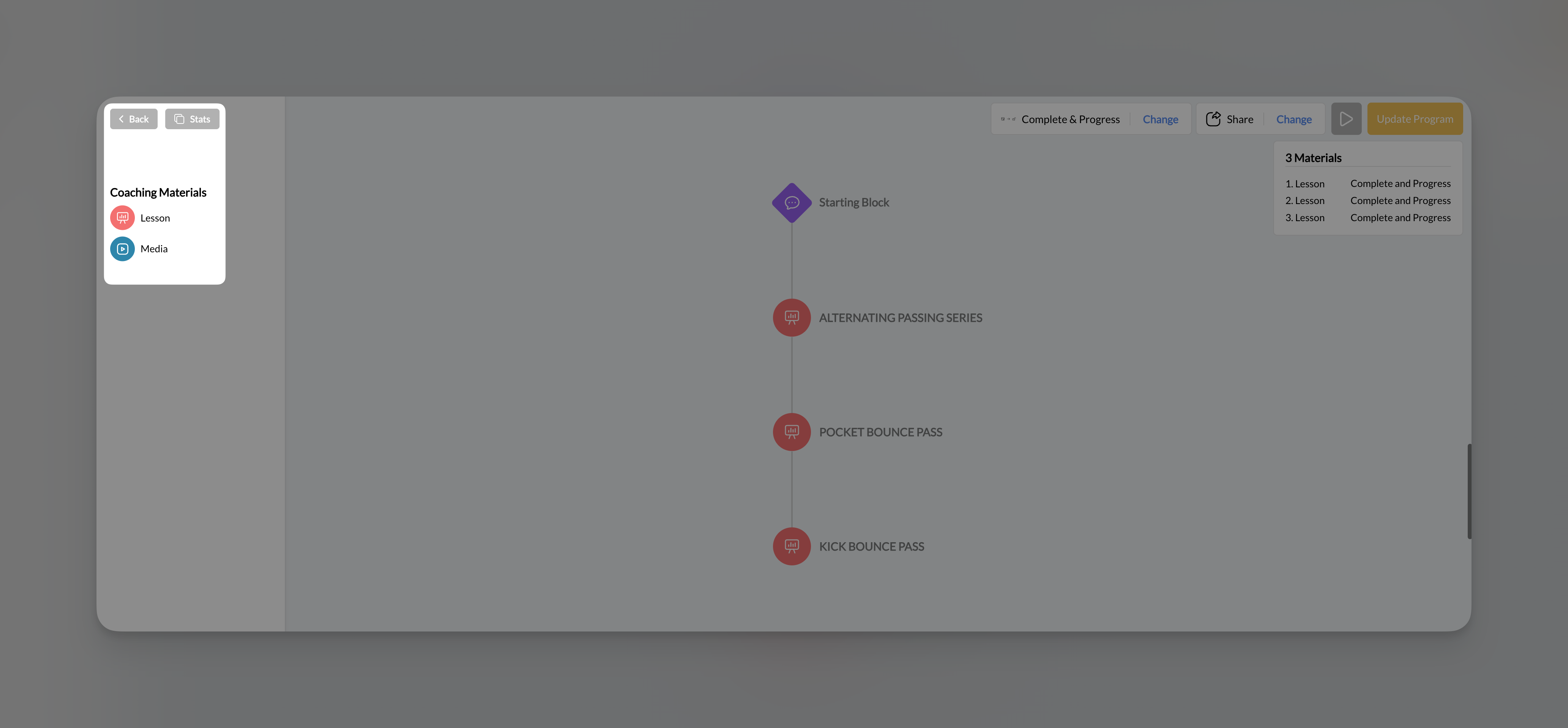
In the left sidebar under **Coaching Materials**, you'll see:
* **Lesson**: Your interactive lessons from Media Hub
* **Media**: Standalone videos and images
Drag items from the sidebar into the visual flow area to add them to your program.
Drag nodes up or down in the visual flow to reorder chapters. Athletes will progress through them in the order you set.
Click **Complete & Progress** in the top bar to choose how athletes move through content (more on this below).
Click **Update Program** (yellow button, top right) to save all changes.
**Critical**: The Program Builder does NOT auto-save. Always click Update Program before navigating away or you'll lose your changes.
## Understanding the Program Builder interface
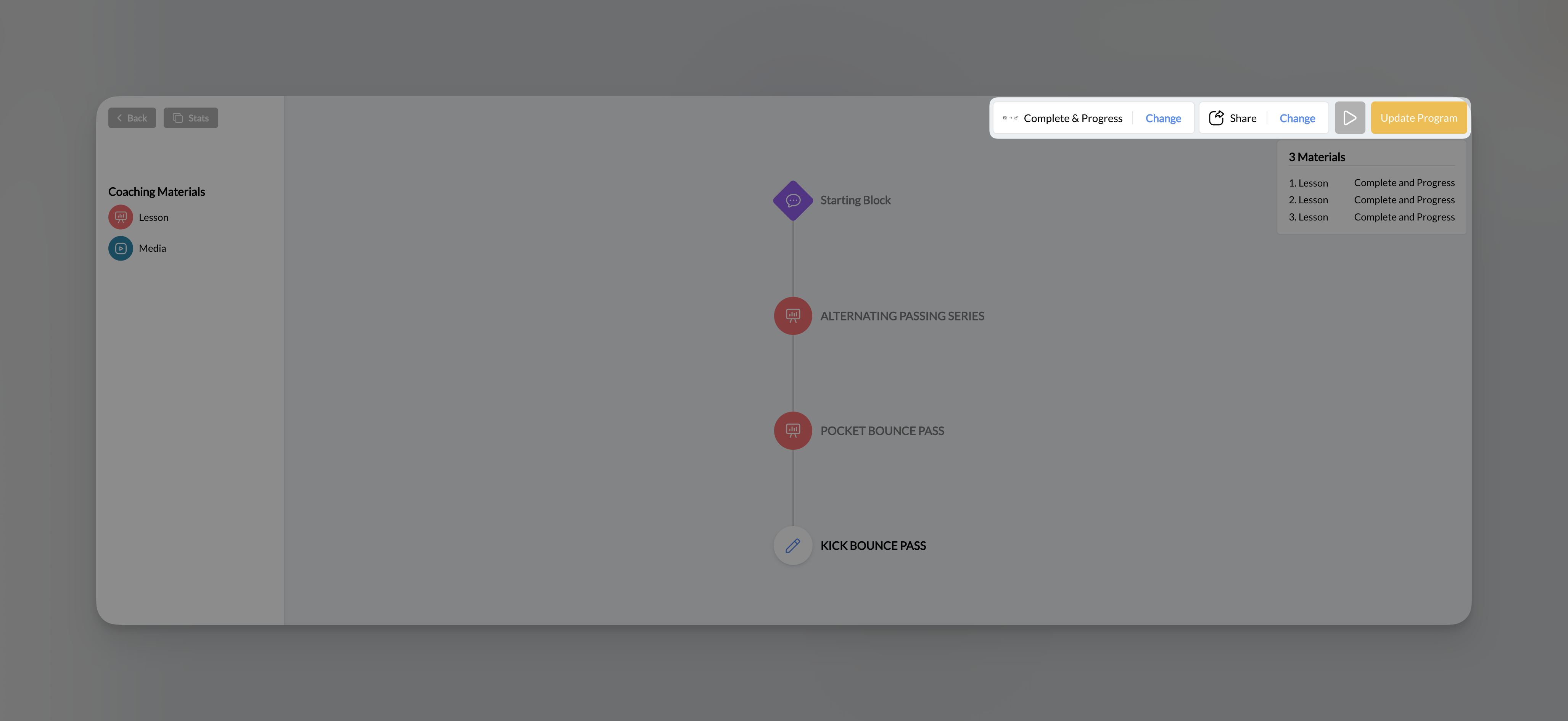
### Top bar
| Element | Function |
| ----------------------- | -------------------------------------------- |
| **← Back** | Return to Programs list |
| **Stats** | View program analytics and athlete responses |
| **Complete & Progress** | Current progression mode (click to change) |
| **Share** | Configure pricing and access settings |
| **Preview** (play icon) | See the program as athletes experience it |
| **Update Program** | Save all changes (yellow button) |
 ### Left sidebar
**Program title** displays at the top, followed by:
* **Coaching Materials**: Expandable sections for Lessons and Media
* Drag items from here into the visual flow to add them
### Left sidebar
**Program title** displays at the top, followed by:
* **Coaching Materials**: Expandable sections for Lessons and Media
* Drag items from here into the visual flow to add them
 ### Center area - Visual flow builder
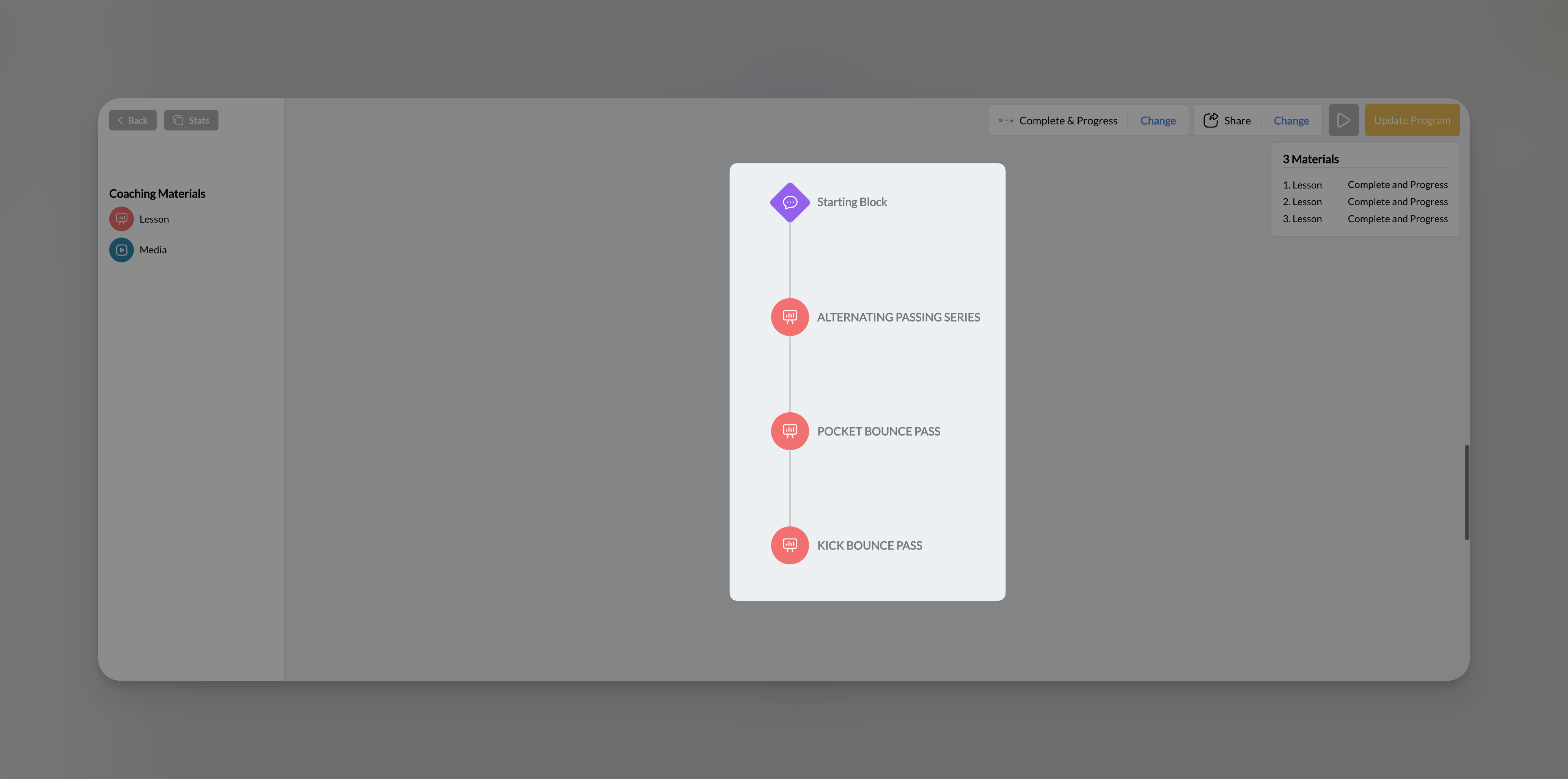
This is where you build your program structure:
* **Starting Block** (purple): Visual entry point, always present
* **Lesson nodes** (orange/red): Interactive lessons you've added
* **Media nodes** (blue): Standalone videos or images
Click any node to select it and see options.
### Center area - Visual flow builder
This is where you build your program structure:
* **Starting Block** (purple): Visual entry point, always present
* **Lesson nodes** (orange/red): Interactive lessons you've added
* **Media nodes** (blue): Standalone videos or images
Click any node to select it and see options.
 ### Right panel - Materials summary
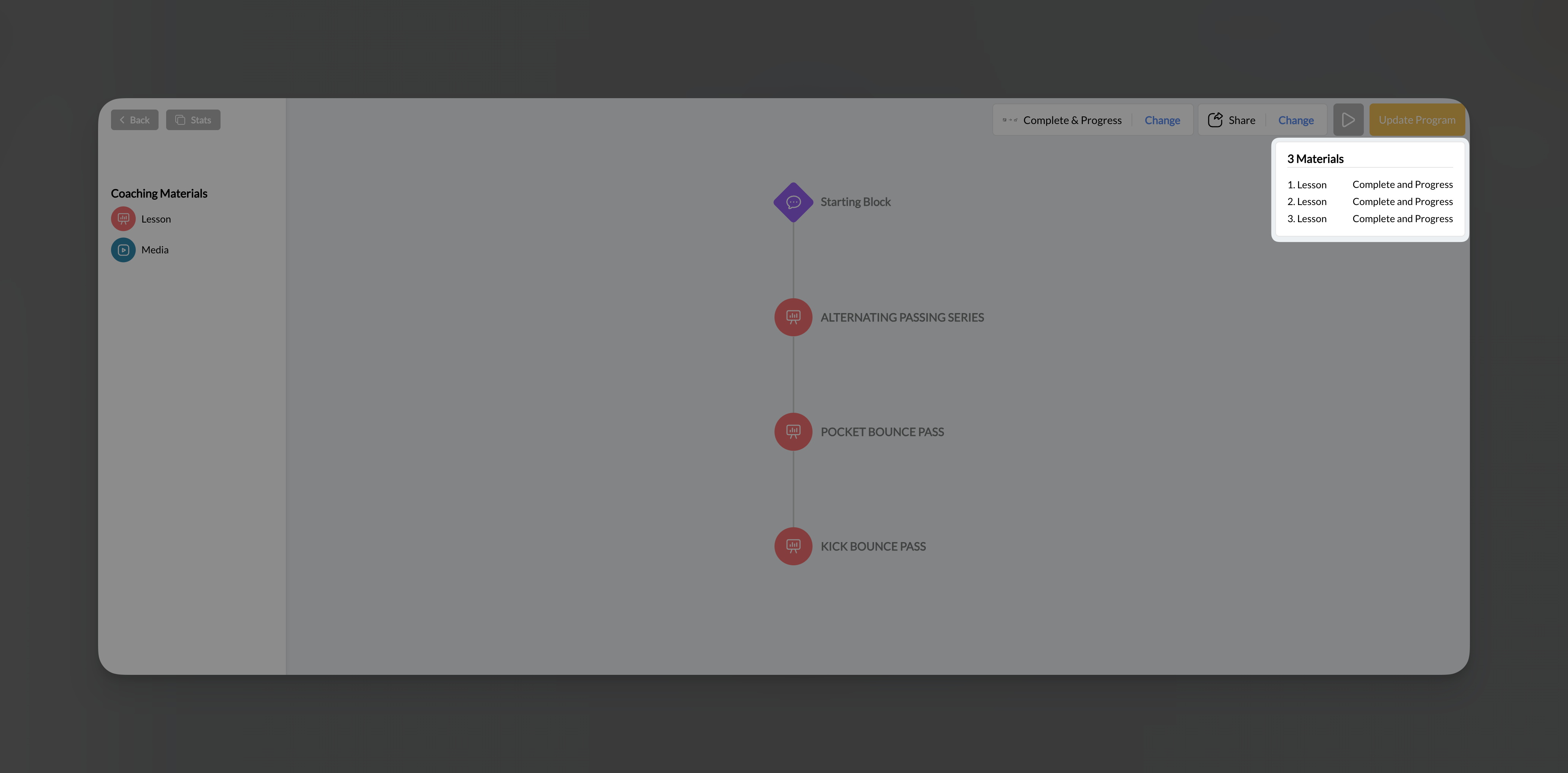
Shows a list of all content in your program with:
* Order number (1, 2, 3...)
* Content type (Lesson or Media)
* Access timing (Immediate, or unlock requirements)
### Right panel - Materials summary
Shows a list of all content in your program with:
* Order number (1, 2, 3...)
* Content type (Lesson or Media)
* Access timing (Immediate, or unlock requirements)
 ## Adding content to your program
### Adding standalone media
3. Drag the media button into the visual flow area
4. Drop it in position
5. Find the video or image you want
### Adding lessons
3. Drag the lesson button into the visual flow area
4. Drop it where you want it in the sequence
5. Find the lesson you want to add
**Mixed content**: Programs can contain any combination of lessons and standalone media. Use lessons for interactive content and standalone media for simple video chapters that don't need quizzes or text overlays.
### Reordering content
Drag nodes up or down in the visual flow to change their order. Athletes will progress through content in the order shown (top to bottom).
### Removing content
1. Click on any node in the visual flow
2. Click **Remove** in the popup menu
3. The content is removed from the program (but not deleted from Media Hub)
## Working with program nodes
When you click on a node in the visual flow, you'll see:
| Option | What it does |
| --------------------- | -------------------------------------------- |
| **Preview thumbnail** | Shows the content preview |
| **Edit Lesson** | Opens Lesson Builder directly (lessons only) |
| **Thumbnail** | Change the chapter thumbnail |
| **Remove** | Remove from program |
| **Access dropdown** | Set when this chapter unlocks |
**Quick editing**: Click "Edit Lesson" on any lesson node to jump directly into the Lesson Builder. Save your lesson changes there, then return to the Program Builder.
## Progression modes: How athletes move through content
Click **Complete & Progress** (or **Change** next to it) in the top bar to choose how athletes progress through your program.
### Immediate Access
**How it works**: All content is available immediately. Athletes can access any chapter in any order.
**Best for**:
* Reference libraries
* On-demand content collections
* Programs where order doesn't matter
* Returning athletes who need to jump to specific sections
### Complete & Progress
**How it works**: Athletes must complete each chapter before the next one unlocks. They work through content sequentially.
**Best for**:
* Structured courses with building concepts
* Certification programs
* Training progressions where order matters
* Ensuring athletes don't skip foundational content
"Complete" means the athlete has fully viewed/finished the lesson or media—not just opened it. They need to swipe through all slides or watch the video.
### Drip
**How it works**: Content releases on a time-based schedule. You configure how frequently new chapters unlock (daily, weekly, or custom intervals).
**Best for**:
* Email-course style content delivery
* Subscription programs with ongoing content
* Pacing athletes to prevent rushing through material
* Building anticipation and engagement over time
## Previewing your program
Click the **Preview** button (play icon) in the top bar to see exactly what athletes will experience:
* Program thumbnail and title
* Chapter list with progress indicators
* Lesson preview with slide count
* "Begin Program" button
This is the same view athletes see in their app. Use it to verify your content looks correct before sharing.
## Viewing program stats
Click the **Stats** button in the top bar to see:
* **All Checkpoints**: Overview of all chapters
* **View counts**: How many athletes viewed each chapter
* **Quiz responses**: What athletes selected on multiple choice questions
* **Form responses**: What athletes typed in free-text fields
* **Upload submissions**: Files athletes submitted through Upload elements
Stats are collected at the program level, even if the same lesson appears in multiple programs. Each program tracks its own responses separately.
## Tips for building effective programs
Plan your chapter structure before building. Know what content goes where and in what order.
Combine interactive lessons with standalone videos for variety. Not everything needs to be a full lesson.
Each chapter thumbnail helps athletes navigate. Use distinct images that represent the content.
No auto-save means lost work if you forget. Click Update Program after every significant change.
## Program content patterns
**Structure**:
* Lesson 1: Welcome & Overview
* Lesson 2: Foundation Concepts
* Lesson 3: Core Technique
* Lesson 4: Practice Drills (with Upload for submission)
* Lesson 5: Advanced Application
* Lesson 6: Final Quiz & Next Steps
**Settings**: Complete & Progress mode, Paywalled
**Structure**:
* Media: Warm-up Routine
* Media: Drill 1 - Ball Handling
* Media: Drill 2 - Shooting Form
* Media: Drill 3 - Footwork
* Media: Drill 4 - Defense
* (Continue with more drills...)
**Settings**: Immediate Access, Free or Paywalled
**Structure**:
* Lesson: Week 1 - Assessment & Baseline
* Lesson: Week 2 - Foundation Building
* Lesson: Week 3 - Skill Development
* Lesson: Week 4 - Progressive Challenge
* Lesson: Week 5 - Advanced Techniques
* Lesson: Week 6 - Final Assessment
**Settings**: Drip mode (weekly release), Paywalled subscription
**Structure**:
* Media: Your Personalized Warm-up
* Lesson: Form Corrections (specific to this athlete)
* Media: Homework Drills
* Lesson: Upload Your Practice Videos
**Settings**: Immediate Access, Free, Private (assigned to specific athlete)
## Frequently asked questions about programs
Yes! Lessons can be reused across unlimited programs. This is great for foundational content that applies to multiple courses.
**Lessons** are interactive, multi-slide experiences with text, quizzes, forms, etc. **Standalone media** is just a single video or image—athletes watch/view it and move on. Use lessons when you want interaction, standalone media when you just need to share a video.
Yes, but be careful. Changing from Complete & Progress to Immediate Access will unlock all content for everyone. Changing the other direction may lock content athletes previously had access to.
Click the **Stats** button in the Program Builder. You'll see view counts and can track which chapters athletes have completed.
No limit. Add as many lessons and media files as you need. However, very long programs may benefit from being split into multiple programs or "levels."
Lessons must be saved in the Lesson Builder before they appear in the Program Builder. Make sure you clicked "Update Lesson" after creating it.
The lesson will be removed from any programs that included it. Always check where a lesson is used before deleting it from Media Hub.
## Next steps
Learn how to configure pricing, share programs privately, and connect to payment products.
Build engaging lessons to include in your programs.
## Related articles
Create the payment products you link to paywalled programs.
Connect payment products to your programs for monetization.
Manage which programs appear in your athlete app.
Configure the branded app where athletes access your programs.
## Adding content to your program
### Adding standalone media
3. Drag the media button into the visual flow area
4. Drop it in position
5. Find the video or image you want
### Adding lessons
3. Drag the lesson button into the visual flow area
4. Drop it where you want it in the sequence
5. Find the lesson you want to add
**Mixed content**: Programs can contain any combination of lessons and standalone media. Use lessons for interactive content and standalone media for simple video chapters that don't need quizzes or text overlays.
### Reordering content
Drag nodes up or down in the visual flow to change their order. Athletes will progress through content in the order shown (top to bottom).
### Removing content
1. Click on any node in the visual flow
2. Click **Remove** in the popup menu
3. The content is removed from the program (but not deleted from Media Hub)
## Working with program nodes
When you click on a node in the visual flow, you'll see:
| Option | What it does |
| --------------------- | -------------------------------------------- |
| **Preview thumbnail** | Shows the content preview |
| **Edit Lesson** | Opens Lesson Builder directly (lessons only) |
| **Thumbnail** | Change the chapter thumbnail |
| **Remove** | Remove from program |
| **Access dropdown** | Set when this chapter unlocks |
**Quick editing**: Click "Edit Lesson" on any lesson node to jump directly into the Lesson Builder. Save your lesson changes there, then return to the Program Builder.
## Progression modes: How athletes move through content
Click **Complete & Progress** (or **Change** next to it) in the top bar to choose how athletes progress through your program.
### Immediate Access
**How it works**: All content is available immediately. Athletes can access any chapter in any order.
**Best for**:
* Reference libraries
* On-demand content collections
* Programs where order doesn't matter
* Returning athletes who need to jump to specific sections
### Complete & Progress
**How it works**: Athletes must complete each chapter before the next one unlocks. They work through content sequentially.
**Best for**:
* Structured courses with building concepts
* Certification programs
* Training progressions where order matters
* Ensuring athletes don't skip foundational content
"Complete" means the athlete has fully viewed/finished the lesson or media—not just opened it. They need to swipe through all slides or watch the video.
### Drip
**How it works**: Content releases on a time-based schedule. You configure how frequently new chapters unlock (daily, weekly, or custom intervals).
**Best for**:
* Email-course style content delivery
* Subscription programs with ongoing content
* Pacing athletes to prevent rushing through material
* Building anticipation and engagement over time
## Previewing your program
Click the **Preview** button (play icon) in the top bar to see exactly what athletes will experience:
* Program thumbnail and title
* Chapter list with progress indicators
* Lesson preview with slide count
* "Begin Program" button
This is the same view athletes see in their app. Use it to verify your content looks correct before sharing.
## Viewing program stats
Click the **Stats** button in the top bar to see:
* **All Checkpoints**: Overview of all chapters
* **View counts**: How many athletes viewed each chapter
* **Quiz responses**: What athletes selected on multiple choice questions
* **Form responses**: What athletes typed in free-text fields
* **Upload submissions**: Files athletes submitted through Upload elements
Stats are collected at the program level, even if the same lesson appears in multiple programs. Each program tracks its own responses separately.
## Tips for building effective programs
Plan your chapter structure before building. Know what content goes where and in what order.
Combine interactive lessons with standalone videos for variety. Not everything needs to be a full lesson.
Each chapter thumbnail helps athletes navigate. Use distinct images that represent the content.
No auto-save means lost work if you forget. Click Update Program after every significant change.
## Program content patterns
**Structure**:
* Lesson 1: Welcome & Overview
* Lesson 2: Foundation Concepts
* Lesson 3: Core Technique
* Lesson 4: Practice Drills (with Upload for submission)
* Lesson 5: Advanced Application
* Lesson 6: Final Quiz & Next Steps
**Settings**: Complete & Progress mode, Paywalled
**Structure**:
* Media: Warm-up Routine
* Media: Drill 1 - Ball Handling
* Media: Drill 2 - Shooting Form
* Media: Drill 3 - Footwork
* Media: Drill 4 - Defense
* (Continue with more drills...)
**Settings**: Immediate Access, Free or Paywalled
**Structure**:
* Lesson: Week 1 - Assessment & Baseline
* Lesson: Week 2 - Foundation Building
* Lesson: Week 3 - Skill Development
* Lesson: Week 4 - Progressive Challenge
* Lesson: Week 5 - Advanced Techniques
* Lesson: Week 6 - Final Assessment
**Settings**: Drip mode (weekly release), Paywalled subscription
**Structure**:
* Media: Your Personalized Warm-up
* Lesson: Form Corrections (specific to this athlete)
* Media: Homework Drills
* Lesson: Upload Your Practice Videos
**Settings**: Immediate Access, Free, Private (assigned to specific athlete)
## Frequently asked questions about programs
Yes! Lessons can be reused across unlimited programs. This is great for foundational content that applies to multiple courses.
**Lessons** are interactive, multi-slide experiences with text, quizzes, forms, etc. **Standalone media** is just a single video or image—athletes watch/view it and move on. Use lessons when you want interaction, standalone media when you just need to share a video.
Yes, but be careful. Changing from Complete & Progress to Immediate Access will unlock all content for everyone. Changing the other direction may lock content athletes previously had access to.
Click the **Stats** button in the Program Builder. You'll see view counts and can track which chapters athletes have completed.
No limit. Add as many lessons and media files as you need. However, very long programs may benefit from being split into multiple programs or "levels."
Lessons must be saved in the Lesson Builder before they appear in the Program Builder. Make sure you clicked "Update Lesson" after creating it.
The lesson will be removed from any programs that included it. Always check where a lesson is used before deleting it from Media Hub.
## Next steps
Learn how to configure pricing, share programs privately, and connect to payment products.
Build engaging lessons to include in your programs.
## Related articles
Create the payment products you link to paywalled programs.
Connect payment products to your programs for monetization.
Manage which programs appear in your athlete app.
Configure the branded app where athletes access your programs.