> ## Documentation Index
> Fetch the complete documentation index at: https://help.coachiq.io/llms.txt
> Use this file to discover all available pages before exploring further.
# How Athletes Join Your Program
> The simple path from your website to a fully set-up athlete in your system - purchase, portal, done.
**The big picture**: Your website is your front door. Athletes purchase a product, and they're automatically set up in your system - account created, waiver signed, ready to go.
## The Athlete Journey
Find your pricing
Select a plan
Waiver signed automatically
Book sessions, view membership
***
## Your website is the starting point
Direct all athletes and parents to your website. It's their homepage for everything:
* Finding your programs and pricing
* Purchasing memberships or packages
* Accessing the member login (Athlete Portal)
* Signing up for camps, clinics, or new offerings
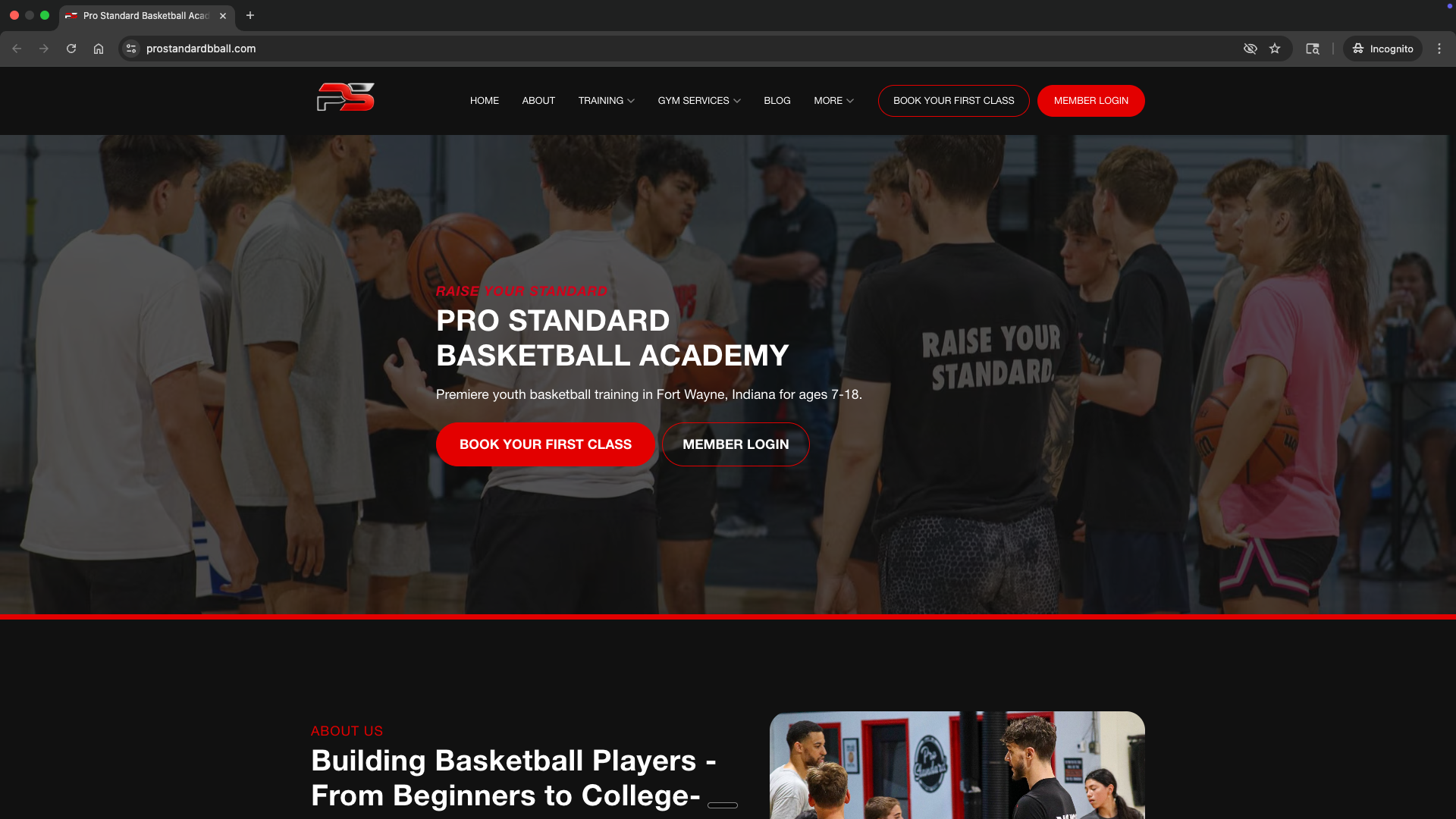 **Train your athletes**: When anyone asks "how do I sign up?" or "where do I book?" - the answer is always your website. Make it the single source of truth.
***
## Step 1: Athlete selects a product
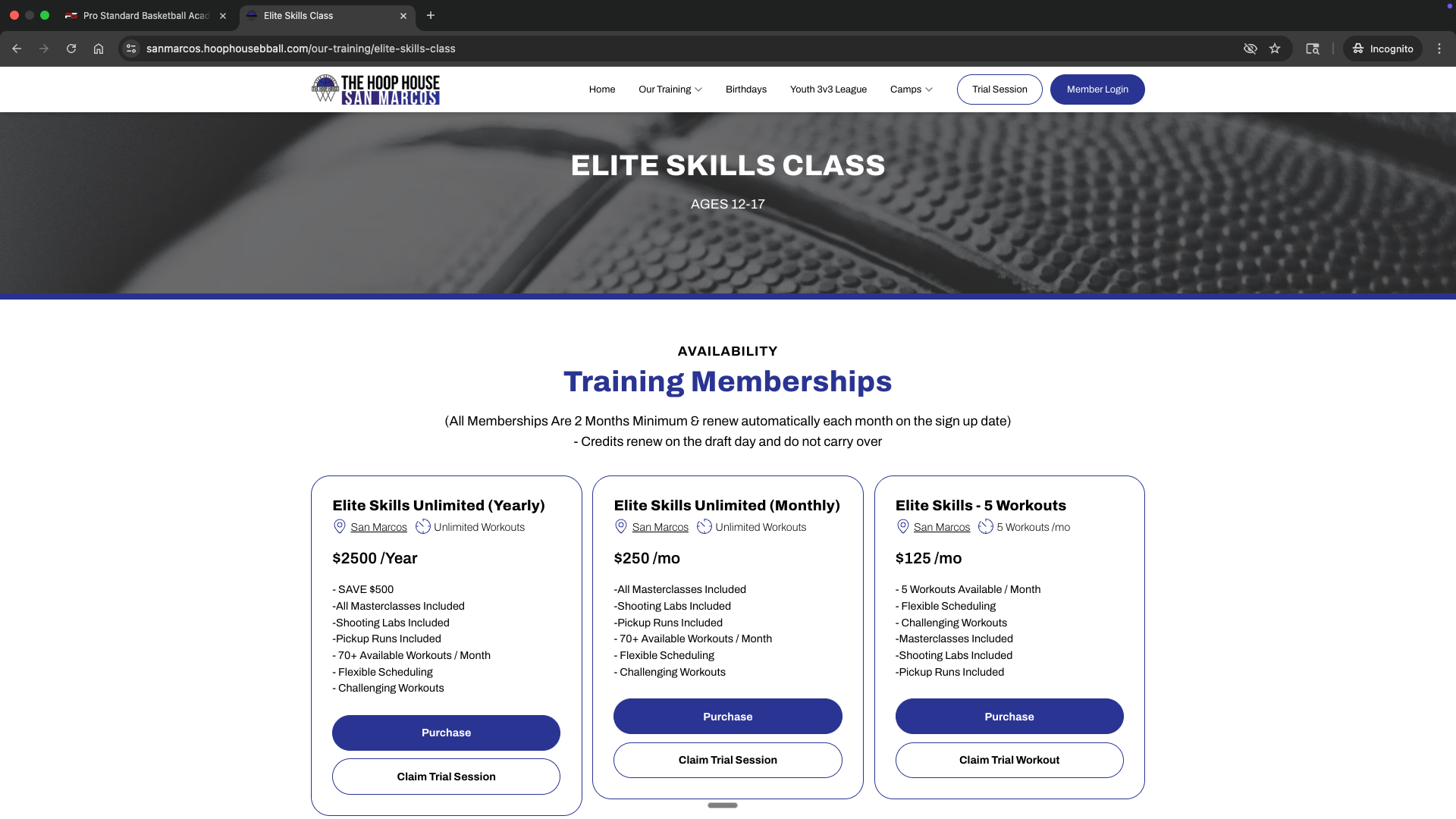
Athletes visit your website and navigate to your pricing or products page. They choose the plan that fits their needs:
* Monthly membership (1x, 2x, or 3x per week)
* Session package (10-pack, etc.)
* Camp or clinic registration
* Trial session
**Train your athletes**: When anyone asks "how do I sign up?" or "where do I book?" - the answer is always your website. Make it the single source of truth.
***
## Step 1: Athlete selects a product
Athletes visit your website and navigate to your pricing or products page. They choose the plan that fits their needs:
* Monthly membership (1x, 2x, or 3x per week)
* Session package (10-pack, etc.)
* Camp or clinic registration
* Trial session
 ***
## Step 2: Athlete completes purchase
When they click to purchase, the checkout process handles everything:
* **Payment collected** via Stripe
* **Account created** automatically (email + password)
* **Waiver and terms signed** (if you've configured this on the product)
* **Credits granted** (if it's a package or membership)
**Waiver collection**: You can require athletes to sign a waiver during checkout. This is configured in your product settings.
How to configure waivers, terms, and checkout options
***
## Step 3: Athlete lands in the portal
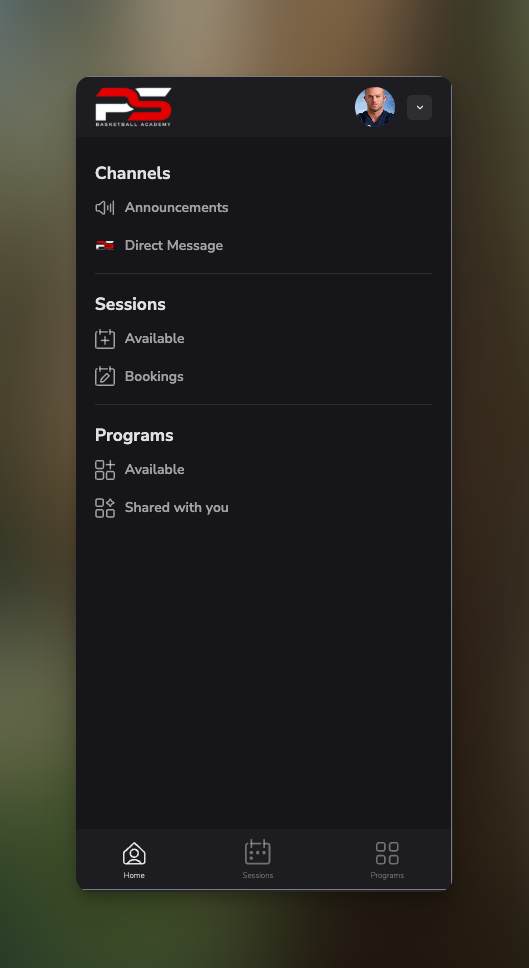
After purchase, the athlete is automatically logged into the **Athlete Portal** - their member hub.
From here they can:
* **Book sessions** using their credits or membership
* **View their membership** and billing
* **Message you** through the inbox
* **Access programs** (if you offer them)
* **See upcoming sessions** on their schedule
***
## Step 2: Athlete completes purchase
When they click to purchase, the checkout process handles everything:
* **Payment collected** via Stripe
* **Account created** automatically (email + password)
* **Waiver and terms signed** (if you've configured this on the product)
* **Credits granted** (if it's a package or membership)
**Waiver collection**: You can require athletes to sign a waiver during checkout. This is configured in your product settings.
How to configure waivers, terms, and checkout options
***
## Step 3: Athlete lands in the portal
After purchase, the athlete is automatically logged into the **Athlete Portal** - their member hub.
From here they can:
* **Book sessions** using their credits or membership
* **View their membership** and billing
* **Message you** through the inbox
* **Access programs** (if you offer them)
* **See upcoming sessions** on their schedule
 ***
## Step 4: Athlete downloads the app (optional)
For the best experience, athletes can download the CoachIQ app:
* **iOS**: Available on the App Store
* **Android**: Available on Google Play
The app syncs with the web portal - same account, same data, accessible anywhere.
**Encourage app downloads**: Athletes who use the app book more consistently and are easier to communicate with via push notifications.
Help athletes download and set up the mobile app
***
## What athletes see after joining
Once an athlete purchases and enters the portal, they have access to:
| Feature | What it does |
| ------------ | ----------------------------------------- |
| **Schedule** | Book sessions using credits or membership |
| **Products** | Purchase additional packages or upgrades |
| **Inbox** | Message their coach directly |
| **Billing** | View membership, update payment method |
| **Profile** | Update personal information |
***
## Customize the welcome experience
When new athletes join, you can automatically:
* Send a **welcome message** via email or SMS
* Deliver **onboarding instructions**
* Share **what to expect** for their first session
***
## Step 4: Athlete downloads the app (optional)
For the best experience, athletes can download the CoachIQ app:
* **iOS**: Available on the App Store
* **Android**: Available on Google Play
The app syncs with the web portal - same account, same data, accessible anywhere.
**Encourage app downloads**: Athletes who use the app book more consistently and are easier to communicate with via push notifications.
Help athletes download and set up the mobile app
***
## What athletes see after joining
Once an athlete purchases and enters the portal, they have access to:
| Feature | What it does |
| ------------ | ----------------------------------------- |
| **Schedule** | Book sessions using credits or membership |
| **Products** | Purchase additional packages or upgrades |
| **Inbox** | Message their coach directly |
| **Billing** | View membership, update payment method |
| **Profile** | Update personal information |
***
## Customize the welcome experience
When new athletes join, you can automatically:
* Send a **welcome message** via email or SMS
* Deliver **onboarding instructions**
* Share **what to expect** for their first session
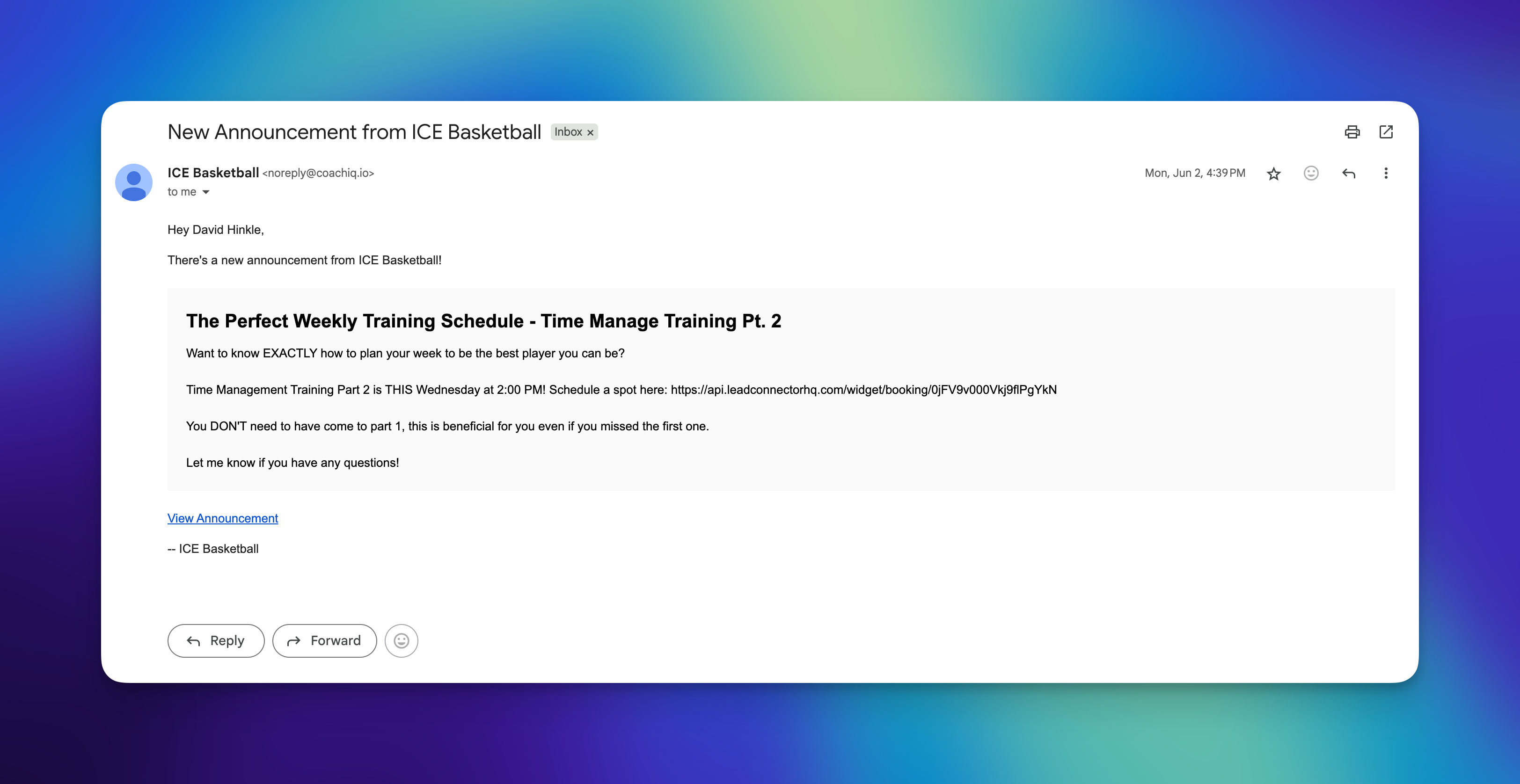 This is configured through automations.
Set up welcome messages and automated flows
***
## Example: The complete flow
Here's what it looks like for a parent signing up their kid:
They find your site through Google, social media, or a referral.
They see your options: 1x/week ($149/mo), 2x/week ($249/mo), 3x/week (\$349/mo).
They click "Sign Up" and enter payment info.
Email, password, and waiver are handled during checkout.
They see the welcome message and can immediately book their first sessions.
Using their membership, they book Tuesday and Thursday at 5pm.
Confirmations and reminders are sent automatically. Done.
***
## Quick reference
### Where athletes go
| Task | Where to send them |
| ------------------ | ------------------------------------ |
| Sign up / purchase | Your website → Products/Pricing page |
| Book sessions | Athlete Portal → Schedule |
| View membership | Athlete Portal → Billing |
| Message coach | Athlete Portal → Inbox |
| Download app | App Store or Google Play |
### Where you manage athletes
| Task | Location in admin |
| -------------------- | --------------------------- |
| View all athletes | People |
| See athlete details | People → Click athlete name |
| Add athlete manually | People → Add |
| View bookings | Calendar |
How to view, edit, and manually add athletes
***
## Common questions
They can still go through your website on their phone right there with you. Or you can add them manually from **People → Add** and send them an invite to set up their account.
Yes, during checkout they'll create their account with email and password. This gives them access to the Athlete Portal.
Yes. A parent can have one account and manage multiple athlete profiles under it.
They can reset it from the login page. You can also send them a new invite from their profile in **People**.
Trial sessions work the same way - create a trial product (free or discounted), athlete purchases it, account is created, they book their trial from the portal.
***
## Related articles
Configure products, waivers, and checkout options
What athletes see and how to customize it
Set up welcome messages and automated flows
View, edit, and manually add athletes
This is configured through automations.
Set up welcome messages and automated flows
***
## Example: The complete flow
Here's what it looks like for a parent signing up their kid:
They find your site through Google, social media, or a referral.
They see your options: 1x/week ($149/mo), 2x/week ($249/mo), 3x/week (\$349/mo).
They click "Sign Up" and enter payment info.
Email, password, and waiver are handled during checkout.
They see the welcome message and can immediately book their first sessions.
Using their membership, they book Tuesday and Thursday at 5pm.
Confirmations and reminders are sent automatically. Done.
***
## Quick reference
### Where athletes go
| Task | Where to send them |
| ------------------ | ------------------------------------ |
| Sign up / purchase | Your website → Products/Pricing page |
| Book sessions | Athlete Portal → Schedule |
| View membership | Athlete Portal → Billing |
| Message coach | Athlete Portal → Inbox |
| Download app | App Store or Google Play |
### Where you manage athletes
| Task | Location in admin |
| -------------------- | --------------------------- |
| View all athletes | People |
| See athlete details | People → Click athlete name |
| Add athlete manually | People → Add |
| View bookings | Calendar |
How to view, edit, and manually add athletes
***
## Common questions
They can still go through your website on their phone right there with you. Or you can add them manually from **People → Add** and send them an invite to set up their account.
Yes, during checkout they'll create their account with email and password. This gives them access to the Athlete Portal.
Yes. A parent can have one account and manage multiple athlete profiles under it.
They can reset it from the login page. You can also send them a new invite from their profile in **People**.
Trial sessions work the same way - create a trial product (free or discounted), athlete purchases it, account is created, they book their trial from the portal.
***
## Related articles
Configure products, waivers, and checkout options
What athletes see and how to customize it
Set up welcome messages and automated flows
View, edit, and manually add athletes