> ## Documentation Index
> Fetch the complete documentation index at: https://help.coachiq.io/llms.txt
> Use this file to discover all available pages before exploring further.
# Running Camps with CoachIQ
> Set up camp registration, collect payment, and automate the entire experience — from landing page to post-camp follow-up.
**Camps are different from memberships.** Anyone can attend a camp — they don't need to be an existing member. Your website is the storefront, not the Athlete Portal. Keep registration simple: landing page, form, payment, done.
## What type of camp are you running?
Your setup depends on how your camp is structured. Pick the path that fits:
**One day, one group, everyone shows up at the same time.** This is 99% of camps. Use a form + product + website page. No scheduling needed.
**Multiple days, age groups, or "pick your session" camps.** Use separate products per segment and automations to auto-book athletes into the right sessions.
***
## Path 1: Simple Camp
A one-day camp where everyone shows up at the same time. This is the most common setup and takes about 15 minutes.
**What you're building:**
Camp fee + waiver
Registration info
Camp landing page
Confirmation + reminders
***
### Create your camp product
This is the camp fee that parents pay at checkout.
Click **Add Product** to create a new product.
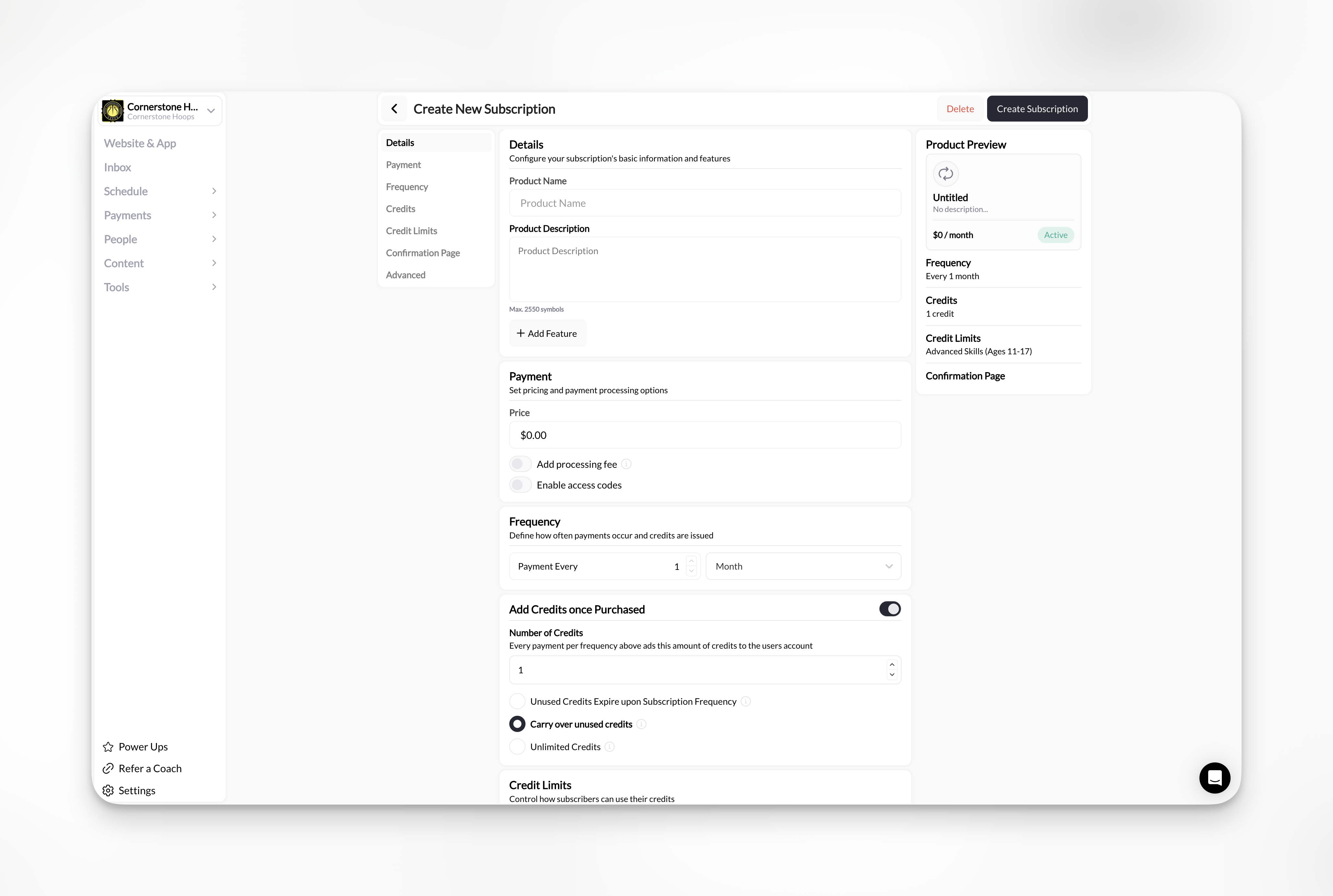
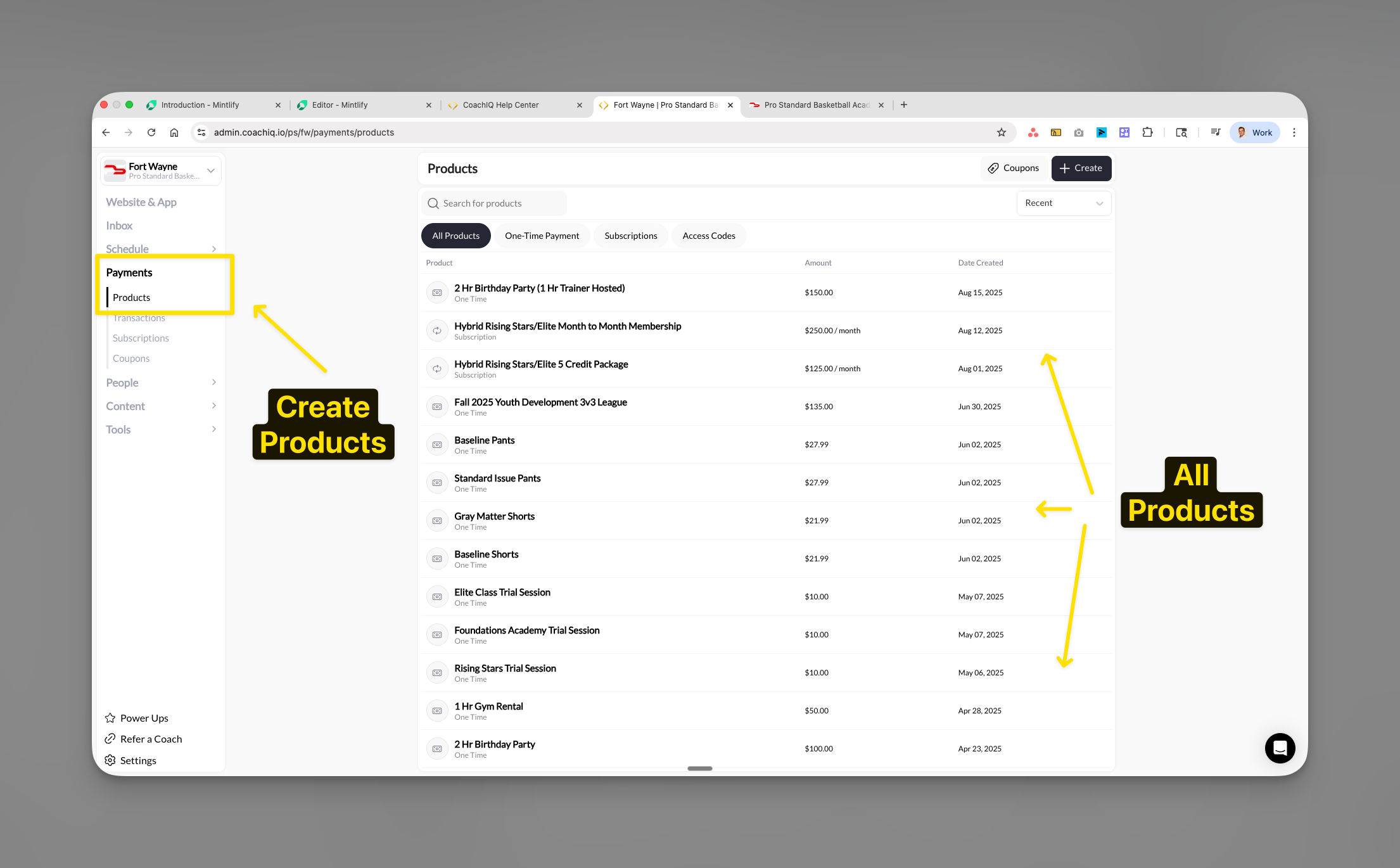 Fill in the details:
| Field | What to enter |
| --------------- | --------------------------------------------------- |
| **Name** | Something specific — "Summer Skills Camp - June 14" |
| **Price** | Your camp fee (e.g., \$149) |
| **Type** | One-time |
| **Description** | Dates, times, what's included |
Fill in the details:
| Field | What to enter |
| --------------- | --------------------------------------------------- |
| **Name** | Something specific — "Summer Skills Camp - June 14" |
| **Price** | Your camp fee (e.g., \$149) |
| **Type** | One-time |
| **Description** | Dates, times, what's included |
 Under product settings, enable **Terms & Conditions** and add your liability waiver. Parents will be required to accept it during checkout.
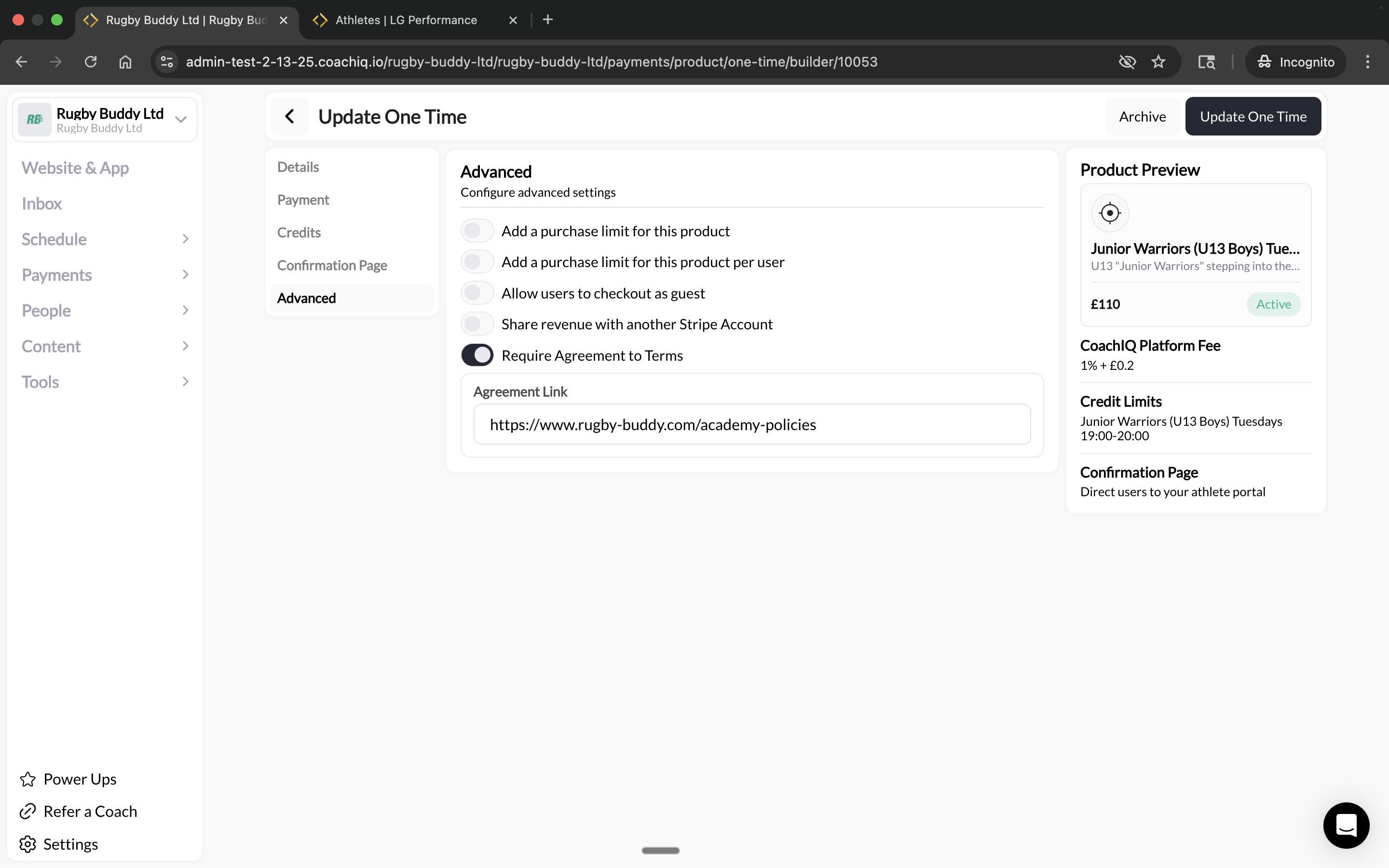 **Camp waivers**: Include liability release, medical authorization, and photo/video consent. Parents sign once during checkout — no separate paperwork needed.
***
### Build your registration form
The form collects athlete info and handles payment in one flow.
Click **Create Form** or start from a template.
**Camp waivers**: Include liability release, medical authorization, and photo/video consent. Parents sign once during checkout — no separate paperwork needed.
***
### Build your registration form
The form collects athlete info and handles payment in one flow.
Click **Create Form** or start from a template.
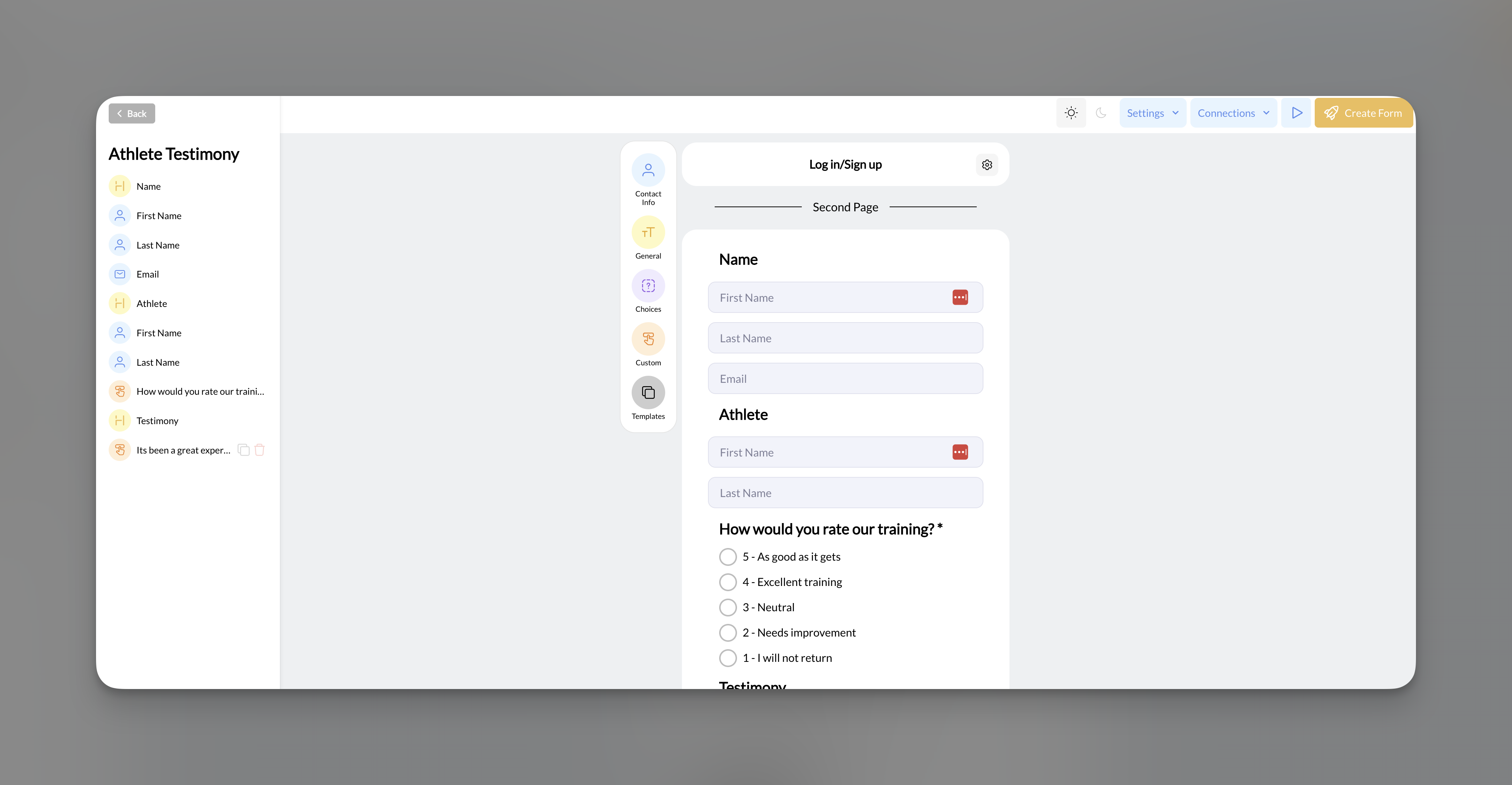 Collect the information you need for camp day:
| Field | Why you need it |
| ---------------------- | -------------------------------- |
| Athlete name | Check-in and roster |
| Age / grade | Group assignments |
| Parent email & phone | Communication |
| Emergency contact | Safety |
| Shirt size | If you're giving out camp shirts |
| Medical / allergy info | Safety precautions |
**Keep it short.** Every extra field reduces completion rates. Only ask for what you actually need on camp day.
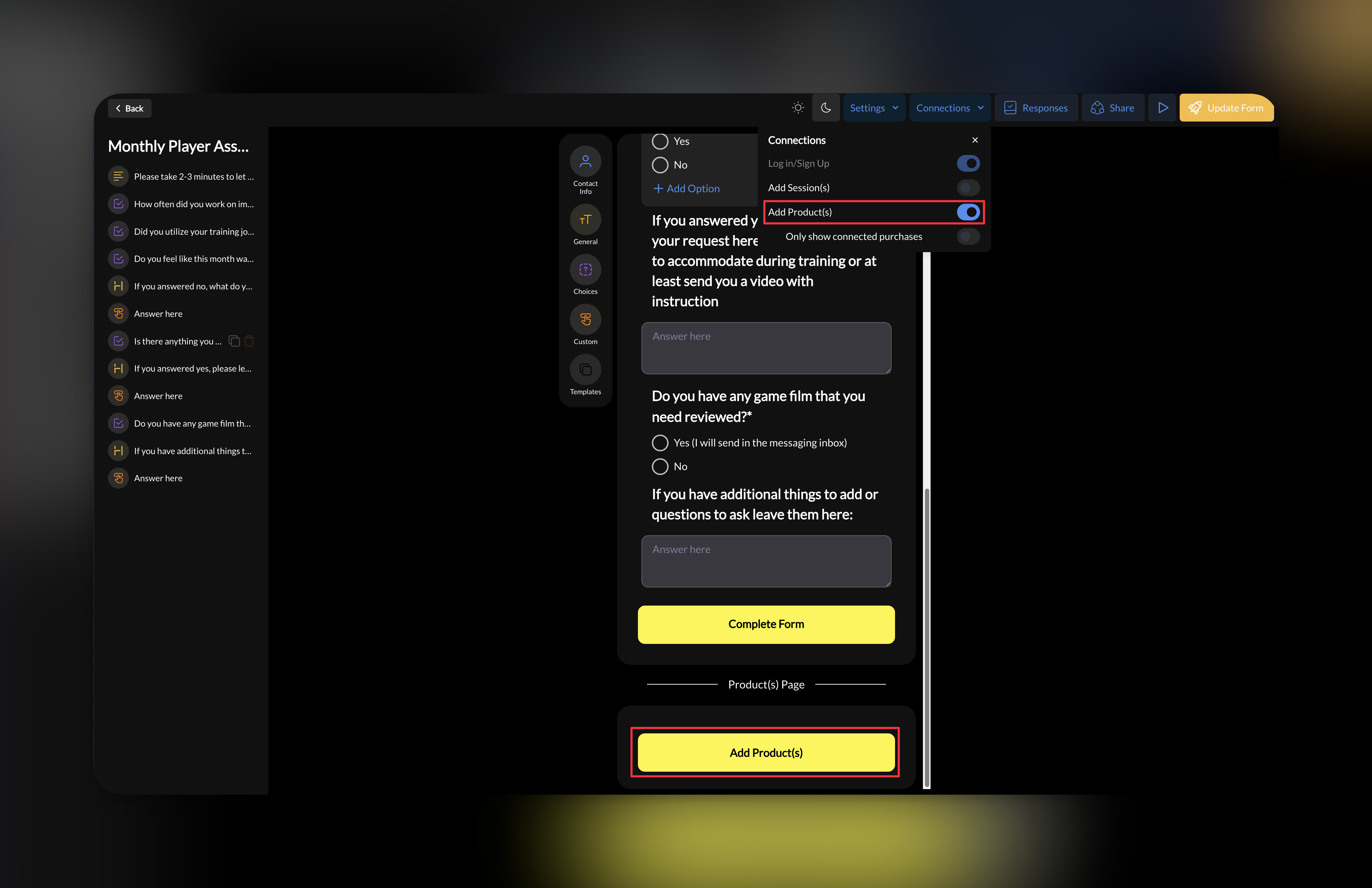
Under **Connections**, add your camp product. This adds a payment step after the form fields — athletes fill out the form, then pay.
Collect the information you need for camp day:
| Field | Why you need it |
| ---------------------- | -------------------------------- |
| Athlete name | Check-in and roster |
| Age / grade | Group assignments |
| Parent email & phone | Communication |
| Emergency contact | Safety |
| Shirt size | If you're giving out camp shirts |
| Medical / allergy info | Safety precautions |
**Keep it short.** Every extra field reduces completion rates. Only ask for what you actually need on camp day.
Under **Connections**, add your camp product. This adds a payment step after the form fields — athletes fill out the form, then pay.
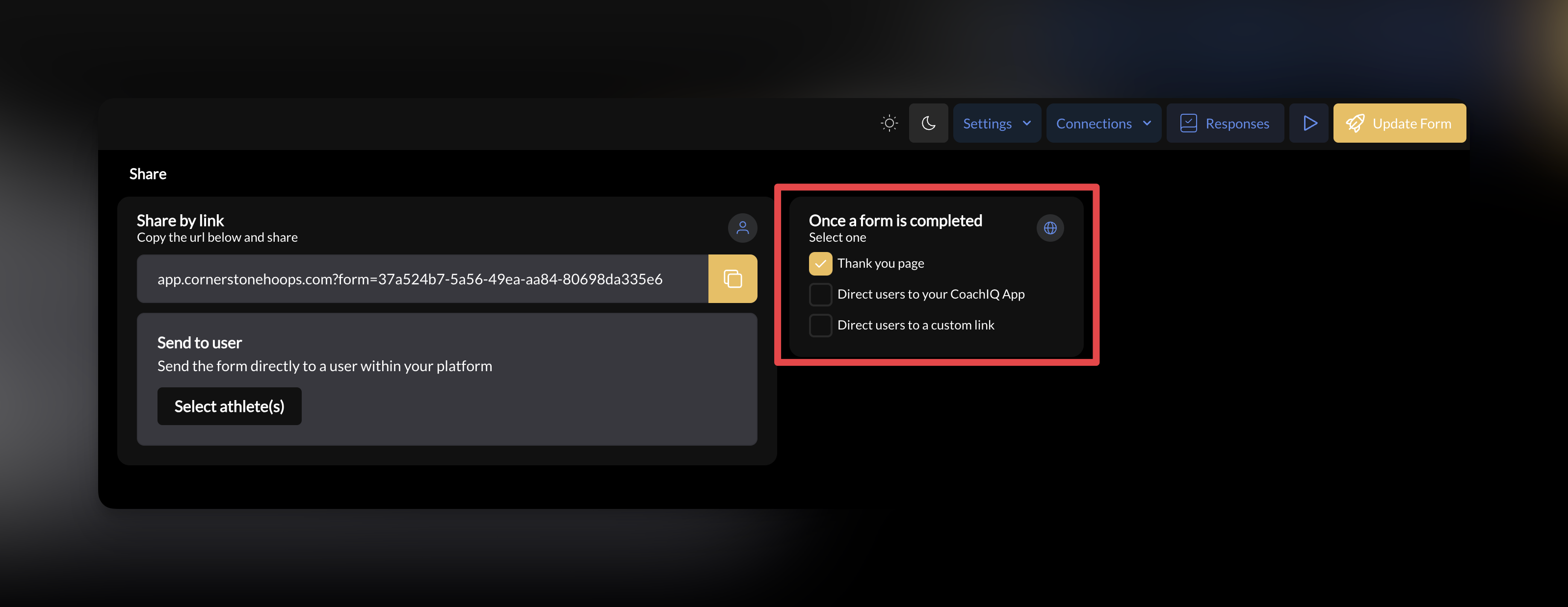
 Choose where athletes land after registering. A **Thank You page** or **custom redirect** to a "You're registered!" page on your website works well.
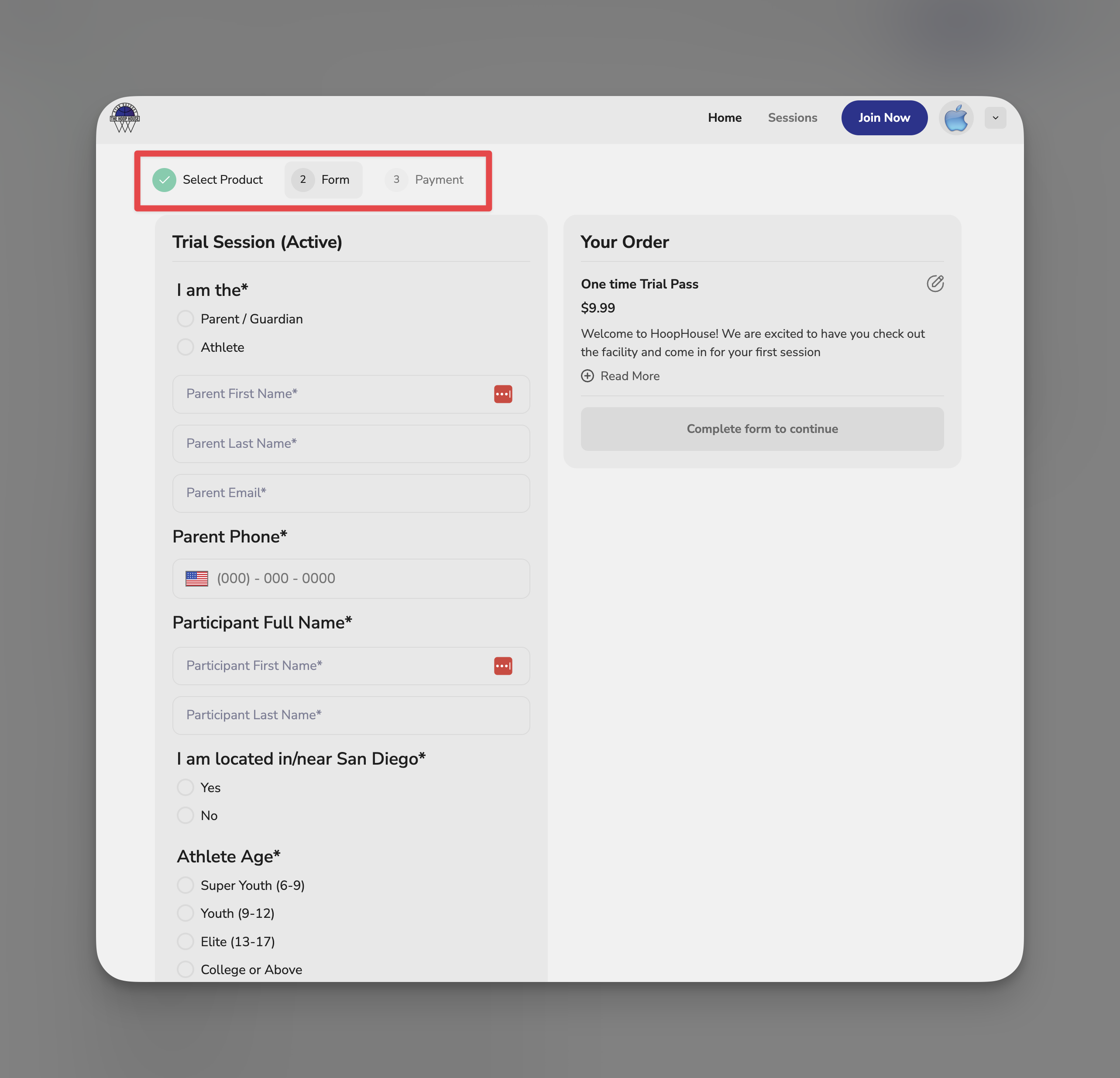
 **What the athlete sees:**
 ***
### Create a camp page on your website
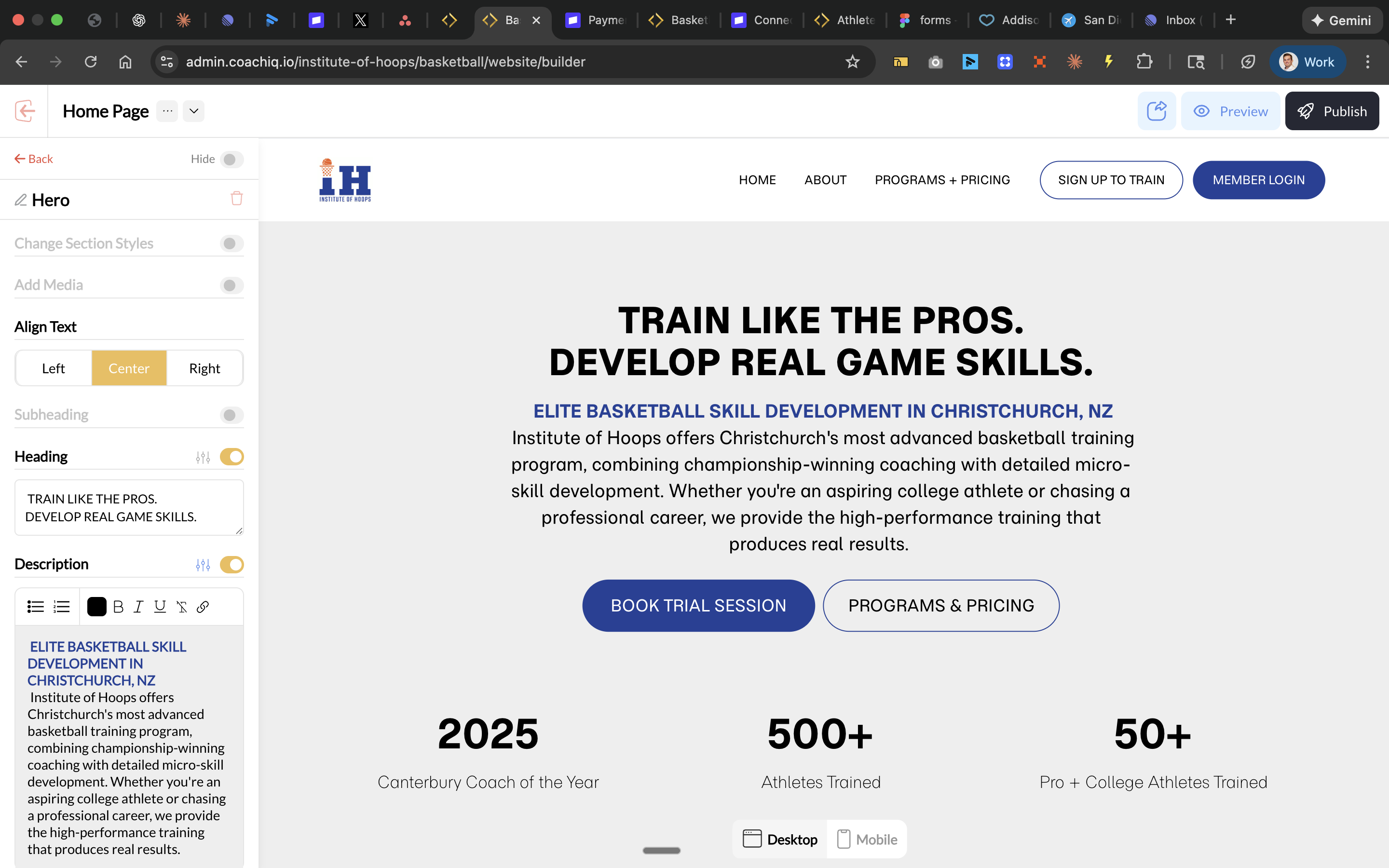
Your camp needs a dedicated landing page — this is where you send all traffic from social media, emails, and word of mouth.
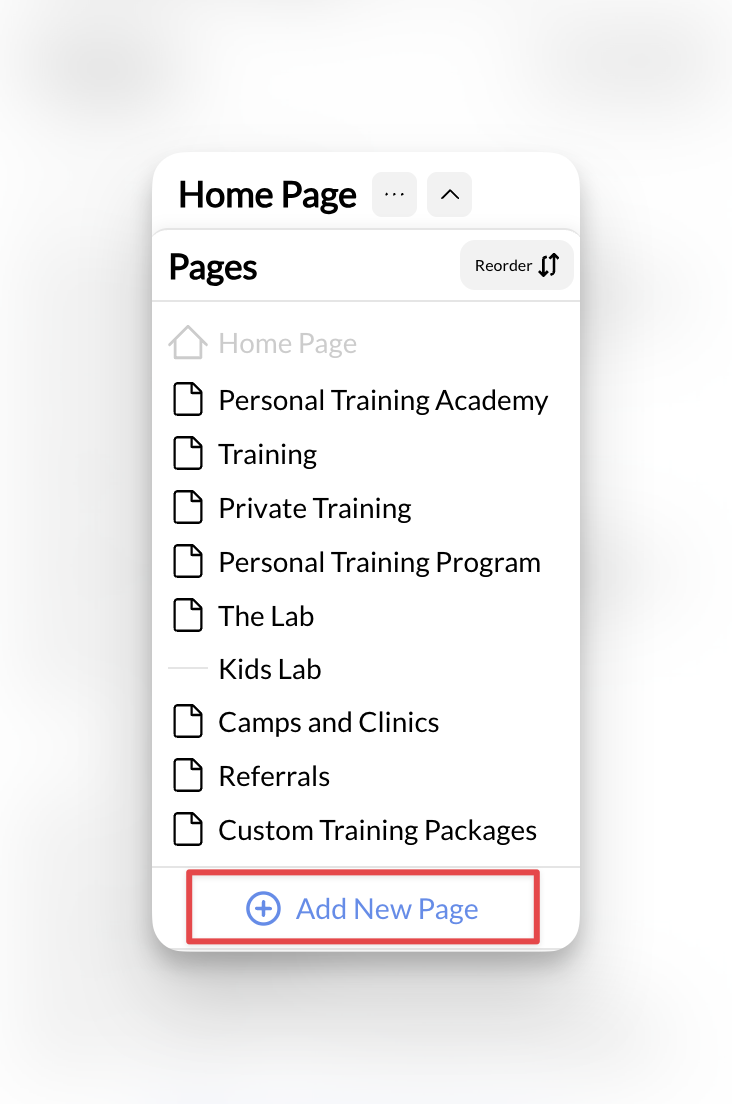
Click **Add Page** to create a new page for your camp.
***
### Create a camp page on your website
Your camp needs a dedicated landing page — this is where you send all traffic from social media, emails, and word of mouth.
Click **Add Page** to create a new page for your camp.
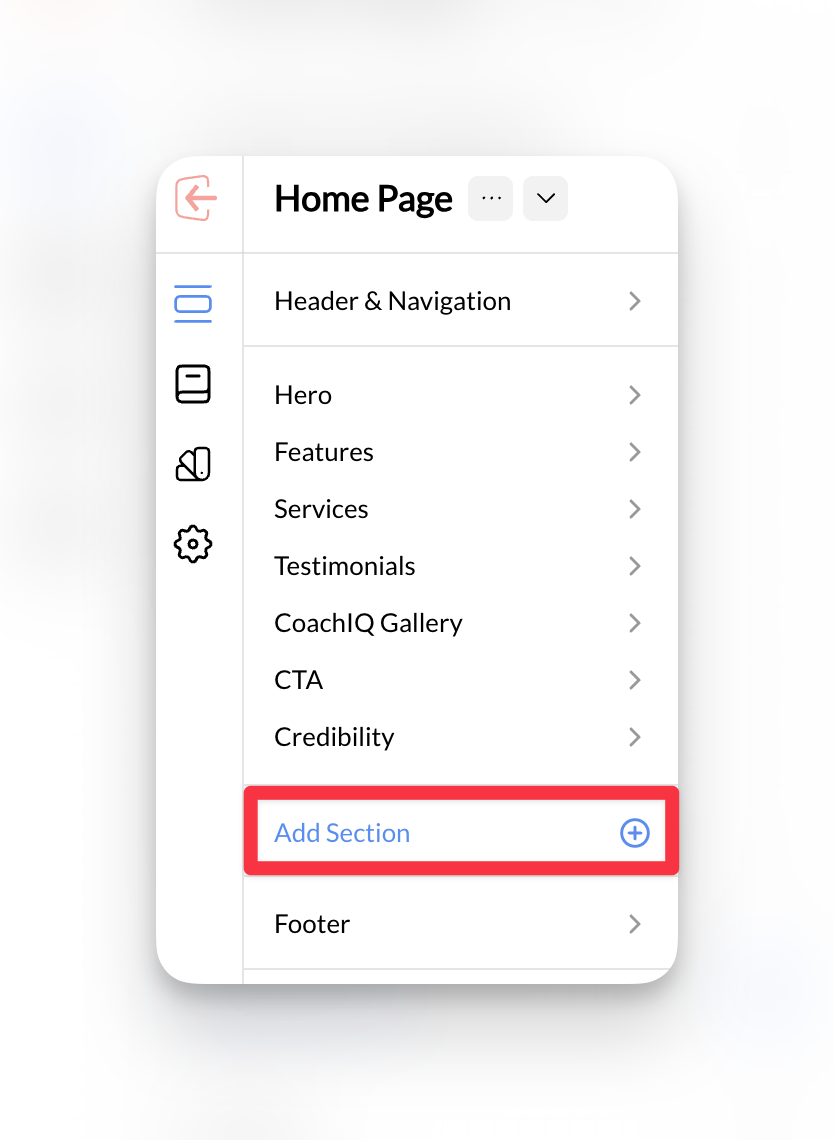
 Keep it simple and focused. A strong camp page has:
| Section | What to include |
| ---------------- | ------------------------------------------------------ |
| **Hero** | Camp name, dates, one-line description, big CTA button |
| **Details** | What athletes will learn, schedule, what to bring |
| **Pricing** | Camp fee and what's included |
| **Registration** | Embedded form or button linking to the form |
Keep it simple and focused. A strong camp page has:
| Section | What to include |
| ---------------- | ------------------------------------------------------ |
| **Hero** | Camp name, dates, one-line description, big CTA button |
| **Details** | What athletes will learn, schedule, what to bring |
| **Pricing** | Camp fee and what's included |
| **Registration** | Embedded form or button linking to the form |
 **One clear call-to-action.** The entire page should drive to one thing: "Register Now." Don't distract with links to other pages or programs.
Add a **Form section** to embed the form directly on the page, or use a **Button** that links to the form URL.
**One clear call-to-action.** The entire page should drive to one thing: "Register Now." Don't distract with links to other pages or programs.
Add a **Form section** to embed the form directly on the page, or use a **Button** that links to the form URL.
 ***
### Set up automations
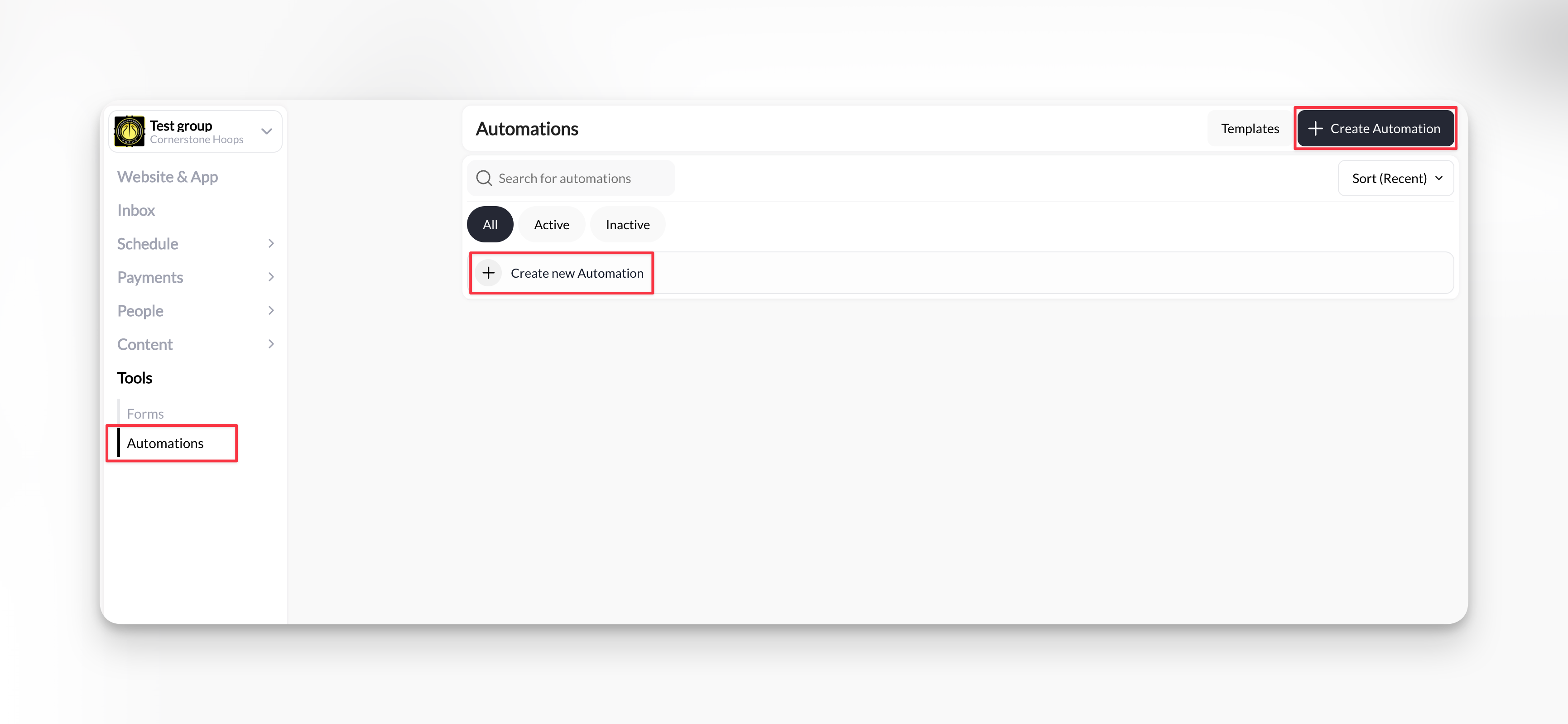
Don't manually email every parent. Let automations handle confirmations and reminders.
Click **Create Automation**.
***
### Set up automations
Don't manually email every parent. Let automations handle confirmations and reminders.
Click **Create Automation**.
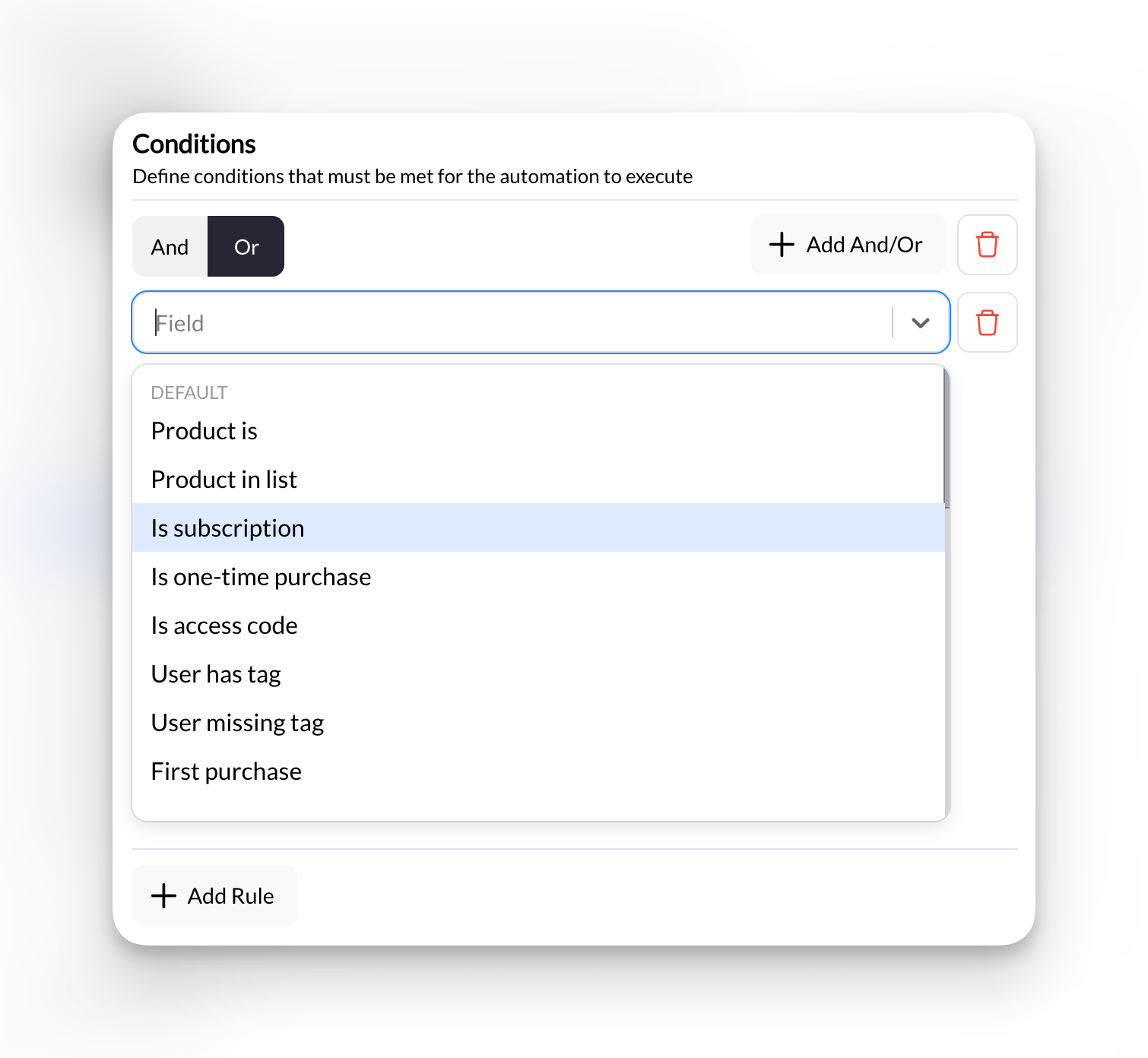
 | Setting | Value |
| ------------- | ------------------------------------------------------------------------------------ |
| **Trigger** | New Purchase |
| **Condition** | Is a specific product → your camp product |
| **Action 1** | Send an Email — confirmation with camp details (date, time, location, what to bring) |
| **Action 2** | Add a Tag — "Summer Camp 2026" (for easy filtering later) |
| Setting | Value |
| ------------- | ------------------------------------------------------------------------------------ |
| **Trigger** | New Purchase |
| **Condition** | Is a specific product → your camp product |
| **Action 1** | Send an Email — confirmation with camp details (date, time, location, what to bring) |
| **Action 2** | Add a Tag — "Summer Camp 2026" (for easy filtering later) |
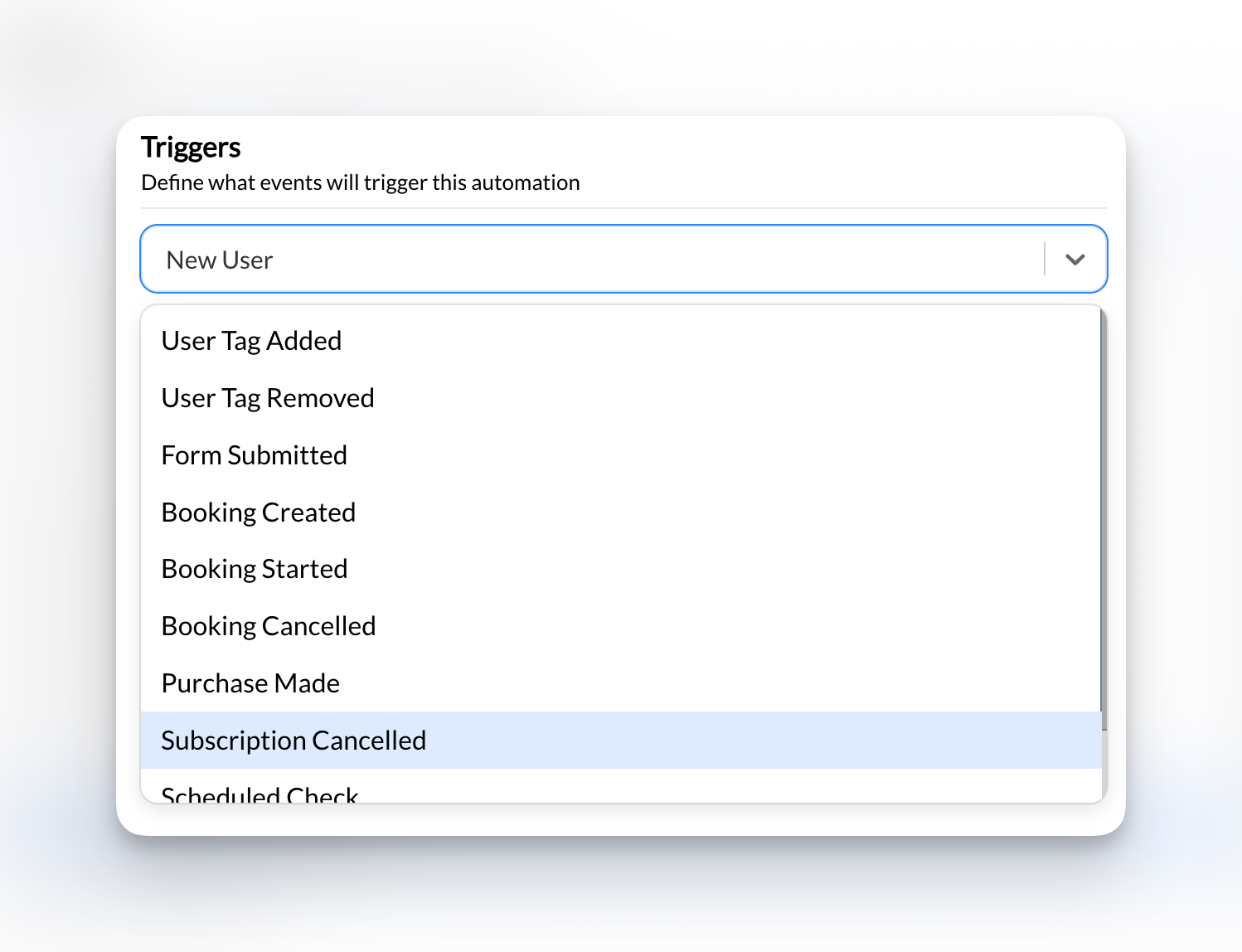
 Create a second automation using the **Scheduled Check** trigger:
| Setting | Value |
| ------------- | ----------------------------------------------------------------------- |
| **Trigger** | Scheduled Check |
| **Schedule** | Run once, the day before camp |
| **Condition** | Has tag → "Summer Camp 2026" |
| **Action** | Send an Email — reminder with what to bring, arrival time, parking info |
**Post-camp follow-up**: Create a third automation that runs the day after camp. Thank parents, ask for feedback, and promote your next camp or membership.
***
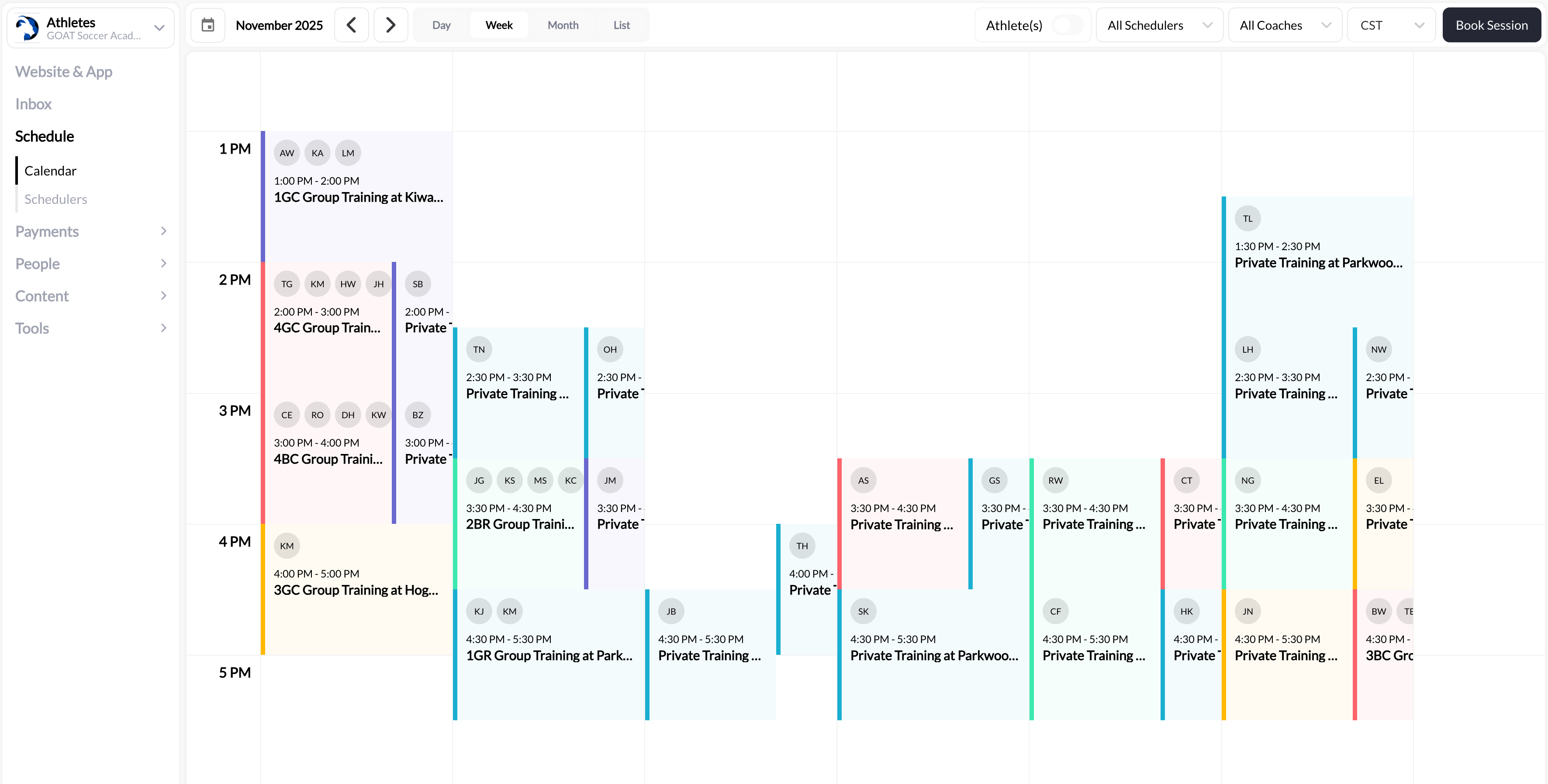
### Optional: Add the camp to your calendar
If you want the camp on your own schedule for tracking, create a manual session.
Click on the camp date and manually create a session. This is for your reference only — athletes don't need to book it.
Create a second automation using the **Scheduled Check** trigger:
| Setting | Value |
| ------------- | ----------------------------------------------------------------------- |
| **Trigger** | Scheduled Check |
| **Schedule** | Run once, the day before camp |
| **Condition** | Has tag → "Summer Camp 2026" |
| **Action** | Send an Email — reminder with what to bring, arrival time, parking info |
**Post-camp follow-up**: Create a third automation that runs the day after camp. Thank parents, ask for feedback, and promote your next camp or membership.
***
### Optional: Add the camp to your calendar
If you want the camp on your own schedule for tracking, create a manual session.
Click on the camp date and manually create a session. This is for your reference only — athletes don't need to book it.
 **Your simple camp is set up!** You have a product, form, landing page, and automations. Share the page link everywhere and registrations roll in automatically.
***
## Path 2: Multi-Day or Segmented Camp
Use this when your camp has multiple days, age groups, or any variation where different athletes attend different sessions. The key difference: **automations book athletes into the right session automatically based on what they purchase.**
**You don't need schedulers for this.** Instead of making athletes pick from a scheduler, create a separate product for each segment and let automations handle the booking. It's cleaner and removes friction.
### How it works
| What the parent does | What CoachIQ does automatically |
| --------------------------------- | ------------------------------------------------------------- |
| Buys "Middle School Camp" product | Automation books their athlete into the middle school session |
| Buys "High School Camp" product | Automation books their athlete into the high school session |
The session appears on the athlete's calendar. They get automatic reminders. Zero manual work on your end.
***
### Set up your products and sessions
Go to **Payments → Products** and create a product for each camp variation:
| Product | Example |
| ------------ | --------------------------------------------------------------- |
| By age group | "Middle School Camp - \$99" and "High School Camp - \$129" |
| By day | "Camp Day 1 (Saturday) - \$79" and "Camp Day 2 (Sunday) - \$79" |
| By package | "Single Day - \$79" and "Both Days - \$139" |
Set each as a **one-time** product with your waiver attached.
Go to **Schedule → Calendar** and manually create sessions for each camp day/segment. Set the correct date, time, and capacity.
**Your simple camp is set up!** You have a product, form, landing page, and automations. Share the page link everywhere and registrations roll in automatically.
***
## Path 2: Multi-Day or Segmented Camp
Use this when your camp has multiple days, age groups, or any variation where different athletes attend different sessions. The key difference: **automations book athletes into the right session automatically based on what they purchase.**
**You don't need schedulers for this.** Instead of making athletes pick from a scheduler, create a separate product for each segment and let automations handle the booking. It's cleaner and removes friction.
### How it works
| What the parent does | What CoachIQ does automatically |
| --------------------------------- | ------------------------------------------------------------- |
| Buys "Middle School Camp" product | Automation books their athlete into the middle school session |
| Buys "High School Camp" product | Automation books their athlete into the high school session |
The session appears on the athlete's calendar. They get automatic reminders. Zero manual work on your end.
***
### Set up your products and sessions
Go to **Payments → Products** and create a product for each camp variation:
| Product | Example |
| ------------ | --------------------------------------------------------------- |
| By age group | "Middle School Camp - \$99" and "High School Camp - \$129" |
| By day | "Camp Day 1 (Saturday) - \$79" and "Camp Day 2 (Sunday) - \$79" |
| By package | "Single Day - \$79" and "Both Days - \$139" |
Set each as a **one-time** product with your waiver attached.
Go to **Schedule → Calendar** and manually create sessions for each camp day/segment. Set the correct date, time, and capacity.
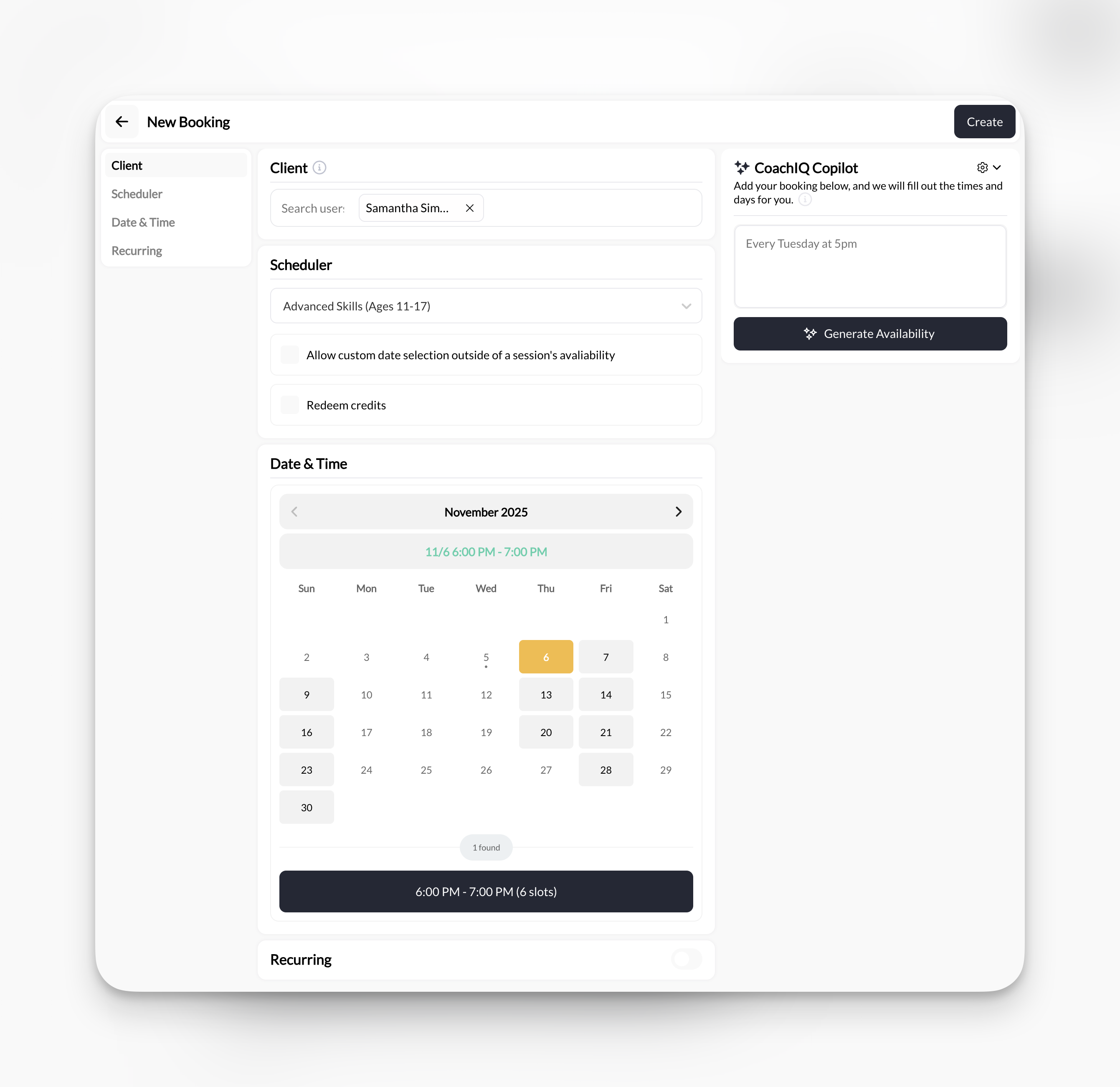 These sessions are what automations will book athletes into. Make sure the date, time, and session name are clear (e.g., "Middle School Camp - Saturday June 14, 9am-12pm").
***
### Build your forms
Each form collects athlete info and attaches the corresponding product:
* **Middle School Camp Form** → attached product: Middle School Camp
* **High School Camp Form** → attached product: High School Camp
Use the same fields as Path 1 (name, age, emergency contact, etc.).
Create a camp landing page with clear sections for each option. Use buttons or links that direct to the correct form:
* "Register for Middle School Camp" → links to middle school form
* "Register for High School Camp" → links to high school form
***
### Set up auto-booking automations
This is what makes the segmented camp work hands-free. When a parent purchases a specific product, the automation books their athlete into the correct session.
Go to **Tools → Automations** and create one automation per product/session pair.
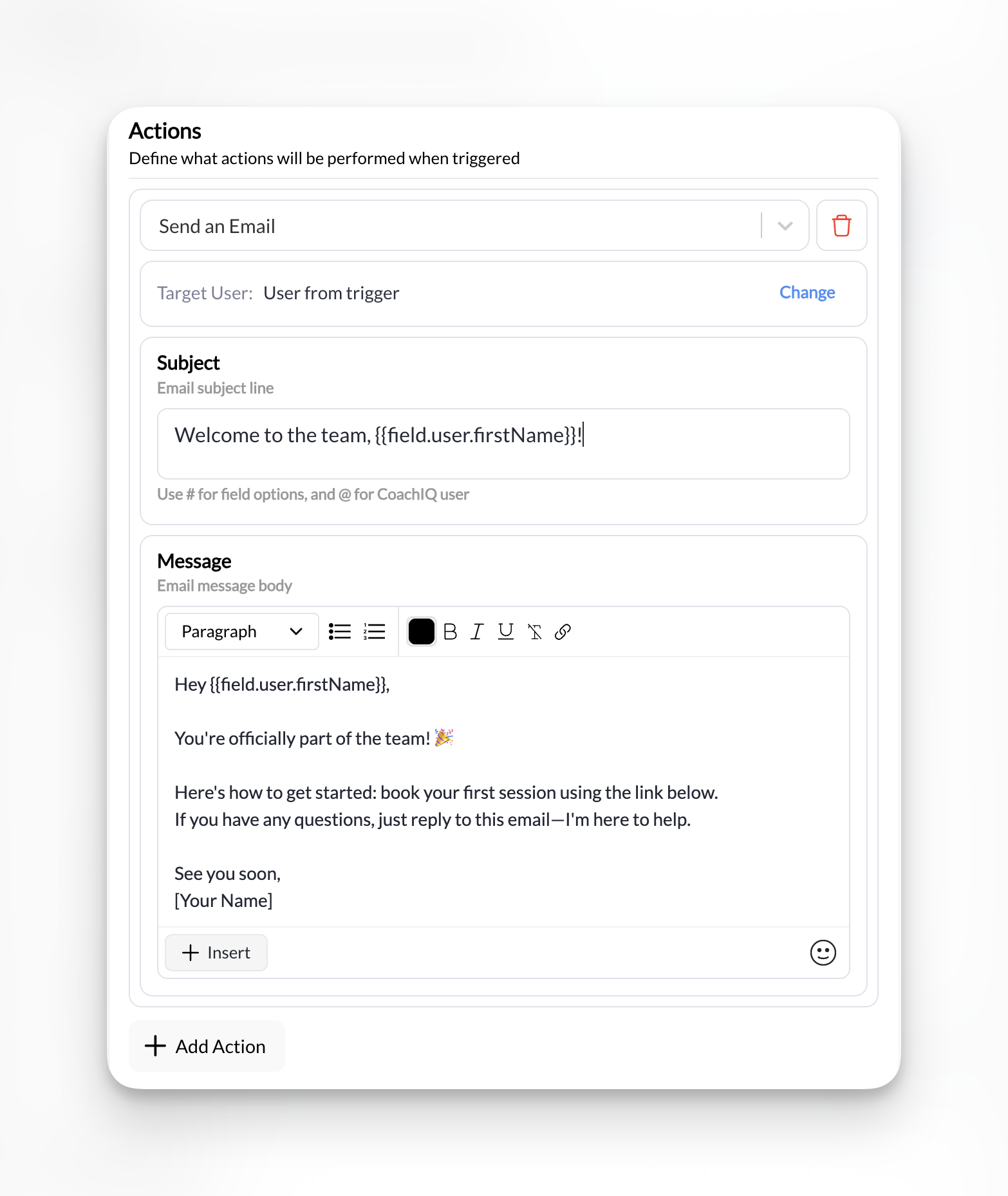
**Example — Middle School Camp automation:**
| Setting | Value |
| ------------- | ----------------------------------------------------------------------------- |
| **Trigger** | New Purchase |
| **Condition** | Is a specific product → "Middle School Camp" |
| **Action 1** | **Book User for Session** → select the middle school camp session + date/time |
| **Action 2** | Send an Email → confirmation with camp details |
| **Action 3** | Add a Tag → "Middle School Camp 2026" |
These sessions are what automations will book athletes into. Make sure the date, time, and session name are clear (e.g., "Middle School Camp - Saturday June 14, 9am-12pm").
***
### Build your forms
Each form collects athlete info and attaches the corresponding product:
* **Middle School Camp Form** → attached product: Middle School Camp
* **High School Camp Form** → attached product: High School Camp
Use the same fields as Path 1 (name, age, emergency contact, etc.).
Create a camp landing page with clear sections for each option. Use buttons or links that direct to the correct form:
* "Register for Middle School Camp" → links to middle school form
* "Register for High School Camp" → links to high school form
***
### Set up auto-booking automations
This is what makes the segmented camp work hands-free. When a parent purchases a specific product, the automation books their athlete into the correct session.
Go to **Tools → Automations** and create one automation per product/session pair.
**Example — Middle School Camp automation:**
| Setting | Value |
| ------------- | ----------------------------------------------------------------------------- |
| **Trigger** | New Purchase |
| **Condition** | Is a specific product → "Middle School Camp" |
| **Action 1** | **Book User for Session** → select the middle school camp session + date/time |
| **Action 2** | Send an Email → confirmation with camp details |
| **Action 3** | Add a Tag → "Middle School Camp 2026" |
 Create the same automation for your other camp segments:
* **High School Camp** automation → Books into high school session
* **Day 2** automation → Books into Day 2 session
* And so on for each product/session pair
Use **Scheduled Check** automations to send pre-camp reminders to each tagged group:
* 3 days before → "Camp is this weekend! Here's what to bring"
* Day before → "See you tomorrow! Arrive at 8:45am"
* Day after → "Thanks for coming! Here's a feedback form"
**Your multi-day camp is set up!** Athletes buy the right product, get auto-booked into the right session, and receive all reminders automatically. It's on their calendar, your calendar, and fully hands-off.
***
## Quick reference
### Where to send athletes and parents
| Task | Where to send them |
| -------------------- | ------------------------------------------------------------------------ |
| Camp registration | Your website → Camp landing page |
| Questions about camp | Your website → Contact page or [info@coachiq.io](mailto:info@coachiq.io) |
| Day-of check-in | Your calendar → Participant list |
### Where you manage camps
| Task | Location in admin |
| ------------------- | -------------------------------------------- |
| View registrations | People → filter by camp tag |
| See payments | Payments → Transactions |
| Check roster | Calendar → Click camp session → Participants |
| Send updates | Inbox → filter by camp tag |
| View form responses | Tools → Forms → Click form → Responses |
***
## Common questions
Yes. Set a stock/quantity limit on your product. Once it sells out, athletes can no longer purchase. You can also manually remove the form from your website when you're full.
You have two options: they can register on their phone right there (send them to your website), or you can manually add them from **People → Add** and use the **Add Product Purchase to User** action to grant them access without online payment.
If you enable **Guest Checkout** on your product, parents can pay without creating a full account. However, if you're using automations to book them into sessions, they'll need an account so the booking appears on their calendar. For most camps, requiring account creation is the better choice.
Go to **Payments → Transactions**, find the transaction, and issue a refund. Refunds are processed through Stripe. You can issue full or partial refunds.
Absolutely. Duplicate your product, update the name and dates, duplicate your form, swap the connected product, and update your website page. Your automation templates stay the same — just update the trigger product and session.
Only if athletes genuinely need to choose between multiple time slots within the same camp (e.g., "morning session" vs. "afternoon session" on the same day). For most camps — including multi-day and age-group camps — separate products with auto-booking automations are simpler and create less friction for parents.
Open your **Calendar**, click on the camp session, and use the participant list to check athletes in as they arrive. This updates their attendance record automatically.
***
## Related articles
Configure products, waivers, and checkout options
Build forms and connect them to products
Create pages and embed forms on your site
Set up triggers, actions, and scheduled reminders
Create the same automation for your other camp segments:
* **High School Camp** automation → Books into high school session
* **Day 2** automation → Books into Day 2 session
* And so on for each product/session pair
Use **Scheduled Check** automations to send pre-camp reminders to each tagged group:
* 3 days before → "Camp is this weekend! Here's what to bring"
* Day before → "See you tomorrow! Arrive at 8:45am"
* Day after → "Thanks for coming! Here's a feedback form"
**Your multi-day camp is set up!** Athletes buy the right product, get auto-booked into the right session, and receive all reminders automatically. It's on their calendar, your calendar, and fully hands-off.
***
## Quick reference
### Where to send athletes and parents
| Task | Where to send them |
| -------------------- | ------------------------------------------------------------------------ |
| Camp registration | Your website → Camp landing page |
| Questions about camp | Your website → Contact page or [info@coachiq.io](mailto:info@coachiq.io) |
| Day-of check-in | Your calendar → Participant list |
### Where you manage camps
| Task | Location in admin |
| ------------------- | -------------------------------------------- |
| View registrations | People → filter by camp tag |
| See payments | Payments → Transactions |
| Check roster | Calendar → Click camp session → Participants |
| Send updates | Inbox → filter by camp tag |
| View form responses | Tools → Forms → Click form → Responses |
***
## Common questions
Yes. Set a stock/quantity limit on your product. Once it sells out, athletes can no longer purchase. You can also manually remove the form from your website when you're full.
You have two options: they can register on their phone right there (send them to your website), or you can manually add them from **People → Add** and use the **Add Product Purchase to User** action to grant them access without online payment.
If you enable **Guest Checkout** on your product, parents can pay without creating a full account. However, if you're using automations to book them into sessions, they'll need an account so the booking appears on their calendar. For most camps, requiring account creation is the better choice.
Go to **Payments → Transactions**, find the transaction, and issue a refund. Refunds are processed through Stripe. You can issue full or partial refunds.
Absolutely. Duplicate your product, update the name and dates, duplicate your form, swap the connected product, and update your website page. Your automation templates stay the same — just update the trigger product and session.
Only if athletes genuinely need to choose between multiple time slots within the same camp (e.g., "morning session" vs. "afternoon session" on the same day). For most camps — including multi-day and age-group camps — separate products with auto-booking automations are simpler and create less friction for parents.
Open your **Calendar**, click on the camp session, and use the participant list to check athletes in as they arrive. This updates their attendance record automatically.
***
## Related articles
Configure products, waivers, and checkout options
Build forms and connect them to products
Create pages and embed forms on your site
Set up triggers, actions, and scheduled reminders