> ## Documentation Index
> Fetch the complete documentation index at: https://help.coachiq.io/llms.txt
> Use this file to discover all available pages before exploring further.
# CoachIQ Copilot
> The AI assistant built into CoachIQ: where it appears, what it is good at today, and how to get useful answers from it.
**Where to find this**: the **CoachIQ Copilot (Beta)** prompt bar on the [dashboard](/getting-started/dashboard), and the **Copilot** panel inside the availability and booking builders.
## What Copilot is
Copilot is CoachIQ's built-in assistant. You describe what you want in plain English and it fills in the structured settings for you, or points you to the right place. It is in **Beta**, so expect it to get better and occasionally to need a second try.
There are two places you will meet it.
## On the dashboard
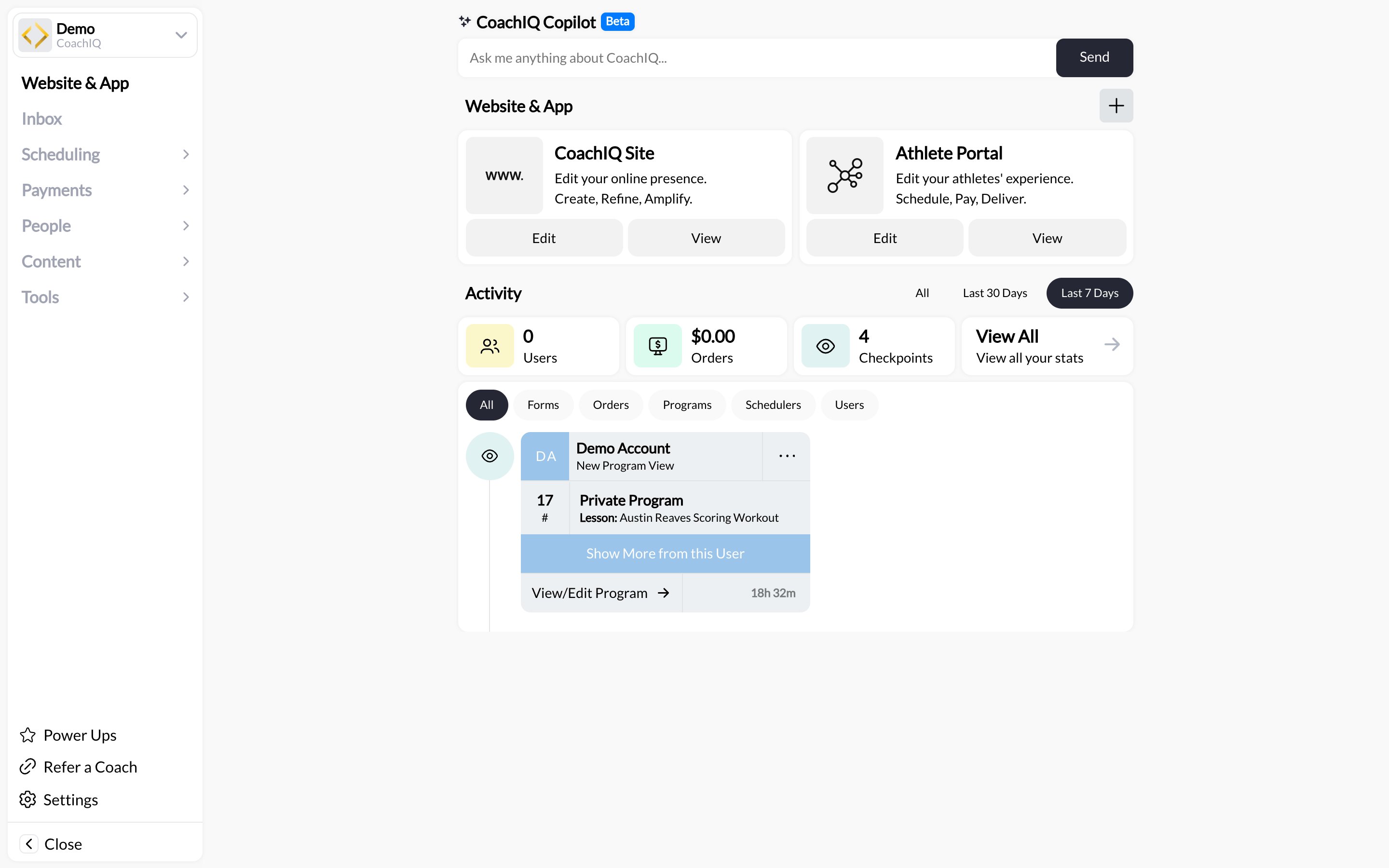 The prompt bar at the top of the home screen. Ask it where something lives ("where do I change my cancellation policy?") or what to do next. It is the quickest way to navigate when you are new to the app.
## Inside builders
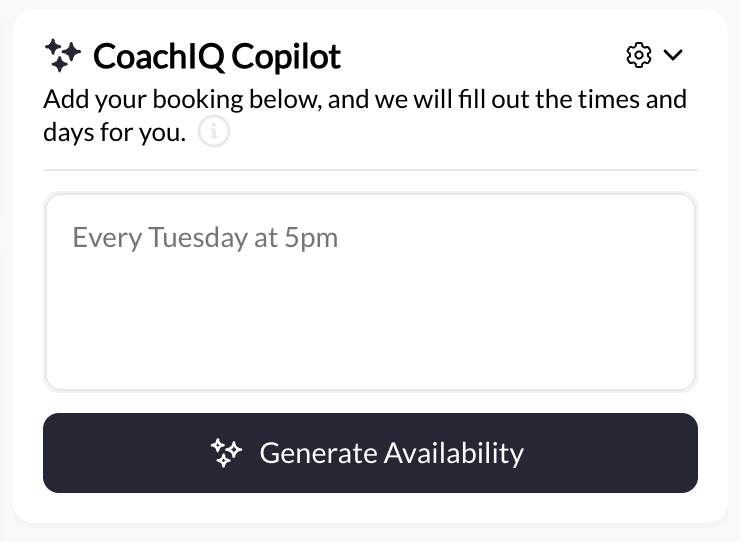
The **Copilot** panel appears on the right of the availability builder and the booking builder. This is where it saves the most time:
| Where | Say something like | Copilot fills in |
| -------------------- | ------------------------------------------------------- | ------------------------------ |
| Availability builder | "Mondays and Wednesdays 4 to 8 pm, Saturdays 9 to noon" | The weekly day and time ranges |
| Recurring booking | "Every Tuesday and Thursday at 6 pm for 8 weeks" | Days, time, and repeat count |
| Manual booking | "Book Maya into Friday's 5 pm lesson" | Athlete, scheduler, and slot |
The prompt bar at the top of the home screen. Ask it where something lives ("where do I change my cancellation policy?") or what to do next. It is the quickest way to navigate when you are new to the app.
## Inside builders
The **Copilot** panel appears on the right of the availability builder and the booking builder. This is where it saves the most time:
| Where | Say something like | Copilot fills in |
| -------------------- | ------------------------------------------------------- | ------------------------------ |
| Availability builder | "Mondays and Wednesdays 4 to 8 pm, Saturdays 9 to noon" | The weekly day and time ranges |
| Recurring booking | "Every Tuesday and Thursday at 6 pm for 8 weeks" | Days, time, and repeat count |
| Manual booking | "Book Maya into Friday's 5 pm lesson" | Athlete, scheduler, and slot |
 Detailed walkthroughs live with each feature:
* [Create your availability](/scheduling/create-your-availability#method-3-using-copilot-to-generate-availability)
* [Recurring bookings](/scheduling/recurring-bookings)
* [Manually booking athletes](/scheduling/manually-booking-athletes#using-copilot-for-faster-booking)
## Getting good results
* **Be specific with times and days.** "5 pm" beats "evening"; "next Tuesday" beats "soon".
* **One request at a time.** Ask for the availability, review it, then ask for the next change.
* **Review before you save.** Copilot drafts; you confirm. Nothing is booked or published until you click **Save** or **Update**.
* **Rephrase if it misses.** A shorter sentence with the numbers first usually lands.
## What Copilot does not do
* It does not send messages to athletes or charge cards on its own.
* It does not change settings outside the builder you are in.
* It does not see anything you have not saved yet in another tab.
## Common questions
No. It is an admin and coach tool. Athletes book through the portal as usual.
Click **Regenerate** with a clearer prompt, or edit the generated ranges by hand. Nothing is live until you save.
## Related articles
Where the Copilot prompt bar lives
The model Copilot is filling in for you
Detailed walkthroughs live with each feature:
* [Create your availability](/scheduling/create-your-availability#method-3-using-copilot-to-generate-availability)
* [Recurring bookings](/scheduling/recurring-bookings)
* [Manually booking athletes](/scheduling/manually-booking-athletes#using-copilot-for-faster-booking)
## Getting good results
* **Be specific with times and days.** "5 pm" beats "evening"; "next Tuesday" beats "soon".
* **One request at a time.** Ask for the availability, review it, then ask for the next change.
* **Review before you save.** Copilot drafts; you confirm. Nothing is booked or published until you click **Save** or **Update**.
* **Rephrase if it misses.** A shorter sentence with the numbers first usually lands.
## What Copilot does not do
* It does not send messages to athletes or charge cards on its own.
* It does not change settings outside the builder you are in.
* It does not see anything you have not saved yet in another tab.
## Common questions
No. It is an admin and coach tool. Athletes book through the portal as usual.
Click **Regenerate** with a clearer prompt, or edit the generated ranges by hand. Nothing is live until you save.
## Related articles
Where the Copilot prompt bar lives
The model Copilot is filling in for you