> ## Documentation Index
> Fetch the complete documentation index at: https://help.coachiq.io/llms.txt
> Use this file to discover all available pages before exploring further.
# Your Dashboard
> What every tile, card, and feed on the CoachIQ home screen means, and where each one takes you.
**Where to find this**: click **Website & App** at the top of the sidebar, or the CoachIQ logo. It is the first screen after you log in.
## What the dashboard is for
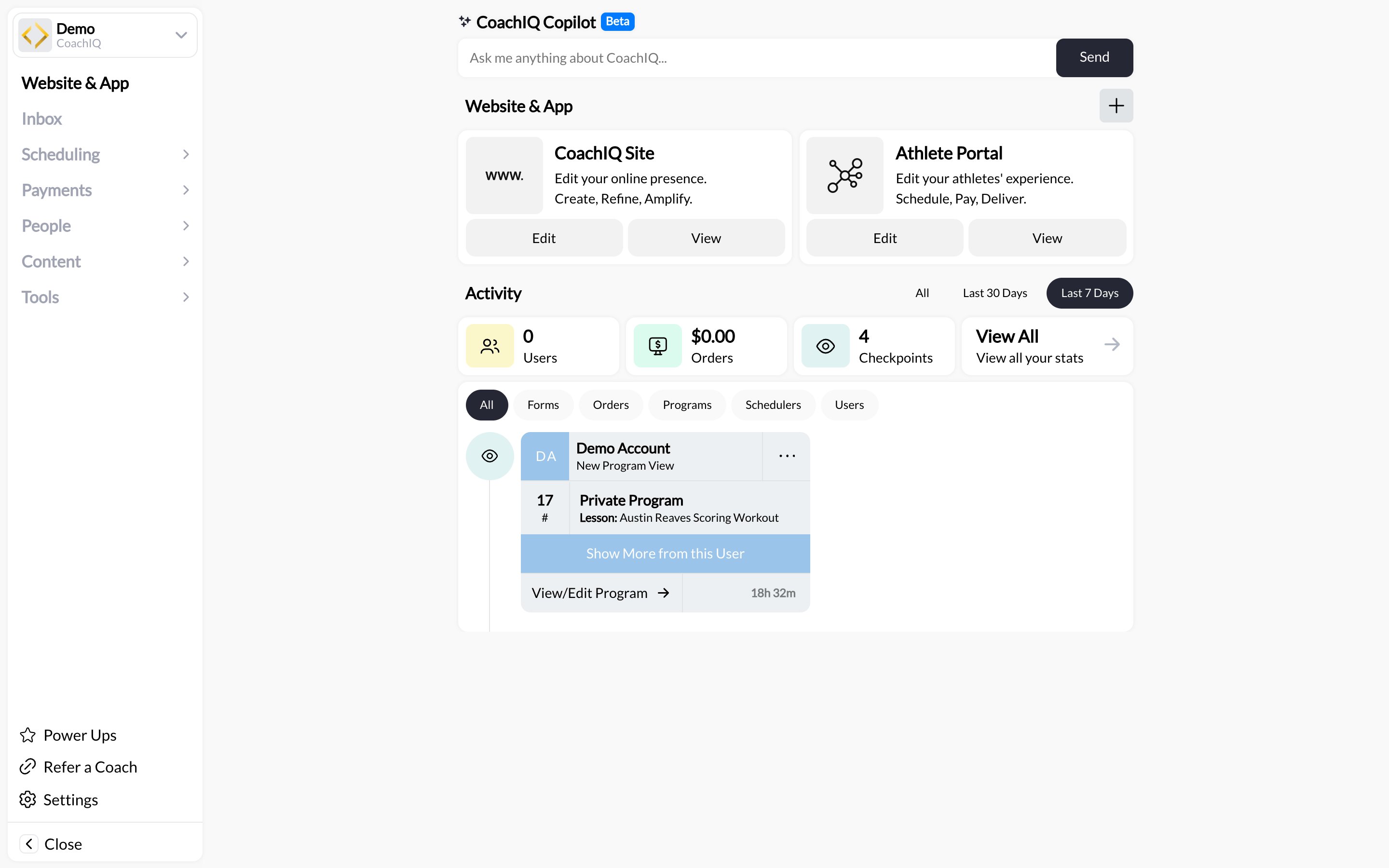
The dashboard is the home screen of the admin app. It answers three questions in one glance: what is happening in my business right now, how do I get to my website and athlete portal, and what should I do next.
 ## The parts of the page
### CoachIQ Copilot (Beta)
The prompt bar at the top. Type a question or an instruction in plain English and Copilot helps you find the right screen or do the task. See [CoachIQ Copilot](/getting-started/copilot).
### Site and Portal cards
Two cards side by side:
| Card | Edit | View |
| ------------------ | ------------------------ | -------------------------------------- |
| **CoachIQ Site** | Opens the website editor | Opens your public website |
| **Athlete Portal** | Opens the portal builder | Opens the portal as an athlete sees it |
These are the fastest route to the [Website Builder](/website/overview) and the [Athlete Portal](/athlete-portal/understanding-your-athlete-portal).
### Activity tiles
Three counters for the things that grow your business, plus a **View All** card that opens the full stats view:
| Tile | Counts |
| --------------- | ------------------------------------------------------ |
| **Users** | New people added to your group |
| **Orders** | Revenue from products, subscriptions, and access codes |
| **Checkpoints** | Program checkpoints athletes completed |
Switch the period with **All**, **Last 30 Days**, and **Last 7 Days**. **View All** adds the rest: form responses, media uploaded, bookings, and more.
### Activity feed
A live, newest-first list of what just happened: a booking, a purchase, a form submission, a new user, a program checkpoint. Filter it with the tabs **All · Forms · Orders · Programs · Schedulers · Users**. Click an entry to open the related record.
Start each day on the **Users** and **Forms** filters. New sign-ups and form submissions are the leads most likely to go cold if nobody replies.
### "New Update Available" banner
CoachIQ ships updates continuously. When a new version is ready you see a banner with **Update & Refresh**. Click it when you are not mid-edit; it reloads the app and nothing you have saved is lost.
## Where to go from here
Calendar, schedulers, and setup
Stripe, products, and transactions
Clients, staff, and sign-up settings
SMS, in-app messages, announcements
Media, programs, video analysis
Account, organization, notifications, data
## Common questions
Check the period toggle. A tile on **Last 7 Days** ignores anything older than a week. Switch to **All**.
The Inbox uses the space for conversations and shrinks the sidebar to icons. Hover an icon to see its label, or click **Website & App** to return here.
The group name is in the URL and in **Settings → Groups**. Switch groups from there. See [General settings](/settings/general#groups).
## The parts of the page
### CoachIQ Copilot (Beta)
The prompt bar at the top. Type a question or an instruction in plain English and Copilot helps you find the right screen or do the task. See [CoachIQ Copilot](/getting-started/copilot).
### Site and Portal cards
Two cards side by side:
| Card | Edit | View |
| ------------------ | ------------------------ | -------------------------------------- |
| **CoachIQ Site** | Opens the website editor | Opens your public website |
| **Athlete Portal** | Opens the portal builder | Opens the portal as an athlete sees it |
These are the fastest route to the [Website Builder](/website/overview) and the [Athlete Portal](/athlete-portal/understanding-your-athlete-portal).
### Activity tiles
Three counters for the things that grow your business, plus a **View All** card that opens the full stats view:
| Tile | Counts |
| --------------- | ------------------------------------------------------ |
| **Users** | New people added to your group |
| **Orders** | Revenue from products, subscriptions, and access codes |
| **Checkpoints** | Program checkpoints athletes completed |
Switch the period with **All**, **Last 30 Days**, and **Last 7 Days**. **View All** adds the rest: form responses, media uploaded, bookings, and more.
### Activity feed
A live, newest-first list of what just happened: a booking, a purchase, a form submission, a new user, a program checkpoint. Filter it with the tabs **All · Forms · Orders · Programs · Schedulers · Users**. Click an entry to open the related record.
Start each day on the **Users** and **Forms** filters. New sign-ups and form submissions are the leads most likely to go cold if nobody replies.
### "New Update Available" banner
CoachIQ ships updates continuously. When a new version is ready you see a banner with **Update & Refresh**. Click it when you are not mid-edit; it reloads the app and nothing you have saved is lost.
## Where to go from here
Calendar, schedulers, and setup
Stripe, products, and transactions
Clients, staff, and sign-up settings
SMS, in-app messages, announcements
Media, programs, video analysis
Account, organization, notifications, data
## Common questions
Check the period toggle. A tile on **Last 7 Days** ignores anything older than a week. Switch to **All**.
The Inbox uses the space for conversations and shrinks the sidebar to icons. Hover an icon to see its label, or click **Website & App** to return here.
The group name is in the URL and in **Settings → Groups**. Switch groups from there. See [General settings](/settings/general#groups).