> ## Documentation Index
> Fetch the complete documentation index at: https://help.coachiq.io/llms.txt
> Use this file to discover all available pages before exploring further.
# Using Products in Your Business
> Attach products to session schedulers, programs, and forms to start accepting payments from clients
**Three places to use products**: Session schedulers, programs, and forms
## Where products attach
Products don't generate revenue until attached to something clients interact with:
**Session Schedulers** → Clients book time slots and pay **Programs** → Clients purchase access to locked content **Forms** → Clients submit forms with payment
One product can attach to multiple places. Reuse products across your offerings.
## Attach products to session schedulers
1. Go to **Schedule** in left sidebar
2. Click **Schedulers**
3. Select the scheduler you want to add payment to
4. Scroll to **Payment Settings** section
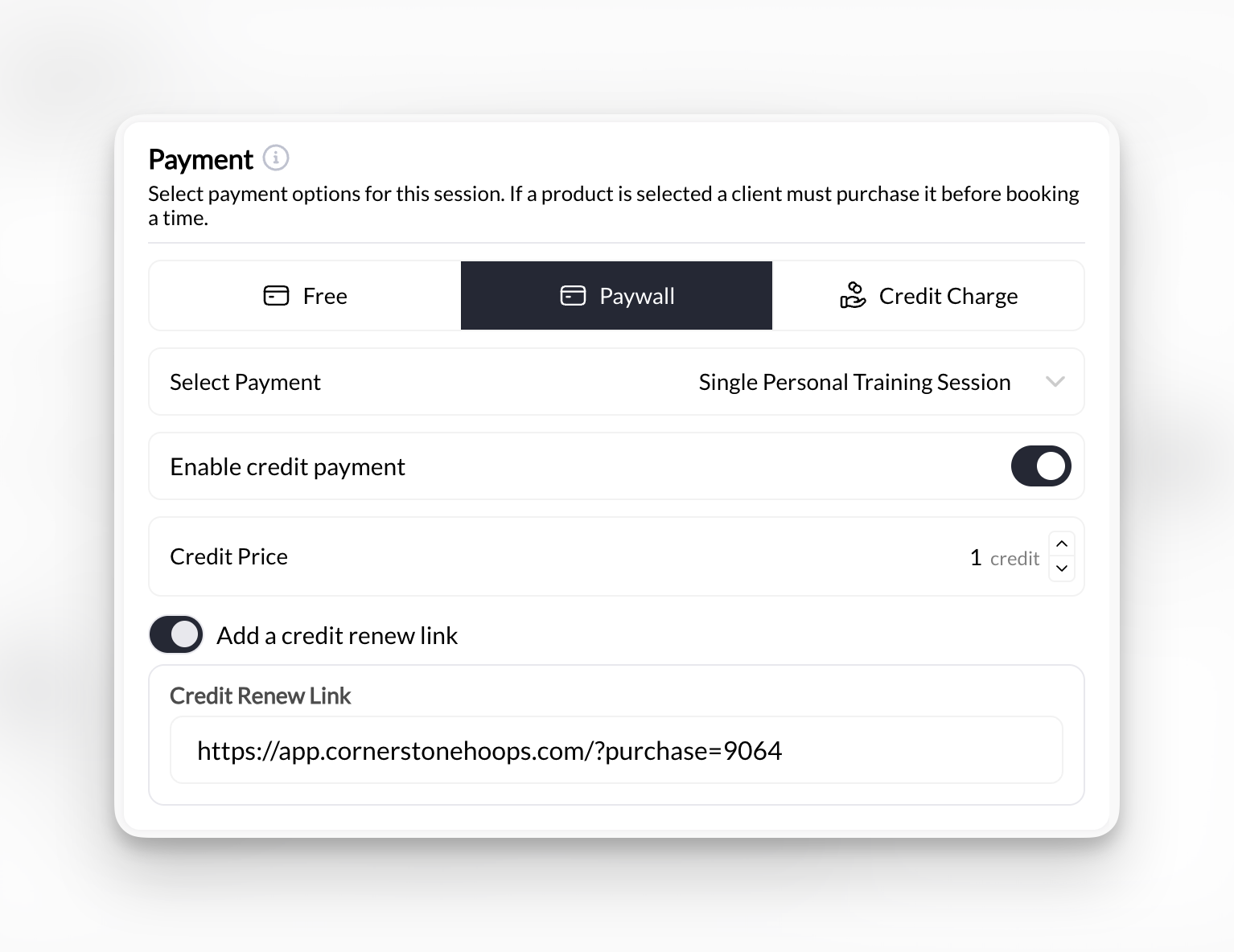 Select one of four options:
**Free** - No payment required, clients book without charge
**Product** - Client must purchase a product to book
**Credits** - Client must have credits to book (no direct payment)
**Product OR Credits** - Client can either buy product or use existing credits
**Most common:** Product OR Credits. Gives clients flexibility to pay directly or use credits from packages.
If you selected Product or Product OR Credits:
1. Click **Add Product**
2. Select product from dropdown
3. Add multiple products if offering different pricing options
Clients see all attached products as payment choices during booking.
Click **Save** at the top or bottom of the scheduler.
**Connected.** Clients can now book this scheduler with payment.
### How clients book paid sessions
Client goes to your booking page and chooses the scheduler.
Select one of four options:
**Free** - No payment required, clients book without charge
**Product** - Client must purchase a product to book
**Credits** - Client must have credits to book (no direct payment)
**Product OR Credits** - Client can either buy product or use existing credits
**Most common:** Product OR Credits. Gives clients flexibility to pay directly or use credits from packages.
If you selected Product or Product OR Credits:
1. Click **Add Product**
2. Select product from dropdown
3. Add multiple products if offering different pricing options
Clients see all attached products as payment choices during booking.
Click **Save** at the top or bottom of the scheduler.
**Connected.** Clients can now book this scheduler with payment.
### How clients book paid sessions
Client goes to your booking page and chooses the scheduler.
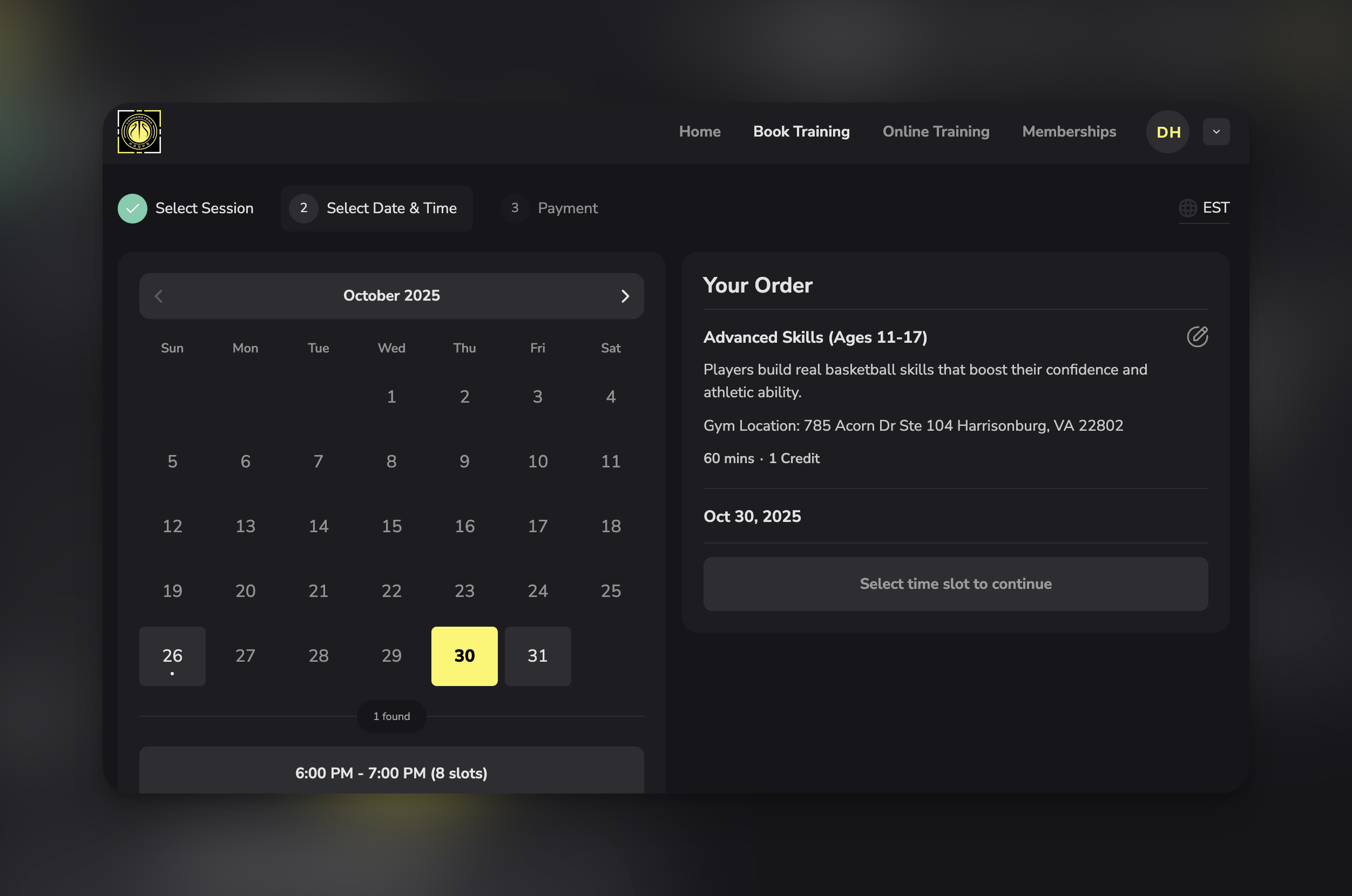 Client selects date and available time.
Client sees payment options:
* Product(s) you attached
* Use Credits (if Product OR Credits is configured and they have credits)
Client enters payment info and confirms.
Session appears on both your calendar and client's calendar.
Client receives confirmation email with session details.
## Attach products to programs
1. Go to **Content** in left sidebar
2. Click **Programs**
3. Select the program you want to paywall
4. Click **Change** next to the \*\*Share \*\*at the top of the page
Client selects date and available time.
Client sees payment options:
* Product(s) you attached
* Use Credits (if Product OR Credits is configured and they have credits)
Client enters payment info and confirms.
Session appears on both your calendar and client's calendar.
Client receives confirmation email with session details.
## Attach products to programs
1. Go to **Content** in left sidebar
2. Click **Programs**
3. Select the program you want to paywall
4. Click **Change** next to the \*\*Share \*\*at the top of the page
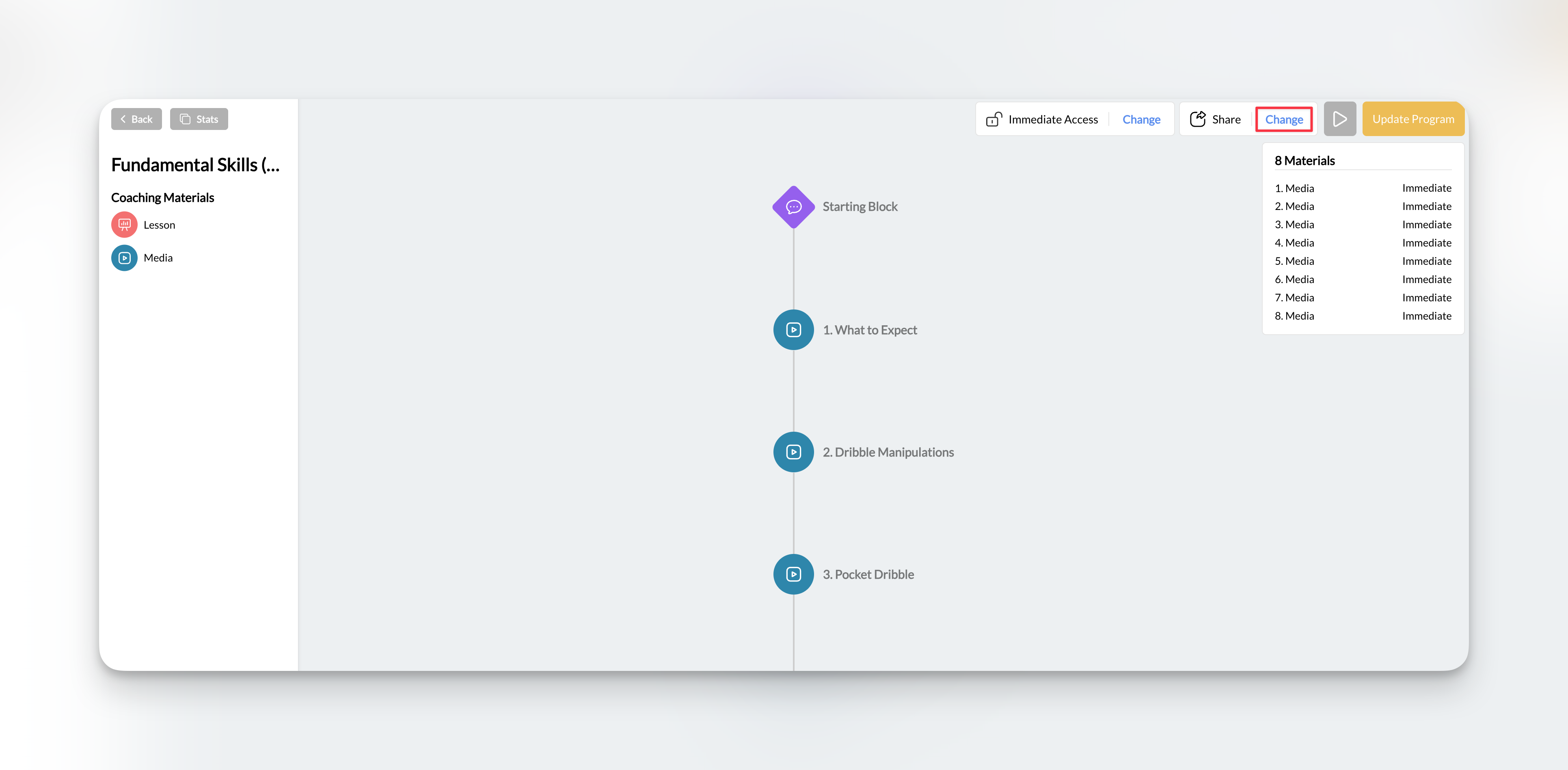 Toggle **Paywalled** to ON.
Paywall locks all program content behind a purchase requirement.
Choose which product grants access to this program.
Clients must purchase this product to unlock program content.
Use One-Time products for lifetime access or Subscription products for access while subscribed.
Click **Save**.
**Paywalled.** Program content is now locked until purchase.
### How clients access paid programs
Client navigates to program in their Athlete Portal.
Program shows as locked with purchase requirement.
Client clicks button to purchase access.
Client completes purchase of the required product.
Toggle **Paywalled** to ON.
Paywall locks all program content behind a purchase requirement.
Choose which product grants access to this program.
Clients must purchase this product to unlock program content.
Use One-Time products for lifetime access or Subscription products for access while subscribed.
Click **Save**.
**Paywalled.** Program content is now locked until purchase.
### How clients access paid programs
Client navigates to program in their Athlete Portal.
Program shows as locked with purchase requirement.
Client clicks button to purchase access.
Client completes purchase of the required product.
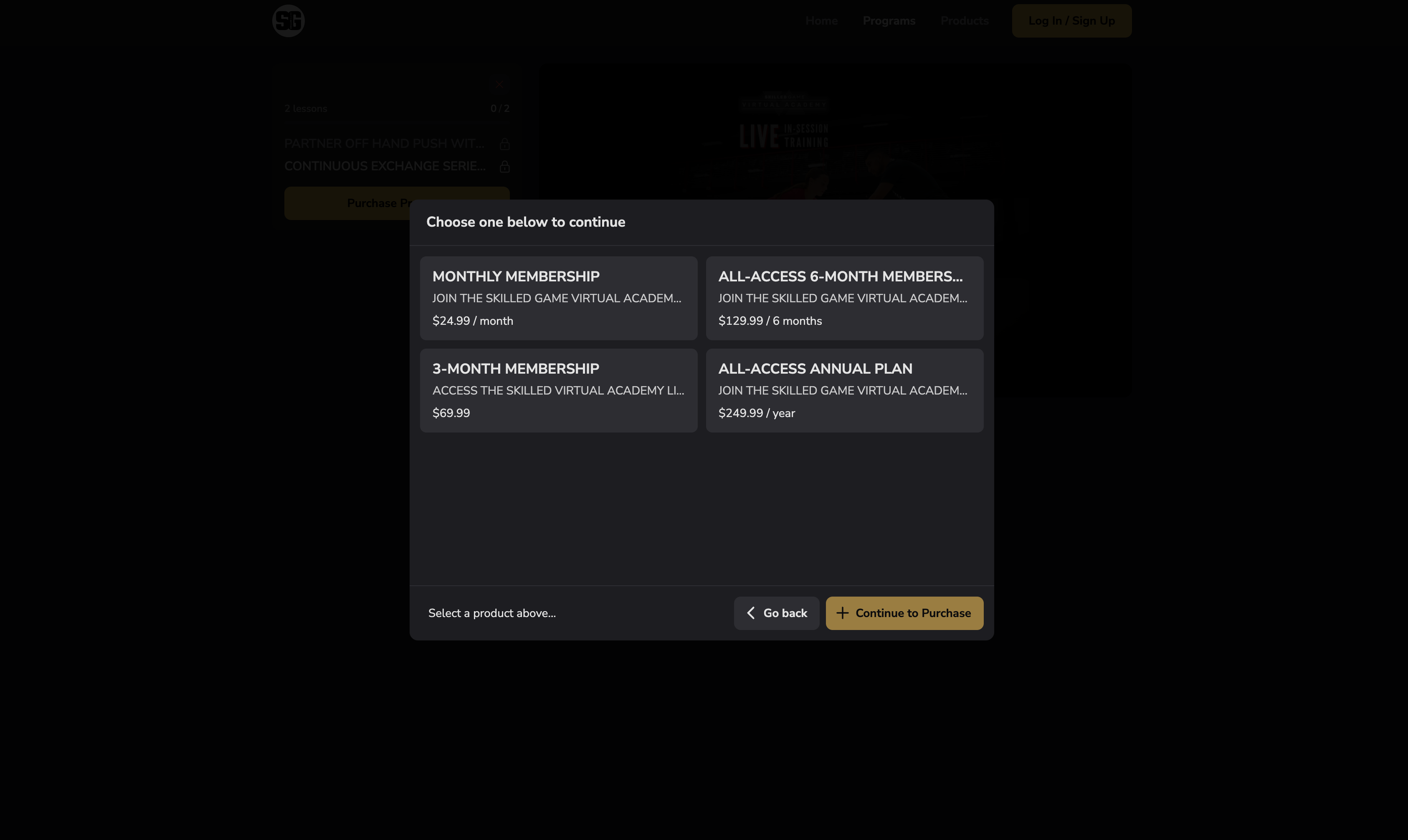 All program content becomes immediately accessible.
Client can view videos, documents, workouts, and all program materials.
## Attach products to forms
1. Go to **Tools** in left sidebar
2. Click **Forms**
3. Select existing form or create new form
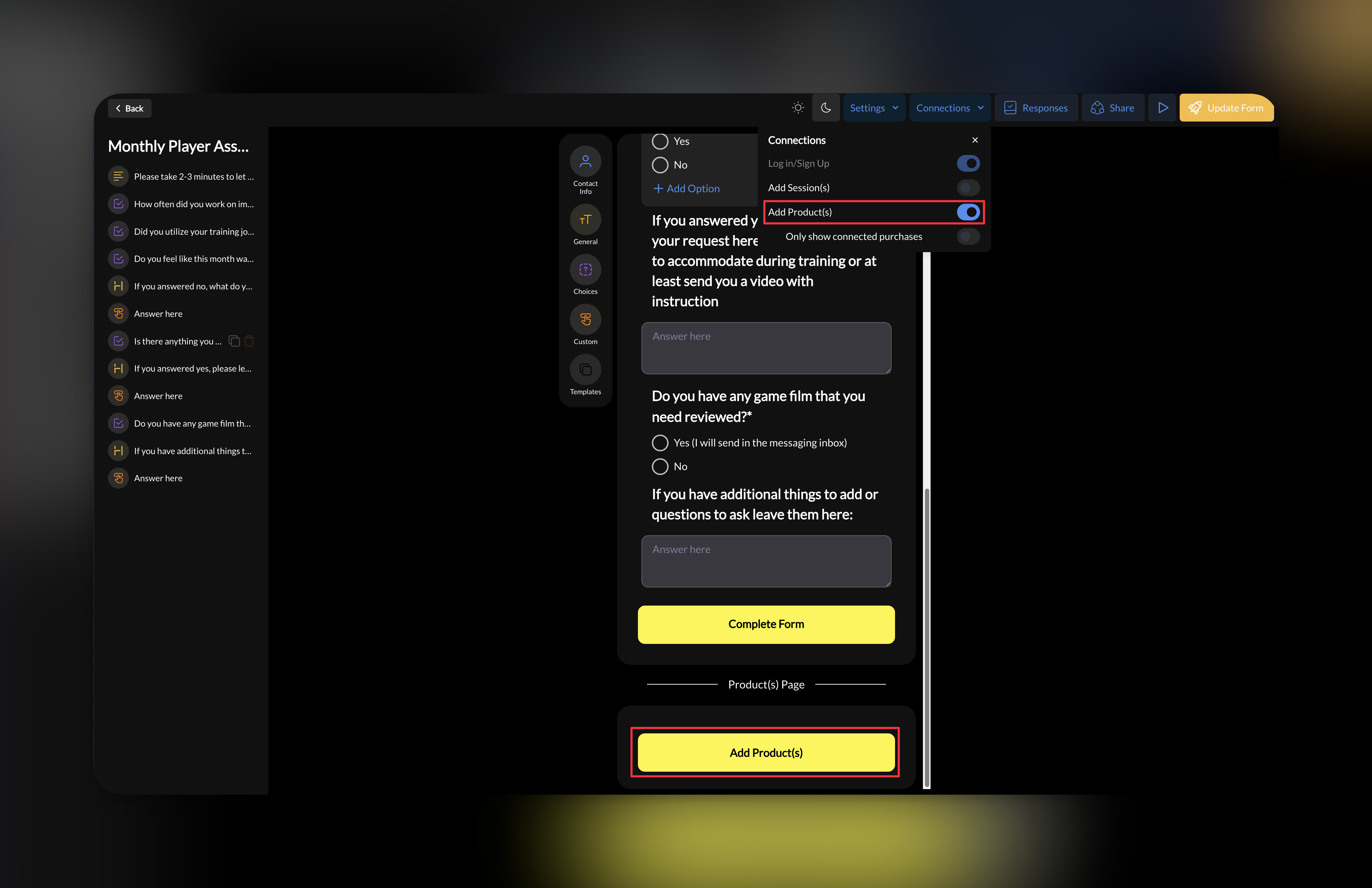
1. Click **Connections**
2. Toggle **Add Product(s)**
3. Drag payment field to desired position in form
Place payment field near the end of form, after collecting all necessary information.
**Select product:** Choose which product to connect
All program content becomes immediately accessible.
Client can view videos, documents, workouts, and all program materials.
## Attach products to forms
1. Go to **Tools** in left sidebar
2. Click **Forms**
3. Select existing form or create new form
1. Click **Connections**
2. Toggle **Add Product(s)**
3. Drag payment field to desired position in form
Place payment field near the end of form, after collecting all necessary information.
**Select product:** Choose which product to connect
 Click **Create Form** to make form live.
**Form ready.** Clients now pay when submitting this form.
### How clients submit forms with payment
Client enters all required information (name, contact, questions, etc.).
Click **Create Form** to make form live.
**Form ready.** Clients now pay when submitting this form.
### How clients submit forms with payment
Client enters all required information (name, contact, questions, etc.).
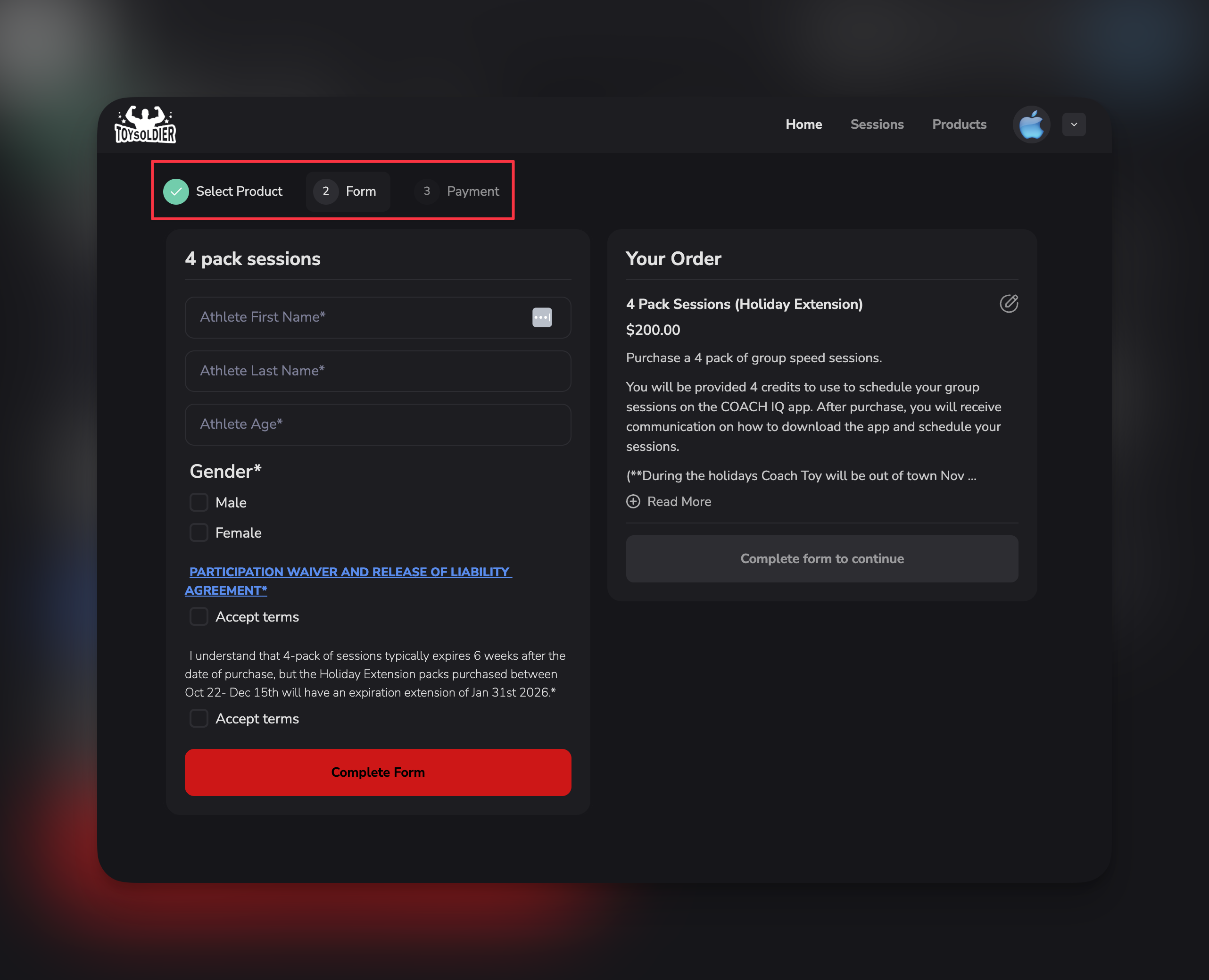 Client reaches payment section showing:
* Product name and price
* Payment field for card details
Client provides credit card information.
Payment processes through Stripe. Card details never touch CoachIQ servers.
Client receives:
* Form submission confirmation
* Payment receipt
* Any credits (if product issues them)
## Paywall vs. credits vs. free
Understanding when to use each payment method:
**Free** - No payment required
* Use for: Complimentary sessions, internal team use, evaluation sessions
**Paywall** \*\*Only \*\*- Direct purchase required, no credits accepted
* Use for: When you don't want to manage credit system, single-purchase offerings
**Credits** - Must have credits, no direct purchase option
* Use for: When you only want existing clients/members to book (no new purchases)
**Paywall OR Credits** - Client chooses payment method or uses credits
* Use for: Maximum flexibility, most common setup
**Recommended:** Use Paywall OR Credits for most schedulers. Gives clients choice while allowing new purchases.
## Troubleshooting
**Check these:**
* Product is published (not draft)
* Product isn't archived
* You're looking in correct section (schedulers vs programs vs forms)
* Refresh the page
If still missing, go to Payments → Products and verify product status.
**Verify:**
* Product is attached to scheduler
* Product price is correct (not accidentally $0 or $10,000)
* Stripe is connected and in Live Mode
* Client has valid payment method
Test the booking flow yourself to identify where it breaks.
Credits require configuration in both Products AND Schedule sections.
**Check:**
* Product has credits enabled
* Number of credits is specified
* Scheduler payment method includes "Credits" option
* Scheduler is in the product's allowed usage list
[Learn more about credits →](/payments/credits-products)
Set scheduler payment method to **Credits** only.
Then only clients with active membership subscriptions (which issue credits) can book.
This prevents one-off purchases and ensures only members access these sessions.
## Next steps
1. [Understand credits](/payments/credits-products) - Learn the credit system
2. [View transactions](/payments/transactions) - Monitor incoming payments
## Related articles
* [Products Overview](/payments/product-overview)
* [Creating Your First Product](/payments/creating-first-product)
* [Product Types Explained](/payments/product-types)
* [Credits & Products](/payments/credits-products)
Client reaches payment section showing:
* Product name and price
* Payment field for card details
Client provides credit card information.
Payment processes through Stripe. Card details never touch CoachIQ servers.
Client receives:
* Form submission confirmation
* Payment receipt
* Any credits (if product issues them)
## Paywall vs. credits vs. free
Understanding when to use each payment method:
**Free** - No payment required
* Use for: Complimentary sessions, internal team use, evaluation sessions
**Paywall** \*\*Only \*\*- Direct purchase required, no credits accepted
* Use for: When you don't want to manage credit system, single-purchase offerings
**Credits** - Must have credits, no direct purchase option
* Use for: When you only want existing clients/members to book (no new purchases)
**Paywall OR Credits** - Client chooses payment method or uses credits
* Use for: Maximum flexibility, most common setup
**Recommended:** Use Paywall OR Credits for most schedulers. Gives clients choice while allowing new purchases.
## Troubleshooting
**Check these:**
* Product is published (not draft)
* Product isn't archived
* You're looking in correct section (schedulers vs programs vs forms)
* Refresh the page
If still missing, go to Payments → Products and verify product status.
**Verify:**
* Product is attached to scheduler
* Product price is correct (not accidentally $0 or $10,000)
* Stripe is connected and in Live Mode
* Client has valid payment method
Test the booking flow yourself to identify where it breaks.
Credits require configuration in both Products AND Schedule sections.
**Check:**
* Product has credits enabled
* Number of credits is specified
* Scheduler payment method includes "Credits" option
* Scheduler is in the product's allowed usage list
[Learn more about credits →](/payments/credits-products)
Set scheduler payment method to **Credits** only.
Then only clients with active membership subscriptions (which issue credits) can book.
This prevents one-off purchases and ensures only members access these sessions.
## Next steps
1. [Understand credits](/payments/credits-products) - Learn the credit system
2. [View transactions](/payments/transactions) - Monitor incoming payments
## Related articles
* [Products Overview](/payments/product-overview)
* [Creating Your First Product](/payments/creating-first-product)
* [Product Types Explained](/payments/product-types)
* [Credits & Products](/payments/credits-products)