> ## Documentation Index
> Fetch the complete documentation index at: https://help.coachiq.io/llms.txt
> Use this file to discover all available pages before exploring further.
# How to Disconnect Your Stripe Account
> Remove the connection between CoachIQ and your Stripe account — step-by-step with no support ticket needed.
**Where to find this**: Settings → Stripe Portal → Disconnect
## Why you might see a Stripe Connect banner
If you visit your Stripe dashboard and see a banner that says **"CoachIQ has access to new tools to help manage your account"** — don't worry. This is standard Stripe Connect behavior. It means your Stripe account is still linked to CoachIQ.
 This banner appears even after you cancel your CoachIQ subscription. The Stripe connection stays active until you manually disconnect it. It's not a security concern — CoachIQ can't charge you or access your funds — but if you want a clean break, follow the steps below.
***
## How to disconnect Stripe from CoachIQ
From your CoachIQ dashboard, click **Settings** in the bottom-left corner, then click **Stripe Portal**.
This banner appears even after you cancel your CoachIQ subscription. The Stripe connection stays active until you manually disconnect it. It's not a security concern — CoachIQ can't charge you or access your funds — but if you want a clean break, follow the steps below.
***
## How to disconnect Stripe from CoachIQ
From your CoachIQ dashboard, click **Settings** in the bottom-left corner, then click **Stripe Portal**.
 On the Stripe Portal page, you'll see your connected Stripe account with all your synced products. Click **Disconnect** in the top-right area of the page.
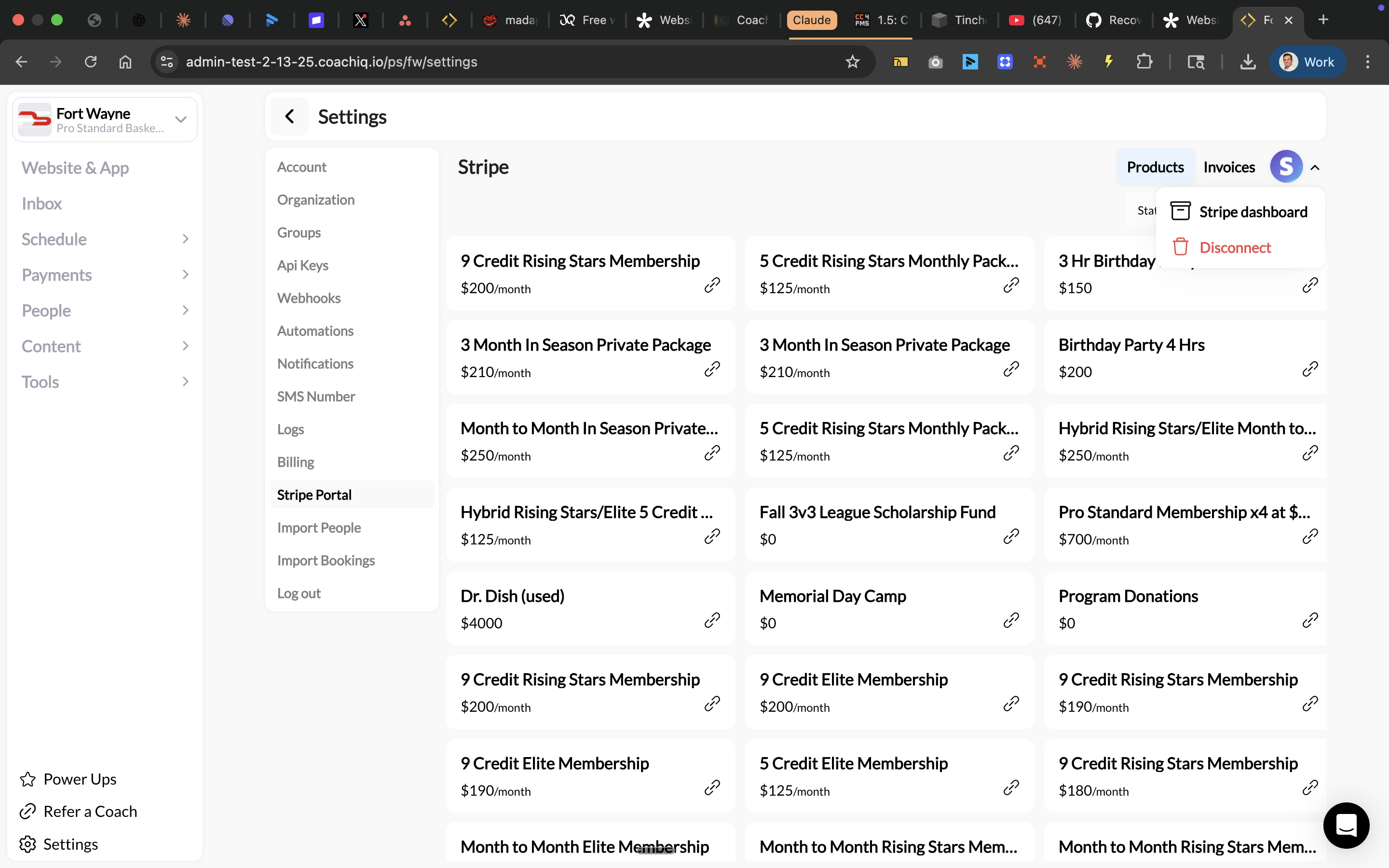 Confirm that you want to disconnect. Once complete, the connection between CoachIQ and Stripe is removed.
**Done!** Your Stripe account is no longer connected to CoachIQ. The banner in your Stripe dashboard will disappear.
**Before you disconnect**: If you still have active customers on CoachIQ, disconnecting Stripe will stop all payment processing. Subscriptions won't renew, and new purchases won't go through. Only disconnect if you're done using CoachIQ for payments.
***
## What happens after disconnecting
| What | What happens |
| --------------------------------- | ----------------------------------------------------------------- |
| **Existing Stripe subscriptions** | Remain active on Stripe's side — CoachIQ just stops managing them |
| **New payments through CoachIQ** | Won't process — no Stripe account connected |
| **Your Stripe account** | Fully yours — no CoachIQ access |
| **Stripe Connect banner** | Disappears from your Stripe dashboard |
| **Your CoachIQ account** | Still accessible — you just can't collect payments |
***
## Common questions
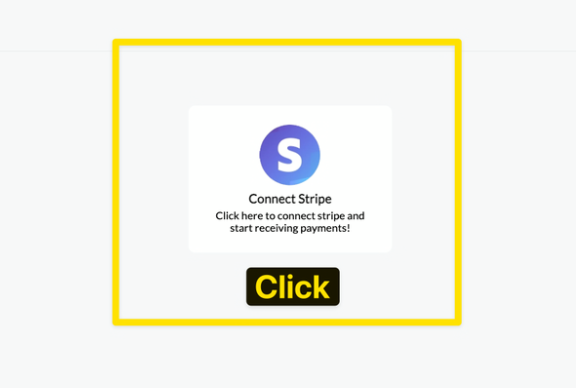
Yes. Go to **Settings → Stripe Portal** and click the Stripe logo to reconnect. You can connect the same Stripe account or a different one.
Confirm that you want to disconnect. Once complete, the connection between CoachIQ and Stripe is removed.
**Done!** Your Stripe account is no longer connected to CoachIQ. The banner in your Stripe dashboard will disappear.
**Before you disconnect**: If you still have active customers on CoachIQ, disconnecting Stripe will stop all payment processing. Subscriptions won't renew, and new purchases won't go through. Only disconnect if you're done using CoachIQ for payments.
***
## What happens after disconnecting
| What | What happens |
| --------------------------------- | ----------------------------------------------------------------- |
| **Existing Stripe subscriptions** | Remain active on Stripe's side — CoachIQ just stops managing them |
| **New payments through CoachIQ** | Won't process — no Stripe account connected |
| **Your Stripe account** | Fully yours — no CoachIQ access |
| **Stripe Connect banner** | Disappears from your Stripe dashboard |
| **Your CoachIQ account** | Still accessible — you just can't collect payments |
***
## Common questions
Yes. Go to **Settings → Stripe Portal** and click the Stripe logo to reconnect. You can connect the same Stripe account or a different one.
 No. Existing subscriptions remain active on Stripe's side. However, CoachIQ will no longer manage them — renewals won't sync, and subscription changes made in CoachIQ won't apply. If you need to cancel subscriptions, do that from your Stripe dashboard before disconnecting.
Yes. Log into your CoachIQ admin at [admin.coachiq.io](https://admin.coachiq.io) and follow the same steps. Your admin account remains accessible even after cancellation. If you can't log in, contact [info@coachiq.io](mailto:info@coachiq.io) and the team will disconnect it for you.
That's correct — because CoachIQ initiated the Stripe Connect integration, the disconnect must happen from CoachIQ's side. Follow the self-service steps above. No support ticket needed.
No. While the connection is active, CoachIQ can only process payments that you've configured in your dashboard. CoachIQ cannot withdraw funds, access your bank account, or make changes to your Stripe account. The banner is just Stripe's way of showing that a platform integration exists.
***
## Related articles
How to set up your Stripe account with CoachIQ
Navigate your Stripe dashboard and manage payouts
No. Existing subscriptions remain active on Stripe's side. However, CoachIQ will no longer manage them — renewals won't sync, and subscription changes made in CoachIQ won't apply. If you need to cancel subscriptions, do that from your Stripe dashboard before disconnecting.
Yes. Log into your CoachIQ admin at [admin.coachiq.io](https://admin.coachiq.io) and follow the same steps. Your admin account remains accessible even after cancellation. If you can't log in, contact [info@coachiq.io](mailto:info@coachiq.io) and the team will disconnect it for you.
That's correct — because CoachIQ initiated the Stripe Connect integration, the disconnect must happen from CoachIQ's side. Follow the self-service steps above. No support ticket needed.
No. While the connection is active, CoachIQ can only process payments that you've configured in your dashboard. CoachIQ cannot withdraw funds, access your bank account, or make changes to your Stripe account. The banner is just Stripe's way of showing that a platform integration exists.
***
## Related articles
How to set up your Stripe account with CoachIQ
Navigate your Stripe dashboard and manage payouts