> ## Documentation Index
> Fetch the complete documentation index at: https://help.coachiq.io/llms.txt
> Use this file to discover all available pages before exploring further.
# Understanding CoachIQ Payments
> Learn how CoachIQ Payments works and how money flows from your clients to your bank account
**Where to find this**: Payments section in the left sidebar
## What CoachIQ Payments does
CoachIQ Payments handles all revenue operations for your coaching business:
* Accept one-time and recurring payments
* Manage subscription billing automatically
* Issue and track session credits
* Apply discounts with coupons
* Track all transactions in one place
* Send payment receipts to clients
All payment processing runs through Stripe, which deposits funds directly into your bank account.
## How money flows
Link your Stripe account to CoachIQ to enable payment processing.
Build products for sessions, memberships, programs, or access codes.
Connect products to:
* Session schedulers (for bookings)
* Programs (for content access)
* Forms (for registrations)
Client selects offering → Payment screen → Completes purchase
Stripe processes payment → Deposits to your bank account (typically 2 business days)
You receive funds automatically. CoachIQ tracks everything in the Transactions dashboard.
## Key concepts
One-time purchases, recurring subscriptions, or access code redemptions
Complete record of all payments, refunds, and failed charges
Recurring billing that renews automatically on schedule
Pre-purchased session credits clients can redeem for bookings
Discount codes for promotions, partnerships, and special offers
How to attach products to sessions, programs, and forms
## Three ways clients pay
**Direct purchase** Client books session → Selects time → Pays with card → Confirmed
**Subscription billing** Client subscribes → Card charged monthly → Receives credits/access automatically
**Access code** Client enters code → Discount applied (or free) → Access granted
## Your first three steps
Enable payment processing by linking your Stripe account.
[Connect Stripe →](/payments/connecting-stripe)
Build your first product for a session, membership, or program.
[Create Product →](/payments/product-builder)
Link your product to a session scheduler so clients can book and pay.
[Attach Products →](/payments/attach-products)
## Where everything lives
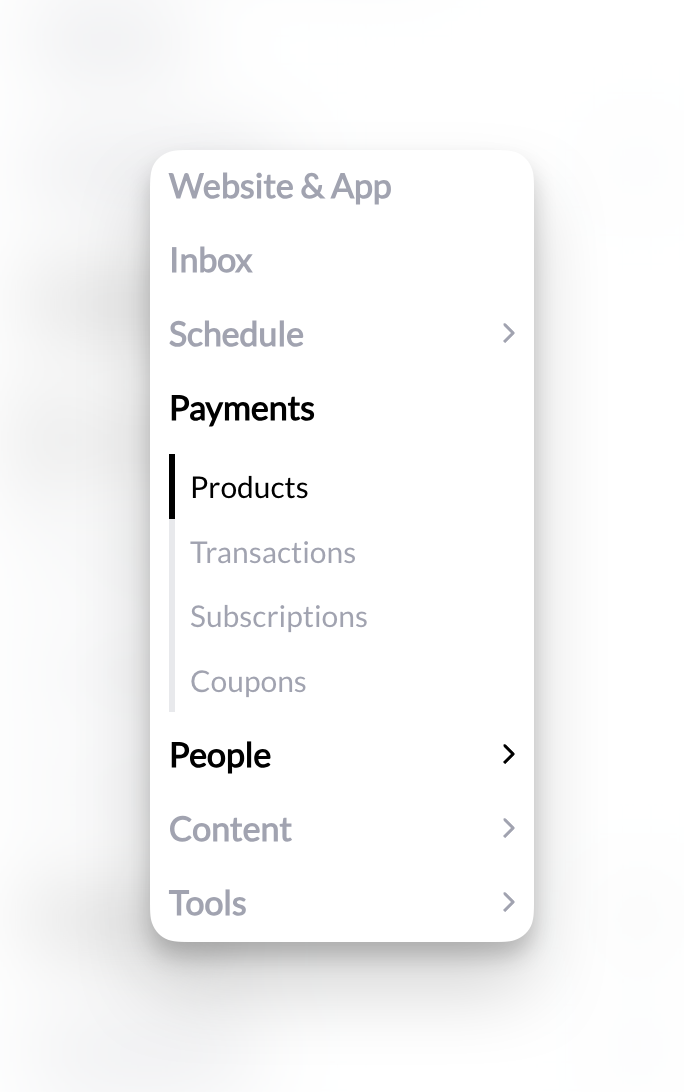
Navigate the Payments section from your left sidebar:
* **Products**: Create and manage all payment offerings
* **Transactions**: View all payment activity and history
* **Subscriptions**: Monitor recurring billing and active memberships
* **Coupons**: Create and track discount codes
 ## Payment processing fees
Stripe charges 2.9% + \$0.30 per successful transaction (US rates). You can configure products to either:
* Absorb the fee (you receive less)
* Pass to customer (they pay slightly more)
Fees are set by Stripe, not CoachIQ. International rates and currency conversions may differ.
## What you need to know
**Stripe handles everything**: CoachIQ doesn't store card numbers or process payments directly. Stripe manages all payment security, PCI compliance, and fraud prevention.
**Automatic reconciliation**: Every transaction in CoachIQ syncs with Stripe in real-time. Your records always match.
**Bank deposits**: Stripe deposits funds to your bank account on a rolling basis. First payout takes 7-10 days; subsequent payouts are typically daily or weekly based on your Stripe settings.
**Refunds**: Issue full or partial refunds directly from CoachIQ. Money returns to client's original payment method.
## Common questions
No. You can connect Stripe to any bank account—personal or business. However, a business account is recommended for accounting and tax purposes.
No. Stripe is the payment processor for CoachIQ. You must have a Stripe account to accept payments through the platform.
CoachIQ supports all currencies that Stripe supports. Set your currency in Stripe, and it applies to all CoachIQ transactions.
CoachIQ doesn't calculate or collect sales tax automatically. You're responsible for:
* Determining if you need to collect sales tax
* Setting prices that include tax
* Reporting and remitting taxes to appropriate authorities
Consider consulting a tax professional for your specific situation.
## Ready to start?
Begin by connecting your Stripe account to enable payment processing.
[Connect Stripe →](/payments/connecting-stripe)
## Payment processing fees
Stripe charges 2.9% + \$0.30 per successful transaction (US rates). You can configure products to either:
* Absorb the fee (you receive less)
* Pass to customer (they pay slightly more)
Fees are set by Stripe, not CoachIQ. International rates and currency conversions may differ.
## What you need to know
**Stripe handles everything**: CoachIQ doesn't store card numbers or process payments directly. Stripe manages all payment security, PCI compliance, and fraud prevention.
**Automatic reconciliation**: Every transaction in CoachIQ syncs with Stripe in real-time. Your records always match.
**Bank deposits**: Stripe deposits funds to your bank account on a rolling basis. First payout takes 7-10 days; subsequent payouts are typically daily or weekly based on your Stripe settings.
**Refunds**: Issue full or partial refunds directly from CoachIQ. Money returns to client's original payment method.
## Common questions
No. You can connect Stripe to any bank account—personal or business. However, a business account is recommended for accounting and tax purposes.
No. Stripe is the payment processor for CoachIQ. You must have a Stripe account to accept payments through the platform.
CoachIQ supports all currencies that Stripe supports. Set your currency in Stripe, and it applies to all CoachIQ transactions.
CoachIQ doesn't calculate or collect sales tax automatically. You're responsible for:
* Determining if you need to collect sales tax
* Setting prices that include tax
* Reporting and remitting taxes to appropriate authorities
Consider consulting a tax professional for your specific situation.
## Ready to start?
Begin by connecting your Stripe account to enable payment processing.
[Connect Stripe →](/payments/connecting-stripe)