> ## Documentation Index
> Fetch the complete documentation index at: https://help.coachiq.io/llms.txt
> Use this file to discover all available pages before exploring further.
# Managing Subscriptions
> Cancel, pause, or modify active subscriptions and handle subscription changes
**Where to find this**: Payments → Subscriptions → Click subscription → Actions
## Canceling subscriptions
Two ways to cancel a subscription:
**Recommended approach**
Client keeps access through current billing period. Subscription ends on next billing date.
**What happens:**
1. Client retains access until period ends
2. Credits remain valid until period ends
3. No refund issued
4. No future charges
5. Subscription status changes to "Canceled" on end date
**When to use:** Default cancellation method. Fair to client who already paid for current period.
**Instant termination**
Client loses access right now. Subscription ends today.
**What happens:**
1. Client loses access immediately
2. Credits expire immediately
3. Partial refund may be issued (optional)
4. No future charges
5. Subscription status changes to "Canceled" now
**When to use:** Client requests immediate cancellation, fraudulent account, terms violation.
Immediate cancellation without refund may frustrate clients who prepaid. Use carefully.
## How to cancel a subscription
Go to **Payments → Subscriptions** and click the **Open** under the source column to redirect to Stripe.
Click **Action** button and click **Cancel Subscription** button.
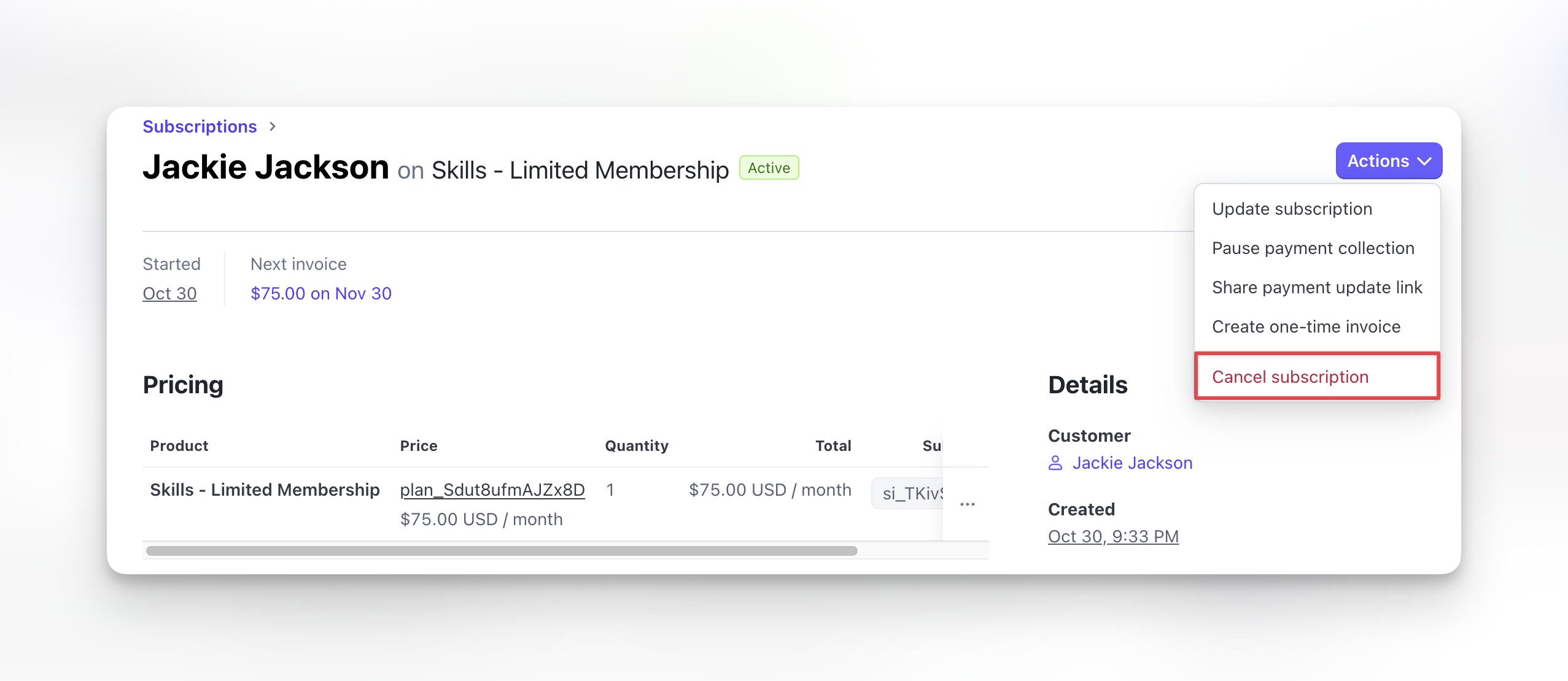 Select:
* **Cancel at period end** (access continues until paid period expires)
* **Cancel immediately** (access ends now)
Review cancellation details and click **Confirm**.
**Subscription canceled.** Status updates and client notification sent (if configured).
## What happens after cancellation
**Access:**
* Cancel at period end: Access until period expires
* Cancel immediately: Access ends now
**Credits:**
* Cancel at period end: Valid until period expires
* Cancel immediately: Expire immediately
**Payments:**
* No future charges
* Past payments remain (no automatic refund)
**Resubscribing:**
* Client must purchase subscription product again
* Creates new subscription (not reactivation of old one)
* New subscription ID and billing schedule
Canceled subscriptions remain visible in your Subscriptions list filtered by "Canceled" status.
## Refunding subscription payments
Issue full or partial refund for subscription charges.
Payments → Subscriptions → Click **Open** under Source column
Scroll to invoices and click most recent invoice.
Scroll to Payment History section. Locate the charge to refund.
Click Refund payment button next to the payment.
**Full refund:** Return entire payment amount
**Partial refund:** Enter specific dollar amount to refund
For partial period cancellations, calculate prorated amount. Example: 200/month, cancel on day 15 = refund 100.
**Continue subscription:** Issue refund but keep subscription active
**Cancel subscription:** Issue refund and end subscription
Most common: Refund + Cancel together
Review details and click **Confirm Refund**.
**Refund processing.** Money returns to client's original payment method within 5-10 business days.
[Complete refund guide →](/payments/issuing-refunds)
## Updating client payment methods
Client needs to update their card for future charges.
**Client updates from their portal**
Instruct client:
1. Log into Athlete Portal
2. Click profile picture in top right hand corner
3. Navigate to **Billing**
4. Add or update card
No action needed from you.
## Handling failed subscription payments
When subscription payment fails, status changes to Past Due.
**Automatic Stripe retries:**
* First retry: 3 days after failure
* Second retry: 5 days after first retry
* Third retry: 7 days after second retry
* Final attempt: 10 days after third retry
[Complete failed payment recovery guide →](/payments/failed-payments)
## Common subscription management scenarios
**Current approach:**
1. Cancel current subscription (at period end)
2. Client purchases new subscription product after period ends
3. New subscription starts with different pricing/credits
**Future:** Subscription switching without gap coming soon.
**Steps:**
1. Issue full refund for current period
2. Choose "Cancel subscription" when refunding
3. Select "Cancel immediately"
Client gets money back and loses access now.
**CoachIQ doesn't support pause directly.**
**Options:**
1. Cancel now, client resubscribes when ready (loses pricing if changed)
2. Use Stripe Dashboard to pause subscription (requires setup)
3. Let subscription continue, client just doesn't book sessions
Most coaches use option 3 for short pauses.
When you pause collection on a Stripe subscription, Stripe keeps the subscription status as **Active** — it just stops collecting payment. Because CoachIQ reads subscription status directly from Stripe, athletes with paused-collection subscriptions will still appear as **Active** in CoachIQ, including when filtering by Active in Payments > Products. Keep this in mind when reviewing your active subscriber count.
**Proactive approach:**
1. Check upcoming card expirations (visible in Stripe)
2. Send payment update link before expiration
3. Avoid failed payment entirely
Better than waiting for failure and dealing with Past Due status.
**Bank chargeback process:**
If client disputes with bank (not you), Stripe notifies you of chargeback.
**Your response:**
1. Check Stripe Dashboard for chargeback details
2. Provide evidence (subscription terms, usage logs, confirmation emails)
3. Stripe submits evidence to bank
4. Bank makes final decision (can take 60-90 days)
**If you lose:** Money is returned to client + chargeback fee (\$15)
**If you win:** You keep the payment
## Preventing cancellations
**Best practices to reduce churn:**
**Before cancellation:**
* Understand why client wants to cancel
* Offer solutions (schedule flexibility, product downgrade)
* Provide pause option if temporary issue
* Remind of progress made and value received
**At risk indicators:**
* Multiple failed payments
* Declining session bookings
* No recent activity
* Support complaints
**Retention strategies:**
* Proactive check-ins with inactive subscribers
* Usage reports showing progress
* Exclusive member benefits
* Loyalty rewards or discounts
Retaining existing subscribers costs less than acquiring new ones. Invest in retention.
## Resubscribing canceled clients
When client wants to restart canceled subscription:
**Process:**
1. Client purchases subscription product again (like new customer)
2. New subscription created with new ID
3. New billing schedule starts
4. Old subscription remains canceled in history
**You cannot:**
* Reactivate old canceled subscription
* Restore previous subscription ID
* Resume old billing schedule
Each subscription is independent. Cancellation is permanent. Resubscribing creates entirely new subscription.
## Next steps
1. [Handle failed payments](/payments/failed-payments) - Recover Past Due subscriptions
2. [Issue refunds](/payments/issuing-refunds) - Process subscription refunds
3. [View Subscriptions Dashboard](/payments/subscriptions-dashboard) - Monitor all subscriptions
Select:
* **Cancel at period end** (access continues until paid period expires)
* **Cancel immediately** (access ends now)
Review cancellation details and click **Confirm**.
**Subscription canceled.** Status updates and client notification sent (if configured).
## What happens after cancellation
**Access:**
* Cancel at period end: Access until period expires
* Cancel immediately: Access ends now
**Credits:**
* Cancel at period end: Valid until period expires
* Cancel immediately: Expire immediately
**Payments:**
* No future charges
* Past payments remain (no automatic refund)
**Resubscribing:**
* Client must purchase subscription product again
* Creates new subscription (not reactivation of old one)
* New subscription ID and billing schedule
Canceled subscriptions remain visible in your Subscriptions list filtered by "Canceled" status.
## Refunding subscription payments
Issue full or partial refund for subscription charges.
Payments → Subscriptions → Click **Open** under Source column
Scroll to invoices and click most recent invoice.
Scroll to Payment History section. Locate the charge to refund.
Click Refund payment button next to the payment.
**Full refund:** Return entire payment amount
**Partial refund:** Enter specific dollar amount to refund
For partial period cancellations, calculate prorated amount. Example: 200/month, cancel on day 15 = refund 100.
**Continue subscription:** Issue refund but keep subscription active
**Cancel subscription:** Issue refund and end subscription
Most common: Refund + Cancel together
Review details and click **Confirm Refund**.
**Refund processing.** Money returns to client's original payment method within 5-10 business days.
[Complete refund guide →](/payments/issuing-refunds)
## Updating client payment methods
Client needs to update their card for future charges.
**Client updates from their portal**
Instruct client:
1. Log into Athlete Portal
2. Click profile picture in top right hand corner
3. Navigate to **Billing**
4. Add or update card
No action needed from you.
## Handling failed subscription payments
When subscription payment fails, status changes to Past Due.
**Automatic Stripe retries:**
* First retry: 3 days after failure
* Second retry: 5 days after first retry
* Third retry: 7 days after second retry
* Final attempt: 10 days after third retry
[Complete failed payment recovery guide →](/payments/failed-payments)
## Common subscription management scenarios
**Current approach:**
1. Cancel current subscription (at period end)
2. Client purchases new subscription product after period ends
3. New subscription starts with different pricing/credits
**Future:** Subscription switching without gap coming soon.
**Steps:**
1. Issue full refund for current period
2. Choose "Cancel subscription" when refunding
3. Select "Cancel immediately"
Client gets money back and loses access now.
**CoachIQ doesn't support pause directly.**
**Options:**
1. Cancel now, client resubscribes when ready (loses pricing if changed)
2. Use Stripe Dashboard to pause subscription (requires setup)
3. Let subscription continue, client just doesn't book sessions
Most coaches use option 3 for short pauses.
When you pause collection on a Stripe subscription, Stripe keeps the subscription status as **Active** — it just stops collecting payment. Because CoachIQ reads subscription status directly from Stripe, athletes with paused-collection subscriptions will still appear as **Active** in CoachIQ, including when filtering by Active in Payments > Products. Keep this in mind when reviewing your active subscriber count.
**Proactive approach:**
1. Check upcoming card expirations (visible in Stripe)
2. Send payment update link before expiration
3. Avoid failed payment entirely
Better than waiting for failure and dealing with Past Due status.
**Bank chargeback process:**
If client disputes with bank (not you), Stripe notifies you of chargeback.
**Your response:**
1. Check Stripe Dashboard for chargeback details
2. Provide evidence (subscription terms, usage logs, confirmation emails)
3. Stripe submits evidence to bank
4. Bank makes final decision (can take 60-90 days)
**If you lose:** Money is returned to client + chargeback fee (\$15)
**If you win:** You keep the payment
## Preventing cancellations
**Best practices to reduce churn:**
**Before cancellation:**
* Understand why client wants to cancel
* Offer solutions (schedule flexibility, product downgrade)
* Provide pause option if temporary issue
* Remind of progress made and value received
**At risk indicators:**
* Multiple failed payments
* Declining session bookings
* No recent activity
* Support complaints
**Retention strategies:**
* Proactive check-ins with inactive subscribers
* Usage reports showing progress
* Exclusive member benefits
* Loyalty rewards or discounts
Retaining existing subscribers costs less than acquiring new ones. Invest in retention.
## Resubscribing canceled clients
When client wants to restart canceled subscription:
**Process:**
1. Client purchases subscription product again (like new customer)
2. New subscription created with new ID
3. New billing schedule starts
4. Old subscription remains canceled in history
**You cannot:**
* Reactivate old canceled subscription
* Restore previous subscription ID
* Resume old billing schedule
Each subscription is independent. Cancellation is permanent. Resubscribing creates entirely new subscription.
## Next steps
1. [Handle failed payments](/payments/failed-payments) - Recover Past Due subscriptions
2. [Issue refunds](/payments/issuing-refunds) - Process subscription refunds
3. [View Subscriptions Dashboard](/payments/subscriptions-dashboard) - Monitor all subscriptions