> ## Documentation Index
> Fetch the complete documentation index at: https://help.coachiq.io/llms.txt
> Use this file to discover all available pages before exploring further.
# Stripe Dashboard Basics
> Navigate your Stripe dashboard to view payouts, manage customers, and access financial reports
**Where to find this**: [stripe.com/dashboard](https://stripe.com/dashboard)
## What the Stripe Dashboard is
The Stripe Dashboard is your payment processor's control center. While you manage day-to-day operations in CoachIQ, Stripe provides:
* Detailed financial reports
* Tax documents and statements
* Advanced payment settings
* Payout schedules and history
* Dispute and chargeback management
Most tasks happen in CoachIQ. Use Stripe for financial reporting, tax documents, and advanced configuration.
## Key areas of Stripe
**Overview of your payment activity**
Displays:
* Total revenue (today, week, month)
* Recent payments
* Account balance
* Pending payouts
* Quick stats and trends
This is your financial snapshot. Check here to see high-level performance.
**Complete transaction history**
View and filter:
* All successful payments
* Failed charges
* Refunded transactions
* Search by amount, customer, date
* Export transaction data
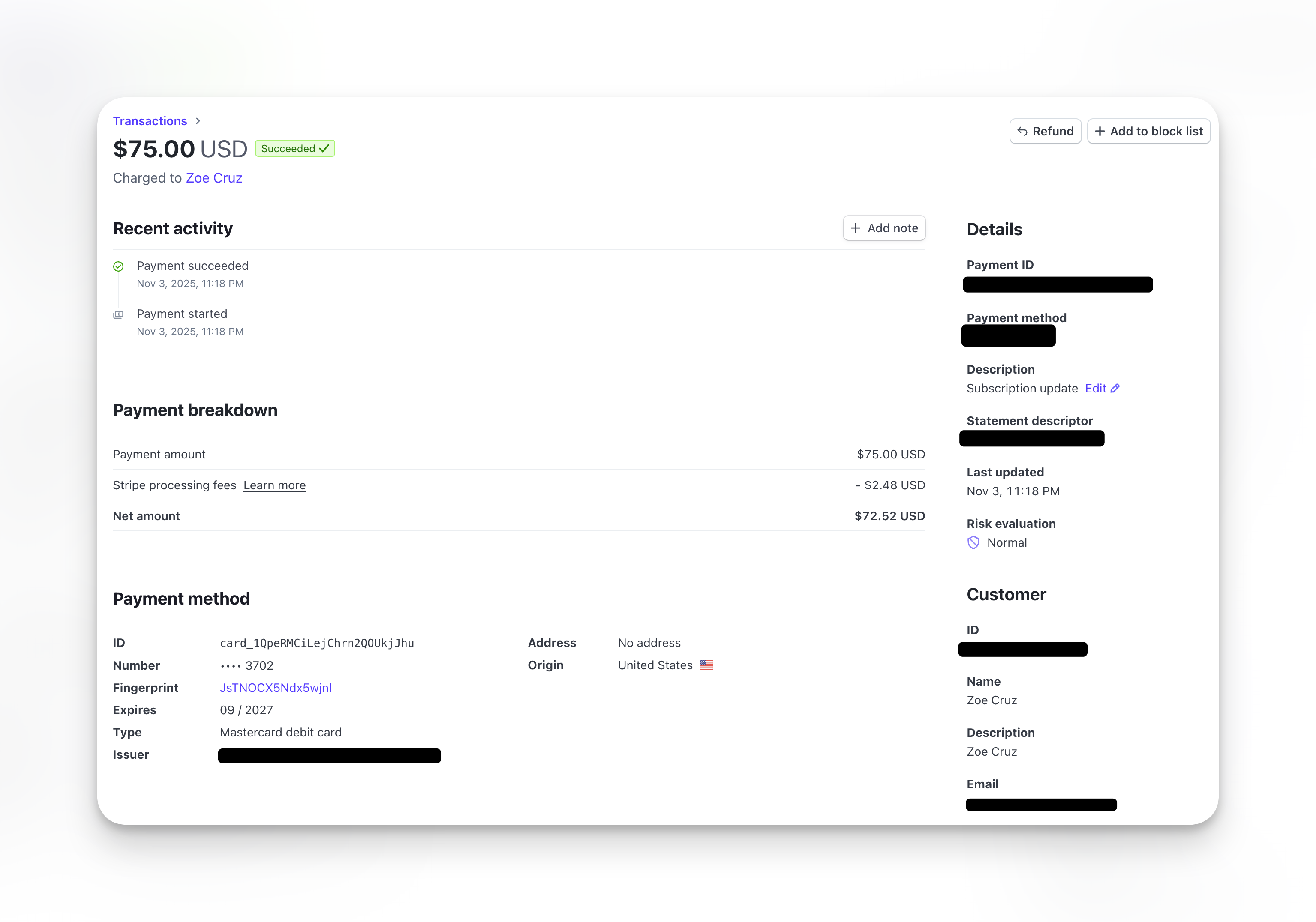 Detailed view of every charge processed through your account.
**Customer database**
See:
* All customers who've paid you
* Saved payment methods
* Transaction history per customer
* Contact information
* Customer lifetime value
Stripe automatically creates customer records when clients pay through CoachIQ.
**Product catalog**
Your product library including:
* One-time products
* Subscription products
* Pricing details
* Product status (active/archived)
Products created in CoachIQ automatically sync to Stripe. Changes made in Stripe appear in CoachIQ.
**Recurring billing management**
Monitor:
* Active subscriptions
* Canceled subscriptions
* Upcoming renewals
* Failed payment retries
* Subscription changes
Detailed view of every charge processed through your account.
**Customer database**
See:
* All customers who've paid you
* Saved payment methods
* Transaction history per customer
* Contact information
* Customer lifetime value
Stripe automatically creates customer records when clients pay through CoachIQ.
**Product catalog**
Your product library including:
* One-time products
* Subscription products
* Pricing details
* Product status (active/archived)
Products created in CoachIQ automatically sync to Stripe. Changes made in Stripe appear in CoachIQ.
**Recurring billing management**
Monitor:
* Active subscriptions
* Canceled subscriptions
* Upcoming renewals
* Failed payment retries
* Subscription changes
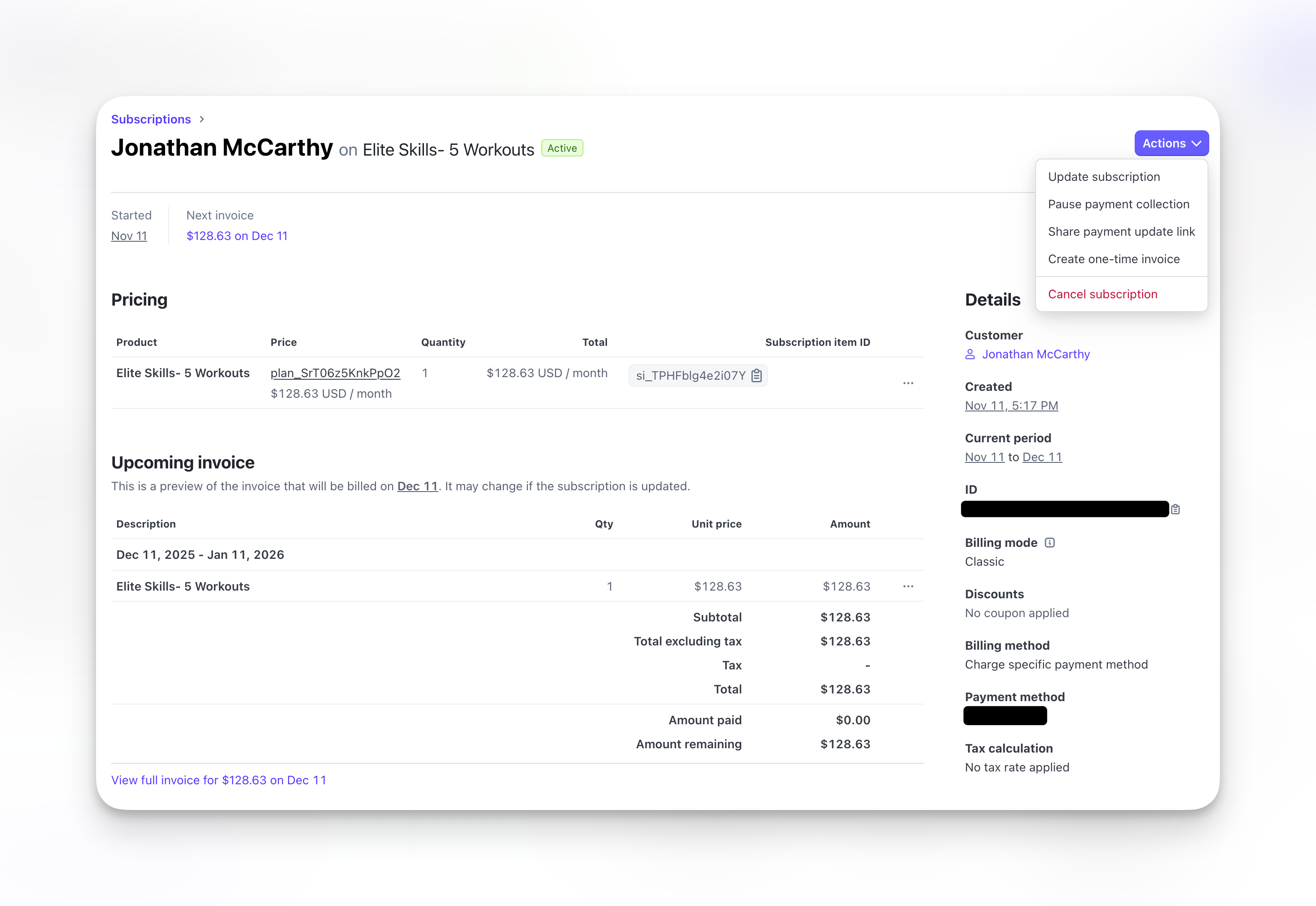 Subscriptions created through CoachIQ appear here with full billing history.
**Your available funds**
Shows:
* Available balance (ready to payout)
* Pending balance (processing)
* Payout schedule
* Payout history
* Bank account details
Track when money moves from Stripe to your bank account.
## What syncs between CoachIQ and Stripe
**CoachIQ → Stripe:**
* Products you create
* Transactions processed
* Subscriptions started
* Refunds issued
* Customer information
**Stripe → CoachIQ:**
* Payment confirmations
* Subscription renewals
* Failed payment notifications
* Customer updates
* Payout status
Data syncs in real-time. Changes in one platform appear immediately in the other.
## When to use Stripe vs. CoachIQ
**Day-to-day operations:**
* Creating and editing products
* Viewing transactions
* Managing subscriptions
* Issuing refunds
* Tracking credits
* Client communication
* Booking management
CoachIQ is your primary workspace for running your coaching business.
**Financial management and reporting:**
* Downloading tax documents
* Generating financial reports
* Exporting transaction data
* Updating payout schedule
* Managing disputes/chargebacks
* Viewing detailed fees
* Advanced fraud settings
* API configuration
Stripe provides financial depth that CoachIQ doesn't need to duplicate.
## Common Stripe tasks
1. Log into Stripe Dashboard
2. Click **Reports** in left sidebar
3. Select **Documents**
4. Download 1099-K or other tax forms
Tax documents available in January for the previous year's activity.
1. Go to **Settings** in Stripe Dashboard
2. Click **Bank accounts and scheduling**
3. Select your payout frequency (daily, weekly, monthly)
4. Save changes
First payout always takes 7-10 days regardless of schedule. Subsequent payouts follow your selected frequency.
1. Click **Balance** in left sidebar
2. Select **Payouts** tab
3. Click any payout
4. See itemized fees: processing fees, refund fees, disputes
This shows exactly what Stripe charged for each transaction.
1. Go to **Payments** in Stripe Dashboard
2. Apply any filters (date range, status, amount)
3. Click **Export** button (top right)
4. Choose CSV or Excel format
5. Download file
Use this for accounting software or custom financial analysis.
## Test mode vs. live mode
Stripe Dashboard has two modes:
**Test Mode**: Use fake card numbers to test payment flows without real money. Toggle Test Mode on to safely experiment with products, subscriptions, and refunds.
**Live Mode**: Real payments with real money. This is your production environment where actual client transactions occur.
The toggle switch is in the top right of your Stripe Dashboard. CoachIQ automatically reflects whichever mode Stripe is in.
## Understanding your balance
Your Stripe balance has two states:
**Pending**: Money from recent payments that's still processing. Typically holds for 2 business days before becoming available.
**Available**: Money ready to pay out to your bank account. Stripe automatically deposits available funds based on your payout schedule.
Your first payout takes 7-10 business days after your first successful payment. This initial delay is standard for new accounts.
## Need more help with Stripe?
Stripe provides comprehensive documentation for advanced features:
* **Stripe Documentation**: [stripe.com/docs](https://stripe.com/docs)
* **Stripe Support**: [support.stripe.com](https://support.stripe.com)
* **API Reference**: [stripe.com/docs/api](https://stripe.com/docs/api)
For CoachIQ-specific payment questions, contact CoachIQ support.
## Related articles
* [Connecting Stripe to CoachIQ](/payments/connecting-stripe)
* [Understanding CoachIQ Payments](/payments/getting-started)
* [Transactions Dashboard](/payments/transactions)
Subscriptions created through CoachIQ appear here with full billing history.
**Your available funds**
Shows:
* Available balance (ready to payout)
* Pending balance (processing)
* Payout schedule
* Payout history
* Bank account details
Track when money moves from Stripe to your bank account.
## What syncs between CoachIQ and Stripe
**CoachIQ → Stripe:**
* Products you create
* Transactions processed
* Subscriptions started
* Refunds issued
* Customer information
**Stripe → CoachIQ:**
* Payment confirmations
* Subscription renewals
* Failed payment notifications
* Customer updates
* Payout status
Data syncs in real-time. Changes in one platform appear immediately in the other.
## When to use Stripe vs. CoachIQ
**Day-to-day operations:**
* Creating and editing products
* Viewing transactions
* Managing subscriptions
* Issuing refunds
* Tracking credits
* Client communication
* Booking management
CoachIQ is your primary workspace for running your coaching business.
**Financial management and reporting:**
* Downloading tax documents
* Generating financial reports
* Exporting transaction data
* Updating payout schedule
* Managing disputes/chargebacks
* Viewing detailed fees
* Advanced fraud settings
* API configuration
Stripe provides financial depth that CoachIQ doesn't need to duplicate.
## Common Stripe tasks
1. Log into Stripe Dashboard
2. Click **Reports** in left sidebar
3. Select **Documents**
4. Download 1099-K or other tax forms
Tax documents available in January for the previous year's activity.
1. Go to **Settings** in Stripe Dashboard
2. Click **Bank accounts and scheduling**
3. Select your payout frequency (daily, weekly, monthly)
4. Save changes
First payout always takes 7-10 days regardless of schedule. Subsequent payouts follow your selected frequency.
1. Click **Balance** in left sidebar
2. Select **Payouts** tab
3. Click any payout
4. See itemized fees: processing fees, refund fees, disputes
This shows exactly what Stripe charged for each transaction.
1. Go to **Payments** in Stripe Dashboard
2. Apply any filters (date range, status, amount)
3. Click **Export** button (top right)
4. Choose CSV or Excel format
5. Download file
Use this for accounting software or custom financial analysis.
## Test mode vs. live mode
Stripe Dashboard has two modes:
**Test Mode**: Use fake card numbers to test payment flows without real money. Toggle Test Mode on to safely experiment with products, subscriptions, and refunds.
**Live Mode**: Real payments with real money. This is your production environment where actual client transactions occur.
The toggle switch is in the top right of your Stripe Dashboard. CoachIQ automatically reflects whichever mode Stripe is in.
## Understanding your balance
Your Stripe balance has two states:
**Pending**: Money from recent payments that's still processing. Typically holds for 2 business days before becoming available.
**Available**: Money ready to pay out to your bank account. Stripe automatically deposits available funds based on your payout schedule.
Your first payout takes 7-10 business days after your first successful payment. This initial delay is standard for new accounts.
## Need more help with Stripe?
Stripe provides comprehensive documentation for advanced features:
* **Stripe Documentation**: [stripe.com/docs](https://stripe.com/docs)
* **Stripe Support**: [support.stripe.com](https://support.stripe.com)
* **API Reference**: [stripe.com/docs/api](https://stripe.com/docs/api)
For CoachIQ-specific payment questions, contact CoachIQ support.
## Related articles
* [Connecting Stripe to CoachIQ](/payments/connecting-stripe)
* [Understanding CoachIQ Payments](/payments/getting-started)
* [Transactions Dashboard](/payments/transactions)