> ## Documentation Index
> Fetch the complete documentation index at: https://help.coachiq.io/llms.txt
> Use this file to discover all available pages before exploring further.
# Subscriptions Dashboard
> Navigate the Subscriptions page to monitor recurring billing, track active memberships, and manage subscription status
**Where to find this**: Payments → Subscriptions
## What the Subscriptions page shows
The Subscriptions dashboard displays all recurring billing for your coaching business:
* Active memberships and their status
* Canceled subscriptions
* Failed payment retries
* Monthly recurring revenue (MRR)
* Subscription history and details
Every subscription product purchase creates an entry here that tracks billing until canceled.
 ## Key metrics at the top
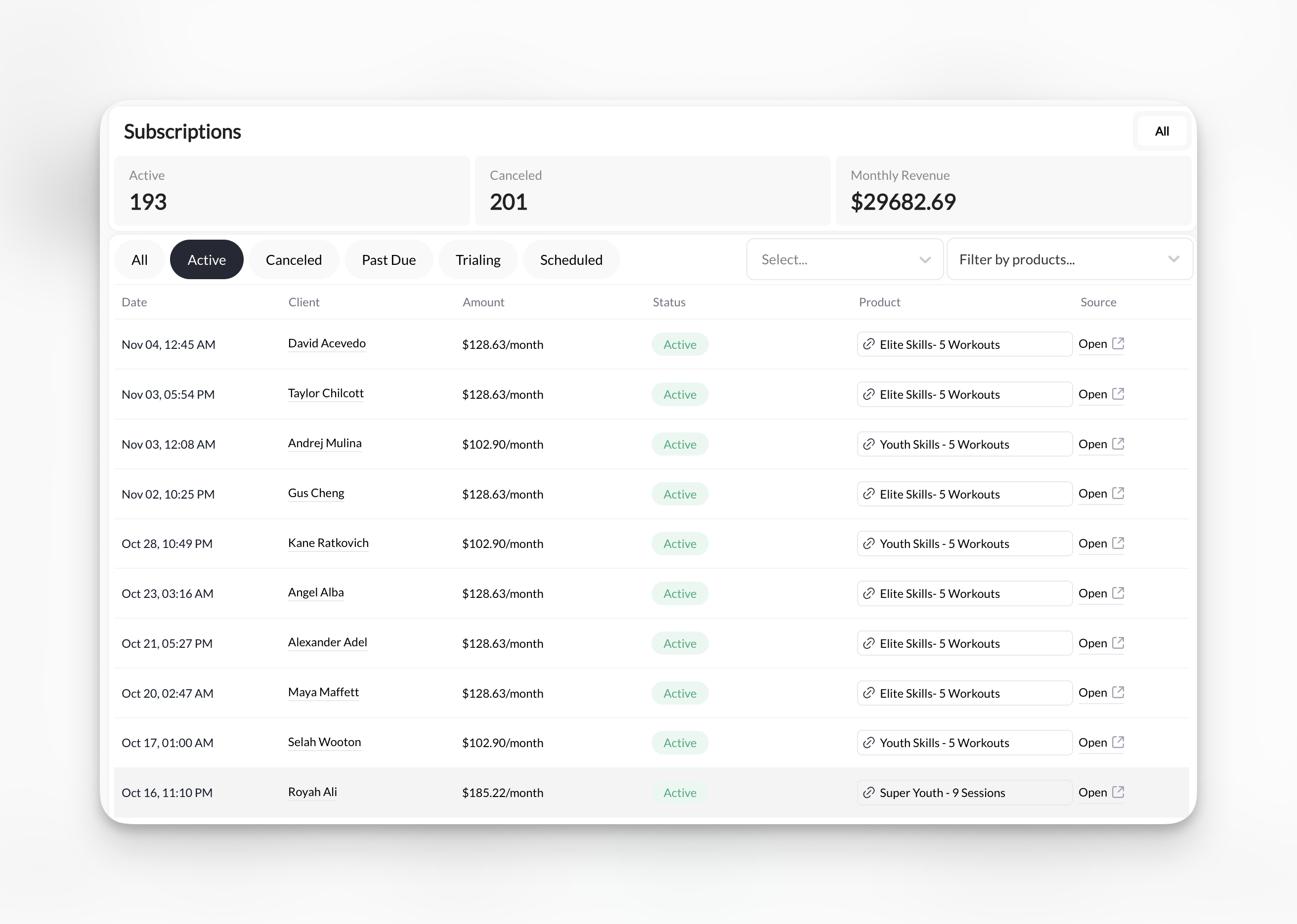
Three metrics display above your subscription list:
**Active Subscriptions**
* Count of currently active, billing subscriptions
* Includes trialing and scheduled subscriptions
* Excludes canceled and past due
**Canceled Subscriptions**
* Total number of ended subscriptions
* Tracks churn and cancellation history
**Monthly Recurring Revenue (MRR)**
* Total monthly revenue from active subscriptions
* Updates in real-time as subscriptions change
* Based on monthly equivalent (annual subscriptions divided by 12)
MRR is your most important subscription metric. Track this to measure subscription business health.
## Subscription list columns
Each subscription displays:
| Column | What it shows |
| ----------- | --------------------------------------------------------- |
| **Date** | When subscription started |
| **Status** | Current billing status (Active, Canceled, Past Due, etc.) |
| **Client** | Client name linked to profile |
| **Amount** | Billing amount and frequency (\$200/month) |
| **Product** | Which subscription product |
| **Type** | Always "Subscription" |
Click any row to view full subscription details.
## Subscription status types
**Green indicator - Running normally**
Subscription is active and payments are processing successfully.
Client's card charges automatically on schedule. Credits renew (if configured). Everything working as expected.
**Blue indicator - In trial period**
Client is in free trial before first charge.
Card on file but not yet charged. Trial ends on specified date, then first payment processes. Client can cancel during trial without charge.
**Purple indicator - Starts in future**
Subscription purchased but doesn't start until future date.
No charges yet. Will activate on start date. Useful for seasonal programs or delayed memberships.
**Yellow/Orange indicator - Payment failed**
Last payment attempt failed. Stripe is retrying.
Card declined or expired. Client still has access during retry period. Stripe attempts multiple retries over several days before giving up.
Past Due subscriptions need attention. Contact client to update payment method.
**Red/Gray indicator - Subscription ended**
Client or you canceled the subscription.
No more charges. Access ends based on cancellation settings (immediate or end of period). Credits expire. Client can resubscribe by purchasing again.
**Gray indicator - Setup failed**
Payment setup never completed or first charge failed.
Client started subscription signup but payment failed and retry period expired. Subscription never became active.
## Filter and search subscriptions
**Filter by status:** Click status tabs at top:
* All
* Active
* Canceled
* Past Due
* Trialing
* Scheduled
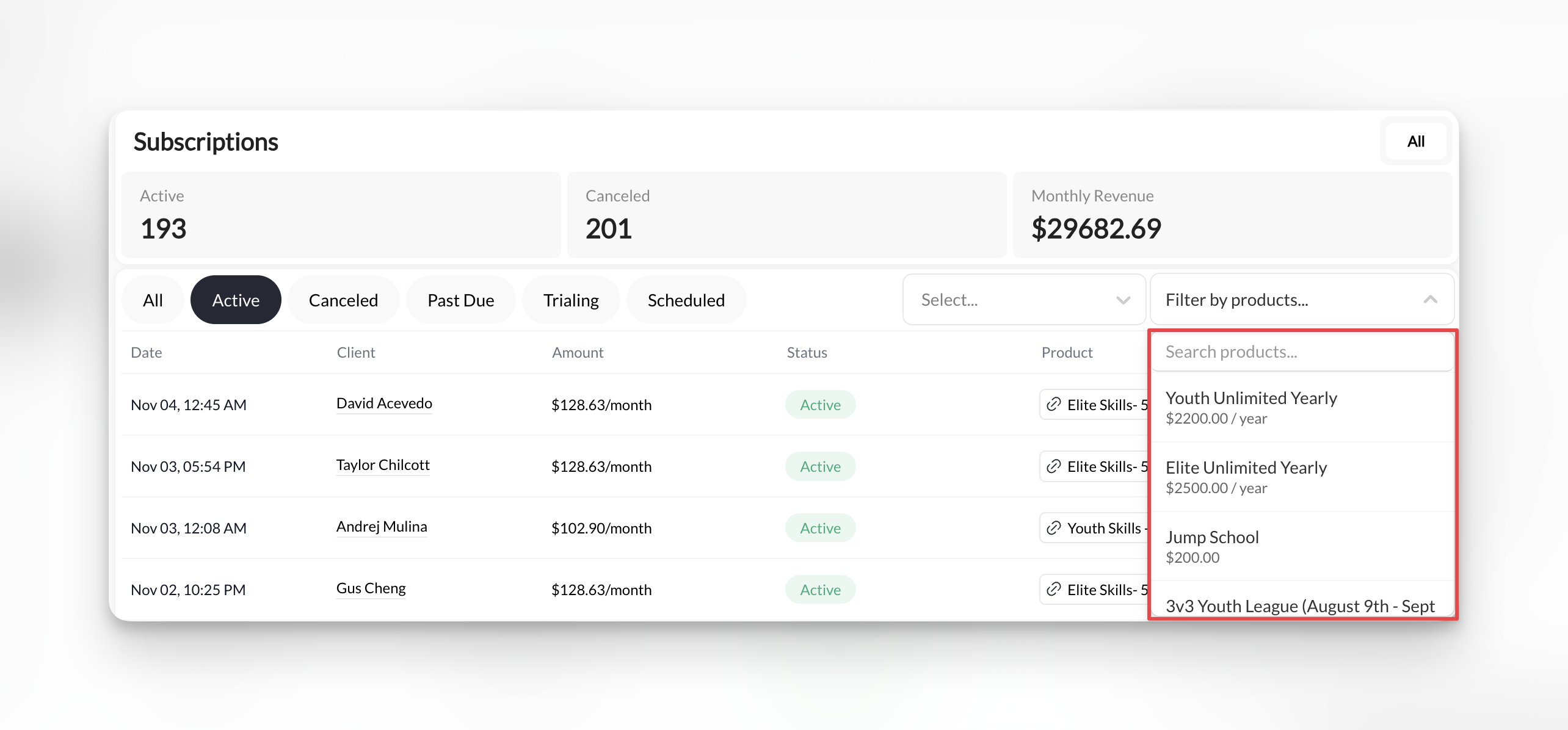
**Filter by Product:** Click the product(s) from the drop down view
## Key metrics at the top
Three metrics display above your subscription list:
**Active Subscriptions**
* Count of currently active, billing subscriptions
* Includes trialing and scheduled subscriptions
* Excludes canceled and past due
**Canceled Subscriptions**
* Total number of ended subscriptions
* Tracks churn and cancellation history
**Monthly Recurring Revenue (MRR)**
* Total monthly revenue from active subscriptions
* Updates in real-time as subscriptions change
* Based on monthly equivalent (annual subscriptions divided by 12)
MRR is your most important subscription metric. Track this to measure subscription business health.
## Subscription list columns
Each subscription displays:
| Column | What it shows |
| ----------- | --------------------------------------------------------- |
| **Date** | When subscription started |
| **Status** | Current billing status (Active, Canceled, Past Due, etc.) |
| **Client** | Client name linked to profile |
| **Amount** | Billing amount and frequency (\$200/month) |
| **Product** | Which subscription product |
| **Type** | Always "Subscription" |
Click any row to view full subscription details.
## Subscription status types
**Green indicator - Running normally**
Subscription is active and payments are processing successfully.
Client's card charges automatically on schedule. Credits renew (if configured). Everything working as expected.
**Blue indicator - In trial period**
Client is in free trial before first charge.
Card on file but not yet charged. Trial ends on specified date, then first payment processes. Client can cancel during trial without charge.
**Purple indicator - Starts in future**
Subscription purchased but doesn't start until future date.
No charges yet. Will activate on start date. Useful for seasonal programs or delayed memberships.
**Yellow/Orange indicator - Payment failed**
Last payment attempt failed. Stripe is retrying.
Card declined or expired. Client still has access during retry period. Stripe attempts multiple retries over several days before giving up.
Past Due subscriptions need attention. Contact client to update payment method.
**Red/Gray indicator - Subscription ended**
Client or you canceled the subscription.
No more charges. Access ends based on cancellation settings (immediate or end of period). Credits expire. Client can resubscribe by purchasing again.
**Gray indicator - Setup failed**
Payment setup never completed or first charge failed.
Client started subscription signup but payment failed and retry period expired. Subscription never became active.
## Filter and search subscriptions
**Filter by status:** Click status tabs at top:
* All
* Active
* Canceled
* Past Due
* Trialing
* Scheduled
**Filter by Product:** Click the product(s) from the drop down view
 ## Check for unsynced subscriptions
An **unsynced subscription** is one that exists in CoachIQ but isn't linked to Stripe. When a subscription is unsynced, the platform doesn't know to process payments, issue credits, or manage billing for that client.
Use the **Unsynced** filter to quickly identify any subscriptions that may have slipped through without a Stripe connection.
Open the Subscriptions dashboard from the main navigation.
In the status filter tabs at the top of the page, select **Unsynced**. This filters the list to show only subscriptions that aren't connected to Stripe.
## Check for unsynced subscriptions
An **unsynced subscription** is one that exists in CoachIQ but isn't linked to Stripe. When a subscription is unsynced, the platform doesn't know to process payments, issue credits, or manage billing for that client.
Use the **Unsynced** filter to quickly identify any subscriptions that may have slipped through without a Stripe connection.
Open the Subscriptions dashboard from the main navigation.
In the status filter tabs at the top of the page, select **Unsynced**. This filters the list to show only subscriptions that aren't connected to Stripe.
 For each unsynced subscription, check:
* Does the client have an active subscription in Stripe? If yes, the subscription may need to be relinked.
* Was this a manual product addition that was never connected to billing?
* Did a transfer or migration cause it to lose its Stripe connection?
If you find unsynced subscriptions that should be billing, contact [CoachIQ support](mailto:info@coachiq.io) to get them resynced.
Unsynced subscriptions mean the client may have access to your services without being billed. Check this filter periodically — especially after bulk imports or account transfers.
## View subscription details
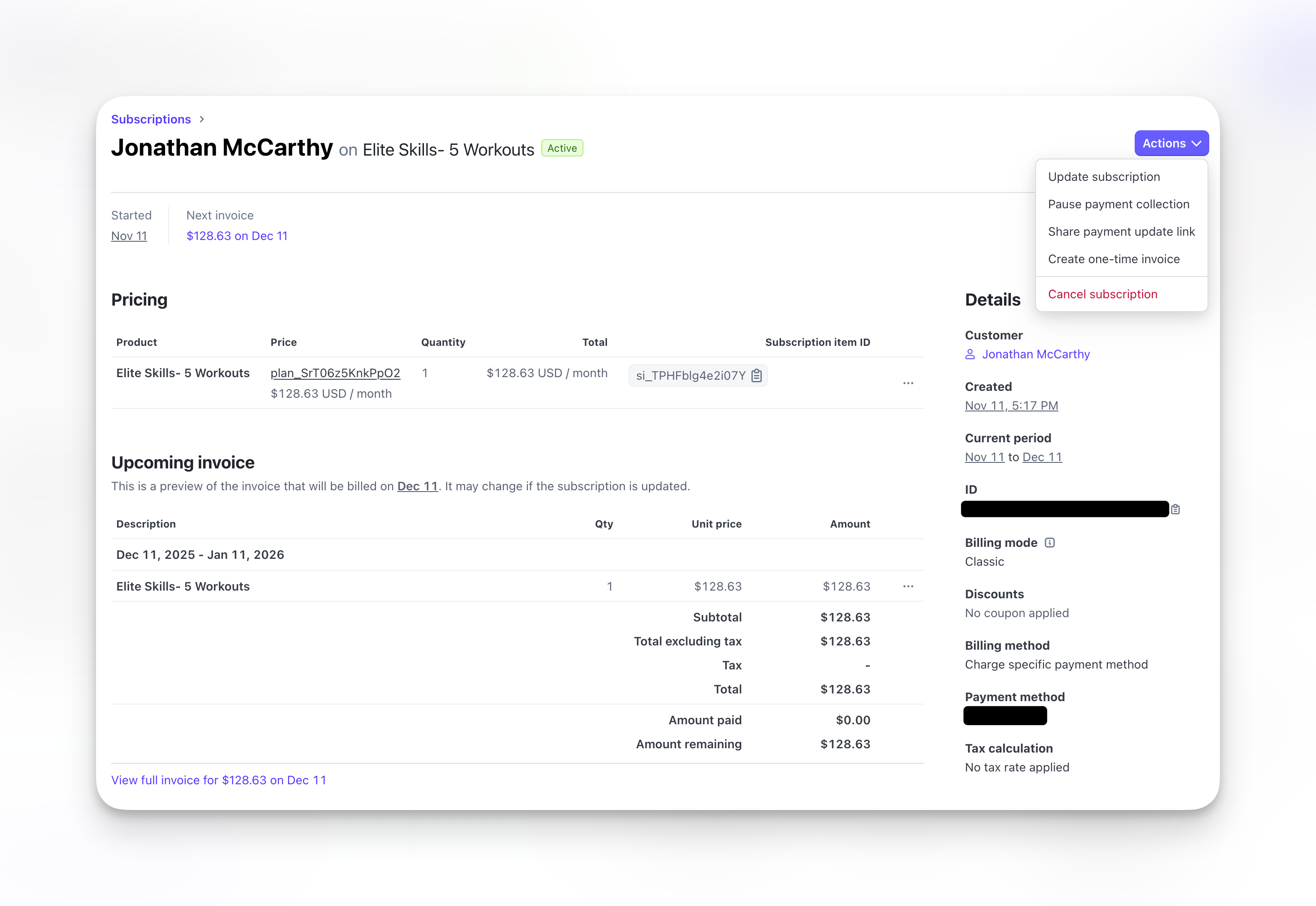
Click Open under the Source column of the subscription to view on Stripe:
**Billing information:**
* Current period start and end dates
* Next billing date
* Billing frequency
* Amount charged each period
**Payment history:**
* All successful charges
* Failed payment attempts
* Amount paid to date
**Subscription actions:**
* Cancel subscription
* Update billing date
* Change product/pricing
* Issue refund for last payment
For each unsynced subscription, check:
* Does the client have an active subscription in Stripe? If yes, the subscription may need to be relinked.
* Was this a manual product addition that was never connected to billing?
* Did a transfer or migration cause it to lose its Stripe connection?
If you find unsynced subscriptions that should be billing, contact [CoachIQ support](mailto:info@coachiq.io) to get them resynced.
Unsynced subscriptions mean the client may have access to your services without being billed. Check this filter periodically — especially after bulk imports or account transfers.
## View subscription details
Click Open under the Source column of the subscription to view on Stripe:
**Billing information:**
* Current period start and end dates
* Next billing date
* Billing frequency
* Amount charged each period
**Payment history:**
* All successful charges
* Failed payment attempts
* Amount paid to date
**Subscription actions:**
* Cancel subscription
* Update billing date
* Change product/pricing
* Issue refund for last payment
 ## Understanding subscription lifecycle
Client purchases subscription product. Subscription appears as Active (or Trialing if trial configured).
Immediate charge.
Credits issued (if configured). Client can book sessions.
Card charges on schedule (monthly, quarterly, annually).
New credits issued each period (if configured). Client continues accessing services.
If card declines: Status changes to Past Due. Stripe retries automatically over several days.
Client retains access during retry period.
Client cancels OR payment retries exhaust.
Status changes to Canceled. Credits expire. Access ends.
## Common subscription scenarios
**What you see:**
* Status: Active (green)
* Regular successful payments in history
* Credits renewing each period
**What to do:** Nothing. It's working perfectly.
**What you see:**
* Status: Past Due (red)
* Recent failed payment attempt
* Stripe retry in progress
**What to do:**
1. Contact client about failed payment
2. Ask them to update payment method
3. Stripe will retry automatically
4. [Learn about failed payments →](/payments/failed-payments)
**What you see:**
* Status: Canceled (gray)
* Cancellation date shown
* No future billing
**What to do:** If accidental: Client must resubscribe by purchasing product again. If intentional: Monitor for resubscription opportunities.
**What you see:**
* Status: Trialing (blue)
* No charges yet
* Clients have the same access as an Active subscription
**What to do:** Nothing until trial ends. First charge processes automatically on trial end date.
Trialing is currently only set manually as the coach or Admin from Stripe.
## Subscriptions vs. transactions
**Subscriptions page:** Ongoing billing relationships
* Shows subscription status
* Displays next billing date
* Tracks recurring revenue
**Transactions page:** Individual payment events
* Shows each charge (including subscription charges)
* Displays one-time payments too
* Tracks total revenue
Every subscription charge also appears in Transactions. Subscriptions page focuses on ongoing relationships, Transactions shows individual payments.
## Export subscription data
Export subscription list for reporting or accounting:
1. Apply any desired filters (status, date range)
2. Click **Export** button (if available)
3. Download CSV file
Use exported data for:
* Financial reporting
* Churn analysis
* Revenue forecasting
* Accounting software import
## What you can't do on Subscriptions page
**These actions require Stripe Dashboard:**
* Change subscription pricing mid-cycle
* Apply retroactive discounts
* Modify payment schedule
* Complex subscription modifications
For advanced subscription management, use Stripe Dashboard. [Learn about Stripe Dashboard →](/payments/stripe-dashboard)
## Related articles
* [Managing Subscriptions](/payments/manage-subscriptions)
* [Failed Payments](/payments/failed-payments)
* [Product Types Explained](/payments/product-types)
## Understanding subscription lifecycle
Client purchases subscription product. Subscription appears as Active (or Trialing if trial configured).
Immediate charge.
Credits issued (if configured). Client can book sessions.
Card charges on schedule (monthly, quarterly, annually).
New credits issued each period (if configured). Client continues accessing services.
If card declines: Status changes to Past Due. Stripe retries automatically over several days.
Client retains access during retry period.
Client cancels OR payment retries exhaust.
Status changes to Canceled. Credits expire. Access ends.
## Common subscription scenarios
**What you see:**
* Status: Active (green)
* Regular successful payments in history
* Credits renewing each period
**What to do:** Nothing. It's working perfectly.
**What you see:**
* Status: Past Due (red)
* Recent failed payment attempt
* Stripe retry in progress
**What to do:**
1. Contact client about failed payment
2. Ask them to update payment method
3. Stripe will retry automatically
4. [Learn about failed payments →](/payments/failed-payments)
**What you see:**
* Status: Canceled (gray)
* Cancellation date shown
* No future billing
**What to do:** If accidental: Client must resubscribe by purchasing product again. If intentional: Monitor for resubscription opportunities.
**What you see:**
* Status: Trialing (blue)
* No charges yet
* Clients have the same access as an Active subscription
**What to do:** Nothing until trial ends. First charge processes automatically on trial end date.
Trialing is currently only set manually as the coach or Admin from Stripe.
## Subscriptions vs. transactions
**Subscriptions page:** Ongoing billing relationships
* Shows subscription status
* Displays next billing date
* Tracks recurring revenue
**Transactions page:** Individual payment events
* Shows each charge (including subscription charges)
* Displays one-time payments too
* Tracks total revenue
Every subscription charge also appears in Transactions. Subscriptions page focuses on ongoing relationships, Transactions shows individual payments.
## Export subscription data
Export subscription list for reporting or accounting:
1. Apply any desired filters (status, date range)
2. Click **Export** button (if available)
3. Download CSV file
Use exported data for:
* Financial reporting
* Churn analysis
* Revenue forecasting
* Accounting software import
## What you can't do on Subscriptions page
**These actions require Stripe Dashboard:**
* Change subscription pricing mid-cycle
* Apply retroactive discounts
* Modify payment schedule
* Complex subscription modifications
For advanced subscription management, use Stripe Dashboard. [Learn about Stripe Dashboard →](/payments/stripe-dashboard)
## Related articles
* [Managing Subscriptions](/payments/manage-subscriptions)
* [Failed Payments](/payments/failed-payments)
* [Product Types Explained](/payments/product-types)