> ## Documentation Index
> Fetch the complete documentation index at: https://help.coachiq.io/llms.txt
> Use this file to discover all available pages before exploring further.
# Upgrading an Athlete's Membership
> Step-by-step guide to upgrading an athlete from one membership tier to another while keeping Stripe and CoachIQ in sync
**Where to find this**: Stripe Dashboard → Subscriptions + People → Athlete Profile → Products tab
Upgrading a membership requires two steps: updating the subscription in Stripe first, then linking the new subscription on the athlete's CoachIQ profile. Do not add the new membership in CoachIQ before completing the Stripe side — doing so will cause the new product to appear unlinked or not show up at all.
## How to upgrade a membership
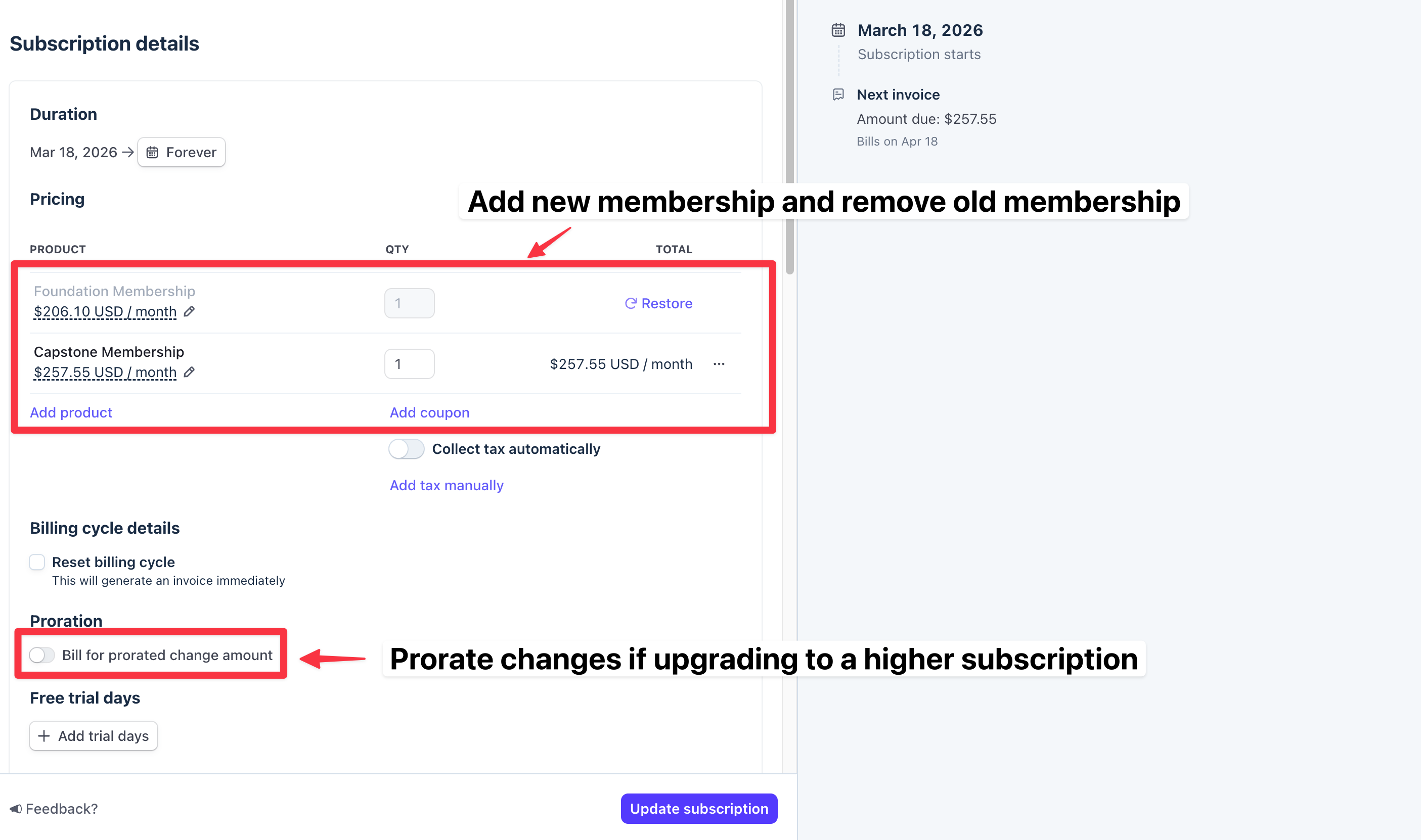
Log in to your Stripe Dashboard and navigate to **Customers → Subscriptions**. Find the athlete's existing subscription and upgrade it to the new membership tier.
 Once the subscription is updated, copy the subscription ID from the Stripe subscription detail page. It starts with `sub_`.
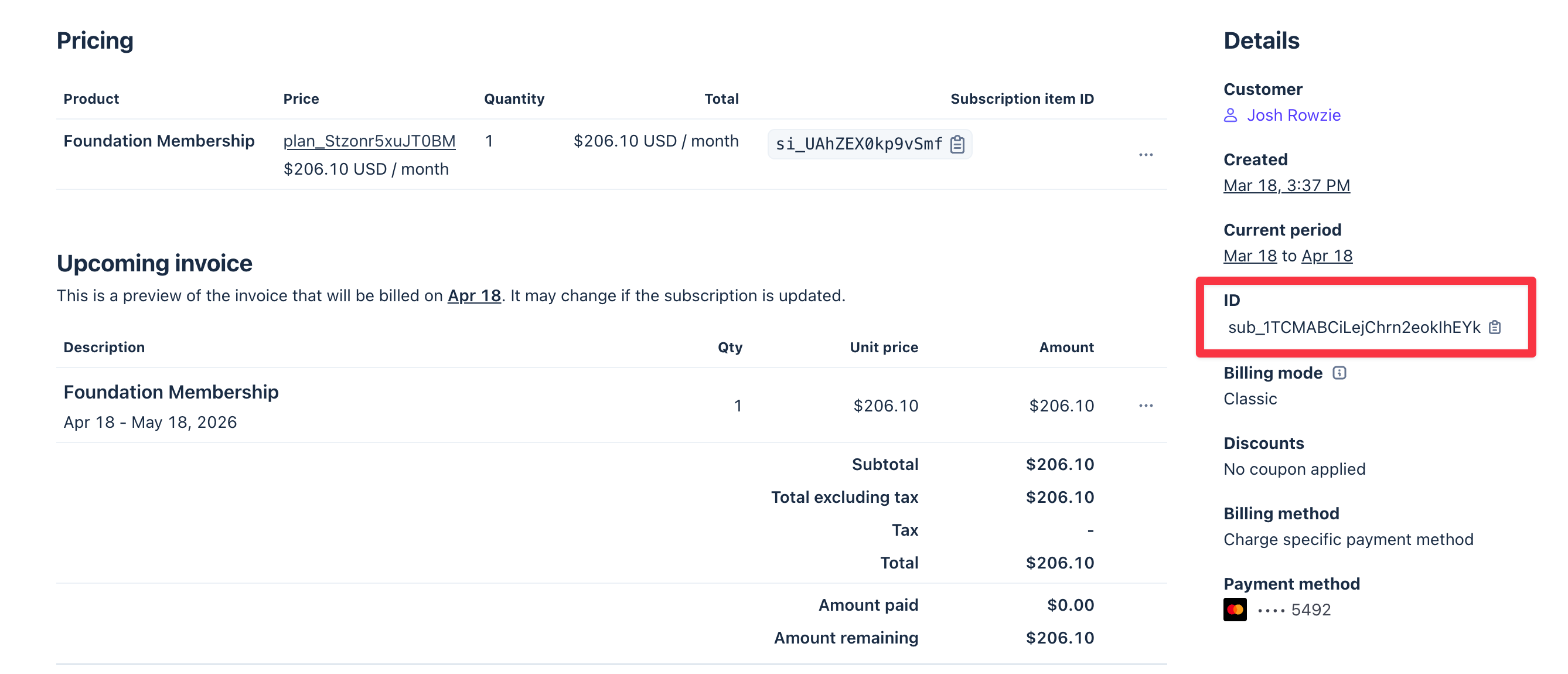 Paste the subscription ID somewhere temporary (Notes, a text editor) so it's ready for the next step.
Go to **People** and open the athlete's profile. Click the **Products** tab.
Paste the subscription ID somewhere temporary (Notes, a text editor) so it's ready for the next step.
Go to **People** and open the athlete's profile. Click the **Products** tab.
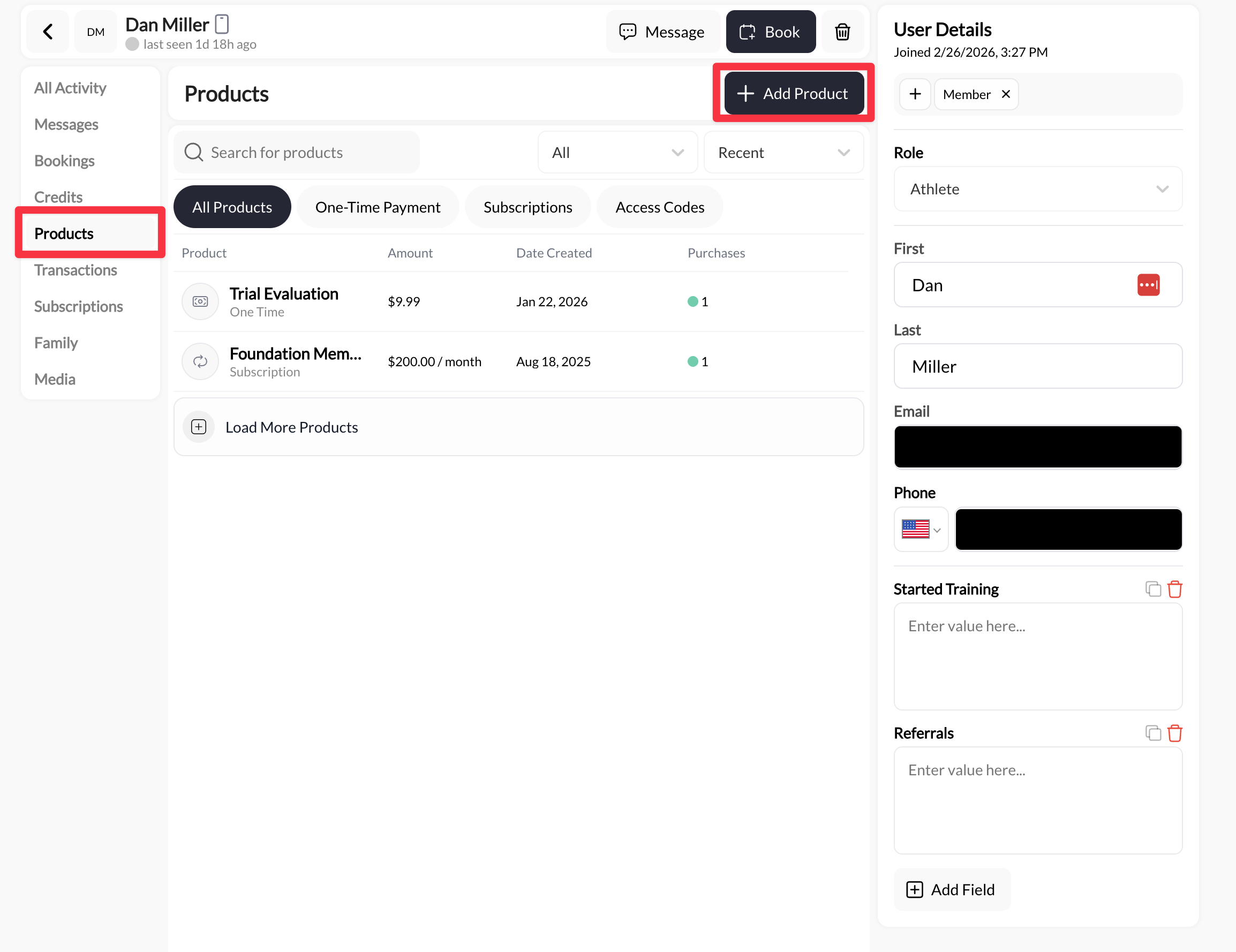 Click **Add Product**, select the new membership tier, and paste the Stripe subscription ID into the subscription ID field. This links CoachIQ to the correct Stripe subscription.
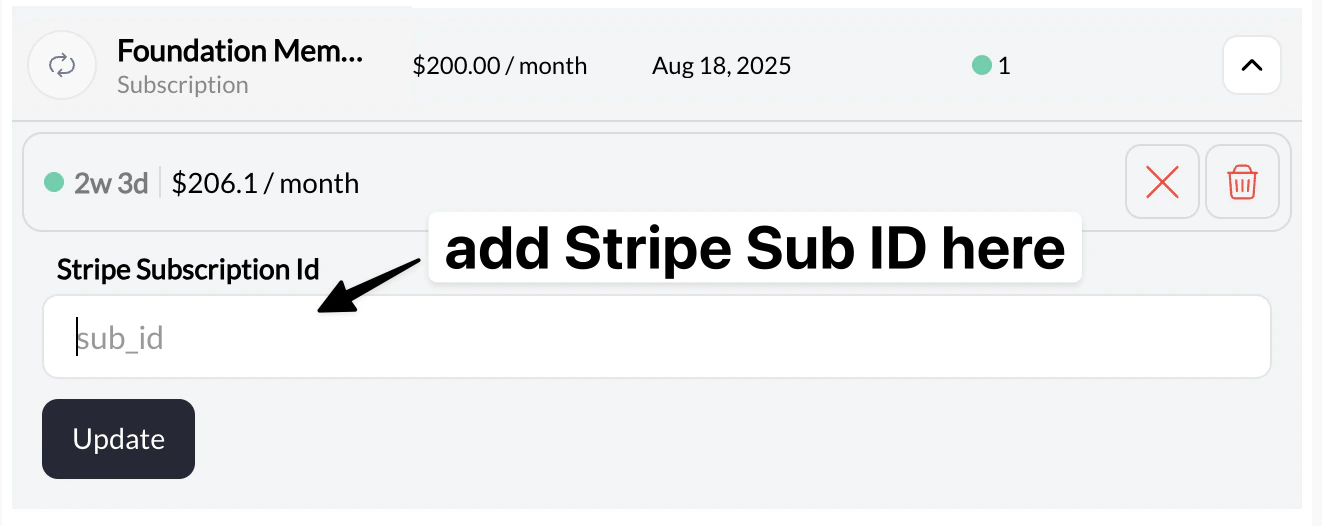 The new membership should now appear as active on the athlete's profile.
With the new membership confirmed as active, remove the old membership tier from the athlete's profile so there are no duplicate subscriptions.
The new membership should now appear as active on the athlete's profile.
With the new membership confirmed as active, remove the old membership tier from the athlete's profile so there are no duplicate subscriptions.
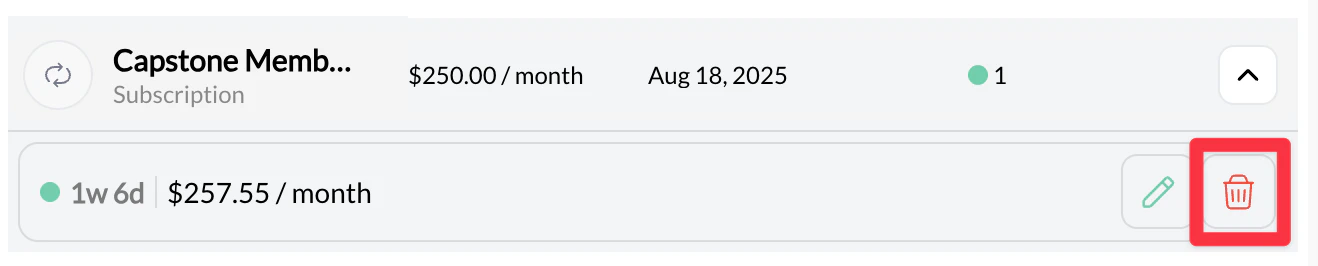 Do not remove the old membership until you have confirmed the new one is showing correctly. Removing it first can leave the athlete without an active subscription.
## Common issues
This usually means the Stripe subscription ID wasn't entered, or was entered incorrectly. Go back to the product reference, confirm the subscription ID matches the one in Stripe (starting with `sub_`), and re-save.
You added the new membership but didn't remove the old one. Go to the athlete's Subscriptions tab and remove the previous membership tier.
That's okay. The Stripe subscription is the billing source of truth. Just complete steps 3–5 above — open the athlete's profile, add the new product reference with the correct subscription ID, and remove the old one.
## Next steps
* [Manage Subscriptions](/payments/manage-subscriptions) — Cancel, pause, or refund subscriptions
* [Subscriptions Dashboard](/payments/subscriptions-dashboard) — View all active subscriptions across your roster
Do not remove the old membership until you have confirmed the new one is showing correctly. Removing it first can leave the athlete without an active subscription.
## Common issues
This usually means the Stripe subscription ID wasn't entered, or was entered incorrectly. Go back to the product reference, confirm the subscription ID matches the one in Stripe (starting with `sub_`), and re-save.
You added the new membership but didn't remove the old one. Go to the athlete's Subscriptions tab and remove the previous membership tier.
That's okay. The Stripe subscription is the billing source of truth. Just complete steps 3–5 above — open the athlete's profile, add the new product reference with the correct subscription ID, and remove the old one.
## Next steps
* [Manage Subscriptions](/payments/manage-subscriptions) — Cancel, pause, or refund subscriptions
* [Subscriptions Dashboard](/payments/subscriptions-dashboard) — View all active subscriptions across your roster