> ## Documentation Index
> Fetch the complete documentation index at: https://help.coachiq.io/llms.txt
> Use this file to discover all available pages before exploring further.
# Block or remove an athlete
> Learn how to block or remove an athlete from your group or organization in CoachIQ.
Use the **Block or Remove** tab on any athlete's profile to restrict access to your group or entire organization. This is the right tool when an athlete should no longer be able to book sessions, access content, or rejoin your program.
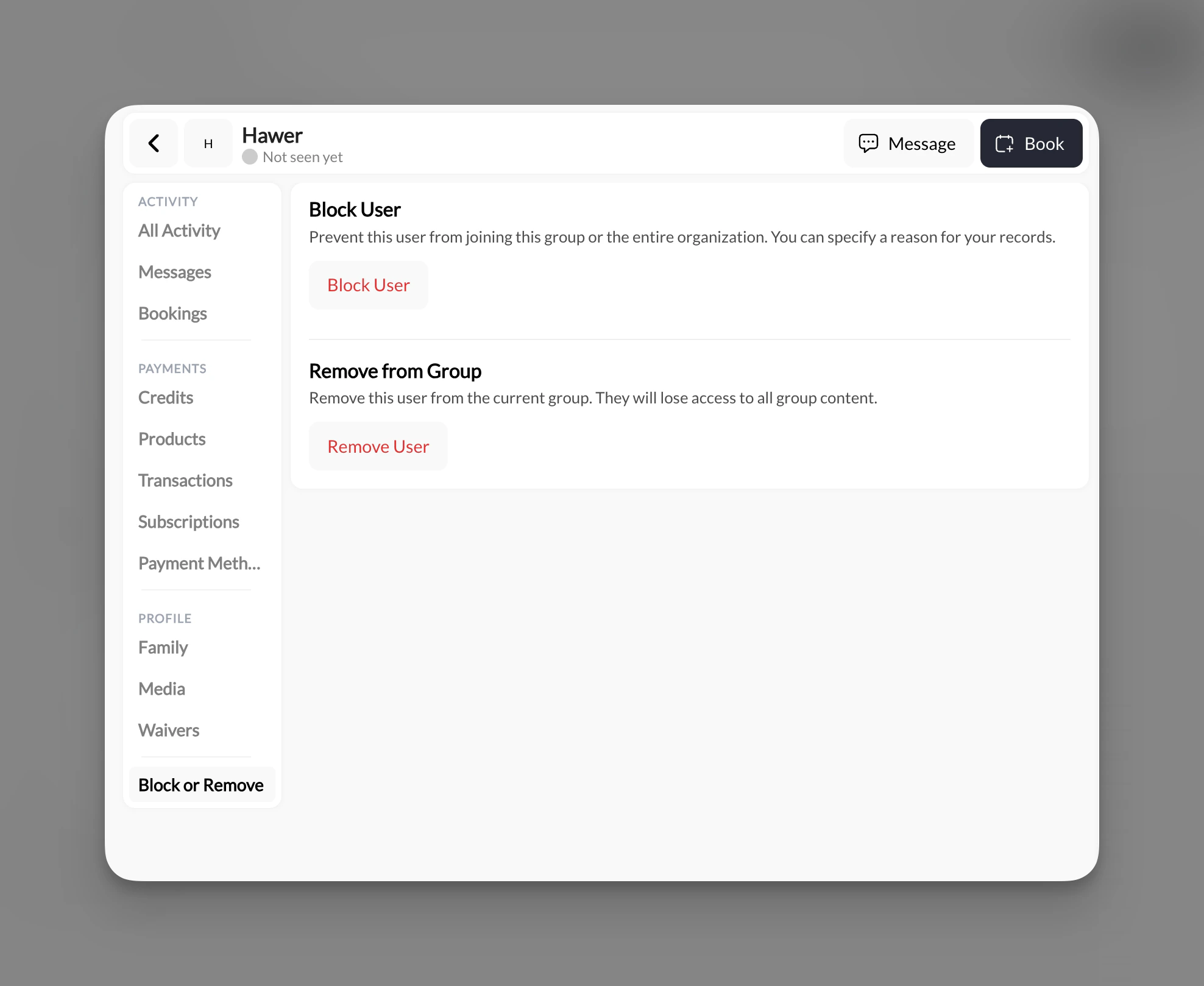
**Where to find this:** **People** → \[Athlete Name] → **Block or Remove** (in the left sidebar under the PROFILE section)
## Block a user
Go to **People**, then click the athlete's name to open their profile.
In the left sidebar under the PROFILE section, click **Block or Remove**.
Click the **Block User** button. A modal will appear.
 Select the scope of the block:
* **Block from this group only** — Removes the athlete from this group and prevents them from rejoining.
* **Block from the entire organization** — Removes the athlete from every group in the organization and prevents future joins.
Select the scope of the block:
* **Block from this group only** — Removes the athlete from this group and prevents them from rejoining.
* **Block from the entire organization** — Removes the athlete from every group in the organization and prevents future joins.
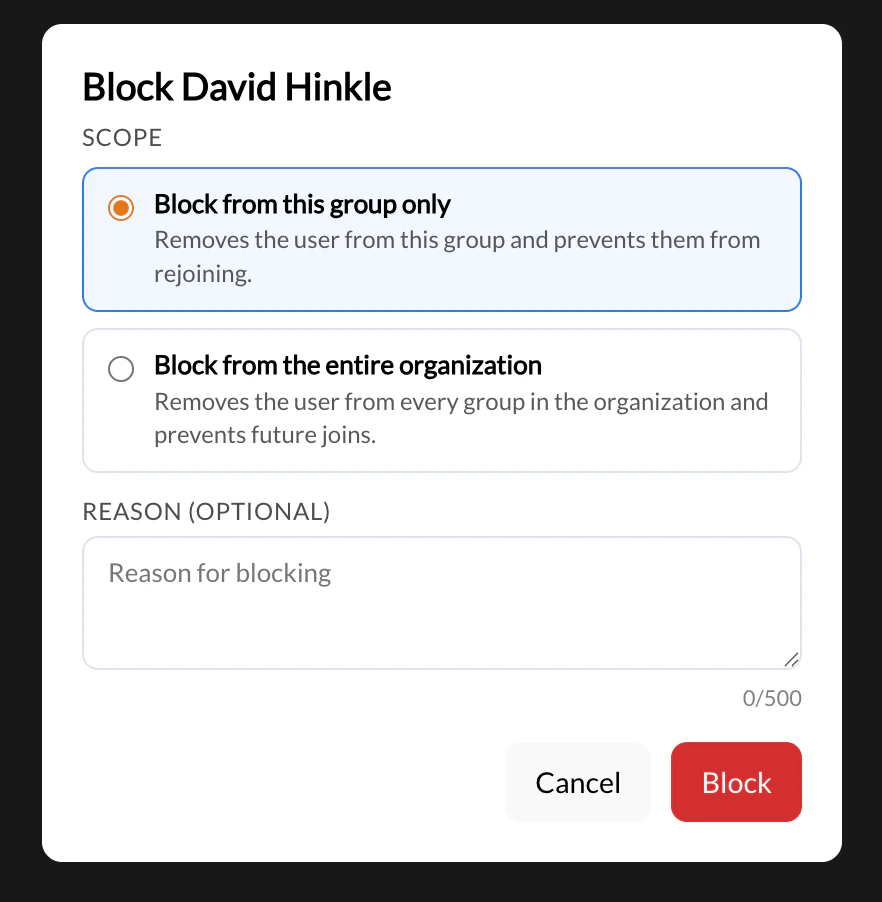 Enter a reason in the **Reason (Optional)** field (up to 500 characters). This is for your internal records and is not shown to the athlete.
Click **Block** to apply. The athlete is removed immediately.
Blocking is applied instantly and cannot be undone from the athlete's profile. The athlete loses access to group content as soon as the block is confirmed. To undo a block, you must go to **Settings** → **Blocklist** and remove them manually.
## Remove from group (without blocking)
If you want to remove an athlete from the current group without blocking them from rejoining, use **Remove from Group** instead of **Block User**.
* **Remove from Group** — Removes the athlete from the current group. They lose access to all group content but are not prevented from rejoining or joining other groups.
* **Block User** — Removes the athlete and actively prevents them from rejoining (group-level or org-wide, depending on the scope you select).
Use **Remove from Group** when the departure is neutral, such as a program ending or an athlete moving to a different group. Use **Block User** when you need to prevent future access.
## Manage your blocklist
All blocked athletes are tracked in one place.
1. Go to **Settings** in the left navigation.
2. Click **Blocklist**.
3. Use the **This group** and **Organization-wide** tabs to view blocks by scope.
Enter a reason in the **Reason (Optional)** field (up to 500 characters). This is for your internal records and is not shown to the athlete.
Click **Block** to apply. The athlete is removed immediately.
Blocking is applied instantly and cannot be undone from the athlete's profile. The athlete loses access to group content as soon as the block is confirmed. To undo a block, you must go to **Settings** → **Blocklist** and remove them manually.
## Remove from group (without blocking)
If you want to remove an athlete from the current group without blocking them from rejoining, use **Remove from Group** instead of **Block User**.
* **Remove from Group** — Removes the athlete from the current group. They lose access to all group content but are not prevented from rejoining or joining other groups.
* **Block User** — Removes the athlete and actively prevents them from rejoining (group-level or org-wide, depending on the scope you select).
Use **Remove from Group** when the departure is neutral, such as a program ending or an athlete moving to a different group. Use **Block User** when you need to prevent future access.
## Manage your blocklist
All blocked athletes are tracked in one place.
1. Go to **Settings** in the left navigation.
2. Click **Blocklist**.
3. Use the **This group** and **Organization-wide** tabs to view blocks by scope.
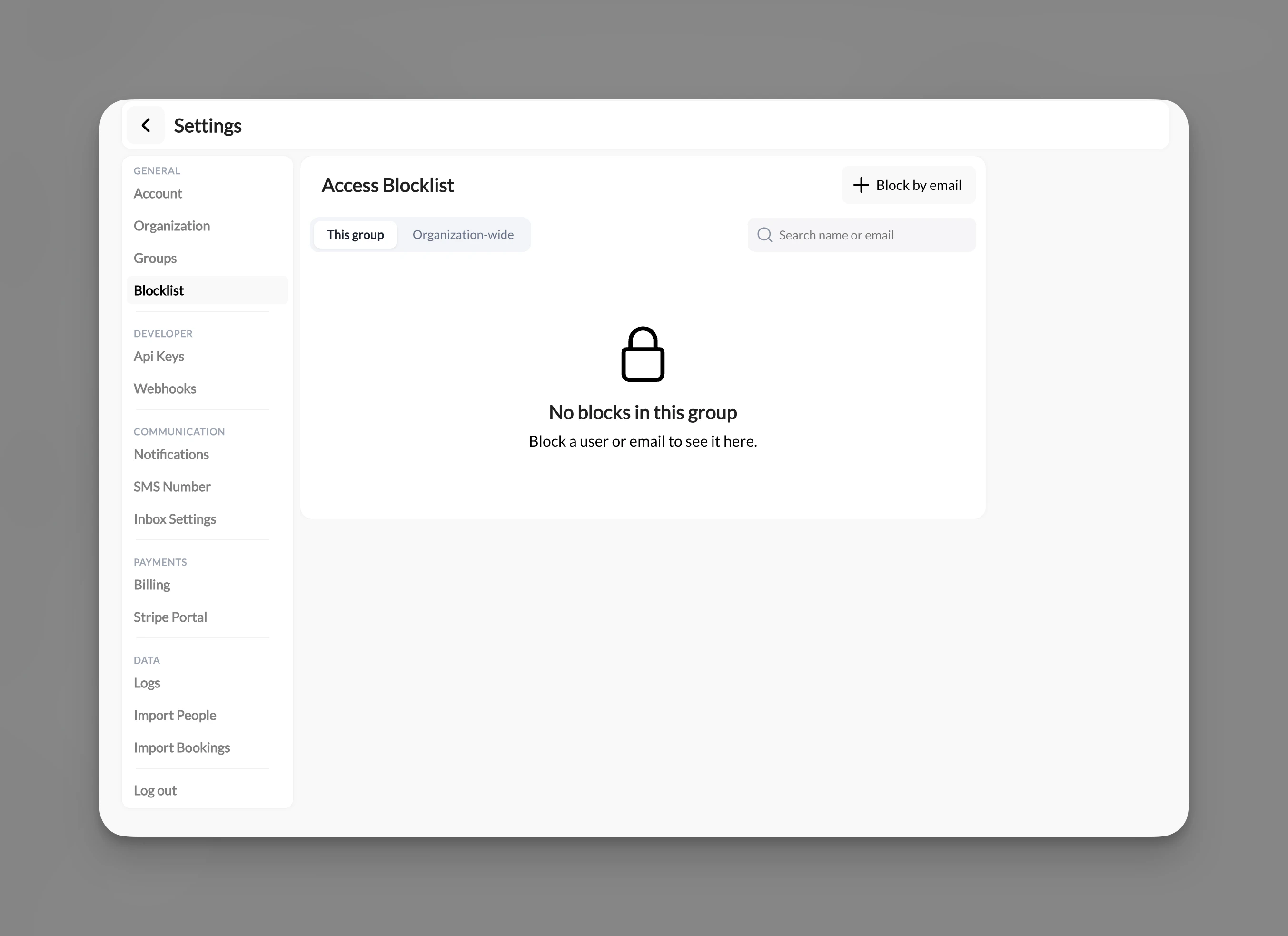 To unblock an athlete, find them in the blocklist and remove the block from there.
### Block by email address
You can pre-emptively block someone who has not yet joined your organization. On the **Blocklist** page, click **+ Block by email** in the top right and enter their email address. This prevents them from joining even if they attempt to sign up.
***
No. CoachIQ does not support permanently deleting a user account. Blocking an athlete from your organization is the closest equivalent — it removes them from all groups and prevents future access. Their historical data (past sessions, transaction records) is retained.
**Remove from Group** removes the athlete from the current group and revokes their access to that group's content. They can still rejoin or be added to other groups.
**Block User** goes further — it actively prevents the athlete from rejoining. You choose the scope: block from this group only, or block from the entire organization.
Yes. Go to **Settings** → **Blocklist**, find the athlete under the **This group** or **Organization-wide** tab, and remove the block. They will regain the ability to join your group or organization.
Yes. On the **Blocklist** page, click **+ Block by email** and enter the person's email address. This prevents them from joining your organization even before they create an account or attempt to sign up.
***
Add athletes manually, import via CSV, and update profile information.
Understand how client management works in CoachIQ, including what happens when you remove a client.
Organize your athlete list with tags to segment and filter clients.
To unblock an athlete, find them in the blocklist and remove the block from there.
### Block by email address
You can pre-emptively block someone who has not yet joined your organization. On the **Blocklist** page, click **+ Block by email** in the top right and enter their email address. This prevents them from joining even if they attempt to sign up.
***
No. CoachIQ does not support permanently deleting a user account. Blocking an athlete from your organization is the closest equivalent — it removes them from all groups and prevents future access. Their historical data (past sessions, transaction records) is retained.
**Remove from Group** removes the athlete from the current group and revokes their access to that group's content. They can still rejoin or be added to other groups.
**Block User** goes further — it actively prevents the athlete from rejoining. You choose the scope: block from this group only, or block from the entire organization.
Yes. Go to **Settings** → **Blocklist**, find the athlete under the **This group** or **Organization-wide** tab, and remove the block. They will regain the ability to join your group or organization.
Yes. On the **Blocklist** page, click **+ Block by email** and enter the person's email address. This prevents them from joining your organization even before they create an account or attempt to sign up.
***
Add athletes manually, import via CSV, and update profile information.
Understand how client management works in CoachIQ, including what happens when you remove a client.
Organize your athlete list with tags to segment and filter clients.