> ## Documentation Index
> Fetch the complete documentation index at: https://help.coachiq.io/llms.txt
> Use this file to discover all available pages before exploring further.
# All Activity Feed: Complete Timeline View
> See every booking, purchase, form submission, and program enrollment in one unified timeline
**Where to find this**: Client Profile → **All Activity** tab (selected by default)
## What it shows
The All Activity feed is your **unified timeline** of everything this client has done:
* 📅 **Bookings** - Sessions booked, attended, or canceled
* 💳 **Purchases** - Products bought (one-time, subscriptions, credits)
* 📝 **Form submissions** - Onboarding forms, waivers, feedback
* 🎓 **Program enrollments** - Courses or programs they've joined
* 💬 **Messages** - Communication sent and received
* 💰 **Credit transactions** - Credits purchased, redeemed, expired
* 🔄 **Subscription changes** - Membership started, canceled, renewed
* 🏷️ **Profile updates** - Tags added, role changes, info edits
**Default view**: Newest activity first (reverse chronological)
***
## Using the filter tabs
Narrow the timeline to show only specific activity types:
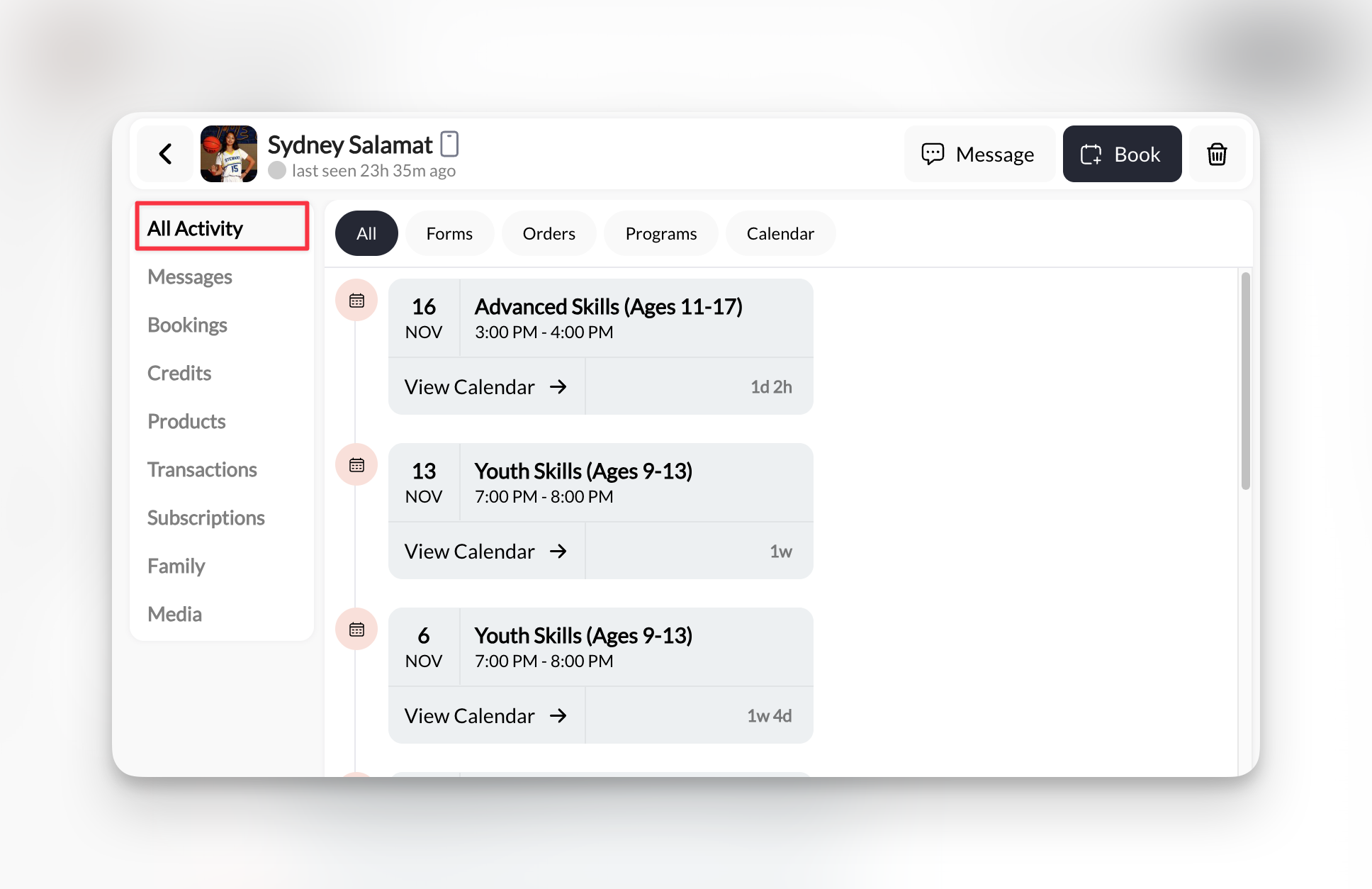 | Filter Tab | What it shows |
| ------------ | ------------------------------------ |
| **All** | Everything in one timeline (default) |
| **Forms** | Only form submissions |
| **Orders** | Only purchases and transactions |
| **Programs** | Only program enrollments |
| **Calendar** | Only bookings and sessions |
**Quick scan tip**: Use "All" for the complete picture, then switch to specific tabs (like "Calendar") when you need to focus on just bookings or purchases.
***
## Reading timeline entries
Each activity entry shows:
**Booking entries:**
* 📅 Date box (e.g., "22 NOV")
* Session name ("Rising Stars Class")
* Time slot ("1:00 PM - 2:00 PM")
* **"View Calendar →"** link (opens Calendar filtered to this session)
* Time ago stamp ("1w 2d")
**Purchase entries:**
* 💵 Dollar amount ("\$125.00")
* Product name ("Hybrid Rising Stars/Elite 5 Credit Package")
* Time ago stamp ("1mo 4w")
**Form entries:**
* 📝 Form name
* Submission date
* Time ago stamp
***
## Common uses
Scroll the All Activity feed to see:
* Are they booking regularly? (recent bookings)
* Have they purchased anything? (credit packages, memberships)
* When did they last engage? (most recent activity)
**Takes 10 seconds** to assess client engagement.
1. Click **Calendar** filter tab
2. Scroll to find the booking date
3. Click **"View Calendar →"** to see full booking details
Faster than searching through the main Calendar if you know it's this client.
1. Click **Orders** filter tab
2. Look for the transaction with amount and date
3. Click the entry to see full transaction details
Useful when a client says "I bought a package" and you need proof.
Scroll All Activity to see when messages were sent/received. For full conversation, click **Messages** tab.
***
## What's NOT in All Activity
The feed focuses on **client actions** and **your interactions with them**. It does NOT show:
* Your internal notes about them
* Calendar changes you made (unless it's booking/canceling)
* Tag changes you made
* Email opens/clicks (Inbox handles that)
For comprehensive details, use the specific tabs (Credits, Transactions, etc.).
***
## Pro tips
**Spot engagement patterns**: Regular bookings every week + recent purchases = engaged client. No bookings in 30+ days = potential churn risk.
**Time stamps matter**: "2w 3d" means 2 weeks, 3 days ago. Use these to gauge recency without doing date math.
**"View Calendar" shortcut**: Don't navigate away—click "View Calendar →" on any booking to jump straight to that session in your Calendar.
**Empty feed?** If you see nothing, this is either a brand-new client with no activity yet, or filters are hiding everything. Click "All" to reset.
***
## Related tabs
Detailed session history
Full credit transaction log
Complete payment history
| Filter Tab | What it shows |
| ------------ | ------------------------------------ |
| **All** | Everything in one timeline (default) |
| **Forms** | Only form submissions |
| **Orders** | Only purchases and transactions |
| **Programs** | Only program enrollments |
| **Calendar** | Only bookings and sessions |
**Quick scan tip**: Use "All" for the complete picture, then switch to specific tabs (like "Calendar") when you need to focus on just bookings or purchases.
***
## Reading timeline entries
Each activity entry shows:
**Booking entries:**
* 📅 Date box (e.g., "22 NOV")
* Session name ("Rising Stars Class")
* Time slot ("1:00 PM - 2:00 PM")
* **"View Calendar →"** link (opens Calendar filtered to this session)
* Time ago stamp ("1w 2d")
**Purchase entries:**
* 💵 Dollar amount ("\$125.00")
* Product name ("Hybrid Rising Stars/Elite 5 Credit Package")
* Time ago stamp ("1mo 4w")
**Form entries:**
* 📝 Form name
* Submission date
* Time ago stamp
***
## Common uses
Scroll the All Activity feed to see:
* Are they booking regularly? (recent bookings)
* Have they purchased anything? (credit packages, memberships)
* When did they last engage? (most recent activity)
**Takes 10 seconds** to assess client engagement.
1. Click **Calendar** filter tab
2. Scroll to find the booking date
3. Click **"View Calendar →"** to see full booking details
Faster than searching through the main Calendar if you know it's this client.
1. Click **Orders** filter tab
2. Look for the transaction with amount and date
3. Click the entry to see full transaction details
Useful when a client says "I bought a package" and you need proof.
Scroll All Activity to see when messages were sent/received. For full conversation, click **Messages** tab.
***
## What's NOT in All Activity
The feed focuses on **client actions** and **your interactions with them**. It does NOT show:
* Your internal notes about them
* Calendar changes you made (unless it's booking/canceling)
* Tag changes you made
* Email opens/clicks (Inbox handles that)
For comprehensive details, use the specific tabs (Credits, Transactions, etc.).
***
## Pro tips
**Spot engagement patterns**: Regular bookings every week + recent purchases = engaged client. No bookings in 30+ days = potential churn risk.
**Time stamps matter**: "2w 3d" means 2 weeks, 3 days ago. Use these to gauge recency without doing date math.
**"View Calendar" shortcut**: Don't navigate away—click "View Calendar →" on any booking to jump straight to that session in your Calendar.
**Empty feed?** If you see nothing, this is either a brand-new client with no activity yet, or filters are hiding everything. Click "All" to reset.
***
## Related tabs
Detailed session history
Full credit transaction log
Complete payment history