> ## Documentation Index
> Fetch the complete documentation index at: https://help.coachiq.io/llms.txt
> Use this file to discover all available pages before exploring further.
# Bookings: Session History
> View upcoming sessions, past attendance, and canceled bookings with time zone control
**Where to find this**: Client Profile → **Bookings** tab
## What it shows
Every session this client has booked, organized by status:
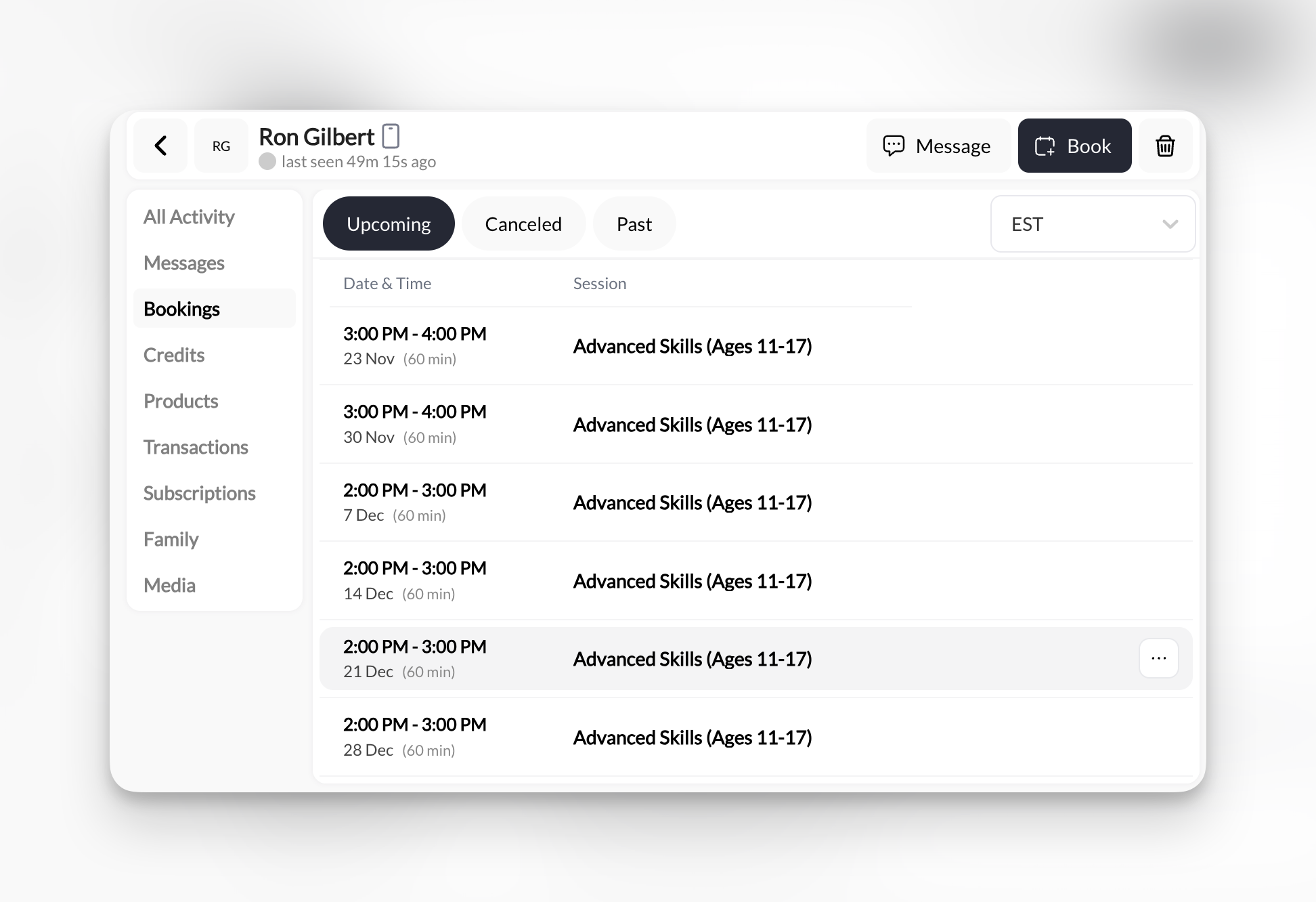 Future sessions that haven't happened yet.
**Shows:**
* Date & time
* Session name
* Duration
* Time zone (PST, EST, etc.)
**Sorted:** Chronologically (soonest first)
Sessions that were booked then canceled (by you or them).
**Includes:**
* Original booking date
* Session name
* When it was canceled
**Useful for:** Tracking no-shows, cancellation patterns, rescheduling needs
Completed sessions (attendance history).
**Shows:**
* When they attended
* Which sessions
* Frequency patterns
**Sorted:** Reverse chronological (most recent first)
***
## Time zone selector
**Top-right dropdown** lets you view bookings in different time zones:
* **PST** (Pacific)
* **EST** (Eastern)
* **CST** (Central)
* **MST** (Mountain)
* And more...
**Why this matters**: If your client travels or you work with athletes in different states, toggle their time zone to confirm "Yes, 3 PM your time, not mine."
***
## Common uses
1. Make sure you're on **Upcoming** tab
2. Look at first entry (soonest session)
Takes 2 seconds. No need to open Calendar.
1. Click **Past** tab
2. Count entries from current month
3. Look for date patterns (e.g., every Monday/Wednesday)
Helps assess engagement and commitment.
1. Click **Canceled** tab
2. Check cancellation frequency
3. Look for patterns (same day cancellations? specific session types?)
If you see 5+ cancellations, might be time to check in: "Hey, I noticed you've had to cancel a few times. Is the schedule not working for you?"
1. Check **Upcoming** tab
2. See session name and time
3. Open their **Credits** or **All Activity** tab to see recent context
4. Message them a reminder if needed
Quick pre-session prep from one profile view.
***
## Empty bookings tab?
If you see no bookings, this client has either:
* Never booked a session (brand new)
* Only booked sessions you later deleted from Calendar
* Booked through a different account (check Family tab for linked accounts)
**Next step**: Click **Book** button to manually schedule their first session.
***
## Pro tip: Spot no-show patterns
If you see:
* Many **Canceled** entries (especially last-minute)
* Long gaps between **Past** bookings
* Sessions booked but zero in **Past** tab
This signals engagement issues. Address it:
1. Check **Messages** tab—did they communicate?
2. Look at **Credits** tab—do they have credits expiring?
3. Send a check-in: "Hey, missed you lately! Everything okay?"
***
## Related tabs
Full calendar management
See credit redemptions per booking
How to book clients into sessions
Future sessions that haven't happened yet.
**Shows:**
* Date & time
* Session name
* Duration
* Time zone (PST, EST, etc.)
**Sorted:** Chronologically (soonest first)
Sessions that were booked then canceled (by you or them).
**Includes:**
* Original booking date
* Session name
* When it was canceled
**Useful for:** Tracking no-shows, cancellation patterns, rescheduling needs
Completed sessions (attendance history).
**Shows:**
* When they attended
* Which sessions
* Frequency patterns
**Sorted:** Reverse chronological (most recent first)
***
## Time zone selector
**Top-right dropdown** lets you view bookings in different time zones:
* **PST** (Pacific)
* **EST** (Eastern)
* **CST** (Central)
* **MST** (Mountain)
* And more...
**Why this matters**: If your client travels or you work with athletes in different states, toggle their time zone to confirm "Yes, 3 PM your time, not mine."
***
## Common uses
1. Make sure you're on **Upcoming** tab
2. Look at first entry (soonest session)
Takes 2 seconds. No need to open Calendar.
1. Click **Past** tab
2. Count entries from current month
3. Look for date patterns (e.g., every Monday/Wednesday)
Helps assess engagement and commitment.
1. Click **Canceled** tab
2. Check cancellation frequency
3. Look for patterns (same day cancellations? specific session types?)
If you see 5+ cancellations, might be time to check in: "Hey, I noticed you've had to cancel a few times. Is the schedule not working for you?"
1. Check **Upcoming** tab
2. See session name and time
3. Open their **Credits** or **All Activity** tab to see recent context
4. Message them a reminder if needed
Quick pre-session prep from one profile view.
***
## Empty bookings tab?
If you see no bookings, this client has either:
* Never booked a session (brand new)
* Only booked sessions you later deleted from Calendar
* Booked through a different account (check Family tab for linked accounts)
**Next step**: Click **Book** button to manually schedule their first session.
***
## Pro tip: Spot no-show patterns
If you see:
* Many **Canceled** entries (especially last-minute)
* Long gaps between **Past** bookings
* Sessions booked but zero in **Past** tab
This signals engagement issues. Address it:
1. Check **Messages** tab—did they communicate?
2. Look at **Credits** tab—do they have credits expiring?
3. Send a check-in: "Hey, missed you lately! Everything okay?"
***
## Related tabs
Full calendar management
See credit redemptions per booking
How to book clients into sessions