> ## Documentation Index
> Fetch the complete documentation index at: https://help.coachiq.io/llms.txt
> Use this file to discover all available pages before exploring further.
# Credits: Balance & Transaction History
> Track credit balances, redemptions, expirations, and purchases across Master Credits and product-specific credits
**Where to find this**: Client Profile → **Credits** tab
## What it shows
Complete credit transaction history organized by credit type:
**Credit tabs you'll see:**
* **Logs** - Every credit transaction (all types combined)
* **Master Credits** - Universal credits that work for any scheduler
* **\[Product Name] Credits** - Credits from specific packages (e.g., "Hybrid Rising Stars/Elite 5 Credit Package")
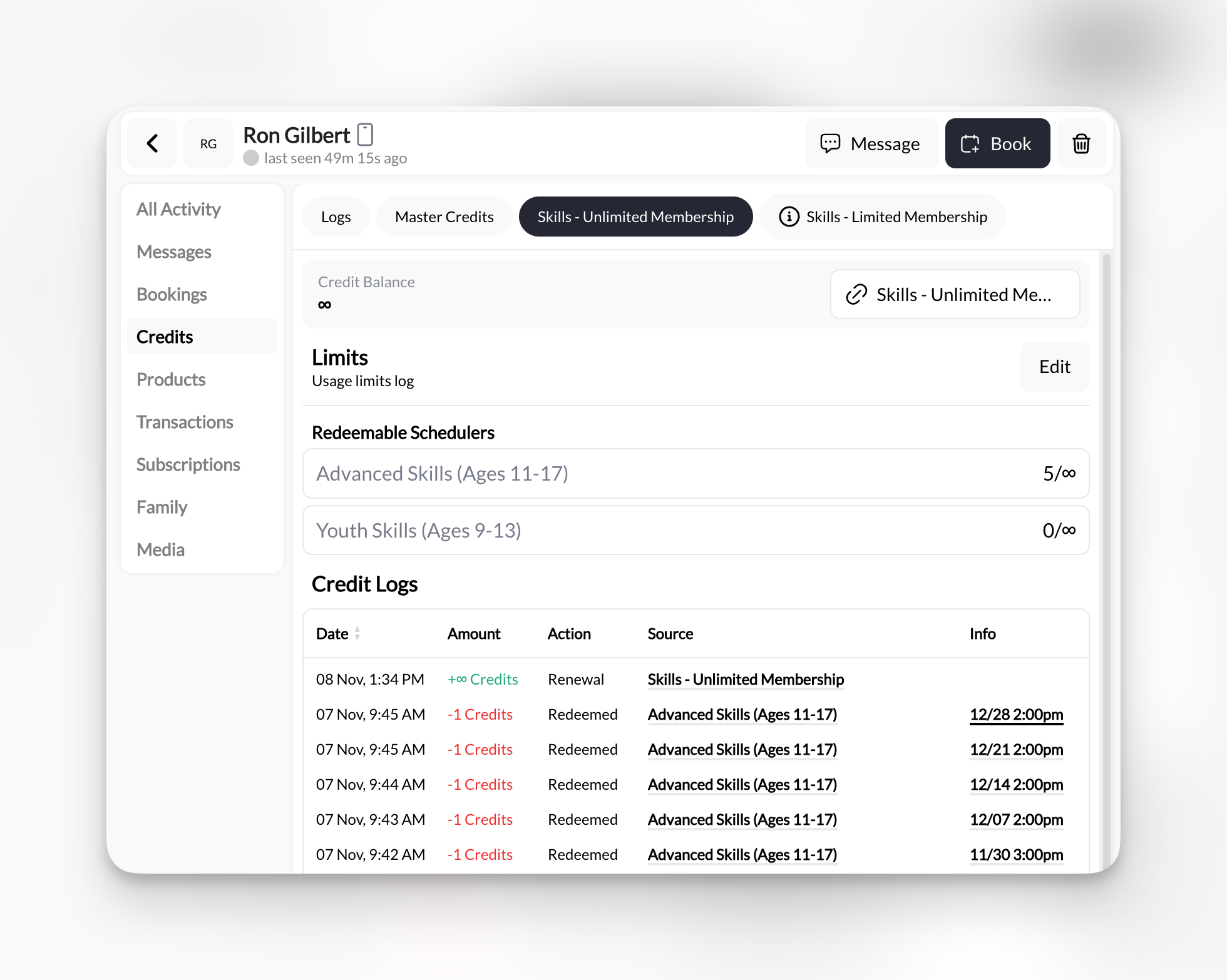 **Number of tabs varies** based on what credit products this client has purchased. New client might only have "Logs" and "Master Credits."
***
## Reading the transaction log
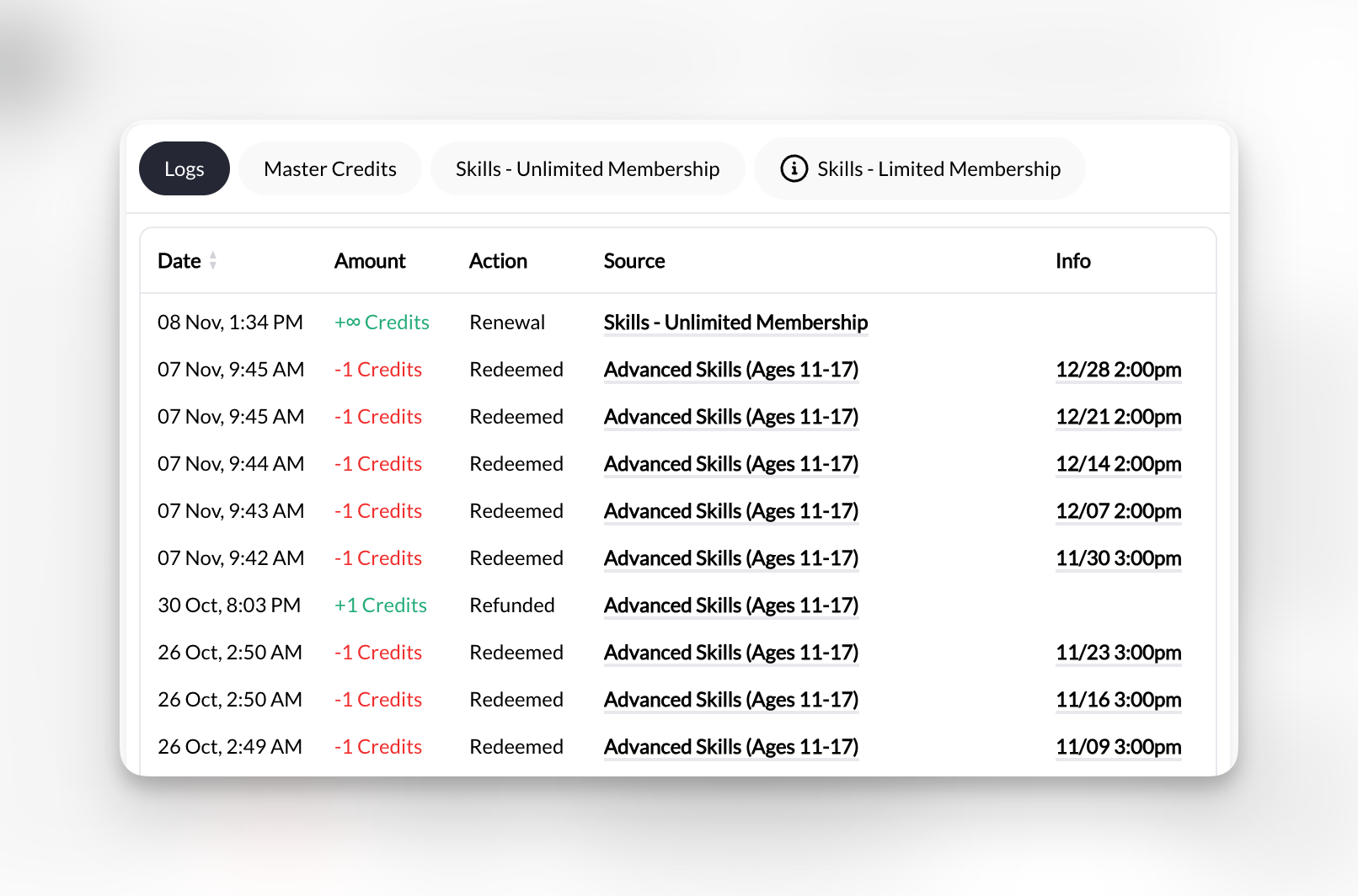
Each credit transaction shows:
| Column | What it means |
| ---------- | ---------------------------------------------------------------- |
| **Date** | When transaction occurred (with time) |
| **Amount** | Credits added/removed (green = +5, red = -1) |
| **Action** | What happened (Redeemed, Expiration, Renewal, Purchased, Set by) |
| **Source** | Where credits came from (product name, admin name, "Unknown") |
| **Info** | Additional context (session booked, expiration date) |
**Number of tabs varies** based on what credit products this client has purchased. New client might only have "Logs" and "Master Credits."
***
## Reading the transaction log
Each credit transaction shows:
| Column | What it means |
| ---------- | ---------------------------------------------------------------- |
| **Date** | When transaction occurred (with time) |
| **Amount** | Credits added/removed (green = +5, red = -1) |
| **Action** | What happened (Redeemed, Expiration, Renewal, Purchased, Set by) |
| **Source** | Where credits came from (product name, admin name, "Unknown") |
| **Info** | Additional context (session booked, expiration date) |
 ***
## Credit transaction types explained
**Action**: Client used a credit to book a session
**Shows**: `-1 Credits` (red)
**Source**: Session name (e.g., "Rising Stars Class")
**When you see this**: Every time they book a credit-based session
**Action**: Client bought a credit package
**Shows**: `+5 Credits` or `+10 Credits` (green)
**Source**: Product name (e.g., "Month to Month Rising Stars Membership")
**When you see this**: After they complete purchase or recurring billing
**Action**: You (admin) manually added credits
**Shows**: `+6 Credits` (green)
**Source**: Your name (e.g., "Russell Reeder")
**When you see this**: When you give makeup credits, promotions, or adjustments
**Action**: Subscription auto-renewed and added credits
**Shows**: `+5 Credits` (green)
**Source**: Subscription product name
**When you see this**: Monthly when their membership billing succeeds
**Action**: Unused credits expired based on product rules
**Shows**: `-2 Credits` (red)
**Source**: Product name with expiration settings
**When you see this**: When credits hit expiration date and weren't used
***
## Checking current balance
**Quick balance check:**
1. Click the credit tab you want (Master Credits, or a specific product)
2. Look at the **top of the transaction list**—most recent transaction shows running balance
3. Add up green (+) and red (-) entries if you need to verify
**Fastest way**: Look at the top entry amount. That's usually their current balance unless they just booked something.
***
## Common uses
1. Click appropriate credit tab (Master or product-specific)
2. Check most recent balance
3. If balance ≥ 1, they can book
**Takes 3 seconds** from their profile.
Look for **Expiration** entries in red:
* Check **Source** column—which product expired?
* Check **Info** column—shows expiration date
* Scroll up to see when credits were originally purchased
**Common scenario**: Client bought a 10-pack in January with 90-day expiration, used 3 credits, then 7 expired in April.
1. Go to **Logs** tab (shows all credit types)
2. Filter mentally or scroll to find **Redeemed** entries
3. Check **Source** column—shows which session
4. Cross-reference with **Bookings** tab to confirm attendance
**Proof**: "You redeemed a credit on Oct 16 for Rising Stars Class at 10:34 AM."
**You can't do it from this tab.** To manually add credits:
1. Go to main **Payments** section → **Credits**
2. Find client, add credits
3. Return to profile Credits tab to see "Set by \[Your Name]" entry
[Learn how to add credits →](/scheduling/credit-system-overview)
***
## Master Credits vs Product Credits
**Master Credits**:
* Work for ANY scheduler you create
* Most flexible
* Typically sold as "10-Pack Universal Credits"
**Product-Specific Credits** (e.g., "Elite Class 5-Pack"):
* ONLY work for schedulers linked to that product
* Useful for tiered membership levels
* Client might have Master Credits AND Elite Credits separately
**Redemption priority**: When a client books, CoachIQ uses product-specific credits first (if available), then falls back to Master Credits. You can't control this order.
***
## Empty credits tab?
If you see no transactions, this client has:
* Never purchased credits
* Never been manually granted credits
* Only paid cash/card for sessions (not credit-based)
**Next step**: Sell them a credit package or manually grant trial credits to get started.
***
## Pro tips
**Watch for expiration dates in "Info" column**: If you see credits expiring soon, send a reminder: "Hey! You have 5 credits expiring on 10/18. Book your sessions before they're gone!"
**"Unknown" source usually means**: Old data before CoachIQ tracked sources, or credits from a deleted product. Not a problem—credits still work.
**Negative balances are impossible**: If balance hits zero, client can't book credit-based sessions. They'll need to purchase more credits or pay directly.
**Sort mentally by date**: Newest entries at top. Scroll down to see historical patterns (e.g., "They used to buy credits monthly, but stopped 3 months ago").
***
## Related tabs
See which credit packages they've bought
Financial view of credit purchases
Complete guide to how credits work
***
## Credit transaction types explained
**Action**: Client used a credit to book a session
**Shows**: `-1 Credits` (red)
**Source**: Session name (e.g., "Rising Stars Class")
**When you see this**: Every time they book a credit-based session
**Action**: Client bought a credit package
**Shows**: `+5 Credits` or `+10 Credits` (green)
**Source**: Product name (e.g., "Month to Month Rising Stars Membership")
**When you see this**: After they complete purchase or recurring billing
**Action**: You (admin) manually added credits
**Shows**: `+6 Credits` (green)
**Source**: Your name (e.g., "Russell Reeder")
**When you see this**: When you give makeup credits, promotions, or adjustments
**Action**: Subscription auto-renewed and added credits
**Shows**: `+5 Credits` (green)
**Source**: Subscription product name
**When you see this**: Monthly when their membership billing succeeds
**Action**: Unused credits expired based on product rules
**Shows**: `-2 Credits` (red)
**Source**: Product name with expiration settings
**When you see this**: When credits hit expiration date and weren't used
***
## Checking current balance
**Quick balance check:**
1. Click the credit tab you want (Master Credits, or a specific product)
2. Look at the **top of the transaction list**—most recent transaction shows running balance
3. Add up green (+) and red (-) entries if you need to verify
**Fastest way**: Look at the top entry amount. That's usually their current balance unless they just booked something.
***
## Common uses
1. Click appropriate credit tab (Master or product-specific)
2. Check most recent balance
3. If balance ≥ 1, they can book
**Takes 3 seconds** from their profile.
Look for **Expiration** entries in red:
* Check **Source** column—which product expired?
* Check **Info** column—shows expiration date
* Scroll up to see when credits were originally purchased
**Common scenario**: Client bought a 10-pack in January with 90-day expiration, used 3 credits, then 7 expired in April.
1. Go to **Logs** tab (shows all credit types)
2. Filter mentally or scroll to find **Redeemed** entries
3. Check **Source** column—shows which session
4. Cross-reference with **Bookings** tab to confirm attendance
**Proof**: "You redeemed a credit on Oct 16 for Rising Stars Class at 10:34 AM."
**You can't do it from this tab.** To manually add credits:
1. Go to main **Payments** section → **Credits**
2. Find client, add credits
3. Return to profile Credits tab to see "Set by \[Your Name]" entry
[Learn how to add credits →](/scheduling/credit-system-overview)
***
## Master Credits vs Product Credits
**Master Credits**:
* Work for ANY scheduler you create
* Most flexible
* Typically sold as "10-Pack Universal Credits"
**Product-Specific Credits** (e.g., "Elite Class 5-Pack"):
* ONLY work for schedulers linked to that product
* Useful for tiered membership levels
* Client might have Master Credits AND Elite Credits separately
**Redemption priority**: When a client books, CoachIQ uses product-specific credits first (if available), then falls back to Master Credits. You can't control this order.
***
## Empty credits tab?
If you see no transactions, this client has:
* Never purchased credits
* Never been manually granted credits
* Only paid cash/card for sessions (not credit-based)
**Next step**: Sell them a credit package or manually grant trial credits to get started.
***
## Pro tips
**Watch for expiration dates in "Info" column**: If you see credits expiring soon, send a reminder: "Hey! You have 5 credits expiring on 10/18. Book your sessions before they're gone!"
**"Unknown" source usually means**: Old data before CoachIQ tracked sources, or credits from a deleted product. Not a problem—credits still work.
**Negative balances are impossible**: If balance hits zero, client can't book credit-based sessions. They'll need to purchase more credits or pay directly.
**Sort mentally by date**: Newest entries at top. Scroll down to see historical patterns (e.g., "They used to buy credits monthly, but stopped 3 months ago").
***
## Related tabs
See which credit packages they've bought
Financial view of credit purchases
Complete guide to how credits work