> ## Documentation Index
> Fetch the complete documentation index at: https://help.coachiq.io/llms.txt
> Use this file to discover all available pages before exploring further.
# Media Hub: Shared Content
> View programs, lessons, and videos you've assigned to a client, filter by content tags, and toggle display views
**Where to find this**: Client Profile → **Media** tab
## What it shows
All training content you've shared with this specific client:
* 🎓 **Programs** - Multi-lesson courses or training series
* 📹 **Lessons** - Individual videos or instructional content
* 🎥 **Video Analysis** - Recorded sessions with your annotations
* 📸 **Media** - Individual video files or images
**Default view**: Everything this client can access in their Athlete Portal.
 ***
## Filter by content tags
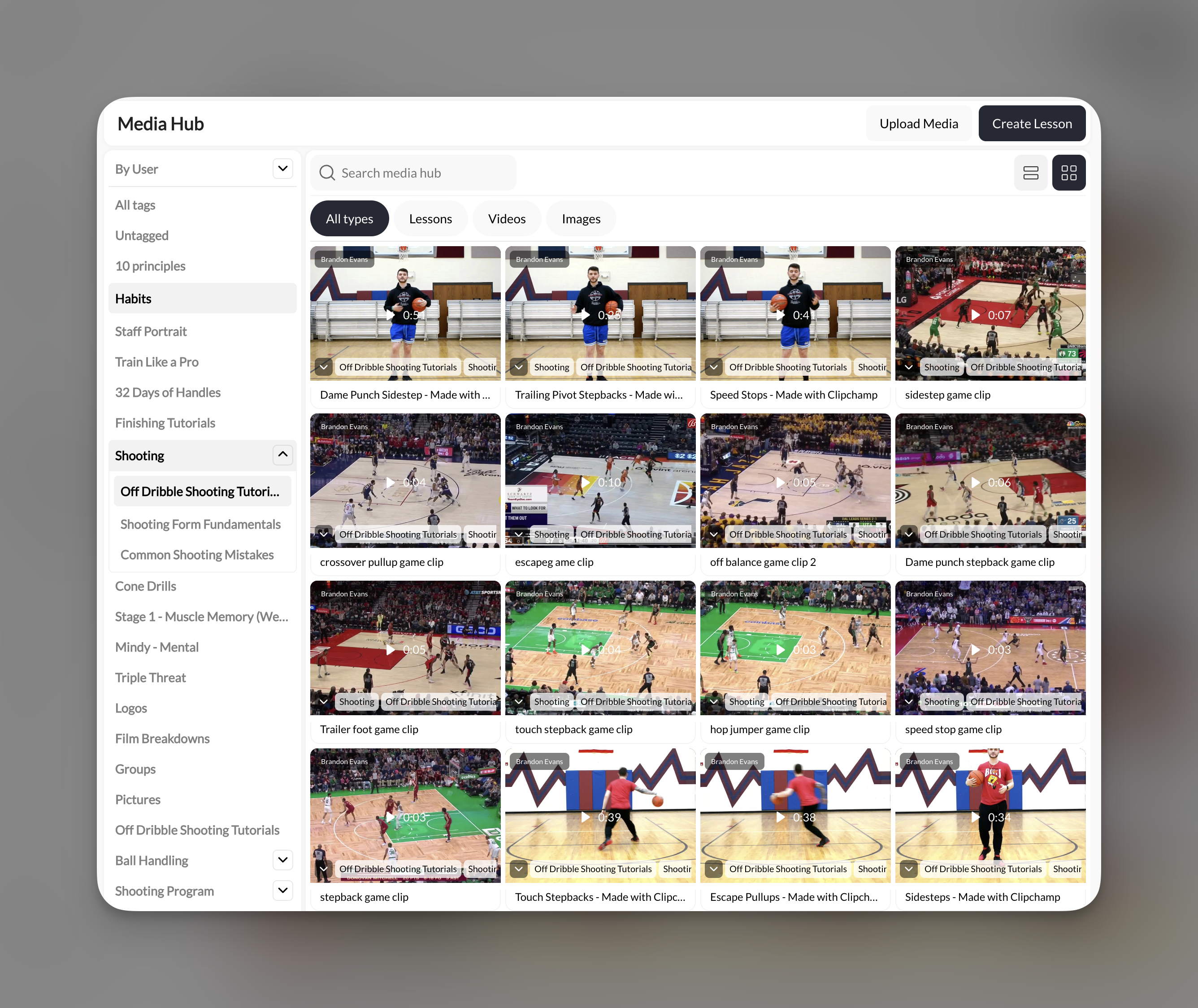
**Left sidebar** shows all content tags you've created:
* Click any tag to show only content with that tag
* **"All tags"** = show everything (default)
* **"Untagged"** = content without any tags
**Example tags** (from screenshot):
* 10 principles
* Habits
* Staff Portrait
* Train Like a Pro
* 32 Days of Handles
* Finishing Tutorials
* And many more...
**Organization tip**: If you use tags consistently when creating content, filtering becomes super powerful. Tag content like "Beginner Fundamentals" or "Advanced Shooting" to show clients exactly what they need.
***
## View toggles
**Top-right icons** let you switch display modes:
| Icon | View Type | When to use |
| ---------- | -------------------------- | --------------------------------- |
| **☰ List** | Vertical list with details | Default view, shows names clearly |
| **⊞ Grid** | Thumbnail cards | Visual browsing, see thumbnails |
Grid view is better for **video-heavy content** where thumbnails help identify content. List view is better for **program names** and quick scanning.
***
## What you CAN do here
**From the Media tab:**
* ✅ View all content assigned to this client
* ✅ Filter by tags to narrow results
* ✅ Switch between list and grid view
* ✅ See content names and organization
**What you CAN'T do:**
* ❌ Assign new content (do this from Content → Programs/Media)
* ❌ Remove content access (do this from Content section)
* ❌ Play videos (this is view-only for coaches)
* ❌ Edit content (do this in main Content section)
***
## Common uses
1. Look at the Media tab (no filters needed)
2. Scan the list for program names
3. Count how many programs they have access to
**Use case**: Before a session, check what content they should've watched: "Hey, did you finish the '10 principles' program I shared?"
1. Click **"Shooting"** tag in left sidebar (if you have this tag)
2. View only shooting-related content
**Filter multiple tags?** Click one tag at a time to switch filters. No multi-select currently.
1. Search visually through the list, OR
2. Click **"Finishing Tutorials"** tag if you tagged it
**Quick verification** before messaging: "Just wanted to confirm—you should see 'Finishing Tutorials' in your app now."
**Troubleshooting checklist:**
1. Go to their Media tab
2. Check if content appears here
3. If YES, it's assigned → problem is on their end (app refresh needed)
4. If NO, it's not assigned → go to Content section and assign it
**Common issue**: Content is published but not assigned to their account or program.
***
## Empty media tab?
If you see no content, you haven't assigned any programs, lessons, or media to this client yet.
**To assign content:**
1. Go to **Content** → **Programs** or **Media**
2. Open the program/lesson you want to share
3. Add this client to the "Shared with" list
4. Return to their profile—content now appears in Media tab
[Learn how to share content →](/content/sharing-programs)
***
## Understanding content types
| Content Type | What it is | Where you create it |
| ------------------ | ----------------------------------- | ------------------------ |
| **Programs** | Multi-lesson courses with structure | Content → Programs |
| **Lessons** | Individual training videos | Content → Lessons |
| **Video Analysis** | Recorded sessions with markup | Content → Video Analysis |
| **Media Files** | Raw videos/images uploaded | Content → Media Hub |
**In the client's Portal**: They see programs as organized courses. Programs contain lessons. Media files appear as standalone content.
***
## Pro tips
**Tag everything**: The more consistently you tag content, the more useful this filter becomes. Create tags like "Warm-up", "Drills", "Game Film", "Homework" and use them religiously.
**Use this for check-ins**: Before a session, pull up their Media tab and ask: "Did you watch the 3 videos I shared?" Now you can actually see which 3 videos you're referring to.
**Grid view for visual clients**: Some clients respond better to thumbnails. Show them their Media tab in grid view during sessions: "See these 6 videos? That's your homework for next week."
**Content visibility ≠ completion**: Just because content appears in their Media tab doesn't mean they watched it. You'll need to ask or check engagement analytics (if available).
**Search bar exists**: Use the **"Search media hub"** bar to find specific content by name rather than scrolling.
***
## Related articles
Build multi-lesson training courses
Assign programs and lessons to clients
Complete media management system
***
## Filter by content tags
**Left sidebar** shows all content tags you've created:
* Click any tag to show only content with that tag
* **"All tags"** = show everything (default)
* **"Untagged"** = content without any tags
**Example tags** (from screenshot):
* 10 principles
* Habits
* Staff Portrait
* Train Like a Pro
* 32 Days of Handles
* Finishing Tutorials
* And many more...
**Organization tip**: If you use tags consistently when creating content, filtering becomes super powerful. Tag content like "Beginner Fundamentals" or "Advanced Shooting" to show clients exactly what they need.
***
## View toggles
**Top-right icons** let you switch display modes:
| Icon | View Type | When to use |
| ---------- | -------------------------- | --------------------------------- |
| **☰ List** | Vertical list with details | Default view, shows names clearly |
| **⊞ Grid** | Thumbnail cards | Visual browsing, see thumbnails |
Grid view is better for **video-heavy content** where thumbnails help identify content. List view is better for **program names** and quick scanning.
***
## What you CAN do here
**From the Media tab:**
* ✅ View all content assigned to this client
* ✅ Filter by tags to narrow results
* ✅ Switch between list and grid view
* ✅ See content names and organization
**What you CAN'T do:**
* ❌ Assign new content (do this from Content → Programs/Media)
* ❌ Remove content access (do this from Content section)
* ❌ Play videos (this is view-only for coaches)
* ❌ Edit content (do this in main Content section)
***
## Common uses
1. Look at the Media tab (no filters needed)
2. Scan the list for program names
3. Count how many programs they have access to
**Use case**: Before a session, check what content they should've watched: "Hey, did you finish the '10 principles' program I shared?"
1. Click **"Shooting"** tag in left sidebar (if you have this tag)
2. View only shooting-related content
**Filter multiple tags?** Click one tag at a time to switch filters. No multi-select currently.
1. Search visually through the list, OR
2. Click **"Finishing Tutorials"** tag if you tagged it
**Quick verification** before messaging: "Just wanted to confirm—you should see 'Finishing Tutorials' in your app now."
**Troubleshooting checklist:**
1. Go to their Media tab
2. Check if content appears here
3. If YES, it's assigned → problem is on their end (app refresh needed)
4. If NO, it's not assigned → go to Content section and assign it
**Common issue**: Content is published but not assigned to their account or program.
***
## Empty media tab?
If you see no content, you haven't assigned any programs, lessons, or media to this client yet.
**To assign content:**
1. Go to **Content** → **Programs** or **Media**
2. Open the program/lesson you want to share
3. Add this client to the "Shared with" list
4. Return to their profile—content now appears in Media tab
[Learn how to share content →](/content/sharing-programs)
***
## Understanding content types
| Content Type | What it is | Where you create it |
| ------------------ | ----------------------------------- | ------------------------ |
| **Programs** | Multi-lesson courses with structure | Content → Programs |
| **Lessons** | Individual training videos | Content → Lessons |
| **Video Analysis** | Recorded sessions with markup | Content → Video Analysis |
| **Media Files** | Raw videos/images uploaded | Content → Media Hub |
**In the client's Portal**: They see programs as organized courses. Programs contain lessons. Media files appear as standalone content.
***
## Pro tips
**Tag everything**: The more consistently you tag content, the more useful this filter becomes. Create tags like "Warm-up", "Drills", "Game Film", "Homework" and use them religiously.
**Use this for check-ins**: Before a session, pull up their Media tab and ask: "Did you watch the 3 videos I shared?" Now you can actually see which 3 videos you're referring to.
**Grid view for visual clients**: Some clients respond better to thumbnails. Show them their Media tab in grid view during sessions: "See these 6 videos? That's your homework for next week."
**Content visibility ≠ completion**: Just because content appears in their Media tab doesn't mean they watched it. You'll need to ask or check engagement analytics (if available).
**Search bar exists**: Use the **"Search media hub"** bar to find specific content by name rather than scrolling.
***
## Related articles
Build multi-lesson training courses
Assign programs and lessons to clients
Complete media management system