> ## Documentation Index
> Fetch the complete documentation index at: https://help.coachiq.io/llms.txt
> Use this file to discover all available pages before exploring further.
# Products: Purchase History
> View everything a client has purchased and manually add products to their account
**Where to find this**: Client Profile → **Products** tab
## What it shows
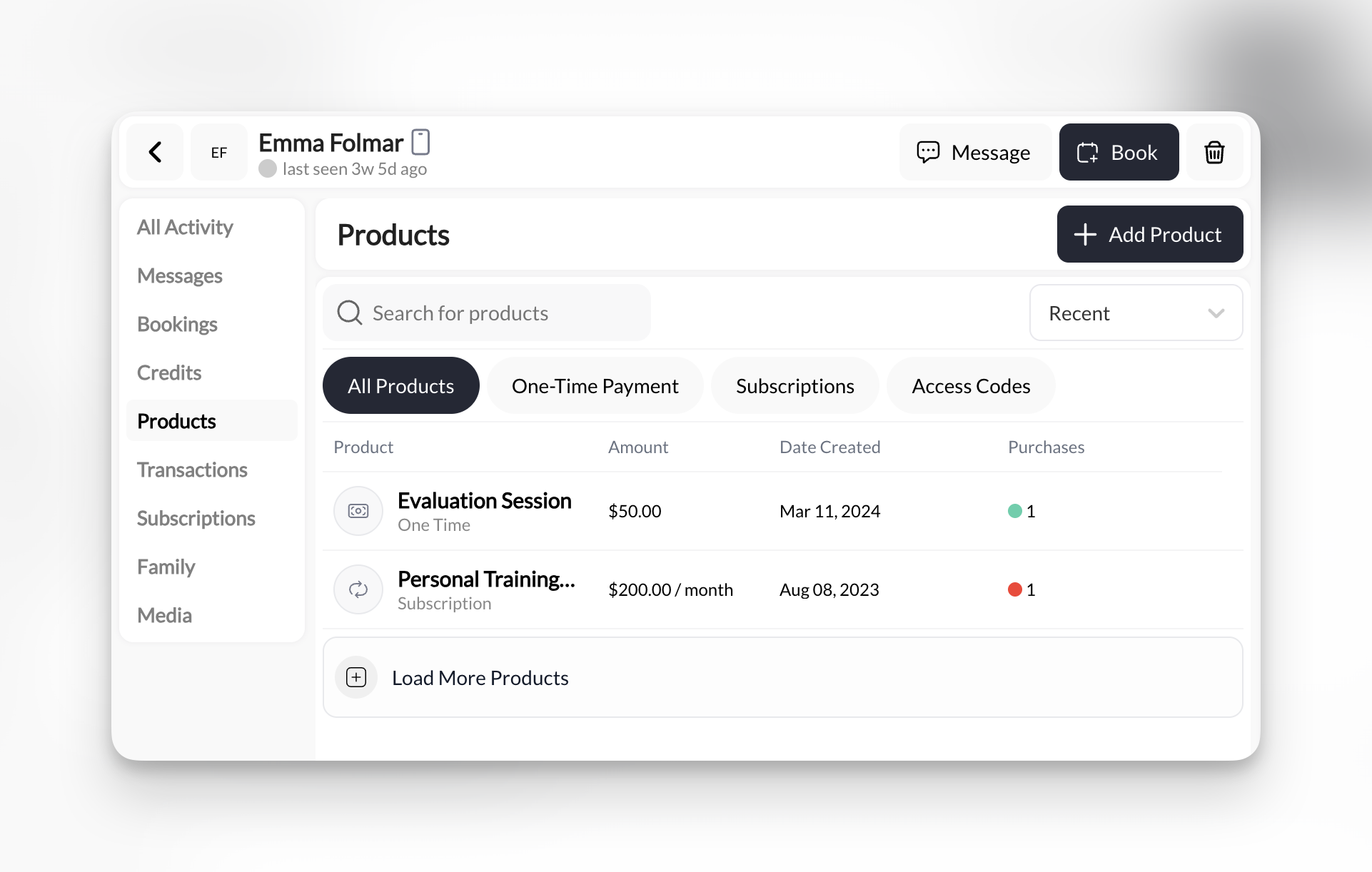
Every product this client has ever purchased:
* 📦 **One-Time Payments** - Single purchase products (e.g., "Elite Class Trial Session")
* 🔄 **Subscriptions** - Recurring memberships (e.g., "Month to Month Rising Stars Membership")
* 🔑 **Access Codes** - Digital access products (e.g., program unlock codes)
Each product card displays:
* Product name
* Product type badge (Subscription / One-Time)
* Amount (e.g., "\$10.00" or "\$125.00/month")
* Date created (when they purchased)
* Purchase count indicator (● 1 = one purchase)
 ***
## Filter tabs
Narrow the view to specific product types:
| Filter | What it shows |
| -------------------- | ----------------------------- |
| **All Products** | Everything (default) |
| **One-Time Payment** | Only single-purchase products |
| **Subscriptions** | Only recurring memberships |
| **Access Codes** | Only digital access products |
**Sort dropdown**: Change from "Recent" to other sorting options (if available)
***
## Manually adding products
Give a client access to a product without them paying:
Top-right corner of the Products tab.
Type product name in the search bar.
Click the product you want to grant them.
Client now has access to that product (appears in their Products tab).
**No payment collected** when you manually add products. Use this for:
* Complimentary memberships
* Staff/family member access
* Makeup sessions after issues
* Trial period access
***
## Common uses
1. Click **Subscriptions** filter tab
2. Look for products with "Active" status
3. Check amount to see monthly billing
**Example**: "Hybrid Rising Stars/Elite 5 Credit Package - $125.00/month" = They're paying $125/month for this membership.
1. Click **One-Time Payment** filter tab
2. Look for trial product name (e.g., "Elite Class Trial Session")
3. Check date created to see when
**Use case**: Converting trials to paid members—see if they bought trial, then check Subscriptions to see if they upgraded.
1. Click **+ Add Product**
2. Search for the program product
3. Select and confirm
**They now have access** in their Athlete Portal without paying. Useful for beta testing or VIP perks.
Look at the **purchase count indicator** (●):
* ● 1 = Purchased once
* ● 2 = Purchased twice (or resubscribed)
Rare to see more than 1 for subscriptions (they just renew), common for one-time products (repeat buyers).
***
## What you CAN'T do here
The Products tab is primarily **view-only**. To take action:
| Action Needed | Where to Do It |
| ------------------------ | ------------------------------------ |
| **Cancel subscription** | Stripe |
| **Refund purchase** | Stripe |
| **Change product price** | Payments → Products → Edit product |
| **See payment history** | Transactions tab (financial details) |
Think of Products tab as **"What they own"**, not **"How they paid"**. For payment details, use Transactions tab.
***
## Empty products tab?
If you see no products, this client has:
* Never purchased anything
* Only booked free sessions (no paid products)
* Paid for sessions directly without products
**Next step**: Either:
* Manually add a product to give them access
* Wait until they purchase something through checkout
* Check if they're using a different account (Family tab)
***
## Pro tips
**Recent sort default**: Products tab sorts by "Date Created" newest first. If looking for something from a year ago, scroll or use search.
**Product vs Transaction difference**:
* **Products tab** = What they have access to
* **Transactions tab** = Financial record of payments
A client can have a product (manual grant) without a transaction (no payment).
**Access Codes rare?** Most coaches don't use Access Codes unless they're selling digital-only content. It's okay if you never see this type.
***
## Related tabs
Active memberships and billing status
Payment history and revenue tracking
Credit balance from products
***
## Filter tabs
Narrow the view to specific product types:
| Filter | What it shows |
| -------------------- | ----------------------------- |
| **All Products** | Everything (default) |
| **One-Time Payment** | Only single-purchase products |
| **Subscriptions** | Only recurring memberships |
| **Access Codes** | Only digital access products |
**Sort dropdown**: Change from "Recent" to other sorting options (if available)
***
## Manually adding products
Give a client access to a product without them paying:
Top-right corner of the Products tab.
Type product name in the search bar.
Click the product you want to grant them.
Client now has access to that product (appears in their Products tab).
**No payment collected** when you manually add products. Use this for:
* Complimentary memberships
* Staff/family member access
* Makeup sessions after issues
* Trial period access
***
## Common uses
1. Click **Subscriptions** filter tab
2. Look for products with "Active" status
3. Check amount to see monthly billing
**Example**: "Hybrid Rising Stars/Elite 5 Credit Package - $125.00/month" = They're paying $125/month for this membership.
1. Click **One-Time Payment** filter tab
2. Look for trial product name (e.g., "Elite Class Trial Session")
3. Check date created to see when
**Use case**: Converting trials to paid members—see if they bought trial, then check Subscriptions to see if they upgraded.
1. Click **+ Add Product**
2. Search for the program product
3. Select and confirm
**They now have access** in their Athlete Portal without paying. Useful for beta testing or VIP perks.
Look at the **purchase count indicator** (●):
* ● 1 = Purchased once
* ● 2 = Purchased twice (or resubscribed)
Rare to see more than 1 for subscriptions (they just renew), common for one-time products (repeat buyers).
***
## What you CAN'T do here
The Products tab is primarily **view-only**. To take action:
| Action Needed | Where to Do It |
| ------------------------ | ------------------------------------ |
| **Cancel subscription** | Stripe |
| **Refund purchase** | Stripe |
| **Change product price** | Payments → Products → Edit product |
| **See payment history** | Transactions tab (financial details) |
Think of Products tab as **"What they own"**, not **"How they paid"**. For payment details, use Transactions tab.
***
## Empty products tab?
If you see no products, this client has:
* Never purchased anything
* Only booked free sessions (no paid products)
* Paid for sessions directly without products
**Next step**: Either:
* Manually add a product to give them access
* Wait until they purchase something through checkout
* Check if they're using a different account (Family tab)
***
## Pro tips
**Recent sort default**: Products tab sorts by "Date Created" newest first. If looking for something from a year ago, scroll or use search.
**Product vs Transaction difference**:
* **Products tab** = What they have access to
* **Transactions tab** = Financial record of payments
A client can have a product (manual grant) without a transaction (no payment).
**Access Codes rare?** Most coaches don't use Access Codes unless they're selling digital-only content. It's okay if you never see this type.
***
## Related tabs
Active memberships and billing status
Payment history and revenue tracking
Credit balance from products