> ## Documentation Index
> Fetch the complete documentation index at: https://help.coachiq.io/llms.txt
> Use this file to discover all available pages before exploring further.
# Transactions: Payment History & Revenue
> Track all payments, refunds, failed charges, and total revenue from a client across any time period
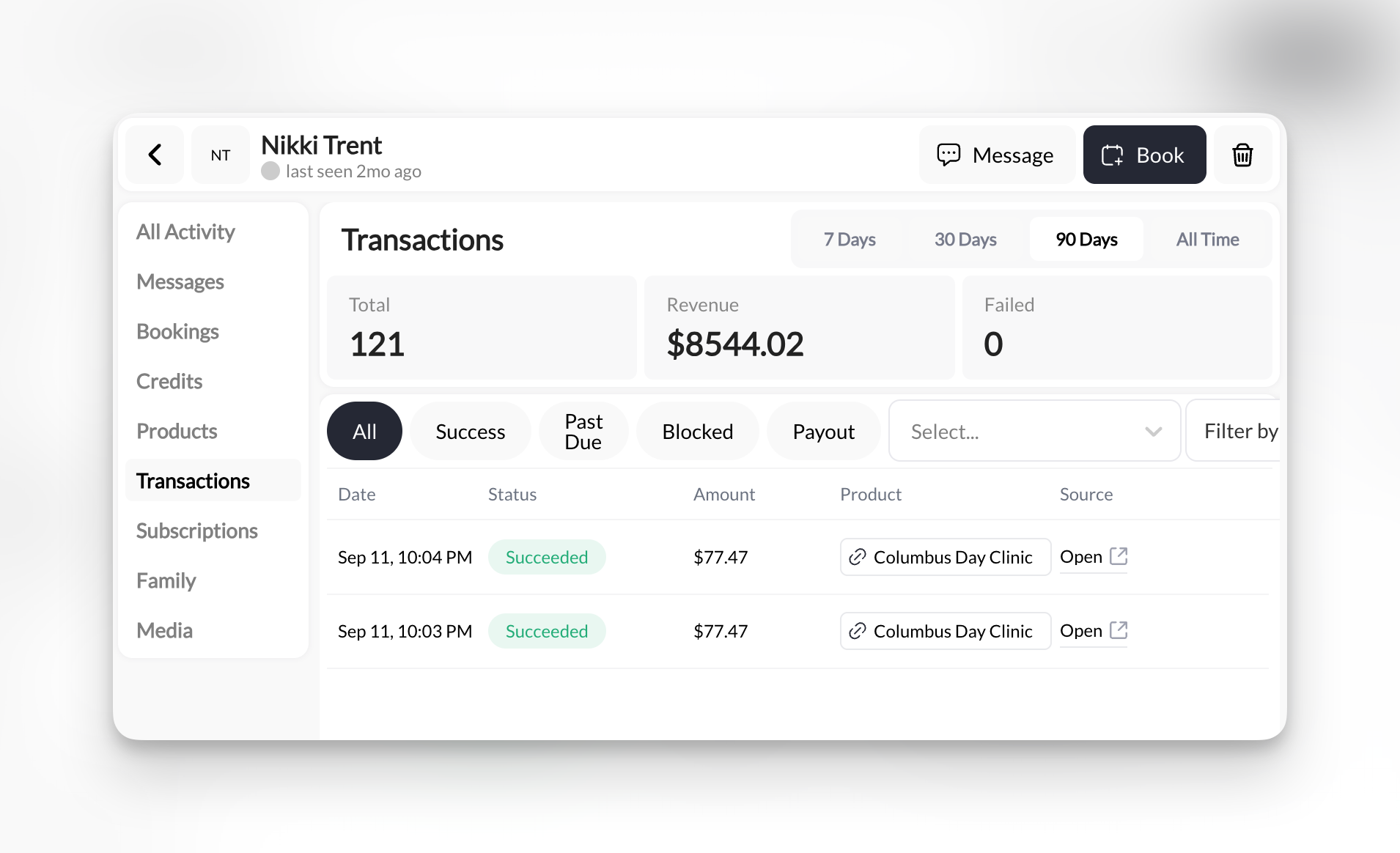
**Where to find this**: Client Profile → **Transactions** tab
## What it shows
Complete financial history with this client:
**Summary metrics** (top of tab):
* **Total** - Number of transactions
* **Revenue** - Total dollar amount collected
* **Failed** - Number of failed payment attempts
**Time range filters:**
* 7 Days
* 30 Days
* 90 Days
* All Time (default)
 ***
## Transaction status filters
Filter by payment status to narrow results:
| Filter | What it shows |
| ------------ | ----------------------------------------- |
| **All** | Every transaction (default) |
| **Success** | Completed payments only |
| **Past Due** | Failed payments that need attention |
| **Blocked** | Payments blocked by fraud prevention |
| **Payout** | Payments already transferred to your bank |
**Plus a "Select..." dropdown** for additional status types if needed.
**Quick health check**: If you see failed payments in "Past Due", reach out to the client immediately to update their payment method.
***
## Reading transaction entries
Each transaction row shows:
| Column | What it shows |
| ----------- | ------------------------------------------------ |
| **Date** | When payment occurred |
| **Amount** | Dollar amount charged |
| **Status** | Success, Past Due, etc. |
| **Product** | What they paid for |
| **Source** | How it was charged (Admin, subscription renewal) |
**Empty transactions list?** This client has never made a payment. They might have free access, manually granted products, or haven't purchased yet.
***
## Common uses
1. Click **30 Days** filter
2. Look for **Success** status transactions
3. Check amount matches their subscription price
**Quick verification** when client asks "Did you charge me?" → "Yes, \$125 on Sep 17."
1. Click **Past Due** status filter
2. Find the failed transaction date
3. Check **Source** column (usually says subscription product name)
**Next step**: Contact client → "Hey, your card was declined for your \$125 membership on Sep 17. Can you update your payment method?"
[Learn how to handle failed payments →](/payments/failed-payments)
1. Use **All** filter (show everything)
2. Look for negative amounts (refunds show as `-$10.00`)
3. Check date to confirm timing
**Verify refunds** before processing duplicates.
1. Click **30 Days**
2. Count successful subscription charges
3. Add up amounts
**Example**: If you see \$125.00 success transaction every month, they're contributing \$125/month recurring revenue.
***
## What you CAN'T do here
Transactions tab is **view-only**. To take action:
| Action Needed | Where to Do It |
| ------------------------- | --------------------------------------------- |
| **Refund a payment** | Stripe |
| **Update payment method** | Client must do this in their Billing Settings |
| **Cancel subscription** | Stripe |
| **Retry failed payment** | Stripe |
**You cannot edit transactions** after they occur. Once processed, they're permanent records for accounting purposes.
***
## Understanding "Source" column
**Common sources you'll see:**
* **Admin** - You manually charged them or added product
* **Subscription product name** - Auto-charged from recurring billing
* **Product name** - One-time purchase they made through checkout
* **"Unknown"** - Old transaction before source tracking existed
***
## Pro tips
**Failed payment patterns**: If you see multiple "Past Due" entries over time, this client has chronic payment issues. Consider switching them to manual billing or requiring payment upfront.
**Export for accounting**: While you can't export from the profile, you CAN export from main Payments → Transactions section and filter by this client's email.
**Time filters are powerful**: Use "7 Days" to see just this week's activity, helpful for weekly revenue reviews.
**Empty isn't bad**: Some of your best clients might have \$0 in transactions if you manually granted them free access (staff, family, ambassadors).
***
## Related tabs
See active memberships driving recurring revenue
What they've purchased (products view)
Manage payment processing settings
***
## Transaction status filters
Filter by payment status to narrow results:
| Filter | What it shows |
| ------------ | ----------------------------------------- |
| **All** | Every transaction (default) |
| **Success** | Completed payments only |
| **Past Due** | Failed payments that need attention |
| **Blocked** | Payments blocked by fraud prevention |
| **Payout** | Payments already transferred to your bank |
**Plus a "Select..." dropdown** for additional status types if needed.
**Quick health check**: If you see failed payments in "Past Due", reach out to the client immediately to update their payment method.
***
## Reading transaction entries
Each transaction row shows:
| Column | What it shows |
| ----------- | ------------------------------------------------ |
| **Date** | When payment occurred |
| **Amount** | Dollar amount charged |
| **Status** | Success, Past Due, etc. |
| **Product** | What they paid for |
| **Source** | How it was charged (Admin, subscription renewal) |
**Empty transactions list?** This client has never made a payment. They might have free access, manually granted products, or haven't purchased yet.
***
## Common uses
1. Click **30 Days** filter
2. Look for **Success** status transactions
3. Check amount matches their subscription price
**Quick verification** when client asks "Did you charge me?" → "Yes, \$125 on Sep 17."
1. Click **Past Due** status filter
2. Find the failed transaction date
3. Check **Source** column (usually says subscription product name)
**Next step**: Contact client → "Hey, your card was declined for your \$125 membership on Sep 17. Can you update your payment method?"
[Learn how to handle failed payments →](/payments/failed-payments)
1. Use **All** filter (show everything)
2. Look for negative amounts (refunds show as `-$10.00`)
3. Check date to confirm timing
**Verify refunds** before processing duplicates.
1. Click **30 Days**
2. Count successful subscription charges
3. Add up amounts
**Example**: If you see \$125.00 success transaction every month, they're contributing \$125/month recurring revenue.
***
## What you CAN'T do here
Transactions tab is **view-only**. To take action:
| Action Needed | Where to Do It |
| ------------------------- | --------------------------------------------- |
| **Refund a payment** | Stripe |
| **Update payment method** | Client must do this in their Billing Settings |
| **Cancel subscription** | Stripe |
| **Retry failed payment** | Stripe |
**You cannot edit transactions** after they occur. Once processed, they're permanent records for accounting purposes.
***
## Understanding "Source" column
**Common sources you'll see:**
* **Admin** - You manually charged them or added product
* **Subscription product name** - Auto-charged from recurring billing
* **Product name** - One-time purchase they made through checkout
* **"Unknown"** - Old transaction before source tracking existed
***
## Pro tips
**Failed payment patterns**: If you see multiple "Past Due" entries over time, this client has chronic payment issues. Consider switching them to manual billing or requiring payment upfront.
**Export for accounting**: While you can't export from the profile, you CAN export from main Payments → Transactions section and filter by this client's email.
**Time filters are powerful**: Use "7 Days" to see just this week's activity, helpful for weekly revenue reviews.
**Empty isn't bad**: Some of your best clients might have \$0 in transactions if you manually granted them free access (staff, family, ambassadors).
***
## Related tabs
See active memberships driving recurring revenue
What they've purchased (products view)
Manage payment processing settings