> ## Documentation Index
> Fetch the complete documentation index at: https://help.coachiq.io/llms.txt
> Use this file to discover all available pages before exploring further.
# Waivers: Who Has Signed, and When
> See which waivers a client has accepted, record an acceptance you collected in person, and chase the ones still missing.
**Where to find this**: Client Profile → **Waivers** (in the PROFILE group of tabs)
## What it shows
The tab opens with a count such as **0/2 accepted**, then lists every active waiver in your account. A waiver the client has already agreed to shows its acceptance; one they have not shows an **Accept** button.
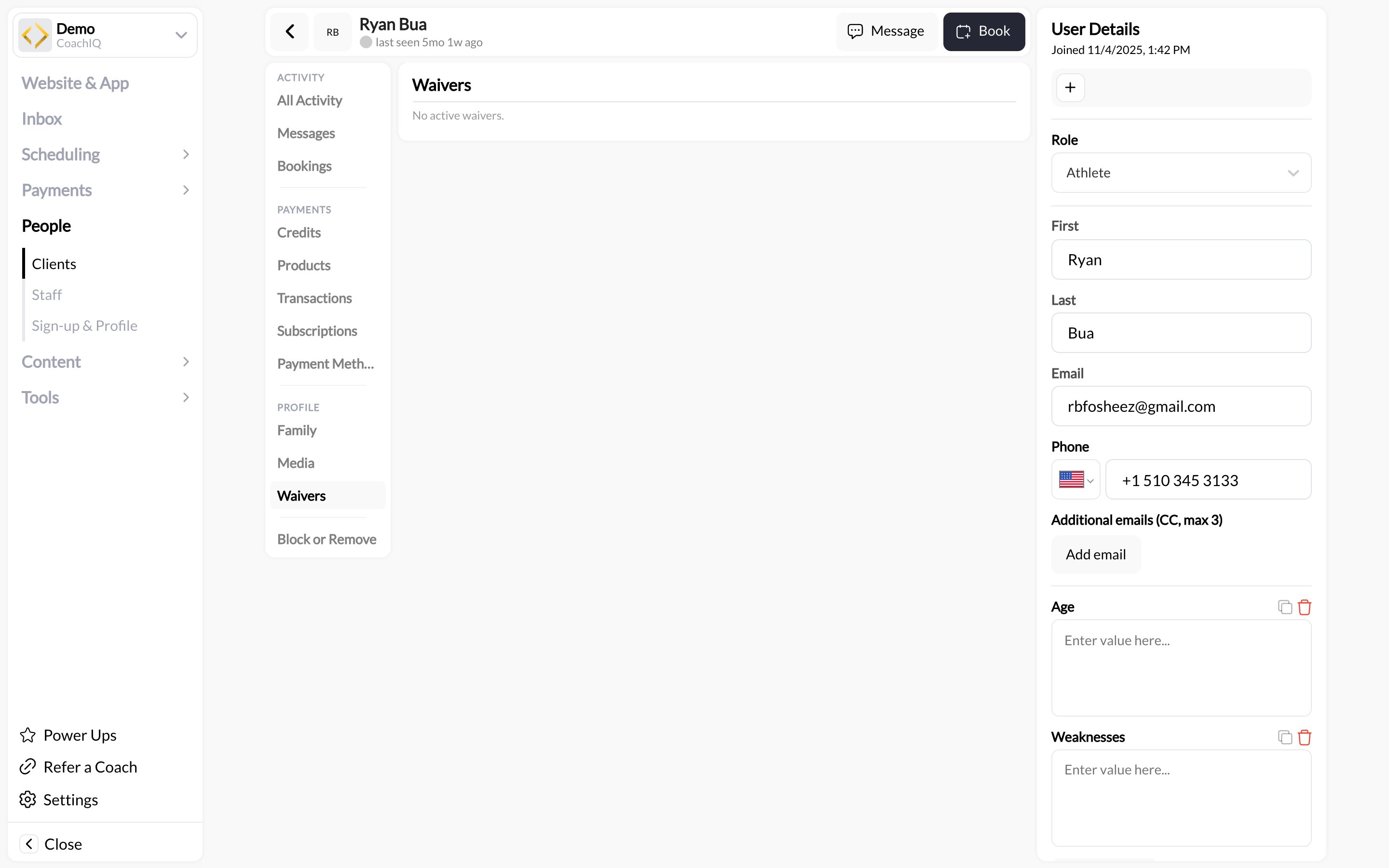 Labels were checked against the live app on 2026-09-02. The compliance report across all clients lives in **Tools → Waivers**; see [Waivers](/tools/waivers/waivers#track-waiver-compliance).
## What to do here
* **Before a first session**, open the athlete's Waivers tab and confirm the count reads all accepted.
* **If a waiver is outstanding**, click **Message** in the profile header and send the link to a product or form that carries the waiver. They accept it as part of checkout or submission, and the tab updates.
* **If they signed in person**, on paper or verbally at the front desk, click **Accept** next to the waiver to record it on their profile. Keep the paper copy; the digital record shows the date you recorded it.
* **For a family**, check each connected child. Waivers are accepted per profile, so a parent's acceptance does not cover a child unless the product or form was completed for that child.
## Common questions
Yes. Click **Accept** next to the waiver on this tab. Use it when you collected the signature outside CoachIQ and want the profile to reflect it. Acceptances recorded at checkout or on a form carry the client's own action, which is stronger if a dispute ever arises.
The product does not have that waiver attached. Open the product's **Advanced** settings and check **Require Agreement to Terms**. See [Require a waiver at checkout](/tools/waivers/waivers#require-a-waiver-at-checkout).
**Tools → Waivers**, click the acceptance count on the waiver, then filter by **Missing**. Export CSV from there.
## Related articles
Create waivers, attach them to products and forms, track compliance
Every section of the profile explained
Labels were checked against the live app on 2026-09-02. The compliance report across all clients lives in **Tools → Waivers**; see [Waivers](/tools/waivers/waivers#track-waiver-compliance).
## What to do here
* **Before a first session**, open the athlete's Waivers tab and confirm the count reads all accepted.
* **If a waiver is outstanding**, click **Message** in the profile header and send the link to a product or form that carries the waiver. They accept it as part of checkout or submission, and the tab updates.
* **If they signed in person**, on paper or verbally at the front desk, click **Accept** next to the waiver to record it on their profile. Keep the paper copy; the digital record shows the date you recorded it.
* **For a family**, check each connected child. Waivers are accepted per profile, so a parent's acceptance does not cover a child unless the product or form was completed for that child.
## Common questions
Yes. Click **Accept** next to the waiver on this tab. Use it when you collected the signature outside CoachIQ and want the profile to reflect it. Acceptances recorded at checkout or on a form carry the client's own action, which is stronger if a dispute ever arises.
The product does not have that waiver attached. Open the product's **Advanced** settings and check **Require Agreement to Terms**. See [Require a waiver at checkout](/tools/waivers/waivers#require-a-waiver-at-checkout).
**Tools → Waivers**, click the acceptance count on the waiver, then filter by **Missing**. Export CSV from there.
## Related articles
Create waivers, attach them to products and forms, track compliance
Every section of the profile explained