> ## Documentation Index
> Fetch the complete documentation index at: https://help.coachiq.io/llms.txt
> Use this file to discover all available pages before exploring further.
# Client Profiles: Complete Activity Dashboard
> Everything you need to know about a client in one place—navigate the profile dashboard and understand each activity tab
**Where to find this**: Dashboard → **People** → **Clients** → Click any client name
## What you'll accomplish
Learn how to navigate a client's complete profile, understand what each activity tab shows you, and quickly find the exact information you need about bookings, credits, payments, messages, and more.
***
## Opening a client profile
From your dashboard, click **People** in the main navigation, then ensure you're on the **Clients** tab.
Use any of these methods:
* Scroll through the list
* Type their name in the **Search people** bar
* Filter by role (Athletes, Parents, Customers tabs)
* Filter by tag (use the tag sidebar)
Click anywhere on the client's row to open their full profile.
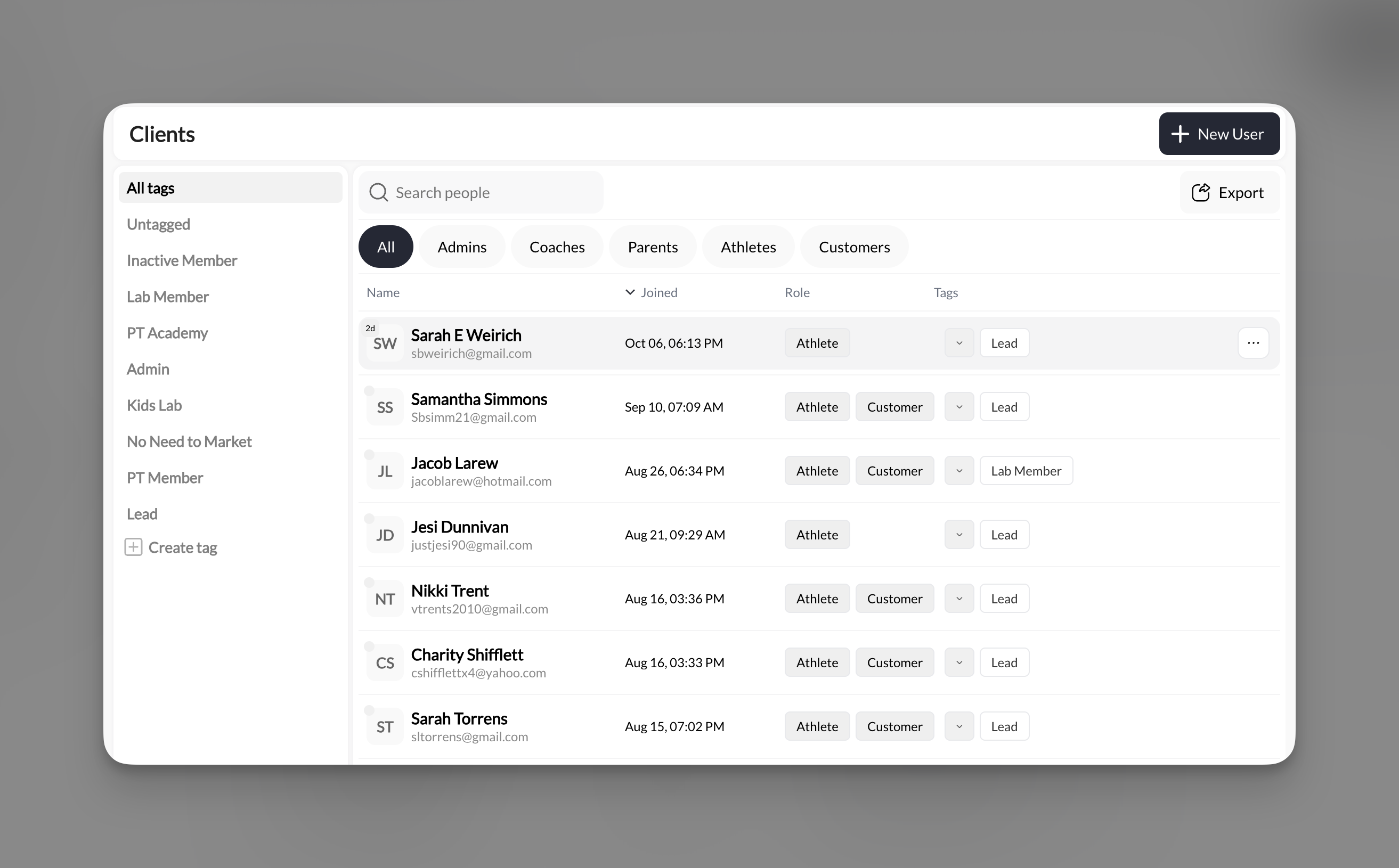 **You're in!** The profile dashboard opens, showing their complete activity history and user details.
***
## Understanding the profile header
At the top of every client profile, you'll see key information and quick action buttons:
**You're in!** The profile dashboard opens, showing their complete activity history and user details.
***
## Understanding the profile header
At the top of every client profile, you'll see key information and quick action buttons:
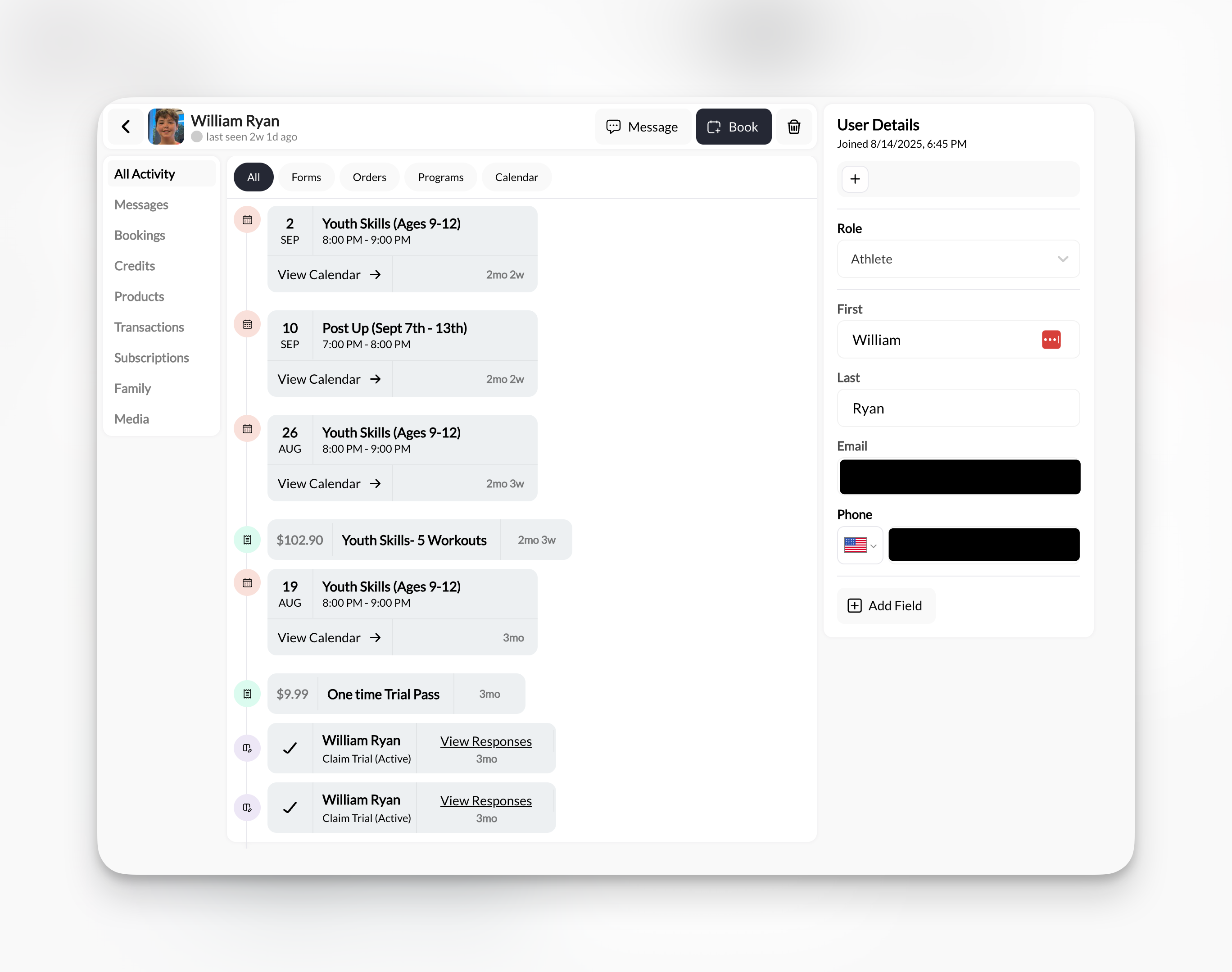 **Profile header includes:**
| Element | What it shows | How to use it |
| ------------------ | -------------------------------- | ---------------------------------------- |
| **Profile photo** | Client's avatar or initials | Click to upload/change photo |
| **Name** | Full name and role badges | Edit in User Details sidebar |
| **Last seen** | When they last accessed your app | Helps gauge engagement |
| **Message button** | Opens conversation | Starts or continues chat in Inbox |
| **Book button** | Manual booking | Quickly book them into a session |
| **Delete button** | Remove client | Use with caution—cannot be easily undone |
**Quick actions save time**: Instead of navigating to Calendar or Inbox, use the **Book** and **Message** buttons right from the profile to take immediate action.
***
## The User Details sidebar
On the right side of every profile, the **User Details** panel shows editable information:
**What you can edit here:**
* **Role** (dropdown: Athlete, Coach, Admin, Parent, Customer)
* **First name**
* **Last name**
* **Email** (their login credential)
* **Phone** (for SMS messaging)
* **Custom fields** (click **+ Add Field** for custom tracking)
**Changes save automatically**: Click into any field, make your edit, and it saves immediately. No separate "Save" button needed.
**Learn more**: See [Adding & Editing Client Information](/people/adding-editing-clients) for detailed editing instructions.
***
## The 9 activity tabs explained
The client profile organizes all information into tabs. Each tab answers a specific question about your relationship with this client.
**Profile header includes:**
| Element | What it shows | How to use it |
| ------------------ | -------------------------------- | ---------------------------------------- |
| **Profile photo** | Client's avatar or initials | Click to upload/change photo |
| **Name** | Full name and role badges | Edit in User Details sidebar |
| **Last seen** | When they last accessed your app | Helps gauge engagement |
| **Message button** | Opens conversation | Starts or continues chat in Inbox |
| **Book button** | Manual booking | Quickly book them into a session |
| **Delete button** | Remove client | Use with caution—cannot be easily undone |
**Quick actions save time**: Instead of navigating to Calendar or Inbox, use the **Book** and **Message** buttons right from the profile to take immediate action.
***
## The User Details sidebar
On the right side of every profile, the **User Details** panel shows editable information:
**What you can edit here:**
* **Role** (dropdown: Athlete, Coach, Admin, Parent, Customer)
* **First name**
* **Last name**
* **Email** (their login credential)
* **Phone** (for SMS messaging)
* **Custom fields** (click **+ Add Field** for custom tracking)
**Changes save automatically**: Click into any field, make your edit, and it saves immediately. No separate "Save" button needed.
**Learn more**: See [Adding & Editing Client Information](/people/adding-editing-clients) for detailed editing instructions.
***
## The 9 activity tabs explained
The client profile organizes all information into tabs. Each tab answers a specific question about your relationship with this client.
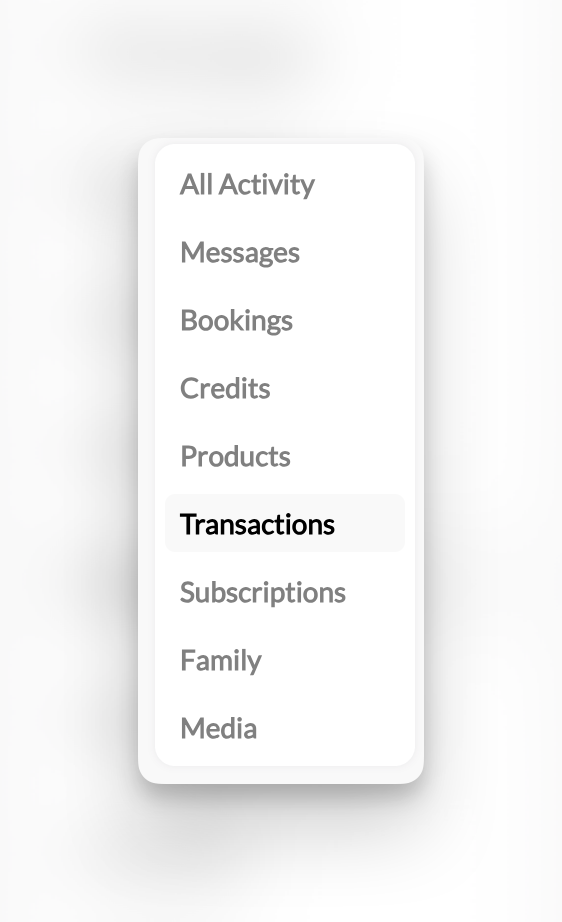 **Here's what each tab shows you:**
**The unified timeline**
Everything in one place: bookings, purchases, program enrollments, form responses. Perfect for getting the complete picture quickly.
*Click to learn more →*
**Conversation history**
All In-App and SMS messages with this client. Send new messages, view attachments, review past conversations.
*Click to learn more →*
**Session history**
Upcoming sessions, past attendance, canceled bookings. Filter by status and time zone.
*Click to learn more →*
**Credit transactions**
Current balance, purchase history, redemptions, expirations. See Master Credits and product-specific credits separately.
*Click to learn more →*
**Purchase history**
What they've bought: one-time products, subscriptions, access codes. Manually add products to their account.
*Click to learn more →*
**Payment history**
All payments, refunds, and failed charges. Track revenue over 7/30/90 days or all time.
*Click to learn more →*
**Recurring billing**
Active memberships, canceled subscriptions, trial periods, monthly revenue from this client.
*Click to learn more →*
**Parent/child linking**
Connect family accounts for youth training. Link parents to athletes for shared visibility.
*Coming soon*
**Shared content**
Media that clients have uploaded to CoachIQ. Filter by tag, toggle list/grid view.
*Click to learn more →*
**Most-used tabs**: Coaches spend 80% of their time in five tabs: All Activity (quick overview), Bookings (attendance), Credits (balance checks), Messages (communication), and Subscriptions (membership status).
***
## How to use profiles effectively
The client profile is your command center for answering common questions:
**Go to: Bookings tab**
Filter by "Past" to see completed sessions in reverse chronological order. The most recent session appears first.
Faster shortcut: Check the "All Activity" tab—sessions appear in the unified timeline with timestamps.
**Go to: Credits tab**
Look at the tab badges at the top:
* **Logs** tab = Complete transaction history
* **Master Credits** tab = Universal credits (work for any scheduler)
* **\[Product Name]** tabs = Credits from specific packages/subscriptions
Each tab shows the current balance prominently at the top.
[Learn more about credit notation →](/people/client-profiles/client-profiles-credits)
**Go to: Subscriptions tab**
Check the status badge:
* **Green "Active"** = Currently subscribed and billing normally
* **Yellow "Past Due"** = Payment failed, needs attention
* **Gray "Canceled"** = No longer subscribing
The summary at the top shows total active subscriptions and monthly recurring revenue from this client.
**Go to: Products tab**
See everything they've ever bought: one-time products, credit packages, subscriptions, access codes. Filter by product type to narrow results.
For dollar amounts and payment status, switch to the **Transactions** tab.
**Go to: Messages tab**
View the conversation thread. Toggle between **In-App** (messages sent through your portal/app) and **SMS** (text messages) using the tabs.
Timestamps show when messages were sent. Look for their replies to confirm they saw your message.
***
## Quick navigation between clients
When reviewing multiple client profiles, use these shortcuts to move quickly:
Click the **← back arrow** in the top-left to return to the Clients list without losing your place or filters.
**Right-click** (or Cmd+Click on Mac) a client name from the Clients list to open their profile in a new browser tab. Great for comparing multiple clients side-by-side.
Use the global search bar to jump directly to any client by typing their name, even when you're deep in another section of CoachIQ.
**Browser bookmarks**: Bookmark frequently-accessed client profiles (your top athletes, VIP clients, etc.) for instant access. Each profile has a unique URL you can save.
***
## Common questions
No. Clients see a simplified version through the Athlete Portal (mobile app or web) that shows:
* Their own bookings and schedule
* Their credit balance
* Programs and content you've shared with them
* Their subscription status
* Their messages with you
They **cannot** see transaction history, all activity timeline, or the detailed information you see in the coaching dashboard.
Tabs only populate with data after activity occurs:
* **Bookings**: Empty until they book or you book them into a session
* **Credits**: Empty until they purchase a credit package or you manually grant credits
* **Products**: Empty until they make a purchase
* **Transactions**: Empty until they complete a payment
* **Subscriptions**: Empty until they sign up for recurring billing
* **Family**: Empty until you link family members
* **Media**: Empty until you assign programs or lessons
**All Activity** will always have at least one entry: their account creation date.
Not directly from the profile, but you can:
1. **Bookings**: Filter the main Calendar by this client's name, then export
2. **Transactions**: Use Payments → Transactions, filter by client name, export
3. **Full profile**: Take screenshots of each tab for records (useful for disputes or documentation)
For regular reporting, consider using the main section exports (Calendar, Transactions, etc.) filtered by client name.
When you delete a client:
* Their profile is removed from the Clients list
* They lose access to your Athlete Portal immediately
* **Historical data is preserved** in your system for record-keeping
* Past bookings still show in Calendar (marked with deleted client's name)
* Past transactions remain in payment history
* Messages remain in Inbox
**Important**: You cannot restore a deleted profile easily. Use an "Inactive" tag instead if they might return.
**To print or save as PDF:**
1. Open the client profile
2. Navigate to the tab you want to print (e.g., Bookings, Transactions)
3. Use your browser's print function (Cmd+P on Mac, Ctrl+P on Windows)
4. Select "Save as PDF" as the destination
**Tip**: Print the "All Activity" tab for a comprehensive timeline record, or print specific tabs (Credits, Transactions) for detailed financial records.
***
## Related articles
Complete guide to People section
Create and edit client info
Organize your client base
Book clients from their profile
Message clients individually
Full credit management guide
***
**You now understand**: How to open and navigate client profiles, what each activity tab shows, and where to find specific information about any client's relationship with your business.
**Here's what each tab shows you:**
**The unified timeline**
Everything in one place: bookings, purchases, program enrollments, form responses. Perfect for getting the complete picture quickly.
*Click to learn more →*
**Conversation history**
All In-App and SMS messages with this client. Send new messages, view attachments, review past conversations.
*Click to learn more →*
**Session history**
Upcoming sessions, past attendance, canceled bookings. Filter by status and time zone.
*Click to learn more →*
**Credit transactions**
Current balance, purchase history, redemptions, expirations. See Master Credits and product-specific credits separately.
*Click to learn more →*
**Purchase history**
What they've bought: one-time products, subscriptions, access codes. Manually add products to their account.
*Click to learn more →*
**Payment history**
All payments, refunds, and failed charges. Track revenue over 7/30/90 days or all time.
*Click to learn more →*
**Recurring billing**
Active memberships, canceled subscriptions, trial periods, monthly revenue from this client.
*Click to learn more →*
**Parent/child linking**
Connect family accounts for youth training. Link parents to athletes for shared visibility.
*Coming soon*
**Shared content**
Media that clients have uploaded to CoachIQ. Filter by tag, toggle list/grid view.
*Click to learn more →*
**Most-used tabs**: Coaches spend 80% of their time in five tabs: All Activity (quick overview), Bookings (attendance), Credits (balance checks), Messages (communication), and Subscriptions (membership status).
***
## How to use profiles effectively
The client profile is your command center for answering common questions:
**Go to: Bookings tab**
Filter by "Past" to see completed sessions in reverse chronological order. The most recent session appears first.
Faster shortcut: Check the "All Activity" tab—sessions appear in the unified timeline with timestamps.
**Go to: Credits tab**
Look at the tab badges at the top:
* **Logs** tab = Complete transaction history
* **Master Credits** tab = Universal credits (work for any scheduler)
* **\[Product Name]** tabs = Credits from specific packages/subscriptions
Each tab shows the current balance prominently at the top.
[Learn more about credit notation →](/people/client-profiles/client-profiles-credits)
**Go to: Subscriptions tab**
Check the status badge:
* **Green "Active"** = Currently subscribed and billing normally
* **Yellow "Past Due"** = Payment failed, needs attention
* **Gray "Canceled"** = No longer subscribing
The summary at the top shows total active subscriptions and monthly recurring revenue from this client.
**Go to: Products tab**
See everything they've ever bought: one-time products, credit packages, subscriptions, access codes. Filter by product type to narrow results.
For dollar amounts and payment status, switch to the **Transactions** tab.
**Go to: Messages tab**
View the conversation thread. Toggle between **In-App** (messages sent through your portal/app) and **SMS** (text messages) using the tabs.
Timestamps show when messages were sent. Look for their replies to confirm they saw your message.
***
## Quick navigation between clients
When reviewing multiple client profiles, use these shortcuts to move quickly:
Click the **← back arrow** in the top-left to return to the Clients list without losing your place or filters.
**Right-click** (or Cmd+Click on Mac) a client name from the Clients list to open their profile in a new browser tab. Great for comparing multiple clients side-by-side.
Use the global search bar to jump directly to any client by typing their name, even when you're deep in another section of CoachIQ.
**Browser bookmarks**: Bookmark frequently-accessed client profiles (your top athletes, VIP clients, etc.) for instant access. Each profile has a unique URL you can save.
***
## Common questions
No. Clients see a simplified version through the Athlete Portal (mobile app or web) that shows:
* Their own bookings and schedule
* Their credit balance
* Programs and content you've shared with them
* Their subscription status
* Their messages with you
They **cannot** see transaction history, all activity timeline, or the detailed information you see in the coaching dashboard.
Tabs only populate with data after activity occurs:
* **Bookings**: Empty until they book or you book them into a session
* **Credits**: Empty until they purchase a credit package or you manually grant credits
* **Products**: Empty until they make a purchase
* **Transactions**: Empty until they complete a payment
* **Subscriptions**: Empty until they sign up for recurring billing
* **Family**: Empty until you link family members
* **Media**: Empty until you assign programs or lessons
**All Activity** will always have at least one entry: their account creation date.
Not directly from the profile, but you can:
1. **Bookings**: Filter the main Calendar by this client's name, then export
2. **Transactions**: Use Payments → Transactions, filter by client name, export
3. **Full profile**: Take screenshots of each tab for records (useful for disputes or documentation)
For regular reporting, consider using the main section exports (Calendar, Transactions, etc.) filtered by client name.
When you delete a client:
* Their profile is removed from the Clients list
* They lose access to your Athlete Portal immediately
* **Historical data is preserved** in your system for record-keeping
* Past bookings still show in Calendar (marked with deleted client's name)
* Past transactions remain in payment history
* Messages remain in Inbox
**Important**: You cannot restore a deleted profile easily. Use an "Inactive" tag instead if they might return.
**To print or save as PDF:**
1. Open the client profile
2. Navigate to the tab you want to print (e.g., Bookings, Transactions)
3. Use your browser's print function (Cmd+P on Mac, Ctrl+P on Windows)
4. Select "Save as PDF" as the destination
**Tip**: Print the "All Activity" tab for a comprehensive timeline record, or print specific tabs (Credits, Transactions) for detailed financial records.
***
## Related articles
Complete guide to People section
Create and edit client info
Organize your client base
Book clients from their profile
Message clients individually
Full credit management guide
***
**You now understand**: How to open and navigate client profiles, what each activity tab shows, and where to find specific information about any client's relationship with your business.