> ## Documentation Index
> Fetch the complete documentation index at: https://help.coachiq.io/llms.txt
> Use this file to discover all available pages before exploring further.
# Managing Your Coaching Staff
> Add coaches and admins to your team, control their access to platform features, and manage permissions for multi-coach operations
**Where to find this**: People → Staff tab (Admin only)
## What you'll accomplish
Build your coaching team by adding staff members, controlling which platform features they can access, and managing their roles as your business grows.
## Understanding staff roles
CoachIQ has two staff roles with different permission levels:
**Full platform access** - No restrictions
**What Admins can do:**
* Access every page and feature
* Manage staff (add, remove, change roles)
* Configure all settings
* View all financial data
* Control page blocking for Coaches
**When to use:**
* Business owner (you)
* Business manager or operations lead
* Anyone who needs complete access
**Pro tip**: Only assign Admin role to people you trust completely with financial access and business decisions.
**Restricted access based on page blocks**
**What Coaches can do:**
* Access coaching features (Schedule, People, Content)
* Create schedulers and availability
* Book and manage sessions
* Message clients
* View assigned athletes
* **Limited by**: Page blocks set by Admin
**When to use:**
* Assistant coaches
* Part-time trainers
* Staff who only need session delivery access
**Access badge:**
* "Limited Access" = Coach with blocked pages
* Can't see or use blocked features at all
***
## Adding staff members
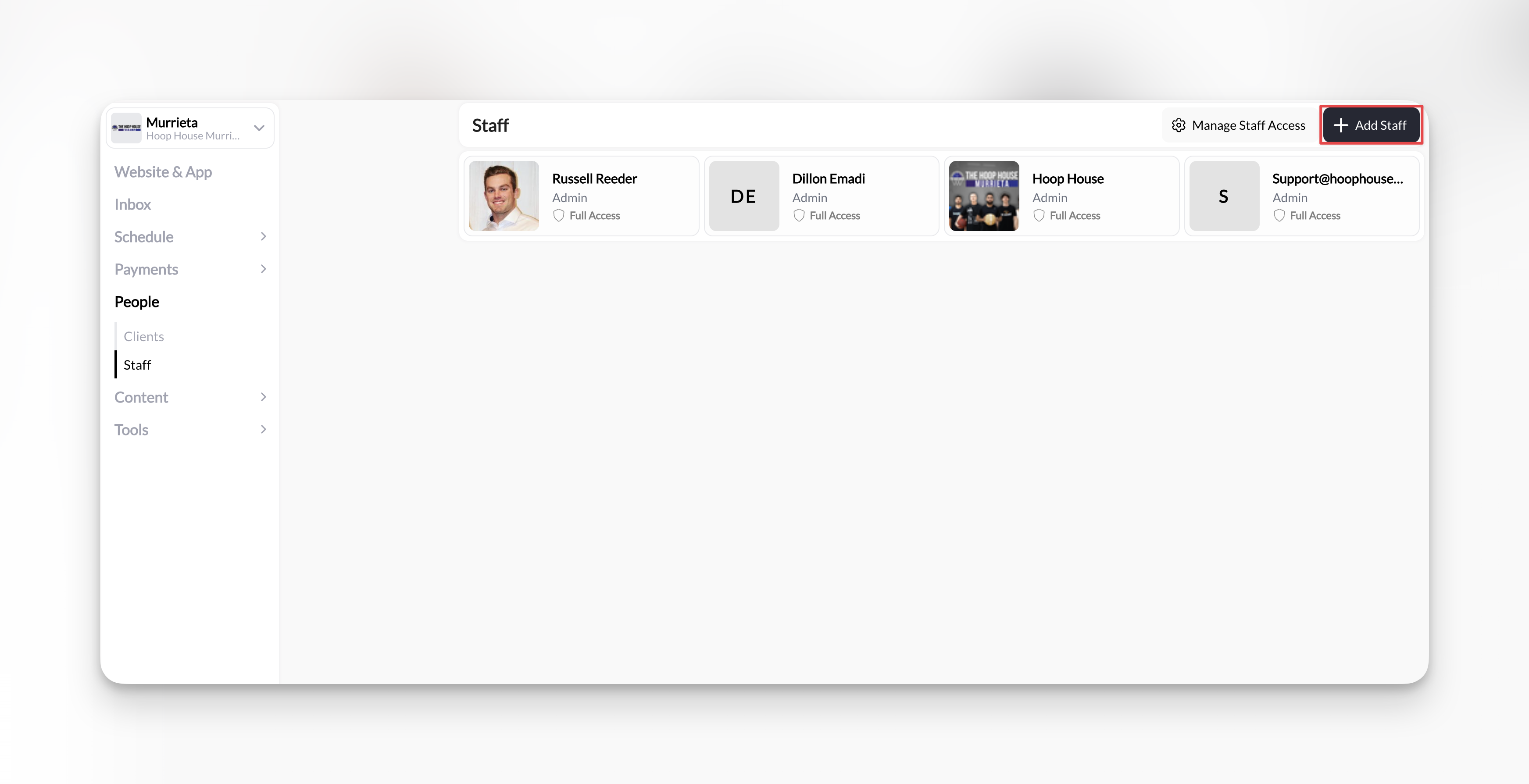
From the People section, click the **Staff** tab at the top.
The Staff tab is only visible to Admin users.
In the top-right corner, click the **+ Add Staff** button.
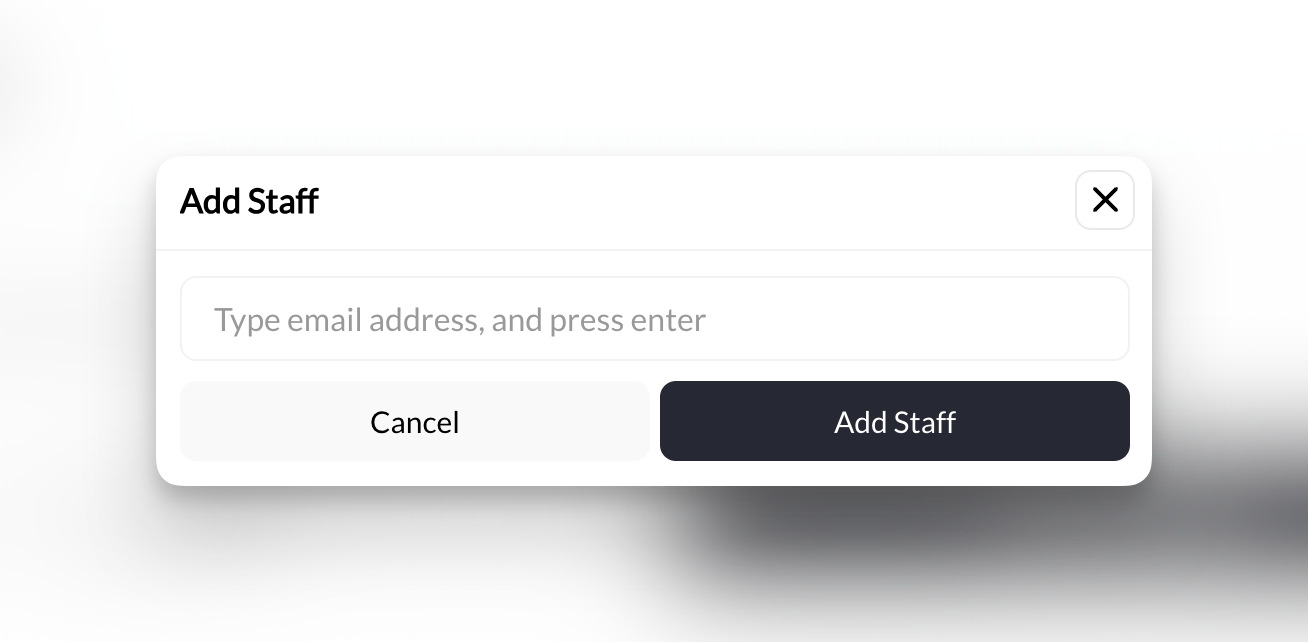
 Type the email address of the person you want to add and press Enter or click **Add Staff**.
 **What happens:**
* Staff member is immediately added to your organization
* They'll appear in both Staff tab AND Clients tab
* Default role: **Coach** (with Limited Access)
* No email is sent - you'll need to tell them they've been added
Inform your new staff member:
"I've added you to our CoachIQ organization. Log in at **app.coachiq.io** with your email address. If you don't have a CoachIQ account, you'll be able to create one during login."
When they log in, CoachIQ automatically connects them to your organization and gives them access based on their role.
***
## Managing staff access (blocking pages)
Control which platform features ALL coaches can access with universal page blocking.
**Important**: Page blocks apply to ALL coaches equally, not individual staff members. Admins always have full access regardless of blocks.
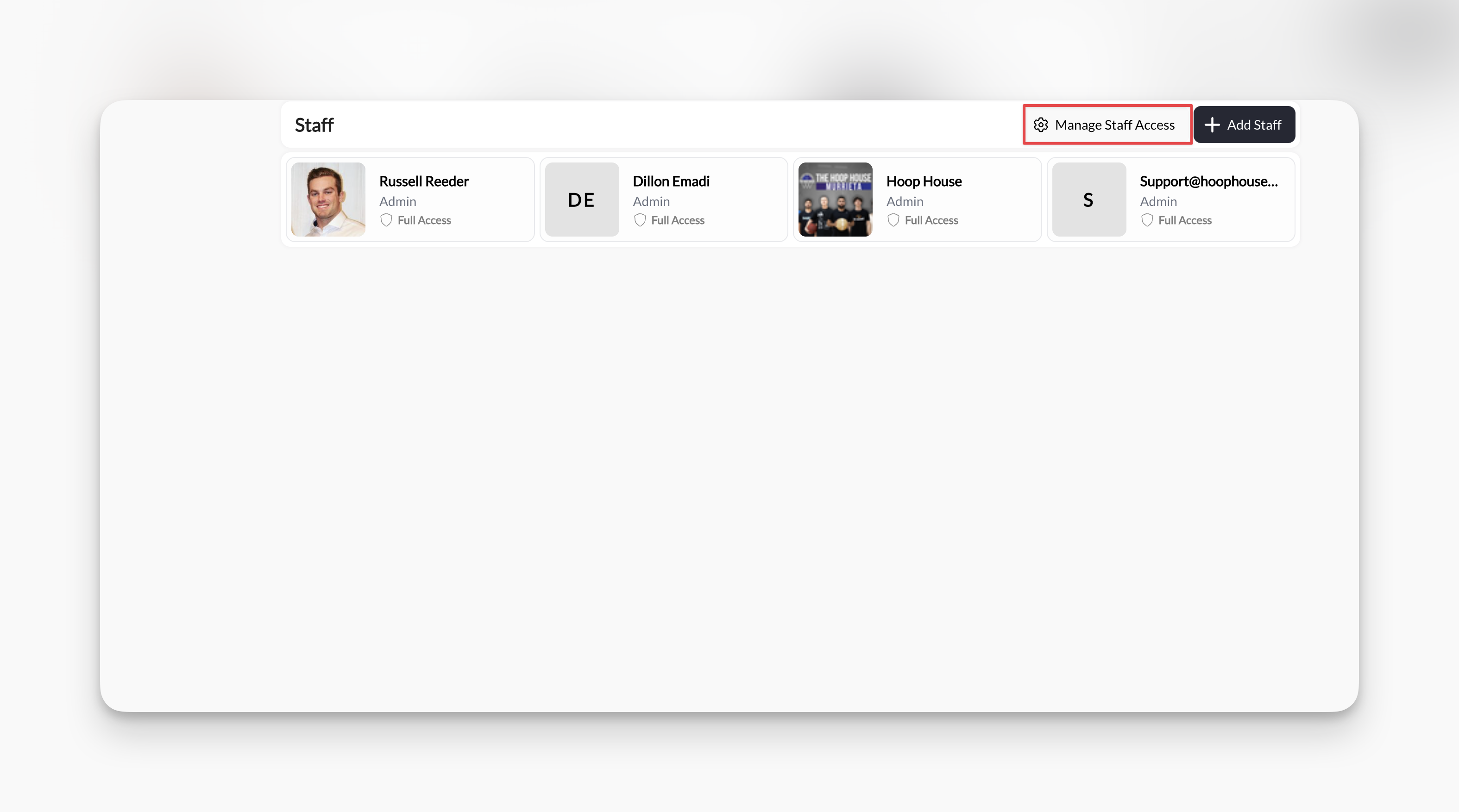
From the Staff tab, click **⚙️ Manage Staff Access** in the top-right corner.
**What happens:**
* Staff member is immediately added to your organization
* They'll appear in both Staff tab AND Clients tab
* Default role: **Coach** (with Limited Access)
* No email is sent - you'll need to tell them they've been added
Inform your new staff member:
"I've added you to our CoachIQ organization. Log in at **app.coachiq.io** with your email address. If you don't have a CoachIQ account, you'll be able to create one during login."
When they log in, CoachIQ automatically connects them to your organization and gives them access based on their role.
***
## Managing staff access (blocking pages)
Control which platform features ALL coaches can access with universal page blocking.
**Important**: Page blocks apply to ALL coaches equally, not individual staff members. Admins always have full access regardless of blocks.
From the Staff tab, click **⚙️ Manage Staff Access** in the top-right corner.
 In the "Block Access" dropdown, select pages you want to hide from all coaches.
**Available pages to block:**
* Website & App
* Inbox
* Schedule - Calendar
* Schedule - Schedulers
* Payments - Products
* Payments - Transactions
* Payments - Subscriptions
* Payments - Coupons
* People - Clients
* Content - Media
* Content - Programs
* Tools - Forms
* Tools - Automations
In the "Block Access" dropdown, select pages you want to hide from all coaches.
**Available pages to block:**
* Website & App
* Inbox
* Schedule - Calendar
* Schedule - Schedulers
* Payments - Products
* Payments - Transactions
* Payments - Subscriptions
* Payments - Coupons
* People - Clients
* Content - Media
* Content - Programs
* Tools - Forms
* Tools - Automations
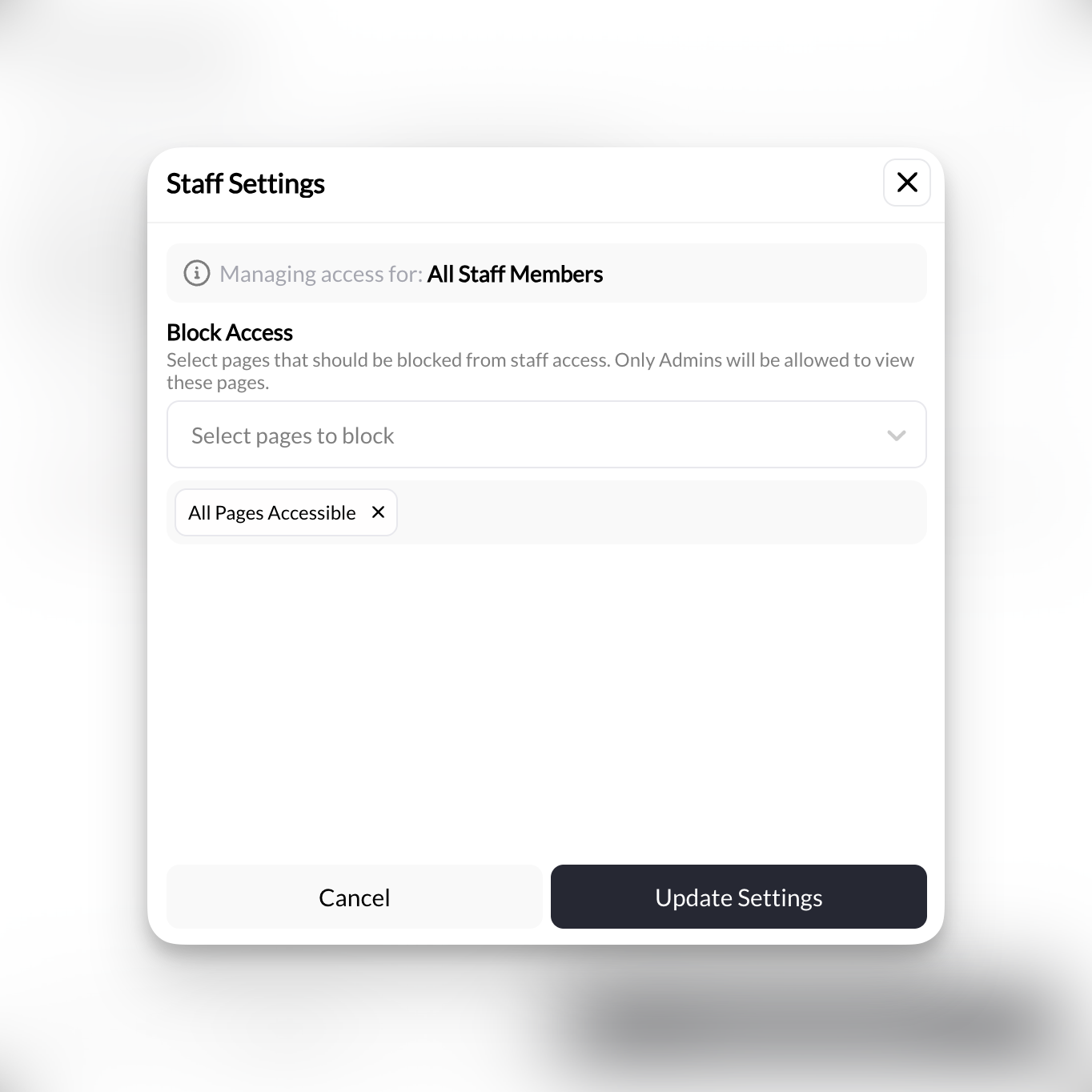 Click **Update Settings** to apply the blocks.
**What coaches see:**
* Blocked pages **completely disappear** from their navigation menu
* No grayed-out items, no error messages - just hidden
* They can only access pages you haven't blocked
### Common blocking scenarios
**Scenario**: Hiring first assistant coach who only delivers sessions
**Block:**
* ✅ Payments (all sections)
* ✅ Tools - Automations
* ✅ Website & App
* ✅ Tools - Forms
**Leave open:**
* ✅ Schedule (Calendar & Schedulers)
* ✅ People - Clients
* ✅ Inbox
* ✅ Content
**Why**: Assistant can book sessions, message clients, and access training content, but can't see revenue or change business settings.
**Scenario**: 3 coaches with different specialties, want them focused on delivery
**Block:**
* ✅ Payments - Transactions
* ✅ Payments - Subscriptions
* ✅ Payments - Coupons
* ✅ Tools - Automations
* ✅ Website & App
**Leave open:**
* ✅ Schedule (full access for availability management)
* ✅ People - Clients (view athlete details)
* ✅ Inbox (client communication)
* ✅ Content (program delivery)
* ✅ Payments - Products (see pricing, but not revenue)
**Why**: Coaches manage their own schedules and communicate with athletes, but don't see financial data or configure automations.
**Scenario**: Lead coaches need more access than assistant coaches
**Option 1 - Make lead coaches Admins:**
* Lead coaches = Admin role (full access)
* Assistant coaches = Coach role with blocks
**Option 2 - Use minimal blocks:**
* Block only: Payments - Transactions, Payments - Subscriptions
* Leave everything else open
* Trust-based system for experienced staff
**Why**: At scale, having trusted lead coaches with Admin access simplifies operations. Block only sensitive financial data.
***
## Changing staff roles
Promote coaches to admins or demote admins to coaches as your team evolves.
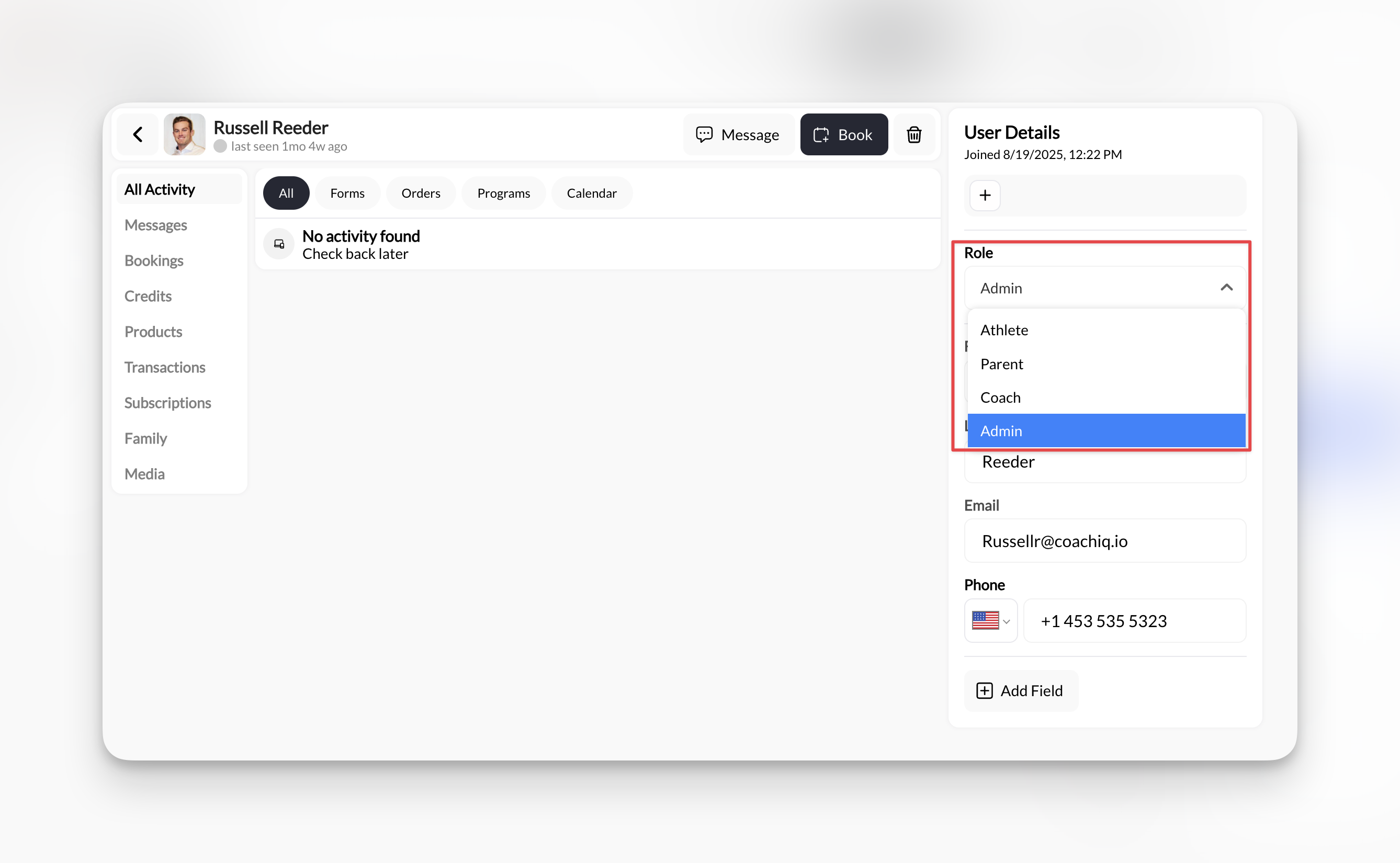
In the Staff tab, locate the person whose role you want to change.
Click on their card to open their full profile (same as client profiles).
Staff members appear in both the Staff tab and Clients tab with identical profiles.
In the **User Details** sidebar (right side), find the **Role** dropdown and change between:
* Admin
* Coach
Click **Update Settings** to apply the blocks.
**What coaches see:**
* Blocked pages **completely disappear** from their navigation menu
* No grayed-out items, no error messages - just hidden
* They can only access pages you haven't blocked
### Common blocking scenarios
**Scenario**: Hiring first assistant coach who only delivers sessions
**Block:**
* ✅ Payments (all sections)
* ✅ Tools - Automations
* ✅ Website & App
* ✅ Tools - Forms
**Leave open:**
* ✅ Schedule (Calendar & Schedulers)
* ✅ People - Clients
* ✅ Inbox
* ✅ Content
**Why**: Assistant can book sessions, message clients, and access training content, but can't see revenue or change business settings.
**Scenario**: 3 coaches with different specialties, want them focused on delivery
**Block:**
* ✅ Payments - Transactions
* ✅ Payments - Subscriptions
* ✅ Payments - Coupons
* ✅ Tools - Automations
* ✅ Website & App
**Leave open:**
* ✅ Schedule (full access for availability management)
* ✅ People - Clients (view athlete details)
* ✅ Inbox (client communication)
* ✅ Content (program delivery)
* ✅ Payments - Products (see pricing, but not revenue)
**Why**: Coaches manage their own schedules and communicate with athletes, but don't see financial data or configure automations.
**Scenario**: Lead coaches need more access than assistant coaches
**Option 1 - Make lead coaches Admins:**
* Lead coaches = Admin role (full access)
* Assistant coaches = Coach role with blocks
**Option 2 - Use minimal blocks:**
* Block only: Payments - Transactions, Payments - Subscriptions
* Leave everything else open
* Trust-based system for experienced staff
**Why**: At scale, having trusted lead coaches with Admin access simplifies operations. Block only sensitive financial data.
***
## Changing staff roles
Promote coaches to admins or demote admins to coaches as your team evolves.
In the Staff tab, locate the person whose role you want to change.
Click on their card to open their full profile (same as client profiles).
Staff members appear in both the Staff tab and Clients tab with identical profiles.
In the **User Details** sidebar (right side), find the **Role** dropdown and change between:
* Admin
* Coach
 **Effect is immediate:**
* **Coach → Admin**: Gains full access, bypasses all page blocks, "Limited Access" badge removed
* **Admin → Coach**: Subject to page blocks, "Limited Access" badge applied if blocks exist
**Be careful**: Changing someone to Admin gives them immediate access to all financial data, settings, and the ability to manage other staff.
***
## Staff profiles
Staff members have the same profile structure as clients with all the same tabs.
**What you can view:**
* **All Activity** - Everything they've done in the platform
* **Messages** - Conversation history
* **Bookings** - Sessions they're coaching or attending (if they also train)
* **Credits** - If they're both staff and a client
* **Products** - Purchases (if they're also a customer)
* **Transactions** - Revenue data (if applicable)
* **Family** - Linked family members
* **Media** - Content shared with them
**Use case**: If a staff member is ALSO a client (e.g., a coach who also trains with you), they appear in both tabs and have activity in both capacities.
***
## Removing staff members
Go to People → **Clients** (not Staff tab).
Staff members appear in both tabs, but deletion only works from Clients tab.
Locate the person you want to remove using search or filters.
Click on their card, change their role to parent or athlete
Click the **Trash Can** icon in profile header
**What happens:**
* Removed from both Staff and Clients tabs
* Loses access to your organization immediately
* Their created content (schedulers, bookings, messages) remains
***
## Common questions
No - page blocks apply to ALL coaches universally. If you need different permission levels, promote trusted coaches to Admin or use a trust-based system where everyone has similar access.
No problem. When they log in, CoachIQ automatically connects them to your organization. They'll see your org in their account switcher (if they work for multiple orgs).
No. CoachIQ doesn't send emails. You need to manually tell them they've been added and should log in at app.coachiq.io.
Only Admins can see the Staff tab. Coaches cannot view or manage other staff members.
All past bookings remain intact with the coach's name attached. Future bookings assigned to that coach stay in the calendar. You'll need to manually reassign or cancel them.
This depends on your CoachIQ plan. Check your billing settings or contact support for your specific limit.
Yes - technically you can remove admin/coach access by switching their role to a athlete or parent.
***
## Pro tips
**Start restrictive, then open up**: When hiring your first assistant coach, block most pages initially. As they prove themselves, gradually grant more access rather than taking access away later.
**Document your page blocks**: Keep a note of which pages you've blocked and why. This helps when onboarding new staff or troubleshooting access issues.
**Admin role for partners only**: Only make someone an Admin if they're a true business partner. Assistant coaches rarely need Admin access.
**Use role changes strategically**: Promote a coach to Admin temporarily if they need to handle something while you're away, then demote back to Coach after.
**Test their access**: After adding a new coach, ask them to log in while you're available to help troubleshoot any access questions.
***
## Related articles
Understand how staff profiles work (identical to client profiles)
Use tags to organize both clients and staff members
Advanced team management and permission settings
**Effect is immediate:**
* **Coach → Admin**: Gains full access, bypasses all page blocks, "Limited Access" badge removed
* **Admin → Coach**: Subject to page blocks, "Limited Access" badge applied if blocks exist
**Be careful**: Changing someone to Admin gives them immediate access to all financial data, settings, and the ability to manage other staff.
***
## Staff profiles
Staff members have the same profile structure as clients with all the same tabs.
**What you can view:**
* **All Activity** - Everything they've done in the platform
* **Messages** - Conversation history
* **Bookings** - Sessions they're coaching or attending (if they also train)
* **Credits** - If they're both staff and a client
* **Products** - Purchases (if they're also a customer)
* **Transactions** - Revenue data (if applicable)
* **Family** - Linked family members
* **Media** - Content shared with them
**Use case**: If a staff member is ALSO a client (e.g., a coach who also trains with you), they appear in both tabs and have activity in both capacities.
***
## Removing staff members
Go to People → **Clients** (not Staff tab).
Staff members appear in both tabs, but deletion only works from Clients tab.
Locate the person you want to remove using search or filters.
Click on their card, change their role to parent or athlete
Click the **Trash Can** icon in profile header
**What happens:**
* Removed from both Staff and Clients tabs
* Loses access to your organization immediately
* Their created content (schedulers, bookings, messages) remains
***
## Common questions
No - page blocks apply to ALL coaches universally. If you need different permission levels, promote trusted coaches to Admin or use a trust-based system where everyone has similar access.
No problem. When they log in, CoachIQ automatically connects them to your organization. They'll see your org in their account switcher (if they work for multiple orgs).
No. CoachIQ doesn't send emails. You need to manually tell them they've been added and should log in at app.coachiq.io.
Only Admins can see the Staff tab. Coaches cannot view or manage other staff members.
All past bookings remain intact with the coach's name attached. Future bookings assigned to that coach stay in the calendar. You'll need to manually reassign or cancel them.
This depends on your CoachIQ plan. Check your billing settings or contact support for your specific limit.
Yes - technically you can remove admin/coach access by switching their role to a athlete or parent.
***
## Pro tips
**Start restrictive, then open up**: When hiring your first assistant coach, block most pages initially. As they prove themselves, gradually grant more access rather than taking access away later.
**Document your page blocks**: Keep a note of which pages you've blocked and why. This helps when onboarding new staff or troubleshooting access issues.
**Admin role for partners only**: Only make someone an Admin if they're a true business partner. Assistant coaches rarely need Admin access.
**Use role changes strategically**: Promote a coach to Admin temporarily if they need to handle something while you're away, then demote back to Coach after.
**Test their access**: After adding a new coach, ask them to log in while you're available to help troubleshoot any access questions.
***
## Related articles
Understand how staff profiles work (identical to client profiles)
Use tags to organize both clients and staff members
Advanced team management and permission settings