> ## Documentation Index
> Fetch the complete documentation index at: https://help.coachiq.io/llms.txt
> Use this file to discover all available pages before exploring further.
# Advanced Scheduler Settings: Coaches, Locations & Reminders
> Configure coaches, locations, and automated reminders to complete your scheduler setup and improve the booking experience.
**Where to find this**: Schedule → Schedulers → \[Select Scheduler] → Edit → Advanced Settings
## What you'll accomplish
Complete your scheduler configuration by assigning coaches, setting session locations, and configuring automated reminders. These settings add the final operational details that make your schedulers ready for real-world use.
**Success criteria**: Your scheduler has the right coaches assigned, a clear location for athletes, and automated reminders configured to reduce no-shows.
## Before you begin
**Required**: You must have a scheduler already created. This article covers settings you configure AFTER basic scheduler creation. If you haven't created a scheduler yet, see [Creating Your First Scheduler](/scheduling/creating-your-first-scheduler).
**These settings covered in other articles**:
* Capacity, booking limits, cancellation policies → [Scheduler Settings: Limits & Permissions](/scheduling/scheduler-settings-limits-and-permissions)
* Buffer time and scheduling windows → Also covered in Limits & Permissions article
* Payment configuration → [Payment Options](/scheduling/setting-up-payment-options)
***
## Setting 1: Connected coaches
Assign which coaches can deliver sessions from this scheduler.
### What it does
**Connected Coaches** links coaches to specific schedulers for two purposes:
1. **Clarity**: Shows which coaches deliver which services
2. **Double-booking prevention**: Prevents the same coach from being booked in multiple places at the same time
**Critical to understand**: Athletes **CANNOT choose their preferred coach** when booking. This is purely administrative assignment and conflict prevention.
### How coach assignment works
**Key concept**: Coaches don't have individual availability calendars in the traditional sense. Instead, their availability is determined by:
* Which schedulers they're assigned to
* The availability template those schedulers use
* Their existing bookings
**Example**:
* Coach Sarah is assigned to "Private Training" scheduler
* "Private Training" uses "Weekday Afternoons" availability (Mon-Fri, 2pm-6pm)
* Therefore, Coach Sarah is available Mon-Fri 2pm-6pm for private training sessions
**Most common setup**: One coach per scheduler
**When to use**:
* You're a solo coach
* Each scheduler represents one specific coach's service
* You want clear coach-to-service relationships
**Configuration**:
1. Edit scheduler
2. Connected Coaches section
3. Select your name
4. Save
**Result**: All bookings from this scheduler are for you
**Advanced setup**: Multiple coaches on one scheduler
**When to use**:
* Team of coaches offering the same service
* Coaches are interchangeable for this service type
* Need system to prevent double-booking across schedulers
**How it works**:
* All assigned coaches share the same availability template
* When a time slot is booked, the system assigns ONE coach
* That coach is blocked from other bookings at that time
* Other coaches remain available for that time slot
**Example scenario**:
```
Scheduler: "Small Group Training"
Assigned Coaches: Mike, Sarah, John
Availability: Mon-Fri 5pm-8pm
Capacity: 6 athletes per session
Booking: 6 athletes book Monday 6pm
System assigns: Coach Mike
Result:
- Mike is blocked Monday 6pm (even on other schedulers)
- Sarah and John still available Monday 6pm
- If 6 more athletes book Monday 6pm, Sarah or John assigned
```
**Important**: Athletes don't choose which coach. System assigns based on availability. If coach preference matters to your business, create separate schedulers per coach instead.
### When to use multiple coaches per scheduler
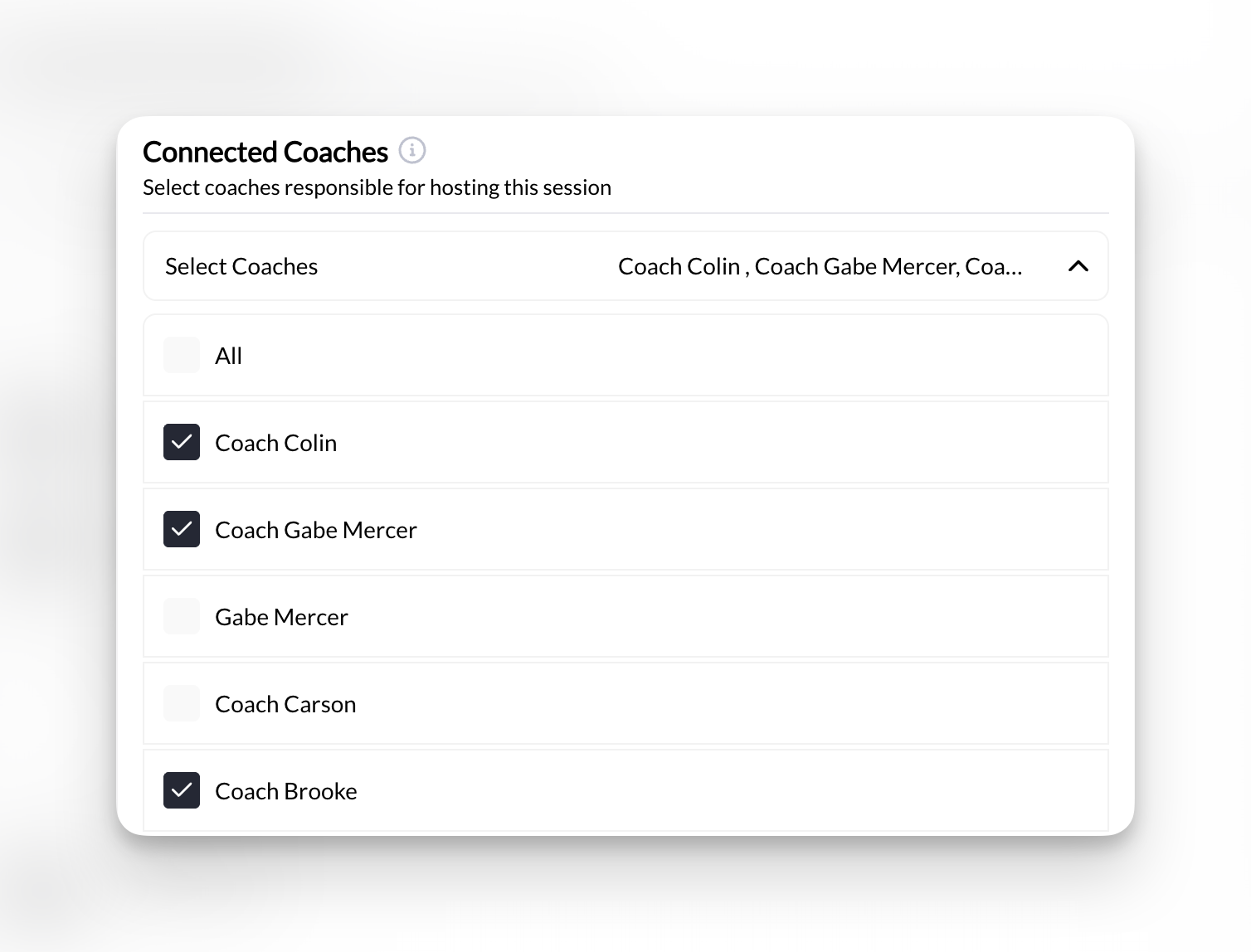 **Appropriate scenarios**:
1. **Interchangeable service delivery**
* All coaches teach same style/methodology
* Service quality consistent across coaches
* Athletes comfortable with any coach
2. **Team-based facilities**
* Facility has multiple staff coaches
* "House" style coaching approach
* Athletes book the service, not the coach
3. **Scale operations**
* Need multiple coaches to meet demand
* Can't have one coach as bottleneck
* Want flexible staffing
**Example**:
* "Foundation Group Class"
* Assigned: 5 coaches
* Why: Any coach can run the standardized curriculum
* Result: More class capacity, flexible staffing
**When NOT to use multiple coaches**:
1. **Coach-specific expertise**
* Coaches have different specialties
* Athletes choose based on coach expertise
* Services aren't interchangeable
2. **Different pricing**
* Senior coach charges \$100/session
* Junior coach charges \$75/session
* Need separate schedulers to handle different pricing
3. **Brand differentiation**
* Coaches have personal brands
* Athletes seek specific coaches
* Coach identity matters to booking decision
**Solution**: Create coach-specific schedulers
* "Private Training with Coach Mike - \$100"
* "Private Training with Coach Sarah - \$85"
* Each scheduler has one coach assigned
* Athletes explicitly choose their coach
**Rule of thumb**: If an athlete would say "I want to train with Mike specifically," use separate schedulers. If they'd say "I want to do a group class," multiple coaches on one scheduler is fine.
### Double-booking prevention
**How the system protects coaches**:
When you assign Coach Sarah to multiple schedulers, the system tracks her across ALL of them:
**Example scenario**:
```
Coach Sarah assigned to:
- "Private Training" scheduler
- "Small Group Class" scheduler
- "Assessment Session" scheduler
Monday 3pm: Athlete books private training
System assigns: Coach Sarah
Result: Sarah is blocked at 3pm across ALL schedulers
If someone tries to book:
- Small Group Class Monday 3pm → Sarah can't be assigned (already booked)
- System assigns different coach OR slot shows unavailable
Purpose: Prevents Sarah from being double-booked
```
**Optional override**: There's a setting "Allow double-booking" (checkbox)
* **Unchecked** (default): System prevents double-booking ✅
* **Checked**: System allows double-booking (NOT recommended)
**Leave "Allow double-booking" unchecked** unless you have a specific reason. Allowing double-booking defeats the purpose of coach assignment and leads to scheduling conflicts.
### Configuration steps
**Appropriate scenarios**:
1. **Interchangeable service delivery**
* All coaches teach same style/methodology
* Service quality consistent across coaches
* Athletes comfortable with any coach
2. **Team-based facilities**
* Facility has multiple staff coaches
* "House" style coaching approach
* Athletes book the service, not the coach
3. **Scale operations**
* Need multiple coaches to meet demand
* Can't have one coach as bottleneck
* Want flexible staffing
**Example**:
* "Foundation Group Class"
* Assigned: 5 coaches
* Why: Any coach can run the standardized curriculum
* Result: More class capacity, flexible staffing
**When NOT to use multiple coaches**:
1. **Coach-specific expertise**
* Coaches have different specialties
* Athletes choose based on coach expertise
* Services aren't interchangeable
2. **Different pricing**
* Senior coach charges \$100/session
* Junior coach charges \$75/session
* Need separate schedulers to handle different pricing
3. **Brand differentiation**
* Coaches have personal brands
* Athletes seek specific coaches
* Coach identity matters to booking decision
**Solution**: Create coach-specific schedulers
* "Private Training with Coach Mike - \$100"
* "Private Training with Coach Sarah - \$85"
* Each scheduler has one coach assigned
* Athletes explicitly choose their coach
**Rule of thumb**: If an athlete would say "I want to train with Mike specifically," use separate schedulers. If they'd say "I want to do a group class," multiple coaches on one scheduler is fine.
### Double-booking prevention
**How the system protects coaches**:
When you assign Coach Sarah to multiple schedulers, the system tracks her across ALL of them:
**Example scenario**:
```
Coach Sarah assigned to:
- "Private Training" scheduler
- "Small Group Class" scheduler
- "Assessment Session" scheduler
Monday 3pm: Athlete books private training
System assigns: Coach Sarah
Result: Sarah is blocked at 3pm across ALL schedulers
If someone tries to book:
- Small Group Class Monday 3pm → Sarah can't be assigned (already booked)
- System assigns different coach OR slot shows unavailable
Purpose: Prevents Sarah from being double-booked
```
**Optional override**: There's a setting "Allow double-booking" (checkbox)
* **Unchecked** (default): System prevents double-booking ✅
* **Checked**: System allows double-booking (NOT recommended)
**Leave "Allow double-booking" unchecked** unless you have a specific reason. Allowing double-booking defeats the purpose of coach assignment and leads to scheduling conflicts.
### Configuration steps
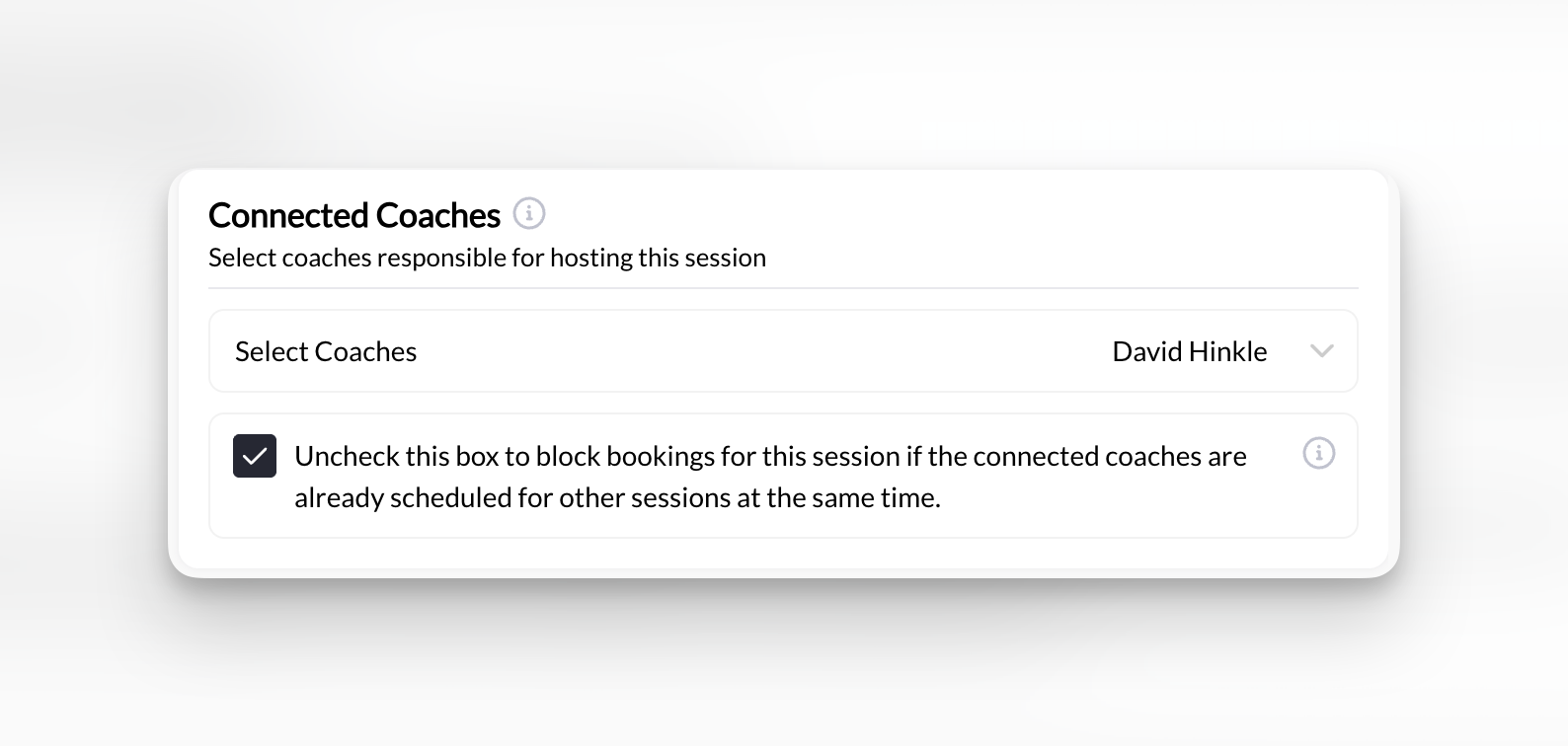 1. Go to **Schedule → Schedulers**
2. Click on the scheduler you want to edit
3. Find **Connected Coaches** section
1. Click **Add Coach** or dropdown menu
2. Select coach from your organization's roster
3. Repeat to add multiple coaches (if applicable)
**Can't find a coach?** They must be added to your organization first in **People → Staff** before appearing in scheduler coach selection.
1. Locate "Allow double-booking" checkbox
2. **Leave unchecked** (recommended) to prevent conflicts
3. Only check if you have specific business need for double-booking
**When you might check it**:
* Coach can genuinely handle two things at once (rare)
* Testing scheduling scenarios
* Special override situations
**Default**: Leave unchecked for proper conflict prevention
Click **Save** or **Update Scheduler**
**Verification**: Selected coaches now appear in the scheduler's coach list. Test book a session to confirm coach assignment works.
### Common coach assignment scenarios
**Setup**:
* You're the only coach
* Create 5 different schedulers (Private 30-min, Private 60-min, Group Class, etc.)
* Assign yourself to ALL of them
**Result**:
* You're the coach for everything
* System prevents you from being double-booked across schedulers
* If someone books Private Training 3pm, Group Class 3pm becomes unavailable
**Why this matters**: Even as solo coach, proper assignment prevents scheduling conflicts
**Setup**:
* 4 coaches on staff
* All coaches can run group classes
* Only 2 coaches do private training
**Configuration**:
* "Group Class" scheduler → Assign all 4 coaches
* "Private Training" scheduler → Assign only 2 specialized coaches
**Result**:
* Group classes have 4 coaches available (high capacity)
* Private training has 2 coaches available (specialized service)
* System prevents double-booking for each coach
**Benefit**: Match coach assignment to expertise and service needs
**Setup**:
* 3 coaches with personal followings
* Athletes want to book specific coaches
* Different expertise/styles
**Configuration**:
* "Private Training - Coach Mike" → Assign only Mike
* "Private Training - Coach Sarah" → Assign only Sarah
* "Private Training - Coach John" → Assign only John
**Result**:
* Athletes choose their coach by selecting scheduler
* Each coach has own pricing/availability
* Clear coach differentiation
**When to use**: Personal training businesses where coach identity matters
**Setup**:
* Gym with 8 instructors
* Any instructor can teach any class
* Need maximum flexibility
**Configuration**:
* "Monday 6am Bootcamp" → Assign all 8 instructors
* "Monday 6pm Yoga" → Assign all 8 instructors
* System assigns based on availability
**Result**:
* High coverage (8 instructors available)
* Flexible scheduling (no single-point-of-failure)
* System handles assignment automatically
**Benefit**: Maximum operational flexibility for large facilities
***
## Setting 2: Session locations
Set where sessions take place.
### What it does
**Location setting** specifies the physical address where sessions from this scheduler occur. This helps athletes know where to show up and provides clarity for logistics planning.
**Critical limitation**: **One location per scheduler**. If you train at multiple locations, you'll need separate schedulers for each.
### Configuration options
**Location field accepts**: Physical street addresses only
* ✅ Full street address (123 Main St, City, State, ZIP)
* ✅ Facility name + address
* ✅ Landmark or building name
* ❌ No virtual meeting links (can't add Zoom URLs here)
### When location settings matter
**Your setup**: Athletes come to your fixed location
**Configuration**:
* Location: Your facility address
* Athletes see this when booking
* Everyone knows where to go
**Example**:
```
Location: Elite Training Center
123 Fitness Blvd
Los Angeles, CA 90210
```
**Best practice**: Include parking instructions, entrance details in scheduler description (not location field)
**Add helpful details**: In your scheduler description, mention parking, which entrance to use, or check-in procedures. Location field is for address only.
**Your setup**: You go to athlete's location
**Configuration options**:
**Option 1: Use general area**
```
Location: Los Angeles Area
(You travel to athlete's home/gym)
```
**Option 2: Leave location blank**
* Add note in description: "Mobile training - coach travels to your location"
* Clarify logistics in booking confirmation
**Option 3: Create location-specific schedulers**
```
"Private Training - West LA" → Location: West LA area
"Private Training - Downtown" → Location: Downtown area
```
**Why separate schedulers**: Helps you manage travel logistics and group clients geographically
**Communication tip**: For mobile training, send message after booking to confirm athlete's exact address and any access details (gate codes, parking, etc.).
**Your setup**: You train at 3 different facilities
**Problem**: One scheduler can only have one location
**Solution**: Create location-specific schedulers
**Example**:
```
Scheduler: "Private Training - Main Gym"
Location: 123 Main St, Springfield
Scheduler: "Private Training - North Location"
Location: 456 North Ave, Springfield
Scheduler: "Private Training - Studio B"
Location: 789 Studio Rd, Springfield
```
**Result**:
* Athletes choose location by selecting scheduler
* Clear location for each booking
* You can manage availability per location
**Alternative**: Use availability templates per location
* Create "Main Gym Availability" template
* Create "North Location Availability" template
* Assign appropriate template to each scheduler
**Facility owners**: Location-specific schedulers are essential for multi-site operations. Consider also using location-specific programs to group all schedulers by location.
**Your setup**: Sessions via video call (Zoom, Google Meet, etc.)
**Problem**: Location field doesn't accept virtual links
**Solutions**:
**Option 1: Generic virtual indicator**
```
Location: Virtual Session
(Add Zoom link in booking confirmation email)
```
**Option 2: Leave location blank**
* Add in description: "Virtual training via Zoom"
* Send meeting link after booking
**Option 3: Use "Online" as location**
```
Location: Online Training
```
**Best practice**:
* Send virtual meeting link in booking confirmation
* Include link in automated reminders
* Add backup contact method in case of tech issues
**Don't add meeting links in location field** - they may not format correctly. Use confirmation emails and reminders to deliver virtual meeting links instead.
### Setting your location
1. Go to **Schedule → Schedulers**
2. Click on the scheduler you want to edit
3. Find **Connected Coaches** section
1. Click **Add Coach** or dropdown menu
2. Select coach from your organization's roster
3. Repeat to add multiple coaches (if applicable)
**Can't find a coach?** They must be added to your organization first in **People → Staff** before appearing in scheduler coach selection.
1. Locate "Allow double-booking" checkbox
2. **Leave unchecked** (recommended) to prevent conflicts
3. Only check if you have specific business need for double-booking
**When you might check it**:
* Coach can genuinely handle two things at once (rare)
* Testing scheduling scenarios
* Special override situations
**Default**: Leave unchecked for proper conflict prevention
Click **Save** or **Update Scheduler**
**Verification**: Selected coaches now appear in the scheduler's coach list. Test book a session to confirm coach assignment works.
### Common coach assignment scenarios
**Setup**:
* You're the only coach
* Create 5 different schedulers (Private 30-min, Private 60-min, Group Class, etc.)
* Assign yourself to ALL of them
**Result**:
* You're the coach for everything
* System prevents you from being double-booked across schedulers
* If someone books Private Training 3pm, Group Class 3pm becomes unavailable
**Why this matters**: Even as solo coach, proper assignment prevents scheduling conflicts
**Setup**:
* 4 coaches on staff
* All coaches can run group classes
* Only 2 coaches do private training
**Configuration**:
* "Group Class" scheduler → Assign all 4 coaches
* "Private Training" scheduler → Assign only 2 specialized coaches
**Result**:
* Group classes have 4 coaches available (high capacity)
* Private training has 2 coaches available (specialized service)
* System prevents double-booking for each coach
**Benefit**: Match coach assignment to expertise and service needs
**Setup**:
* 3 coaches with personal followings
* Athletes want to book specific coaches
* Different expertise/styles
**Configuration**:
* "Private Training - Coach Mike" → Assign only Mike
* "Private Training - Coach Sarah" → Assign only Sarah
* "Private Training - Coach John" → Assign only John
**Result**:
* Athletes choose their coach by selecting scheduler
* Each coach has own pricing/availability
* Clear coach differentiation
**When to use**: Personal training businesses where coach identity matters
**Setup**:
* Gym with 8 instructors
* Any instructor can teach any class
* Need maximum flexibility
**Configuration**:
* "Monday 6am Bootcamp" → Assign all 8 instructors
* "Monday 6pm Yoga" → Assign all 8 instructors
* System assigns based on availability
**Result**:
* High coverage (8 instructors available)
* Flexible scheduling (no single-point-of-failure)
* System handles assignment automatically
**Benefit**: Maximum operational flexibility for large facilities
***
## Setting 2: Session locations
Set where sessions take place.
### What it does
**Location setting** specifies the physical address where sessions from this scheduler occur. This helps athletes know where to show up and provides clarity for logistics planning.
**Critical limitation**: **One location per scheduler**. If you train at multiple locations, you'll need separate schedulers for each.
### Configuration options
**Location field accepts**: Physical street addresses only
* ✅ Full street address (123 Main St, City, State, ZIP)
* ✅ Facility name + address
* ✅ Landmark or building name
* ❌ No virtual meeting links (can't add Zoom URLs here)
### When location settings matter
**Your setup**: Athletes come to your fixed location
**Configuration**:
* Location: Your facility address
* Athletes see this when booking
* Everyone knows where to go
**Example**:
```
Location: Elite Training Center
123 Fitness Blvd
Los Angeles, CA 90210
```
**Best practice**: Include parking instructions, entrance details in scheduler description (not location field)
**Add helpful details**: In your scheduler description, mention parking, which entrance to use, or check-in procedures. Location field is for address only.
**Your setup**: You go to athlete's location
**Configuration options**:
**Option 1: Use general area**
```
Location: Los Angeles Area
(You travel to athlete's home/gym)
```
**Option 2: Leave location blank**
* Add note in description: "Mobile training - coach travels to your location"
* Clarify logistics in booking confirmation
**Option 3: Create location-specific schedulers**
```
"Private Training - West LA" → Location: West LA area
"Private Training - Downtown" → Location: Downtown area
```
**Why separate schedulers**: Helps you manage travel logistics and group clients geographically
**Communication tip**: For mobile training, send message after booking to confirm athlete's exact address and any access details (gate codes, parking, etc.).
**Your setup**: You train at 3 different facilities
**Problem**: One scheduler can only have one location
**Solution**: Create location-specific schedulers
**Example**:
```
Scheduler: "Private Training - Main Gym"
Location: 123 Main St, Springfield
Scheduler: "Private Training - North Location"
Location: 456 North Ave, Springfield
Scheduler: "Private Training - Studio B"
Location: 789 Studio Rd, Springfield
```
**Result**:
* Athletes choose location by selecting scheduler
* Clear location for each booking
* You can manage availability per location
**Alternative**: Use availability templates per location
* Create "Main Gym Availability" template
* Create "North Location Availability" template
* Assign appropriate template to each scheduler
**Facility owners**: Location-specific schedulers are essential for multi-site operations. Consider also using location-specific programs to group all schedulers by location.
**Your setup**: Sessions via video call (Zoom, Google Meet, etc.)
**Problem**: Location field doesn't accept virtual links
**Solutions**:
**Option 1: Generic virtual indicator**
```
Location: Virtual Session
(Add Zoom link in booking confirmation email)
```
**Option 2: Leave location blank**
* Add in description: "Virtual training via Zoom"
* Send meeting link after booking
**Option 3: Use "Online" as location**
```
Location: Online Training
```
**Best practice**:
* Send virtual meeting link in booking confirmation
* Include link in automated reminders
* Add backup contact method in case of tech issues
**Don't add meeting links in location field** - they may not format correctly. Use confirmation emails and reminders to deliver virtual meeting links instead.
### Setting your location
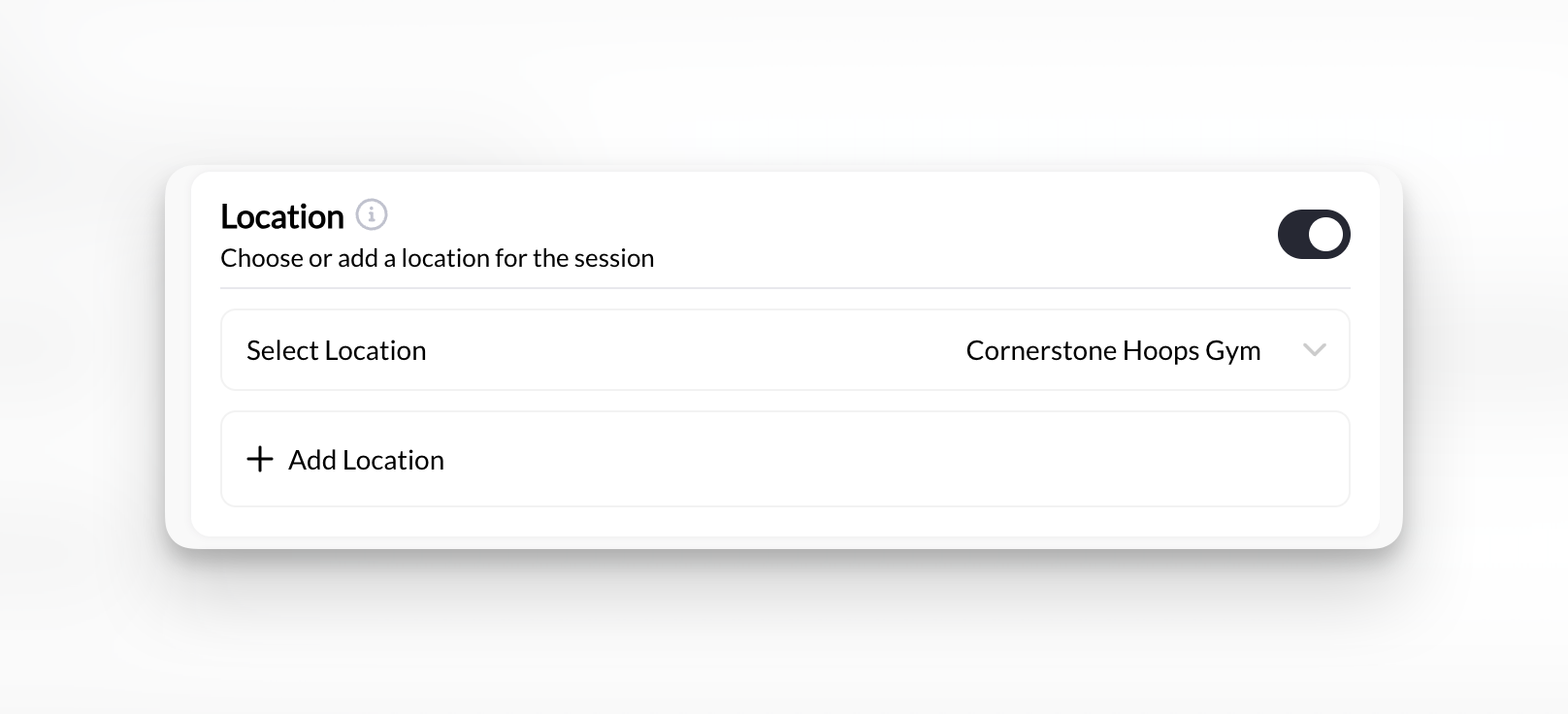 1. Go to **Schedule → Schedulers**
2. Click on the scheduler to edit
3. Find **Location** section
1. Click in the Location field
2. Type your physical address
3. System may auto-complete if recognized
**Format examples**:
* `123 Main Street, Los Angeles, CA 90210`
* `Elite Fitness Center, 456 Gym Rd, Suite 100, Chicago, IL 60601`
* `Downtown Training Facility, 789 Wellness Way, Austin, TX 78701`
While the location field is for addresses only, use your **scheduler description** to add helpful context:
```
Description example:
"60-minute private training at our downtown facility.
Parking available in rear lot. Enter through main entrance
and check in at front desk."
```
**Include in description, not location field**:
* Parking instructions
* Entrance details
* Check-in procedures
* Facility access codes
* Public transit options
Click **Save** or **Update Scheduler**
**Test**:
* View booking page as an athlete
* Confirm location displays correctly
* Check that address is clear and complete
**Success**: Location appears on athlete booking page, providing clear direction on where to show up.
### Common location mistakes
**Mistake**: Location field says "Los Angeles" or "My gym"
**Problem**:
* Athletes don't know exact address
* Can't map directions
* Causes confusion and potential no-shows
**Fix**: Use complete street address
```
❌ Bad: "Los Angeles"
✅ Good: "Elite Training, 123 Main St, Los Angeles, CA 90210"
```
**Mistake**: One "Private Training" scheduler used for 3 different facilities
**Problem**:
* Location field only shows one address
* Athletes book expecting Location A, you show up at Location B
* Scheduling chaos
**Fix**: Create location-specific schedulers
```
Instead of:
- "Private Training" (location unclear)
Use:
- "Private Training - Main Gym" (123 Main St)
- "Private Training - North Studio" (456 North Ave)
- "Private Training - West Facility" (789 West Rd)
```
**Mistake**: Pasting `https://zoom.us/j/123456789` in location field
**Problem**:
* Field not designed for URLs
* May not format or clickable
* Looks unprofessional
**Fix**:
* Location field: "Virtual Session" or "Online Training"
* Send Zoom link via booking confirmation email
* Include in automated reminders
* Add to session details after booking
***
## Setting 3: Automated reminders
Configure automatic notifications that remind athletes about upcoming sessions.
### What it does
**Automated reminders** send notifications to athletes before their scheduled sessions. This reduces no-shows and helps athletes remember their commitments.
**Important note**: Reminder settings in CoachIQ are **account-wide**, not scheduler-specific. When you configure reminders, they apply to all schedulers across your account.
### Reminder configuration options
**Pre-set timing choices**:
* 1 week before session
* 1 day before session
* 6 hours before session
* 1 hour before session
* 30 minutes before session
**Custom timing**: You can also set custom reminder windows (e.g., 2 days before, 3 hours before, etc.)
**Multiple reminders**: You can enable multiple reminders per session
**Example configuration**:
* First reminder: 1 day before
* Second reminder: 1 hour before
* Result: Athletes get two reminders for each session
**Available channels**:
* ✅ SMS (text message)
* ✅ Email
* ✅ In-app notification (push notification if athlete has app)
**You can choose**:
* Single channel (SMS only)
* Multiple channels (SMS + Email)
* All three channels (SMS + Email + Push)
**Recommendation**: Use at least two channels (SMS + Email) for maximum reach
**SMS is most effective**: Text messages have \~98% open rates compared to \~20% for emails. If you can only choose one, choose SMS.
**Key feature**: You can customize the message content
**What you control**:
* The message text/body
* Tone and language
* Additional instructions or details
**What you DON'T control**:
* Message formatting (system templates handle this)
* Dynamic fields (athlete name, time, date auto-insert)
**Example custom message**:
```
"Hi {athlete_name}, this is Coach Mike reminding you about
your training session tomorrow at {time}. Please arrive 5
minutes early. Bring water and your training log. See you soon!"
```
**Template variables available**:
* `{athlete_name}` - Athlete's first name
* `{time}` - Session time
* `{date}` - Session date
* `{location}` - Session location
**CoachIQ does NOT provide pre-written message templates**. You write your own reminder messages. This gives you full control over your brand voice and messaging.
### Reminder best practices
**Recommended approach**: 2 reminders per session
**Optimal timing**:
1. **First reminder**: 24 hours before
* Gives athletes time to reschedule if needed
* Respects your cancellation policy window
* Top-of-mind reminder
2. **Second reminder**: 1-2 hours before
* Last-minute nudge
* "Leave now" reminder
* Reduces day-of no-shows
**Why not more?**
* 3+ reminders feels excessive
* Can annoy athletes
* Diminishing returns
**Why not fewer?**
* 1 reminder = higher no-show rate
* Athletes need both advance notice + day-of nudge
**Data-driven**: Track your no-show rate with different reminder configurations. Start with 2 reminders (24hr + 1hr) and adjust based on results.
**Effective reminder messages include**:
1. **Clear session details**
* When: Date and time
* Where: Location
* What: Session type
2. **Action items**
* What to bring
* When to arrive
* How to prepare
3. **Cancellation reminder** (for 24hr reminder)
* "If you need to reschedule, please cancel by \[time] to avoid losing your credit"
4. **Personal touch**
* Coach name
* Encouraging message
* Brand voice
**Example 24-hour reminder**:
```
Hi {athlete_name}! Coach Sarah here.
Your 60-min training session is tomorrow at {time} at
Elite Fitness (123 Main St).
Please bring:
- Water bottle
- Training shoes
- Completed exercise log
Need to reschedule? Cancel by 3pm today to get your
credit refunded.
Can't wait to train with you tomorrow! 💪
```
**Example 1-hour reminder**:
```
{athlete_name}, your session with Coach Sarah starts
in 1 hour at {time}.
Address: Elite Fitness, 123 Main St
Parking: Available in rear lot
See you soon!
```
**SMS only**:
* ✅ High open rates
* ✅ Immediate delivery
* ❌ Cost per message (SMS fees)
* ❌ Character limits
**Email only**:
* ✅ No per-message cost
* ✅ Can include more detail/formatting
* ❌ Lower open rates
* ❌ May end up in spam
**SMS + Email** (Recommended):
* ✅ Maximum reach
* ✅ Redundancy if one channel fails
* ✅ Athletes can choose preference
* ❌ Slightly higher costs
**SMS + Email + Push**:
* ✅ Covers all bases
* ✅ Athletes with app get push notifications
* ❌ May feel like overkill to some athletes
**Recommended**: Start with SMS + Email for critical reminders (24hr before), add push notifications if your athletes use the app
### Configuring reminders
1. Go to **Schedule → Schedulers**
2. Click on the scheduler to edit
3. Find **Location** section
1. Click in the Location field
2. Type your physical address
3. System may auto-complete if recognized
**Format examples**:
* `123 Main Street, Los Angeles, CA 90210`
* `Elite Fitness Center, 456 Gym Rd, Suite 100, Chicago, IL 60601`
* `Downtown Training Facility, 789 Wellness Way, Austin, TX 78701`
While the location field is for addresses only, use your **scheduler description** to add helpful context:
```
Description example:
"60-minute private training at our downtown facility.
Parking available in rear lot. Enter through main entrance
and check in at front desk."
```
**Include in description, not location field**:
* Parking instructions
* Entrance details
* Check-in procedures
* Facility access codes
* Public transit options
Click **Save** or **Update Scheduler**
**Test**:
* View booking page as an athlete
* Confirm location displays correctly
* Check that address is clear and complete
**Success**: Location appears on athlete booking page, providing clear direction on where to show up.
### Common location mistakes
**Mistake**: Location field says "Los Angeles" or "My gym"
**Problem**:
* Athletes don't know exact address
* Can't map directions
* Causes confusion and potential no-shows
**Fix**: Use complete street address
```
❌ Bad: "Los Angeles"
✅ Good: "Elite Training, 123 Main St, Los Angeles, CA 90210"
```
**Mistake**: One "Private Training" scheduler used for 3 different facilities
**Problem**:
* Location field only shows one address
* Athletes book expecting Location A, you show up at Location B
* Scheduling chaos
**Fix**: Create location-specific schedulers
```
Instead of:
- "Private Training" (location unclear)
Use:
- "Private Training - Main Gym" (123 Main St)
- "Private Training - North Studio" (456 North Ave)
- "Private Training - West Facility" (789 West Rd)
```
**Mistake**: Pasting `https://zoom.us/j/123456789` in location field
**Problem**:
* Field not designed for URLs
* May not format or clickable
* Looks unprofessional
**Fix**:
* Location field: "Virtual Session" or "Online Training"
* Send Zoom link via booking confirmation email
* Include in automated reminders
* Add to session details after booking
***
## Setting 3: Automated reminders
Configure automatic notifications that remind athletes about upcoming sessions.
### What it does
**Automated reminders** send notifications to athletes before their scheduled sessions. This reduces no-shows and helps athletes remember their commitments.
**Important note**: Reminder settings in CoachIQ are **account-wide**, not scheduler-specific. When you configure reminders, they apply to all schedulers across your account.
### Reminder configuration options
**Pre-set timing choices**:
* 1 week before session
* 1 day before session
* 6 hours before session
* 1 hour before session
* 30 minutes before session
**Custom timing**: You can also set custom reminder windows (e.g., 2 days before, 3 hours before, etc.)
**Multiple reminders**: You can enable multiple reminders per session
**Example configuration**:
* First reminder: 1 day before
* Second reminder: 1 hour before
* Result: Athletes get two reminders for each session
**Available channels**:
* ✅ SMS (text message)
* ✅ Email
* ✅ In-app notification (push notification if athlete has app)
**You can choose**:
* Single channel (SMS only)
* Multiple channels (SMS + Email)
* All three channels (SMS + Email + Push)
**Recommendation**: Use at least two channels (SMS + Email) for maximum reach
**SMS is most effective**: Text messages have \~98% open rates compared to \~20% for emails. If you can only choose one, choose SMS.
**Key feature**: You can customize the message content
**What you control**:
* The message text/body
* Tone and language
* Additional instructions or details
**What you DON'T control**:
* Message formatting (system templates handle this)
* Dynamic fields (athlete name, time, date auto-insert)
**Example custom message**:
```
"Hi {athlete_name}, this is Coach Mike reminding you about
your training session tomorrow at {time}. Please arrive 5
minutes early. Bring water and your training log. See you soon!"
```
**Template variables available**:
* `{athlete_name}` - Athlete's first name
* `{time}` - Session time
* `{date}` - Session date
* `{location}` - Session location
**CoachIQ does NOT provide pre-written message templates**. You write your own reminder messages. This gives you full control over your brand voice and messaging.
### Reminder best practices
**Recommended approach**: 2 reminders per session
**Optimal timing**:
1. **First reminder**: 24 hours before
* Gives athletes time to reschedule if needed
* Respects your cancellation policy window
* Top-of-mind reminder
2. **Second reminder**: 1-2 hours before
* Last-minute nudge
* "Leave now" reminder
* Reduces day-of no-shows
**Why not more?**
* 3+ reminders feels excessive
* Can annoy athletes
* Diminishing returns
**Why not fewer?**
* 1 reminder = higher no-show rate
* Athletes need both advance notice + day-of nudge
**Data-driven**: Track your no-show rate with different reminder configurations. Start with 2 reminders (24hr + 1hr) and adjust based on results.
**Effective reminder messages include**:
1. **Clear session details**
* When: Date and time
* Where: Location
* What: Session type
2. **Action items**
* What to bring
* When to arrive
* How to prepare
3. **Cancellation reminder** (for 24hr reminder)
* "If you need to reschedule, please cancel by \[time] to avoid losing your credit"
4. **Personal touch**
* Coach name
* Encouraging message
* Brand voice
**Example 24-hour reminder**:
```
Hi {athlete_name}! Coach Sarah here.
Your 60-min training session is tomorrow at {time} at
Elite Fitness (123 Main St).
Please bring:
- Water bottle
- Training shoes
- Completed exercise log
Need to reschedule? Cancel by 3pm today to get your
credit refunded.
Can't wait to train with you tomorrow! 💪
```
**Example 1-hour reminder**:
```
{athlete_name}, your session with Coach Sarah starts
in 1 hour at {time}.
Address: Elite Fitness, 123 Main St
Parking: Available in rear lot
See you soon!
```
**SMS only**:
* ✅ High open rates
* ✅ Immediate delivery
* ❌ Cost per message (SMS fees)
* ❌ Character limits
**Email only**:
* ✅ No per-message cost
* ✅ Can include more detail/formatting
* ❌ Lower open rates
* ❌ May end up in spam
**SMS + Email** (Recommended):
* ✅ Maximum reach
* ✅ Redundancy if one channel fails
* ✅ Athletes can choose preference
* ❌ Slightly higher costs
**SMS + Email + Push**:
* ✅ Covers all bases
* ✅ Athletes with app get push notifications
* ❌ May feel like overkill to some athletes
**Recommended**: Start with SMS + Email for critical reminders (24hr before), add push notifications if your athletes use the app
### Configuring reminders
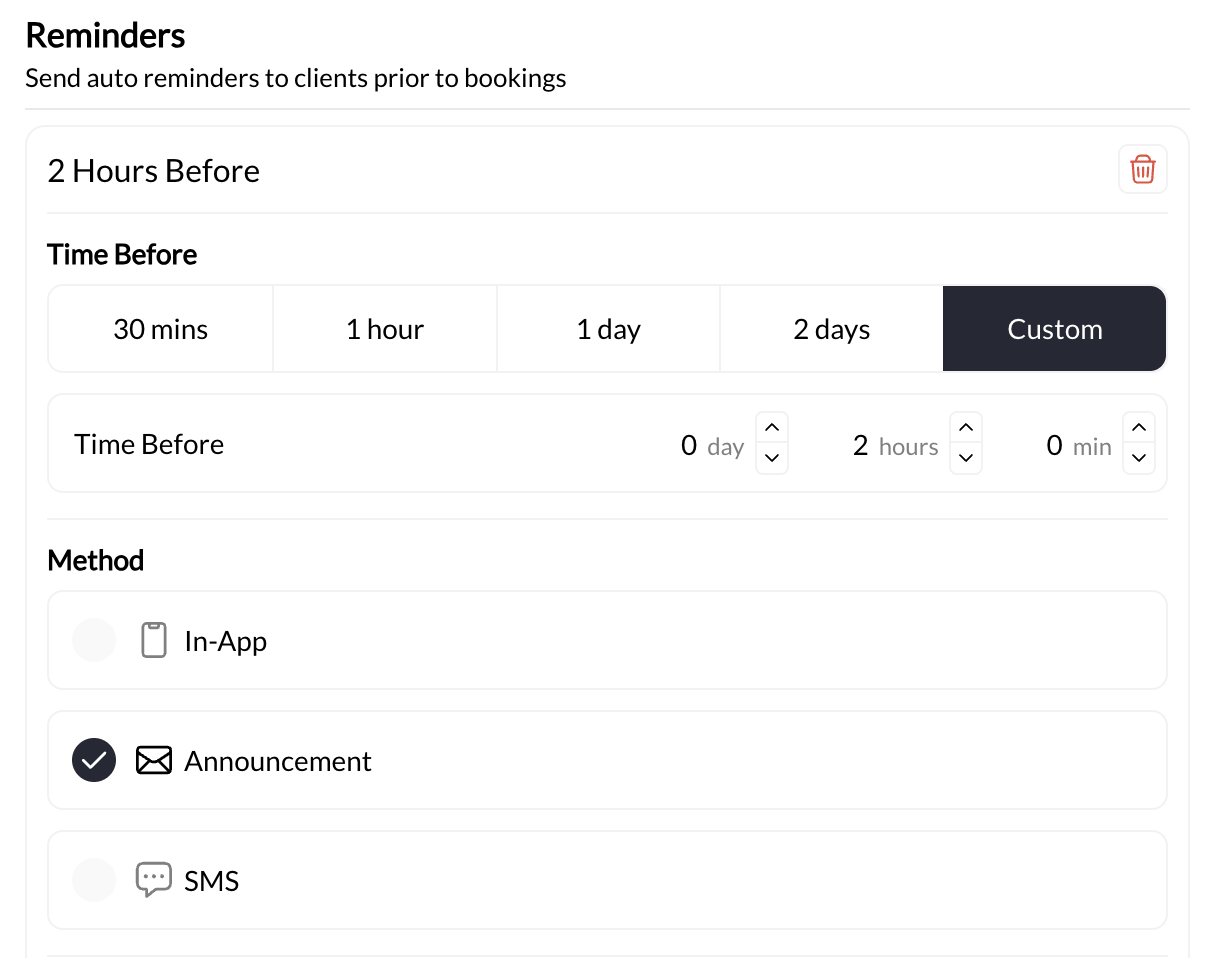 **Navigation**: Settings → Notifications → Automated Reminders
(Note: This is account-wide, not per-scheduler)
1. Toggle **Automated Reminders** to ON
2. System will now send reminders for all bookings
1. Click **Add Reminder**
2. Select timing from dropdown (or choose custom)
3. Repeat to add additional reminders
**Example setup**:
* Reminder 1: 1 day before
* Reminder 2: 1 hour before
For each reminder, select:
* SMS
* Email
* Push notification
**Recommendation**: Check SMS and Email for both reminders
1. Click **Edit Message** for each reminder
2. Write your custom message text
3. Use template variables: `{athlete_name}`, `{time}`, `{date}`, `{location}`
4. Keep SMS messages under 160 characters if possible (avoids multi-part messages)
**SMS character limits**: Messages over 160 characters are sent as multiple messages and may increase costs. For SMS reminders, be concise.
1. Click **Save** to apply reminder settings
2. Test by booking yourself for a session
3. Verify you receive reminders at configured times
**Success**: You receive test reminders via your chosen channels at the correct times before your test booking.
### Reminder troubleshooting
**Possible causes**:
1. **SMS not enabled**: Check Settings → Notifications → SMS is turned ON
2. **No phone number**: Athlete profile missing phone number
3. **Wrong phone number**: Phone number incorrect in athlete profile
4. **Carrier blocking**: Some carriers block automated SMS (rare)
5. **SMS credits depleted**: Account may need SMS credits topped up
**Fix**:
* Verify SMS is enabled account-wide
* Check athlete profile has valid phone number
* Test with your own number first
* Contact support if persistent issues
**Possible causes**:
1. **Timezone mismatch**: Account timezone doesn't match actual location
2. **Reminder timing misconfigured**: Set to wrong interval
**Fix**:
* Verify timezone: Settings → Account Settings → Timezone
* Double-check reminder timing: Should say "1 day before" not "1 day after"
* Test with upcoming session to verify timing
**Issue**: Athletes complaining about reminder frequency
**Too many reminders**:
* Reduce from 3+ reminders to 2 reminders
* Recommended: 24hr + 1hr only
**Too few reminders**:
* Increase from 1 reminder to 2 reminders
* Add both advance notice (24hr) and day-of (1hr) reminders
**Balance**: Monitor athlete feedback and no-show rates to find optimal frequency
**Possible causes**:
1. **Special characters**: Message contains characters that don't save properly
2. **Too long**: Message exceeds character limits
3. **Missing template variables**: Required variables not formatted correctly
**Fix**:
* Remove special characters (emojis, symbols)
* Shorten message if too long
* Verify template variables format: `{athlete_name}` not `athlete_name`
* Try saving simpler message first, then add complexity
### Impact of reminders on no-shows
**Expected results with automated reminders**:
| Scenario | No-Show Rate |
| ------------------------ | ---------------------- |
| No reminders | 25-35% |
| 1 reminder (24hr) | 15-20% |
| 2 reminders (24hr + 1hr) | 5-10% |
| 3+ reminders | 5-10% (no improvement) |
**Key insights**:
* First reminder = biggest impact (reduces no-shows by 50%)
* Second reminder = additional 30-40% reduction
* Third+ reminders = minimal additional benefit
**ROI consideration**: If your session value is $75 and reminders reduce no-shows from 25% to 10%, you're preventing $11.25 in lost revenue per session. If SMS costs \$0.02 per message, the ROI is 562x.
**Track your metrics**: Monitor no-show rate before and after implementing reminders. Most coaches see 50-70% reduction in no-shows with proper reminder configuration.
***
## Setting 4: Active/Inactive toggle
Control whether a scheduler is available for use.
### What it does
**Active/Inactive toggle** is an on/off switch for your scheduler:
* **Active**: Scheduler can be used (but still needs to be added to website/portal/shared via link)
* **Inactive**: Scheduler cannot be used or booked at all
**Important**: Even when Active, athletes can only book if you've:
1. Added scheduler to your website or athlete portal, OR
2. Shared the direct booking link with athletes
### When to use inactive status
**Scenario**: You offer "Outdoor Training" but it's winter and you're not running outdoor sessions for 3 months
**Solution**: Set "Outdoor Training" scheduler to Inactive
**What happens**:
* Scheduler still exists in your system
* Settings and configuration preserved
* Athletes cannot book (even if link was previously shared)
* When spring arrives, flip to Active and resume bookings
**Why not delete**: Deleting loses all settings. Inactive preserves everything for future reactivation.
**Scenario**: Creating new "Competition Prep Program" but not ready to accept bookings yet
**Solution**: Leave scheduler Inactive while configuring
**What happens**:
* You can configure all settings
* Test bookings (manual only)
* Preview how it looks
* When ready, flip to Active and add to website
**Why useful**: Allows preparation without athletes booking prematurely
**Scenario**: "Summer Camp" scheduler only used June-August
**Solution**: Active June-August, Inactive September-May
**What happens**:
* During active months: Athletes can book
* During inactive months: Scheduler hidden/unavailable
* Easy seasonal on/off control
**Alternative**: You could also use blackout dates, but Inactive is cleaner for long periods
**Scenario**: Trying new "Recovery Session" service, not sure if it'll work
**Solution**: Start Inactive, test with select athletes, activate if successful
**What happens**:
* Create scheduler (Inactive)
* Manually book a few test athletes
* Gather feedback
* If successful, flip to Active and promote widely
* If unsuccessful, delete or keep Inactive
**Why helpful**: Lets you test without public commitment
### Active vs. Inactive: What's the difference?
| Feature | Active | Inactive |
| ----------------------- | -------------------------------- | ------------ |
| **Athlete booking** | Yes (if added to website/portal) | No |
| **Manual booking** | Yes (you can book athletes) | No |
| **Settings preserved** | Yes | Yes |
| **Visible on website** | Yes (if added) | No |
| **Existing bookings** | Remain valid | Remain valid |
| **Direct link sharing** | Works | Doesn't work |
**Key insight**: Inactive doesn't delete the scheduler or cancel existing bookings. It just prevents new bookings.
### Setting active/inactive status
1. Go to **Schedule → Schedulers**
2. Find the scheduler you want to activate/deactivate
3. Click to edit
Look for **Active** or **Status** toggle (usually near top of settings)
**To activate**: Switch toggle to ON/Active **To deactivate**: Switch toggle to OFF/Inactive
Click **Save** or **Update Scheduler**
**Verification**:
* Active: Scheduler appears in your available schedulers list
* Inactive: Scheduler marked as inactive (may show with different color or badge)
### What happens to existing bookings when you deactivate?
**Important**: Setting a scheduler to Inactive does NOT:
* Cancel existing bookings
* Affect sessions already scheduled
* Remove bookings from your calendar
**Existing bookings**:
* ✅ Remain on your calendar
* ✅ Athletes can still attend
* ✅ Reminders still send
* ✅ Athletes can view their booking
**What changes**:
* ❌ No NEW bookings can be made
* ❌ Athletes can't book additional sessions
* ❌ Scheduler doesn't appear in athlete portal/website
**Example**:
1. You have "Summer Camp" scheduler with 50 bookings scheduled
2. You set it to Inactive on August 31
3. All 50 existing bookings remain valid and proceed normally
4. No new bookings can be made for future dates
***
## Setting 5: Other configuration options
Additional settings you might encounter in scheduler builder.
### Duration settings
**What it is**: Session length configuration
**Already covered**: Duration is configured during scheduler creation ([Creating Your First Scheduler](/scheduling/creating-your-first-scheduler))
**Options**:
* Preset durations: 15, 30, 45, 60, 90 minutes
* Custom duration: Enter any minute value
**When to adjust**: If you need to change session length after creation
**Quick reference**:
* Private training: 45-60 minutes typical
* Group classes: 45-60 minutes typical
* Assessments: 60-90 minutes typical
* Quick sessions: 15-30 minutes typical
**Note**: Changing duration ONLY affects future bookings. Existing bookings retain their original duration.
### Scheduler description
**What it is**: Public-facing description athletes see when viewing scheduler
**Best practices**:
* Explain what the session includes
* Set expectations (intensity level, format, what to bring)
* Include logistics (parking, arrival time, what to wear)
* Mention any prerequisites
**Example description**:
```
60-minute private training session focused on your specific
goals. Sessions include warm-up, strength training,
conditioning, and cool-down. Please bring water, towel,
and athletic shoes. Arrive 5 minutes early.
```
### Visibility settings
**What it is**: Control who can see/book this scheduler
**Typical options**:
* **Public**: Anyone with link can book
* **Members only**: Only athletes in your system
* **Specific groups**: Only certain athlete groups/teams
* **Private**: Only visible to you (manual booking only)
**Use cases**:
* Public: General services open to all
* Members only: Services for existing clients
* Specific groups: Team-specific training
* Private: VIP or by-invitation-only services
**Combine with Active/Inactive**: Set to Active + Private for invite-only services. Set to Active + Public for general open booking.
***
## Putting it all together: Complete configuration checklist
Before launching a scheduler, verify all advanced settings are configured:
### Pre-launch configuration checklist
**Check**:
* Correct coach(es) assigned to scheduler
* If multiple coaches, confirmed they're interchangeable for this service
* "Allow double-booking" is UNCHECKED (unless specific need)
* Tested that coach availability prevents conflicts
**Test**: Try booking overlapping sessions to confirm double-booking prevention works
**Check**:
* Physical address entered (if applicable)
* Address is complete (street, city, state, ZIP)
* Scheduler description includes additional logistics (parking, entrance, etc.)
* If mobile training, approach is clear to athletes
* If virtual training, process for sharing meeting link is established
**Test**: View booking page as athlete—is it crystal clear where to show up?
**Check**:
* Automated reminders enabled account-wide
* At least 2 reminders configured (24hr + 1hr recommended)
* SMS and/or email channels enabled
* Custom message written with your brand voice
* Template variables correctly formatted: `{athlete_name}`, `{time}`, etc.
* Test reminder sent and received successfully
**Test**: Book yourself for a session and confirm reminders arrive at correct times
**Check**:
* Scheduler set to Active (if ready for bookings)
* Or set to Inactive (if not ready yet or seasonal pause)
* Confirmed status matches your launch intention
**Test**: If Active, confirm scheduler appears in athlete portal/website. If Inactive, confirm it doesn't.
**Check**:
* Duration is correct
* Description is clear and informative
* Visibility settings match intended audience
* Capacity, limits, cancellation policy configured (from Article #11)
* Payment settings configured (from Article #10)
* Availability template assigned (from Articles #5-7)
**Final test**: Complete end-to-end test booking as an athlete
***
## Common configuration mistakes
**These mistakes cause 80% of advanced setting problems:**
### 1. No coach assigned
**Symptom**: Bookings failing or scheduler not working properly
**Fix**: Edit scheduler → Connected Coaches → Add coach → Save
### 2. Multiple locations in one scheduler
**Symptom**: Athletes confused about where to go
**Fix**: Create separate schedulers per location, each with specific address
### 3. "Allow double-booking" accidentally checked
**Symptom**: Same coach booked in two places at once, scheduling conflicts
**Fix**: Edit scheduler → Uncheck "Allow double-booking" → Save
### 4. Reminders not configured
**Symptom**: High no-show rates, athletes forgetting sessions
**Fix**: Settings → Notifications → Enable automated reminders with 24hr + 1hr timing
### 5. Scheduler Active but not added to portal/website
**Symptom**: Athletes can't find scheduler to book
**Fix**: Active status doesn't automatically display scheduler. You must:
* Add to athlete portal (App Builder → Schedule)
* Add to website (Website Builder → Embed scheduler)
* Or share direct booking link
**Remember**: Active = "can be used", but still needs to be made accessible to athletes
***
## Troubleshooting advanced settings
### Scheduler won't save changes
**Possible causes**:
1. Missing required fields (coach, availability, etc.)
2. Invalid location format
3. Browser/connection issue
**Fix**:
* Verify all required fields completed
* Try refreshing page and re-entering
* Try different browser
* Contact support if persistent
### Changes not appearing on booking page
**Possible causes**:
1. Didn't click Save after making changes
2. Browser cache showing old version
3. Changes only apply to future bookings, not existing
**Fix**:
* Confirm you clicked Save/Update
* Hard refresh browser (Ctrl+Shift+R or Cmd+Shift+R)
* Wait a few minutes for changes to propagate
* Check in incognito/private browsing mode
### Athletes reporting incorrect information
**Common issues**:
* Wrong location showing → Update location field
* Wrong coach name → Update connected coaches
* Outdated description → Update scheduler description
* Missing reminders → Configure account-wide reminder settings
**Fix**: Edit scheduler, update specific field, save, verify on athlete-facing booking page
***
## Next steps
Group multiple schedulers for better athlete navigation
View and manage all your scheduled sessions
Book athletes directly when needed
Advanced strategies for team-based scheduling
## Related articles
Basic scheduler setup before advanced settings
Capacity, booking limits, and cancellation policies
Configure pricing and payment methods
Create availability templates for schedulers
Block out unavailable dates
Fix common scheduler and booking issues
***
**Questions about advanced scheduler configuration?** Our support team can help you set up coaches, locations, and reminders optimized for your business. [Contact Support](https://support.coachiq.com)
**Navigation**: Settings → Notifications → Automated Reminders
(Note: This is account-wide, not per-scheduler)
1. Toggle **Automated Reminders** to ON
2. System will now send reminders for all bookings
1. Click **Add Reminder**
2. Select timing from dropdown (or choose custom)
3. Repeat to add additional reminders
**Example setup**:
* Reminder 1: 1 day before
* Reminder 2: 1 hour before
For each reminder, select:
* SMS
* Email
* Push notification
**Recommendation**: Check SMS and Email for both reminders
1. Click **Edit Message** for each reminder
2. Write your custom message text
3. Use template variables: `{athlete_name}`, `{time}`, `{date}`, `{location}`
4. Keep SMS messages under 160 characters if possible (avoids multi-part messages)
**SMS character limits**: Messages over 160 characters are sent as multiple messages and may increase costs. For SMS reminders, be concise.
1. Click **Save** to apply reminder settings
2. Test by booking yourself for a session
3. Verify you receive reminders at configured times
**Success**: You receive test reminders via your chosen channels at the correct times before your test booking.
### Reminder troubleshooting
**Possible causes**:
1. **SMS not enabled**: Check Settings → Notifications → SMS is turned ON
2. **No phone number**: Athlete profile missing phone number
3. **Wrong phone number**: Phone number incorrect in athlete profile
4. **Carrier blocking**: Some carriers block automated SMS (rare)
5. **SMS credits depleted**: Account may need SMS credits topped up
**Fix**:
* Verify SMS is enabled account-wide
* Check athlete profile has valid phone number
* Test with your own number first
* Contact support if persistent issues
**Possible causes**:
1. **Timezone mismatch**: Account timezone doesn't match actual location
2. **Reminder timing misconfigured**: Set to wrong interval
**Fix**:
* Verify timezone: Settings → Account Settings → Timezone
* Double-check reminder timing: Should say "1 day before" not "1 day after"
* Test with upcoming session to verify timing
**Issue**: Athletes complaining about reminder frequency
**Too many reminders**:
* Reduce from 3+ reminders to 2 reminders
* Recommended: 24hr + 1hr only
**Too few reminders**:
* Increase from 1 reminder to 2 reminders
* Add both advance notice (24hr) and day-of (1hr) reminders
**Balance**: Monitor athlete feedback and no-show rates to find optimal frequency
**Possible causes**:
1. **Special characters**: Message contains characters that don't save properly
2. **Too long**: Message exceeds character limits
3. **Missing template variables**: Required variables not formatted correctly
**Fix**:
* Remove special characters (emojis, symbols)
* Shorten message if too long
* Verify template variables format: `{athlete_name}` not `athlete_name`
* Try saving simpler message first, then add complexity
### Impact of reminders on no-shows
**Expected results with automated reminders**:
| Scenario | No-Show Rate |
| ------------------------ | ---------------------- |
| No reminders | 25-35% |
| 1 reminder (24hr) | 15-20% |
| 2 reminders (24hr + 1hr) | 5-10% |
| 3+ reminders | 5-10% (no improvement) |
**Key insights**:
* First reminder = biggest impact (reduces no-shows by 50%)
* Second reminder = additional 30-40% reduction
* Third+ reminders = minimal additional benefit
**ROI consideration**: If your session value is $75 and reminders reduce no-shows from 25% to 10%, you're preventing $11.25 in lost revenue per session. If SMS costs \$0.02 per message, the ROI is 562x.
**Track your metrics**: Monitor no-show rate before and after implementing reminders. Most coaches see 50-70% reduction in no-shows with proper reminder configuration.
***
## Setting 4: Active/Inactive toggle
Control whether a scheduler is available for use.
### What it does
**Active/Inactive toggle** is an on/off switch for your scheduler:
* **Active**: Scheduler can be used (but still needs to be added to website/portal/shared via link)
* **Inactive**: Scheduler cannot be used or booked at all
**Important**: Even when Active, athletes can only book if you've:
1. Added scheduler to your website or athlete portal, OR
2. Shared the direct booking link with athletes
### When to use inactive status
**Scenario**: You offer "Outdoor Training" but it's winter and you're not running outdoor sessions for 3 months
**Solution**: Set "Outdoor Training" scheduler to Inactive
**What happens**:
* Scheduler still exists in your system
* Settings and configuration preserved
* Athletes cannot book (even if link was previously shared)
* When spring arrives, flip to Active and resume bookings
**Why not delete**: Deleting loses all settings. Inactive preserves everything for future reactivation.
**Scenario**: Creating new "Competition Prep Program" but not ready to accept bookings yet
**Solution**: Leave scheduler Inactive while configuring
**What happens**:
* You can configure all settings
* Test bookings (manual only)
* Preview how it looks
* When ready, flip to Active and add to website
**Why useful**: Allows preparation without athletes booking prematurely
**Scenario**: "Summer Camp" scheduler only used June-August
**Solution**: Active June-August, Inactive September-May
**What happens**:
* During active months: Athletes can book
* During inactive months: Scheduler hidden/unavailable
* Easy seasonal on/off control
**Alternative**: You could also use blackout dates, but Inactive is cleaner for long periods
**Scenario**: Trying new "Recovery Session" service, not sure if it'll work
**Solution**: Start Inactive, test with select athletes, activate if successful
**What happens**:
* Create scheduler (Inactive)
* Manually book a few test athletes
* Gather feedback
* If successful, flip to Active and promote widely
* If unsuccessful, delete or keep Inactive
**Why helpful**: Lets you test without public commitment
### Active vs. Inactive: What's the difference?
| Feature | Active | Inactive |
| ----------------------- | -------------------------------- | ------------ |
| **Athlete booking** | Yes (if added to website/portal) | No |
| **Manual booking** | Yes (you can book athletes) | No |
| **Settings preserved** | Yes | Yes |
| **Visible on website** | Yes (if added) | No |
| **Existing bookings** | Remain valid | Remain valid |
| **Direct link sharing** | Works | Doesn't work |
**Key insight**: Inactive doesn't delete the scheduler or cancel existing bookings. It just prevents new bookings.
### Setting active/inactive status
1. Go to **Schedule → Schedulers**
2. Find the scheduler you want to activate/deactivate
3. Click to edit
Look for **Active** or **Status** toggle (usually near top of settings)
**To activate**: Switch toggle to ON/Active **To deactivate**: Switch toggle to OFF/Inactive
Click **Save** or **Update Scheduler**
**Verification**:
* Active: Scheduler appears in your available schedulers list
* Inactive: Scheduler marked as inactive (may show with different color or badge)
### What happens to existing bookings when you deactivate?
**Important**: Setting a scheduler to Inactive does NOT:
* Cancel existing bookings
* Affect sessions already scheduled
* Remove bookings from your calendar
**Existing bookings**:
* ✅ Remain on your calendar
* ✅ Athletes can still attend
* ✅ Reminders still send
* ✅ Athletes can view their booking
**What changes**:
* ❌ No NEW bookings can be made
* ❌ Athletes can't book additional sessions
* ❌ Scheduler doesn't appear in athlete portal/website
**Example**:
1. You have "Summer Camp" scheduler with 50 bookings scheduled
2. You set it to Inactive on August 31
3. All 50 existing bookings remain valid and proceed normally
4. No new bookings can be made for future dates
***
## Setting 5: Other configuration options
Additional settings you might encounter in scheduler builder.
### Duration settings
**What it is**: Session length configuration
**Already covered**: Duration is configured during scheduler creation ([Creating Your First Scheduler](/scheduling/creating-your-first-scheduler))
**Options**:
* Preset durations: 15, 30, 45, 60, 90 minutes
* Custom duration: Enter any minute value
**When to adjust**: If you need to change session length after creation
**Quick reference**:
* Private training: 45-60 minutes typical
* Group classes: 45-60 minutes typical
* Assessments: 60-90 minutes typical
* Quick sessions: 15-30 minutes typical
**Note**: Changing duration ONLY affects future bookings. Existing bookings retain their original duration.
### Scheduler description
**What it is**: Public-facing description athletes see when viewing scheduler
**Best practices**:
* Explain what the session includes
* Set expectations (intensity level, format, what to bring)
* Include logistics (parking, arrival time, what to wear)
* Mention any prerequisites
**Example description**:
```
60-minute private training session focused on your specific
goals. Sessions include warm-up, strength training,
conditioning, and cool-down. Please bring water, towel,
and athletic shoes. Arrive 5 minutes early.
```
### Visibility settings
**What it is**: Control who can see/book this scheduler
**Typical options**:
* **Public**: Anyone with link can book
* **Members only**: Only athletes in your system
* **Specific groups**: Only certain athlete groups/teams
* **Private**: Only visible to you (manual booking only)
**Use cases**:
* Public: General services open to all
* Members only: Services for existing clients
* Specific groups: Team-specific training
* Private: VIP or by-invitation-only services
**Combine with Active/Inactive**: Set to Active + Private for invite-only services. Set to Active + Public for general open booking.
***
## Putting it all together: Complete configuration checklist
Before launching a scheduler, verify all advanced settings are configured:
### Pre-launch configuration checklist
**Check**:
* Correct coach(es) assigned to scheduler
* If multiple coaches, confirmed they're interchangeable for this service
* "Allow double-booking" is UNCHECKED (unless specific need)
* Tested that coach availability prevents conflicts
**Test**: Try booking overlapping sessions to confirm double-booking prevention works
**Check**:
* Physical address entered (if applicable)
* Address is complete (street, city, state, ZIP)
* Scheduler description includes additional logistics (parking, entrance, etc.)
* If mobile training, approach is clear to athletes
* If virtual training, process for sharing meeting link is established
**Test**: View booking page as athlete—is it crystal clear where to show up?
**Check**:
* Automated reminders enabled account-wide
* At least 2 reminders configured (24hr + 1hr recommended)
* SMS and/or email channels enabled
* Custom message written with your brand voice
* Template variables correctly formatted: `{athlete_name}`, `{time}`, etc.
* Test reminder sent and received successfully
**Test**: Book yourself for a session and confirm reminders arrive at correct times
**Check**:
* Scheduler set to Active (if ready for bookings)
* Or set to Inactive (if not ready yet or seasonal pause)
* Confirmed status matches your launch intention
**Test**: If Active, confirm scheduler appears in athlete portal/website. If Inactive, confirm it doesn't.
**Check**:
* Duration is correct
* Description is clear and informative
* Visibility settings match intended audience
* Capacity, limits, cancellation policy configured (from Article #11)
* Payment settings configured (from Article #10)
* Availability template assigned (from Articles #5-7)
**Final test**: Complete end-to-end test booking as an athlete
***
## Common configuration mistakes
**These mistakes cause 80% of advanced setting problems:**
### 1. No coach assigned
**Symptom**: Bookings failing or scheduler not working properly
**Fix**: Edit scheduler → Connected Coaches → Add coach → Save
### 2. Multiple locations in one scheduler
**Symptom**: Athletes confused about where to go
**Fix**: Create separate schedulers per location, each with specific address
### 3. "Allow double-booking" accidentally checked
**Symptom**: Same coach booked in two places at once, scheduling conflicts
**Fix**: Edit scheduler → Uncheck "Allow double-booking" → Save
### 4. Reminders not configured
**Symptom**: High no-show rates, athletes forgetting sessions
**Fix**: Settings → Notifications → Enable automated reminders with 24hr + 1hr timing
### 5. Scheduler Active but not added to portal/website
**Symptom**: Athletes can't find scheduler to book
**Fix**: Active status doesn't automatically display scheduler. You must:
* Add to athlete portal (App Builder → Schedule)
* Add to website (Website Builder → Embed scheduler)
* Or share direct booking link
**Remember**: Active = "can be used", but still needs to be made accessible to athletes
***
## Troubleshooting advanced settings
### Scheduler won't save changes
**Possible causes**:
1. Missing required fields (coach, availability, etc.)
2. Invalid location format
3. Browser/connection issue
**Fix**:
* Verify all required fields completed
* Try refreshing page and re-entering
* Try different browser
* Contact support if persistent
### Changes not appearing on booking page
**Possible causes**:
1. Didn't click Save after making changes
2. Browser cache showing old version
3. Changes only apply to future bookings, not existing
**Fix**:
* Confirm you clicked Save/Update
* Hard refresh browser (Ctrl+Shift+R or Cmd+Shift+R)
* Wait a few minutes for changes to propagate
* Check in incognito/private browsing mode
### Athletes reporting incorrect information
**Common issues**:
* Wrong location showing → Update location field
* Wrong coach name → Update connected coaches
* Outdated description → Update scheduler description
* Missing reminders → Configure account-wide reminder settings
**Fix**: Edit scheduler, update specific field, save, verify on athlete-facing booking page
***
## Next steps
Group multiple schedulers for better athlete navigation
View and manage all your scheduled sessions
Book athletes directly when needed
Advanced strategies for team-based scheduling
## Related articles
Basic scheduler setup before advanced settings
Capacity, booking limits, and cancellation policies
Configure pricing and payment methods
Create availability templates for schedulers
Block out unavailable dates
Fix common scheduler and booking issues
***
**Questions about advanced scheduler configuration?** Our support team can help you set up coaches, locations, and reminders optimized for your business. [Contact Support](https://support.coachiq.com)