> ## Documentation Index
> Fetch the complete documentation index at: https://help.coachiq.io/llms.txt
> Use this file to discover all available pages before exploring further.
# Calendar: Your Scheduling Command Center
> Master calendar views, filtering, and navigation to manage all your sessions, bookings, and athletes efficiently.
**Where to find this**: Schedule → Calendar
 ## What you'll accomplish
Master the CoachIQ calendar to visualize your entire schedule, quickly find bookings, manage participants, and prevent conflicts. The calendar is your daily hub for seeing who's training when, what's booked, and where you have availability.
**Success**: You can switch between views, use filters to find specific sessions, navigate dates efficiently, and take quick actions without leaving the calendar.
## Understanding the calendar vs. schedulers
Before diving in, clarify the distinction between schedulers and the calendar:
| Schedulers | Calendar |
| ----------------------------------- | ------------------------------------- |
| **Templates** for bookable sessions | **Visual display** of actual bookings |
| Where you configure services | Where you see booked sessions |
| Set availability, pricing, rules | View who's booked when |
| Athletes book FROM schedulers | Results appear ON calendar |
**Think of it like**:
* **Schedulers** = Your menu of services available for booking
* **Calendar** = Your daily planner showing confirmed appointments
**Example flow**:
1. Create "60-Min Private Training" scheduler
2. Athlete books Tuesday 3pm from that scheduler
3. Booking appears on your calendar for Tuesday 3pm
***
## The four calendar views
CoachIQ offers four distinct views, each optimized for different tasks.
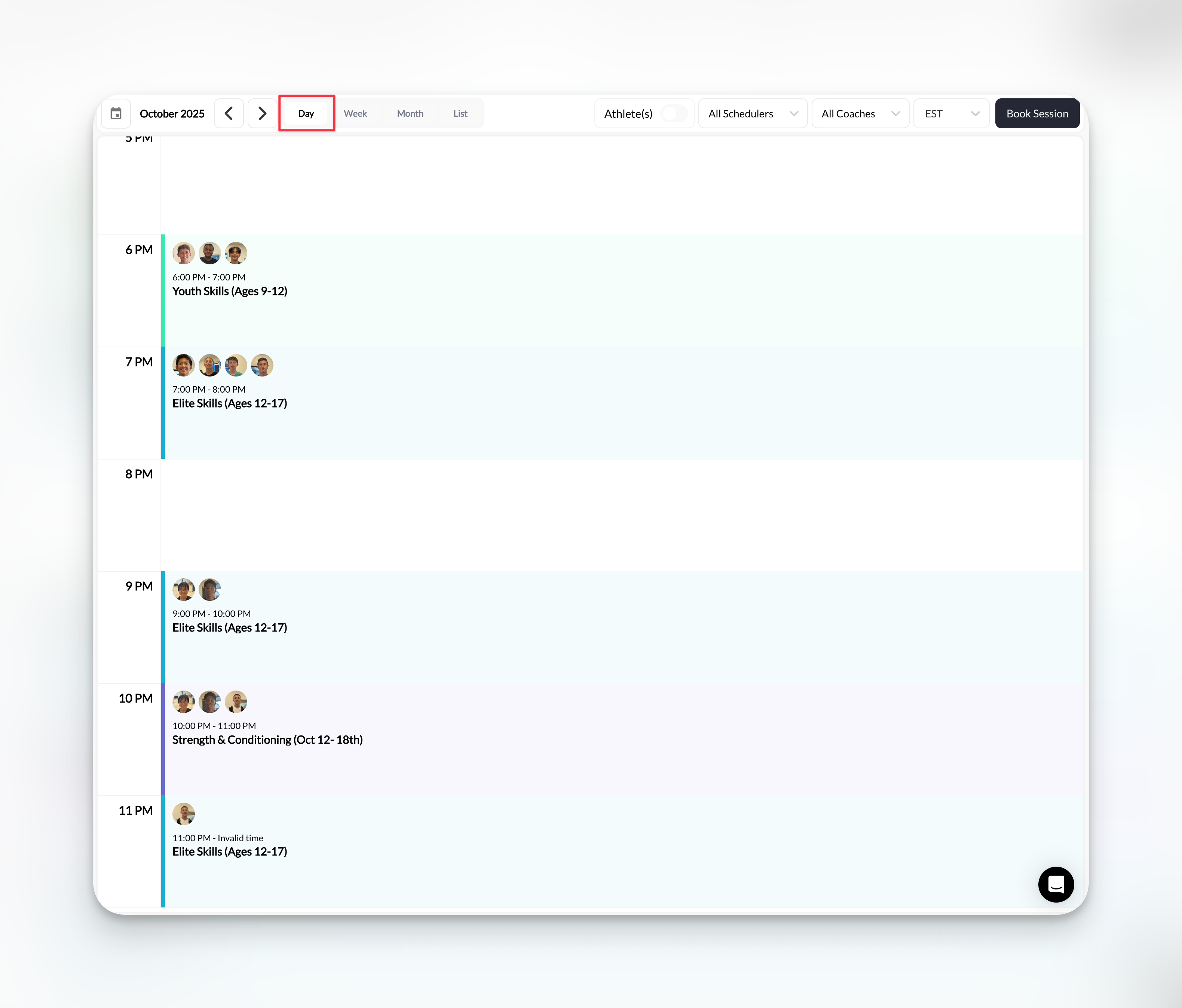
### Day View
**Best for**: Detailed hourly management, checking specific day logistics
**What you see**:
* Hour-by-hour grid for selected day
* All sessions with time blocks
* Participant initials in each session
* Session names and scheduler types
* Color-coded by scheduler
**When to use**:
* Morning prep: "What's happening today?"
* Detailed planning: "Can I fit one more session at 4pm?"
* Participant verification: "Who's in my 3pm session?"
**Navigation**:
* Click date picker to choose specific day
* Use arrows to move day-by-day
* Click "Today" to jump to current day
## What you'll accomplish
Master the CoachIQ calendar to visualize your entire schedule, quickly find bookings, manage participants, and prevent conflicts. The calendar is your daily hub for seeing who's training when, what's booked, and where you have availability.
**Success**: You can switch between views, use filters to find specific sessions, navigate dates efficiently, and take quick actions without leaving the calendar.
## Understanding the calendar vs. schedulers
Before diving in, clarify the distinction between schedulers and the calendar:
| Schedulers | Calendar |
| ----------------------------------- | ------------------------------------- |
| **Templates** for bookable sessions | **Visual display** of actual bookings |
| Where you configure services | Where you see booked sessions |
| Set availability, pricing, rules | View who's booked when |
| Athletes book FROM schedulers | Results appear ON calendar |
**Think of it like**:
* **Schedulers** = Your menu of services available for booking
* **Calendar** = Your daily planner showing confirmed appointments
**Example flow**:
1. Create "60-Min Private Training" scheduler
2. Athlete books Tuesday 3pm from that scheduler
3. Booking appears on your calendar for Tuesday 3pm
***
## The four calendar views
CoachIQ offers four distinct views, each optimized for different tasks.
### Day View
**Best for**: Detailed hourly management, checking specific day logistics
**What you see**:
* Hour-by-hour grid for selected day
* All sessions with time blocks
* Participant initials in each session
* Session names and scheduler types
* Color-coded by scheduler
**When to use**:
* Morning prep: "What's happening today?"
* Detailed planning: "Can I fit one more session at 4pm?"
* Participant verification: "Who's in my 3pm session?"
**Navigation**:
* Click date picker to choose specific day
* Use arrows to move day-by-day
* Click "Today" to jump to current day
 **Pro tip**: Day view is your morning ritual. Open it each morning to see the day's lineup, verify participants, and mentally prepare for sessions.
***
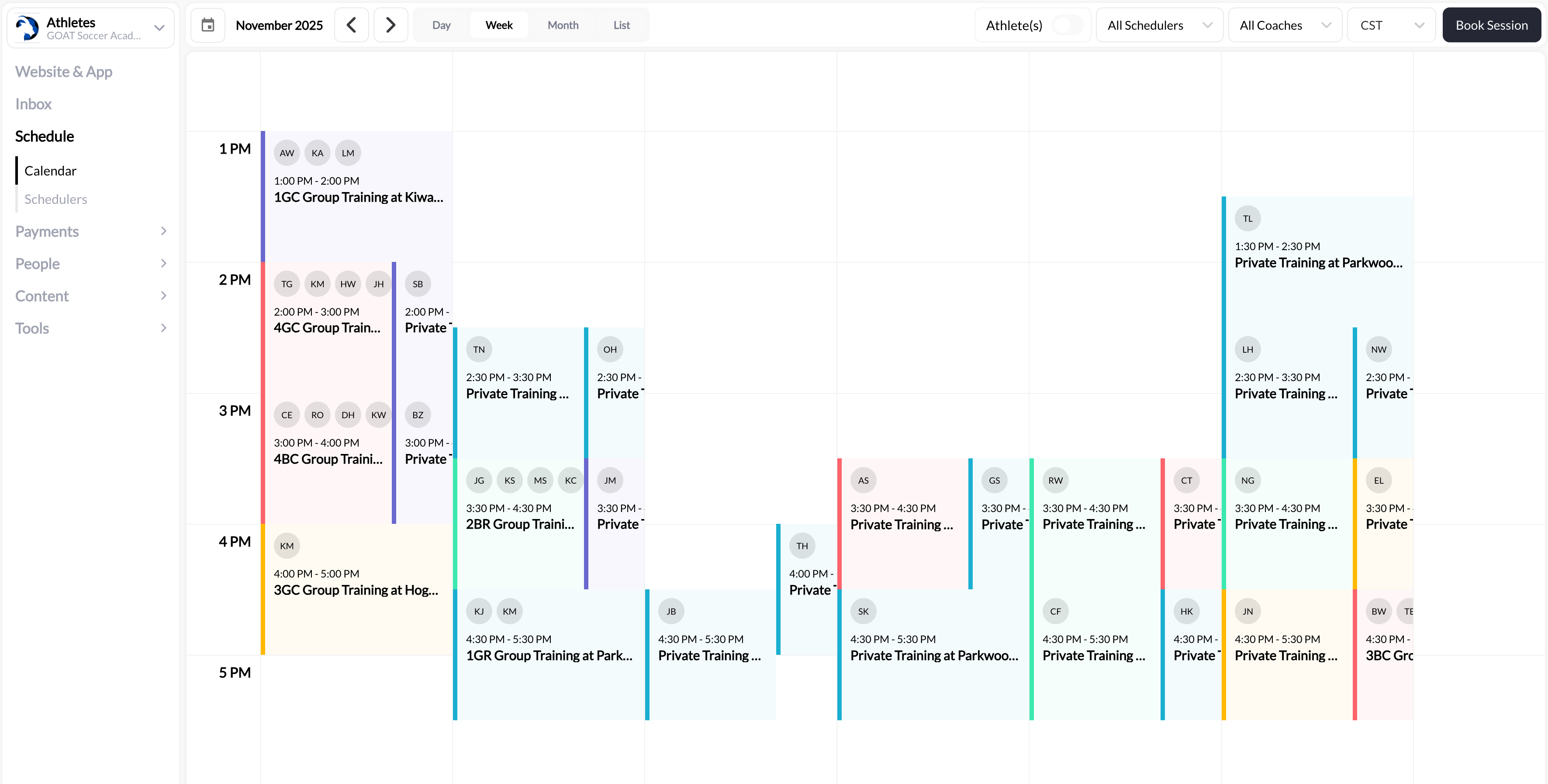
### Week View
**Best for**: Weekly planning, pattern recognition, capacity management
**What you see**:
* 7-day grid (Sunday - Saturday)
* All sessions across the week
* Participant initials per session
* Visual distribution of workload
* Color patterns by scheduler type
**When to use**:
* Weekly planning: "How's my week looking?"
* Capacity analysis: "Am I overbooked on Wednesday?"
* Pattern spotting: "Why are Thursdays always light?"
* Staff coordination: "Can we balance sessions across coaches?"
**Visual insights**:
* **Dense columns** = Busy days requiring energy management
* **Light columns** = Opportunity for marketing or admin time
* **Color variety** = Good service mix vs. repetitive schedule
**Pro tip**: Day view is your morning ritual. Open it each morning to see the day's lineup, verify participants, and mentally prepare for sessions.
***
### Week View
**Best for**: Weekly planning, pattern recognition, capacity management
**What you see**:
* 7-day grid (Sunday - Saturday)
* All sessions across the week
* Participant initials per session
* Visual distribution of workload
* Color patterns by scheduler type
**When to use**:
* Weekly planning: "How's my week looking?"
* Capacity analysis: "Am I overbooked on Wednesday?"
* Pattern spotting: "Why are Thursdays always light?"
* Staff coordination: "Can we balance sessions across coaches?"
**Visual insights**:
* **Dense columns** = Busy days requiring energy management
* **Light columns** = Opportunity for marketing or admin time
* **Color variety** = Good service mix vs. repetitive schedule
 **Weekly review ritual**: Every Sunday evening or Monday morning, review week view to:
1. Identify your busiest days
2. Plan energy accordingly
3. Spot gaps for additional bookings
4. Prepare mentally for the week ahead
***
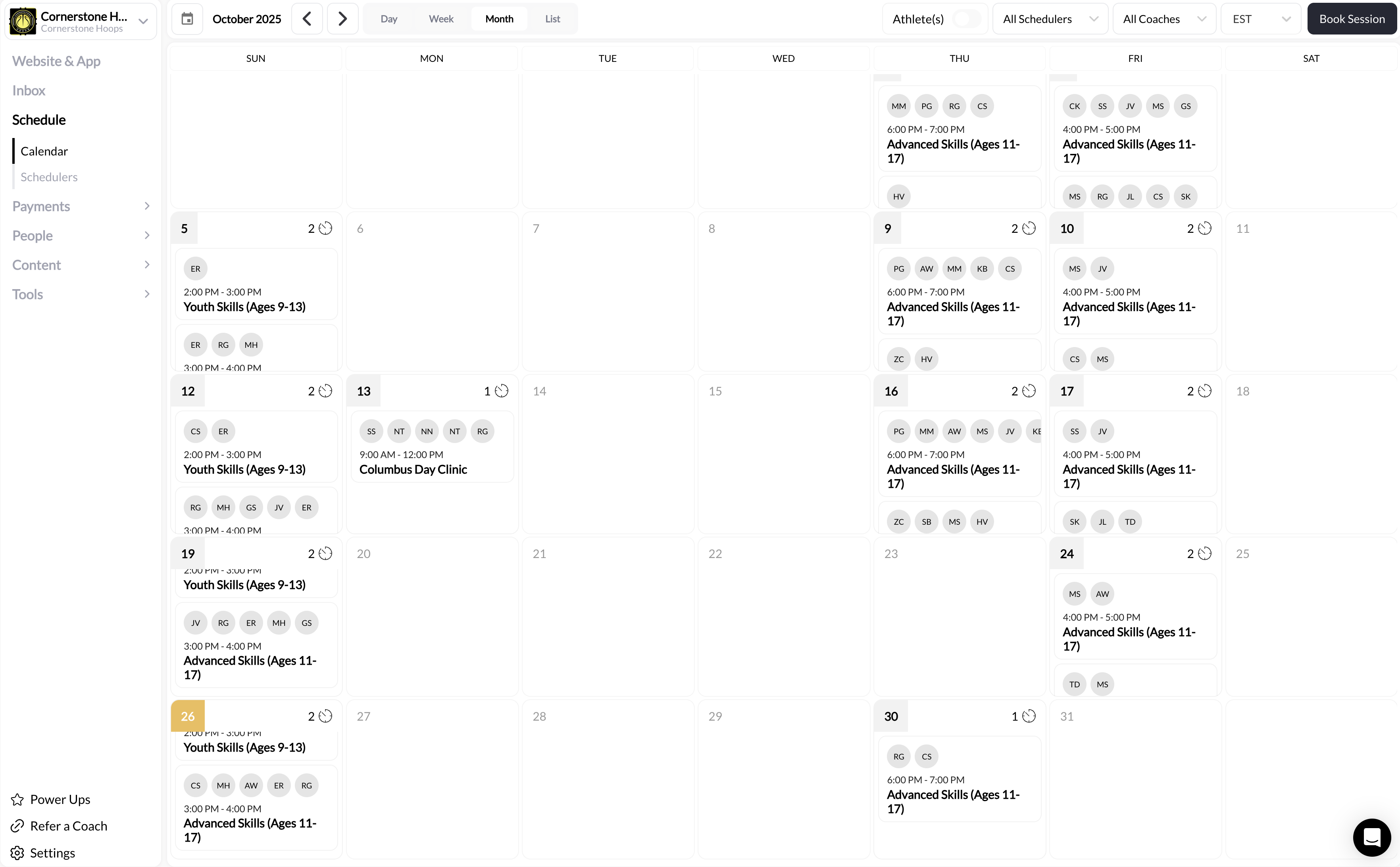
### Month View
**Best for**: Long-term planning, trend analysis, capacity forecasting
**What you see**:
* 30-day calendar grid
* Session count per day
* First few participant initials
* High-level booking patterns
* Busy vs. slow periods
**When to use**:
* Monthly planning: "How booked am I next month?"
* Trend identification: "Which weeks are typically slow?"
* Vacation planning: "When can I take time off?"
* Marketing timing: "When should I push for more bookings?"
**Visual indicators**:
* **Number count**: How many sessions that day (e.g., "5" = 5 sessions)
* **Participant bubbles**: Shows athlete initials for first few bookings
* **Color density**: More sessions = darker/fuller appearance
**Clicking a day**: Opens that day's sessions in detail view
**Capacity planning insight**: Month view helps you identify booking patterns. Notice all your Mondays are full but Fridays are empty? Adjust availability or marketing accordingly.
***
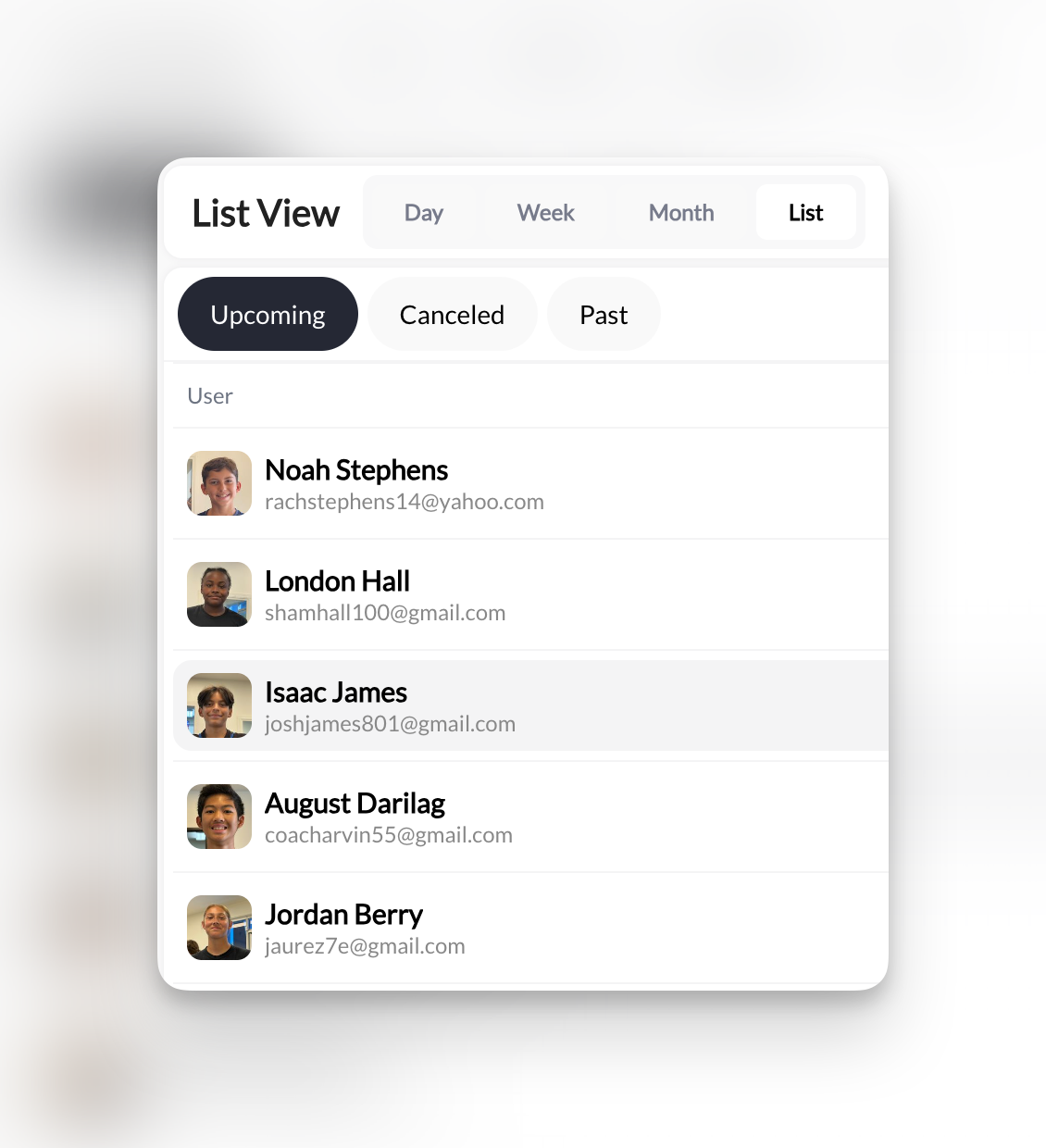
### List View
**Best for**: Detailed session information, administrative tasks, reporting
**What you see**:
* Chronological list of all bookings
* Three tabs: **Upcoming**, **Canceled**, **Past**
* Detailed information per session:
* Athlete name and email
* Date and time
* Duration
* Session/scheduler name
**When to use**:
* Reviewing specific athletes: "Show me all John's upcoming sessions"
* Finding past sessions: "What did we do on August 15?"
* Analyzing cancellations: "How many cancellations this month?"
* Administrative tasks: "List all sessions for billing review"
**Tab functionality**:
**Shows**: All future sessions not yet occurred
**Use for**:
* Daily prep: "Who's training this week?"
* Verification: "Confirm athlete has correct sessions booked"
* Planning: "What's my load over next 2 weeks?"
**Sort**: Chronological (earliest first)
**Shows**: All sessions that were canceled (by you or athlete)
**Use for**:
* Analyzing patterns: "Who cancels frequently?"
* Rebooking: "Can I fill this canceled slot?"
* Refund verification: "Were credits refunded properly?"
* Policy evaluation: "Is my cancellation policy working?"
**Information includes**: Cancellation timestamp, who canceled, if credits refunded
**Shows**: All completed sessions
**Use for**:
* Record keeping: "How many sessions with Sarah this month?"
* Billing reconciliation: "Verify all sessions were paid"
* Progress tracking: "How often is John training?"
* Historical reference: "When did we last do X workout?"
**Sort**: Reverse chronological (most recent first)
**Weekly review ritual**: Every Sunday evening or Monday morning, review week view to:
1. Identify your busiest days
2. Plan energy accordingly
3. Spot gaps for additional bookings
4. Prepare mentally for the week ahead
***
### Month View
**Best for**: Long-term planning, trend analysis, capacity forecasting
**What you see**:
* 30-day calendar grid
* Session count per day
* First few participant initials
* High-level booking patterns
* Busy vs. slow periods
**When to use**:
* Monthly planning: "How booked am I next month?"
* Trend identification: "Which weeks are typically slow?"
* Vacation planning: "When can I take time off?"
* Marketing timing: "When should I push for more bookings?"
**Visual indicators**:
* **Number count**: How many sessions that day (e.g., "5" = 5 sessions)
* **Participant bubbles**: Shows athlete initials for first few bookings
* **Color density**: More sessions = darker/fuller appearance
**Clicking a day**: Opens that day's sessions in detail view
**Capacity planning insight**: Month view helps you identify booking patterns. Notice all your Mondays are full but Fridays are empty? Adjust availability or marketing accordingly.
***
### List View
**Best for**: Detailed session information, administrative tasks, reporting
**What you see**:
* Chronological list of all bookings
* Three tabs: **Upcoming**, **Canceled**, **Past**
* Detailed information per session:
* Athlete name and email
* Date and time
* Duration
* Session/scheduler name
**When to use**:
* Reviewing specific athletes: "Show me all John's upcoming sessions"
* Finding past sessions: "What did we do on August 15?"
* Analyzing cancellations: "How many cancellations this month?"
* Administrative tasks: "List all sessions for billing review"
**Tab functionality**:
**Shows**: All future sessions not yet occurred
**Use for**:
* Daily prep: "Who's training this week?"
* Verification: "Confirm athlete has correct sessions booked"
* Planning: "What's my load over next 2 weeks?"
**Sort**: Chronological (earliest first)
**Shows**: All sessions that were canceled (by you or athlete)
**Use for**:
* Analyzing patterns: "Who cancels frequently?"
* Rebooking: "Can I fill this canceled slot?"
* Refund verification: "Were credits refunded properly?"
* Policy evaluation: "Is my cancellation policy working?"
**Information includes**: Cancellation timestamp, who canceled, if credits refunded
**Shows**: All completed sessions
**Use for**:
* Record keeping: "How many sessions with Sarah this month?"
* Billing reconciliation: "Verify all sessions were paid"
* Progress tracking: "How often is John training?"
* Historical reference: "When did we last do X workout?"
**Sort**: Reverse chronological (most recent first)
 ## Understanding visual elements
The calendar uses visual indicators to convey information quickly.
### Color coding
**Sessions are color-coded by scheduler type**:
* Each scheduler has a distinct color (teal, purple, blue, green, etc.)
* Colors help you distinguish session types at a glance
* Consistent across all calendar views
**Example**:
* **Teal** = Rising Stars Class
* **Purple** = Elite Class
* **Blue** = Shooting Lab
* **Green** = Open Gym
**Why this matters**: Quickly spot session distribution
* "All my sessions today are Elite (purple) - high intensity day"
* "Good mix of colors this week - balanced service delivery"
* "Only seeing one color - am I offering enough variety?"
**Visual scheduling strategy**: Use color patterns to balance your week. Avoid scheduling all high-intensity (one color) sessions in one day. Spread colors (session types) for energy management.
***
### Participant initials
**What you see**: Athlete initials displayed in session blocks (AS, KW, WB, TG, etc.)
**Format**:
* Individual sessions: Shows single athlete's initials
* Group sessions: Shows multiple initials
* Overflow: Shows "+X more" when too many to display
**Examples**:
* `AS` = Single athlete (Alex Smith)
* `AS, KW, WB` = 3 athletes in group session
* `AS, KW, WB, TG (+2)` = 6 athletes total, showing first 4 + indicator for 2 more
**Why initials matter**:
* Quick participant verification without clicking
* Spot familiar athletes across multiple sessions
* Identify group dynamics at a glance
**Use case**: "I see 'AS' in three different sessions this week - Alex is training hard!"
***
### Capacity display
**Two different formats depending on context**:
**Format**: `4/10 Participants`
**Meaning**: 4 athletes booked out of 10 total capacity
**Where shown**:
* Session detail modal (when you click on a session)
* Admin management screens
* Your internal calendar views
**Example**: `6/12 Participants` = 6 booked, 12 capacity, 6 spots remaining
**Quick math**: Total capacity minus booked = available spots
**Format**: `9 slots remaining`
**Meaning**: 9 spots still available for booking
**Where shown**:
* Athlete booking flow
* Public-facing schedulers
* Time slot selection screens
**Visual states**:
* `9 slots` = Plenty of room (appears normal)
* `2 slots` = Getting full (may show warning color)
* `0 slots` = Full (grayed out, can't book)
**Why different format**: Athletes care about "can I book?" not "how many are already in."
**Visual example in calendar**:
* Session shows `AS, KW, WB, TG` = 4 initials visible
* Click session → Modal shows `4/10 Participants`
* Athlete sees booking page → Shows `6 slots remaining`
* All three formats describe the same session!
***
## The filtering system
Filters help you find specific bookings quickly in busy schedules.
### Available filters
**Location**: Top-right of calendar interface
**Four filter categories**:
**Options**:
* **All** = Show sessions for all athletes (default)
* **Individual athletes** = Select specific athlete(s)
**When to use**:
* Check specific athlete's schedule: "Show me only Sarah's sessions"
* Verify booking: "Did John's Tuesday session go through?"
* Athlete coordination: "When is Emma training this week?"
**Multi-select**: You can select multiple athletes to see just their sessions
**Example**: Filter to "John" and "Sarah" to see only their combined schedules
**Options**:
* **All Schedulers** = Show all session types (default)
* **Individual schedulers** = Select specific scheduler(s)
**When to use**:
* Focus on specific service: "Show me only Private Training sessions"
* Analyze scheduler popularity: "How booked is Elite Class?"
* Service planning: "How many group classes this week?"
**Example**: Filter to "Rising Stars Class" to see all Rising Stars sessions across calendar
**Scheduler analysis**: Filter to one scheduler, switch to week view. Quickly see booking patterns for that specific service type.
**Options**:
* **All Coaches** = Show sessions for all coaches (default)
* **Individual coaches** = Select specific coach
**When to use** (multi-coach businesses):
* Check individual coach workload: "How many sessions does Mike have?"
* Balance scheduling: "Sarah has 30 sessions, David only has 10"
* Coach-specific planning: "When can Sarah take vacation?"
**Solo coaches**: This filter is less useful if you're the only coach
**Example**: Filter to "Coach Mike" to see only his assigned sessions
**Options**: PST, EST, CST, MST, and other timezones
**When to use**:
* Virtual training across time zones
* Multi-location businesses
* Travel coordination
**Default**: Your account timezone setting
**Example**: You're in PST but have East Coast virtual clients. Switch to EST to see their local times.
**Timezone confusion alert**: Always verify which timezone you're viewing. Booking at wrong timezone causes no-shows and frustration.
***
### Filter combinations
**Power of combining filters**:
You can use multiple filters simultaneously for laser-focused views:
**Example combinations**:
**Filters**:
* Athlete: "Sarah Johnson"
* Scheduler: "Private Training"
**Result**: Only Sarah's private training sessions appear
**Use case**: "How many private sessions has Sarah completed this month?"
**Filters**:
* Coach: "Mike"
* Scheduler: "Group Class"
**Result**: Only Mike's group classes appear
**Use case**: "Is Mike's group class capacity being utilized well?"
**Filters**:
* Scheduler: "Virtual Training"
* Timezone: "EST"
**Result**: Only virtual sessions displayed in EST time
**Use case**: "What's my virtual training schedule look like to East Coast clients?"
**Filters**:
* Athletes: "John" + "Emma" + "Alex" (multi-select)
**Result**: Combined schedule for those three athletes
**Use case**: "Can I schedule a small group session with these three athletes? When are they all available?"
***
### Clearing filters
**To return to full calendar view**:
1. Click filter dropdown
2. Select "All" option
3. Or click any active filter badge and click X
**Visual indicator**: Active filters show as badges/pills near filter dropdowns
**Quick clear**: Look for "Clear all filters" or click "All" in each dropdown
**Filter persistence**: Some systems remember your last filter settings between sessions. Others reset to "All" when you reload the page.
***
## Navigating dates
Move through your calendar efficiently with navigation controls.
### Date picker
**What it is**: Calendar icon or date display at top of calendar
**How to use**:
1. Click date picker/calendar icon
2. Mini calendar pops up
3. Select specific date
4. Calendar jumps to that date
**When to use**:
* Jump to future date: "What's happening three weeks from now?"
* Check past date: "What did we do on August 15?"
* Skip ahead: "Show me the week of October 15"
**Pro tip**: Faster than clicking through week-by-week with arrows
***
### Previous/Next navigation
**What it is**: Arrow buttons (← →) next to date display
**Function**:
* **Left arrow (←)**: Previous period (day/week/month depending on view)
* **Right arrow (→)**: Next period
**View-specific behavior**:
* Day view: Moves 1 day at a time
* Week view: Moves 1 week at a time
* Month view: Moves 1 month at a time
**When to use**: Sequential browsing, looking at adjacent days/weeks
***
### Jump to today
**What it is**: "Today" button (usually near date display)
**Function**: Instantly returns to current day regardless of where you were
**When to use**:
* You've navigated far into future/past: "Get me back to today"
* Quick reset after exploring different dates
* Rapid return to current context
**Keyboard shortcut** (if available): Some systems support "T" key for "Today"
**Daily workflow**: Start every day by clicking "Today" to orient yourself to the current day's schedule.
***
## Quick actions from calendar
Perform common tasks directly from the calendar interface.
### Book Session button
**Location**: Top-right corner of calendar
**Function**: Opens booking builder to create new session
**Use cases**:
* Manual booking: "Client called, need to add them for Tuesday 3pm"
* Fill gaps: "I have a 2pm opening, let me book someone"
* Recurring sessions: Create multi-week booking patterns
**Workflow**:
1. Click "Book Session"
2. Select client
3. Choose scheduler
4. Pick date & time
5. Confirm booking
6. Appears immediately on calendar
**Alternative**: You can also book by clicking on empty time slot (if enabled)
## Understanding visual elements
The calendar uses visual indicators to convey information quickly.
### Color coding
**Sessions are color-coded by scheduler type**:
* Each scheduler has a distinct color (teal, purple, blue, green, etc.)
* Colors help you distinguish session types at a glance
* Consistent across all calendar views
**Example**:
* **Teal** = Rising Stars Class
* **Purple** = Elite Class
* **Blue** = Shooting Lab
* **Green** = Open Gym
**Why this matters**: Quickly spot session distribution
* "All my sessions today are Elite (purple) - high intensity day"
* "Good mix of colors this week - balanced service delivery"
* "Only seeing one color - am I offering enough variety?"
**Visual scheduling strategy**: Use color patterns to balance your week. Avoid scheduling all high-intensity (one color) sessions in one day. Spread colors (session types) for energy management.
***
### Participant initials
**What you see**: Athlete initials displayed in session blocks (AS, KW, WB, TG, etc.)
**Format**:
* Individual sessions: Shows single athlete's initials
* Group sessions: Shows multiple initials
* Overflow: Shows "+X more" when too many to display
**Examples**:
* `AS` = Single athlete (Alex Smith)
* `AS, KW, WB` = 3 athletes in group session
* `AS, KW, WB, TG (+2)` = 6 athletes total, showing first 4 + indicator for 2 more
**Why initials matter**:
* Quick participant verification without clicking
* Spot familiar athletes across multiple sessions
* Identify group dynamics at a glance
**Use case**: "I see 'AS' in three different sessions this week - Alex is training hard!"
***
### Capacity display
**Two different formats depending on context**:
**Format**: `4/10 Participants`
**Meaning**: 4 athletes booked out of 10 total capacity
**Where shown**:
* Session detail modal (when you click on a session)
* Admin management screens
* Your internal calendar views
**Example**: `6/12 Participants` = 6 booked, 12 capacity, 6 spots remaining
**Quick math**: Total capacity minus booked = available spots
**Format**: `9 slots remaining`
**Meaning**: 9 spots still available for booking
**Where shown**:
* Athlete booking flow
* Public-facing schedulers
* Time slot selection screens
**Visual states**:
* `9 slots` = Plenty of room (appears normal)
* `2 slots` = Getting full (may show warning color)
* `0 slots` = Full (grayed out, can't book)
**Why different format**: Athletes care about "can I book?" not "how many are already in."
**Visual example in calendar**:
* Session shows `AS, KW, WB, TG` = 4 initials visible
* Click session → Modal shows `4/10 Participants`
* Athlete sees booking page → Shows `6 slots remaining`
* All three formats describe the same session!
***
## The filtering system
Filters help you find specific bookings quickly in busy schedules.
### Available filters
**Location**: Top-right of calendar interface
**Four filter categories**:
**Options**:
* **All** = Show sessions for all athletes (default)
* **Individual athletes** = Select specific athlete(s)
**When to use**:
* Check specific athlete's schedule: "Show me only Sarah's sessions"
* Verify booking: "Did John's Tuesday session go through?"
* Athlete coordination: "When is Emma training this week?"
**Multi-select**: You can select multiple athletes to see just their sessions
**Example**: Filter to "John" and "Sarah" to see only their combined schedules
**Options**:
* **All Schedulers** = Show all session types (default)
* **Individual schedulers** = Select specific scheduler(s)
**When to use**:
* Focus on specific service: "Show me only Private Training sessions"
* Analyze scheduler popularity: "How booked is Elite Class?"
* Service planning: "How many group classes this week?"
**Example**: Filter to "Rising Stars Class" to see all Rising Stars sessions across calendar
**Scheduler analysis**: Filter to one scheduler, switch to week view. Quickly see booking patterns for that specific service type.
**Options**:
* **All Coaches** = Show sessions for all coaches (default)
* **Individual coaches** = Select specific coach
**When to use** (multi-coach businesses):
* Check individual coach workload: "How many sessions does Mike have?"
* Balance scheduling: "Sarah has 30 sessions, David only has 10"
* Coach-specific planning: "When can Sarah take vacation?"
**Solo coaches**: This filter is less useful if you're the only coach
**Example**: Filter to "Coach Mike" to see only his assigned sessions
**Options**: PST, EST, CST, MST, and other timezones
**When to use**:
* Virtual training across time zones
* Multi-location businesses
* Travel coordination
**Default**: Your account timezone setting
**Example**: You're in PST but have East Coast virtual clients. Switch to EST to see their local times.
**Timezone confusion alert**: Always verify which timezone you're viewing. Booking at wrong timezone causes no-shows and frustration.
***
### Filter combinations
**Power of combining filters**:
You can use multiple filters simultaneously for laser-focused views:
**Example combinations**:
**Filters**:
* Athlete: "Sarah Johnson"
* Scheduler: "Private Training"
**Result**: Only Sarah's private training sessions appear
**Use case**: "How many private sessions has Sarah completed this month?"
**Filters**:
* Coach: "Mike"
* Scheduler: "Group Class"
**Result**: Only Mike's group classes appear
**Use case**: "Is Mike's group class capacity being utilized well?"
**Filters**:
* Scheduler: "Virtual Training"
* Timezone: "EST"
**Result**: Only virtual sessions displayed in EST time
**Use case**: "What's my virtual training schedule look like to East Coast clients?"
**Filters**:
* Athletes: "John" + "Emma" + "Alex" (multi-select)
**Result**: Combined schedule for those three athletes
**Use case**: "Can I schedule a small group session with these three athletes? When are they all available?"
***
### Clearing filters
**To return to full calendar view**:
1. Click filter dropdown
2. Select "All" option
3. Or click any active filter badge and click X
**Visual indicator**: Active filters show as badges/pills near filter dropdowns
**Quick clear**: Look for "Clear all filters" or click "All" in each dropdown
**Filter persistence**: Some systems remember your last filter settings between sessions. Others reset to "All" when you reload the page.
***
## Navigating dates
Move through your calendar efficiently with navigation controls.
### Date picker
**What it is**: Calendar icon or date display at top of calendar
**How to use**:
1. Click date picker/calendar icon
2. Mini calendar pops up
3. Select specific date
4. Calendar jumps to that date
**When to use**:
* Jump to future date: "What's happening three weeks from now?"
* Check past date: "What did we do on August 15?"
* Skip ahead: "Show me the week of October 15"
**Pro tip**: Faster than clicking through week-by-week with arrows
***
### Previous/Next navigation
**What it is**: Arrow buttons (← →) next to date display
**Function**:
* **Left arrow (←)**: Previous period (day/week/month depending on view)
* **Right arrow (→)**: Next period
**View-specific behavior**:
* Day view: Moves 1 day at a time
* Week view: Moves 1 week at a time
* Month view: Moves 1 month at a time
**When to use**: Sequential browsing, looking at adjacent days/weeks
***
### Jump to today
**What it is**: "Today" button (usually near date display)
**Function**: Instantly returns to current day regardless of where you were
**When to use**:
* You've navigated far into future/past: "Get me back to today"
* Quick reset after exploring different dates
* Rapid return to current context
**Keyboard shortcut** (if available): Some systems support "T" key for "Today"
**Daily workflow**: Start every day by clicking "Today" to orient yourself to the current day's schedule.
***
## Quick actions from calendar
Perform common tasks directly from the calendar interface.
### Book Session button
**Location**: Top-right corner of calendar
**Function**: Opens booking builder to create new session
**Use cases**:
* Manual booking: "Client called, need to add them for Tuesday 3pm"
* Fill gaps: "I have a 2pm opening, let me book someone"
* Recurring sessions: Create multi-week booking patterns
**Workflow**:
1. Click "Book Session"
2. Select client
3. Choose scheduler
4. Pick date & time
5. Confirm booking
6. Appears immediately on calendar
**Alternative**: You can also book by clicking on empty time slot (if enabled)
 ***
### Click session for details
**Action**: Click any session block in calendar
**Opens**: Session detail modal/panel
**Information displayed**:
* Session name and scheduler type
* Date, time, duration
* Participants (with capacity: 4/10)
* Coach assigned
* Location
**Available actions**:
**Function**: Add more athletes to this session
**When available**: Session has remaining capacity
**Workflow**:
1. Click "Add Participants"
2. Search for athlete by name/email
3. Select athlete(s)
4. Choose credit redemption or payment
5. Add to session
6. Athlete receives confirmation
**Use case**: "This group class has 3 spots left, let me add a few more athletes"
**Capacity check**: System prevents adding more athletes than max capacity allows.
**Function**: Message all participants in this session
**When to use**:
* Session update: "We're moving to outdoor field today"
* Reminder: "Don't forget to bring resistance bands"
* Prep: "Review last week's video before today's session"
* Cancellation: "Sorry, I'm sick - session canceled"
**Workflow**:
1. Click "Send Message to All"
2. Compose message
3. Choose delivery: SMS, email, in-app (or all)
4. Send
5. All participants receive notification
**Recipient list**: Automatically includes all confirmed participants
**Group communication**: This is the fastest way to message all athletes in a specific session without manually selecting each one.
**Function**: Modify session details or cancel entirely
**Edit options**:
* Change time
* Change duration
* Add/remove participants
* Update notes
**Cancel options**:
* Cancel entire session
* Choose whether to refund credits
* Send cancellation notification to participants
**Use case**: "I need to reschedule Tuesday's session to Thursday"
**Cancellation impact**: Canceling sessions affects athletes' plans. Provide as much notice as possible and clear communication about refunds/rescheduling.
***
## Common calendar questions
**Possible causes**:
1. **Active filters**: You filtered by athlete/scheduler and this session doesn't match
* **Fix**: Clear all filters (select "All")
2. **Wrong date range**: Session is outside your currently viewed dates
* **Fix**: Use date picker to jump to session date
3. **Wrong view**: Session exists but hard to see in month view
* **Fix**: Switch to Day or Week view for that date
4. **Not yet booked**: You created a scheduler but no one has booked yet
* **Fix**: Calendar only shows actual bookings, not availability
**Quick diagnostic**: Clear all filters → Jump to "Today" → Switch to Week View
**Important**: Calendar shows BOOKINGS (actual scheduled sessions with athletes), not your availability windows
**To see availability**:
* Go to Schedule → Schedulers
* View availability templates
* Or check scheduler settings for availability schedule
**Why separate**: Calendar = confirmed appointments. Availability = when you're bookable.
**Analogy**: Calendar shows confirmed appointments. Schedulers show when your office is open.
**Current limitation**: CoachIQ calendar typically color-codes by scheduler type, not by coach
**Workaround**:
* Use coach filter to isolate one coach
* Their sessions appear in their assigned color
* Switch between coach filters to check each coach individually
**Multi-coach facilities**: Request this feature from CoachIQ support if needed for your operation
**The number** = Total sessions that day
**Examples**:
* `3` = 3 sessions scheduled that day
* `7` = 7 sessions scheduled that day
* No number = No sessions
**Additional info**: Below the number, you'll see participant initials for first few sessions
**Click the day** to see full session details in Day View
**Printing**:
1. Choose your desired view (Week or Month works best)
2. Apply any filters needed
3. Use browser print function (Ctrl+P or Cmd+P)
4. Adjust print settings as needed
**Exporting**: Check if CoachIQ offers:
* CSV export of bookings
* Calendar feed (iCal format)
* Integration with Google Calendar or Apple Calendar
**List View advantage**: Best for printing detailed session lists for administrative records
**This should NOT happen**: System prevents athletes from double-booking
**If you see this**:
1. Check if same athlete or different athletes with similar names/initials
2. Verify both sessions are actually confirmed (not one in "pending" state)
3. Check for timezone issues causing display confusion
4. Contact support - this is a potential conflict needing resolution
**Prevention**: System typically blocks overlapping bookings for same athlete
***
## Troubleshooting calendar display
### Sessions not appearing
**Checklist**:
* Clear all filters (select "All" in each dropdown)
* Verify correct date range (use date picker)
* Try different view (Day, Week, Month, List)
* Hard refresh browser (Ctrl+Shift+R or Cmd+Shift+R)
* Check if session was actually booked (vs. just scheduler created)
**Common culprit**: Active filter hiding the session you're looking for
***
### Wrong times showing
**Possible causes**:
1. **Timezone mismatch**: Calendar showing different timezone than expected
* **Fix**: Check timezone filter, ensure correct timezone selected
2. **Browser timezone**: Your computer/browser timezone doesn't match account
* **Fix**: Verify account settings match your actual location
3. **Daylight Saving Time**: During DST transitions, times may shift
* **Fix**: Verify session times are correct in session detail modal
***
### Colors are confusing
**If you can't distinguish scheduler types**:
1. Click on sessions to see scheduler name in detail modal
2. Use scheduler filter to isolate one type at a time
3. Create a color key legend for yourself
4. Request CoachIQ support to adjust colors if accessibility issue
***
### Participant initials unclear
**If initials don't make sense** (overlapping, cut off, too many):
* Click session for full participant list in modal
* Use List View for detailed participant information
* Filter by specific athlete to see their sessions clearly
**"+X more" indicator**: Click session to see all participants
***
## Calendar best practices
**Daily ritual**: Start each coaching day with this 2-minute calendar routine:
1. Click "Today"
2. Day View - Review today's lineup
3. Week View - Preview tomorrow
4. Filter by each athlete - Verify their schedules
5. Mental prep for the day
This simple routine prevents no-shows, booking errors, and scheduling surprises.
**Weekly planning**: Every Sunday evening or Monday morning:
1. Week View for upcoming week
2. Identify busy vs. light days
3. Plan energy management accordingly
4. Spot opportunities for additional bookings
5. Review capacity utilization by filtering each scheduler
Better planning = better performance = better athlete results.
**Monthly business review**: First day of new month:
1. Month View for previous month
2. Compare booking density to goals
3. Filter by each scheduler - Which are popular? Which are underutilized?
4. Analyze cancellation tab for patterns
5. Adjust marketing, pricing, or availability based on data
Data-driven decisions beat gut feeling every time.
**Filter efficiency**: Create "favorite filter combinations" for routine tasks:
* **Morning check**: Filter by today, all athletes, all schedulers
* **Athlete review**: Filter by specific athlete, all time
* **Service analysis**: Filter by specific scheduler, month view
* **Coach balance** (multi-coach): Filter by each coach, week view
Standardize your filter workflows to save time daily.
***
## Next steps
Understand and resolve scheduling conflicts efficiently
Book athletes directly from calendar
Edit, reschedule, or cancel existing bookings
Create bookable schedulers that appear on calendar
## Related articles
Clarify scheduler vs. calendar concepts
Configure when you're available for booking
Block unavailable dates on calendar
Coordinate multiple coaches on one calendar
Understand how bookings appear on your calendar
Fix common calendar display issues
***
**Questions about calendar functionality?** Our support team can help you optimize your calendar workflow and resolve any display issues. [Contact Support](https://support.coachiq.com)
***
### Click session for details
**Action**: Click any session block in calendar
**Opens**: Session detail modal/panel
**Information displayed**:
* Session name and scheduler type
* Date, time, duration
* Participants (with capacity: 4/10)
* Coach assigned
* Location
**Available actions**:
**Function**: Add more athletes to this session
**When available**: Session has remaining capacity
**Workflow**:
1. Click "Add Participants"
2. Search for athlete by name/email
3. Select athlete(s)
4. Choose credit redemption or payment
5. Add to session
6. Athlete receives confirmation
**Use case**: "This group class has 3 spots left, let me add a few more athletes"
**Capacity check**: System prevents adding more athletes than max capacity allows.
**Function**: Message all participants in this session
**When to use**:
* Session update: "We're moving to outdoor field today"
* Reminder: "Don't forget to bring resistance bands"
* Prep: "Review last week's video before today's session"
* Cancellation: "Sorry, I'm sick - session canceled"
**Workflow**:
1. Click "Send Message to All"
2. Compose message
3. Choose delivery: SMS, email, in-app (or all)
4. Send
5. All participants receive notification
**Recipient list**: Automatically includes all confirmed participants
**Group communication**: This is the fastest way to message all athletes in a specific session without manually selecting each one.
**Function**: Modify session details or cancel entirely
**Edit options**:
* Change time
* Change duration
* Add/remove participants
* Update notes
**Cancel options**:
* Cancel entire session
* Choose whether to refund credits
* Send cancellation notification to participants
**Use case**: "I need to reschedule Tuesday's session to Thursday"
**Cancellation impact**: Canceling sessions affects athletes' plans. Provide as much notice as possible and clear communication about refunds/rescheduling.
***
## Common calendar questions
**Possible causes**:
1. **Active filters**: You filtered by athlete/scheduler and this session doesn't match
* **Fix**: Clear all filters (select "All")
2. **Wrong date range**: Session is outside your currently viewed dates
* **Fix**: Use date picker to jump to session date
3. **Wrong view**: Session exists but hard to see in month view
* **Fix**: Switch to Day or Week view for that date
4. **Not yet booked**: You created a scheduler but no one has booked yet
* **Fix**: Calendar only shows actual bookings, not availability
**Quick diagnostic**: Clear all filters → Jump to "Today" → Switch to Week View
**Important**: Calendar shows BOOKINGS (actual scheduled sessions with athletes), not your availability windows
**To see availability**:
* Go to Schedule → Schedulers
* View availability templates
* Or check scheduler settings for availability schedule
**Why separate**: Calendar = confirmed appointments. Availability = when you're bookable.
**Analogy**: Calendar shows confirmed appointments. Schedulers show when your office is open.
**Current limitation**: CoachIQ calendar typically color-codes by scheduler type, not by coach
**Workaround**:
* Use coach filter to isolate one coach
* Their sessions appear in their assigned color
* Switch between coach filters to check each coach individually
**Multi-coach facilities**: Request this feature from CoachIQ support if needed for your operation
**The number** = Total sessions that day
**Examples**:
* `3` = 3 sessions scheduled that day
* `7` = 7 sessions scheduled that day
* No number = No sessions
**Additional info**: Below the number, you'll see participant initials for first few sessions
**Click the day** to see full session details in Day View
**Printing**:
1. Choose your desired view (Week or Month works best)
2. Apply any filters needed
3. Use browser print function (Ctrl+P or Cmd+P)
4. Adjust print settings as needed
**Exporting**: Check if CoachIQ offers:
* CSV export of bookings
* Calendar feed (iCal format)
* Integration with Google Calendar or Apple Calendar
**List View advantage**: Best for printing detailed session lists for administrative records
**This should NOT happen**: System prevents athletes from double-booking
**If you see this**:
1. Check if same athlete or different athletes with similar names/initials
2. Verify both sessions are actually confirmed (not one in "pending" state)
3. Check for timezone issues causing display confusion
4. Contact support - this is a potential conflict needing resolution
**Prevention**: System typically blocks overlapping bookings for same athlete
***
## Troubleshooting calendar display
### Sessions not appearing
**Checklist**:
* Clear all filters (select "All" in each dropdown)
* Verify correct date range (use date picker)
* Try different view (Day, Week, Month, List)
* Hard refresh browser (Ctrl+Shift+R or Cmd+Shift+R)
* Check if session was actually booked (vs. just scheduler created)
**Common culprit**: Active filter hiding the session you're looking for
***
### Wrong times showing
**Possible causes**:
1. **Timezone mismatch**: Calendar showing different timezone than expected
* **Fix**: Check timezone filter, ensure correct timezone selected
2. **Browser timezone**: Your computer/browser timezone doesn't match account
* **Fix**: Verify account settings match your actual location
3. **Daylight Saving Time**: During DST transitions, times may shift
* **Fix**: Verify session times are correct in session detail modal
***
### Colors are confusing
**If you can't distinguish scheduler types**:
1. Click on sessions to see scheduler name in detail modal
2. Use scheduler filter to isolate one type at a time
3. Create a color key legend for yourself
4. Request CoachIQ support to adjust colors if accessibility issue
***
### Participant initials unclear
**If initials don't make sense** (overlapping, cut off, too many):
* Click session for full participant list in modal
* Use List View for detailed participant information
* Filter by specific athlete to see their sessions clearly
**"+X more" indicator**: Click session to see all participants
***
## Calendar best practices
**Daily ritual**: Start each coaching day with this 2-minute calendar routine:
1. Click "Today"
2. Day View - Review today's lineup
3. Week View - Preview tomorrow
4. Filter by each athlete - Verify their schedules
5. Mental prep for the day
This simple routine prevents no-shows, booking errors, and scheduling surprises.
**Weekly planning**: Every Sunday evening or Monday morning:
1. Week View for upcoming week
2. Identify busy vs. light days
3. Plan energy management accordingly
4. Spot opportunities for additional bookings
5. Review capacity utilization by filtering each scheduler
Better planning = better performance = better athlete results.
**Monthly business review**: First day of new month:
1. Month View for previous month
2. Compare booking density to goals
3. Filter by each scheduler - Which are popular? Which are underutilized?
4. Analyze cancellation tab for patterns
5. Adjust marketing, pricing, or availability based on data
Data-driven decisions beat gut feeling every time.
**Filter efficiency**: Create "favorite filter combinations" for routine tasks:
* **Morning check**: Filter by today, all athletes, all schedulers
* **Athlete review**: Filter by specific athlete, all time
* **Service analysis**: Filter by specific scheduler, month view
* **Coach balance** (multi-coach): Filter by each coach, week view
Standardize your filter workflows to save time daily.
***
## Next steps
Understand and resolve scheduling conflicts efficiently
Book athletes directly from calendar
Edit, reschedule, or cancel existing bookings
Create bookable schedulers that appear on calendar
## Related articles
Clarify scheduler vs. calendar concepts
Configure when you're available for booking
Block unavailable dates on calendar
Coordinate multiple coaches on one calendar
Understand how bookings appear on your calendar
Fix common calendar display issues
***
**Questions about calendar functionality?** Our support team can help you optimize your calendar workflow and resolve any display issues. [Contact Support](https://support.coachiq.com)