> ## Documentation Index
> Fetch the complete documentation index at: https://help.coachiq.io/llms.txt
> Use this file to discover all available pages before exploring further.
# How Credits Work on a Scheduler
> The scheduler side of the credit system: Credit Charge, credit cost per booking, which credits a scheduler accepts, refunds on cancellation, and every edge case that comes up when athletes book with credits.
A credit-based scheduler does not sell anything. It **consumes** credits that athletes bought through a product. This page covers the scheduler half of that system: what you set on the scheduler, what you set on the product instead, and what happens in every situation where the two meet.
**Two halves, two pages.** Credits are *issued* by products and *spent* by schedulers. The product side (how many credits, expiration, which schedulers accept them) is in [Product Builder → Credits](/payments/product-builder#section-3-credits). Concepts and pricing strategy are in the [Credits Overview](/payments/credits/credit-system-overview).
## Who controls what
The most common credit confusion is changing a setting in the wrong place. Use this table first.
| You want to… | Set it on the | Where |
| ---------------------------------------------------------- | ------------------- | ---------------------------------------------------------------- |
| Make a session cost credits instead of dollars | **Scheduler** | Payment section → **Credit Charge** |
| Change how many credits one booking costs | **Scheduler** | Payment section → credit cost |
| Decide whether a cancellation returns the credit | **Scheduler** | Settings → **Refund credits used on cancelation** |
| Stop athletes dodging a forfeit by rescheduling | **Scheduler** | Settings → reschedule lockout inside the notice window |
| Point athletes to where they buy more credits | **Scheduler** | Payment section → **Add a credit renew link** |
| Decide how many credits an athlete receives | **Product** | Credits → **Number of credits** |
| Decide when credits expire | **Product** | Credits → **Credit expiration** |
| Decide which schedulers accept those credits | **Product** | Usage Limits → **Which schedulers accept these credits** |
| Cap how many credits go to one scheduler per billing cycle | **Product** | Usage Limits → **Limit credits per scheduler per billing cycle** |
| Give one athlete credits by hand | **Athlete profile** | Credits tab → add Master or product credits |
**A scheduler cannot make itself accept a product's credits.** That link is set on the product, under Usage Limits. If athletes say "I have credits but it won't let me book," this is the first thing to check.
## Setting up the scheduler
Go to **Schedule → Schedulers**, open the scheduler, and scroll to **Payment**.
Select **Credit Charge**. The direct-payment price fields are replaced by a credit cost.
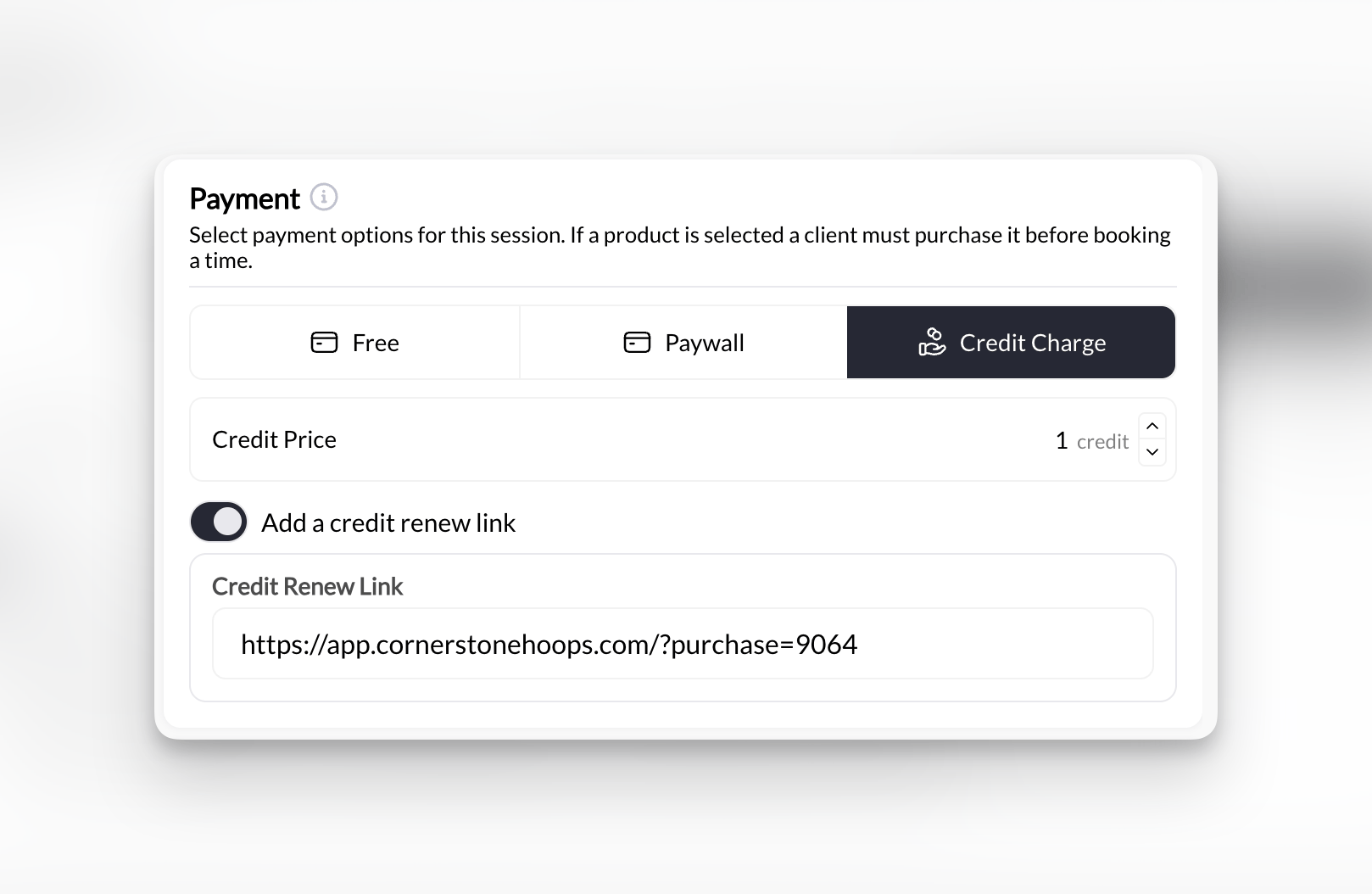 Enter how many credits one booking deducts. Almost every coach uses **1**. Use more for longer or premium sessions (a 90-minute session at 2 credits), or a fraction for short add-ons. Whatever you enter is shown to the athlete before they confirm.
Toggle **Add a credit renew link** on and paste the URL of the product that sells credits for this scheduler. When an athlete has no usable credits, they are sent straight to that product instead of a dead end.
In the scheduler's Settings, decide whether **Refund credits used on cancelation** is on. Pair it with your cancellation notice window. Details in [Cancellation and credit refunds](#cancellation-and-credit-refunds) below.
Click **Create** or **Update**. Then open the product that issues the credits and confirm this scheduler is selected under **Which schedulers accept these credits**, or that the field is blank (which means all schedulers).
## What the athlete sees
* On your schedule page, credit-based sessions show their cost (for example **1 Credit**) instead of a price.
* At checkout the athlete's current balance is shown, and the cost is deducted the moment the booking is confirmed.
* With no usable credits, the athlete is prompted to buy. If you added a renew link they go to that product. If not, they land on your general products list.
* Parents with family members added book from one shared balance and pick which child the session is for. See [Booking for multiple athletes](/scheduling/booking-for-multiple-athletes).
## Cancellation and credit refunds
Credits are deducted at booking time, so cancellation is where they come back, or don't.
| Setting | Athlete cancels with notice | Athlete cancels late | Coach cancels |
| ------------------------------------------- | --------------------------- | --------------------------------------------- | ------------------------------- |
| **Refund credits used on cancelation: on** | Credit returned to balance | Cannot cancel in-app inside the notice window | You choose in the cancel dialog |
| **Refund credits used on cancelation: off** | Credit forfeited | Cannot cancel in-app inside the notice window | You choose in the cancel dialog |
The refund setting is all or nothing per scheduler. The common "refund with notice, forfeit when late" policy comes from combining it with the **cancellation notice window**: outside the window athletes can cancel and get the credit back, inside the window they cannot cancel at all through the app. Turn on the reschedule lockout too, or athletes will reschedule out of a late slot to avoid the forfeit. Both settings are explained in [Scheduler settings, limits, and permissions](/scheduling/scheduler-settings-limits-and-permissions#credit-refund-settings).
When you cancel a credit booking from the calendar, the confirmation dialog asks whether to refund the credit. Refund it when the cancellation is on you, and forfeit it only when you are enforcing your late policy. If a refund was skipped by mistake, add the credit back from the athlete's **Credits** tab. See [Canceling bookings](/scheduling/canceling-bookings).
## Edge cases
The credits came from a product whose **Which schedulers accept these credits** list does not include this scheduler. Fix it on the product, not the scheduler. If the athlete needs to book today, grant a **Master Credit** from their profile; Master Credits work on every credit-based scheduler.
The booking is blocked. Credits are not split across bookings and there is no partial payment. Either the athlete buys more, or you grant the difference as a Master Credit. Keep multi-credit sessions rare for this reason.
The booking stands. Credits are spent at booking time, so expiration only affects credits still sitting in the balance. If that booking is later cancelled with refunds on, the returned credit follows the original product's expiration and may already be expired.
Recurring bookings you create from the calendar do **not** deduct credits when the series is created, and skipping an occurrence does not refund one. If an athlete is on a standing weekly slot, collect payment directly and skip credits for them. Details in [Recurring bookings](/scheduling/recurring-bookings#credit-handling-with-recurring-bookings).
Manual booking follows the same credit logic as self-booking, with one extra control: a **Redeem credits** checkbox. Leave it checked to deduct the credit. Uncheck it for a makeup or comp session so the athlete is not charged twice. See [Manually booking athletes](/scheduling/manually-booking-athletes).
Product-specific credits that are valid for this scheduler are used first. Master Credits are only spent when no eligible product credit remains. Check the athlete's Credits tab if you need to know which pool a booking drew from.
A subscription can grant 8 credits with only 4 usable on a given scheduler per cycle. Once the athlete hits 4 on that scheduler they are blocked there, even with credits left, until the next billing cycle. The message they see is a limit message, not an out-of-credits message. Details in [Credit usage limits and restrictions](/payments/credits/credit-usage-limits-restrictions).
Existing bookings are untouched. New bookings need credits, so athletes who used to pay per session will suddenly be told they have none. Publish the credit product first, add it as the renew link, then flip the scheduler. Announce the change before you do it.
Athletes keep their credits, but this scheduler no longer accepts them. Make sure another credit-based scheduler exists that their product allows, or refund the unused credits from their profile.
Credits tied only to that scheduler become unusable. Before archiving, edit the product's **Which schedulers accept these credits** list to include a replacement scheduler.
Fine. Payment type is per scheduler. A free trial scheduler and a 1-credit scheduler can sit side by side, and the trial scheduler will never touch a credit balance.
The subscription's credits stop renewing, but credits already granted stay until they expire (or until the subscription's own expiration rule removes them). Existing bookings are not cancelled automatically. See [Recurring credit memberships](/payments/credits/recurring-credit-memberships#payment-failure-involuntary-churn).
## Checking an athlete's credit history
Open **People**, click the athlete, and open the **Credits** tab. The log shows every grant, deduction, refund, and expiration with the scheduler or product involved, which settles almost every "where did my credit go" question. Full walkthrough in [Managing athlete credits](/payments/credits/managing-athlete-credits).
## Related articles
The product side: how many credits, expiration, and which schedulers accept them
Free, direct payment, credit-based, and hybrid setups end to end
Concepts, Master vs product credits, and package pricing strategy
Per-scheduler caps, multi-credit sessions, and how limits stack
Cancellation windows, refund toggle, and reschedule lockout
Grant, adjust, and read the credit log on a profile
Enter how many credits one booking deducts. Almost every coach uses **1**. Use more for longer or premium sessions (a 90-minute session at 2 credits), or a fraction for short add-ons. Whatever you enter is shown to the athlete before they confirm.
Toggle **Add a credit renew link** on and paste the URL of the product that sells credits for this scheduler. When an athlete has no usable credits, they are sent straight to that product instead of a dead end.
In the scheduler's Settings, decide whether **Refund credits used on cancelation** is on. Pair it with your cancellation notice window. Details in [Cancellation and credit refunds](#cancellation-and-credit-refunds) below.
Click **Create** or **Update**. Then open the product that issues the credits and confirm this scheduler is selected under **Which schedulers accept these credits**, or that the field is blank (which means all schedulers).
## What the athlete sees
* On your schedule page, credit-based sessions show their cost (for example **1 Credit**) instead of a price.
* At checkout the athlete's current balance is shown, and the cost is deducted the moment the booking is confirmed.
* With no usable credits, the athlete is prompted to buy. If you added a renew link they go to that product. If not, they land on your general products list.
* Parents with family members added book from one shared balance and pick which child the session is for. See [Booking for multiple athletes](/scheduling/booking-for-multiple-athletes).
## Cancellation and credit refunds
Credits are deducted at booking time, so cancellation is where they come back, or don't.
| Setting | Athlete cancels with notice | Athlete cancels late | Coach cancels |
| ------------------------------------------- | --------------------------- | --------------------------------------------- | ------------------------------- |
| **Refund credits used on cancelation: on** | Credit returned to balance | Cannot cancel in-app inside the notice window | You choose in the cancel dialog |
| **Refund credits used on cancelation: off** | Credit forfeited | Cannot cancel in-app inside the notice window | You choose in the cancel dialog |
The refund setting is all or nothing per scheduler. The common "refund with notice, forfeit when late" policy comes from combining it with the **cancellation notice window**: outside the window athletes can cancel and get the credit back, inside the window they cannot cancel at all through the app. Turn on the reschedule lockout too, or athletes will reschedule out of a late slot to avoid the forfeit. Both settings are explained in [Scheduler settings, limits, and permissions](/scheduling/scheduler-settings-limits-and-permissions#credit-refund-settings).
When you cancel a credit booking from the calendar, the confirmation dialog asks whether to refund the credit. Refund it when the cancellation is on you, and forfeit it only when you are enforcing your late policy. If a refund was skipped by mistake, add the credit back from the athlete's **Credits** tab. See [Canceling bookings](/scheduling/canceling-bookings).
## Edge cases
The credits came from a product whose **Which schedulers accept these credits** list does not include this scheduler. Fix it on the product, not the scheduler. If the athlete needs to book today, grant a **Master Credit** from their profile; Master Credits work on every credit-based scheduler.
The booking is blocked. Credits are not split across bookings and there is no partial payment. Either the athlete buys more, or you grant the difference as a Master Credit. Keep multi-credit sessions rare for this reason.
The booking stands. Credits are spent at booking time, so expiration only affects credits still sitting in the balance. If that booking is later cancelled with refunds on, the returned credit follows the original product's expiration and may already be expired.
Recurring bookings you create from the calendar do **not** deduct credits when the series is created, and skipping an occurrence does not refund one. If an athlete is on a standing weekly slot, collect payment directly and skip credits for them. Details in [Recurring bookings](/scheduling/recurring-bookings#credit-handling-with-recurring-bookings).
Manual booking follows the same credit logic as self-booking, with one extra control: a **Redeem credits** checkbox. Leave it checked to deduct the credit. Uncheck it for a makeup or comp session so the athlete is not charged twice. See [Manually booking athletes](/scheduling/manually-booking-athletes).
Product-specific credits that are valid for this scheduler are used first. Master Credits are only spent when no eligible product credit remains. Check the athlete's Credits tab if you need to know which pool a booking drew from.
A subscription can grant 8 credits with only 4 usable on a given scheduler per cycle. Once the athlete hits 4 on that scheduler they are blocked there, even with credits left, until the next billing cycle. The message they see is a limit message, not an out-of-credits message. Details in [Credit usage limits and restrictions](/payments/credits/credit-usage-limits-restrictions).
Existing bookings are untouched. New bookings need credits, so athletes who used to pay per session will suddenly be told they have none. Publish the credit product first, add it as the renew link, then flip the scheduler. Announce the change before you do it.
Athletes keep their credits, but this scheduler no longer accepts them. Make sure another credit-based scheduler exists that their product allows, or refund the unused credits from their profile.
Credits tied only to that scheduler become unusable. Before archiving, edit the product's **Which schedulers accept these credits** list to include a replacement scheduler.
Fine. Payment type is per scheduler. A free trial scheduler and a 1-credit scheduler can sit side by side, and the trial scheduler will never touch a credit balance.
The subscription's credits stop renewing, but credits already granted stay until they expire (or until the subscription's own expiration rule removes them). Existing bookings are not cancelled automatically. See [Recurring credit memberships](/payments/credits/recurring-credit-memberships#payment-failure-involuntary-churn).
## Checking an athlete's credit history
Open **People**, click the athlete, and open the **Credits** tab. The log shows every grant, deduction, refund, and expiration with the scheduler or product involved, which settles almost every "where did my credit go" question. Full walkthrough in [Managing athlete credits](/payments/credits/managing-athlete-credits).
## Related articles
The product side: how many credits, expiration, and which schedulers accept them
Free, direct payment, credit-based, and hybrid setups end to end
Concepts, Master vs product credits, and package pricing strategy
Per-scheduler caps, multi-credit sessions, and how limits stack
Cancellation windows, refund toggle, and reschedule lockout
Grant, adjust, and read the credit log on a profile