> ## Documentation Index
> Fetch the complete documentation index at: https://help.coachiq.io/llms.txt
> Use this file to discover all available pages before exploring further.
# Sync Bookings to Google Calendar
> Automatically sync your CoachIQ bookings to Google Calendar so sessions appear on your personal calendar.
**Where to find this**: Schedule → Schedulers → \[Select Scheduler] → Google
## What you'll accomplish
Connect your Google Calendar to a scheduler so all bookings automatically appear on your personal calendar. This keeps your CoachIQ schedule in sync with your everyday calendar without manual entry.
**Beta feature**: Google Calendar sync is currently in beta. Core functionality is stable, but some features may be refined based on feedback.
## How the sync works
Google Calendar sync is **one-way**: CoachIQ → Google Calendar.
| Action in CoachIQ | Result in Google Calendar |
| ------------------------- | ------------------------- |
| Athlete books session | Event created |
| Booking rescheduled | Event updated |
| Booking cancelled | Event removed |
| Recurring booking created | Recurring event created |
**Changes must be made in CoachIQ**. Editing or deleting events directly in Google Calendar does NOT update CoachIQ. Always manage bookings from your CoachIQ dashboard.
### What gets synced
Each booking creates a Google Calendar event with:
* Session date and time
* Athlete name
* Session type/scheduler name
* Duration
For group sessions, you choose how those bookings appear using the two options in the next section. By default, each booking creates its own event—so if 3 athletes book the same time slot, you'll see 3 separate events on your Google Calendar.
***
## Connecting Google Calendar
Go to **Schedule → Schedulers** and click on the scheduler you want to sync.
In the scheduler settings sidebar, click **Google**.
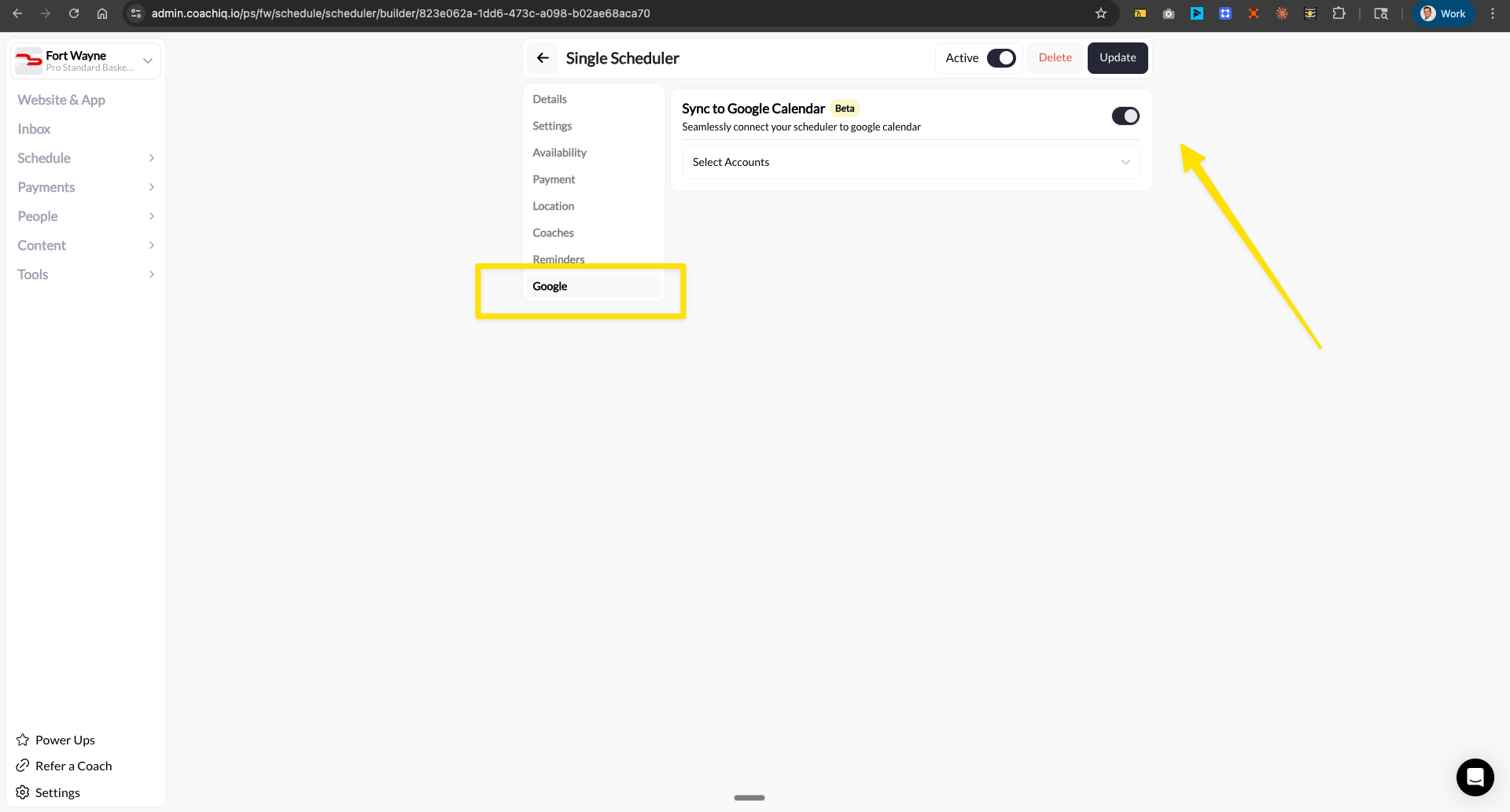 Toggle **Sync to Google Calendar** to ON.
Click **Select Accounts** and sign in with your Google account. Grant CoachIQ permission to create and manage calendar events.
Use your primary work Google account—the one where you want to see your coaching schedule.
Two optional toggles control how bookings appear. Both are **off by default**.
| Option | What it does |
| ------------------------------------------------ | --------------------------------------------------------------------------------------------------------------------------------------------------------------- |
| **Combine group bookings into one shared event** | Group sessions show up as a single Google Calendar event instead of one event per athlete. The event updates automatically as more athletes book the same slot. |
| **Add clients as event guests** | Athletes are added as guests on the event and receive a Google Calendar invite, so the session appears on their own calendar. |
Toggle **Sync to Google Calendar** to ON.
Click **Select Accounts** and sign in with your Google account. Grant CoachIQ permission to create and manage calendar events.
Use your primary work Google account—the one where you want to see your coaching schedule.
Two optional toggles control how bookings appear. Both are **off by default**.
| Option | What it does |
| ------------------------------------------------ | --------------------------------------------------------------------------------------------------------------------------------------------------------------- |
| **Combine group bookings into one shared event** | Group sessions show up as a single Google Calendar event instead of one event per athlete. The event updates automatically as more athletes book the same slot. |
| **Add clients as event guests** | Athletes are added as guests on the event and receive a Google Calendar invite, so the session appears on their own calendar. |
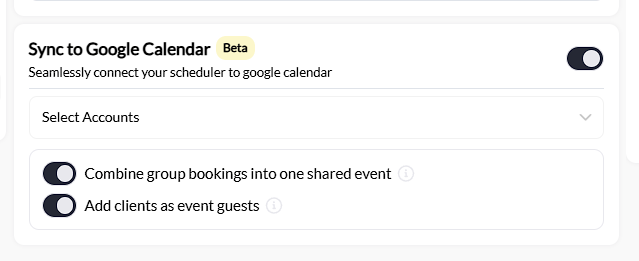 Click **Update** to save your changes.
**Success!** New bookings on this scheduler will now appear on your Google Calendar automatically.
***
## Key things to know
### Combine group bookings into one shared event
When this is on, a group session creates a single Google Calendar event rather than a separate event for each athlete. As additional athletes book the same time slot, the shared event updates automatically to reflect everyone on the roster.
With the toggle off (the default), each athlete's booking creates its own event.
### Add clients as event guests
When this is on, athletes are added as guests on the Google Calendar event and receive a calendar invite by email, so the session also lands on their own calendar.
If you turn this on alongside **Combine group bookings into one shared event**, all athletes in a group session are added as guests on the same event. Google's guest list is visible to attendees by default, so athletes in a combined group event may be able to see one another. Leave this toggle off if you'd prefer to keep group rosters private.
### Each scheduler syncs independently
You connect Google Calendar per scheduler, not account-wide. This gives you flexibility:
* Sync only specific schedulers to your calendar
* Connect different Google accounts to different schedulers
* Keep some schedulers private (not synced)
### Sync is one-way only
This is the most important concept to understand:
| Where you make changes | What happens |
| ------------------------------- | ------------------------------- |
| **CoachIQ** (correct) | Changes sync to Google Calendar |
| **Google Calendar** (incorrect) | Nothing happens in CoachIQ |
If you delete an event from Google Calendar, the booking still exists in CoachIQ. If you move an event in Google Calendar, the booking time doesn't change in CoachIQ.
**Always manage your schedule from CoachIQ.**
### Recurring bookings sync correctly
When an athlete books a recurring session:
* CoachIQ creates a recurring event in Google Calendar
* The recurrence pattern matches (weekly, bi-weekly, etc.)
* Deleting the entire recurring schedule removes all instances from Google Calendar
***
## Common questions
Google Calendar sync is the only direct integration currently available. However, if you use iCal feeds, you can subscribe to your CoachIQ calendar from Apple Calendar or Outlook. See [Calendar Overview](/scheduling/calendar-overview-and-navigation) for iCal feed options.
Sync only applies to bookings made AFTER you enable the integration. Existing bookings before you connected won't appear on Google Calendar.
No. This sync only sends events TO your Google Calendar, and athletes cannot see your calendar or any other events on it.
The exception is **Add clients as event guests**: when that toggle is on, each athlete receives an invite to their own session event, and that event appears on their calendar. They still can't see anything else on your calendar. In a combined group event, attendees may see the other guests on that event's guest list.
Each coach can connect their own Google account to schedulers they're assigned to. The sync sends events to whichever Google account is connected to that scheduler.
The sync creates events on your Google Calendar, but CoachIQ does not read your Google Calendar to determine availability. Your CoachIQ availability is set separately in your availability templates.
***
## Troubleshooting
**Check these things:**
1. Sync is toggled ON in the scheduler's Google settings
2. You've connected a Google account (not just enabled the toggle)
3. The booking was made AFTER you enabled sync
4. Check the correct Google Calendar (you may have multiple)
**Still not working?** Try disconnecting and reconnecting your Google account.
If event details appear incorrect (wrong time, missing info), the booking data in CoachIQ may need updating. Edit the booking in CoachIQ and the Google Calendar event will update.
In rare cases, cancellation sync may be delayed. Wait a few minutes and refresh your Google Calendar. If the event persists, you can manually delete it from Google Calendar (this won't affect CoachIQ).
***
## Related articles
Set up a scheduler before connecting Google Calendar
Navigate and manage your CoachIQ calendar
Configure coaches, locations, and reminders
Set when athletes can book sessions
Click **Update** to save your changes.
**Success!** New bookings on this scheduler will now appear on your Google Calendar automatically.
***
## Key things to know
### Combine group bookings into one shared event
When this is on, a group session creates a single Google Calendar event rather than a separate event for each athlete. As additional athletes book the same time slot, the shared event updates automatically to reflect everyone on the roster.
With the toggle off (the default), each athlete's booking creates its own event.
### Add clients as event guests
When this is on, athletes are added as guests on the Google Calendar event and receive a calendar invite by email, so the session also lands on their own calendar.
If you turn this on alongside **Combine group bookings into one shared event**, all athletes in a group session are added as guests on the same event. Google's guest list is visible to attendees by default, so athletes in a combined group event may be able to see one another. Leave this toggle off if you'd prefer to keep group rosters private.
### Each scheduler syncs independently
You connect Google Calendar per scheduler, not account-wide. This gives you flexibility:
* Sync only specific schedulers to your calendar
* Connect different Google accounts to different schedulers
* Keep some schedulers private (not synced)
### Sync is one-way only
This is the most important concept to understand:
| Where you make changes | What happens |
| ------------------------------- | ------------------------------- |
| **CoachIQ** (correct) | Changes sync to Google Calendar |
| **Google Calendar** (incorrect) | Nothing happens in CoachIQ |
If you delete an event from Google Calendar, the booking still exists in CoachIQ. If you move an event in Google Calendar, the booking time doesn't change in CoachIQ.
**Always manage your schedule from CoachIQ.**
### Recurring bookings sync correctly
When an athlete books a recurring session:
* CoachIQ creates a recurring event in Google Calendar
* The recurrence pattern matches (weekly, bi-weekly, etc.)
* Deleting the entire recurring schedule removes all instances from Google Calendar
***
## Common questions
Google Calendar sync is the only direct integration currently available. However, if you use iCal feeds, you can subscribe to your CoachIQ calendar from Apple Calendar or Outlook. See [Calendar Overview](/scheduling/calendar-overview-and-navigation) for iCal feed options.
Sync only applies to bookings made AFTER you enable the integration. Existing bookings before you connected won't appear on Google Calendar.
No. This sync only sends events TO your Google Calendar, and athletes cannot see your calendar or any other events on it.
The exception is **Add clients as event guests**: when that toggle is on, each athlete receives an invite to their own session event, and that event appears on their calendar. They still can't see anything else on your calendar. In a combined group event, attendees may see the other guests on that event's guest list.
Each coach can connect their own Google account to schedulers they're assigned to. The sync sends events to whichever Google account is connected to that scheduler.
The sync creates events on your Google Calendar, but CoachIQ does not read your Google Calendar to determine availability. Your CoachIQ availability is set separately in your availability templates.
***
## Troubleshooting
**Check these things:**
1. Sync is toggled ON in the scheduler's Google settings
2. You've connected a Google account (not just enabled the toggle)
3. The booking was made AFTER you enabled sync
4. Check the correct Google Calendar (you may have multiple)
**Still not working?** Try disconnecting and reconnecting your Google account.
If event details appear incorrect (wrong time, missing info), the booking data in CoachIQ may need updating. Edit the booking in CoachIQ and the Google Calendar event will update.
In rare cases, cancellation sync may be delayed. Wait a few minutes and refresh your Google Calendar. If the event persists, you can manually delete it from Google Calendar (this won't affect CoachIQ).
***
## Related articles
Set up a scheduler before connecting Google Calendar
Navigate and manage your CoachIQ calendar
Configure coaches, locations, and reminders
Set when athletes can book sessions