> ## Documentation Index
> Fetch the complete documentation index at: https://help.coachiq.io/llms.txt
> Use this file to discover all available pages before exploring further.
# Organizing Schedulers: Catalog, Tags & Team Visibility
> Sort schedulers into catalog types, tag them for filtering, and control which athletes can see each one.
**Where to find this**: **Scheduling → Schedulers**, and the **Catalog** and **Team visibility** sections inside any scheduler
## Why organise schedulers
Once you have more than a handful of schedulers, the list and the athlete portal both get noisy. Three tools keep them tidy:
* **Catalog type** groups schedulers by what they are
* **Tags** let you filter by anything you like
* **Team visibility** decides which athletes can see a scheduler at all
 ## Catalog types
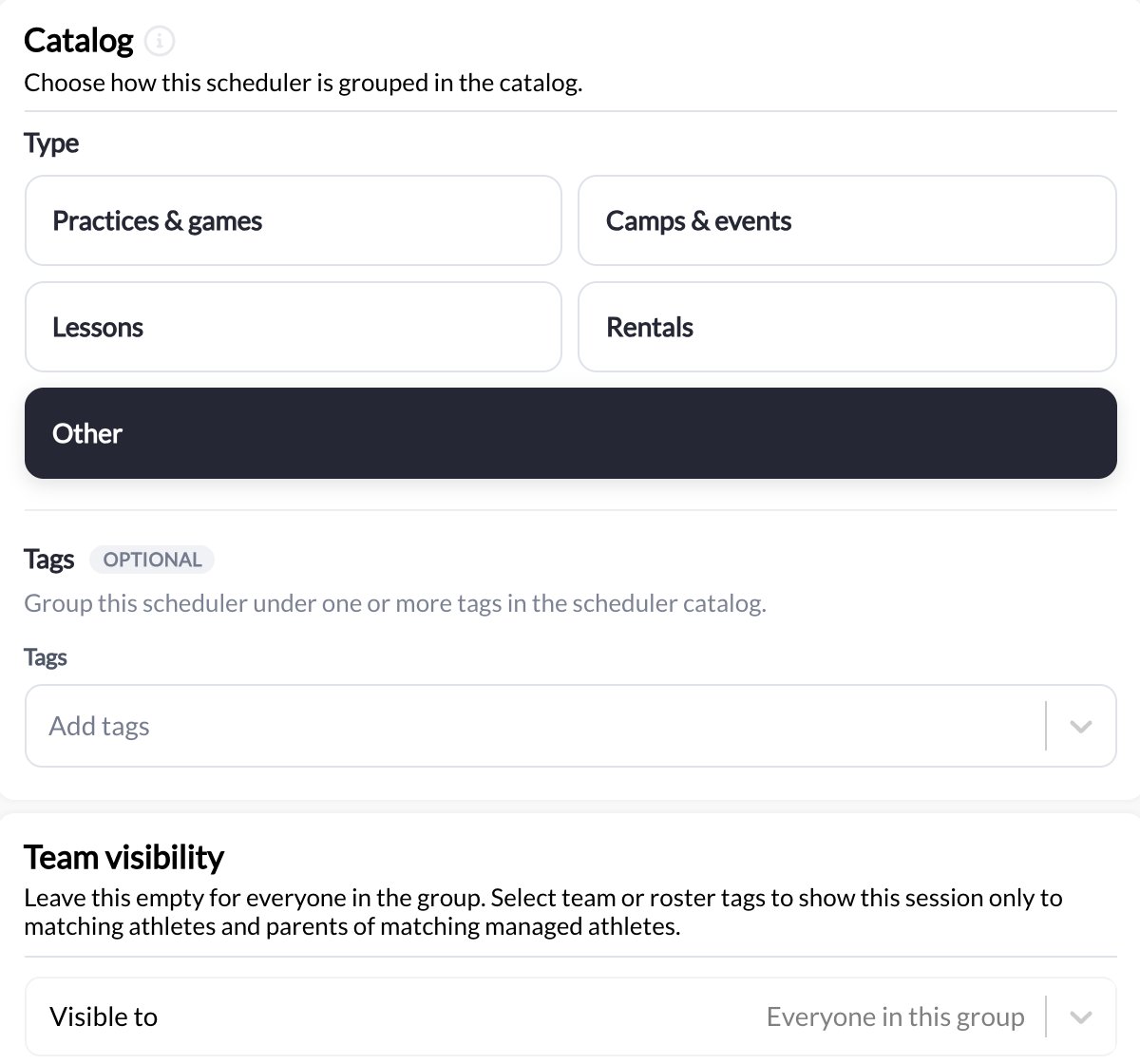
Every scheduler has a **Type**, set in its **Catalog** section:
| Type | Use it for |
| --------------------- | --------------------------------------------------- |
| **Practices & games** | Team practices, scrimmages, match days |
| **Camps & events** | Multi-day camps, clinics, showcases, one-off events |
| **Lessons** | Private and small-group instruction |
| **Rentals** | Booking a court, cage, or field without a coach |
| **Other** | Anything that does not fit above |
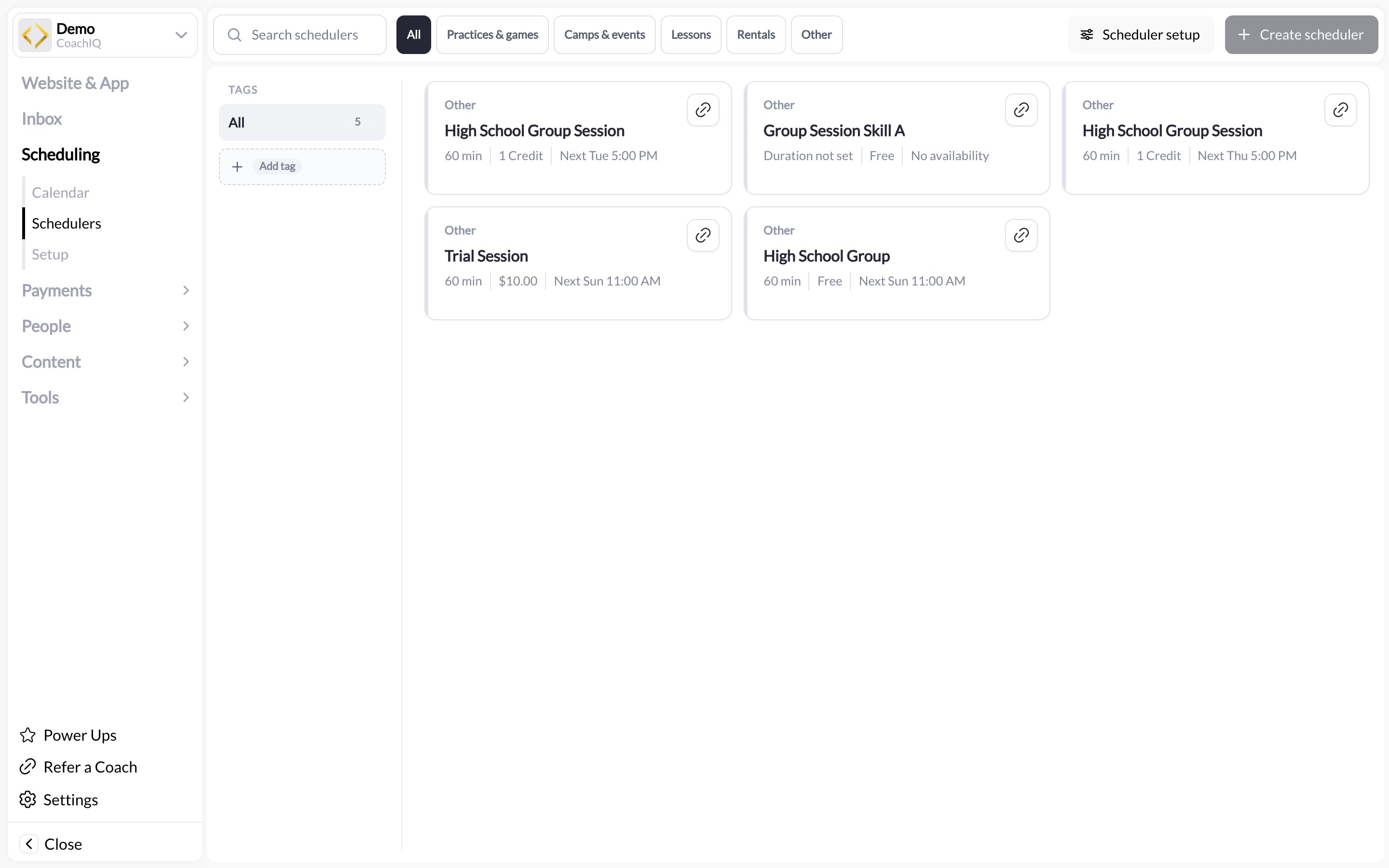
The **Schedulers** page shows these types as filter chips across the top (**All · Practices & games · Camps & events · Lessons · Rentals · Other**) next to a **Search schedulers** box, so you can jump straight to the schedulers you are looking for. Each card also shows its type, duration, price (or credits, or Free), and the next available occurrence. Athletes see the same grouping in the portal, which makes a long offering easier to browse.
Schedulers created before types existed default to **Other**. Open each one and set its type once; it takes a few seconds per scheduler and the filters become useful immediately.
## Scheduler tags
Tags are free-form labels you attach to a scheduler. Use the **TAGS** panel on the left of the Schedulers page (**Add tag**) or the **Tags** field in the scheduler's Catalog section. The panel shows a count next to each tag, so "Freehold Skills 4" means four schedulers carry it.
Good tag ideas:
* Season: `Fall 2026`, `Summer camp`
* Level: `Beginner`, `Advanced`, `High school`
* Coach: `Coach Dana`, `Coach Lee`
* Location: `Downtown`, `North field`
Click a tag on the Schedulers page to filter the list to that tag. Tags are internal: they are for you and your staff, and they are separate from the [client tags](/people/tags-filters) you put on people.
## Catalog types
Every scheduler has a **Type**, set in its **Catalog** section:
| Type | Use it for |
| --------------------- | --------------------------------------------------- |
| **Practices & games** | Team practices, scrimmages, match days |
| **Camps & events** | Multi-day camps, clinics, showcases, one-off events |
| **Lessons** | Private and small-group instruction |
| **Rentals** | Booking a court, cage, or field without a coach |
| **Other** | Anything that does not fit above |
The **Schedulers** page shows these types as filter chips across the top (**All · Practices & games · Camps & events · Lessons · Rentals · Other**) next to a **Search schedulers** box, so you can jump straight to the schedulers you are looking for. Each card also shows its type, duration, price (or credits, or Free), and the next available occurrence. Athletes see the same grouping in the portal, which makes a long offering easier to browse.
Schedulers created before types existed default to **Other**. Open each one and set its type once; it takes a few seconds per scheduler and the filters become useful immediately.
## Scheduler tags
Tags are free-form labels you attach to a scheduler. Use the **TAGS** panel on the left of the Schedulers page (**Add tag**) or the **Tags** field in the scheduler's Catalog section. The panel shows a count next to each tag, so "Freehold Skills 4" means four schedulers carry it.
Good tag ideas:
* Season: `Fall 2026`, `Summer camp`
* Level: `Beginner`, `Advanced`, `High school`
* Coach: `Coach Dana`, `Coach Lee`
* Location: `Downtown`, `North field`
Click a tag on the Schedulers page to filter the list to that tag. Tags are internal: they are for you and your staff, and they are separate from the [client tags](/people/tags-filters) you put on people.
 ## Team visibility
By default every active scheduler is visible to everyone in your athlete portal. The **Team visibility** section lets you restrict a scheduler to a roster:
* **Everyone** — any athlete can see and book it
* **Roster / team tags** — only athletes carrying the selected [client tags](/people/tags-filters) see it
Use this for team-only practices, a private training block for a specific squad, or make-up sessions for one group. Athletes outside the roster never see the scheduler in the portal, and the direct link will not let them book.
Combine team visibility with [tag-based messaging](/inbox/using-tags-for-group-messages): tag the roster, restrict the scheduler to that tag, then message the same tag with the booking link. One tag runs the whole flow.
## Copying a scheduler link
Each card on the Schedulers page has a link icon. Hover it for **Copy scheduler link**, then paste the link into a message, your website, or a form. Details in [Sharing schedulers](/scheduling/sharing-schedulers).
## Common questions
No, one type per scheduler. Use tags for anything that crosses types.
No. Admins and coaches can book anyone into any scheduler from the calendar. Visibility only affects what athletes see in the portal.
Check that the athlete carries the exact tag selected in Team visibility, and that the scheduler is **Active**. Tag names must match; "Varsity" and "varsity " with a trailing space are different tags.
## Related articles
The building block of CoachIQ scheduling
Links, embeds, and where to put them
The client tags that drive team visibility
Everything else that controls who can book
## Team visibility
By default every active scheduler is visible to everyone in your athlete portal. The **Team visibility** section lets you restrict a scheduler to a roster:
* **Everyone** — any athlete can see and book it
* **Roster / team tags** — only athletes carrying the selected [client tags](/people/tags-filters) see it
Use this for team-only practices, a private training block for a specific squad, or make-up sessions for one group. Athletes outside the roster never see the scheduler in the portal, and the direct link will not let them book.
Combine team visibility with [tag-based messaging](/inbox/using-tags-for-group-messages): tag the roster, restrict the scheduler to that tag, then message the same tag with the booking link. One tag runs the whole flow.
## Copying a scheduler link
Each card on the Schedulers page has a link icon. Hover it for **Copy scheduler link**, then paste the link into a message, your website, or a form. Details in [Sharing schedulers](/scheduling/sharing-schedulers).
## Common questions
No, one type per scheduler. Use tags for anything that crosses types.
No. Admins and coaches can book anyone into any scheduler from the calendar. Visibility only affects what athletes see in the portal.
Check that the athlete carries the exact tag selected in Team visibility, and that the scheduler is **Active**. Tag names must match; "Varsity" and "varsity " with a trailing space are different tags.
## Related articles
The building block of CoachIQ scheduling
Links, embeds, and where to put them
The client tags that drive team visibility
Everything else that controls who can book