> ## Documentation Index
> Fetch the complete documentation index at: https://help.coachiq.io/llms.txt
> Use this file to discover all available pages before exploring further.
# Set up overlapping slots
> Offer sessions on a rolling cadence so athletes have more start times to choose from within your availability window.
By default, CoachIQ generates booking slots back-to-back based on your session duration. Overlapping slots let you offer sessions on a rolling cadence instead — so athletes see more start time options on the same day.
**Where to find this:** Scheduling → Schedulers → open a scheduler → **Settings** tab
## How it works
When you enable overlapping slots, you choose a **Slot Cadence** — how frequently a new slot starts. Each slot is independently bookable and has its own capacity.
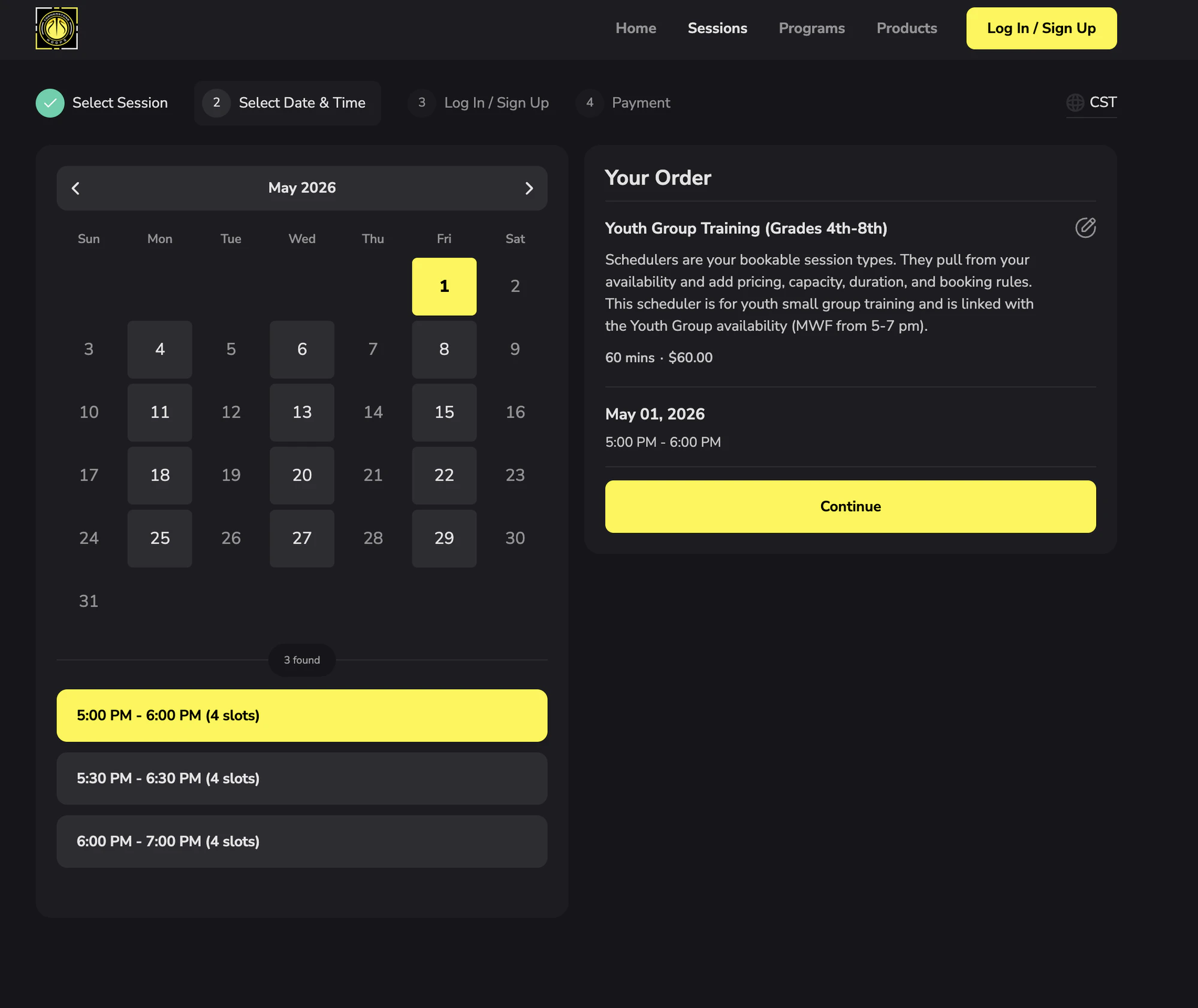
**Example:** A 60-minute session with a 30-minute cadence generates three slots at 5:00 PM, 5:30 PM, and 6:00 PM — all available on the same day.
This works well for:
* Drop-in group training where athletes pick their own entry time
* Long sessions where you want frequent start points throughout your availability window
* Formats where multiple athletes can be in overlapping windows simultaneously
## Enable overlapping slots
Go to **Scheduling** in the left sidebar, then open the scheduler you want to edit.
Click **Settings** in the left nav of the scheduler editor.
Under **Duration**, check **Allow overlapping slots within this session**. The **Slot Cadence** options will appear once the box is checked.
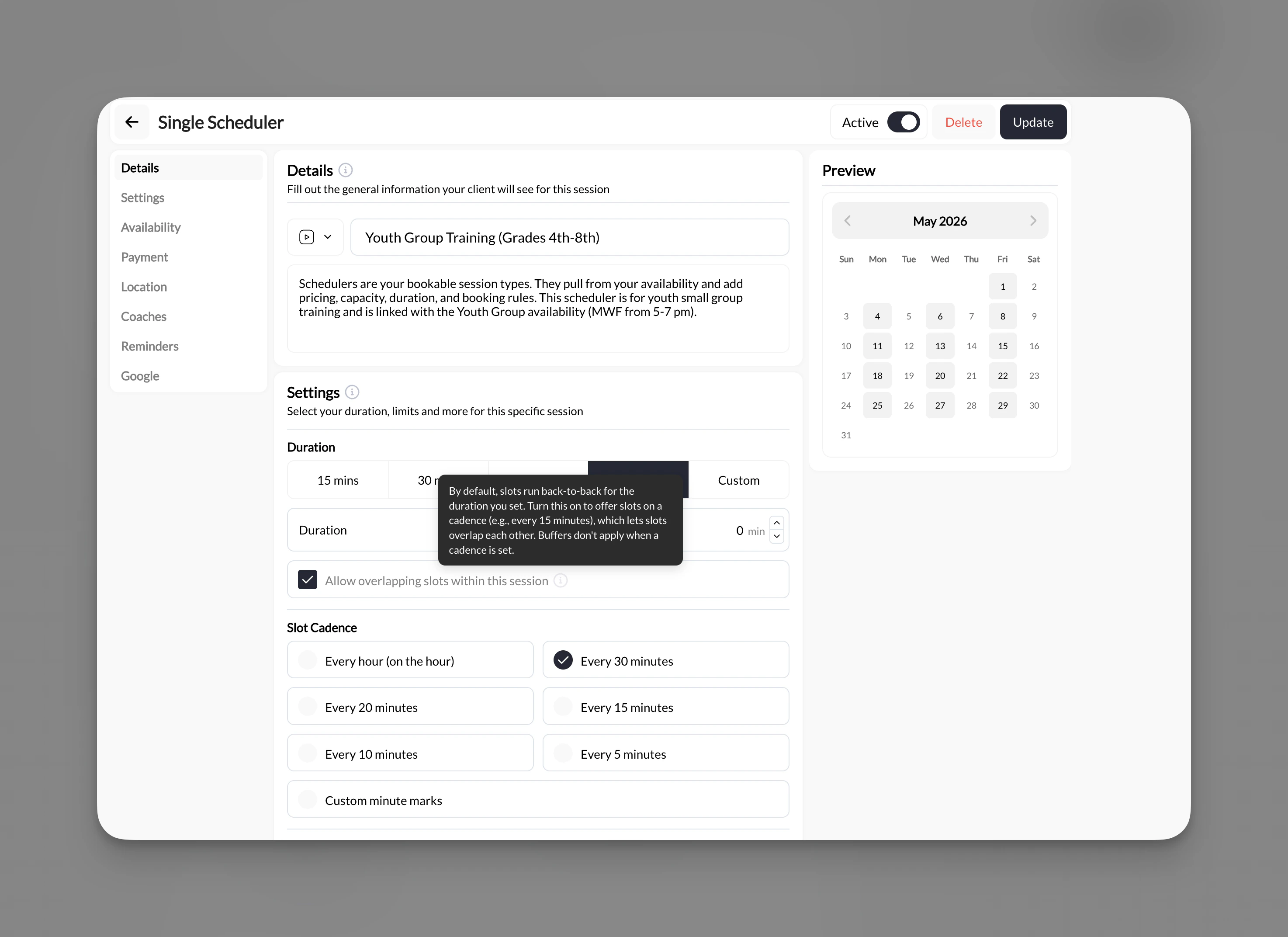 Select how often you want a new slot to start:
| Cadence | Best for |
| ---------------------------- | ---------------------------------------------- |
| **Every hour (on the hour)** | Long sessions with wide availability windows |
| **Every 30 minutes** | 60-min sessions with moderate flexibility |
| **Every 20 minutes** | Mid-length sessions with frequent entry points |
| **Every 15 minutes** | Short sessions or high-demand time blocks |
| **Every 10 minutes** | Very short sessions or fitness drop-ins |
| **Every 5 minutes** | Maximum flexibility |
| **Custom minute marks** | Any specific cadence not listed above |
Click **Update** in the top right to save your changes.
Buffers do not apply when a slot cadence is set. If you rely on buffer time between sessions, overlapping slots may not be the right fit for that scheduler.
## What athletes see
Athletes will see each available start time listed as a separate slot on the booking calendar, along with how many spots are still open for each.
Select how often you want a new slot to start:
| Cadence | Best for |
| ---------------------------- | ---------------------------------------------- |
| **Every hour (on the hour)** | Long sessions with wide availability windows |
| **Every 30 minutes** | 60-min sessions with moderate flexibility |
| **Every 20 minutes** | Mid-length sessions with frequent entry points |
| **Every 15 minutes** | Short sessions or high-demand time blocks |
| **Every 10 minutes** | Very short sessions or fitness drop-ins |
| **Every 5 minutes** | Maximum flexibility |
| **Custom minute marks** | Any specific cadence not listed above |
Click **Update** in the top right to save your changes.
Buffers do not apply when a slot cadence is set. If you rely on buffer time between sessions, overlapping slots may not be the right fit for that scheduler.
## What athletes see
Athletes will see each available start time listed as a separate slot on the booking calendar, along with how many spots are still open for each.
 ## Things to know
* Each slot has its own capacity — booking one slot does not affect availability on overlapping slots.
* This setting is per-scheduler, so you can enable it on some session types and leave others unchanged.
* Overlapping slots work the same way whether athletes are paying by card or using credits.
## Related articles
## Things to know
* Each slot has its own capacity — booking one slot does not affect availability on overlapping slots.
* This setting is per-scheduler, so you can enable it on some session types and leave others unchanged.
* Overlapping slots work the same way whether athletes are paying by card or using credits.
## Related articles