> ## Documentation Index
> Fetch the complete documentation index at: https://help.coachiq.io/llms.txt
> Use this file to discover all available pages before exploring further.
# Set Prices by Session Length
> Offer different prices or credit costs for 30-minute, 60-minute, and custom session lengths.
Use one scheduler to offer several session lengths, each with its own price or credit cost. Open **Scheduling → Schedulers**, then create or edit the scheduler.
## Choose the lengths you offer
In **Advanced settings → Session lengths**, select every length families can book. For example, select **30 mins** and **60 mins**.
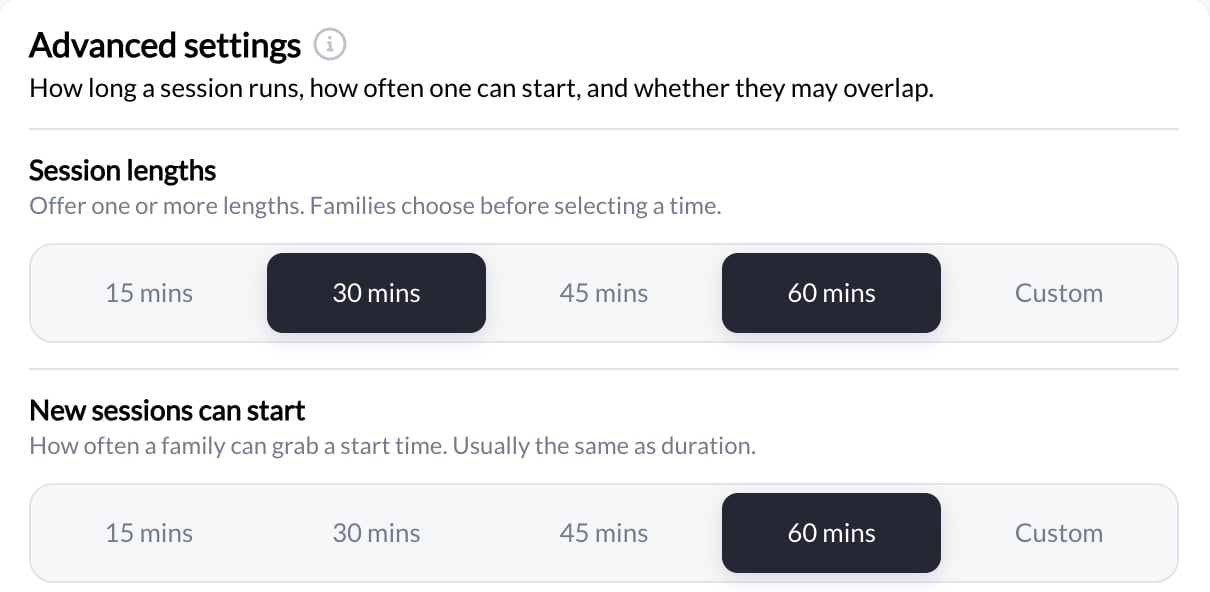 **New sessions can start** controls the spacing between start times. It is separate from the length of the booking: offering a 30-minute session does not automatically change a 60-minute start interval.
## Set the default payment option
Open **Payment**, choose **Paywalled**, and select how families pay:
| Option | Set up |
| ------ | ---------------------------------------------------------------- |
| Price | Select the product families purchase to book. |
| Credit | Set the number of credits used from an existing package. |
| Either | Set both. Families can pay with the selected product or credits. |
The product and credit cost above **Price by session length** are the defaults. Create the required products in **Payments → Products** before selecting them here.
## Override individual lengths
In **Price by session length**, set a product and/or credit cost for each length, matching your chosen payment option. Leave **Same as above** to use the default.
**New sessions can start** controls the spacing between start times. It is separate from the length of the booking: offering a 30-minute session does not automatically change a 60-minute start interval.
## Set the default payment option
Open **Payment**, choose **Paywalled**, and select how families pay:
| Option | Set up |
| ------ | ---------------------------------------------------------------- |
| Price | Select the product families purchase to book. |
| Credit | Set the number of credits used from an existing package. |
| Either | Set both. Families can pay with the selected product or credits. |
The product and credit cost above **Price by session length** are the defaults. Create the required products in **Payments → Products** before selecting them here.
## Override individual lengths
In **Price by session length**, set a product and/or credit cost for each length, matching your chosen payment option. Leave **Same as above** to use the default.
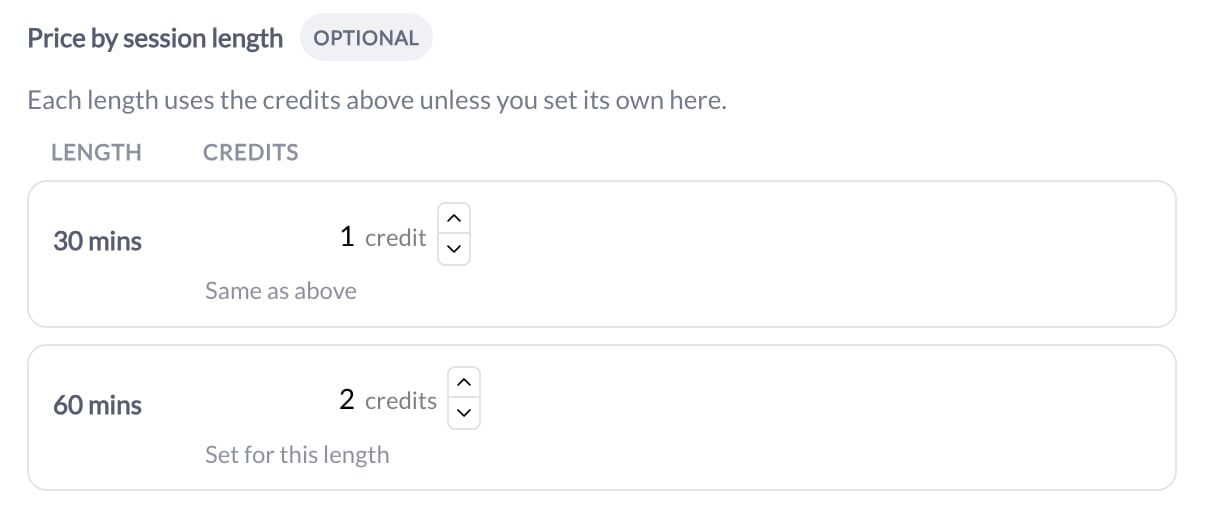 In this unsaved example, 30 minutes uses the default **1 credit**, while 60 minutes uses **2 credits**. For cash pricing, you could select a product priced at USD 50 for 30 minutes and another at USD 100 for 60 minutes. These are example prices, not CoachIQ fees.
CoachIQ does not calculate the longer price from an hourly rate. Check every offered length, including those still using the default, then save the scheduler.
## Check the family booking experience
1. Open the scheduler's booking preview or shared booking page.
2. Select a length before choosing the date and time.
3. Check that the price or required credits match that length. Review any fees and the checkout total separately.
4. Change the length and choose a new time. The earlier time selection clears, availability refreshes, and the price or credit requirement updates.
5. Repeat for every length and each payment option you offer.
You can review the selection and checkout summary without completing a purchase. Only use test cards in a confirmed Stripe test environment.
## Existing bookings and rescheduling
Changing the scheduler's prices does not change what was charged for existing bookings. To move to a differently priced length, cancel under your cancellation policy and book the new length with the appropriate purchase or credits. Do not assume that rescheduling collects a price difference or issues a refund.
See [Payment options](/scheduling/setting-up-payment-options), [Credits on a scheduler](/scheduling/credits-and-schedulers), and [Cancellation policies](/scheduling/canceling-bookings).
In this unsaved example, 30 minutes uses the default **1 credit**, while 60 minutes uses **2 credits**. For cash pricing, you could select a product priced at USD 50 for 30 minutes and another at USD 100 for 60 minutes. These are example prices, not CoachIQ fees.
CoachIQ does not calculate the longer price from an hourly rate. Check every offered length, including those still using the default, then save the scheduler.
## Check the family booking experience
1. Open the scheduler's booking preview or shared booking page.
2. Select a length before choosing the date and time.
3. Check that the price or required credits match that length. Review any fees and the checkout total separately.
4. Change the length and choose a new time. The earlier time selection clears, availability refreshes, and the price or credit requirement updates.
5. Repeat for every length and each payment option you offer.
You can review the selection and checkout summary without completing a purchase. Only use test cards in a confirmed Stripe test environment.
## Existing bookings and rescheduling
Changing the scheduler's prices does not change what was charged for existing bookings. To move to a differently priced length, cancel under your cancellation policy and book the new length with the appropriate purchase or credits. Do not assume that rescheduling collects a price difference or issues a refund.
See [Payment options](/scheduling/setting-up-payment-options), [Credits on a scheduler](/scheduling/credits-and-schedulers), and [Cancellation policies](/scheduling/canceling-bookings).