> ## Documentation Index
> Fetch the complete documentation index at: https://help.coachiq.io/llms.txt
> Use this file to discover all available pages before exploring further.
# Save Calendar Views and Find Open Availability
> Find unbooked times, filter the openings you need, and save a calendar view for yourself or your team.
Open **Scheduling → Calendar**. The chips above the calendar let you return to saved configurations without rebuilding your filters.
## Show unbooked times
1. Open **Show** and choose **Open availability only**.
2. Under **Show openings for**, select the types of openings you want to see.
3. Narrow the **Schedulers** and **Coaches** filters, choose your date range and view, and check the timezone.
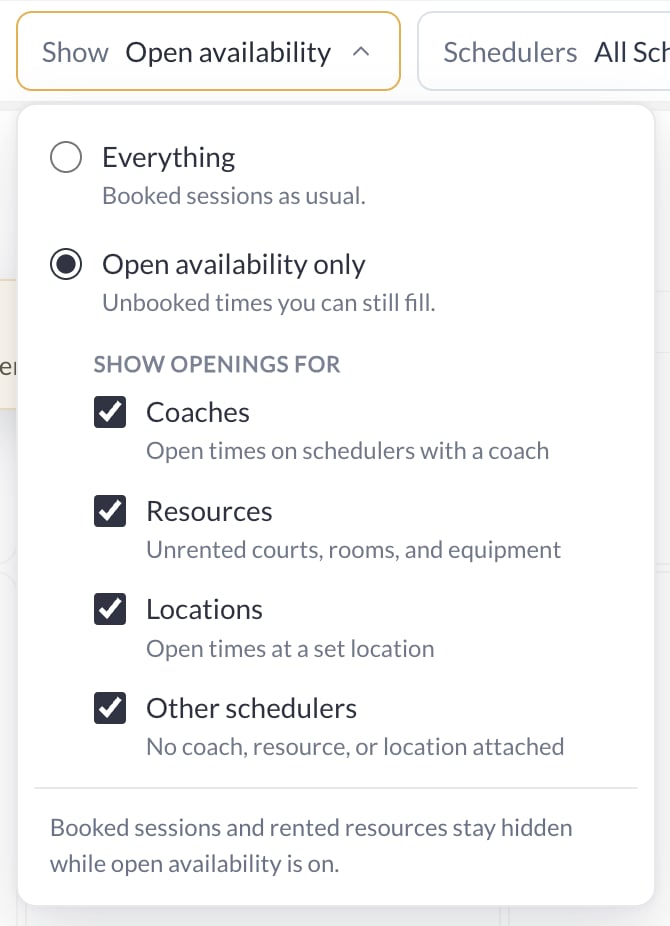 | Opening type | Shows |
| ---------------- | ------------------------------------------------------------ |
| Coaches | Open times on schedulers with a coach. |
| Resources | Unrented courts, rooms, and equipment. |
| Locations | Open times at a set location. |
| Other schedulers | Schedulers without an attached coach, resource, or location. |
Booked sessions and rented resources stay hidden while open availability is on. An opening is an available time, not a booking or a reserved resource.
## Save your view
After changing the filters, choose **+ Save view**.
| Opening type | Shows |
| ---------------- | ------------------------------------------------------------ |
| Coaches | Open times on schedulers with a coach. |
| Resources | Unrented courts, rooms, and equipment. |
| Locations | Open times at a set location. |
| Other schedulers | Schedulers without an attached coach, resource, or location. |
Booked sessions and rented resources stay hidden while open availability is on. An opening is an available time, not a booking or a reserved resource.
## Save your view
After changing the filters, choose **+ Save view**.
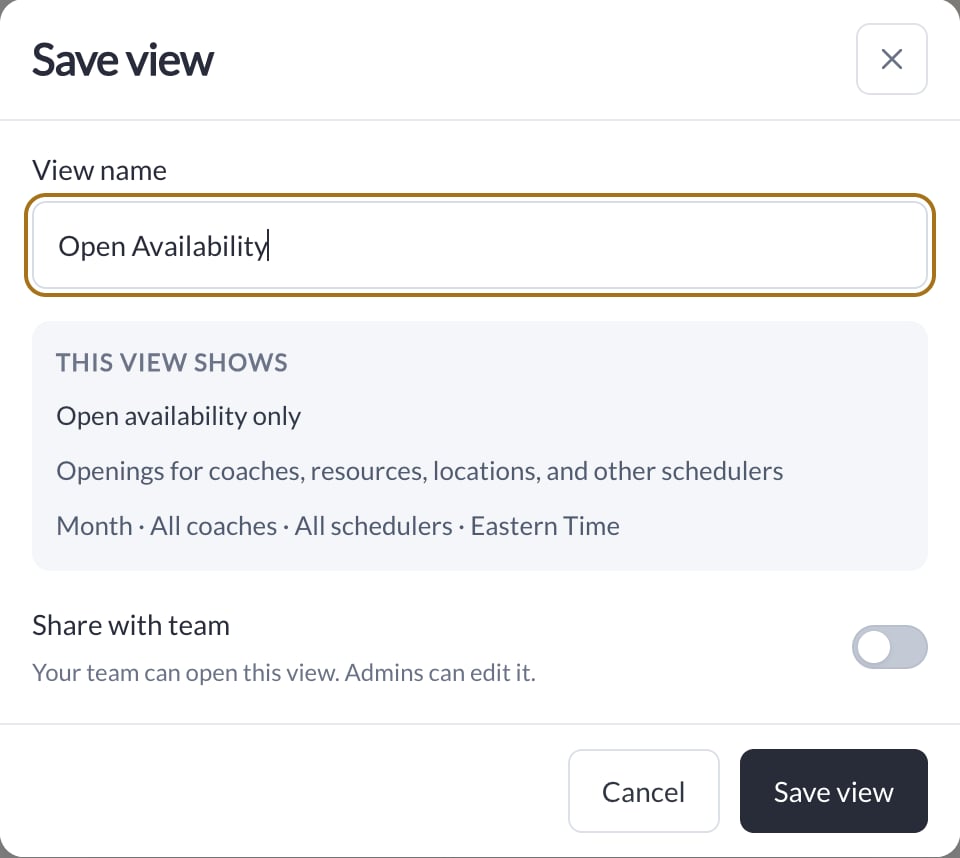 1. Give the view a name you will recognize, such as **Open Availability**.
2. Review **This view shows**, including the opening types, calendar view, coach and scheduler filters, and timezone.
3. If you want the team to use it, turn on **Share with team**. The team can open a shared view; Admins can edit it.
4. Choose **Save view**. Use its chip above the calendar to return to it.
Use **Manage views** to review your saved views. Choose **All sessions** to return to the normal booked-session display.
## When you do not see openings
Check the selected period, schedulers, coaches, and opening types first. **No openings this month** means the schedulers in view are booked up or have no availability in that period; it does not mean the entire business has no openings.
For a large schedule, switch to a week or day and select fewer schedulers. If the calendar asks for a shorter range or fewer schedulers, narrow the request and retry.
For more on navigation and bookings, see [Calendar overview](/scheduling/calendar-overview-and-navigation) and [How availability works](/scheduling/how-availability-works).
1. Give the view a name you will recognize, such as **Open Availability**.
2. Review **This view shows**, including the opening types, calendar view, coach and scheduler filters, and timezone.
3. If you want the team to use it, turn on **Share with team**. The team can open a shared view; Admins can edit it.
4. Choose **Save view**. Use its chip above the calendar to return to it.
Use **Manage views** to review your saved views. Choose **All sessions** to return to the normal booked-session display.
## When you do not see openings
Check the selected period, schedulers, coaches, and opening types first. **No openings this month** means the schedulers in view are booked up or have no availability in that period; it does not mean the entire business has no openings.
For a large schedule, switch to a week or day and select fewer schedulers. If the calendar asks for a shorter range or fewer schedulers, narrow the request and retry.
For more on navigation and bookings, see [Calendar overview](/scheduling/calendar-overview-and-navigation) and [How availability works](/scheduling/how-availability-works).