> ## Documentation Index
> Fetch the complete documentation index at: https://help.coachiq.io/llms.txt
> Use this file to discover all available pages before exploring further.
# Coaches
> Connect coaches to your schedulers, give each their own availability, and see at a glance who covers what.
**Where to find this**: **Scheduling → Setup → Coaches**
## What the Coaches tab does
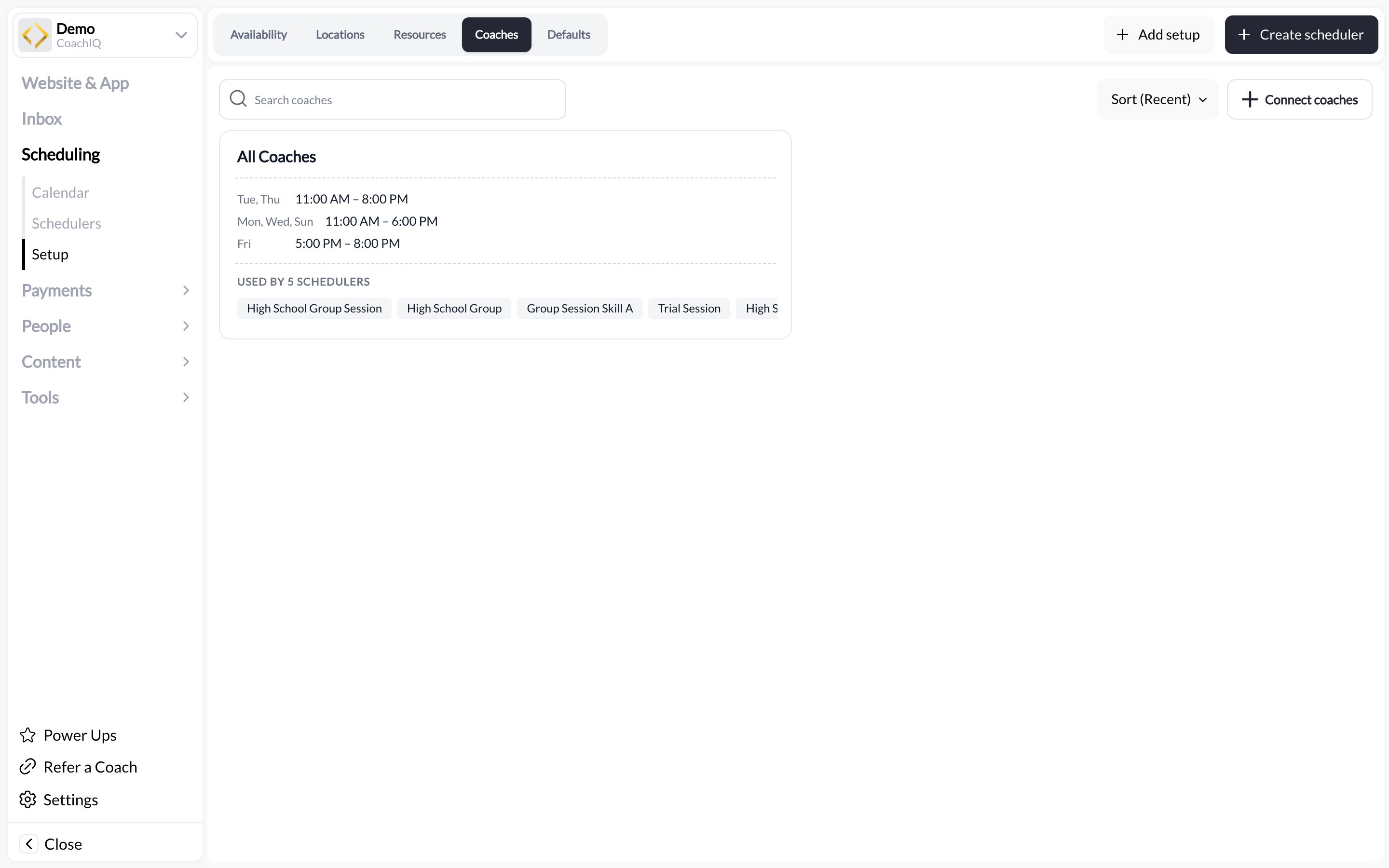
The **Coaches** tab is the scheduling view of your staff. It lists every coach who is connected to at least one scheduler, shows their weekly availability, and tells you which schedulers each one covers (**USED BY n SCHEDULERS**).
The first card is always **All Coaches**. It represents "any available coach" and carries its own availability; schedulers set to all coaches draw from it. Each named coach follows, with their email and their own weekly hours.
Adding someone to your team happens in **People → Staff** (see [Managing Staff](/people/managing-staff)). This tab is where you decide *when* they take bookings and *which* sessions they can be booked for.
 ## Connecting a coach
In **People → Staff → Add Staff**, create the coach with the **Coach** (or **Admin**) role. They need a staff role to appear here.
In **Scheduling → Setup → Coaches**, click **Connect coaches** and select the person. They now appear as a card.
Give each coach their own weekly availability. This is separate from the scheduler's availability template: an athlete can only book a slot that is open on **both**. Details in [Managing availability for multiple coaches](/scheduling/managing-availability-for-multiple-coaches).
Open a scheduler, go to its **Coaches** section, and pick the coaches who can run it. Choose specific coaches, or **all coaches** for open sessions any staff member can take.
## How coach conflicts work
A coach can be in one place at a time. When a coach is booked on any session, that time is blocked for every other scheduler they are attached to. This is what stops a 4 pm private lesson and a 4 pm group clinic landing on the same person.
If you want two sessions to run simultaneously, attach different coaches to each, or use **all coaches** on neither.
## Choosing a coach at booking
When a scheduler has more than one coach, the athlete picks a coach as part of booking, or you pick for them when [booking manually](/scheduling/manually-booking-athletes). The available slots update to that coach's availability.
## What a coach sees
Coaches log in to the same admin app and see the calendar filtered to their sessions. Admins control which pages a coach can open from **People → Staff**. See [Managing Staff](/people/managing-staff).
## Common questions
They have not been connected to a scheduler yet. Use **Connect coaches**, or open a scheduler's **Coaches** section and add them there.
Yes, if they can access Scheduling → Setup. Otherwise an admin sets it. Either way it lives on the coach's card.
No. Leave schedulers on **all coaches** and your personal availability is the scheduler's availability template.
## Related articles
The full multi-coach availability model with examples
Add coaches and control what they can access
Where sessions happen
Settings every new scheduler starts with
## Connecting a coach
In **People → Staff → Add Staff**, create the coach with the **Coach** (or **Admin**) role. They need a staff role to appear here.
In **Scheduling → Setup → Coaches**, click **Connect coaches** and select the person. They now appear as a card.
Give each coach their own weekly availability. This is separate from the scheduler's availability template: an athlete can only book a slot that is open on **both**. Details in [Managing availability for multiple coaches](/scheduling/managing-availability-for-multiple-coaches).
Open a scheduler, go to its **Coaches** section, and pick the coaches who can run it. Choose specific coaches, or **all coaches** for open sessions any staff member can take.
## How coach conflicts work
A coach can be in one place at a time. When a coach is booked on any session, that time is blocked for every other scheduler they are attached to. This is what stops a 4 pm private lesson and a 4 pm group clinic landing on the same person.
If you want two sessions to run simultaneously, attach different coaches to each, or use **all coaches** on neither.
## Choosing a coach at booking
When a scheduler has more than one coach, the athlete picks a coach as part of booking, or you pick for them when [booking manually](/scheduling/manually-booking-athletes). The available slots update to that coach's availability.
## What a coach sees
Coaches log in to the same admin app and see the calendar filtered to their sessions. Admins control which pages a coach can open from **People → Staff**. See [Managing Staff](/people/managing-staff).
## Common questions
They have not been connected to a scheduler yet. Use **Connect coaches**, or open a scheduler's **Coaches** section and add them there.
Yes, if they can access Scheduling → Setup. Otherwise an admin sets it. Either way it lives on the coach's card.
No. Leave schedulers on **all coaches** and your personal availability is the scheduler's availability template.
## Related articles
The full multi-coach availability model with examples
Add coaches and control what they can access
Where sessions happen
Settings every new scheduler starts with