> ## Documentation Index
> Fetch the complete documentation index at: https://help.coachiq.io/llms.txt
> Use this file to discover all available pages before exploring further.
# Locations
> Save the places you coach, attach them to schedulers, and let athletes see exactly where to show up.
**Where to find this**: **Scheduling → Setup → Locations**
## What locations are
A location is a saved address: the field, gym, cage, or park where a session happens. Save it once, attach it to any scheduler, and every booking confirmation, reminder, and calendar entry carries the right address without you retyping it.
Locations also anchor [Resources](/scheduling/resources). A court or cage belongs to a location, so athletes and coaches always know which building "Cage 2" is in.
 ## Adding a location
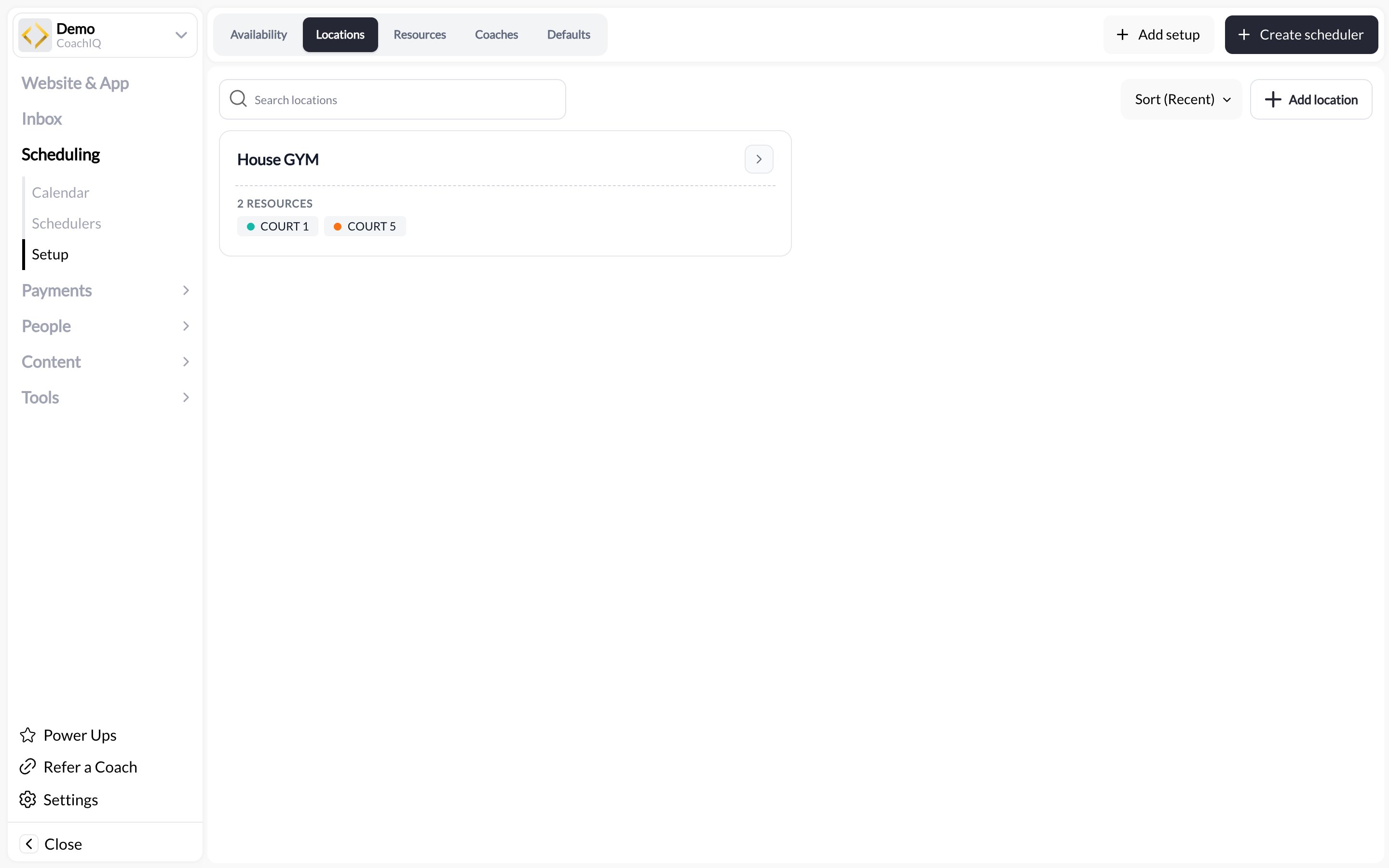
Go to **Scheduling → Setup** and click the **Locations** tab, then **Add location**.
Give the location a short **title** athletes will recognise ("Main Gym", "Field 3 at Riverside Park") and fill in the street address. The title shows on bookings; the address powers map links.
Each location carries its own hours per weekday (for example Mon–Thu 9:00 AM – 1:00 PM and 5:00 PM – 9:00 PM). They show on the card alongside the location's schedulers; the actual bookable windows come from your [availability templates](/scheduling/how-availability-works).
The location appears as a card showing its address, hours, and **USED BY n SCHEDULERS**.
## Attaching a location to a scheduler
Open the scheduler from **Scheduling → Schedulers**, scroll to the **Location** section, and pick a saved location. You can also type a new address there; it is saved to Setup → Locations automatically so you can reuse it.
A scheduler has one location. If you run the same session at two sites, create two schedulers (duplicate the first) and give each its own location. That keeps the address on every booking correct and lets you compare the two sites in [Calendar analytics](/scheduling/calendar-analytics).
## What athletes see
The location title and address appear:
* On the session card in the athlete portal before booking
* In the booking confirmation and reminder messages
* On the calendar event if the athlete adds it to their phone
## Editing and removing
Click a location card to edit the title, address, or hours. Changes apply to every scheduler that uses it, including sessions already booked.
You cannot delete a location while schedulers use it. The **USED BY** list on the card tells you which ones to move first.
## Common questions
Create a location called "Travel session" with your base address and explain in the scheduler description that the exact spot is confirmed by message. Use the booking **Notes** field to record the address per booking.
No. Availability comes from your templates, and conflicts come from coaches and resources. A location is a label and address, not a calendar.
Yes, unless they share a coach or a resource. That is the point of resources: attach "Court A" to both and CoachIQ prevents the double-booking. See [Resources](/scheduling/resources).
## Related articles
Courts, cages, and rooms that belong to a location
Who takes bookings, and when
The settings every new scheduler starts with
Put a location on a bookable session
## Adding a location
Go to **Scheduling → Setup** and click the **Locations** tab, then **Add location**.
Give the location a short **title** athletes will recognise ("Main Gym", "Field 3 at Riverside Park") and fill in the street address. The title shows on bookings; the address powers map links.
Each location carries its own hours per weekday (for example Mon–Thu 9:00 AM – 1:00 PM and 5:00 PM – 9:00 PM). They show on the card alongside the location's schedulers; the actual bookable windows come from your [availability templates](/scheduling/how-availability-works).
The location appears as a card showing its address, hours, and **USED BY n SCHEDULERS**.
## Attaching a location to a scheduler
Open the scheduler from **Scheduling → Schedulers**, scroll to the **Location** section, and pick a saved location. You can also type a new address there; it is saved to Setup → Locations automatically so you can reuse it.
A scheduler has one location. If you run the same session at two sites, create two schedulers (duplicate the first) and give each its own location. That keeps the address on every booking correct and lets you compare the two sites in [Calendar analytics](/scheduling/calendar-analytics).
## What athletes see
The location title and address appear:
* On the session card in the athlete portal before booking
* In the booking confirmation and reminder messages
* On the calendar event if the athlete adds it to their phone
## Editing and removing
Click a location card to edit the title, address, or hours. Changes apply to every scheduler that uses it, including sessions already booked.
You cannot delete a location while schedulers use it. The **USED BY** list on the card tells you which ones to move first.
## Common questions
Create a location called "Travel session" with your base address and explain in the scheduler description that the exact spot is confirmed by message. Use the booking **Notes** field to record the address per booking.
No. Availability comes from your templates, and conflicts come from coaches and resources. A location is a label and address, not a calendar.
Yes, unless they share a coach or a resource. That is the point of resources: attach "Court A" to both and CoachIQ prevents the double-booking. See [Resources](/scheduling/resources).
## Related articles
Courts, cages, and rooms that belong to a location
Who takes bookings, and when
The settings every new scheduler starts with
Put a location on a bookable session