> ## Documentation Index
> Fetch the complete documentation index at: https://help.coachiq.io/llms.txt
> Use this file to discover all available pages before exploring further.
# Change your organization and group name
> Update your business name and group name in CoachIQ Settings, and understand how name changes affect your platform URLs.
Update your organization's display name and active group name from the Settings area. Both names appear across your platform and affect the URLs tied to your account.
**Where to find this:** **Settings** (bottom-left of your dashboard) → **Organization**
Click **Settings** in the bottom-left corner of your dashboard, then select **Organization** from the settings menu.
You'll see two editable sections: **Organization Details** at the top and **Active Group** below it.
Under **Organization Details**, click the **Name** field and type your new organization name.
The field directly below it shows your `admin.coachiq.io/` URL slug, which updates to match your organization name.
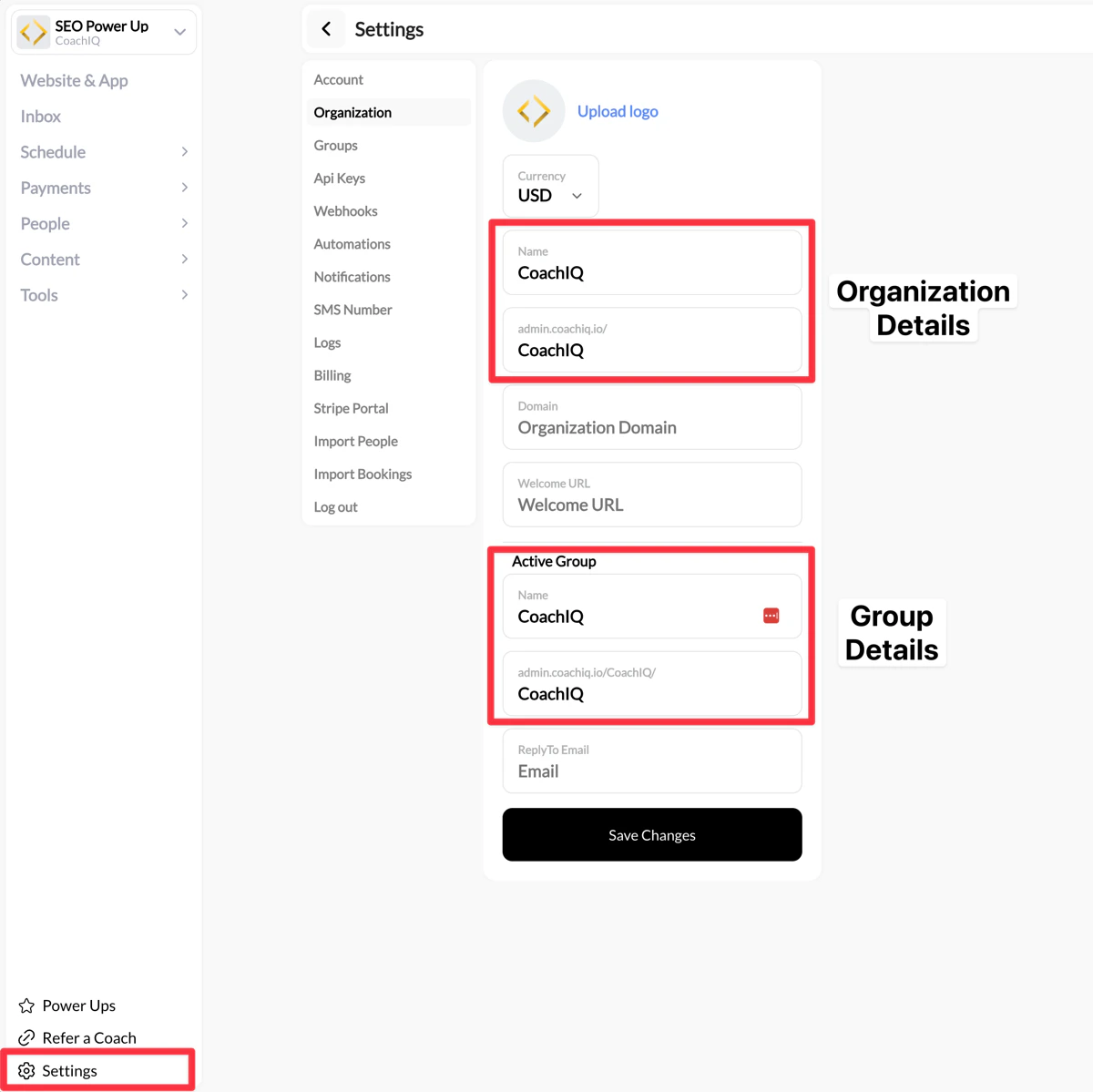 Scroll down to the **Active Group** section. Click the **Name** field and enter your new group name.
The field below shows your group's URL path (`admin.coachiq.io/[GroupName]/`), which reflects the updated name.
You can also update the **ReplyTo Email** field here -- this is the email address replies go to when you send messages from CoachIQ.
Click **Save Changes** at the bottom of the page to apply both updates.
Changing your organization or group name updates the associated URLs across your platform, including the public URL for your Athlete Portal. If you've shared any links with athletes or embedded them on your website, those links will break and will need to be updated.
**Organization Details** represents your top-level CoachIQ account, including your business name and global settings like currency and logo.
**Active Group** is the specific group you're currently managing within your organization. You can belong to multiple groups, and each has its own name and URL slug. The Active Group section shows the one you're currently operating in.
Athlete accounts and data are not affected by a name change. However, any direct URLs you've shared (for booking, the athlete portal, etc.) that include your old group slug will no longer work. Update any shared links after making a name change.
No. The URL slug is generated from your organization or group name and updates automatically when you change it. If you need a specific slug, set your name to match it.
Overview of all settings sections, including billing, notifications, and API keys.
Add your business logo alongside your organization name.
Scroll down to the **Active Group** section. Click the **Name** field and enter your new group name.
The field below shows your group's URL path (`admin.coachiq.io/[GroupName]/`), which reflects the updated name.
You can also update the **ReplyTo Email** field here -- this is the email address replies go to when you send messages from CoachIQ.
Click **Save Changes** at the bottom of the page to apply both updates.
Changing your organization or group name updates the associated URLs across your platform, including the public URL for your Athlete Portal. If you've shared any links with athletes or embedded them on your website, those links will break and will need to be updated.
**Organization Details** represents your top-level CoachIQ account, including your business name and global settings like currency and logo.
**Active Group** is the specific group you're currently managing within your organization. You can belong to multiple groups, and each has its own name and URL slug. The Active Group section shows the one you're currently operating in.
Athlete accounts and data are not affected by a name change. However, any direct URLs you've shared (for booking, the athlete portal, etc.) that include your old group slug will no longer work. Update any shared links after making a name change.
No. The URL slug is generated from your organization or group name and updates automatically when you change it. If you need a specific slug, set your name to match it.
Overview of all settings sections, including billing, notifications, and API keys.
Add your business logo alongside your organization name.