> ## Documentation Index
> Fetch the complete documentation index at: https://help.coachiq.io/llms.txt
> Use this file to discover all available pages before exploring further.
# Manage Your Connections
> Find connected services, manage Stripe and Google Calendar, and distinguish available connections from upcoming integrations.
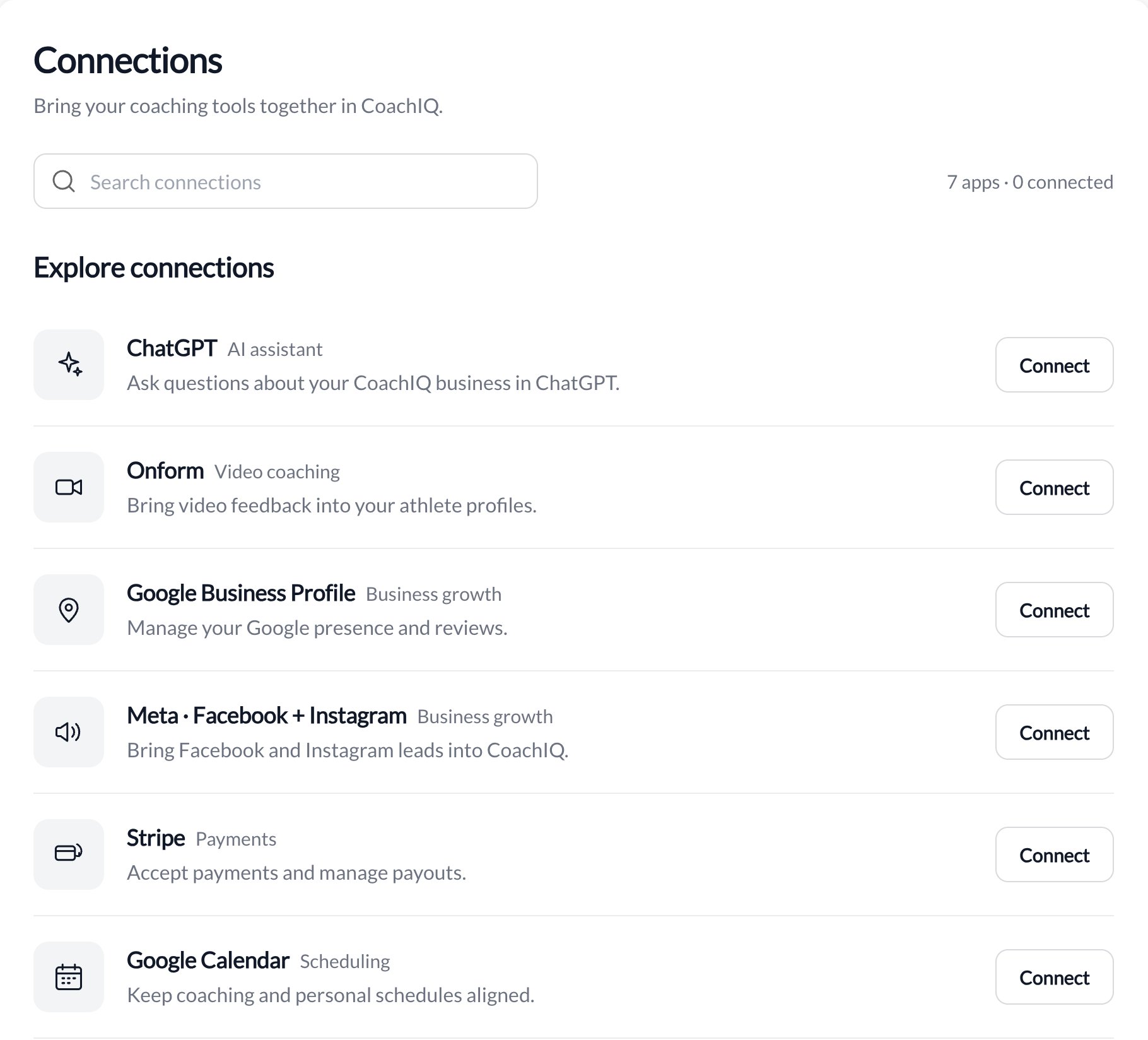
Open **Settings → General → Connections**. Connected services appear first, and search helps you find an app.
 ## Available connections
| Connection | What you can do |
| --------------- | ------------------------------------------------------------------------------------------------------------------------------------- |
| Stripe | See payment and payout status. Choose **Manage** to open your existing Stripe integration settings. |
| Google Calendar | See linked accounts and add another Google account. Use the Google permissions link to remove access. |
| ChatGPT | Read the access explanation and choose **Open ChatGPT**. CoachIQ does not currently display a connected-status indicator for ChatGPT. |
Opening ChatGPT is not confirmation that an assistant has connected to CoachIQ. Follow the connection and authorization flow in the client you use. Review the requested access before approving it.
## Upcoming integrations
Onform, Google Business Profile, Meta (Facebook and Instagram), and Google Drive are shown for discovery, but are not yet available to connect. A **Connect** button in the directory opens the information panel; it does not connect an upcoming app. The panel explains availability and keeps its final connection action disabled. Seeing a card does not mean the integration is live.
## Manage or remove access
* For Stripe, use [Stripe settings](/payments/connecting-stripe). Only an Admin can connect or disconnect it.
* For Google Calendar, manage linked accounts from its panel. Removal takes place through your Google account permissions, not a CoachIQ disconnect button. See [Google Calendar sync](/scheduling/google-calendar-sync).
* For assistant connections, review the permissions in the client and the CoachIQ authorization screen. Read-only access does not permit changes. Supported writes require explicit write access; the connection does not grant unrestricted access to every feature.
If an older assistant connection remains read-only after reconnecting, remove and re-add the connector, then review the supported-write option on the authorization screen. Clients that support token renewal can maintain the connection without hourly sign-in; older connections may need one reconnect.
## Available connections
| Connection | What you can do |
| --------------- | ------------------------------------------------------------------------------------------------------------------------------------- |
| Stripe | See payment and payout status. Choose **Manage** to open your existing Stripe integration settings. |
| Google Calendar | See linked accounts and add another Google account. Use the Google permissions link to remove access. |
| ChatGPT | Read the access explanation and choose **Open ChatGPT**. CoachIQ does not currently display a connected-status indicator for ChatGPT. |
Opening ChatGPT is not confirmation that an assistant has connected to CoachIQ. Follow the connection and authorization flow in the client you use. Review the requested access before approving it.
## Upcoming integrations
Onform, Google Business Profile, Meta (Facebook and Instagram), and Google Drive are shown for discovery, but are not yet available to connect. A **Connect** button in the directory opens the information panel; it does not connect an upcoming app. The panel explains availability and keeps its final connection action disabled. Seeing a card does not mean the integration is live.
## Manage or remove access
* For Stripe, use [Stripe settings](/payments/connecting-stripe). Only an Admin can connect or disconnect it.
* For Google Calendar, manage linked accounts from its panel. Removal takes place through your Google account permissions, not a CoachIQ disconnect button. See [Google Calendar sync](/scheduling/google-calendar-sync).
* For assistant connections, review the permissions in the client and the CoachIQ authorization screen. Read-only access does not permit changes. Supported writes require explicit write access; the connection does not grant unrestricted access to every feature.
If an older assistant connection remains read-only after reconnecting, remove and re-add the connector, then review the supported-write option on the authorization screen. Clients that support token renewal can maintain the connection without hourly sign-in; older connections may need one reconnect.