> ## Documentation Index
> Fetch the complete documentation index at: https://help.coachiq.io/llms.txt
> Use this file to discover all available pages before exploring further.
# Choose Your Accepted Payment Methods
> Manage the payment methods available to your clients, separately from the card used to pay your own CoachIQ subscription.
Organization Admins can open **Settings → Payment Methods**. This setting is available to regular Admin accounts, not just CoachIQ staff.
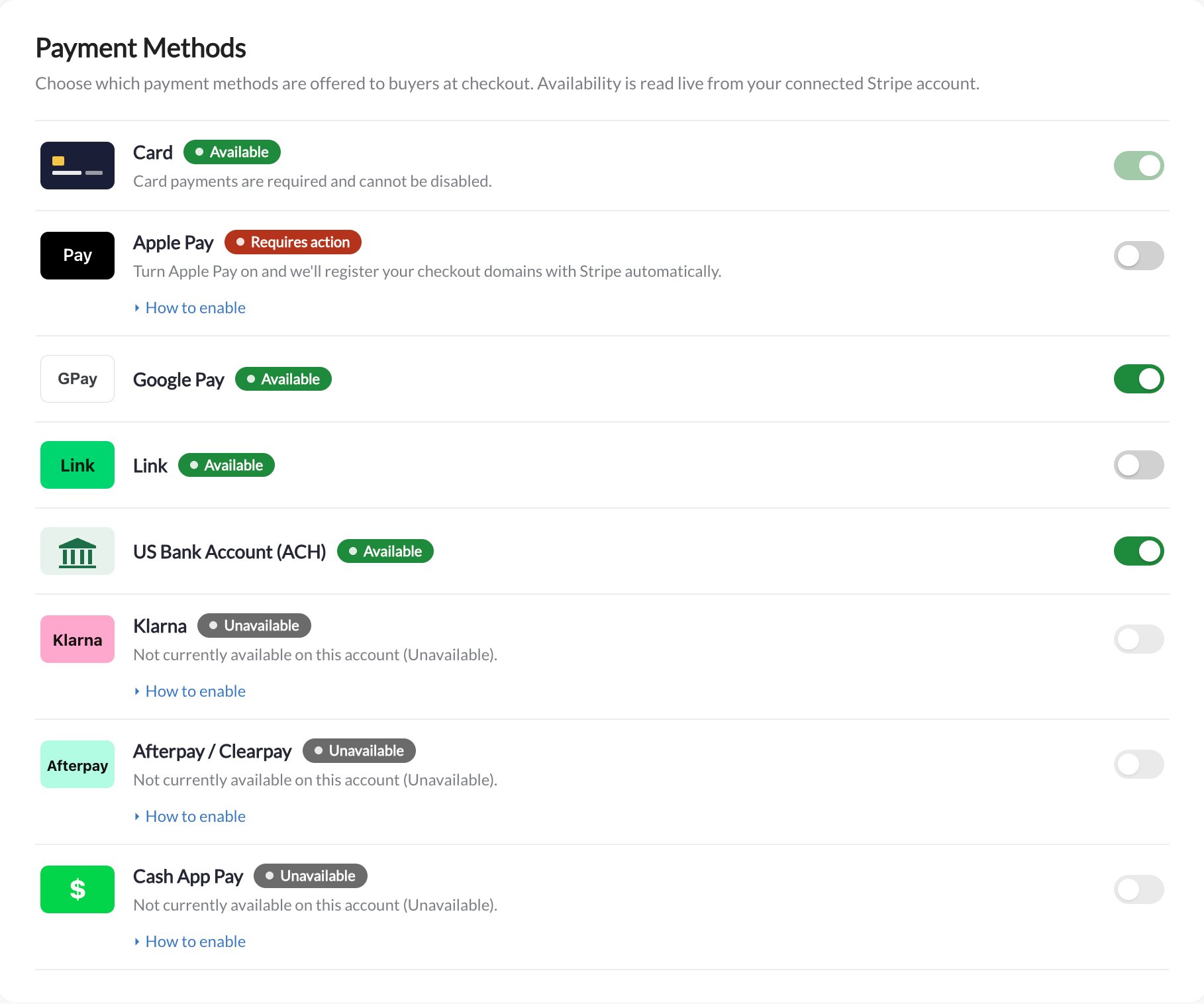 ## Read the status before changing a method
| What you see | What it means |
| --------------- | ------------------------------------------------------------------------------------------------- |
| Available | Stripe supports the method for this account. Check the switch to see whether you have enabled it. |
| Requires action | Read **How to enable** and complete the displayed setup before relying on the method. |
| Unavailable | The account cannot currently use the method; its switch is disabled. |
For example, **Link** is available but switched off in the screenshot. Card is required and cannot be switched off. Your account's available methods can differ from this example.
If you see **Connect Stripe to configure payment methods**, connect your account through [Stripe settings](/payments/connecting-stripe) first.
## Change an available method
1. Open Payment Methods in the correct organization.
2. Enable or disable an available optional method, such as Link.
3. Reopen the page to confirm your choice remains saved.
Required card payments and methods that are unavailable for your setup cannot be disabled or enabled arbitrarily. The available controls reflect your payment configuration.
This page controls what clients can use at checkout. It does not change the card that pays your business's CoachIQ subscription. To replace that card, use [Billing](/settings/billing#update-your-card-on-file).
## Read the status before changing a method
| What you see | What it means |
| --------------- | ------------------------------------------------------------------------------------------------- |
| Available | Stripe supports the method for this account. Check the switch to see whether you have enabled it. |
| Requires action | Read **How to enable** and complete the displayed setup before relying on the method. |
| Unavailable | The account cannot currently use the method; its switch is disabled. |
For example, **Link** is available but switched off in the screenshot. Card is required and cannot be switched off. Your account's available methods can differ from this example.
If you see **Connect Stripe to configure payment methods**, connect your account through [Stripe settings](/payments/connecting-stripe) first.
## Change an available method
1. Open Payment Methods in the correct organization.
2. Enable or disable an available optional method, such as Link.
3. Reopen the page to confirm your choice remains saved.
Required card payments and methods that are unavailable for your setup cannot be disabled or enabled arbitrarily. The available controls reflect your payment configuration.
This page controls what clients can use at checkout. It does not change the card that pays your business's CoachIQ subscription. To replace that card, use [Billing](/settings/billing#update-your-card-on-file).