> ## Documentation Index
> Fetch the complete documentation index at: https://help.coachiq.io/llms.txt
> Use this file to discover all available pages before exploring further.
# Automation Templates
> Start from a ready-made automation for conversion, retention, or operations, then adjust the message and conditions to fit your business.
**Where to find this**: **Tools → Automations → Templates**
## Why start from a template
A template is a complete automation: trigger, conditions, and actions already wired, with a message written for the situation. Pick one, swap in your product and your wording, turn it on. It is the fastest way to get value from automations without learning the builder first.
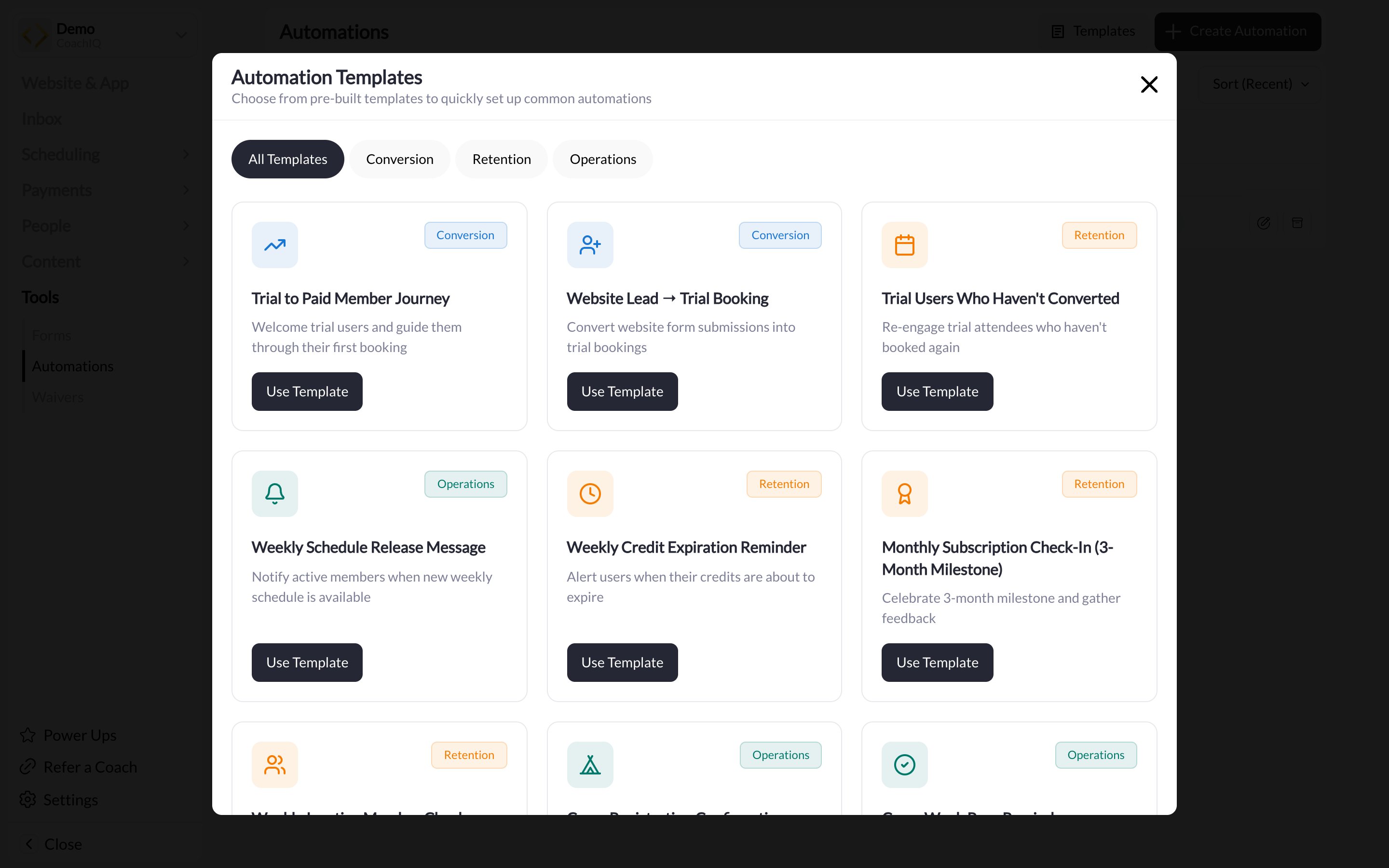 Names and descriptions were checked against the live app on 2026-09-02; the library grows over time, so you may see more.
## The library
Click **Templates** on the Automations page. The **Automation Templates** modal ("Choose from pre-built templates to quickly set up common automations") groups templates into three categories, with **All Templates** showing everything. There are 13 today.
### Conversion
Turn leads and trials into paying members.
| Template | What it does |
| -------------------------------- | -------------------------------------------------------------- |
| **Trial to Paid Member Journey** | Welcome trial users and guide them through their first booking |
| **Website Lead → Trial Booking** | Convert website form submissions into trial bookings |
| **New Member Welcome** | Welcome new subscribers with onboarding information |
### Retention
Keep current members engaged and paying.
| Template | What it does |
| ----------------------------------------------------- | --------------------------------------------------- |
| **Trial Users Who Haven't Converted** | Re-engage trial attendees who haven't booked again |
| **Weekly Credit Expiration Reminder** | Alert users when their credits are about to expire |
| **Monthly Subscription Check-In (3-Month Milestone)** | Celebrate the 3-month milestone and gather feedback |
| **Weekly Inactive Member Check** | Re-engage members who haven't booked in 2+ weeks |
### Operations
Run the week without remembering to send things.
| Template | What it does |
| ---------------------------------------------- | ---------------------------------------------------------------------------------------------------- |
| **Weekly Schedule Release Message** | Notify active members when the new weekly schedule is available |
| **Camp Registration Confirmation** | Send camp details and the waiver after registration |
| **Camp Week Prep Reminder** | Send the packing list 7 days before camp starts |
| **Grant Product Purchase from Trigger** | Automatically grant the purchased product to the user (useful for access codes or manual processing) |
| **Add Credits on Subscription Renewal** | Grant credits from the purchased subscription product when the subscription renews |
| **Daily Trial Bookings Summary (Coach Alert)** | Notify the coach of trial sessions scheduled for today |
## Using a template
Go to **Tools → Automations** and click **Templates**. Use the category tabs to narrow the list.
The template opens in the automation builder as a new, **inactive** automation. Nothing runs yet.
Check the **Triggers** and **Conditions** sections. A conversion template may reference "a trial product" or "a membership"; select yours. See [Builder reference](/tools/automations/builder-reference) for what each section does.
Open each action under **Actions**. Keep the dynamic fields (the `@` CoachIQ fields such as the athlete's first name) and change the rest. For SMS, watch the 160-character counter.
Click **Test Run** to send the automation to yourself and confirm the message reads well and the fields fill in.
In **Settings**, switch **Enabled** on and click **Update**. The automation now appears under **Active** on the Automations page.
The [Automation playbook](/tools/automations/automation-playbook) walks through the thinking behind each of these templates, with example messages you can borrow.
## Common questions
Yes. It is a normal automation once created. Open it from the Automations list, change anything, and click **Update**.
Yes, each **Use Template** creates a new automation. Archive the ones you do not need from the Automations list.
No. Every template starts inactive. Nothing goes out until you enable it, and scheduled templates only run at their next scheduled time after that.
## Related articles
Every section of the automation builder explained
Strategy and example messages for each scenario
Start from scratch instead
How the weekly and monthly templates run
Names and descriptions were checked against the live app on 2026-09-02; the library grows over time, so you may see more.
## The library
Click **Templates** on the Automations page. The **Automation Templates** modal ("Choose from pre-built templates to quickly set up common automations") groups templates into three categories, with **All Templates** showing everything. There are 13 today.
### Conversion
Turn leads and trials into paying members.
| Template | What it does |
| -------------------------------- | -------------------------------------------------------------- |
| **Trial to Paid Member Journey** | Welcome trial users and guide them through their first booking |
| **Website Lead → Trial Booking** | Convert website form submissions into trial bookings |
| **New Member Welcome** | Welcome new subscribers with onboarding information |
### Retention
Keep current members engaged and paying.
| Template | What it does |
| ----------------------------------------------------- | --------------------------------------------------- |
| **Trial Users Who Haven't Converted** | Re-engage trial attendees who haven't booked again |
| **Weekly Credit Expiration Reminder** | Alert users when their credits are about to expire |
| **Monthly Subscription Check-In (3-Month Milestone)** | Celebrate the 3-month milestone and gather feedback |
| **Weekly Inactive Member Check** | Re-engage members who haven't booked in 2+ weeks |
### Operations
Run the week without remembering to send things.
| Template | What it does |
| ---------------------------------------------- | ---------------------------------------------------------------------------------------------------- |
| **Weekly Schedule Release Message** | Notify active members when the new weekly schedule is available |
| **Camp Registration Confirmation** | Send camp details and the waiver after registration |
| **Camp Week Prep Reminder** | Send the packing list 7 days before camp starts |
| **Grant Product Purchase from Trigger** | Automatically grant the purchased product to the user (useful for access codes or manual processing) |
| **Add Credits on Subscription Renewal** | Grant credits from the purchased subscription product when the subscription renews |
| **Daily Trial Bookings Summary (Coach Alert)** | Notify the coach of trial sessions scheduled for today |
## Using a template
Go to **Tools → Automations** and click **Templates**. Use the category tabs to narrow the list.
The template opens in the automation builder as a new, **inactive** automation. Nothing runs yet.
Check the **Triggers** and **Conditions** sections. A conversion template may reference "a trial product" or "a membership"; select yours. See [Builder reference](/tools/automations/builder-reference) for what each section does.
Open each action under **Actions**. Keep the dynamic fields (the `@` CoachIQ fields such as the athlete's first name) and change the rest. For SMS, watch the 160-character counter.
Click **Test Run** to send the automation to yourself and confirm the message reads well and the fields fill in.
In **Settings**, switch **Enabled** on and click **Update**. The automation now appears under **Active** on the Automations page.
The [Automation playbook](/tools/automations/automation-playbook) walks through the thinking behind each of these templates, with example messages you can borrow.
## Common questions
Yes. It is a normal automation once created. Open it from the Automations list, change anything, and click **Update**.
Yes, each **Use Template** creates a new automation. Archive the ones you do not need from the Automations list.
No. Every template starts inactive. Nothing goes out until you enable it, and scheduled templates only run at their next scheduled time after that.
## Related articles
Every section of the automation builder explained
Strategy and example messages for each scenario
Start from scratch instead
How the weekly and monthly templates run