> ## Documentation Index
> Fetch the complete documentation index at: https://help.coachiq.io/llms.txt
> Use this file to discover all available pages before exploring further.
# Analytics & Tracking Setup - CoachIQ
> Add tracking tools to your coaching website. Set up Google Analytics, Facebook Pixel, and Microsoft Clarity to understand visitor behavior and optimize marketing.
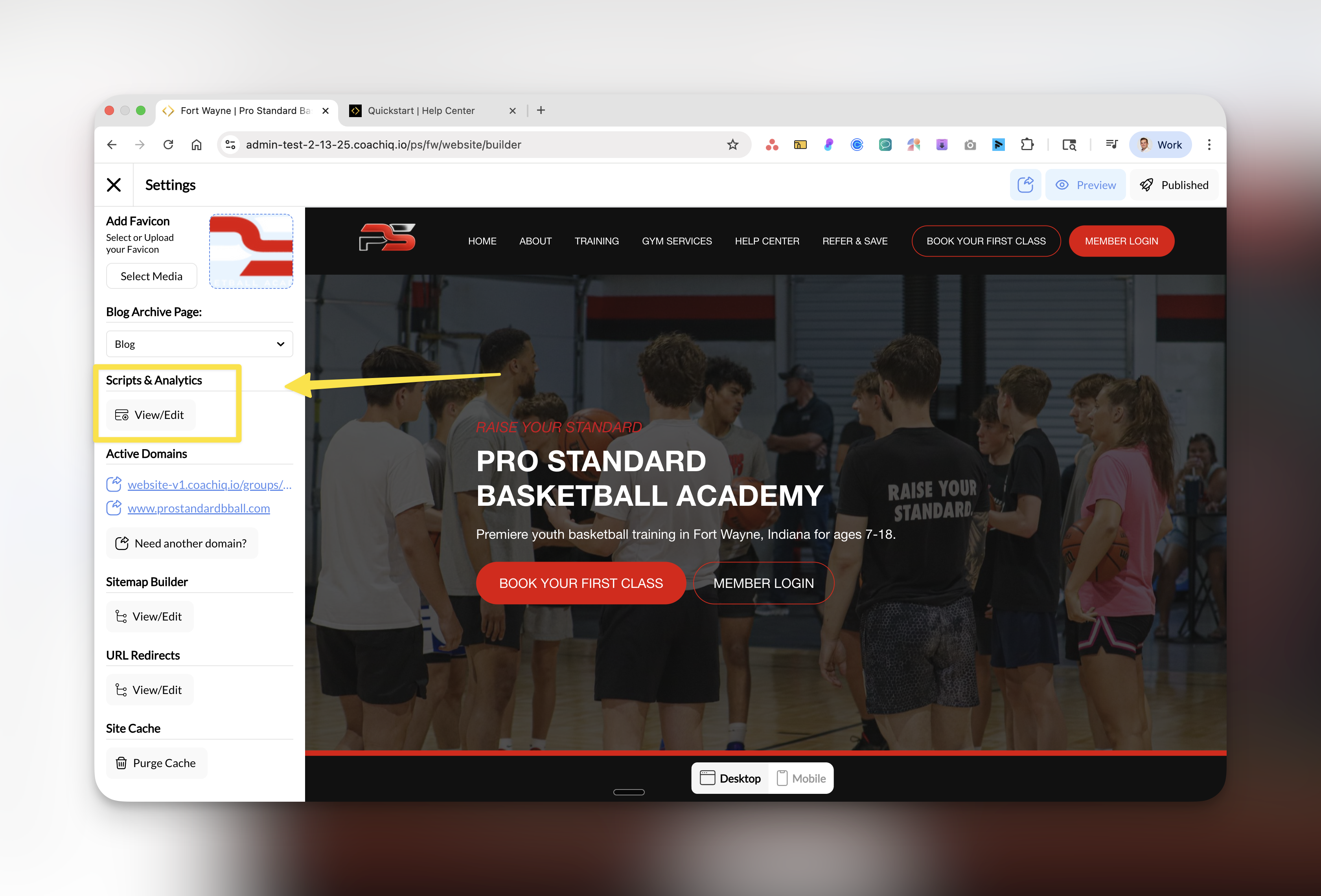
**Where to find this**: Dashboard → Website Builder → Settings → Scripts & Analytics
 ## Why tracking matters for your coaching business
Adding analytics and tracking to your website helps you understand how potential clients find and interact with your business. With proper tracking, you can:
* **See what's working**: Know which pages convert visitors into clients
* **Optimize your marketing**: Track which ads and campaigns drive bookings
* **Understand your audience**: Learn where visitors come from and what they're looking for
* **Make data-driven decisions**: Stop guessing and start knowing what grows your business
## Available tracking tools
CoachIQ integrates with three powerful analytics platforms that work together to give you complete visibility into your website performance:
Track website traffic, user behavior, and conversion goals. See how many people visit, where they come from, and what actions they take.
Measure Facebook ad effectiveness, build retargeting audiences, and track conversions from your Facebook marketing campaigns.
Watch session recordings and heatmaps to see exactly how visitors navigate your site. Identify confusion points and optimize user experience.
## How to access Scripts & Analytics
From your dashboard, click on **Website Builder** in the main navigation.
In the left sidebar, locate and click on **Scripts & Analytics** under the Settings section.
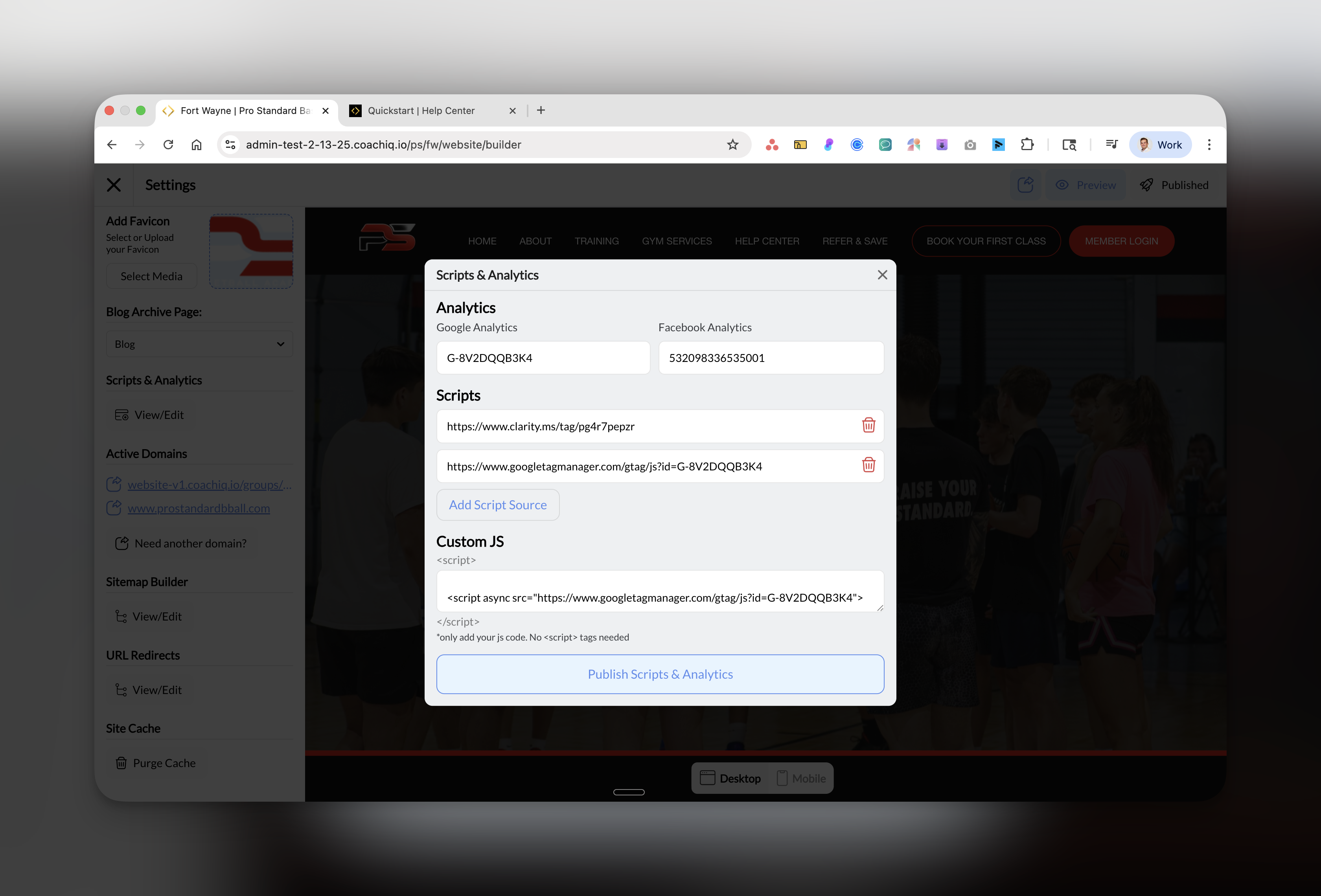
The Scripts & Analytics window will open, showing fields for:
* Google Analytics ID
* Facebook Analytics (Pixel) ID
* Custom JavaScript scripts
## Why tracking matters for your coaching business
Adding analytics and tracking to your website helps you understand how potential clients find and interact with your business. With proper tracking, you can:
* **See what's working**: Know which pages convert visitors into clients
* **Optimize your marketing**: Track which ads and campaigns drive bookings
* **Understand your audience**: Learn where visitors come from and what they're looking for
* **Make data-driven decisions**: Stop guessing and start knowing what grows your business
## Available tracking tools
CoachIQ integrates with three powerful analytics platforms that work together to give you complete visibility into your website performance:
Track website traffic, user behavior, and conversion goals. See how many people visit, where they come from, and what actions they take.
Measure Facebook ad effectiveness, build retargeting audiences, and track conversions from your Facebook marketing campaigns.
Watch session recordings and heatmaps to see exactly how visitors navigate your site. Identify confusion points and optimize user experience.
## How to access Scripts & Analytics
From your dashboard, click on **Website Builder** in the main navigation.
In the left sidebar, locate and click on **Scripts & Analytics** under the Settings section.
The Scripts & Analytics window will open, showing fields for:
* Google Analytics ID
* Facebook Analytics (Pixel) ID
* Custom JavaScript scripts
 ## Quick setup guide
**Start with these basics:**
1. **Google Analytics** - Essential for understanding your traffic
2. **Microsoft Clarity** - Free tool to see how users interact with your site
You can add Facebook Pixel later when you start running Facebook ads.
**Implement all three tools:**
1. **Google Analytics** - Track conversions and goals
2. **Facebook Pixel** - Optimize your ad campaigns
3. **Microsoft Clarity** - Identify user experience improvements
This complete setup helps you scale efficiently.
**Advanced tracking setup:**
1. All three standard tools
2. Custom JavaScript for advanced tracking
3. Consider Google Tag Manager for complex setups
4. Set up conversion tracking for multiple locations
[Contact support](https://coachiq.com/support) for enterprise tracking needs.
## What each tool tracks
### Google Analytics provides:
* Visitor count and demographics
* Traffic sources (search, social, direct)
* Page views and session duration
* Goal completions (bookings, signups)
* Real-time visitor activity
### Facebook Pixel tracks:
* Ad click-throughs to your site
* Conversions from Facebook ads
* Retargeting audience building
* Cost per acquisition
* Return on ad spend (ROAS)
### Microsoft Clarity shows:
* Session recordings of real users
* Click heatmaps
* Scroll depth analysis
* Rage clicks and dead clicks
* Mobile vs desktop behavior
## Best practices
**Privacy compliance**: Add a cookie notice to your website when using tracking tools. Include tracking disclosure in your privacy policy.
**Test after setup**: Use each platform's verification tool to confirm tracking is working correctly before relying on the data.
**Regular review**: Check your analytics weekly to spot trends and monthly for strategic decisions.
## Common questions
No, start with Google Analytics as your foundation. Add Facebook Pixel when you run Facebook ads, and Microsoft Clarity when you want to improve user experience. Each tool serves a different purpose.
No, these tracking scripts are optimized and load asynchronously, meaning they won't affect your site's loading speed or user experience.
* **Google Analytics**: Free for most coaching businesses
* **Facebook Pixel**: Free (you only pay for ads)
* **Microsoft Clarity**: Completely free with no limits
* **Custom scripts**: Depends on the service
Yes! Use the Custom JS field to add any other tracking scripts like:
* Google Tag Manager
* Hotjar
* LinkedIn Insight Tag
* TikTok Pixel
* Other marketing tools
* **Google Analytics**: 24-48 hours for full data (real-time available immediately)
* **Facebook Pixel**: Immediately for pixel fires, 24 hours for processed data
* **Microsoft Clarity**: 2-3 hours after installation
## Troubleshooting
**Not seeing data?** After adding tracking codes, it can take 24-48 hours for data to appear. Always verify installation using each platform's debugging tools.
### Quick fixes:
* **Scripts not saving**: Click "Publish Scripts & Analytics" button after entering your IDs
* **Invalid tracking ID**: Double-check you're copying the entire ID including prefixes (G- for GA4)
* **No data showing**: Clear your website cache and verify the scripts are published
## Next steps
Ready to set up your tracking? Start with the tool most relevant to your current needs:
[Set up Google Analytics →](/website/analytics-tracking/google-analytics)
[Install Facebook Pixel →](/website/analytics-tracking/facebook-pixel)
[Add Microsoft Clarity →](/website/analytics-tracking/clarity-microsoft)
***
**Pro tip for coaches**: Focus on metrics that matter - session bookings, contact form submissions, and program signups. Don't get lost in vanity metrics like page views.
## Quick setup guide
**Start with these basics:**
1. **Google Analytics** - Essential for understanding your traffic
2. **Microsoft Clarity** - Free tool to see how users interact with your site
You can add Facebook Pixel later when you start running Facebook ads.
**Implement all three tools:**
1. **Google Analytics** - Track conversions and goals
2. **Facebook Pixel** - Optimize your ad campaigns
3. **Microsoft Clarity** - Identify user experience improvements
This complete setup helps you scale efficiently.
**Advanced tracking setup:**
1. All three standard tools
2. Custom JavaScript for advanced tracking
3. Consider Google Tag Manager for complex setups
4. Set up conversion tracking for multiple locations
[Contact support](https://coachiq.com/support) for enterprise tracking needs.
## What each tool tracks
### Google Analytics provides:
* Visitor count and demographics
* Traffic sources (search, social, direct)
* Page views and session duration
* Goal completions (bookings, signups)
* Real-time visitor activity
### Facebook Pixel tracks:
* Ad click-throughs to your site
* Conversions from Facebook ads
* Retargeting audience building
* Cost per acquisition
* Return on ad spend (ROAS)
### Microsoft Clarity shows:
* Session recordings of real users
* Click heatmaps
* Scroll depth analysis
* Rage clicks and dead clicks
* Mobile vs desktop behavior
## Best practices
**Privacy compliance**: Add a cookie notice to your website when using tracking tools. Include tracking disclosure in your privacy policy.
**Test after setup**: Use each platform's verification tool to confirm tracking is working correctly before relying on the data.
**Regular review**: Check your analytics weekly to spot trends and monthly for strategic decisions.
## Common questions
No, start with Google Analytics as your foundation. Add Facebook Pixel when you run Facebook ads, and Microsoft Clarity when you want to improve user experience. Each tool serves a different purpose.
No, these tracking scripts are optimized and load asynchronously, meaning they won't affect your site's loading speed or user experience.
* **Google Analytics**: Free for most coaching businesses
* **Facebook Pixel**: Free (you only pay for ads)
* **Microsoft Clarity**: Completely free with no limits
* **Custom scripts**: Depends on the service
Yes! Use the Custom JS field to add any other tracking scripts like:
* Google Tag Manager
* Hotjar
* LinkedIn Insight Tag
* TikTok Pixel
* Other marketing tools
* **Google Analytics**: 24-48 hours for full data (real-time available immediately)
* **Facebook Pixel**: Immediately for pixel fires, 24 hours for processed data
* **Microsoft Clarity**: 2-3 hours after installation
## Troubleshooting
**Not seeing data?** After adding tracking codes, it can take 24-48 hours for data to appear. Always verify installation using each platform's debugging tools.
### Quick fixes:
* **Scripts not saving**: Click "Publish Scripts & Analytics" button after entering your IDs
* **Invalid tracking ID**: Double-check you're copying the entire ID including prefixes (G- for GA4)
* **No data showing**: Clear your website cache and verify the scripts are published
## Next steps
Ready to set up your tracking? Start with the tool most relevant to your current needs:
[Set up Google Analytics →](/website/analytics-tracking/google-analytics)
[Install Facebook Pixel →](/website/analytics-tracking/facebook-pixel)
[Add Microsoft Clarity →](/website/analytics-tracking/clarity-microsoft)
***
**Pro tip for coaches**: Focus on metrics that matter - session bookings, contact form submissions, and program signups. Don't get lost in vanity metrics like page views.