> ## Documentation Index
> Fetch the complete documentation index at: https://help.coachiq.io/llms.txt
> Use this file to discover all available pages before exploring further.
# Add Google Analytics to Your Coaching Website
> Set up Google Analytics 4 (GA4) on your CoachIQ website in 5 minutes. Track visitors, measure conversions, and grow your coaching business with data.
**Setup time**: 5 minutes\
**Cost**: Free\
**What you'll track**: Visitors, traffic sources, conversions, and user behavior
## What is Google Analytics?
Google Analytics is a free tool that shows you how people find and use your coaching website. Track how many visitors you get, which pages they view, and whether they book sessions or sign up for programs.
## Get your Google Analytics ID
1. Go to [analytics.google.com](https://analytics.google.com)
2. Click **Start measuring**
3. Enter your coaching business name as the account name
4. Click **Next**
1. Enter your website name as the property name
2. Select your time zone and currency
3. Choose **Sports & Fitness** as your industry
4. Select your business size
5. Click **Create**
1. Choose **Web** as your platform
2. Enter your website URL (e.g., `yourcoaching.coachiq.io`)
3. Name your stream (e.g., "CoachIQ Website")
4. Click **Create stream**
Your Google Analytics 4 Measurement ID will appear at the top of the page. It looks like: **G-XXXXXXXXXX**
Make sure you copy the ID that starts with "G-" (this is GA4). Don't use IDs starting with "UA-" (old Universal Analytics).
## Add Google Analytics to CoachIQ
1. Go to **Dashboard → Website Builder**
2. Click **Scripts & Analytics** in the left sidebar
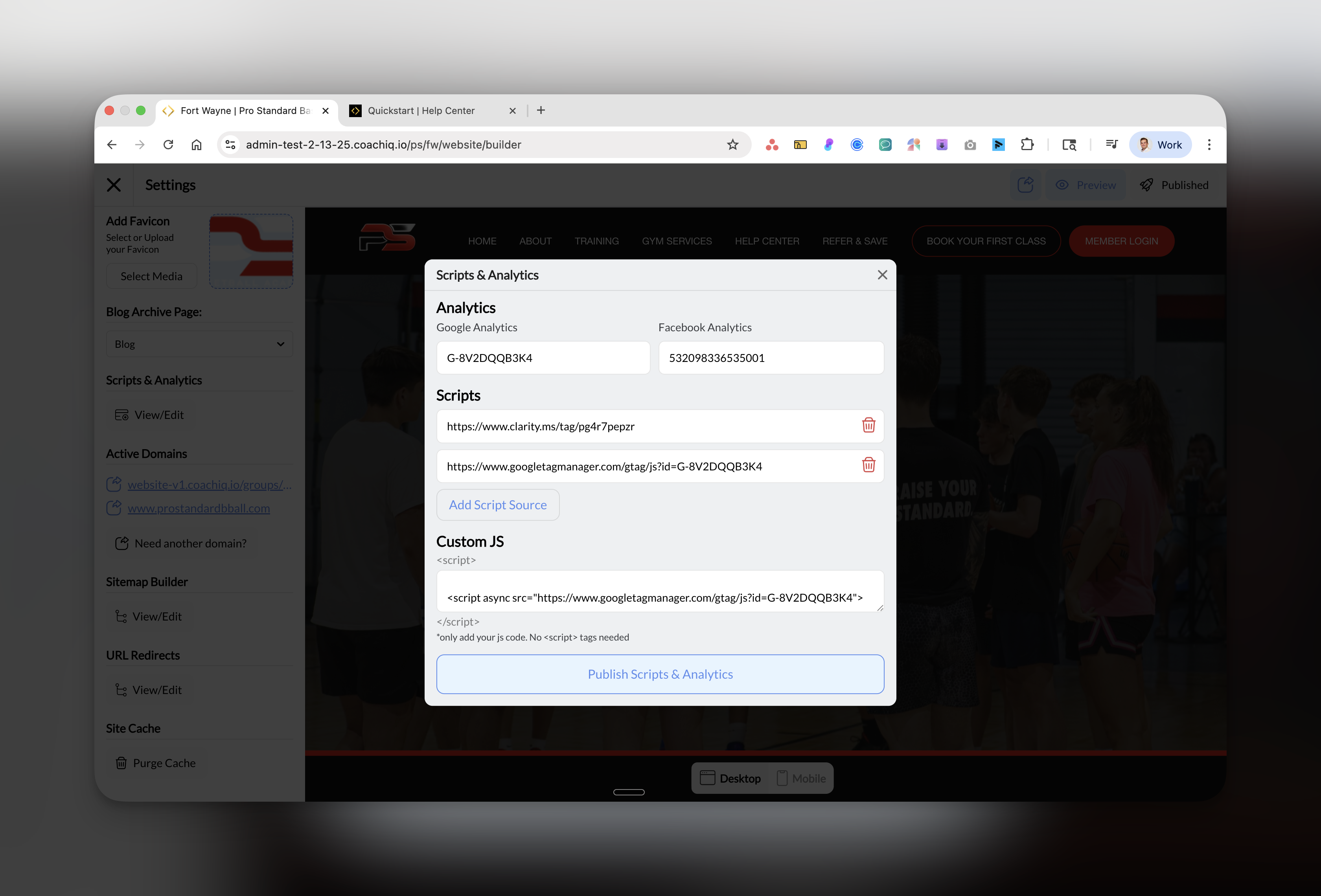 1. In the **Google Analytics** field, paste your Measurement ID (G-XXXXXXXXXX)
2. The field will show your ID once entered correctly
Click the blue **Publish Scripts & Analytics** button at the bottom of the modal.
**Success!** Google Analytics is now tracking your website. Data will start appearing in 24-48 hours.
## Verify it's working
1. Open your website in a new browser tab
2. Go back to Google Analytics
3. Click **Reports** → **Realtime**
4. You should see yourself as an active user
1. Install [Google Analytics Debugger](https://chrome.google.com/webstore/detail/google-analytics-debugger/jnkmfdileelhofjcijamephohjechhna) Chrome extension
2. Visit your website
3. Open Chrome DevTools (F12)
4. Check the Console for GA tracking messages
## What to track for coaching businesses
### Essential metrics to monitor:
* **Users**: How many people visit your site
* **Acquisition**: Where visitors come from (Google, Facebook, direct)
* **Engagement**: Which pages get the most views
* **Conversions**: Track bookings and signups
### Set up conversion events:
1. Track "Book Session" button clicks
2. Monitor form submissions
3. Measure program signups
4. Track phone number clicks
**Pro tip**: Set up a weekly email report in Google Analytics to stay informed without logging in daily.
## Common questions
New Google Analytics accounts can take 24-48 hours to start displaying data. If you just added the code, check back tomorrow.
GA4 is Google's newest analytics platform (IDs start with G-). Universal Analytics (IDs start with UA-) was discontinued in July 2023. Always use GA4 for new setups.
Yes, but each website needs its own unique Google Analytics ID. Create separate properties in your GA account for each coaching website.
Yes, but you should update your privacy policy to mention you use Google Analytics and consider adding a cookie consent banner to your website.
## Troubleshooting
| Issue | Solution |
| ------------------------- | ------------------------------------------------------------ |
| ID not saving | Make sure you're using GA4 format (G-XXXXXXXXXX) |
| No data after 48 hours | Verify the ID is correct and try clearing your website cache |
| Can't find Measurement ID | Look for "G-" format in Admin → Data Streams → Web |
| Old UA code | Create a new GA4 property - Universal Analytics is retired |
## Next steps
Learn to track bookings and signups as conversions in GA4
Track your Facebook ad performance
See heatmaps and session recordings
[Access your GA4 dashboard →](https://analytics.google.com)
***
**Need help?** Join our Office Hours for live Google Analytics setup assistance.
1. In the **Google Analytics** field, paste your Measurement ID (G-XXXXXXXXXX)
2. The field will show your ID once entered correctly
Click the blue **Publish Scripts & Analytics** button at the bottom of the modal.
**Success!** Google Analytics is now tracking your website. Data will start appearing in 24-48 hours.
## Verify it's working
1. Open your website in a new browser tab
2. Go back to Google Analytics
3. Click **Reports** → **Realtime**
4. You should see yourself as an active user
1. Install [Google Analytics Debugger](https://chrome.google.com/webstore/detail/google-analytics-debugger/jnkmfdileelhofjcijamephohjechhna) Chrome extension
2. Visit your website
3. Open Chrome DevTools (F12)
4. Check the Console for GA tracking messages
## What to track for coaching businesses
### Essential metrics to monitor:
* **Users**: How many people visit your site
* **Acquisition**: Where visitors come from (Google, Facebook, direct)
* **Engagement**: Which pages get the most views
* **Conversions**: Track bookings and signups
### Set up conversion events:
1. Track "Book Session" button clicks
2. Monitor form submissions
3. Measure program signups
4. Track phone number clicks
**Pro tip**: Set up a weekly email report in Google Analytics to stay informed without logging in daily.
## Common questions
New Google Analytics accounts can take 24-48 hours to start displaying data. If you just added the code, check back tomorrow.
GA4 is Google's newest analytics platform (IDs start with G-). Universal Analytics (IDs start with UA-) was discontinued in July 2023. Always use GA4 for new setups.
Yes, but each website needs its own unique Google Analytics ID. Create separate properties in your GA account for each coaching website.
Yes, but you should update your privacy policy to mention you use Google Analytics and consider adding a cookie consent banner to your website.
## Troubleshooting
| Issue | Solution |
| ------------------------- | ------------------------------------------------------------ |
| ID not saving | Make sure you're using GA4 format (G-XXXXXXXXXX) |
| No data after 48 hours | Verify the ID is correct and try clearing your website cache |
| Can't find Measurement ID | Look for "G-" format in Admin → Data Streams → Web |
| Old UA code | Create a new GA4 property - Universal Analytics is retired |
## Next steps
Learn to track bookings and signups as conversions in GA4
Track your Facebook ad performance
See heatmaps and session recordings
[Access your GA4 dashboard →](https://analytics.google.com)
***
**Need help?** Join our Office Hours for live Google Analytics setup assistance.