> ## Documentation Index
> Fetch the complete documentation index at: https://help.coachiq.io/llms.txt
> Use this file to discover all available pages before exploring further.
# Page Templates
> Learn how to use CoachIQ's pre-built page templates to quickly add professional pages like privacy policies, training programs, and sign-up forms.
**Where to find this**: Website Builder → Pages → Add New Page → Page Template dropdown
## Quick page creation with templates
CoachIQ provides pre-built page templates designed specifically for coaching businesses. These templates include the right sections, content structure, and formatting to help you quickly add professional pages without starting from scratch.
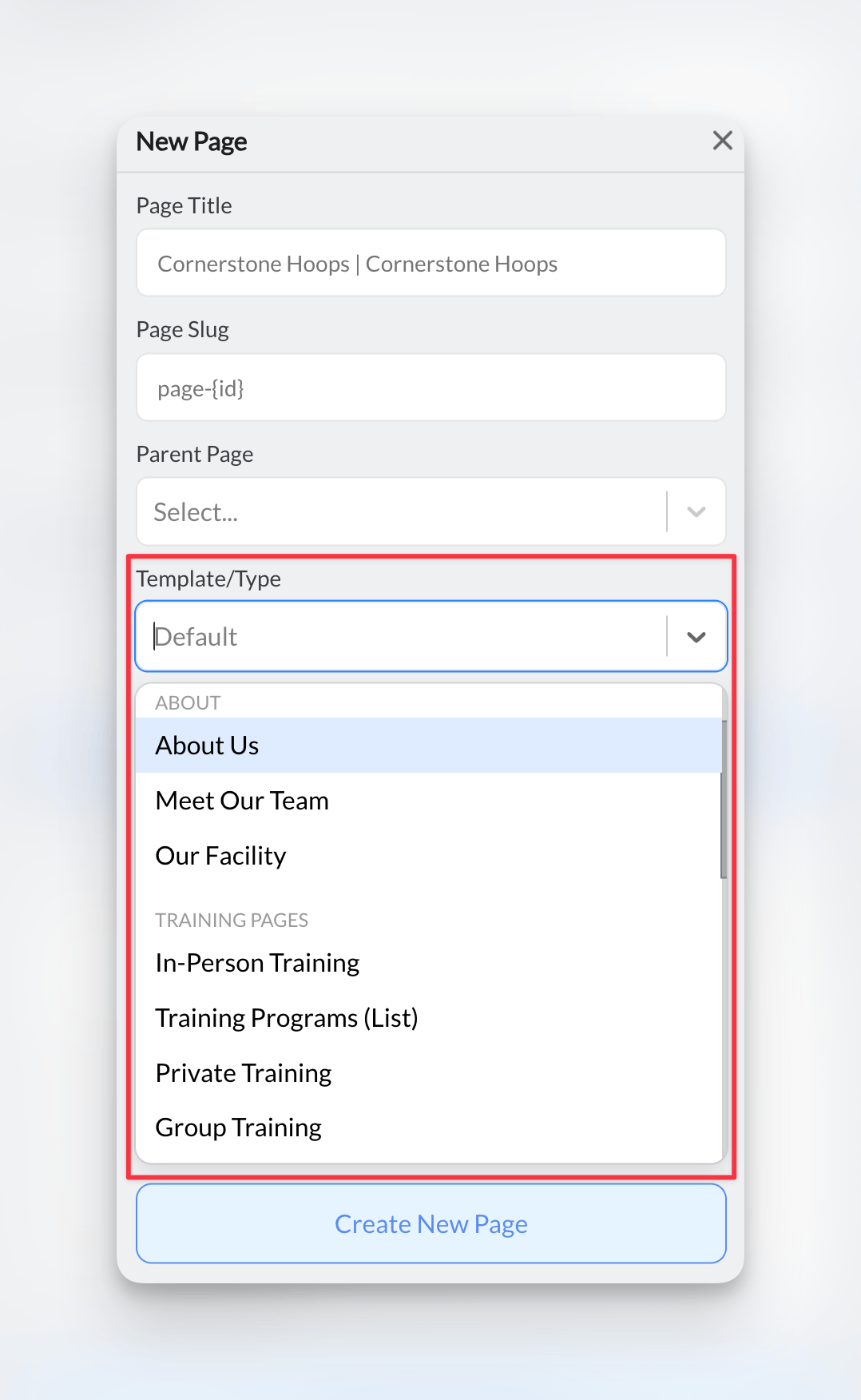 *The "Add New Page" dialog box showing the template dropdown with all available options*
## Available page templates
Training programs, online coaching, camps & clinics
About pages, home page layouts, contact forms
Registration forms, trial sign-ups, program enrollment
Privacy policy, terms & conditions, disclaimers
### Template categories explained
**Perfect for showcasing your coaching offerings:**
* **Training Programs**: Service descriptions, pricing, booking buttons
* **Online Training**: Digital coaching packages, video content
* **Camps & Clinics**: Event details, registration, schedules
* **About Training**: Coach philosophy, methodology, results
**Core pages every coaching website needs:**
* **Home Page**: Hero sections, testimonials, call-to-action
* **About**: Coach biography, credentials, experience
* **Contact**: Forms, location, hours, social media
**Convert visitors into clients:**
* **Program Sign-up**: Registration forms with payment
* **Trial Session**: Free consultation booking
* **Newsletter**: Email list building
* **Waitlist**: Manage program capacity
**Professional legal pages:**
* **Privacy Policy**: Data protection, cookie usage
* **Terms & Conditions**: Service agreements, policies
* **Disclaimers**: Liability, injury waivers
* **Refund Policy**: Payment terms, cancellation rules
## How to use page templates
From your Website Builder, click the **Pages** dropdown in the left sidebar, then select **Add New Page**.
*The "Add New Page" dialog box showing the template dropdown with all available options*
## Available page templates
Training programs, online coaching, camps & clinics
About pages, home page layouts, contact forms
Registration forms, trial sign-ups, program enrollment
Privacy policy, terms & conditions, disclaimers
### Template categories explained
**Perfect for showcasing your coaching offerings:**
* **Training Programs**: Service descriptions, pricing, booking buttons
* **Online Training**: Digital coaching packages, video content
* **Camps & Clinics**: Event details, registration, schedules
* **About Training**: Coach philosophy, methodology, results
**Core pages every coaching website needs:**
* **Home Page**: Hero sections, testimonials, call-to-action
* **About**: Coach biography, credentials, experience
* **Contact**: Forms, location, hours, social media
**Convert visitors into clients:**
* **Program Sign-up**: Registration forms with payment
* **Trial Session**: Free consultation booking
* **Newsletter**: Email list building
* **Waitlist**: Manage program capacity
**Professional legal pages:**
* **Privacy Policy**: Data protection, cookie usage
* **Terms & Conditions**: Service agreements, policies
* **Disclaimers**: Liability, injury waivers
* **Refund Policy**: Payment terms, cancellation rules
## How to use page templates
From your Website Builder, click the **Pages** dropdown in the left sidebar, then select **Add New Page**.
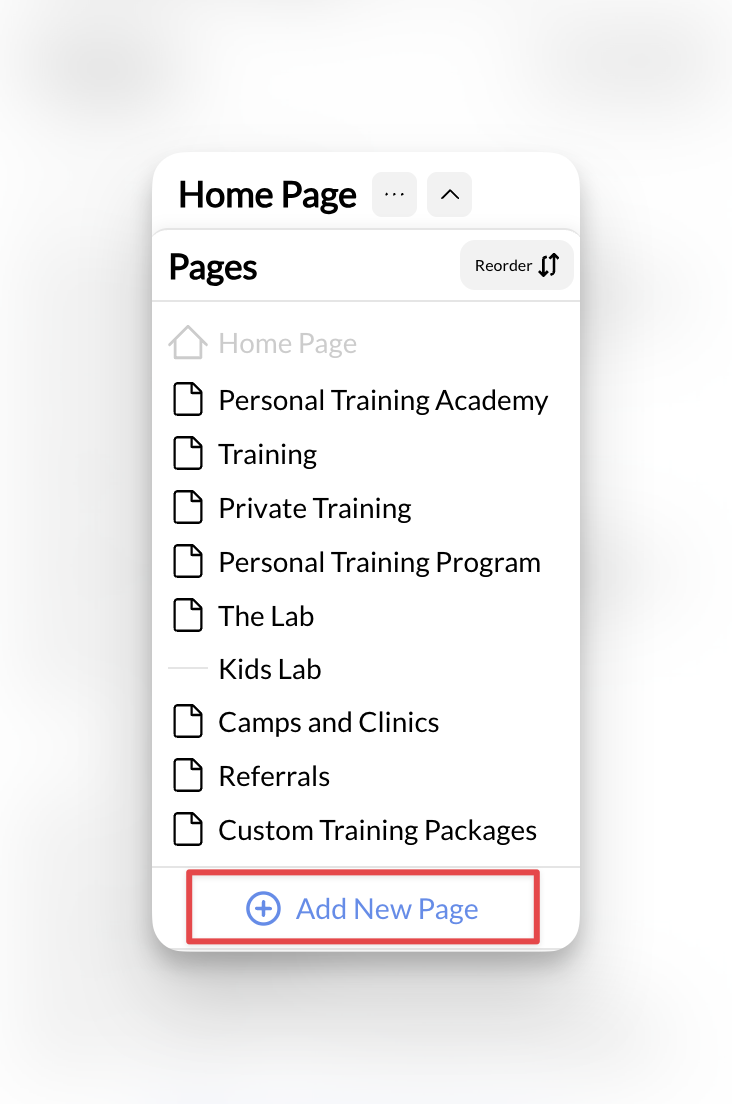 *Left sidebar with "Add New Page" button clearly highlighted*
In the **Page Template** dropdown, browse the available options and select the template that matches your needs.
**Template preview**: Each template name clearly indicates its purpose - "Privacy Policy," "Training Programs," "Camp Registration," etc.
Fill in the basic page information:
* **Page Title**: What visitors will see (e.g., "Privacy Policy")
* **Page Slug**: URL-friendly version (auto-generated)
* **Parent Page**: Leave blank for main pages
**SEO benefit**: Templates include optimized page structures and relevant headings that help with search engine rankings.
Click **Create New Page** and the template will automatically generate with pre-built sections and placeholder content.
**Template loaded**: Your new page appears with professional sections ready for customization.
## Template walkthrough video
See how to quickly add a privacy policy page using templates, customize the content, and add it to your website's footer navigation.
## Customizing template content
### After creating from template
Each template includes relevant sections for that page type. For example, a Privacy Policy template includes:
* Introduction
* Information Collection
* Data Usage
* Cookie Policy
* Data Rights
* Contact Information
*Left sidebar with "Add New Page" button clearly highlighted*
In the **Page Template** dropdown, browse the available options and select the template that matches your needs.
**Template preview**: Each template name clearly indicates its purpose - "Privacy Policy," "Training Programs," "Camp Registration," etc.
Fill in the basic page information:
* **Page Title**: What visitors will see (e.g., "Privacy Policy")
* **Page Slug**: URL-friendly version (auto-generated)
* **Parent Page**: Leave blank for main pages
**SEO benefit**: Templates include optimized page structures and relevant headings that help with search engine rankings.
Click **Create New Page** and the template will automatically generate with pre-built sections and placeholder content.
**Template loaded**: Your new page appears with professional sections ready for customization.
## Template walkthrough video
See how to quickly add a privacy policy page using templates, customize the content, and add it to your website's footer navigation.
## Customizing template content
### After creating from template
Each template includes relevant sections for that page type. For example, a Privacy Policy template includes:
* Introduction
* Information Collection
* Data Usage
* Cookie Policy
* Data Rights
* Contact Information
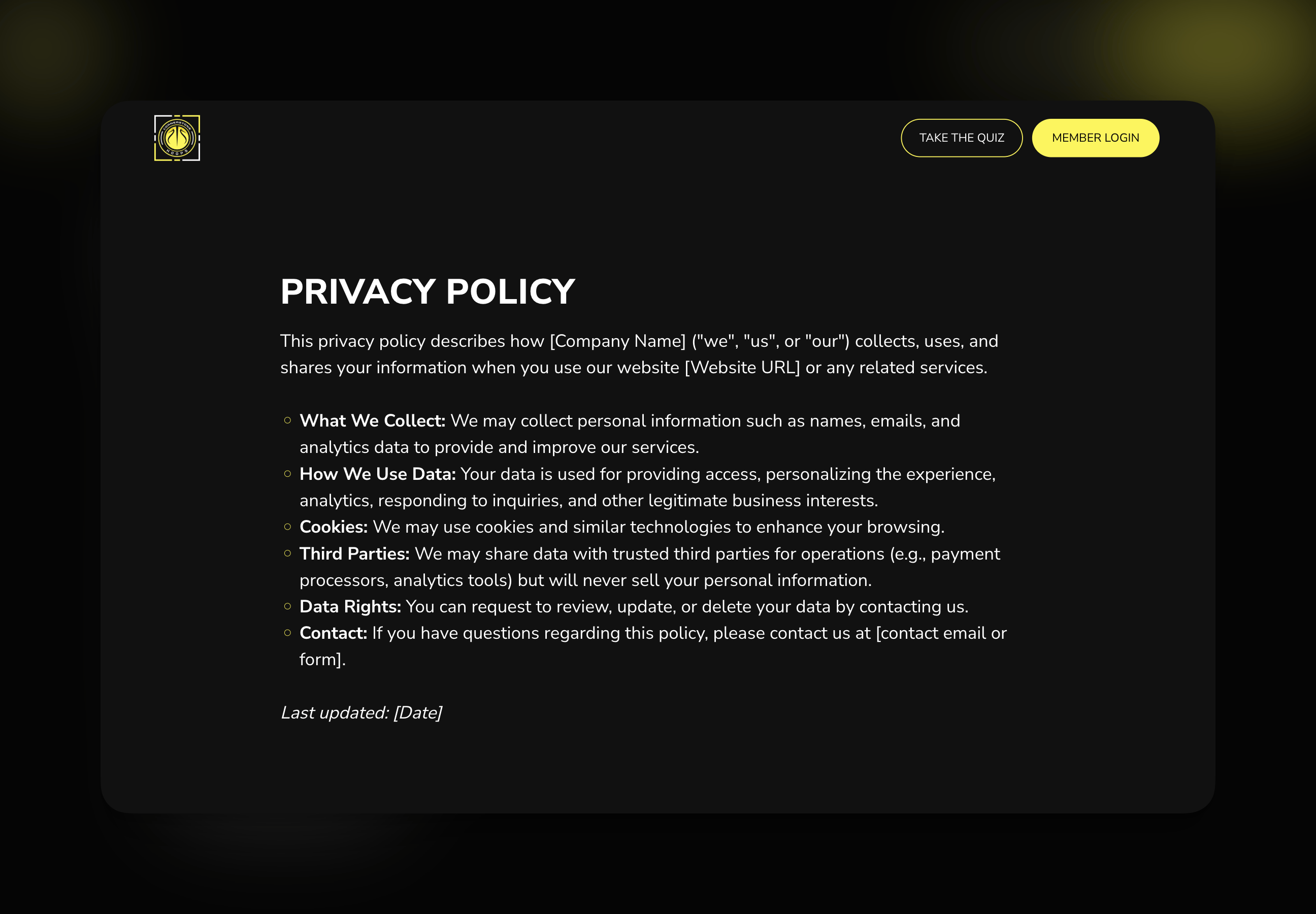 Replace template placeholders with your specific information:
* Your coaching business name
* Your contact details
* Your specific policies and procedures
* Relevant legal language for your location
**Legal pages**: For privacy policies and terms of service, consider having a lawyer review your content to ensure compliance with local laws.
Once you've customized the content, click **Publish** to make the page live on your website.
**Navigation ready**: Published pages automatically appear in navigation dropdown menus for easy linking.
## Adding template pages to navigation
### Example: Adding privacy policy to footer
First, create your privacy policy page using the template and publish it (as shown above).
In your Website Builder, find the **Footer** section to add navigation links.
Replace template placeholders with your specific information:
* Your coaching business name
* Your contact details
* Your specific policies and procedures
* Relevant legal language for your location
**Legal pages**: For privacy policies and terms of service, consider having a lawyer review your content to ensure compliance with local laws.
Once you've customized the content, click **Publish** to make the page live on your website.
**Navigation ready**: Published pages automatically appear in navigation dropdown menus for easy linking.
## Adding template pages to navigation
### Example: Adding privacy policy to footer
First, create your privacy policy page using the template and publish it (as shown above).
In your Website Builder, find the **Footer** section to add navigation links.
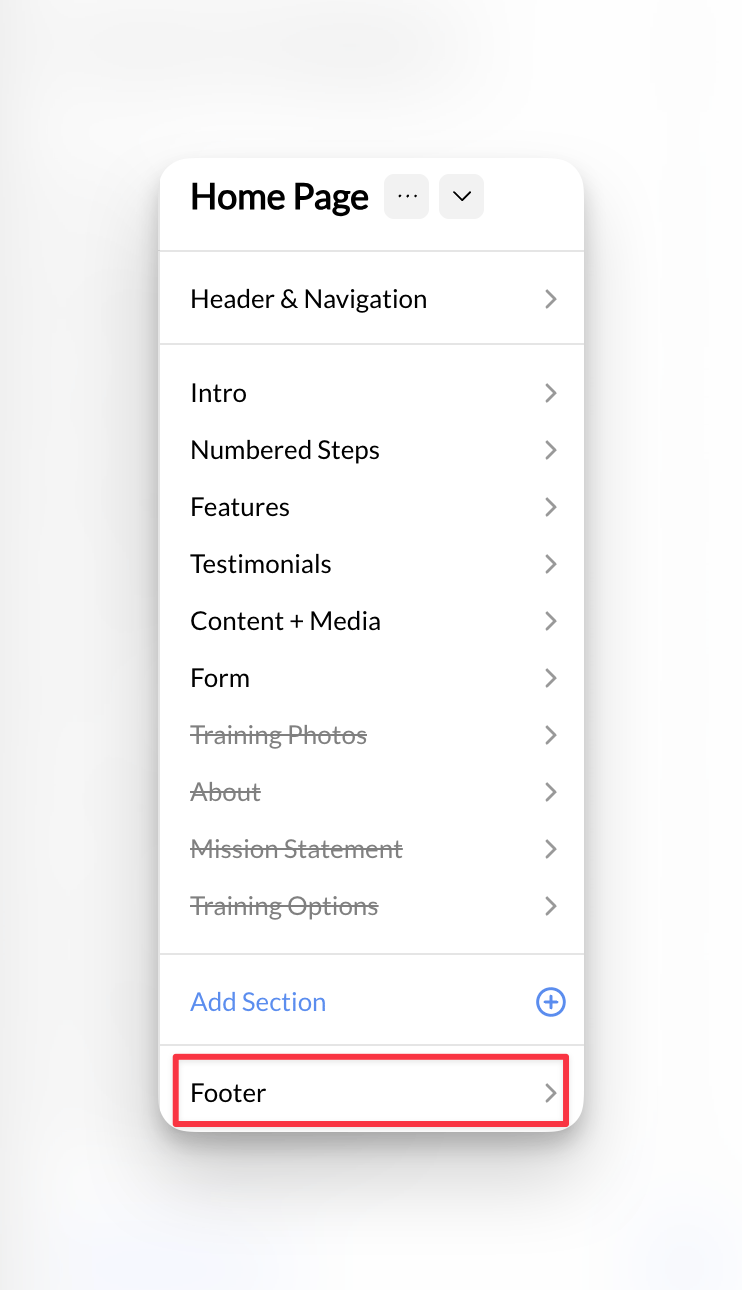 1. Click **Add Link** in footer navigation
2. **Link Text**: "Privacy Policy"
3. **Destination**: Select your newly created privacy policy page from the dropdown
4. Save and publish changes
**Link active**: Your privacy policy page is now accessible from your website footer.
## Best practices for template usage
Don't force content into the wrong template. If you're creating a training program page, use the "Training Programs" template rather than trying to modify a "Contact" template. The right template saves time and provides better structure.
Templates include placeholder text to show you what content should go where. Always replace ALL placeholder content with your specific information. Generic placeholder text looks unprofessional and hurts SEO.
While templates provide structure, ensure your content maintains consistent tone, terminology, and branding across all pages. This creates a cohesive experience for your website visitors.
Legal page templates provide a starting point, but laws vary by location and change over time. Consider having legal pages reviewed by a professional, especially for privacy policies and terms of service.
Training and service templates provide standard coaching industry structure, but customize them to showcase what makes your coaching unique - your methodology, results, specializations, and success stories.
## Template-specific tips
### For legal pages (Privacy Policy, Terms, Disclaimers)
* **Update regularly**: Laws change, especially privacy regulations
* **Include your contact info**: Required for many legal frameworks
* **Link prominently**: Add to footer navigation for easy access
* **Keep language clear**: Avoid overly complex legal jargon when possible
### For service pages (Training Programs, Online Coaching)
* **Include pricing**: If you offer standard rates
* **Add booking buttons**: Link to your [scheduling system](/scheduling/overview)
* **Show results**: Include testimonials and success metrics
* **Highlight unique value**: What sets your coaching apart
### For sign-up pages (Registration, Trials)
* **Minimize form fields**: Only ask for essential information
* **Clear value proposition**: Explain what they get by signing up
* **Connect to payments**: Link to your [products and billing](/payments/getting-started)
* **Set expectations**: Timeline, next steps, what to bring
## Common questions about templates
Yes! Templates provide the initial structure, but you can add, remove, or modify sections just like any other page. The template is just a starting point to save you time.
Use the "Default" template for custom content needs, or choose the closest template and modify it. You can always add or remove sections to match your specific requirements.
While you can change templates, you may lose customized content. It's usually better to manually add or remove sections rather than switching to a completely different template.
Most coaching businesses benefit from having privacy policies (especially if you collect email addresses or use analytics), terms of service, and liability waivers. Check your local requirements and consider legal consultation for high-liability activities.
Absolutely! You can create multiple pages from the same template. For example, use the "Training Programs" template for different sports or age groups you coach.
## Ready to build with templates?
Understand how to customize and modify sections within your template pages
Learn how to organize and link your template pages in your site navigation
**Pro tip**: Start with templates even if you plan extensive customization. Templates provide professional structure and ensure you don't miss important elements like contact information, legal compliance, or call-to-action buttons.
1. Click **Add Link** in footer navigation
2. **Link Text**: "Privacy Policy"
3. **Destination**: Select your newly created privacy policy page from the dropdown
4. Save and publish changes
**Link active**: Your privacy policy page is now accessible from your website footer.
## Best practices for template usage
Don't force content into the wrong template. If you're creating a training program page, use the "Training Programs" template rather than trying to modify a "Contact" template. The right template saves time and provides better structure.
Templates include placeholder text to show you what content should go where. Always replace ALL placeholder content with your specific information. Generic placeholder text looks unprofessional and hurts SEO.
While templates provide structure, ensure your content maintains consistent tone, terminology, and branding across all pages. This creates a cohesive experience for your website visitors.
Legal page templates provide a starting point, but laws vary by location and change over time. Consider having legal pages reviewed by a professional, especially for privacy policies and terms of service.
Training and service templates provide standard coaching industry structure, but customize them to showcase what makes your coaching unique - your methodology, results, specializations, and success stories.
## Template-specific tips
### For legal pages (Privacy Policy, Terms, Disclaimers)
* **Update regularly**: Laws change, especially privacy regulations
* **Include your contact info**: Required for many legal frameworks
* **Link prominently**: Add to footer navigation for easy access
* **Keep language clear**: Avoid overly complex legal jargon when possible
### For service pages (Training Programs, Online Coaching)
* **Include pricing**: If you offer standard rates
* **Add booking buttons**: Link to your [scheduling system](/scheduling/overview)
* **Show results**: Include testimonials and success metrics
* **Highlight unique value**: What sets your coaching apart
### For sign-up pages (Registration, Trials)
* **Minimize form fields**: Only ask for essential information
* **Clear value proposition**: Explain what they get by signing up
* **Connect to payments**: Link to your [products and billing](/payments/getting-started)
* **Set expectations**: Timeline, next steps, what to bring
## Common questions about templates
Yes! Templates provide the initial structure, but you can add, remove, or modify sections just like any other page. The template is just a starting point to save you time.
Use the "Default" template for custom content needs, or choose the closest template and modify it. You can always add or remove sections to match your specific requirements.
While you can change templates, you may lose customized content. It's usually better to manually add or remove sections rather than switching to a completely different template.
Most coaching businesses benefit from having privacy policies (especially if you collect email addresses or use analytics), terms of service, and liability waivers. Check your local requirements and consider legal consultation for high-liability activities.
Absolutely! You can create multiple pages from the same template. For example, use the "Training Programs" template for different sports or age groups you coach.
## Ready to build with templates?
Understand how to customize and modify sections within your template pages
Learn how to organize and link your template pages in your site navigation
**Pro tip**: Start with templates even if you plan extensive customization. Templates provide professional structure and ensure you don't miss important elements like contact information, legal compliance, or call-to-action buttons.