> ## Documentation Index
> Fetch the complete documentation index at: https://help.coachiq.io/llms.txt
> Use this file to discover all available pages before exploring further.
# Website Pages
> Learn how to create pages and set up your coaching website structure using CoachIQ's Website Builder.
**Where to find this**: Dashboard → Website Builder → Pages (left sidebar)
## Understanding your coaching website structure
Your CoachIQ website uses a hierarchical page structure that makes it easy for athletes and parents to find information about your coaching services. Pages can be standalone or organized as parent pages with subpages, creating logical navigation paths.
Main categories like "Training Programs" or "Services"
Specific offerings like "Basketball Skills" or "Group Training"
Pre-built page layouts for different coaching content
## Managing your website pages
### Accessing your pages
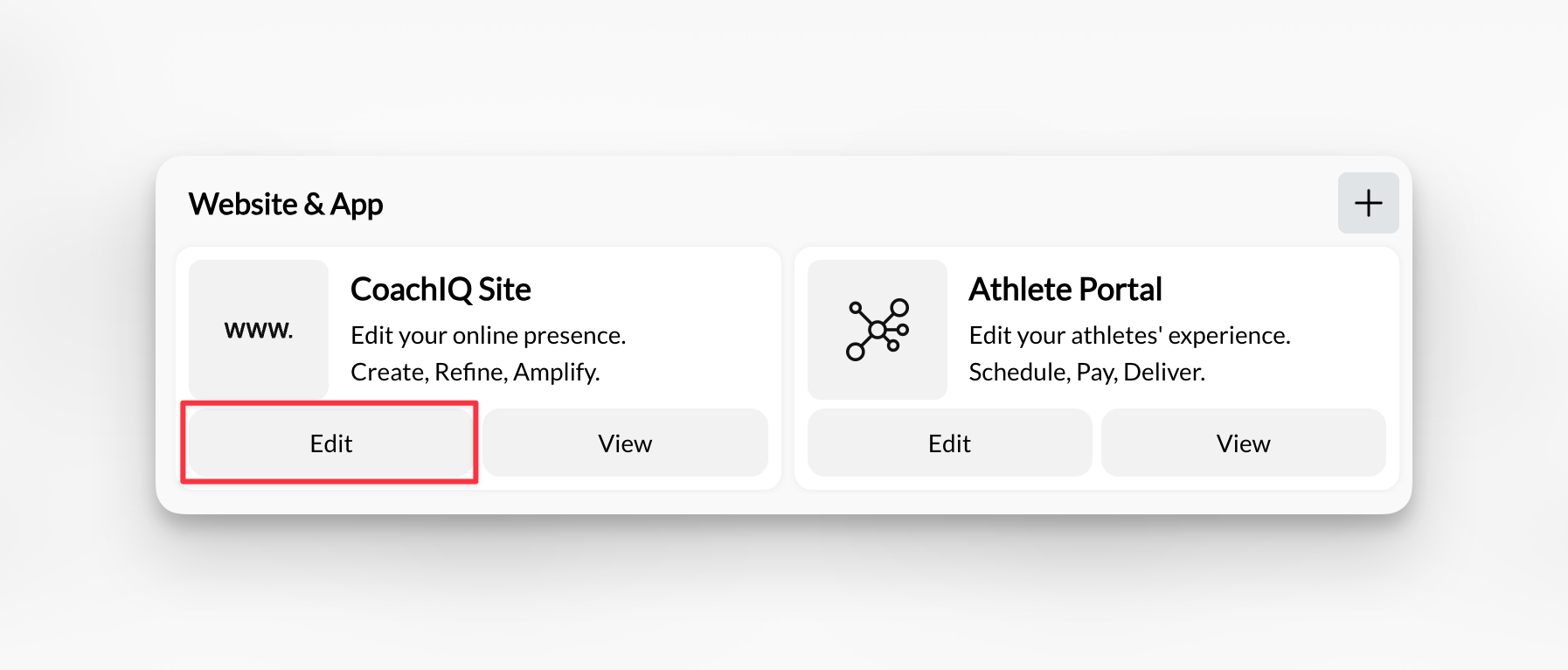
From your CoachIQ dashboard, click \*\*Edit \*\*under the \*\*CoachIQ Site \*\*section to access your site management tools.
 In the left sidebar, you'll see **Pages** with a dropdown arrow. Click to expand and view all your current pages.
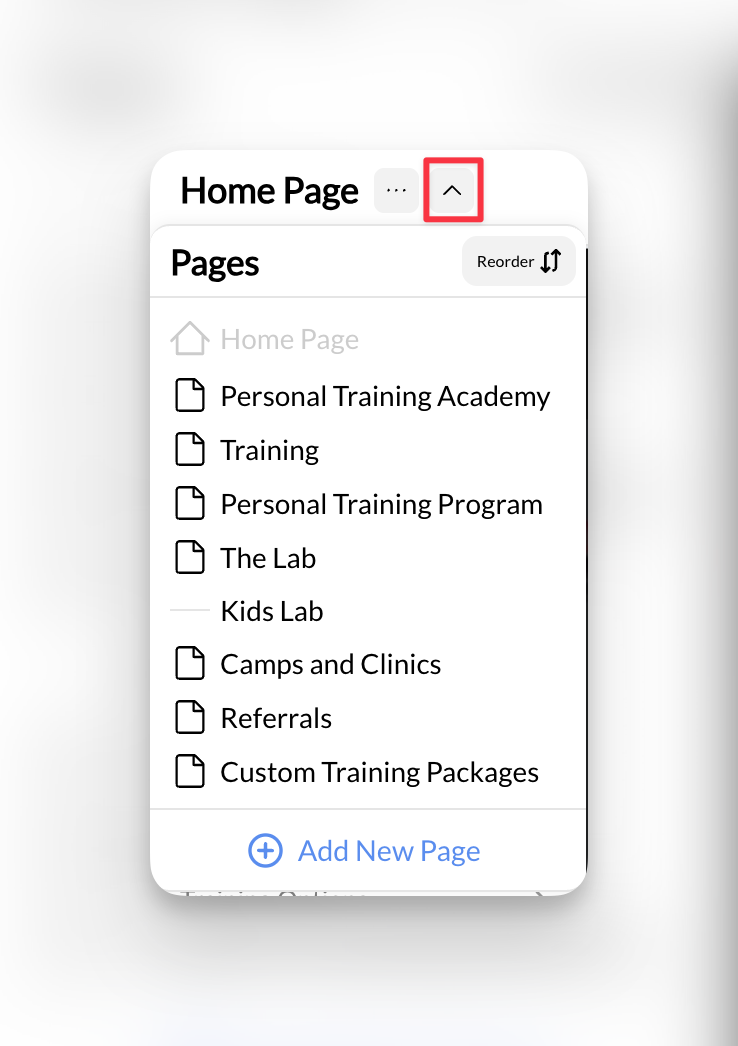 **Default pages**: Most coaching websites start with Home and About pages, which we create during your initial website build.
Click any page name to switch to editing that page. The page name will appear at the top of the builder interface.
**Success indicator**: You'll see the selected page name displayed prominently at the top of the interface.
## Creating new pages for your coaching website
### Adding a new page
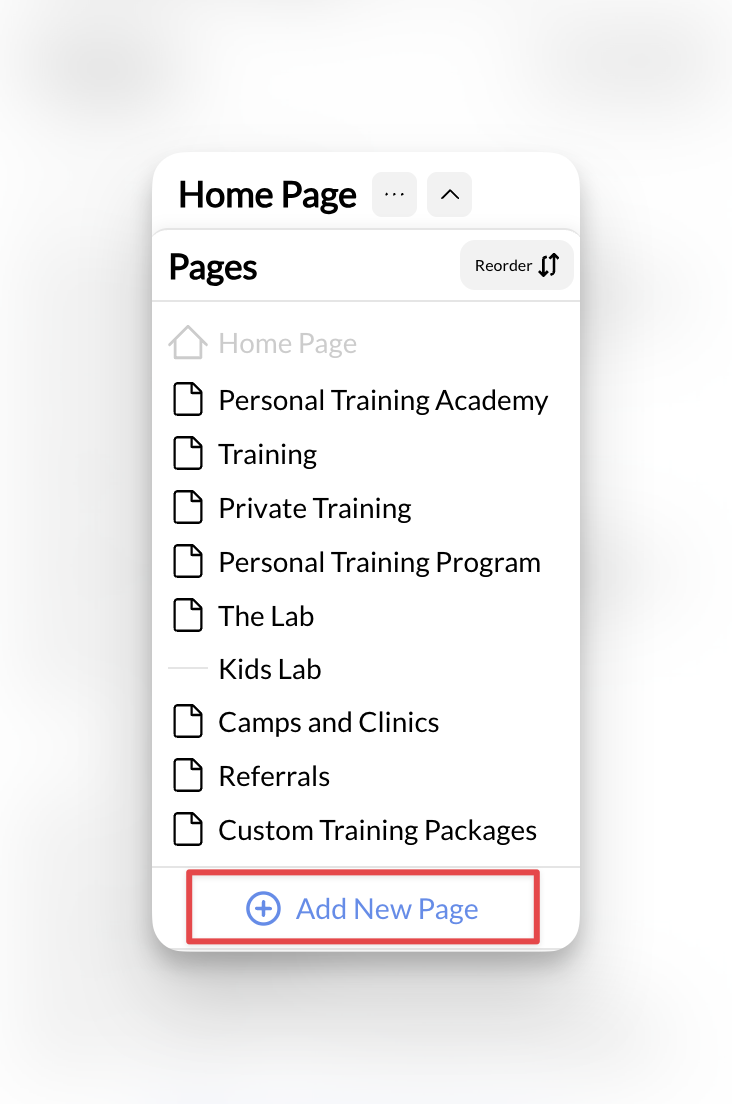
In the Pages section of the left sidebar, click the **Add New Page** button to open the page creation dialog.
**Default pages**: Most coaching websites start with Home and About pages, which we create during your initial website build.
Click any page name to switch to editing that page. The page name will appear at the top of the builder interface.
**Success indicator**: You'll see the selected page name displayed prominently at the top of the interface.
## Creating new pages for your coaching website
### Adding a new page
In the Pages section of the left sidebar, click the **Add New Page** button to open the page creation dialog.
 Fill out the page creation form with your coaching content details:
**Required fields:**
* **Page Title**: What visitors see (e.g., "Basketball Skills Training")
* **Page Slug**: URL-friendly version (automatically generated)
* **Parent Page**: Select if this is a subpage, or leave blank for main page
* **Page Template**: Choose the layout that fits your content type
**SEO tip**: Use descriptive page titles that include relevant coaching keywords like "Basketball Training," "Soccer Skills," or "Youth Sports Coaching."
Choose from coaching-specific templates:
* **Default**: Basic page layout for general content
* **Training Programs**: Showcases your coaching services
* **About**: Perfect for coach biography and credentials
* **Contact**: Contact forms and location information
**Template choice matters**: The template determines which sections are pre-loaded. You can always add or remove sections later.
Click **Create New Page** to generate your page, then **Publish** to make it live on your coaching website.
**Page created**: Your new page appears in the pages list and is ready for content editing.
## Setting up page hierarchy and templates for coaching services
### Understanding page templates
Page templates provide pre-built layouts optimized for different types of coaching content. Each template includes relevant sections and structure for specific purposes:
**Best for**: Service pages, program overviews, training offerings
* Hero section with program highlights
* Service description areas
* Pricing displays
* Call-to-action buttons for booking
**Best for**: Coach biography, credentials, philosophy
* Professional headshot section
* Background and experience
* Training philosophy
* Certifications and achievements
**Best for**: Contact information, location details
* Contact form integration
* Location and hours
* Map integration
* Social media links
**Best for**: Custom content, unique pages
* Flexible section structure
* Customizable layout
* Basic content blocks
### Creating parent and subpages
Many coaches benefit from organizing services into logical groups. Here's how to structure your offerings:
**Training Programs** (Parent Page)
* In-Person Training
* Online Coaching
* Group Sessions
* One-on-One Training
**About** (Parent Page)
* Coach Biography
* Training Philosophy
* Credentials
* Success Stories
**Services** (Parent Page)
* Youth Training
* High School Prep
* College Recruiting
* Adult Fitness
## Frequently asked questions
Most successful coaching websites have 5-10 pages total. Start with essential pages (Home, About, Services, Contact) and add specialized pages as your business grows. Focus on quality content that serves your athletes and parents rather than creating many pages with thin content.
Yes, you can delete pages through the page management interface. However, be careful not to delete pages that are linked in your navigation menus, [scheduling system](/scheduling/overview), or [payment products](/payments/product-overview). Always update your navigation and remove internal links before deleting pages.
Templates provide pre-built layouts optimized for different content types. "Training Programs" templates include sections for service descriptions, pricing, and booking buttons. "About" templates focus on coach credentials and philosophy. "Contact" templates emphasize forms and location information. Choose the template that best matches your page's purpose.
## Ready to build your coaching website structure?
Discover how to customize content within your pages using CoachIQ's section system
Connect your custom coaching domain once your pages and navigation are configured
Optimize your website structure for search engines and local discovery
Set up tracking to measure how visitors navigate your coaching website
**Pro tip**: Before creating many pages, sketch out your ideal website structure on paper. Consider your coaching services, target audience (parents, athletes, or both), and the journey you want visitors to take from first discovery to booking their first training session. This planning prevents navigation confusion later.
Fill out the page creation form with your coaching content details:
**Required fields:**
* **Page Title**: What visitors see (e.g., "Basketball Skills Training")
* **Page Slug**: URL-friendly version (automatically generated)
* **Parent Page**: Select if this is a subpage, or leave blank for main page
* **Page Template**: Choose the layout that fits your content type
**SEO tip**: Use descriptive page titles that include relevant coaching keywords like "Basketball Training," "Soccer Skills," or "Youth Sports Coaching."
Choose from coaching-specific templates:
* **Default**: Basic page layout for general content
* **Training Programs**: Showcases your coaching services
* **About**: Perfect for coach biography and credentials
* **Contact**: Contact forms and location information
**Template choice matters**: The template determines which sections are pre-loaded. You can always add or remove sections later.
Click **Create New Page** to generate your page, then **Publish** to make it live on your coaching website.
**Page created**: Your new page appears in the pages list and is ready for content editing.
## Setting up page hierarchy and templates for coaching services
### Understanding page templates
Page templates provide pre-built layouts optimized for different types of coaching content. Each template includes relevant sections and structure for specific purposes:
**Best for**: Service pages, program overviews, training offerings
* Hero section with program highlights
* Service description areas
* Pricing displays
* Call-to-action buttons for booking
**Best for**: Coach biography, credentials, philosophy
* Professional headshot section
* Background and experience
* Training philosophy
* Certifications and achievements
**Best for**: Contact information, location details
* Contact form integration
* Location and hours
* Map integration
* Social media links
**Best for**: Custom content, unique pages
* Flexible section structure
* Customizable layout
* Basic content blocks
### Creating parent and subpages
Many coaches benefit from organizing services into logical groups. Here's how to structure your offerings:
**Training Programs** (Parent Page)
* In-Person Training
* Online Coaching
* Group Sessions
* One-on-One Training
**About** (Parent Page)
* Coach Biography
* Training Philosophy
* Credentials
* Success Stories
**Services** (Parent Page)
* Youth Training
* High School Prep
* College Recruiting
* Adult Fitness
## Frequently asked questions
Most successful coaching websites have 5-10 pages total. Start with essential pages (Home, About, Services, Contact) and add specialized pages as your business grows. Focus on quality content that serves your athletes and parents rather than creating many pages with thin content.
Yes, you can delete pages through the page management interface. However, be careful not to delete pages that are linked in your navigation menus, [scheduling system](/scheduling/overview), or [payment products](/payments/product-overview). Always update your navigation and remove internal links before deleting pages.
Templates provide pre-built layouts optimized for different content types. "Training Programs" templates include sections for service descriptions, pricing, and booking buttons. "About" templates focus on coach credentials and philosophy. "Contact" templates emphasize forms and location information. Choose the template that best matches your page's purpose.
## Ready to build your coaching website structure?
Discover how to customize content within your pages using CoachIQ's section system
Connect your custom coaching domain once your pages and navigation are configured
Optimize your website structure for search engines and local discovery
Set up tracking to measure how visitors navigate your coaching website
**Pro tip**: Before creating many pages, sketch out your ideal website structure on paper. Consider your coaching services, target audience (parents, athletes, or both), and the journey you want visitors to take from first discovery to booking their first training session. This planning prevents navigation confusion later.