> ## Documentation Index
> Fetch the complete documentation index at: https://help.coachiq.io/llms.txt
> Use this file to discover all available pages before exploring further.
# Backgrounds and Section Styling
> Learn how to customize section backgrounds, spacing, and width in CoachIQ's Website Builder. Style your coaching website sections for maximum impact.
**Where to find this**: Dashboard → Website Builder → Select any page → Click on any section
## What you'll accomplish
Learn how to customize the visual appearance of your website sections using background settings, spacing controls, and width options to create a professional look for your coaching website.
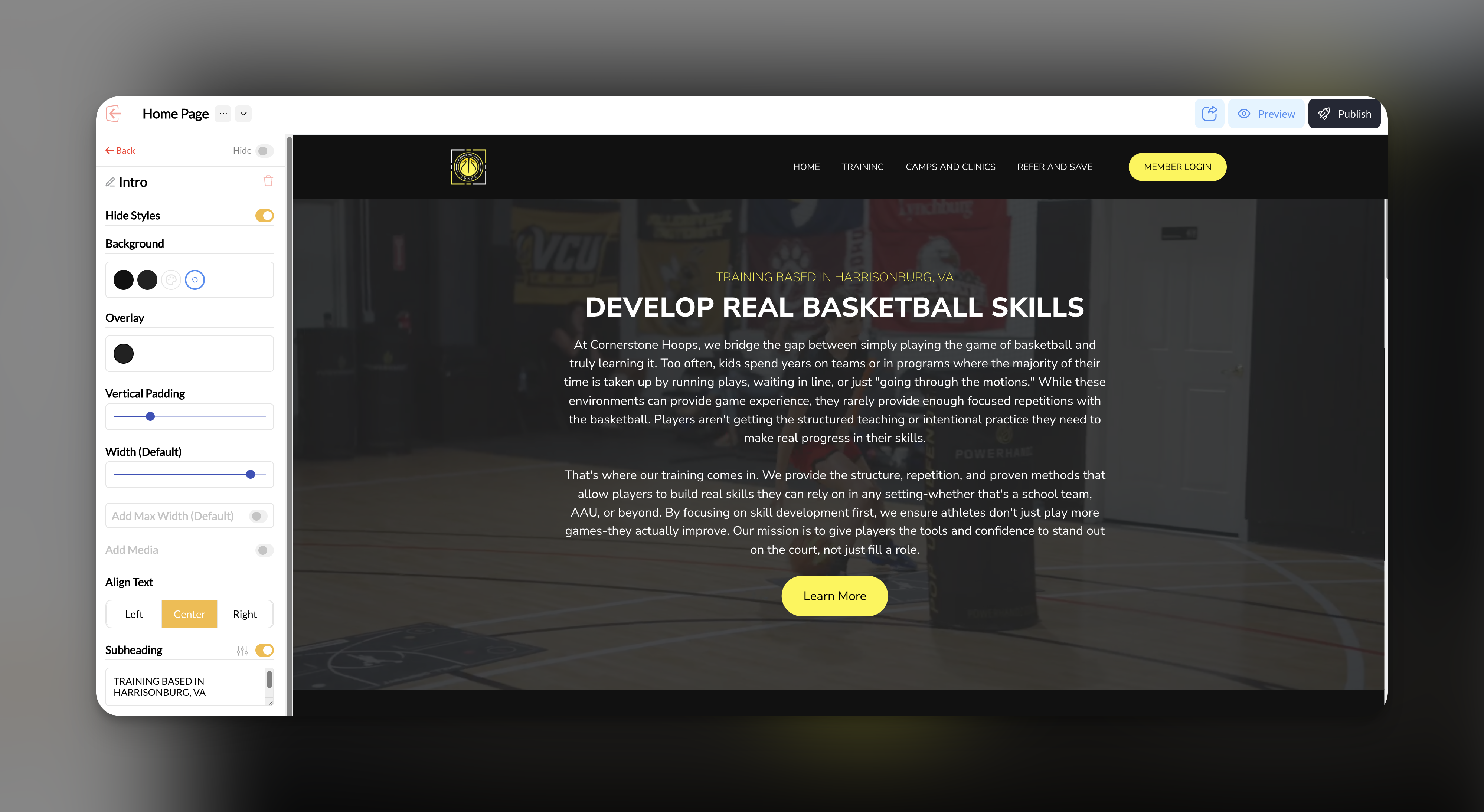 ## Section background settings
Click on the section you want to customize in your Website Builder sidebar.
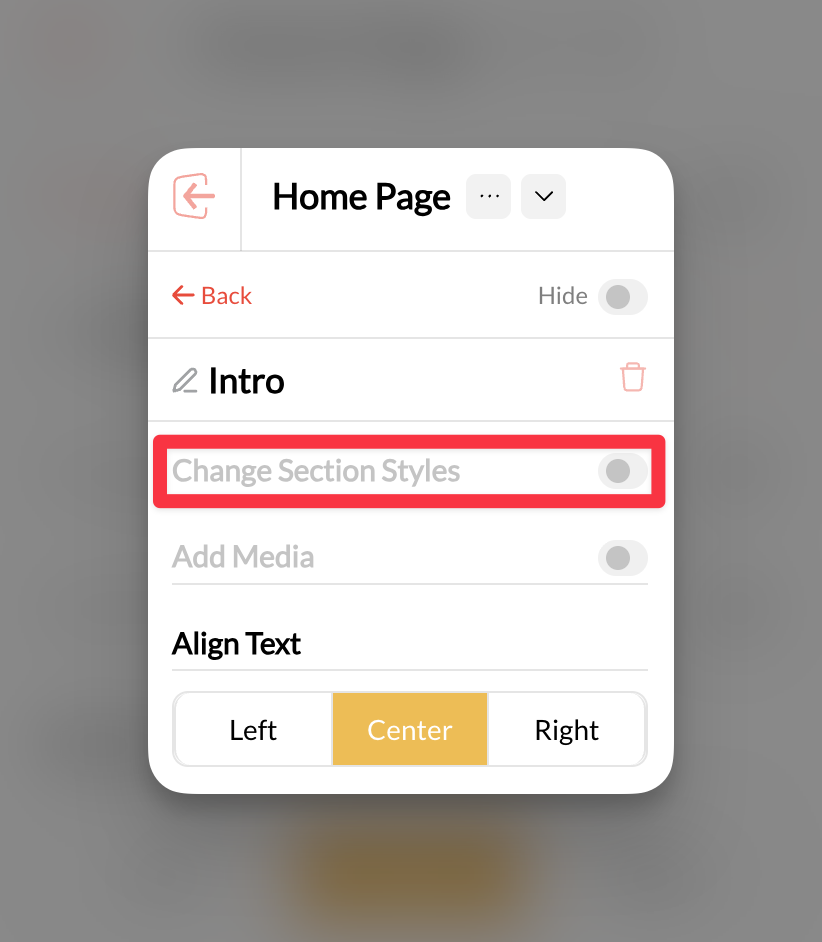
In the section settings panel, locate the **Background** controls under **Change Section Styles**.
## Section background settings
Click on the section you want to customize in your Website Builder sidebar.
In the section settings panel, locate the **Background** controls under **Change Section Styles**.
 Select from the available background options:
* **Solid color**: Choose a color that matches your brand
* **Background image**: Upload an image that supports your content
* **No background**: Keep the section transparent
Select from the available background options:
* **Solid color**: Choose a color that matches your brand
* **Background image**: Upload an image that supports your content
* **No background**: Keep the section transparent
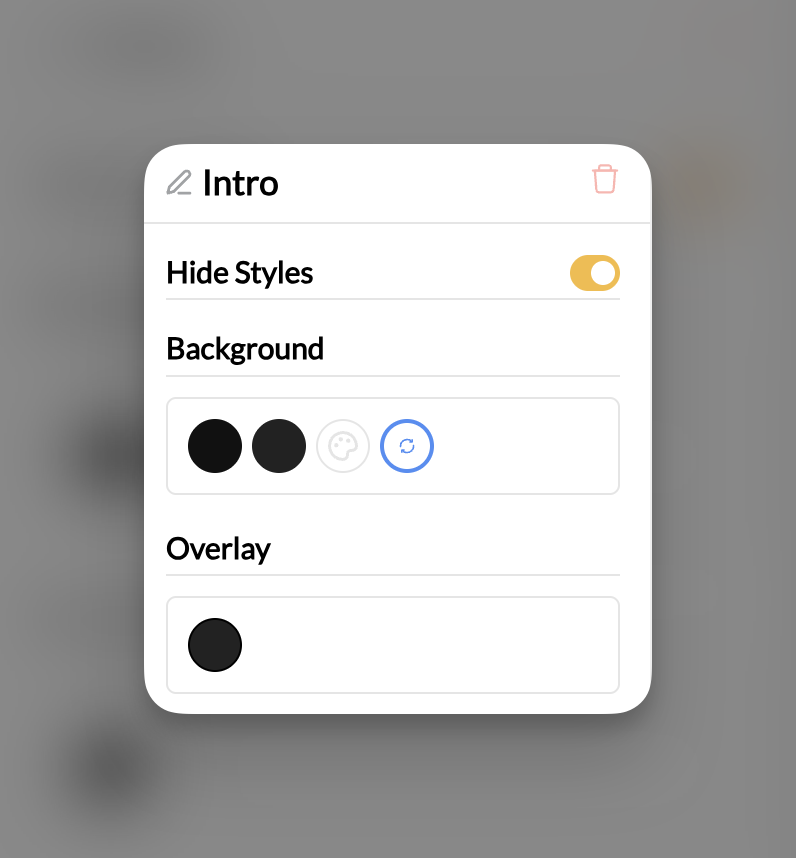 **Brand consistency**: Use colors from your brand palette to maintain a professional appearance across all sections.
Your background changes will appear immediately in the preview area.
Your section now displays your chosen background styling.
## Adjusting section spacing
Control how much space your sections take up on the page using the vertical padding controls.
In your selected section's settings panel under **Change Section Styles**, find the **Vertical Padding** slider.
Move the slider to increase or decrease the amount of space above and below your section content.
* **Less padding**: Creates tighter, more compact sections
* **More padding**: Provides breathing room and emphasizes content
Vertical padding affects the space inside the section, not the space between sections.
Preview how your padding adjustments look on mobile devices to ensure good user experience.
Your section now has the optimal amount of spacing for your content.
## Setting section width
Control how wide your section content appears on the page.
Look for the **Width (Default)** setting in your section panel under **Change Section Styles**.
Select the width that works best for your content:
* **Default width**: Standard container width that works for most content
* **Custom width**: Adjust the slider to make sections wider or narrower
* **Full width**: Extends content across the entire browser window
**Content consideration**: Text-heavy sections often work better with default or narrower widths for better readability.
Check how your width settings look on desktop, tablet, and mobile views.
Your section content now displays at your preferred width.
## Common questions
Check that your image file is in a supported format (JPG, PNG, WebP) and isn't too large. Also ensure the image has been properly uploaded to your media library.
Use the same background colors, similar padding amounts, and consistent width settings across sections of the same type. Create a style guide for your brand colors and stick to it.
Background settings apply to both desktop and mobile. However, you can preview how backgrounds look on different devices and adjust accordingly.
## Pro tips
**Visual hierarchy**: Use different background colors or padding to create visual separation between different types of content sections.
**Image optimization**: When using background images, choose high-quality images that don't interfere with text readability. Consider adding a dark overlay for sections with white text.
**Consistent spacing**: Use similar padding amounts for sections of the same importance level to create a cohesive look throughout your site.
**Test thoroughly**: Always preview your styling changes on both desktop and mobile devices before publishing your site.
## Related articles
* [Adding and Managing Sections](/website/sections/working-with-sections) - Learn the basics of section management
* [Editing Section Content](/website/sections/working-with-sections) - Customize the text, images, and content within sections
* [Buttons and Call-to-Actions](/website/sections/buttons-ctas) - Style buttons within your sections
**Brand consistency**: Use colors from your brand palette to maintain a professional appearance across all sections.
Your background changes will appear immediately in the preview area.
Your section now displays your chosen background styling.
## Adjusting section spacing
Control how much space your sections take up on the page using the vertical padding controls.
In your selected section's settings panel under **Change Section Styles**, find the **Vertical Padding** slider.
Move the slider to increase or decrease the amount of space above and below your section content.
* **Less padding**: Creates tighter, more compact sections
* **More padding**: Provides breathing room and emphasizes content
Vertical padding affects the space inside the section, not the space between sections.
Preview how your padding adjustments look on mobile devices to ensure good user experience.
Your section now has the optimal amount of spacing for your content.
## Setting section width
Control how wide your section content appears on the page.
Look for the **Width (Default)** setting in your section panel under **Change Section Styles**.
Select the width that works best for your content:
* **Default width**: Standard container width that works for most content
* **Custom width**: Adjust the slider to make sections wider or narrower
* **Full width**: Extends content across the entire browser window
**Content consideration**: Text-heavy sections often work better with default or narrower widths for better readability.
Check how your width settings look on desktop, tablet, and mobile views.
Your section content now displays at your preferred width.
## Common questions
Check that your image file is in a supported format (JPG, PNG, WebP) and isn't too large. Also ensure the image has been properly uploaded to your media library.
Use the same background colors, similar padding amounts, and consistent width settings across sections of the same type. Create a style guide for your brand colors and stick to it.
Background settings apply to both desktop and mobile. However, you can preview how backgrounds look on different devices and adjust accordingly.
## Pro tips
**Visual hierarchy**: Use different background colors or padding to create visual separation between different types of content sections.
**Image optimization**: When using background images, choose high-quality images that don't interfere with text readability. Consider adding a dark overlay for sections with white text.
**Consistent spacing**: Use similar padding amounts for sections of the same importance level to create a cohesive look throughout your site.
**Test thoroughly**: Always preview your styling changes on both desktop and mobile devices before publishing your site.
## Related articles
* [Adding and Managing Sections](/website/sections/working-with-sections) - Learn the basics of section management
* [Editing Section Content](/website/sections/working-with-sections) - Customize the text, images, and content within sections
* [Buttons and Call-to-Actions](/website/sections/buttons-ctas) - Style buttons within your sections