> ## Documentation Index
> Fetch the complete documentation index at: https://help.coachiq.io/llms.txt
> Use this file to discover all available pages before exploring further.
# Header & Footer Navigation
> Learn how to customize your header and footer navigation using CoachIQ's Website Builder.
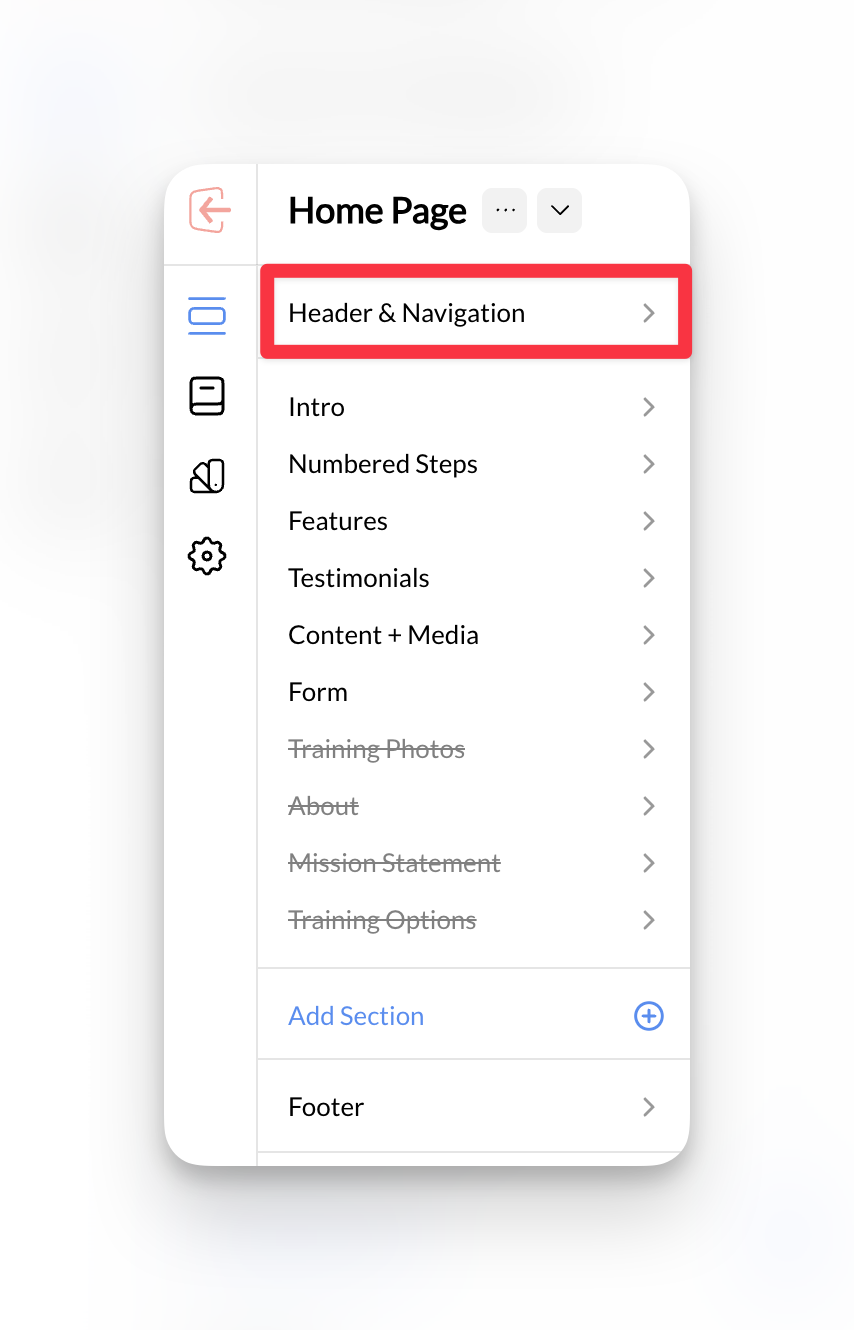
**Where to find this**: Dashboard → Website Builder → Select any page → Header & Navigation section (in left sidebar)
## Configuring header and footer navigation
### Setting up header navigation
Look for **Header & Navigation** in your Website Builder interface.
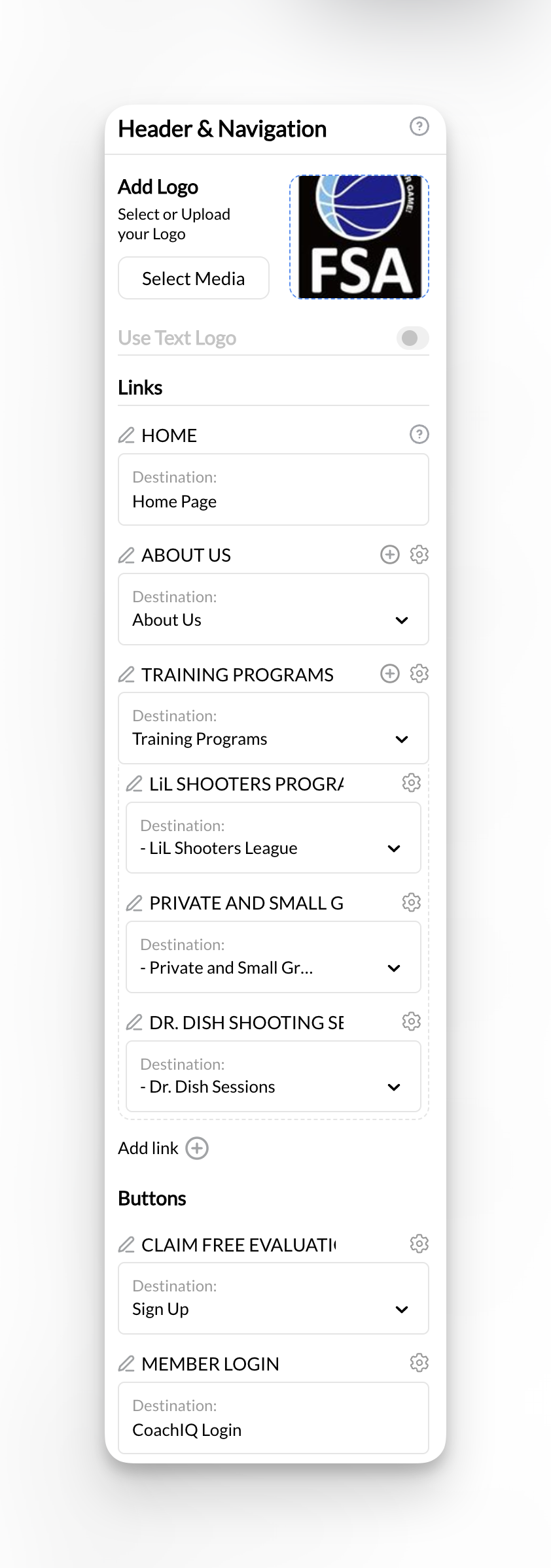 Configure your primary header menu with essential coaching pages:
* Home
* About
* Training Programs (or Services)
* Contact
* Shop (example of a page that can be linked externally from your website)
**Professional appearance**: Keep your main navigation to 4-6 items for a clean, professional look that doesn't overwhelm visitors.
For parent pages with subpages, set up dropdown navigation:
1. Select "Training Programs" in navigation settings
2. Add submenu items linking to each subpage:
* In-Person Training → Link to in-person training page
* Online Coaching → Link to online coaching page
* Group Sessions → Link to group sessions page
**Dropdown best practices**: Use dropdowns sparingly and ensure they work well on mobile devices where most parents browse.
Include prominent action buttons in your header:
* "Book Session" or "Schedule Training"
* "Free Consultation"
* "Get Started"
Link these buttons to your [booking system](/scheduling/book-your-first-session) or [contact forms](/forms/overview).
**Navigation complete**: Visitors can now easily navigate to all your coaching services and take action to book training.
### Setting up footer navigation
Configure your primary header menu with essential coaching pages:
* Home
* About
* Training Programs (or Services)
* Contact
* Shop (example of a page that can be linked externally from your website)
**Professional appearance**: Keep your main navigation to 4-6 items for a clean, professional look that doesn't overwhelm visitors.
For parent pages with subpages, set up dropdown navigation:
1. Select "Training Programs" in navigation settings
2. Add submenu items linking to each subpage:
* In-Person Training → Link to in-person training page
* Online Coaching → Link to online coaching page
* Group Sessions → Link to group sessions page
**Dropdown best practices**: Use dropdowns sparingly and ensure they work well on mobile devices where most parents browse.
Include prominent action buttons in your header:
* "Book Session" or "Schedule Training"
* "Free Consultation"
* "Get Started"
Link these buttons to your [booking system](/scheduling/book-your-first-session) or [contact forms](/forms/overview).
**Navigation complete**: Visitors can now easily navigate to all your coaching services and take action to book training.
### Setting up footer navigation
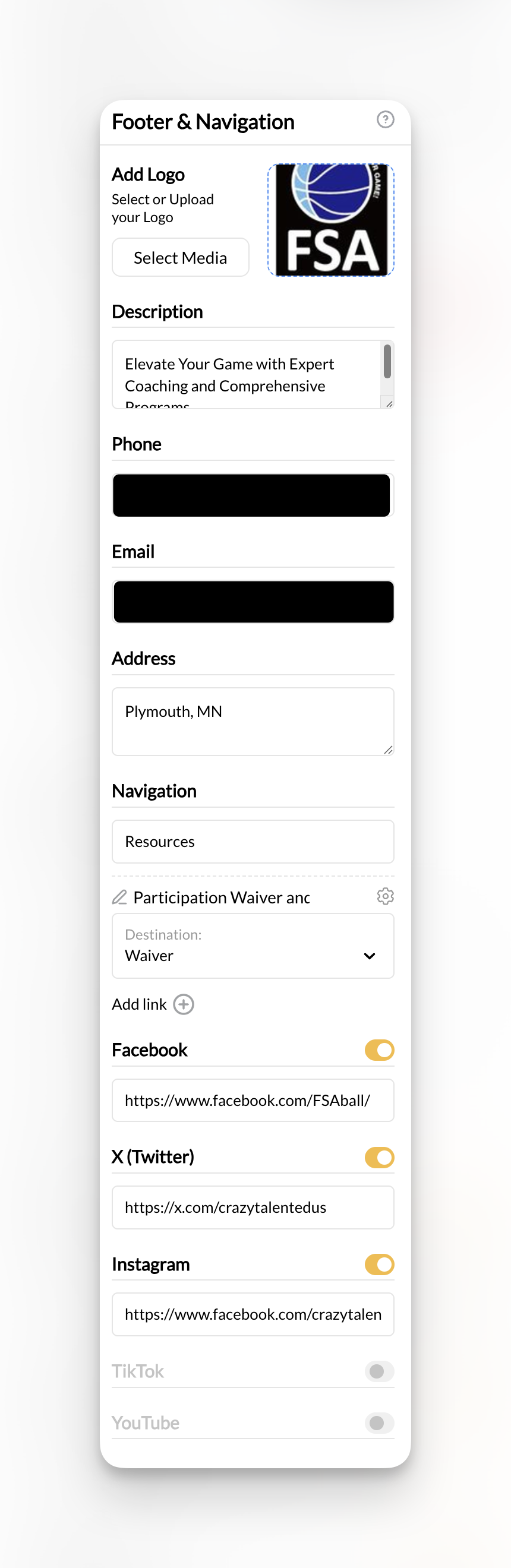 Find the **Footer** section in your Website Builder, typically listed in the main sections or site structure.
Include secondary navigation items in your footer:
* Privacy Policy
* Terms of Service
* Blog or News (if applicable)
* Additional service pages
**Footer purpose**: Footer navigation is perfect for legal pages, secondary content, and links that support your main navigation without cluttering it.
Add essential contact details to your footer:
* Phone number
* Email address
* Training location/address
* Business hours
**Local SEO**: Including your location and contact information in the footer helps with local search rankings for coaching services.
Connect your social media profiles:
* Instagram (great for training videos and athlete highlights)
* Facebook (community building and parent communication)
* YouTube (coaching tutorials and testimonials)
* TikTok (if relevant for your target audience)
## Website navigation best practices for coaches
Limit your main navigation to 5-7 key items that align with what parents and athletes want to accomplish: learning about your coaching, finding the right program, and taking action. Most successful coaching websites use: Home, About, Services/Programs, Testimonials, and Contact.
Instead of generic names, use specific coaching terms that clearly communicate value:
* "Basketball Skills Training" vs "Services"
* "Coach Biography & Experience" vs "About"
* "Schedule Your First Session" vs "Contact"
This helps both visitors and search engines understand your coaching offerings.
Many parents browse coaching websites on phones while at games or practices. Ensure your navigation works smoothly on mobile devices with clear, touch-friendly menu items, logical dropdown organization, and fast-loading pages.
Your navigation should guide visitors toward key actions like booking sessions or contacting you. Include prominent buttons for "Schedule Training," "Free Consultation," or "Get Started" in your header navigation, linking to your [scheduling system](/scheduling/overview).
Structure your pages around what parents and athletes want to accomplish:
* **Learning phase**: About, Philosophy, Credentials
* **Evaluation phase**: Services, Training Types, Testimonials
* **Decision phase**: Schedule, Contact, Pricing, [Programs](/content/programs-overview)
Include location-based pages and navigation items if you serve specific areas:
* "Basketball Training in \[City Name]"
* "Youth Sports Coaching \[Region]"
* Location-specific landing pages
This helps parents find coaching services in their area.
## Hide the header or footer on a page
You can hide your site's header, footer, or both on any individual page — useful for focused landing pages, sales pages, or onboarding flows where you want visitors to stay on task without navigation.
**Where to find this**: Website Builder → select a page → **Page Settings** panel
1. Open the page and scroll the left sidebar to the **Page Settings** panel.
2. Toggle on **Hide site header on this page** and/or **Hide site footer on this page**.
3. Publish the page.
These toggles only affect the page you set them on — the header and footer still appear on every other page.
## Frequently asked questions
Yes! You can create pages for specific purposes (like thank-you pages after form submissions, specific landing pages for marketing campaigns, or detailed service pages) that aren't included in your main navigation. These pages are still accessible via direct links but don't clutter your main menu.
CoachIQ websites are automatically mobile-optimized, but you should test your navigation on a phone. Keep menu items short and descriptive, use clear hierarchy with logical dropdowns, and ensure touch navigation works smoothly. The preview feature shows how your navigation appears on mobile devices.
Absolutely! You can add, remove, or reorganize pages and navigation at any time using the Website Builder. However, major structural changes might temporarily affect your search engine rankings, so it's best to plan your structure carefully during initial setup and make incremental improvements rather than complete overhauls.
This depends on your coaching business model. If you have standard pricing, including a "Pricing" page in navigation can help qualify leads. If you offer custom coaching packages, you might prefer to discuss pricing during consultations. Consider your target market and how price-sensitive your coaching services are.
Good navigation structure helps search engines understand your website and improves user experience, both important for SEO. Use descriptive page names with relevant coaching keywords, create logical page hierarchies, and ensure all important pages are accessible within a few clicks from your homepage.
## Related articles
Learn how to create and organize pages on your coaching website
Discover how to customize content within your pages using CoachIQ's section system
Set up privacy policy, terms of service, and other legal pages
Optimize your website structure for search engines and local discovery
Find the **Footer** section in your Website Builder, typically listed in the main sections or site structure.
Include secondary navigation items in your footer:
* Privacy Policy
* Terms of Service
* Blog or News (if applicable)
* Additional service pages
**Footer purpose**: Footer navigation is perfect for legal pages, secondary content, and links that support your main navigation without cluttering it.
Add essential contact details to your footer:
* Phone number
* Email address
* Training location/address
* Business hours
**Local SEO**: Including your location and contact information in the footer helps with local search rankings for coaching services.
Connect your social media profiles:
* Instagram (great for training videos and athlete highlights)
* Facebook (community building and parent communication)
* YouTube (coaching tutorials and testimonials)
* TikTok (if relevant for your target audience)
## Website navigation best practices for coaches
Limit your main navigation to 5-7 key items that align with what parents and athletes want to accomplish: learning about your coaching, finding the right program, and taking action. Most successful coaching websites use: Home, About, Services/Programs, Testimonials, and Contact.
Instead of generic names, use specific coaching terms that clearly communicate value:
* "Basketball Skills Training" vs "Services"
* "Coach Biography & Experience" vs "About"
* "Schedule Your First Session" vs "Contact"
This helps both visitors and search engines understand your coaching offerings.
Many parents browse coaching websites on phones while at games or practices. Ensure your navigation works smoothly on mobile devices with clear, touch-friendly menu items, logical dropdown organization, and fast-loading pages.
Your navigation should guide visitors toward key actions like booking sessions or contacting you. Include prominent buttons for "Schedule Training," "Free Consultation," or "Get Started" in your header navigation, linking to your [scheduling system](/scheduling/overview).
Structure your pages around what parents and athletes want to accomplish:
* **Learning phase**: About, Philosophy, Credentials
* **Evaluation phase**: Services, Training Types, Testimonials
* **Decision phase**: Schedule, Contact, Pricing, [Programs](/content/programs-overview)
Include location-based pages and navigation items if you serve specific areas:
* "Basketball Training in \[City Name]"
* "Youth Sports Coaching \[Region]"
* Location-specific landing pages
This helps parents find coaching services in their area.
## Hide the header or footer on a page
You can hide your site's header, footer, or both on any individual page — useful for focused landing pages, sales pages, or onboarding flows where you want visitors to stay on task without navigation.
**Where to find this**: Website Builder → select a page → **Page Settings** panel
1. Open the page and scroll the left sidebar to the **Page Settings** panel.
2. Toggle on **Hide site header on this page** and/or **Hide site footer on this page**.
3. Publish the page.
These toggles only affect the page you set them on — the header and footer still appear on every other page.
## Frequently asked questions
Yes! You can create pages for specific purposes (like thank-you pages after form submissions, specific landing pages for marketing campaigns, or detailed service pages) that aren't included in your main navigation. These pages are still accessible via direct links but don't clutter your main menu.
CoachIQ websites are automatically mobile-optimized, but you should test your navigation on a phone. Keep menu items short and descriptive, use clear hierarchy with logical dropdowns, and ensure touch navigation works smoothly. The preview feature shows how your navigation appears on mobile devices.
Absolutely! You can add, remove, or reorganize pages and navigation at any time using the Website Builder. However, major structural changes might temporarily affect your search engine rankings, so it's best to plan your structure carefully during initial setup and make incremental improvements rather than complete overhauls.
This depends on your coaching business model. If you have standard pricing, including a "Pricing" page in navigation can help qualify leads. If you offer custom coaching packages, you might prefer to discuss pricing during consultations. Consider your target market and how price-sensitive your coaching services are.
Good navigation structure helps search engines understand your website and improves user experience, both important for SEO. Use descriptive page names with relevant coaching keywords, create logical page hierarchies, and ensure all important pages are accessible within a few clicks from your homepage.
## Related articles
Learn how to create and organize pages on your coaching website
Discover how to customize content within your pages using CoachIQ's section system
Set up privacy policy, terms of service, and other legal pages
Optimize your website structure for search engines and local discovery