> ## Documentation Index
> Fetch the complete documentation index at: https://help.coachiq.io/llms.txt
> Use this file to discover all available pages before exploring further.
# Favicon and Social Share Images
> Set up your website favicon and Open Graph images so your coaching business looks professional in browser tabs and when shared on social media.
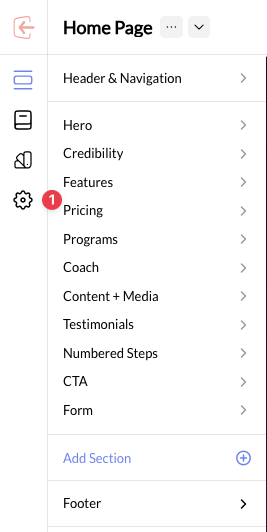
**Where to find this**: Dashboard → Website Builder → Settings (gear icon)
## Why these settings matter
When someone shares your website on Facebook, LinkedIn, or iMessage, what do they see? When parents have 20 browser tabs open, can they find your site? These seemingly small details create a professional impression that builds trust.
**Favicon**: The small icon that appears in browser tabs, bookmarks, and mobile home screens
**Share Image (Open Graph)**: The preview image that appears when your pages are shared on social media or messaging apps
Getting these right means your coaching business looks established and professional - not like a hobby project someone started yesterday.
## Setting up your favicon
Your favicon is the tiny icon that represents your website everywhere browsers display it:
* Browser tabs
* Bookmarks bar
* Browser history
* Mobile home screen (when saved)
From your Website Builder, click the **Settings** gear icon in the left sidebar.
 In the Settings panel, find the **Add Favicon** section at the top. Click **Select Media** to choose or upload your icon.
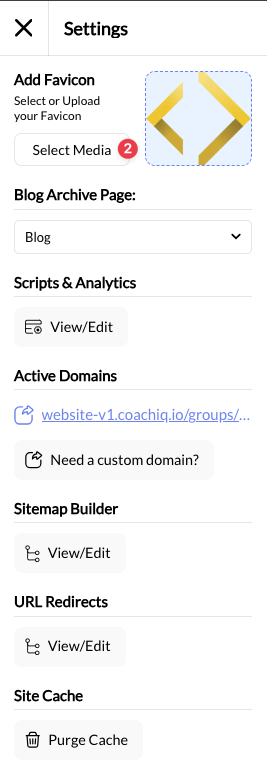 **Recommended specs**: 50x50 pixels, PNG format. Use a simple version of your logo that's recognizable at small sizes.
After selecting your image, click **Publish** to make your favicon live. It may take a few minutes for the change to appear in all browsers.
### Favicon best practices
**Do:**
* Use a simplified version of your logo
* Keep it recognizable at 16x16 pixels
* Use high contrast colors
* Test how it looks against both light and dark browser themes
**Don't:**
* Use text (it's too small to read)
* Use complex images with lots of detail
* Use your full logo with tagline
* Leave it as the default
**No favicon = amateur hour**: Parents notice when a website has the generic browser icon. It's a small detail that signals whether you're running a professional operation.
## Setting up share images (Open Graph)
Open Graph images are what people see when your website is shared on:
* Facebook
* LinkedIn
* Twitter/X
* iMessage
* Slack
* Text messages with link previews
Each page on your site can have its own share image, so your home page, pricing page, and camp registration can all show relevant previews.
In the Website Builder, select the page you want to add a share image to from the dropdown menu.
**Recommended specs**: 50x50 pixels, PNG format. Use a simple version of your logo that's recognizable at small sizes.
After selecting your image, click **Publish** to make your favicon live. It may take a few minutes for the change to appear in all browsers.
### Favicon best practices
**Do:**
* Use a simplified version of your logo
* Keep it recognizable at 16x16 pixels
* Use high contrast colors
* Test how it looks against both light and dark browser themes
**Don't:**
* Use text (it's too small to read)
* Use complex images with lots of detail
* Use your full logo with tagline
* Leave it as the default
**No favicon = amateur hour**: Parents notice when a website has the generic browser icon. It's a small detail that signals whether you're running a professional operation.
## Setting up share images (Open Graph)
Open Graph images are what people see when your website is shared on:
* Facebook
* LinkedIn
* Twitter/X
* iMessage
* Slack
* Text messages with link previews
Each page on your site can have its own share image, so your home page, pricing page, and camp registration can all show relevant previews.
In the Website Builder, select the page you want to add a share image to from the dropdown menu.
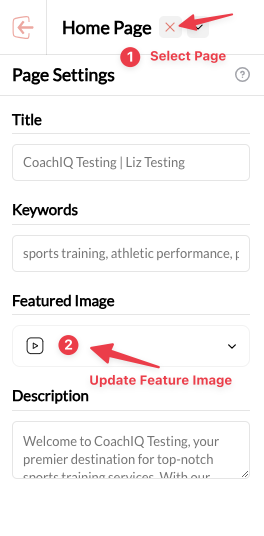 Click on any section, then look for the **Page Settings** panel on the left side. You'll see fields for Title, Keywords, Featured Image, and Description.
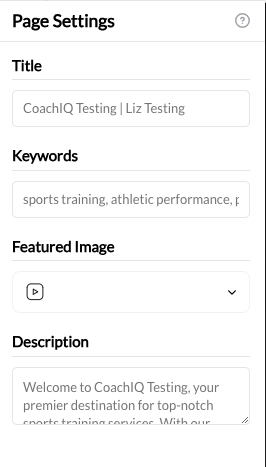 Click the **Featured Image** dropdown and select or upload an image. This becomes your Open Graph image - what appears when this page is shared.
**Recommended size**: 1200 x 630 pixels for optimal display across all platforms.
Click **Publish** to make your share image live.
### Share image best practices
**Image specifications:**
* Ideal size: 1200 x 630 pixels
* Minimum size: 600 x 315 pixels
* Format: JPG or PNG
* File size: Under 1MB for fast loading
**Content tips:**
* Include your logo or business name
* Use compelling visuals (action shots of training)
* Keep text minimal and large enough to read
* Use your brand colors for consistency
**What works well:**
* Action shots from training sessions
* Your facility with logo overlay
* Team or group training images
* Before/after skill development photos
**Test before you share**: Use [Facebook's Sharing Debugger](https://developers.facebook.com/tools/debug/) or [LinkedIn Post Inspector](https://www.linkedin.com/post-inspector/) to preview how your page will look when shared.
## Page-specific SEO settings
While you're in Page Settings, optimize these fields for each page:
### Title
The page title appears in:
* Browser tabs
* Search engine results
* Social media shares
**Best practices:**
* Keep under 60 characters
* Include your location and primary service
* Put important keywords first
**Example**: "Basketball Training Austin | Elite Skills Academy"
### Description
The meta description appears in:
* Search engine results
* Some social media shares
**Best practices:**
* Keep between 150-160 characters
* Include a clear value proposition
* Add a call-to-action
* Mention your location
**Example**: "Professional basketball training in Austin for ages 8-18. Build skills, confidence, and game IQ with former college players. Book your free assessment today!"
### Keywords
Target keywords help search engines understand your page content.
**Best practices:**
* Use 3-5 relevant keywords per page
* Include location-based terms
* Focus on what parents actually search for
* Avoid keyword stuffing
**Good keywords**: "basketball training austin, youth basketball coach, private basketball lessons"
## Quick checklist
Before launching or sharing your website:
* [ ] Uploaded custom favicon (not default)
* [ ] Recognizable at small sizes
* [ ] Published and visible in browser tab
* [ ] Home page has featured image set
* [ ] Key landing pages have images
* [ ] Images are 1200x630 or larger
* [ ] Tested in Facebook debugger
## Common questions
Browsers cache favicons aggressively. Try:
1. Hard refresh (Cmd+Shift+R on Mac, Ctrl+Shift+R on Windows)
2. Clear your browser cache
3. Open the site in an incognito/private window
4. Wait 24 hours for DNS caches to update
Facebook caches share images. Use the [Facebook Sharing Debugger](https://developers.facebook.com/tools/debug/) and click "Scrape Again" to force Facebook to fetch your new image.
Use a simple text-based image with your business name in your brand colors. Canva offers free templates for creating favicons and social share images.
Your home page definitely needs a share image. For other pages, it depends on whether you'll share them directly. Camp registration pages, pricing pages, and program pages benefit from custom images.
Upload at 50x50 pixels or larger. CoachIQ will automatically generate the various sizes needed for different devices and browsers.
## Related articles
* [Website SEO Basics](/website/seo-marketing/website-seo-basics)
* [SEO & Marketing Overview](/website/seo-marketing/seo-marketing)
* [Google My Business](/website/seo-marketing/google-my-business)
* [Website Settings & Design](/website/settings-and-design)
Click the **Featured Image** dropdown and select or upload an image. This becomes your Open Graph image - what appears when this page is shared.
**Recommended size**: 1200 x 630 pixels for optimal display across all platforms.
Click **Publish** to make your share image live.
### Share image best practices
**Image specifications:**
* Ideal size: 1200 x 630 pixels
* Minimum size: 600 x 315 pixels
* Format: JPG or PNG
* File size: Under 1MB for fast loading
**Content tips:**
* Include your logo or business name
* Use compelling visuals (action shots of training)
* Keep text minimal and large enough to read
* Use your brand colors for consistency
**What works well:**
* Action shots from training sessions
* Your facility with logo overlay
* Team or group training images
* Before/after skill development photos
**Test before you share**: Use [Facebook's Sharing Debugger](https://developers.facebook.com/tools/debug/) or [LinkedIn Post Inspector](https://www.linkedin.com/post-inspector/) to preview how your page will look when shared.
## Page-specific SEO settings
While you're in Page Settings, optimize these fields for each page:
### Title
The page title appears in:
* Browser tabs
* Search engine results
* Social media shares
**Best practices:**
* Keep under 60 characters
* Include your location and primary service
* Put important keywords first
**Example**: "Basketball Training Austin | Elite Skills Academy"
### Description
The meta description appears in:
* Search engine results
* Some social media shares
**Best practices:**
* Keep between 150-160 characters
* Include a clear value proposition
* Add a call-to-action
* Mention your location
**Example**: "Professional basketball training in Austin for ages 8-18. Build skills, confidence, and game IQ with former college players. Book your free assessment today!"
### Keywords
Target keywords help search engines understand your page content.
**Best practices:**
* Use 3-5 relevant keywords per page
* Include location-based terms
* Focus on what parents actually search for
* Avoid keyword stuffing
**Good keywords**: "basketball training austin, youth basketball coach, private basketball lessons"
## Quick checklist
Before launching or sharing your website:
* [ ] Uploaded custom favicon (not default)
* [ ] Recognizable at small sizes
* [ ] Published and visible in browser tab
* [ ] Home page has featured image set
* [ ] Key landing pages have images
* [ ] Images are 1200x630 or larger
* [ ] Tested in Facebook debugger
## Common questions
Browsers cache favicons aggressively. Try:
1. Hard refresh (Cmd+Shift+R on Mac, Ctrl+Shift+R on Windows)
2. Clear your browser cache
3. Open the site in an incognito/private window
4. Wait 24 hours for DNS caches to update
Facebook caches share images. Use the [Facebook Sharing Debugger](https://developers.facebook.com/tools/debug/) and click "Scrape Again" to force Facebook to fetch your new image.
Use a simple text-based image with your business name in your brand colors. Canva offers free templates for creating favicons and social share images.
Your home page definitely needs a share image. For other pages, it depends on whether you'll share them directly. Camp registration pages, pricing pages, and program pages benefit from custom images.
Upload at 50x50 pixels or larger. CoachIQ will automatically generate the various sizes needed for different devices and browsers.
## Related articles
* [Website SEO Basics](/website/seo-marketing/website-seo-basics)
* [SEO & Marketing Overview](/website/seo-marketing/seo-marketing)
* [Google My Business](/website/seo-marketing/google-my-business)
* [Website Settings & Design](/website/settings-and-design)